Introduction
Managing virtual machines in Hyper-V often means moving files between host and guest. But what if your VM is isolated from the network? Hyper-V Guest Service solves this problem. Let's explore what it is, why you need it, how to enable it step by step, and how to avoid common pitfalls along the way.
What Is Hyper-V Guest Service?
Hyper-V Guest Service, also called the Guest Service Interface, is a feature of Hyper-V Integration Services. It lets you copy files between the Hyper-V host and a running virtual machine without using a network connection. This service uses the Hyper-V VMBus channel, so it works even if the VM is on a private or disconnected network segment. By default, Guest Service is disabled and must be enabled per VM before use. Once enabled, file transfers become simple, even in secure or isolated environments where traditional networking isn't possible.
Why Use Hyper-V Guest Service?
Guest Service is essential for secure and efficient file transfers in modern data centers. It allows you to copy files into a VM even if that VM has no network access or sits on an isolated VLAN or DMZ segment. This capability proves especially useful for patching systems, updating configurations, or performing backup tasks when security policies restrict remote connections.
You can use Hyper-V guest service with PowerShell commands or WMI APIs, making automation straightforward for administrators who manage many virtual machines at scale. Without this feature enabled, you'd need to set up network shares or remote desktop sessions just to move files, adding risk or wasting time on manual steps best avoided in enterprise environments.
Prerequisites for Enabling Guest Service
Before enabling Hyper-V guest service on your virtual machines, make sure your environment meets several key requirements:
First, confirm that your guest operating system supports Integration Services, Windows Server 2012 R2 or later typically includes built-in support, most recent Linux distributions work too if Linux Integration Services are installed (see Microsoft's compatibility list). Next, check that your version of Hyper-V Manager matches your Windows Server release; mismatched tools can cause settings not to appear as expected.
The target VM should be powered on when enabling integration services so changes take effect immediately, otherwise they apply at next boot-up. Also verify that Integration Services are current inside each guest, outdated components may prevent features like Guest Services from working properly.
Finally, ensure you have administrative rights both on the host server (to change settings) and inside any Windows guests (for file operations). If these prerequisites aren't met, enabling Hyper-V guest service may fail, or file transfers might not work as intended later on.
How to Enable Hyper-V Guest Service via Hyper-V Manager
Enabling Hyper-V guest service through Hyper-V Manager offers a simple graphical approach ideal for those managing only a few VMs at once, or anyone who prefers point-and-click configuration over scripting.
Start by opening Hyper-V Manager on your host server. In the center pane listing all available virtual machines, right-click the one you want to configure and select Settings from its context menu. In the left navigation pane under Management, click Integration Services, this displays all available integration options for that VM in detail.
In the right pane look for an entry labeled Guest Services; check its box if unchecked already (this enables file copy support via VMBus). Click Apply then OK at bottom right to save changes instantly, the setting takes effect while most guests are running but always after reboot if needed.
Once enabled successfully inside both host UI and guest OS (where applicable), you can transfer files using PowerShell commands like Copy-VMFile, even when no network connection exists between systems!
How to Enable Hyper-V Guest Service via PowerShell
If you manage many virtual machines, or prefer automation, PowerShell provides fast bulk configuration options suitable for large-scale deployments of Hyper-V guest service across multiple hosts or clusters at once.
Begin by checking which integration services are active for any given VM:
Get-VMIntegrationService -VMName "YourVMName"
Look through results until you find an entry named Guest Service Interface; its status should read Enabled if already active (otherwise proceed below).
To enable this feature on one specific machine:
Enable-VMIntegrationService -VMName "YourVMName" -Name "Guest Service Interface"
For larger environments where every VM needs access simultaneously:
Get-VM | Enable-VMIntegrationService -Name "Guest Service Interface"
Remember the target VM must be powered ON during this process so changes apply immediately, otherwise they'll activate next time it boots up automatically.
After enabling successfully from host side confirm status inside each Windows-based guest by running:
Get-Service -DisplayName "Hyper-V Guest Service Interface"
This command should return Running as its state, a sign everything's ready! Now try copying files directly with PowerShell's Copy-VMFile cmdlet:
Copy-VMFile -Name "YourVMName" -SourcePath "C:\host\file.txt" -DestinationPath "C:\guest\folder\" –CreateFullPath –FileSource Host
This moves file.txt from your physical server into any folder path inside that live virtual machine, even without shared drives or open ports!
Want to automate uploads across dozens of servers? Just loop these commands through scripts tailored for your infrastructure needs, it's fast AND reliable thanks to native integration with Windows Server management tools!
Troubleshooting Common Guest Service Issues
Even experienced admins sometimes hit snags when working with Hyper-V guest service features, but most problems have quick solutions once identified clearly!
If you don't see Guest Services listed under Integration Services in either GUI or PowerShell output:
Double-check whether Integration Components are fully updated inside each affected VM.
Make sure your operating system version supports this feature natively (older releases may lack support).
Restart both host AND guest after applying updates just in case pending changes require rebooting before new options appear correctly everywhere involved!
When Copy-VMFile fails due to permissions errors:
Confirm administrative credentials match between source server account AND destination user profile within targeted Windows guests.
Run all related scripts as administrator locally whenever possible—especially during initial setup phases involving sensitive system folders/files needing elevated access rights temporarily granted only under admin context execution modes specifically allowed by IT policy guidelines internally enforced organization-wide today!
Here's what matters practically: If troubleshooting doesn't resolve issues quickly using above steps, and documentation doesn't help, it may be time to consult Microsoft support channels directly for further assistance tailored specifically toward unique configurations present within YOUR particular deployment scenario today!
Enterprise-Level Backup Solution: Vinchin Backup & Recovery
For organizations seeking robust protection of their Hyper-V workloads alongside other virtualization platforms such as VMware, Proxmox, oVirt, OLVM, RHV, XCP-ng, XenServer, OpenStack, ZStack and more (15+ supported), Vinchin Backup & Recovery stands out as a professional enterprise-level solution.
Supporting full backup types, including incremental and differential backups, as well as advanced features like forever-incremental backup strategy and granular restore capabilities across all platforms ensures flexible data protection strategies. For Hyper-V users specifically, Vinchin Backup & Recovery delivers scheduled backup automation and powerful data deduplication/compression technology that optimize storage usage while maintaining rapid recovery readiness.
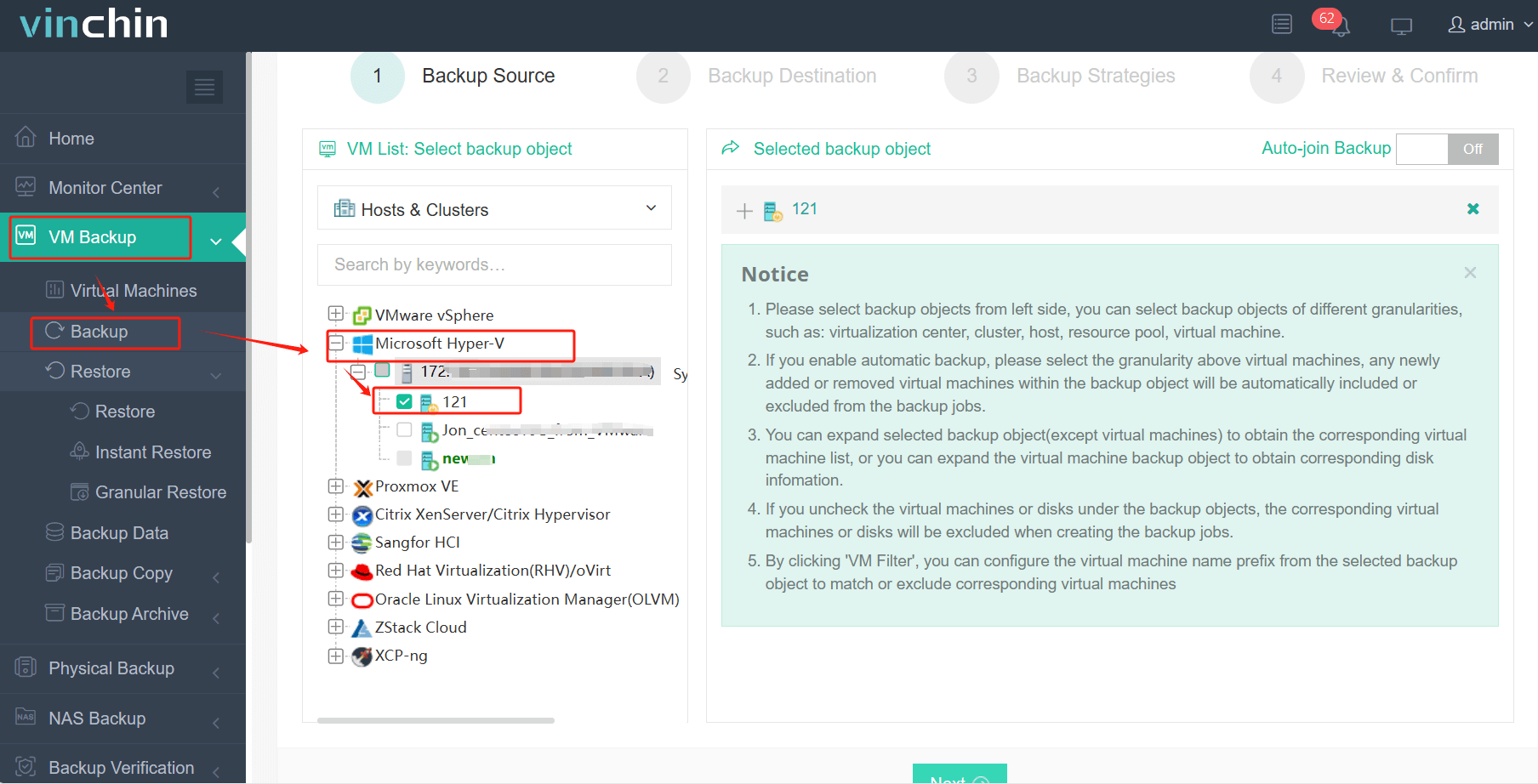
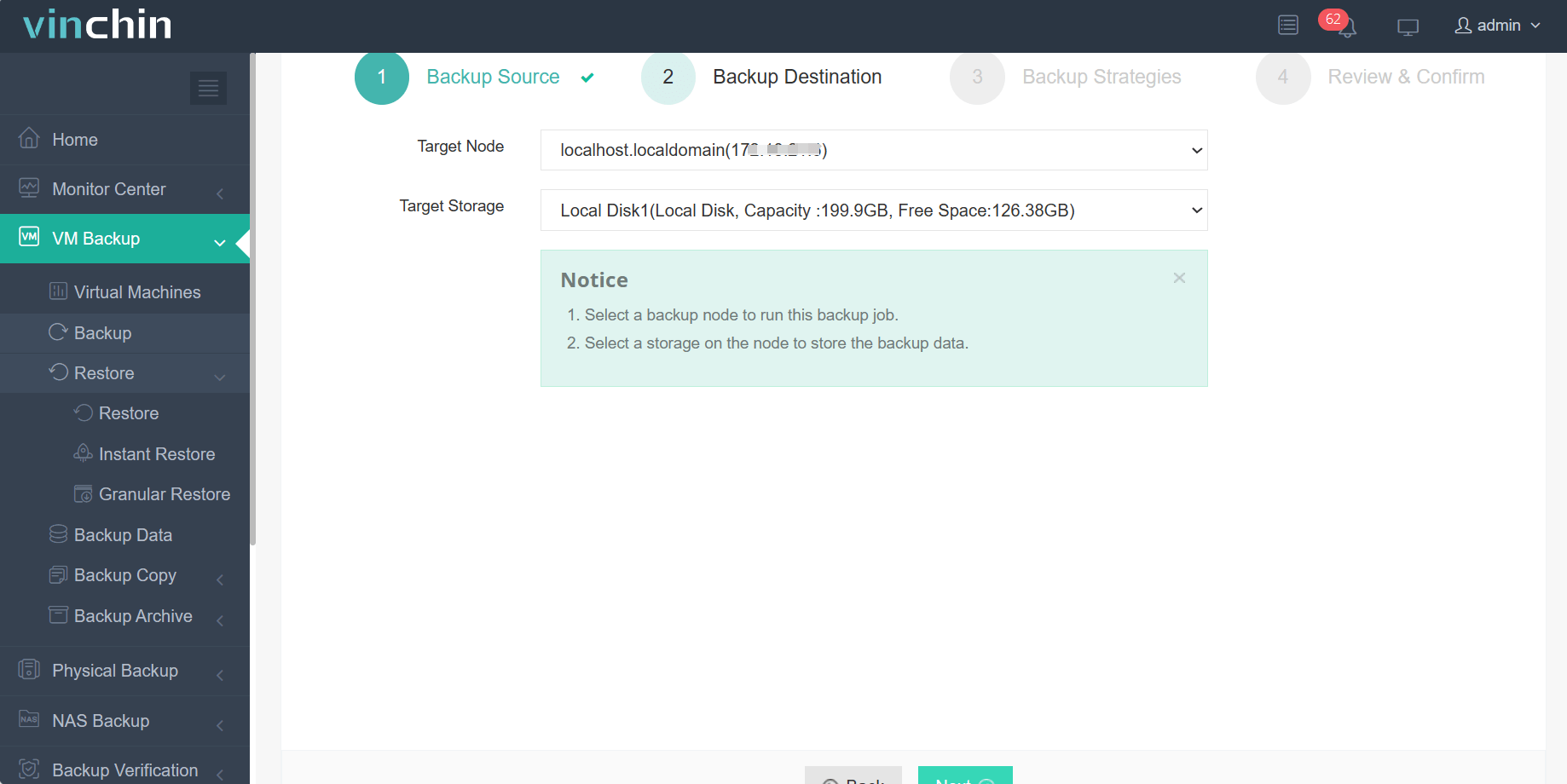
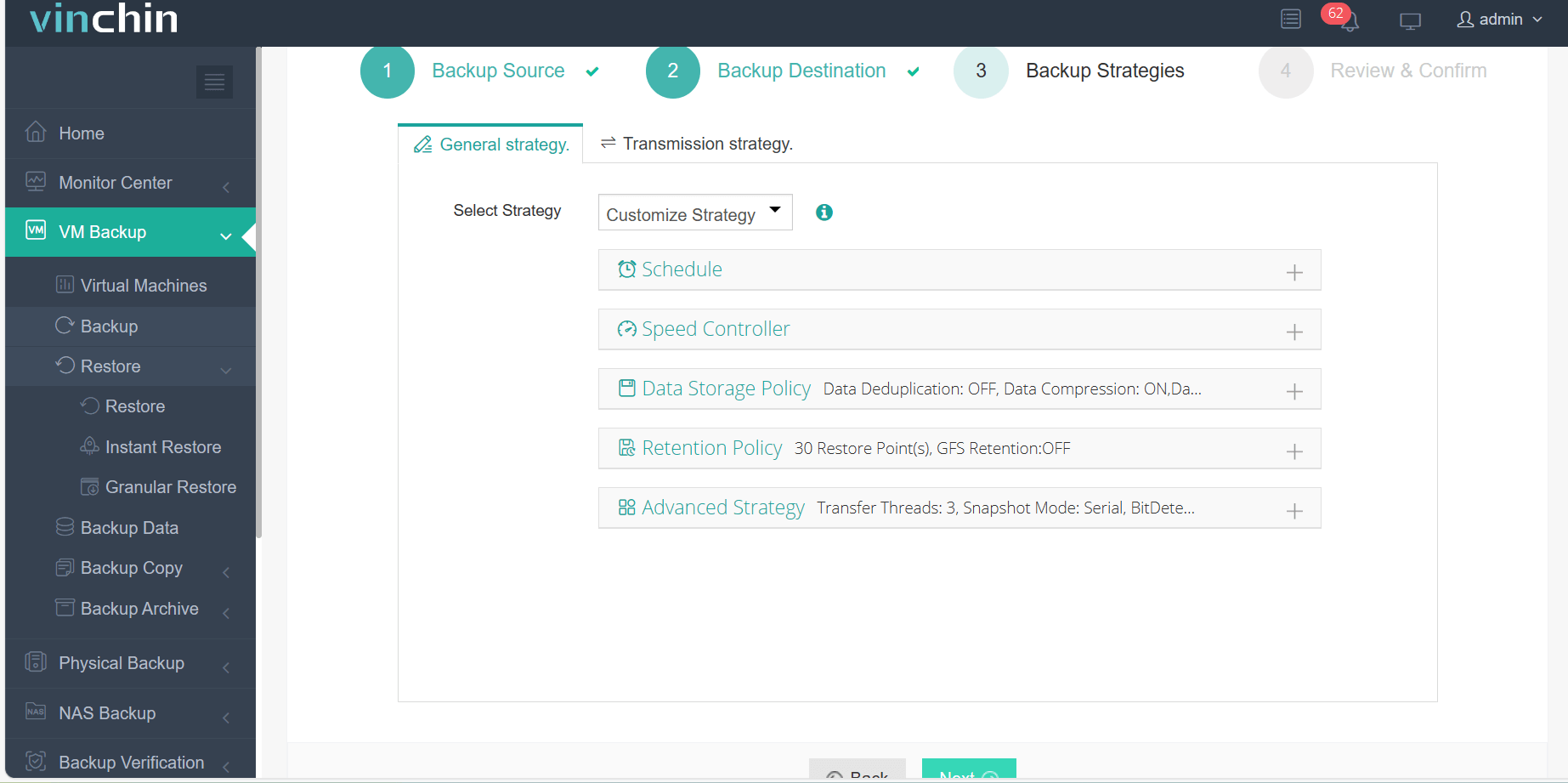
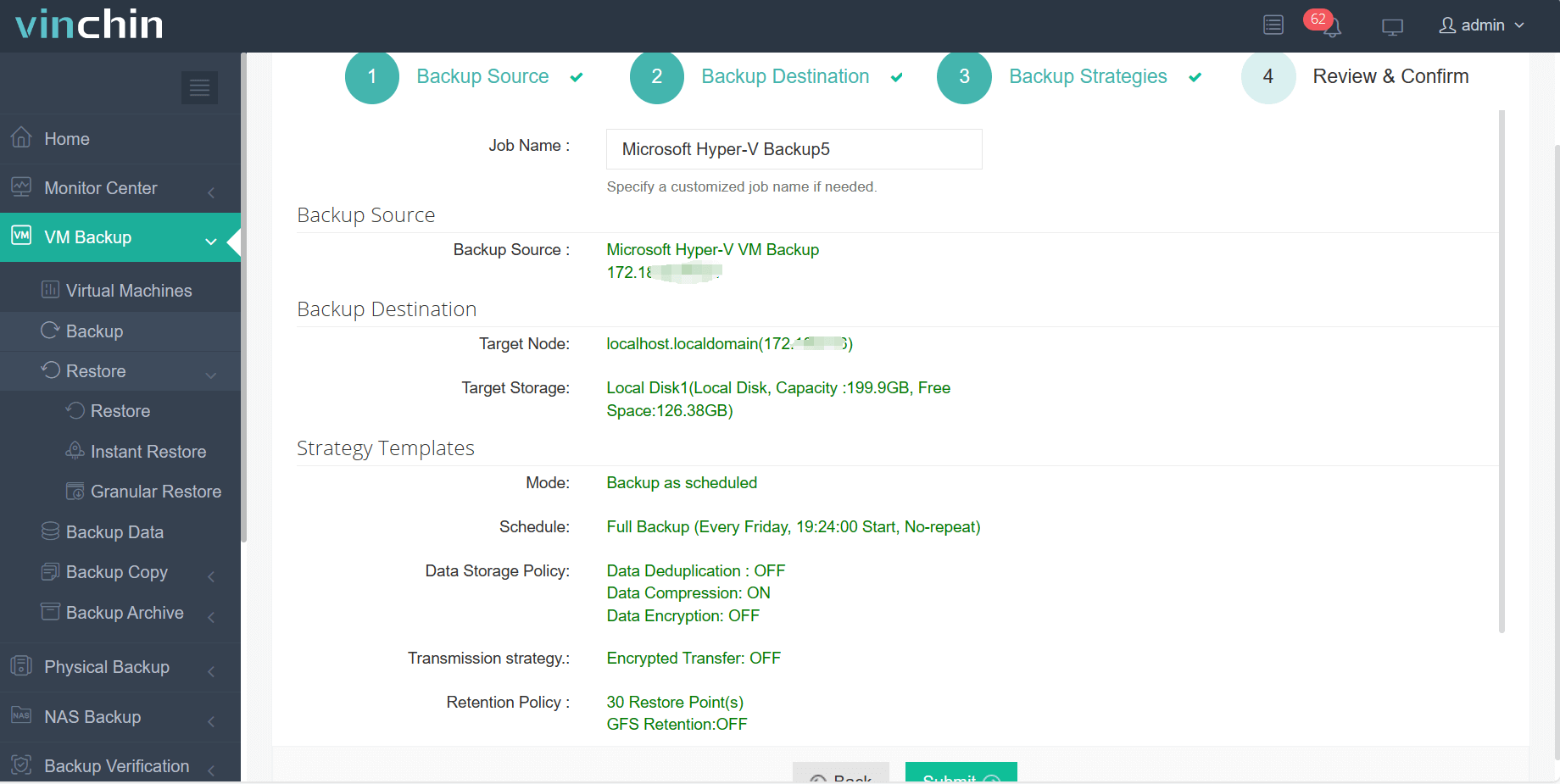
The intuitive web console streamlines administration: simply select the desired Hyper‑V VM(s), choose backup storage location(s), configure scheduling/retention policies according to business needs, then submit jobs, all within four guided steps. Recognized globally with top ratings among enterprise customers, Vinchin Backup & Recovery offers a 60-day free trial so IT teams can experience comprehensive protection firsthand.
The intuitive Vinchin Backup & Recovery web console streamlines workflow into four easy steps:
Step 1: Select the Hyper‑V VM you want to back up
Step 2: Choose the backup storage
Step 3: Configure the backup strategy, such as the schedule, data storage policy, and retention policy
Step 4: Submit the job, wnating for the backup process
Hyper-V Guest Service FAQs
Q1: Can I copy files both ways between my host and my VM using Hyper-V guest service?
Yes, you can transfer files either direction using PowerShell's Copy-VMFile cmdlet with appropriate parameters set each way as needed.
Q2: What should I do if Guest Services does not appear under Integration Services?
Check whether Integration Components are updated in your guest OS,restart both host &guest,and verify compatibility per Microsoft documentation.
Q3: Why does Copy–VMFile fail with an access denied error?
Make sure you're running PowerShell as administrator,and confirm matching admin credentials exist on both source(host) and destination(guest).
Conclusion
Hyper-V guest service makes secure file transfers easy, even without network connectivity. Enabling it takes just minutes.Want full-featured protection? Try Vinchin free today, it delivers advanced backup, migration, and recovery tools designed specifically for modern virtualization environments worldwide!









