If you’ve spent any time working with Hyper-V, you’ve probably hit this wall at least once: you plug a USB drive into your host machine, open Hyper-V Manager - and nothing. There’s no “USB passthrough” button anywhere in the VM settings. That’s not a bug, it’s an architectural limitation. Hyper-V, as a Type-1 hypervisor, doesn’t expose host USB ports to guest VMs the way you’d expect from a consumer hypervisor.
The good news: there are real, documented workarounds. The right one depends on what kind of device you’re dealing with and how your environment is set up. Let’s break it down.
Why doesn’t Hyper-V support native USB Passthrough?
Hyper-V intercepts hardware at the hypervisor layer. Because USB is tightly coupled to the host OS’s device stack, full hardware-level USB passthrough would break the hypervisor’s isolation model. This is why VMware (which uses a different driver architecture) handles USB more gracefully out of the box.
Quick Comparison: Which Method Should You Use?
Method | Device Types | Requires Network? | Complexity |
Enhanced Session Mode | USB drive, printers, audio, webcams | No | Low |
RDP Redirection | USB drive, printers, and other plug-and-play devices | Yes (LAN/WAN) | Medium |
Offline Disk (SCSI) | USB mass storage only (non-removable) | No | Medium |
DDA (PCIe Controller) | PCIe USB controllers (advanced) | No | High |
Method 1. Enhanced Session Mode (Recommended Starting Point)
Enhanced Session Mode (ESM) was introduced in Windows Server 2012 R2 and Windows 8.1. It uses an RDP-based channel under the hood to redirect local devices, including USB drives, from your client machine into the VM when you connect through Hyper-V Manager. For most day-to-day use cases, this is the simplest path.
Prerequisites
ESM is only supported on Generation 2 VMs. The guest OS must be Windows Server 2016/2019/2022/2025, Windows 10, or Windows 11. You’ll also need the Hyper-V host to be running Windows Server 2012 R2 or later.
Step 1. Enable Enhanced Session Mode on the Host
Open Hyper-V Manager, right-click the host, and select Hyper-V Settings.
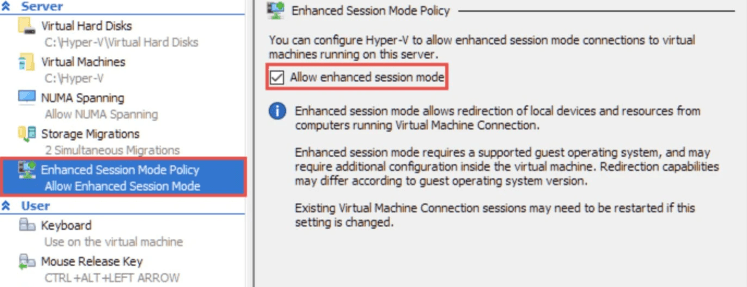
Under the Server section, click Enhanced Session Mode Policy and check Allow enhanced session mode.
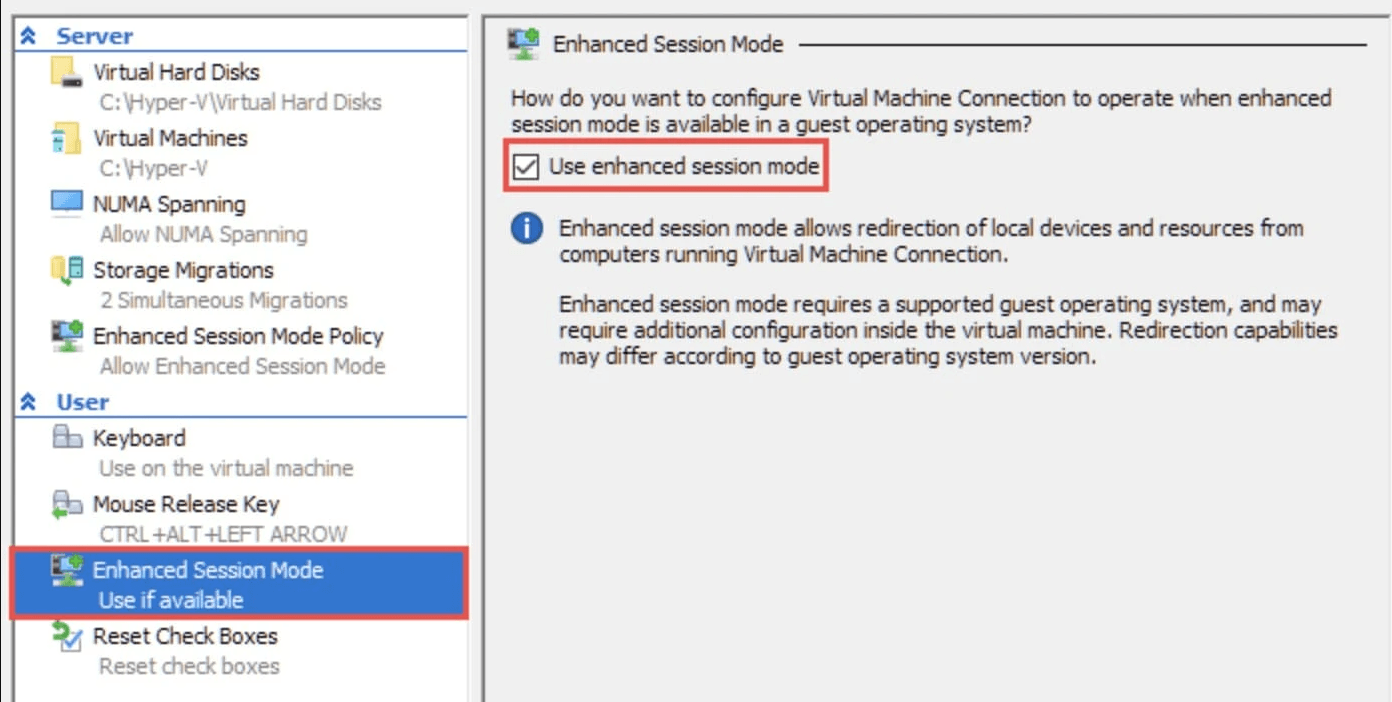
Then under User, click Enhanced Session Mode and check Use enhanced session mode.
Alternatively, you can do this in one PowerShell command:
Set-VMHost -EnableEnhancedSessionMode $true
Then restart the VM Management service:
Get-Service vmms | Restart-Service
Step 2. Enable Guest Services in VM Integration
In the VM’s settings panel, go to Integration Services and make sure Guest Services is checked.
Step 3. Redirect the USB Device
When you connect to the VM via VMConnect, a configuration panel will appear before the VM session starts.
Click Show Options > Local Resources > More, and check the box next to your USB drive.
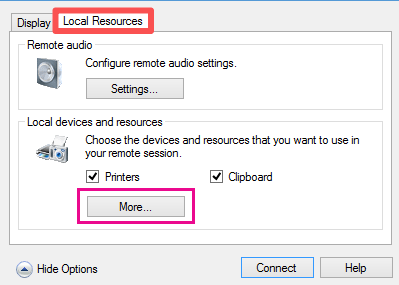
From that point, the drive appears inside the VM as if it were locally attached.
Method 2. RDP Redirection (Best for Remote or Network Access)
If you’re managing a VM remotely or Enhanced Session Mode isn’t available in your configuration, Remote Desktop Protocol (RDP) redirection is a solid alternative. RDP supports both high-level device redirection (optimized by device class, like cameras or printers) and low-level raw USB forwarding for devices that need their own driver stack.
Enable Remote Desktop on the Guest VM
1. Open Control Panel > System and Security > Allow remote access inside the VM.
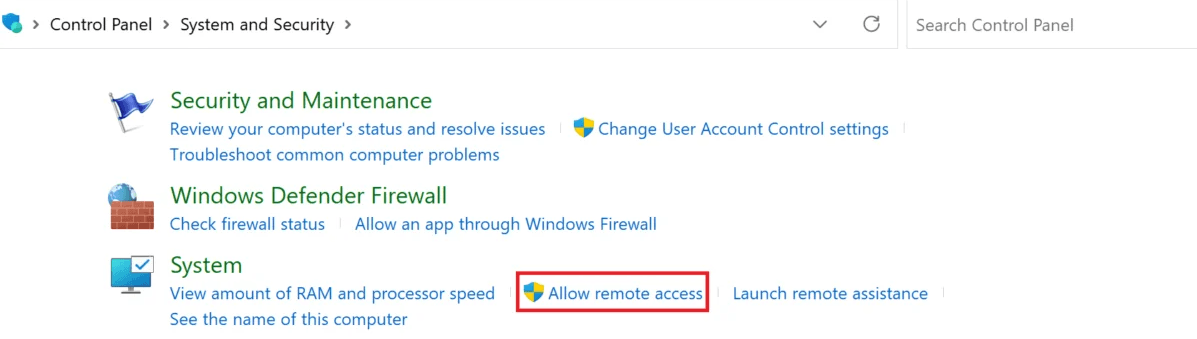
2. Check both Allow Remote Assistance connection and Allow remote connections to this computer. Click OK.
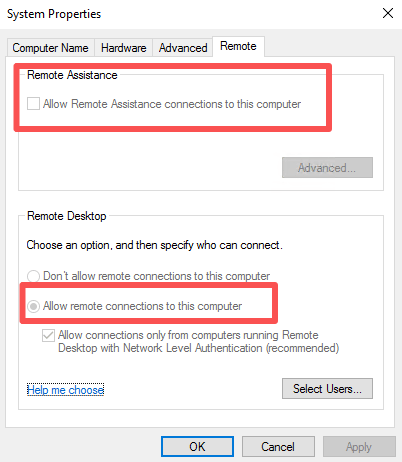
3. On your client machine, press Win + R, type mstsc, and press Enter.
4. Click Show Options > Local Resources > More.
5. Expand Other supported plug-and-play (PnP) devices and check your USB device, then click OK.
6. Enter the VM’s IP or hostname, connect, and sign in. The USB device will appear under “Redirected” resources in the session.
To enable low-level USB redirection (needed for dongles or non-standard devices), open Group Policy on the client:
Gpedit.msc > Computer Configuration > Administrative Templates > Remote Desktop Services > Remote Desktop Connection Client, then enable Allow RDP redirection of other supported RemoteFX USB devices.
✅ TIP
High-level RDP redirection works great for webcams, printers, and drivers. Low-level redirection is only supported on Windows clients and can be more sensitive to network latency, so stick to a stable LAN connection when using it.
Method 3. Offline Disk Passthrough via SCSI Controller
This is the most direct method for USB mass storage, essentially attaching the physical disk to the VM as if it were an internal drive. The trade-off is that the device must be taken offline from the host OS first, and this approach only works for fixed storage (flash drives and removable media flagged as “removable” by Windows won’t work without a workaround).
1. Plug the USB drive into the Hyper-V host. Let Windows assign it a drive letter.
2. Open Disk Management (diskmgmt.msc), right-click the USB disk, and select Offline. The host OS will no longer see the drive.
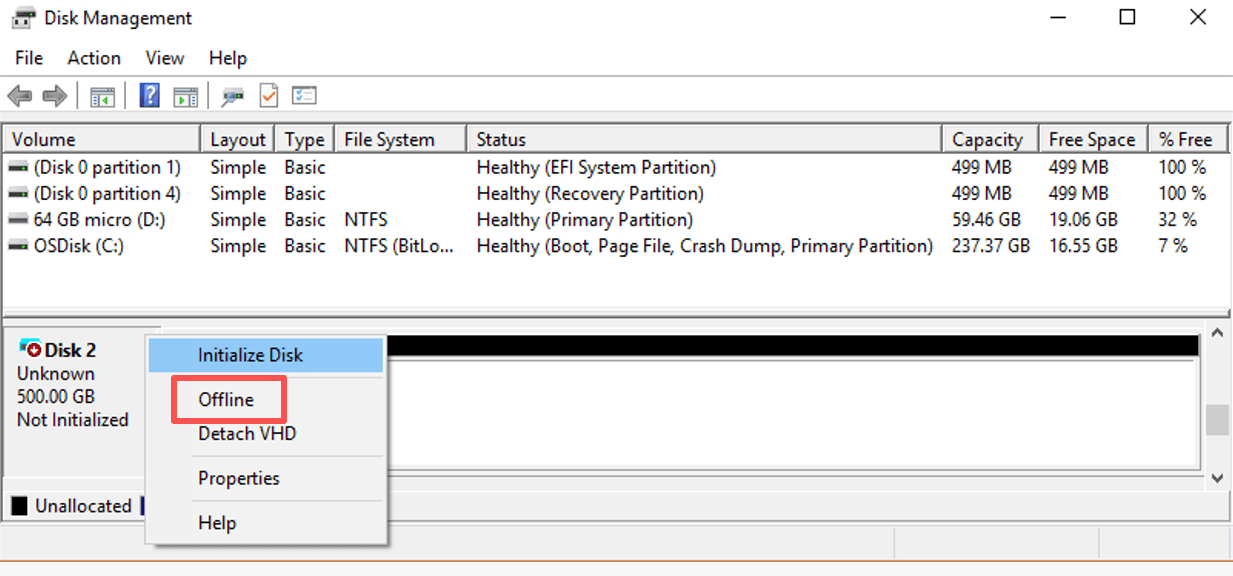
3. Open Hyper-V Manager, right-click the target VM, and choose Settings.
4. In the left pane, select SCSI controller, then choose Hard Drive and click Add.
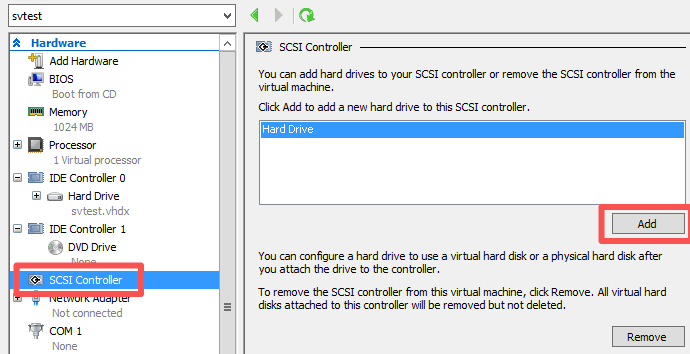
5. Under Hard Drive, click Physical hard disk and select your USB drive from the dropdown. Click OK.
The VM will recognize the USB storage immediately (no reboot needed when using SCSI). To reverse the process, go back to SCSI Controller > Hard Drive > select the drive > click Remove, then bring the disk back online in Disk Management on the host.
Important Limitation
Passthrough disks configured this way cannot be included in VM checkpoints/snapshots and cannot be exported or live-migrated like VHDX-based disks. Plan around this if data protection is a priority, which brings us to the next section.
What About DDA (Discrete Device Assignment)?
Discrete Device Assignment (DDA) is an advanced option that passes an entire PCIe USB controller directly into a VM, giving the guest native ownership of every device connected to that controller.
But it does not provide a generic USB passthrough. Most consumer USB controllers are not compatible with DDA. Therefore, DDA is usually not the answer for attaching a USB flash drive or USB dongle.
Once the Data Is in the VM - Don’t Leave It Unprotected
Passing files into a Hyper-V VM via USB is just the first step. What you need to do next is protect your VM data security.
Vinchin Backup & Recovery is purpose-built for virtualized environments and covers the full protection lifecycle for your Hyper-V infrastructure and beyond.
Easy steps to back up Hyper-V VMs:
Step 1. Select the Hyper-V VM under Backup > Virtualization.
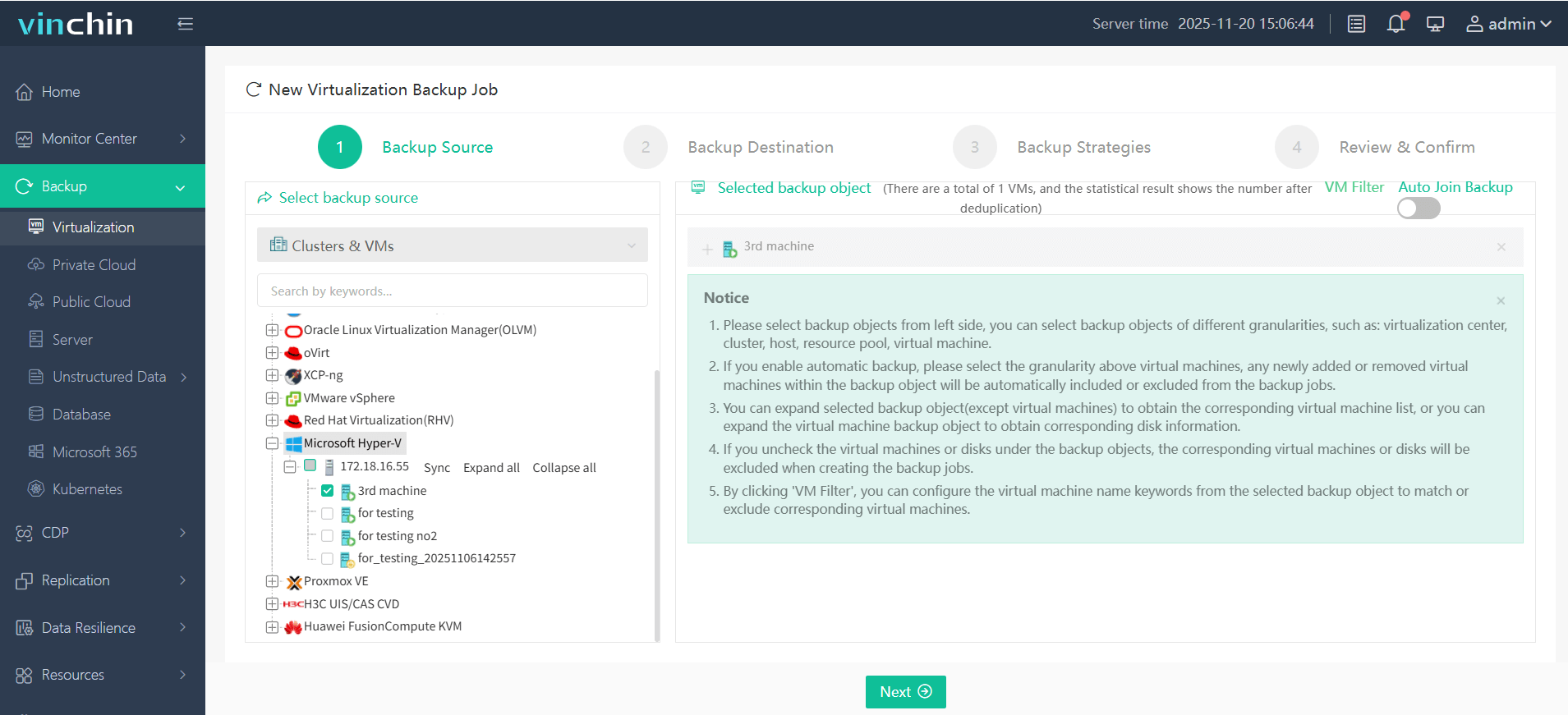
Step 2. In the Backup Destination tab, choose the backup storage.
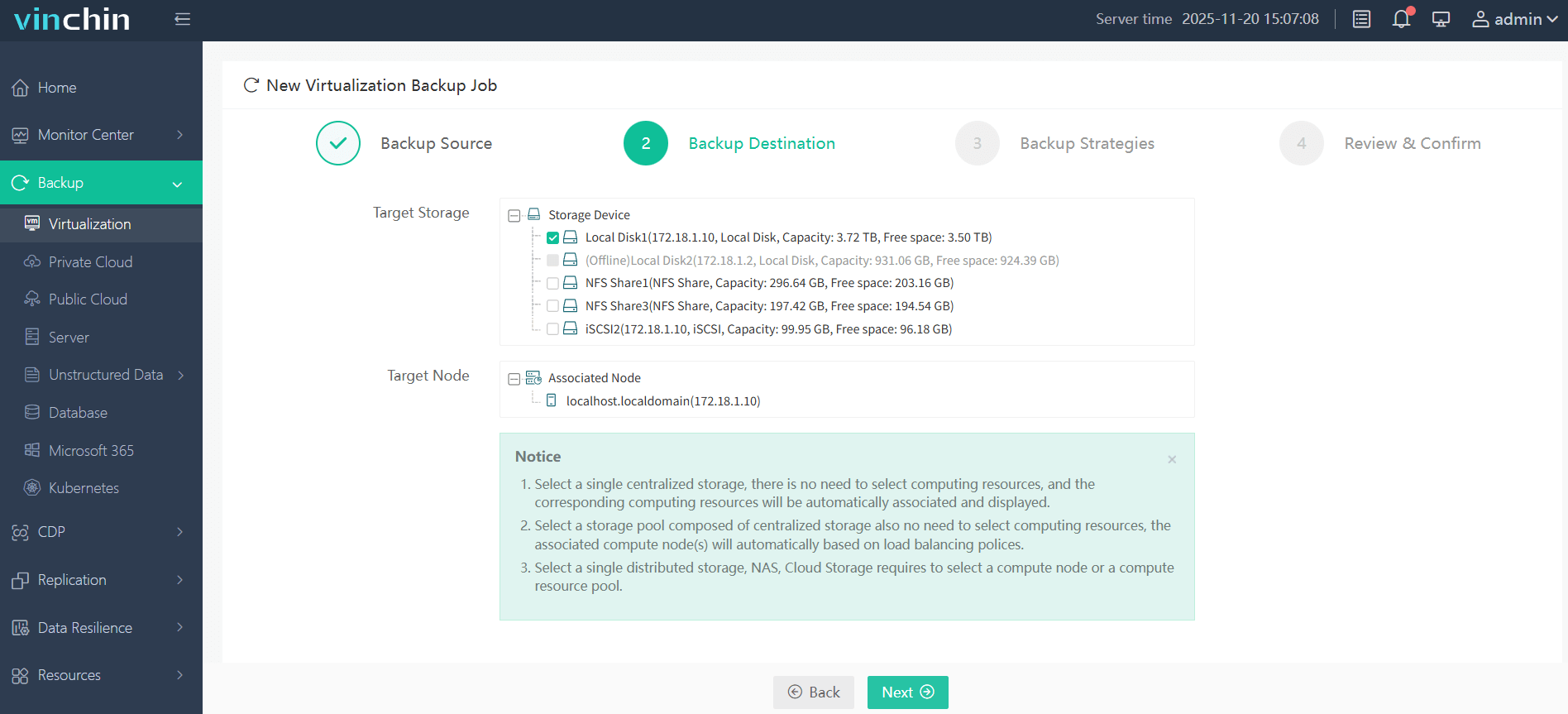
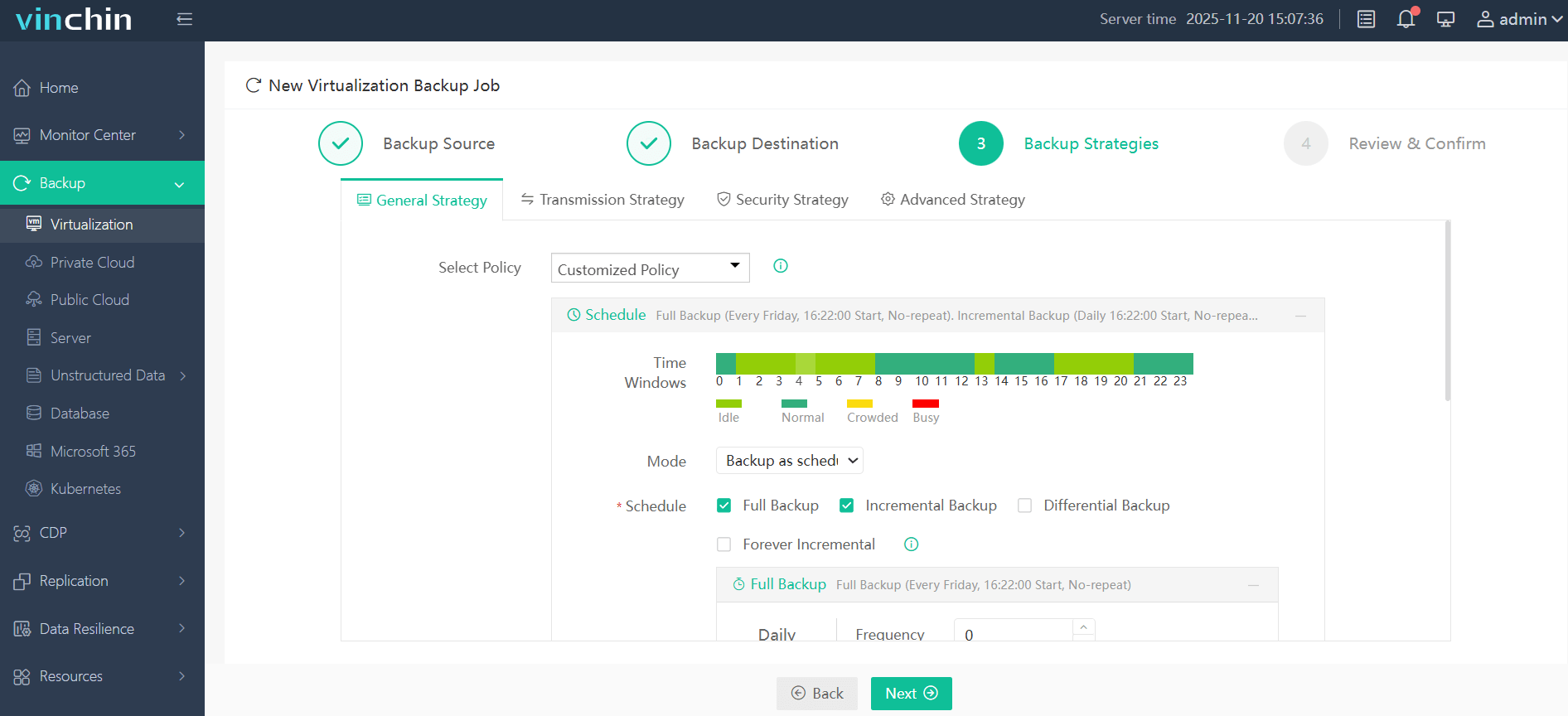
Step 3. In the Backup Strategies tab, configure the desired strategies.
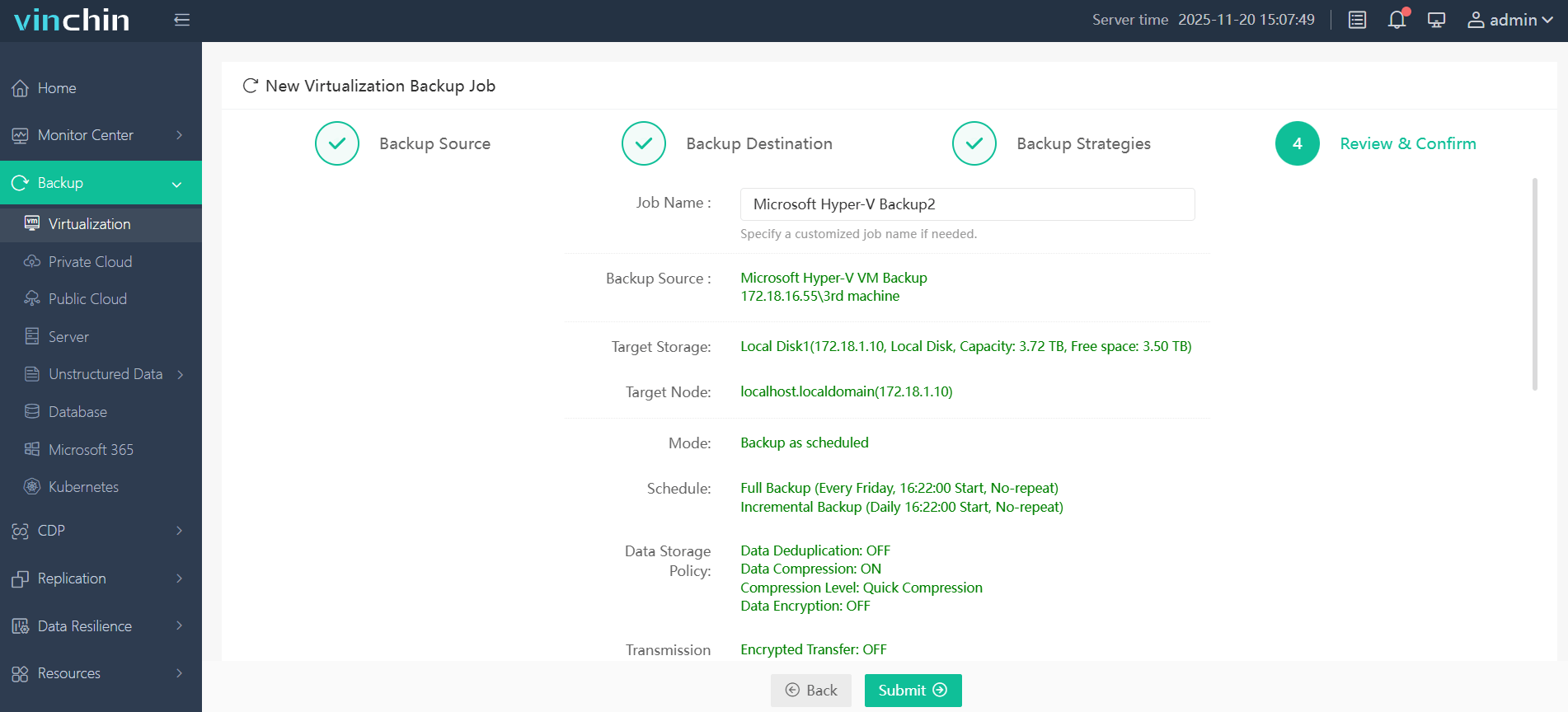
Step 4. Review and confirm the backup settings are correct, and click Submit.
Choose Vinchin as your data protection tool? Click the following button to get the full feature free trial for 60 days!
FAQs
Q1: Can I pass through a USB dongle (license key) to a Hyper-V VM?
Not natively. USB security dongles (HASP, Sentinel, etc.) require low-level driver access that neither Enhanced Session Mode nor RDP high-level redirection can always provide reliably. The offline disk method doesn’t apply to dongles either.
Q2: Does Hyper-V support webcams and USB cameras?
Support is limited. Some webcams can be redirected through RDP or Enhanced Session Mode, but compatibility varies depending on the device and driver implementation.
Q3: Will attaching a USB drive as a pass-through disk affect VM snapshots?
Yes, significantly. Pass-through disks (physical disks attached via SCSI controller) are excluded from Hyper-V checkpoints and cannot be included in VM exports or live migrations.
Conclusion
Passing a USB device to a Hyper-V virtual machine isn't as simple as plugging in a cable, but it's far from impossible. For most administrators, Enhanced Session Mode covers daily needs with the least configuration overhead. RDP redirection adds flexibility when you're managing VMs over a network. And the offline SCSI method remains a reliable fallback for bulk storage transfer when network methods aren't appropriate.
Whatever data ends up in your VMs after a USB transfer deserves the same protection as anything else in your virtual infrastructure: regular, verified backups with fast recovery options.