Why Migrate Oracle VM to VMware?
Many organizations migrate Oracle VM to VMware to achieve better scalability, easier management, and stronger ecosystem support. VMware provides several advantages for enterprises, including:
Broader Virtualization Ecosystem
VMware has a more mature and widely adopted virtualization ecosystem, with extensive support from hardware vendors, software providers, cloud platforms, and enterprise applications. This makes it easy for organizations to expand their infrastructure and maintain long-term compatibility.
More Mature Management with vCenter
VMware provides centralized management through vCenter Server, allowing administrators to efficiently manage multiple hosts and virtual machines. Advanced features such as vMotion, High Availability (HA), and Distributed Resource Scheduler (DRS) help improve operational efficiency and resource utilization.
Richer Backup and Disaster Recovery Support
Compared with Oracle VM, VMware has a larger ecosystem of third-party backup and disaster recovery solutions. Organizations can benefit from features such as image-based backup, incremental backup, VM replication, and instant recovery to improve business continuity.
Better Third-Party Compatibility
VMware is widely supported by enterprise storage, networking, security, monitoring, and automation solutions. Migrating to VMware provides greater flexibility when integrating with existing IT environments and adopting new technologies.
Overall, moving from Oracle VM to VMware helps enterprise to build a more scalable, manageable, and reliable virtualization infrastructure.
Method 1: Export Oracle VM and Import to VMware
This is the most straightforward migration methods. Oracle VM allows administrators to export VMs as OVA/OVF packages, which can be then imported into VMware environments. It is suitable for small-scale migration with a limited number of virtual machines.
Step 1: export VM from Oracle VM
1. Log into Oracle VM Manager;
2. Select the target virtual machine;
3. Shut down the VM to ensure data consistency;
4. Export the VM as an OVA/OVF package to a storage location.
Step 2: convert or import the VM into VMware
1. Open VMware vSphere Client ot VMware Workstation;
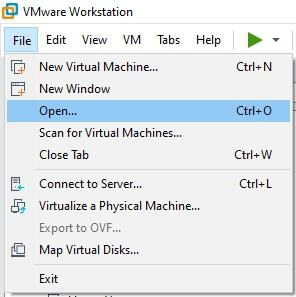
2. Select Deploy OVF Template;
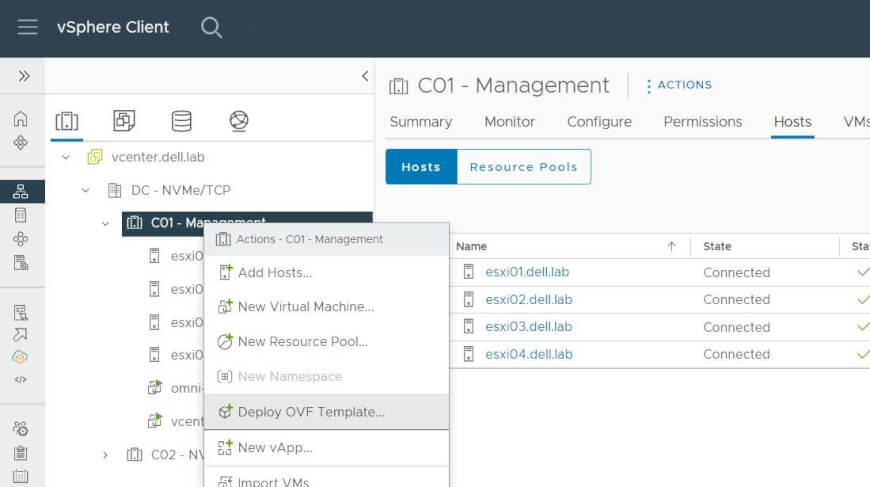
3. Upload the exported OVA/OVF file;
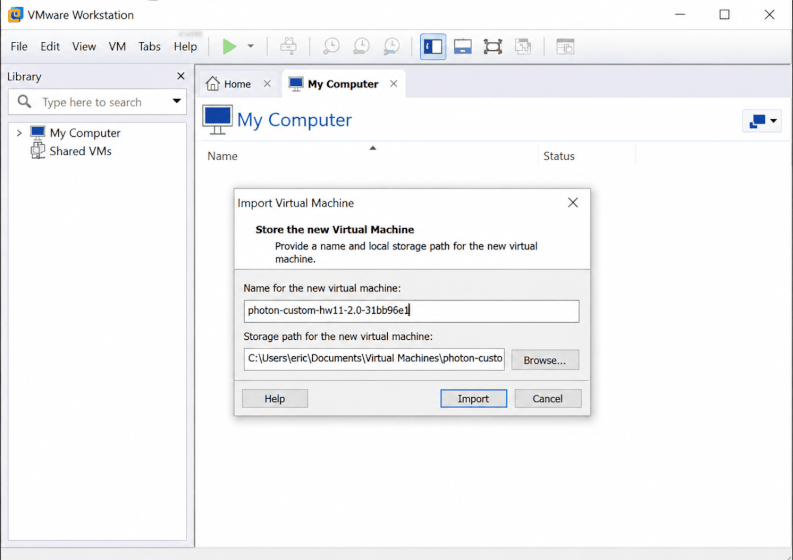
4. Configure the VM name, storage, network, and other settings.
5. Complete the deployment and power on the VM.
Step 3: verify the migrated VM
Check whether the operating system boots correctly
Install VMware tools if required
Verify network configuration and application services
Method 2: Migrate Oracle VM to VMware via Backup & Restore
Backup-based migration is a safer approach that allows you to move Oracle VM workloads to VMware while keeping an additional recovery point. It is recommended for production environments where data protection and migration reliability are important.
There are huge numbers of enterprise backup solutions in the market, and Vinchin Backup & Recovery stands out for its wide compatibility across 15+ virtualization platforms, including VMware, Proxmox, Hyper-V, OLVM, XenServer, Openstack, etc), and the unparalleled granular and instant restore capabilities.
Vinchin adopts immutable backup storage throughout the VM backup and restore process, and it enables V2V live migration without affecting the production environments, reducing the data and revenue loss to a minimum. Furthermore, administrators can monitor the running jobs simultaneously through the web console to prevent the accidental failures.
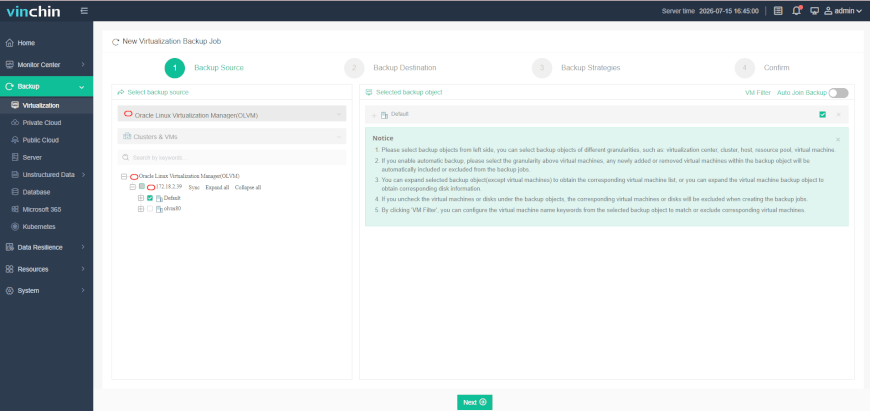
Step 1: First, install and open the Vinchin Backup & Recovery software, and go to Backup > Virtualization to select the source Oracle VM host and create a backup.
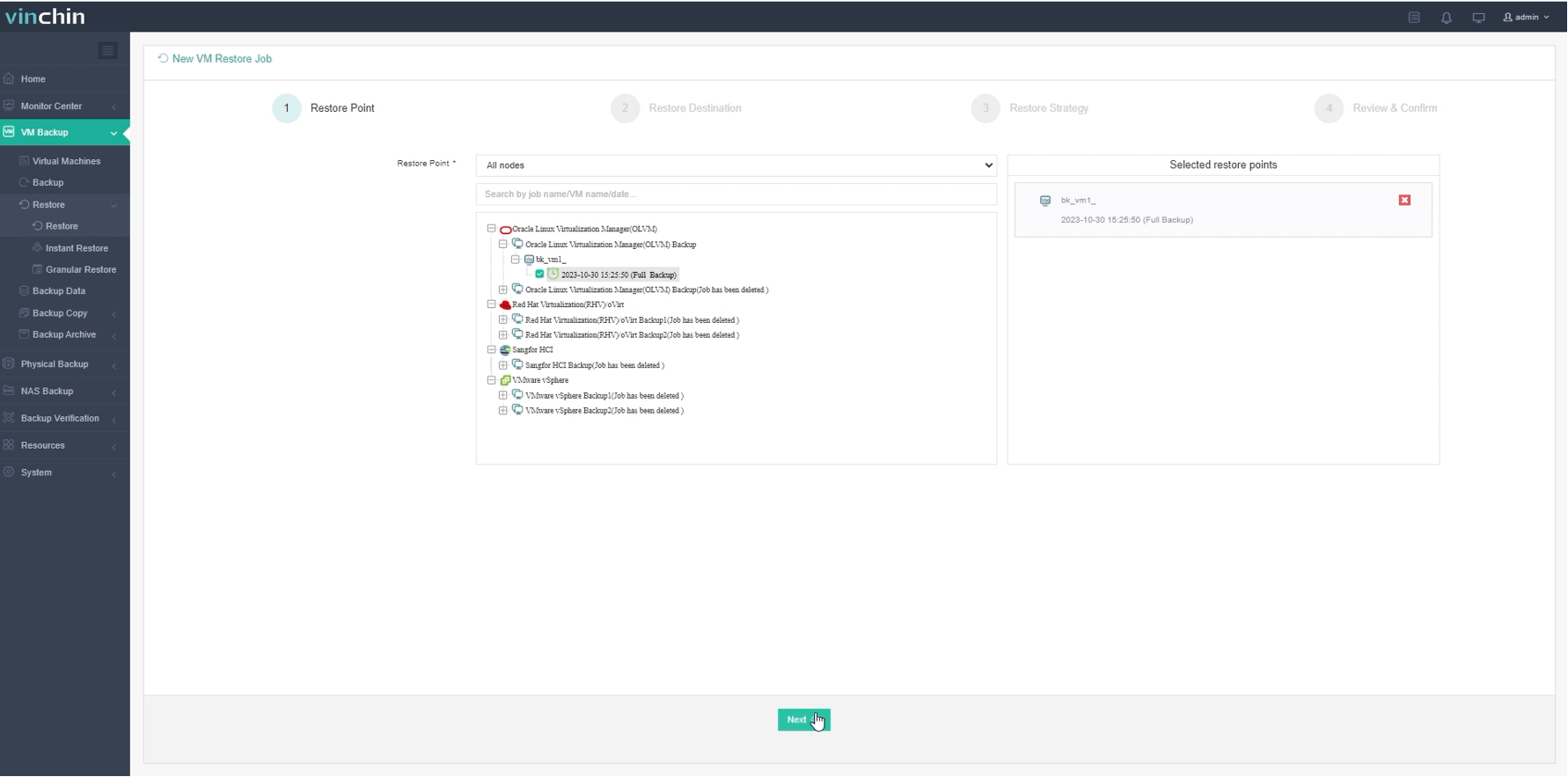
Step 2: Then, go to Data Resilience > Restore to choose the Oracle VM backup storage as the recovery point.
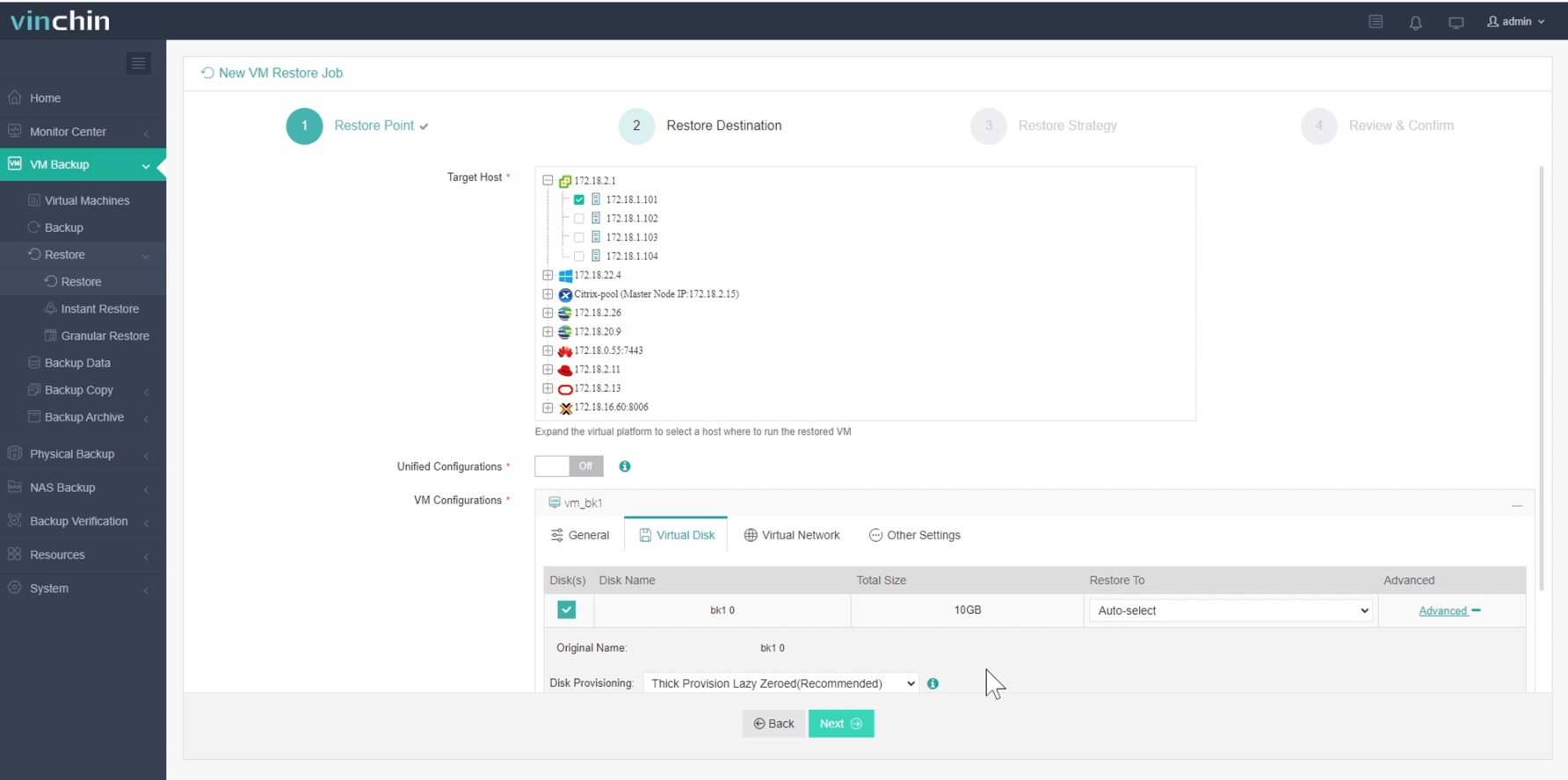
Step 3: Next, choose the target host and VM configurations to complete the restore destinations.
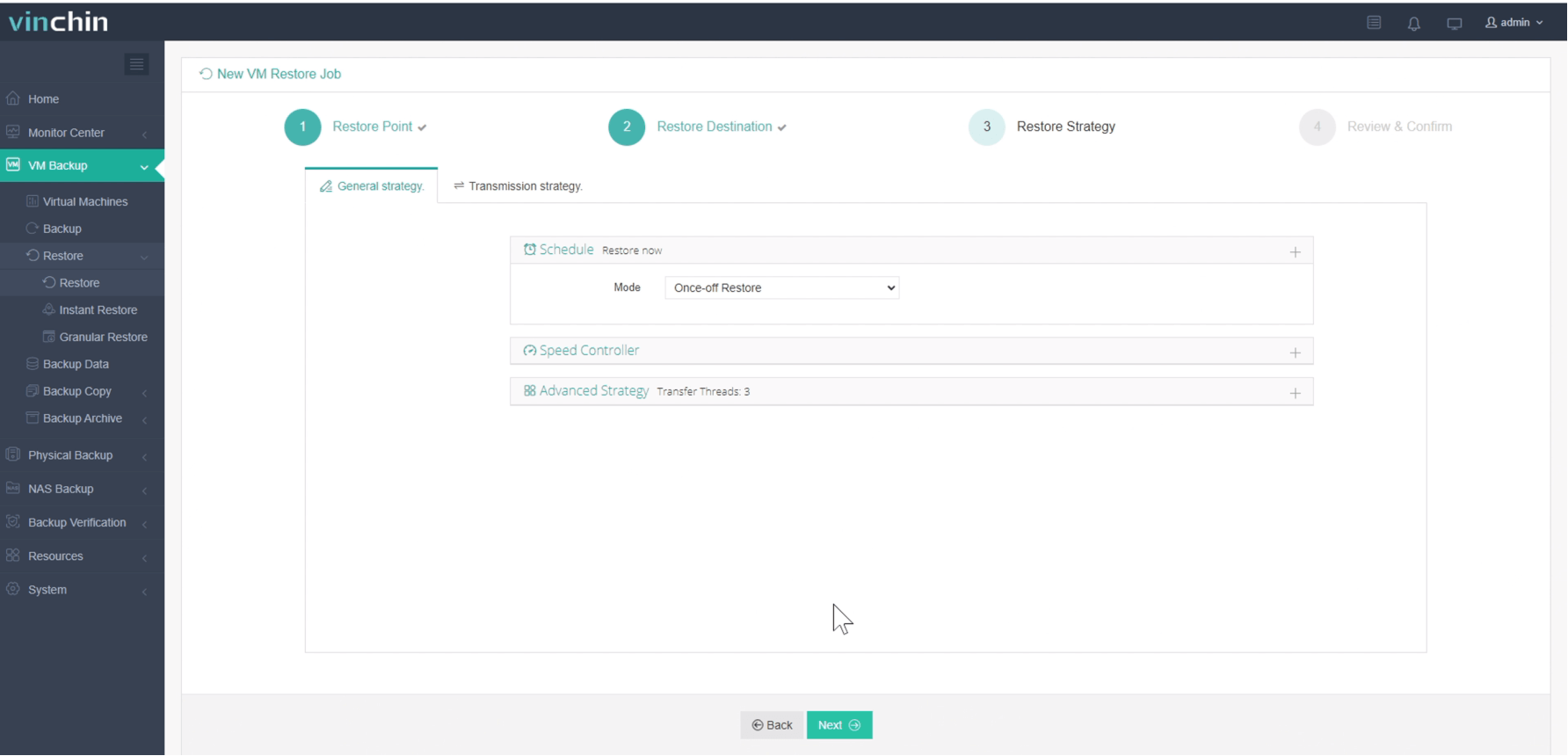
Step 4: create a restore strategy. Schedule the restore time and set the throttling policy, transmission, security, and advanced strategies.
Step 5: Review all the options, and then tab Submit to activate the task. Minutes later, you’ll see the original Oracle VM data restored on the new VMware VM.
Vinchin Backup & Recovery specializes in enterprise disaster recovery and data protection. If your organization is planning a migration and values reliability and scalability, Vinchin can be a trusted choice. You can start with a 60-day fully featured free trial to evaluate its capabilities and see how it addresses your migration and data protection needs.
Method 3: Manual Virtual Disk Conversion
Manual conversion is useful when you only need to migrate the virtual disk and recreate the VM configuration. Oracle VM commonly use RAW image files (.img) as virtual disks, which need to be converted into VMware-compatible VMDK format.
Step 1: locate the Oracle VM virtual disk
Find the VM disk image file, usually in RAW format:
Vm_disk,img
Copy the disk image to a machine with conversion tools installed.
Step 2: Convert RAW image to VMDK
Use qemu-img to convert the RAW disk image:
qemu-img convert -f raw -o vmdk vm_disk.img vm_disk.vmdk
After conversion, you will get a VMware-compatible VMDK file.
Step 3: Create a new VM in VMware
1. Create a new virtual machine in vSphere/ESXi.
2. Select the same operating system type.
3. Remove the default virtual disk.
4. Attach the converted VMDK file.
5. Power on the VM and verify functionality.
Step 4: Fix compatibility issues if needed
Note: for large-scale Oracle VM to VMware migration, backup-and-restore or automated V2V migration methods are preferred because they reduce downtime and simplify VM conversion compared with manual export/import approaches.
Migrate Oracle VM to VMware FAQs
Q1: Can I directly convert Oracle VM disk files to VMware VMDK?
Yes. Oracle VM virtual disks can be converted into VMware-compatible VMDK files using tools such as qemu-img. After conversion, you can create a new VMware virtual machine and attach the converted VMDK disk.
Q2: Can I migrate multiple Oracle VM machines to VMware at the same time?
Yes. For environments with multiple virtual machines, using backup-based migration or automated V2V migration tools is more efficient than manually converting each VM. These methods allow administrators to migrate workloads in batches and simplify migration management.
Q3: What problems may occur after migrating Oracle VM to VMware?
Common post-migration issues include boot failures, missing network adapters, incorrect disk controller settings, and driver compatibility problems. Installing VMware Tools, checking VM hardware settings, and verifying network configurations can help resolve most issues.
The Bottom Line
Migrating Oracle VM to VMware helps organizations adopt a more mature virtualization platform with better management, compatibility, and backup support. Choosing the right migration method, such as export/import, backup restore, disk conversion, ensures a smoother transition. Vinchin Backup & Recovery provides reliable backup, recovery, and VM migration capabilities to help minimize downtime and protect critical workloads.