Introduce
Hyper-V boot failure may occur due to incorrect boot settings, missing boot images, corrupted VHD/VHDX files, or VM conversion issues. Errors such as "Hyper-V boot image was not found" and "Hyper-V boot failure reboot and select proper boot device" are common symptoms.
In some cases, administrators may also encounter Disk2vhd not booting issues after converting physical machines into Hyper-V virtual machines.
This article outlines five typical causes of Hyper-V boot failures and provides clear, step-by-step troubleshooting solutions to help IT admins resolve boot errors efficiently.
5 Common Causes of Hyper-V Boot Failure and Fixes
The following are five common causes of Hyper-V boot failure and practical fixes to help administrators troubleshoot the issue.
Issue 1. Incorrect Boot Order or Firmware Configuration
Cause:
Incorrect boot settings are one of the most common reasons why a Hyper-V VM cannot start. The virtual machine may attempt to boot from an incorrect device, such as a network adapter or an empty disk, instead of the operating system disk.
In this situation, users may see the error message “Hyper-V boot failure reboot and select proper boot device”, which indicates that the VM cannot find a valid bootable device.
This issue can also occur when the VM generation does not match the operating system disk format. For example, Generation 2 VMs require UEFI firmware and GPT disks, while Generation 1 VMs use BIOS firmware and support MBR disks.
Fix:
Check and adjust the VM boot order in Hyper-V Manager:
Step 1: Open Hyper-V Manager.
Step 2: Right-click the affected VM and select Settings.
Step 3: Navigate to Firmware (Generation 2 VM) or BIOS (Generation 1 VM).
Step 4: Move the system disk or correct boot device to the top of the boot order.
Step 5: Save the changes and restart the VM.
If the VM was created with the wrong generation, create a new VM with the correct generation and attach the existing VHD/VHDX file.
For Generation 2 VMs, verify that the disk uses GPT partition style. You can check it with Disk Management or the following command after attaching the disk:
Get-Disk | Select Number, PartitionStyle
Issue 2. Hyper-V Boot Image Was Not Found
Cause:
The error "Hyper-V boot image was not found" usually means Hyper-V cannot locate a valid boot disk. This may happen when the VHD/VHDX file is moved, renamed, disconnected, or the VM configuration points to an incorrect disk path.
It can also occur when the virtual disk exists, but the Windows boot files are damaged.
Fix:
Check the VM storage configuration:
Step 1: Open Hyper-V Manager.
Step 2: Go to VM Settings > Hard Drive.
Step 3: Verify that the attached VHD/VHDX file exists.
If the boot files are corrupted, start the VM with Windows installation media and repair the boot configuration:
bootrec /rebuildbcd
For UEFI-based systems, use:
bcdboot C:\Windows /f UEFI
Issue 3. Corrupted VHD/VHDX Prevents Hyper-V VM from Booting
Cause:
A corrupted VHD/VHDX file can stop Hyper-V from accessing the operating system and cause the VM to fail during startup. Common causes include unexpected shutdowns, storage failures, or interrupted migration processes.
Fix:
Use the Hyper-V PowerShell command to check and repair the virtual disk:
Repair-VHD -Path "D:\VMs\Server01.vhdx"
If the disk cannot be repaired, mount the VHD/VHDX on another system and use disk repair tools such as:
chkdsk /f
Administrators should also verify that the Hyper-V host has enough free storage space to avoid further disk issues.
Issue 4. Disk2vhd Not Booting After Conversion to Hyper-V VM
Cause:
After converting a physical machine with Disk2vhd, the generated VM may experience Disk2vhd not booting issues because the virtual hardware configuration does not match the original system. Common problems include incorrect VM generation, incompatible disk partition style, or missing boot configuration.
Fix:
Check whether the Hyper-V VM generation matches the converted disk:
If the VM cannot boot after conversion, repair the boot files from Windows recovery mode:
bootrec /rebuildbcd
For UEFI systems:
bcdboot C:\Windows
Issue 5. Insufficient Permissions or Storage Issues
Cause:
Hyper-V may fail to start a VM when the Hyper-V service cannot access VM configuration files or VHD/VHDX storage locations. This commonly happens after manually moving VM files or storing them in locations with incorrect permissions.
Insufficient disk space can also prevent Hyper-V from starting because it cannot write configuration data or expand virtual disks.
Fix:
Check the permissions of the VM folder and ensure that the Hyper-V service has access rights. You can also reset permissions using:
icacls "D:\Hyper-V\VM01" /grant "SYSTEM:(OI)(CI)F"
Then verify available storage space and restart the Hyper-V Virtual Machine Management service:
Restart-Service vmms
Prevent Data Loss: Back Up Hyper-V VMs In Advance
Although most Hyper-V boot failures can be resolved with the troubleshooting methods covered above, some severe faults may remain unfixable. Beyond boot errors, virtual machines constantly face threats like disk damage, storage breakdowns, and system malfunctions.
In this case, backing up Hyper-V VMs in advance provides an additional protection layer and helps administrators restore virtual machines when critical issues occur and reduce downtime.
1. Quickly Restore Failed Virtual Machines
When a Hyper-V VM cannot boot properly, restoring from an available backup allows administrators to recover the previous working state without spending excessive time troubleshooting complex issues.
2. Protect VM Data from Unexpected Failures
VM failures may happen due to hardware problems, software errors, or accidental operations. Regular backups help protect important applications, configurations, and business data from unexpected incidents.
3. Maintain Multiple Recovery Points
Keeping multiple backup versions allows administrators to choose the most suitable recovery point based on the failure time. This helps avoid restoring corrupted or unwanted VM states and provides more flexible recovery options.
Protect Data of Hyper-V with Vinchin Backup & Recovery
Vinchin Backup & Recovery is designed to provide centralized and efficient VM protection for Hyper-V environments with agentless backup technology. It eliminates the need to install backup agents inside each virtual machine, reducing deployment and maintenance workloads.
With Vinchin Backup & Recovery, administrators can create automated Hyper-V VM backup jobs with flexible schedules, including full and incremental backup strategies. Features such as deduplication, compression, backup encryption, and backup storage optimization help improve backup efficiency while reducing storage consumption.
For organizations managing multiple virtualization environments, Vinchin also provides centralized management through a unified web console, enabling administrators to manage backup tasks from a single platform. This makes Hyper-V backup and recovery easier to configure and maintain, especially in large virtual environments.
Follow these steps to create a Hyper-V VM backup task in Vinchin Backup & Recovery:
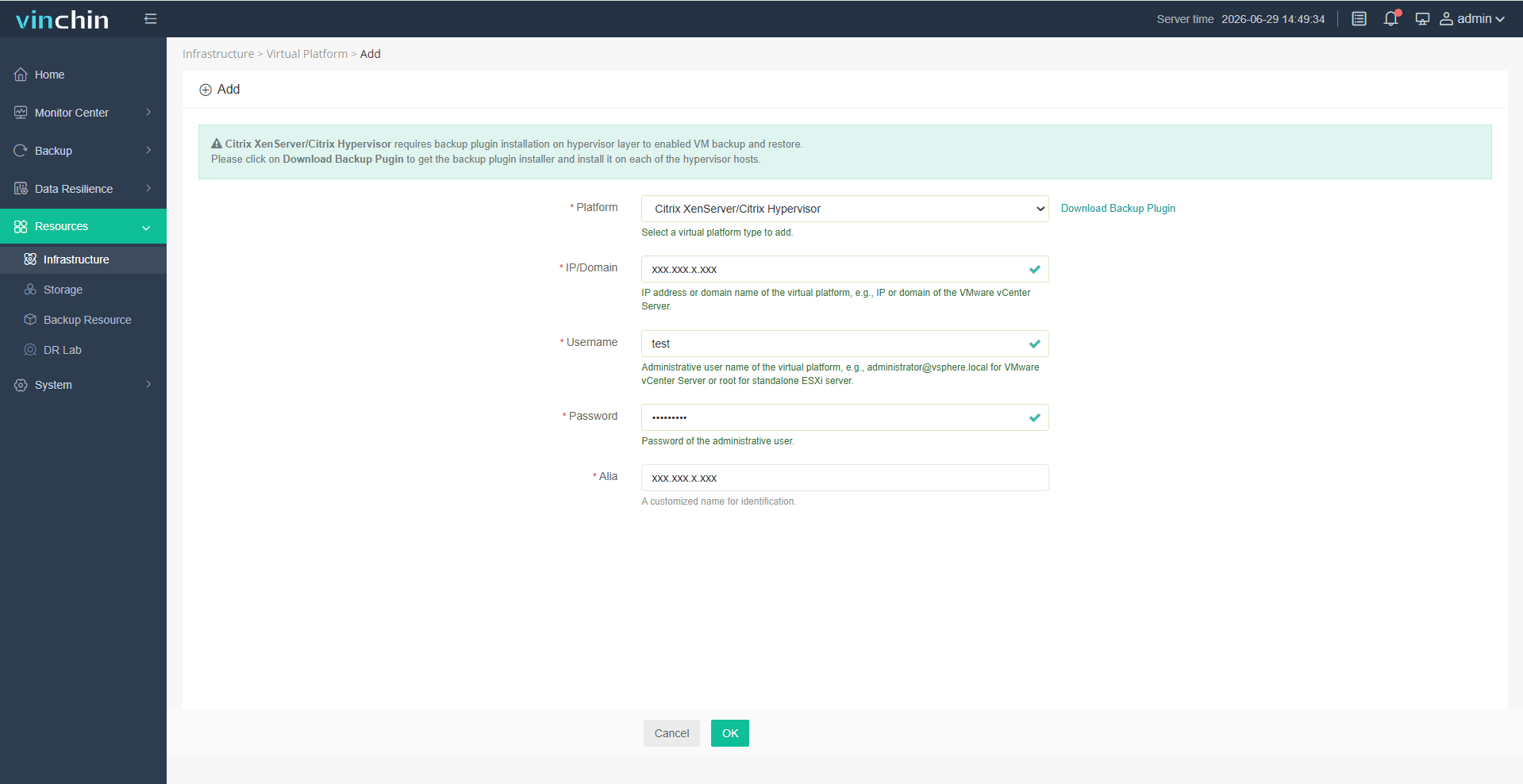
Step 1: Navigate to Resource > Infrastructure > Virtual Platform, and add the Hyper-V host with the required credentials.
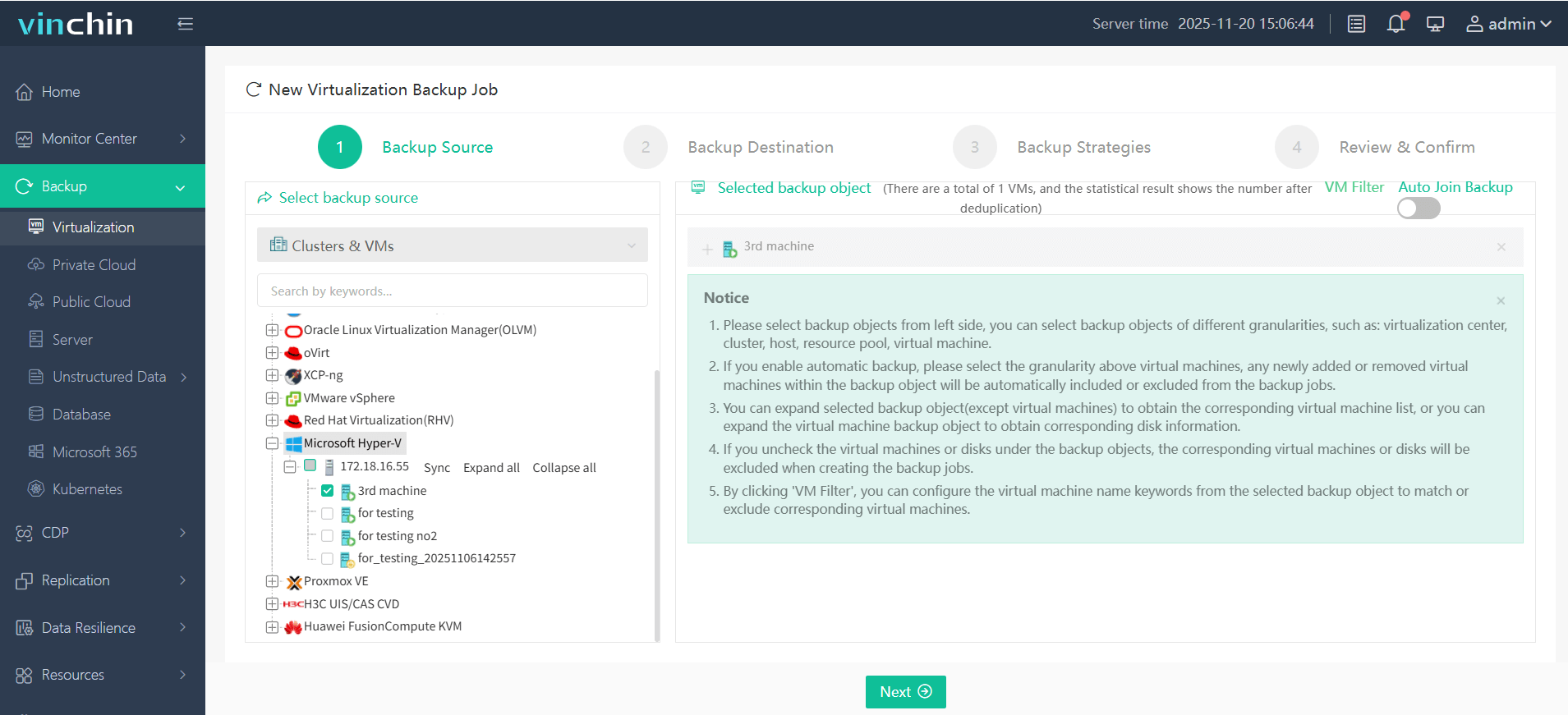
Step 2: Go to Backup > Virtualization and select the Hyper-V virtual machines that need protection.
Step 3: Choose the target node and storage location for the backup destination. External drives can be added to the system beforehand and selected here as the target storage.

Step 4: Configure backup settings, including backup schedule, retention policy, and so on.

Step 5: Review and confirm the task.

FAQs About Hyper-V Boot Failure
Q1: Why did my Hyper-V VM fail to boot after a Windows update?
A1: Some Windows updates may modify system files, drivers, or boot configurations. Try entering recovery mode, uninstalling recent updates, or restoring the VM to an earlier recovery point.
Q2: Can Hyper-V checkpoints cause VM boot problems?
A2: Yes. Problems with checkpoint chains or failed merges can affect VM startup. Remove unnecessary checkpoints and ensure that checkpoint merge operations complete successfully.
Q3: Why does my Hyper-V VM boot slowly and eventually fail?
A3: Slow boot failures may be caused by insufficient CPU, memory, storage performance, or startup services. Check resource usage and Hyper-V event logs for possible bottlenecks.
Q4: Can antivirus software cause Hyper-V VM boot issues?
A4: In some cases, security software may block access to VM files or interfere with virtualization services. Check security logs and create appropriate exclusions if needed.
Final Thoughts
Hyper-V boot failure can occur due to various reasons, including firmware configuration issues, missing boot images, corrupted virtual disks, or failed VM conversions. While troubleshooting can resolve many startup problems, it cannot eliminate all unexpected risks.
Creating Hyper-V VM backups before failures occur is a reliable way to protect critical data. With proper backups, administrators can quickly restore affected virtual machines, reduce downtime, and maintain business continuity when unexpected issues happen.