What Is VSS and Why Does Backup Depend on It?
Volume Shadow Copy Service (VSS) is a Windows framework introduced in Windows XP and Windows Server 2003 that coordinates the creation of consistent, point-in-time snapshots of data, even while applications continue writing to disk. Every enterprise-grade backup tool on Windows leans on VSS to guarantee crash-consistent or application-consistent copies without forcing a system-wide freeze.
When you see the error "Unable to create a VSS snapshot of the source volume," the backup job never really started. VSS sits between your backup software and the data, and something interrupted the handshake before a coherent snapshot could be committed.
VSS Snapshot Error Code Reference
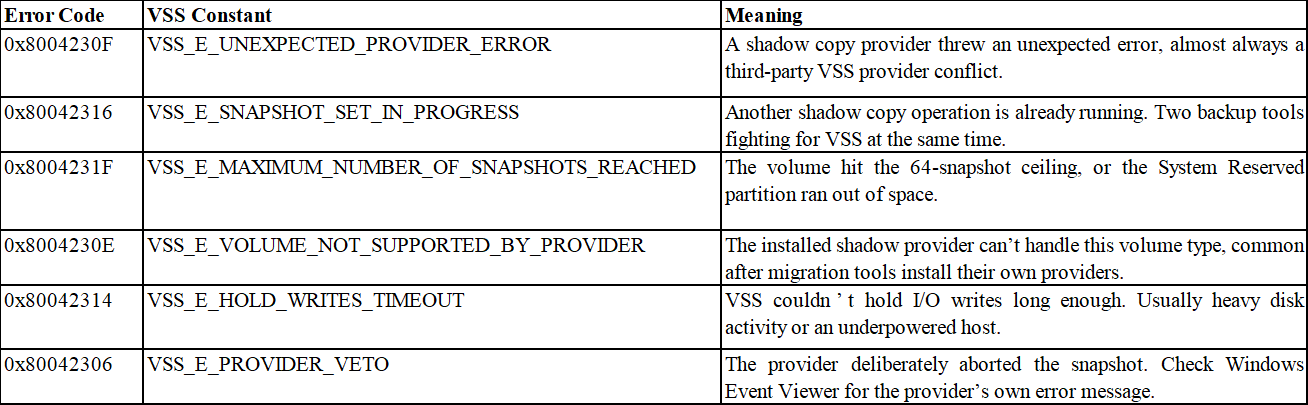
These are the codes most commonly reported alongside the unable to create a VSS snapshot message, based on documented cases from Microsoft, VMware Broadcom, and major backup vendors:
Reasons for Unable to Create a VSS Snapshot of the Source Volume
1. Third-Party VSS Provider Conflicts
Installing multiple backup agents or migration tools can leave behind competing VSS providers. Windows can only commit a snapshot through one provider per volume at a time, so an orphaned provider from a previously uninstalled product silently blocks all future snapshots. Watch for 0x8004230F and 0x8004230E.
2. Concurrent Snapshot Requests (0x80042316)
Microsoft's VSS snapshot manager handles one snapshot set at a time. Two backup jobs overlapping, even briefly due to schedule drift, cause the second to fail immediately with VSS_E_SNAPSHOT_SET_IN_PROGRESS.
3. Insufficient Space on the System Reserved Partition
VSS stages shadow copy metadata on the System Reserved partition (typically 100–500 MB). When third-party software fills it unexpectedly, VSS returns 0x8004231F. The partition looks healthy in Disk Management because the problem isn't visible without assigning it a drive letter.
4. VSS Writer in a Failed or Waiting State
Per-application VSS writers (SQL Server, Exchange, NTDS, etc.) coordinate with VSS during snapshots. A single writer stuck in "Failed" or "Waiting for completion" blocks the entire snapshot set, typically triggered by a failed Windows Update or an abrupt shutdown.
5. Windows Server Backup Feature Not Installed (VMware Converter)
VMware vCenter Converter Standalone relies on the Windows Server Backup VSS writer during P2V conversions. On systems where that Windows feature has never been installed, VSS lacks the necessary writer and fails at the snapshot phase.
Run These Diagnostic Commands First
Before touching services or registry keys, spend two minutes gathering facts. Open an elevated Command Prompt and run:
vssadmin list writers
vssadmin list providers
vssadmin list shadows
vssadmin list shadowstorage
What to look for in vssadmin list writers: every writer should show State: [1] Stable with Last error: No error. Any writer showing Failed, Time out, or Waiting for completion is a direct suspect.
In vssadmin list provider, if you see more than a single Microsoft provider, you have a third-party provider that may be causing conflicts.
Step-by-Step Fixes by Error Type
According to the error code above, here are the fixes.
Fix 1. Restart VSS Services (All Errors - Try This First)
A stuck or unstable VSS service is the lowest-effort fix and resolves a surprising number of cases. In an elevated prompt:
net stop vss
net stop swprv
net start vss
net start swprv
If a service restart doesn’t hold, a full server reboot clears the snapshot manager state more reliably.
Fix 2. Remove the Conflicting Third-Party VSS Provider (0x8004230F/0x8004230E)
Uninstall the product that registered the extra provider. After uninstalling, verify the provider is gone:
Vssadmin list providers
If the orphaned provider key persists, move it from the Windows Registry at HKEY_LOCAL_MACHINE\SYSTEM\CurrentControlSet\Services\VSS\Providers. Export the key first as a backup, then delete everything except the Microsoft provider key {b5946137-7b9f-4925-af80-51abd60b20d5}. Reboot afterward.
Fix 3. Resolve Snapshot Conflicts by Staggering Schedules (0x80042316)
Confirm no other VSS-aware process overlaps with your backup windows:
rem - Check existing shadow copies and their creation times
vssadmin list shadows /for=C:
Separate competing backup schedules by at least 30 minutes and ensure only one backup solution is actively installed. If you must run scheduled shadow copies alongside a backup agent, disable Windows’ built-in shadow copy schedule for the volume and let the backup agent manage snapshots exclusively.
Fix 4. Free Up the System Reserved Partition (0x8004231F)
Assign a temporary drive letter to the System Reserved partition (e.g., Z:) via Disk Management, then inspect its contents. If third-party software has placed files here, remove them. Also, delete stale shadow copies from the affected volume:
vssadmin delete shadows /for=C: /oldest
To increase the maximum shadow storage on a volume:
Vssadmin resize shadowstorage /for=C: /on=C: /maxsize=5%
Fix 5. Re-register VSS DLLs (Persistent Writer Failures)
When VSS writers fail even after service restarts, re-registering the VSS component DLLs often resolves underlying COM registration corruption:
cd /d %windir%\system32
net stop vss
net stop swprv
regsvr32 /s ole32.dll
regsvr32 /s oleaut32.dll
regsvr32 /s vss_ps.dll
Vssvc /Register
regsvr32 /s /i swprv.dll
regsvr32 /s /i eventcls.dll
regsvr32 /s es.dll
regsvr32 /s stdprov.dll
net start vss
net start swprv
Fix 6. Install Windows Server Backup Feature (VMware Converter P2V)
For VMware Converter failures specifically, install the Windows Server Backup feature on the source machine before re-running the conversion job:
rem - PowerShell (Windows Server)
Install-WindowsFeature Windows-Server-Backup
This installs the VSS writer that VMware Converter requires during the snapshot phase.
Why VSS Errors Are Less of a Problem with the Right Backup Solution
Every fix above is reactive, you are cleaning up after a VSS failure that already interrupted your backup window. The better long-term question is: what kind of backup solution allows you to avoid dealing directly with the complexities of the VSS mechanism?
Vinchin Backup & Recovery is an agentless backup platform designed for virtual environments, including VMware vSphere, Hyper-V, Proxmox VE, XenServer, KVM, RHV, and Oracle OLVM.
For VM-level backups, Vinchin works directly with the hypervisor’s own snapshot APIs, like vSphere Storage APIs for Data Protection (VADP) on VMware, rather than routing through the guest OS’s VSS stack for every job. The architectural difference means VSS writer conflicts, provider registration issues, and snapshot-set configuration inside the guest simply don’t reach your backup schedule.
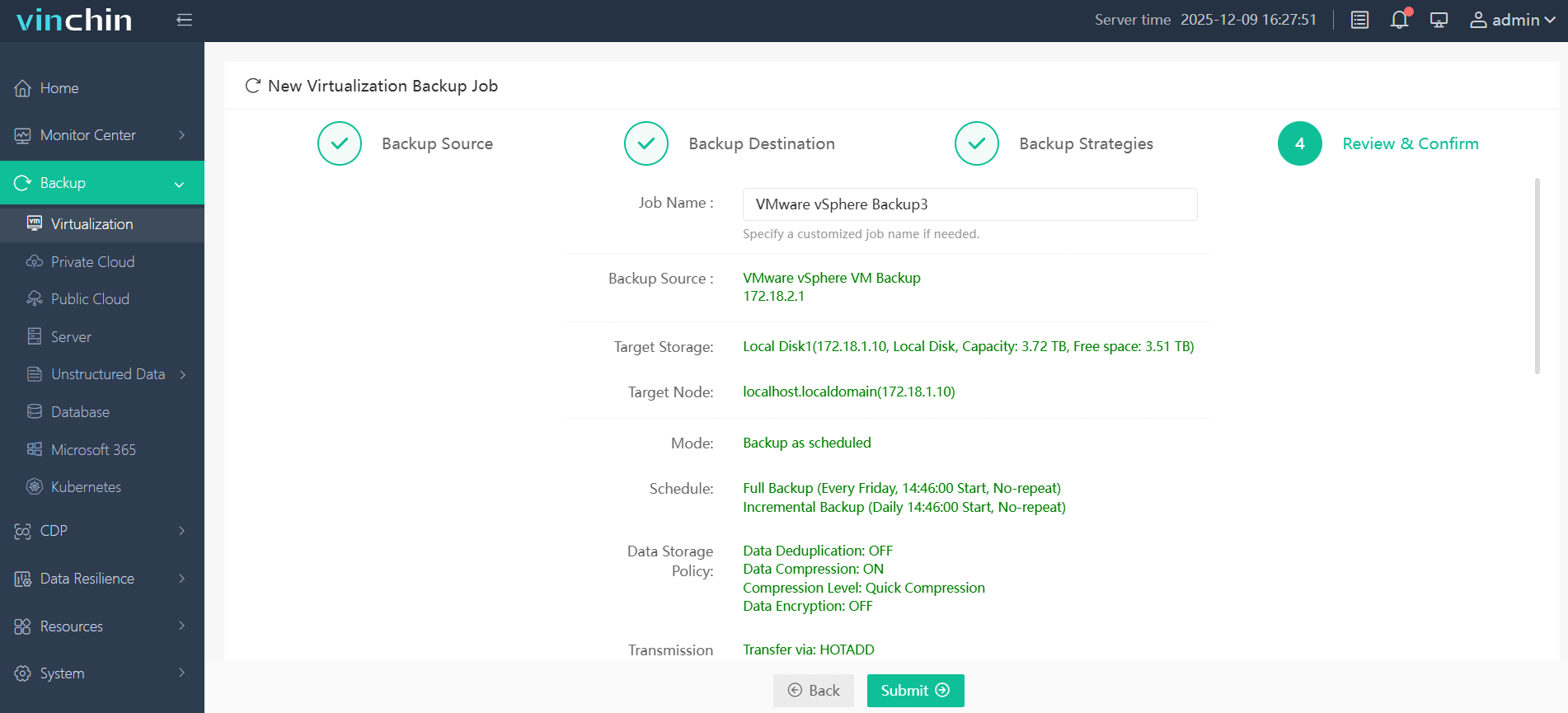
Steps to back up VMware VMs:
Step 1. Go to Backup > Virtualization and choose the VMware VM.
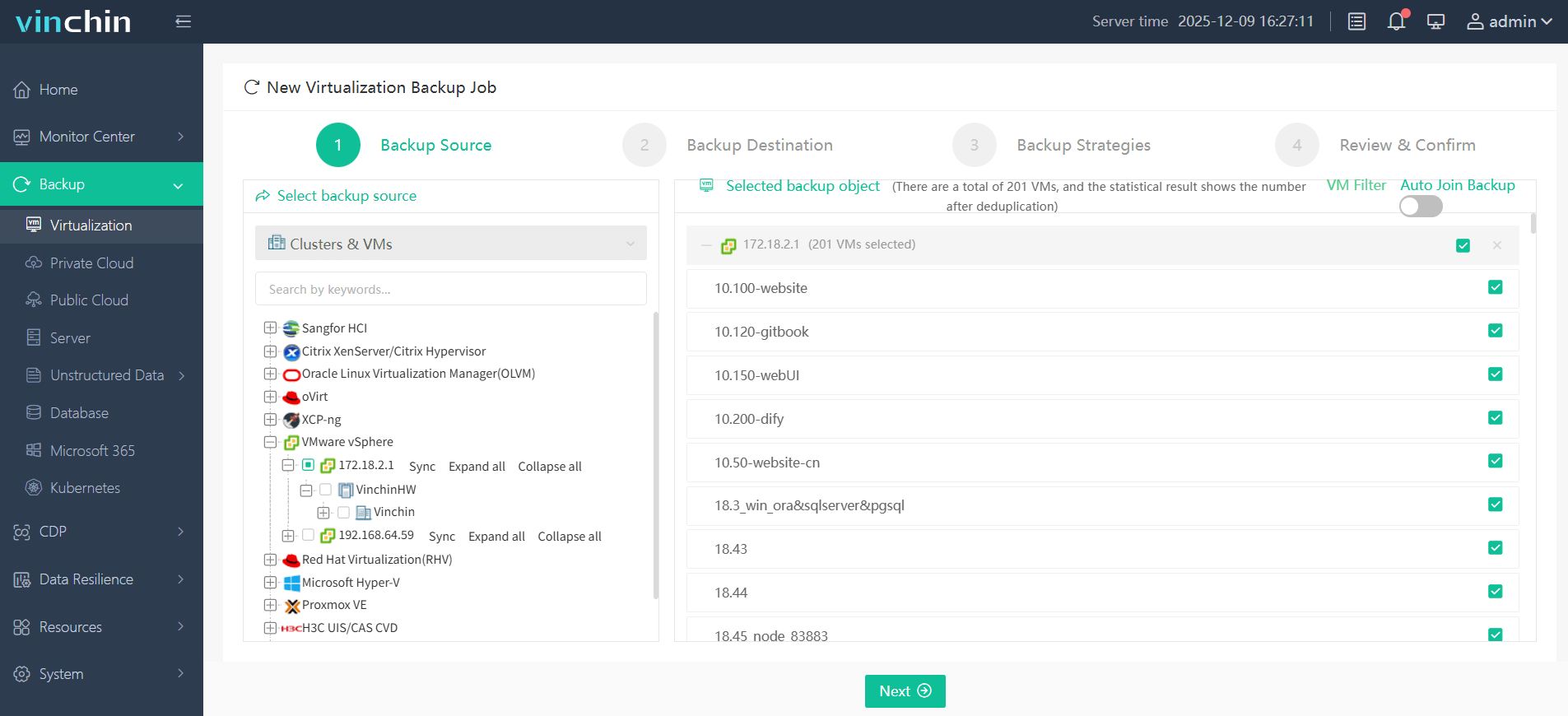
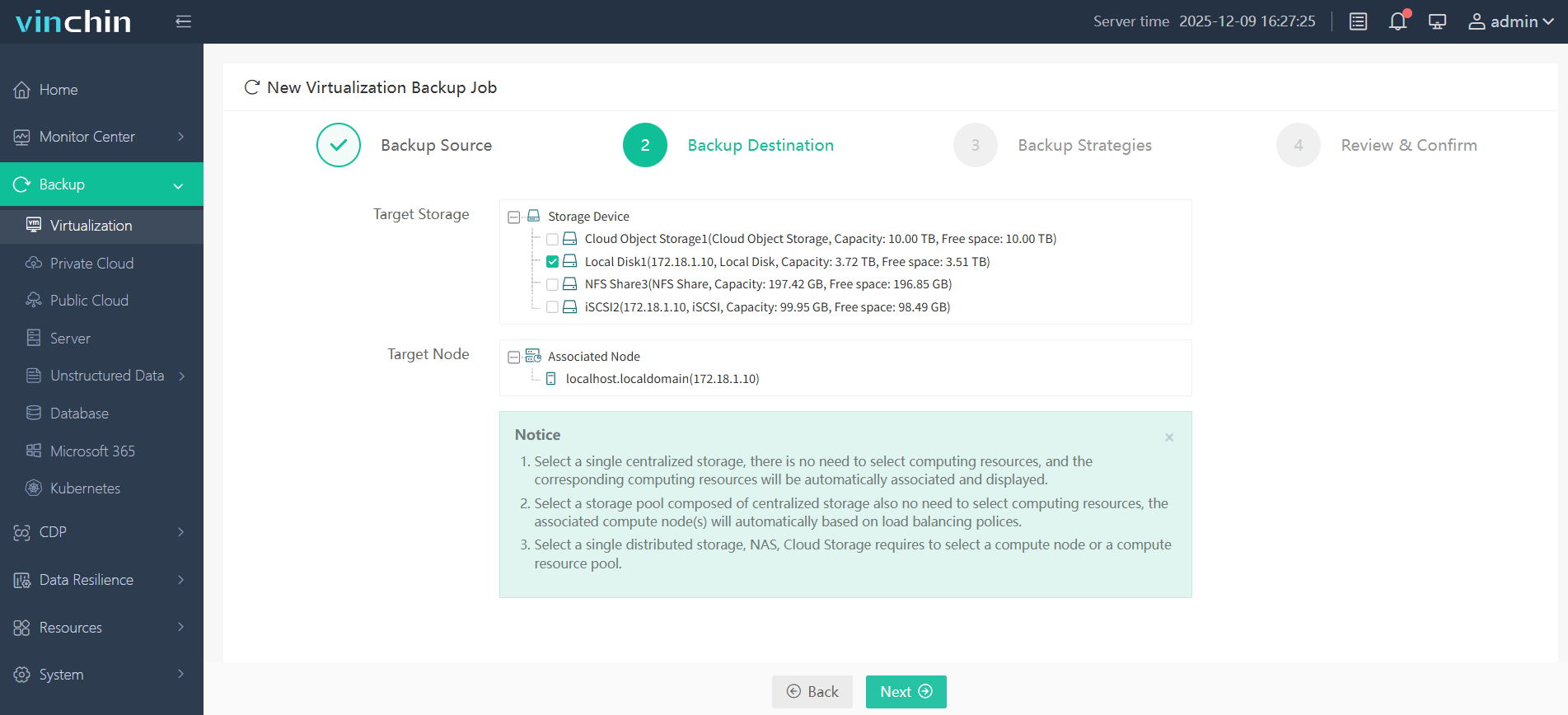
Step 2. Select the target storage and target node.
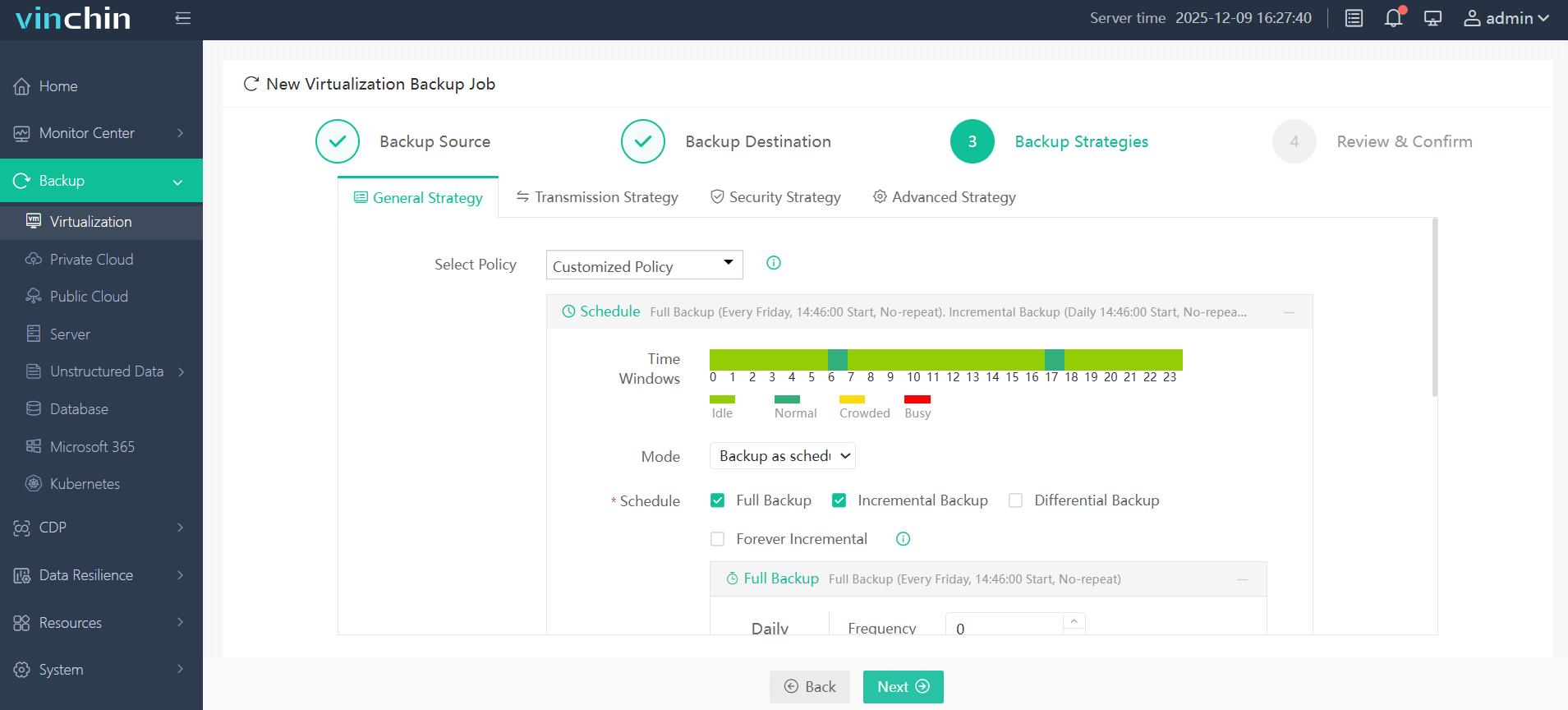
Step 3. Configure the desired backup strategies.
Step 4. Review and confirm the above settings are correct, then click Submit.
Download Vinchin and start a free 60-day trial to see how it handles your environment’s VSS footprint. Or contact sales directly to describe your demands.
FAQs
Q1: Can I disable VSS entirely to stop these errors?
Technically, yes. You can set the Volume Shadow Copy service to Disabled. But doing so means you lose point-in-time backups, Previous Versions for end-users, and any application-consistent backup capability.
Q2: How many shadow copies can a Windows volume hold?
Windows enforces a hard limit of 64 shadow copies per volume.
Q3: Why does the VSS error only happen every few days, not every backup?
Intermittent VSS failures are almost always scheduling conflicts, a Windows-managed shadow copy, an endpoint security product's own snapshot, or a previous backup job that didn't clean up its snapshot set. The overlap isn't consistent because schedule drift accumulates over time.
Conclusion
The unable to create a VSS snapshot error is usually caused by VSS writer failures, provider conflicts, or storage issues. By following a structured troubleshooting process and using a reliable backup solution like Vinchin Backup & Recovery, you can reduce VSS-related failures and keep your backups running consistently.