User Case
"My Windows Server 2016 Hyper-V VM is stuck in a saved state and won't start, showing the error 'failed to change state'. The issue appeared after I replaced the VM's virtual switch following a NIC change, and I'm unsure whether deleting the saved state is the right solution."
This error can be triggered by virtual switch changes, corrupted saved states, configuration issues, or storage and service problems. In this post, we’ll discuss the reasons behind this error, walk through the necessary checklist, and provide practical solutions to get your virtual machine running again.
Explanation of the Error
The "Hyper-V failed to change state" error indicates that Hyper-V cannot complete a requested state transition for a virtual machine. This may occur when starting, stopping, pausing, resuming, or saving a VM, preventing it from reaching the desired state.
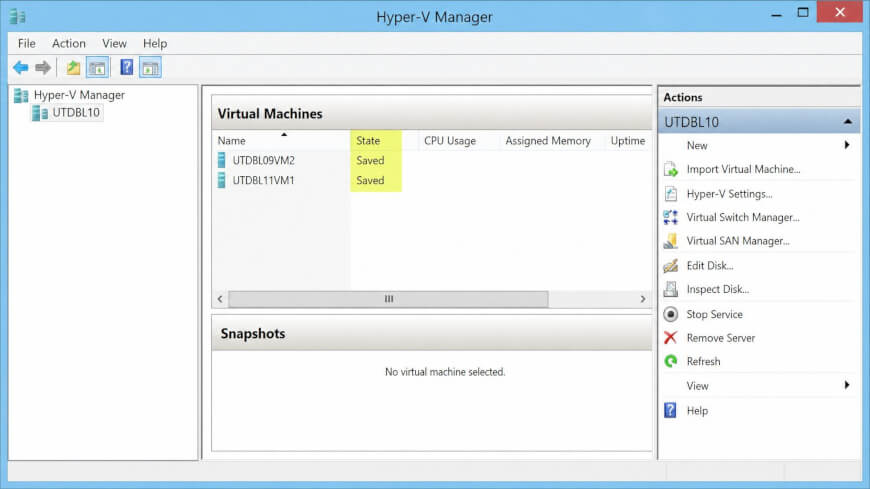
Depending on the underlying cause, you may encounter one or more of the following symptoms:
The virtual machine remains stuck in Starting, Stopping, or Saved status.
The VM fails to power on or shut down.
Hyper-V Manager displays the message "Failed to change state."
VM operations such as checkpoints or live migration cannot be completed.
Since this is a generic error, identifying the root cause is essential before attempting any fixes.
Common Reasons for the Hyper-V Failed to Change State Error
Several factors can trigger this error. Below are the most common ones.
Insufficient System Resources
A lack of available CPU, memory, or disk space can prevent Hyper-V from changing the VM's state successfully.
Corrupted Saved State or Checkpoints
A damaged saved state or broken checkpoint chain may stop the VM from starting or resuming normally.
Virtual Disk Issues
If the VHD or VHDX file is missing, corrupted, locked by another process, or inaccessible due to permission issues, Hyper-V may fail to perform state transitions.
Virtual Switch Configuration Changes
Changing or deleting a virtual switch without properly updating the VM's network configuration can leave the virtual machine in an inconsistent state.
Hyper-V Services Failure
Critical services such as the Hyper-V Virtual Machine Management Service (VMMS) may have stopped unexpectedly, preventing normal VM operations.
Hardware or Storage Problems
Storage failures, disconnected drives, or unstable storage connections can interrupt access to virtual machine files and trigger the error.
Must-Have Checklist When this Error Occurred
Before trying any repair methods, perform the following checks to narrow down the cause.
1. Check Event Viewer
Review Windows Logs and Applications and Services Logs > Microsoft > Windows > Hyper-V for related error messages.
2. Verify VM Status
Run:
Get-VM
Check whether the VM is stuck in Saved, Paused, or another abnormal state.
3. Check Hyper-V Services
Run:
Get-Service vmms
Ensure the Hyper-V Virtual Machine Management Service is running.
4. Verify the Virtual Disk
Confirm that the VHD/VHDX file still exists, the file path is correct, and the disk is not locked by another application.
5. Check Virtual Switch Configuration
Verify that the VM is connected to a valid virtual switch, especially if the host's physical NIC or virtual networking configuration was recently modified.
6. Review System Resources
Ensure the Hyper-V host has sufficient CPU, memory, and available disk space to start the virtual machine. Once you've identified the likely cause, you can apply the appropriate solution in the next section.
Solutions to Resolve the Hyper-V Failed to Change State Error
Once you've identified the likely cause, apply the appropriate solution below.
1. Restart Hyper-V Services
If the error is caused by a temporary service failure, restarting the Hyper-V Virtual Machine Management Service (VMMS) may restore normal VM operations.
Run:
Restart-Service vmms
If necessary, restart the Hyper-V host after the service has been restarted.
2. Delete the Saved State
If the virtual machine is stuck in a saved state, deleting the saved state can often resolve the issue without affecting the virtual hard disk or guest operating system. After removing the saved state, try starting the VM again.
3. Repair the Virtual Switch Configuration
If the problem occurs after modifying or deleting a virtual switch, reconnect the virtual machine to a valid switch in Hyper-V Manager. Verify that the new virtual switch is correctly bound to the physical network adapter.
4. Verify the Virtual Disk
Ensure the VM's VHD or VHDX file is accessible and hasn't been moved, renamed, or corrupted. If the storage location has changed, update the virtual disk path before restarting the virtual machine.
5. Free Up Host Resources
Low memory, insufficient disk space, or excessive CPU usage may prevent Hyper-V from changing the VM state. Releasing host resources or shutting down unnecessary virtual machines may resolve the problem.
Restore the VM from Backup with Vinchin Backup & Recovery
If the VM configuration, checkpoint chain, or virtual disk has been severely corrupted and none of the above solutions work, restoring the virtual machine from a recent backup is often the fastest way to resume business operations.
Vinchin Backup & Recovery delivers reliable image-level protection for Hyper-V virtual machines and enables instant recovery whenever unexpected failures occur. Whether you need to restore an entire VM after severe corruption or roll back to a previous recovery point, the solution helps minimize downtime with rapid, point-in-time recovery while ensuring system consistency throughout the restoration process.
Here’s how to do it:
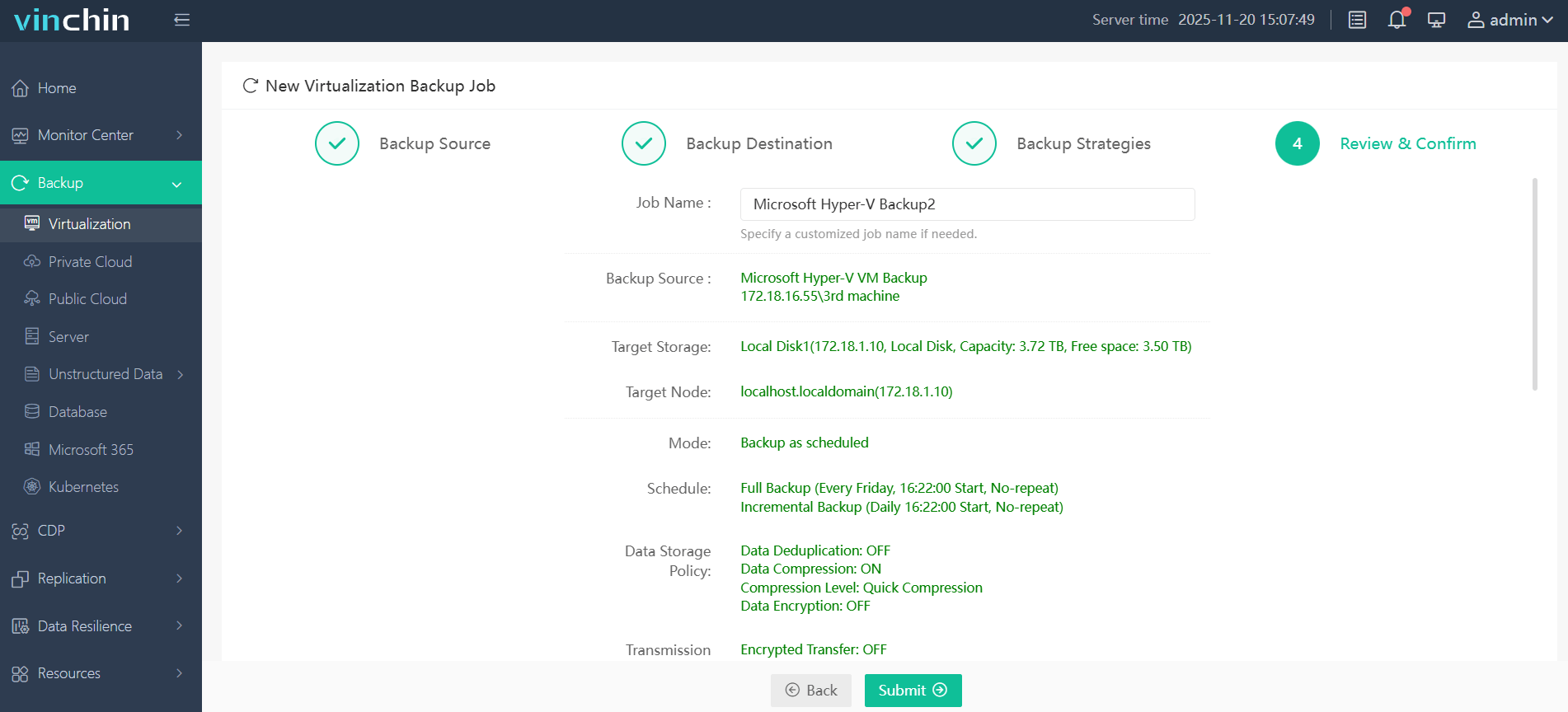
1. Before the recovery, create a backup task for the original Hyper-V VM.
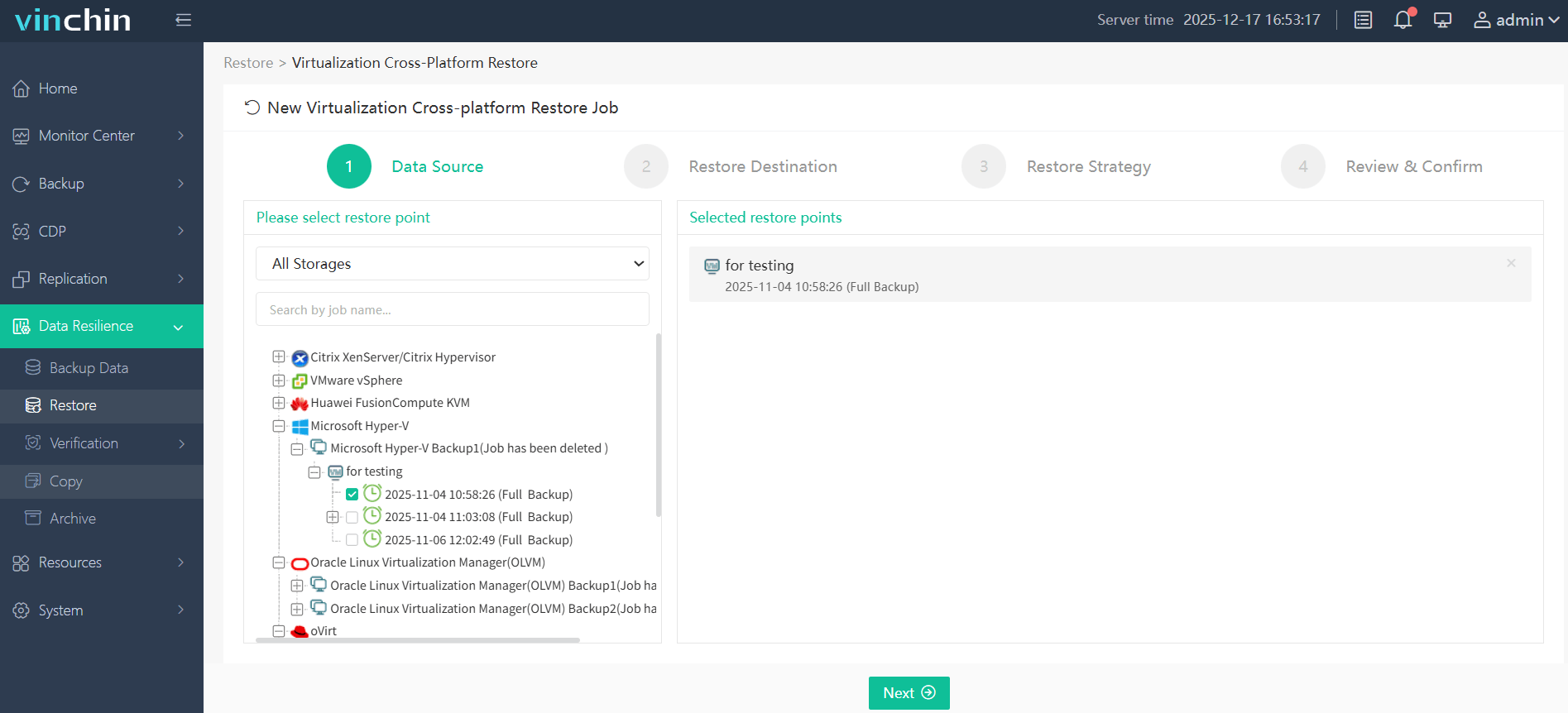
2. Go to Data Resilience > Restore, and choose the Hyper-V backup storage you made as the data recovery source.
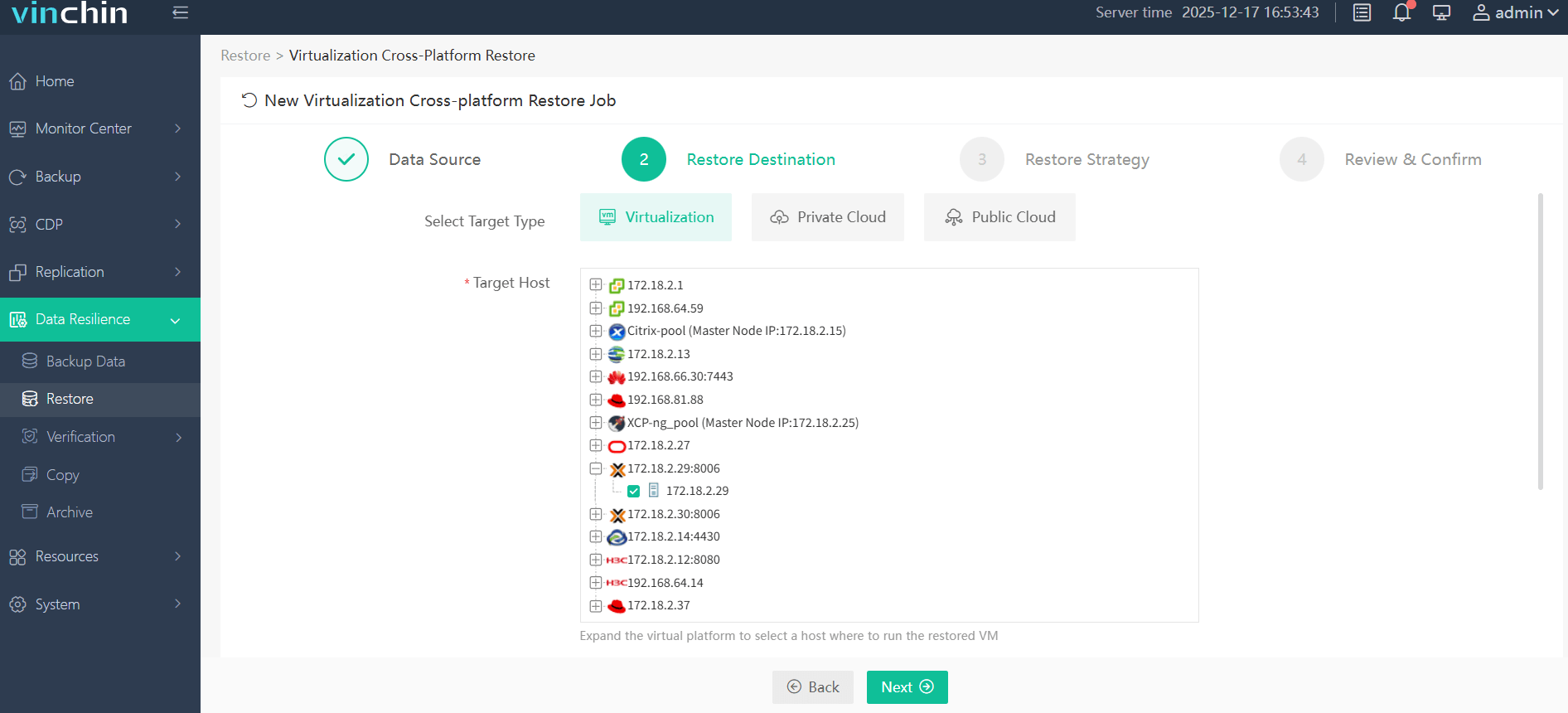
3. Choose the target host and configurations to specify the restore destination.
4. Customize the restore strategies, including schedule, throttling policy, transmission, and security strategies. Choose the options as you like.
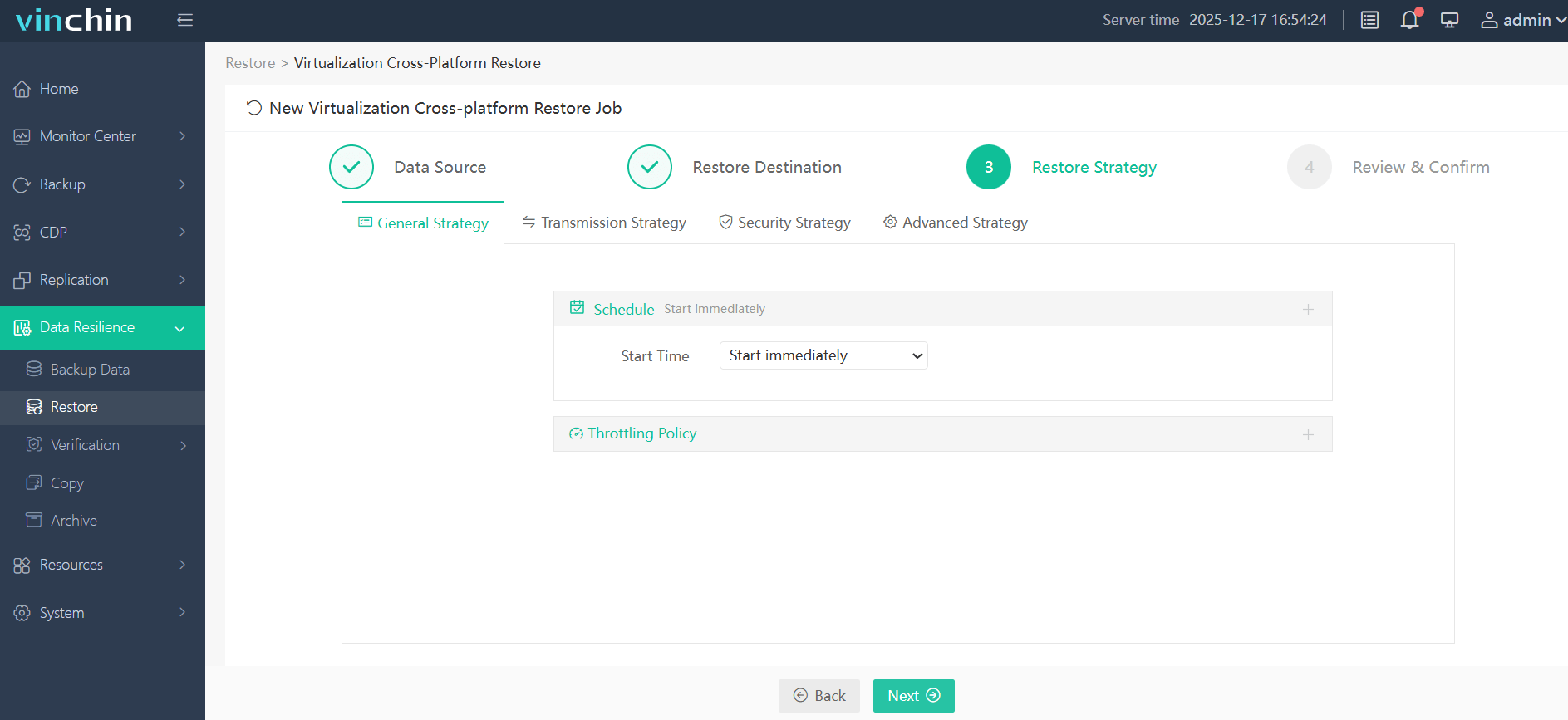
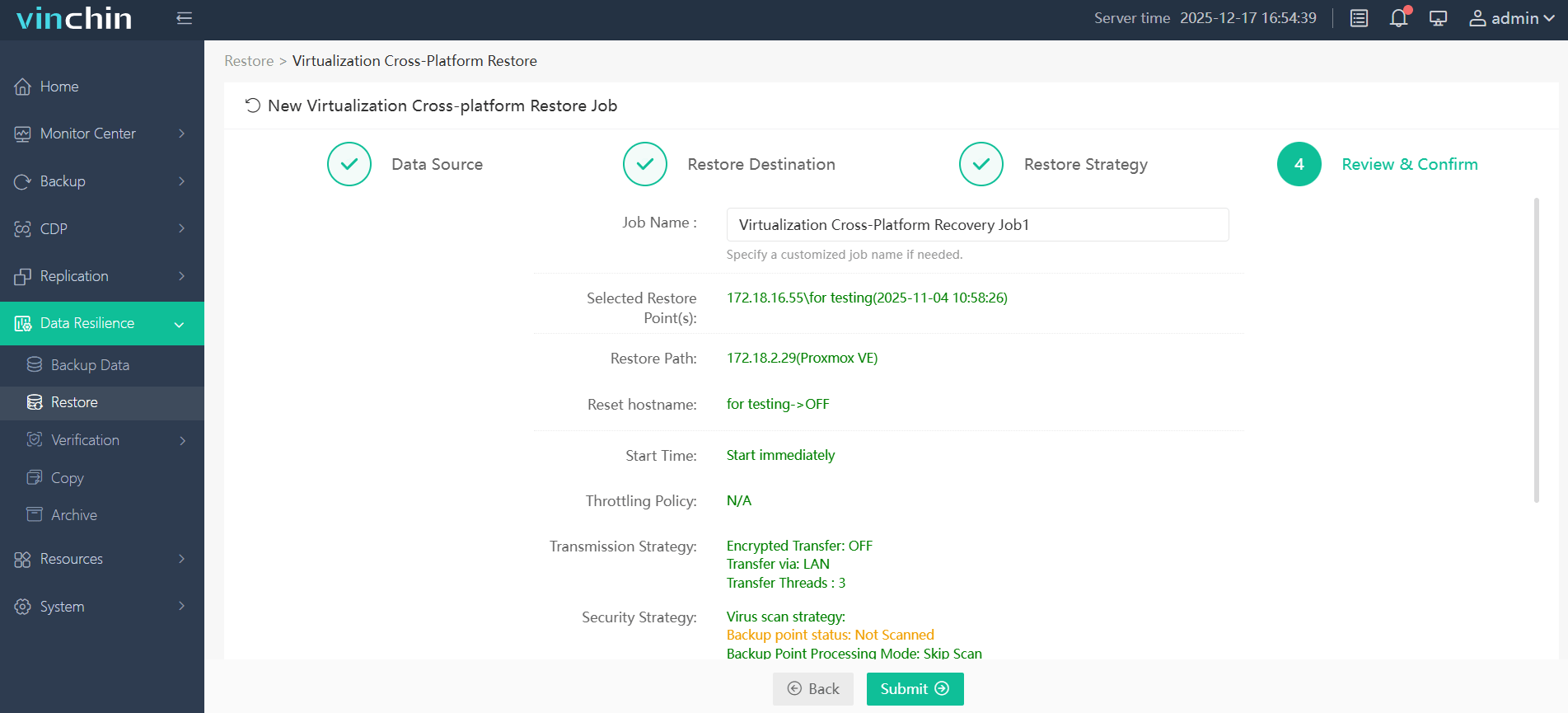
5. Review all the settings and tab Submit to start the task. You can monitor the real-time process on the web console.
Vinchin Backup & Recovery focuses on enterprise disaster recovery and is constantly improving our services. You can download the 60-day fully-featured free trial to estimate whether it satisfies your VM protection requirements.
Hyper-V Failed to Change State FAQs
Q1: Why does Hyper-V say "Failed to change state"?
This is a generic error indicating that Hyper-V cannot complete a requested VM operation. The underlying cause may be related to saved states, virtual disks, Hyper-V services, virtual switches, or insufficient system resources.
Q2: Is it safe to delete a saved state?
Yes. Deleting a saved state only removes the VM's suspended state and does not delete the virtual hard disk or guest operating system. However, any unsaved session data stored in memory will be lost.
Q3: When should I restore the VM from backup?
If the VM configuration, virtual disk, or checkpoint chain has become irreparably damaged, restoring the VM from a verified backup is typically the quickest and safest recovery option.
Closing Thoughts
The "Hyper-V failed to change state" error can usually be resolved by checking VM configuration, Hyper-V services, storage, and networking. If the issue leads to severe VM corruption, restoring the virtual machine from a reliable backup is often the fastest recovery option. Vinchin Backup & Recovery helps protect Hyper-V workloads with dependable backup and rapid recovery, ensuring your business can recover quickly from unexpected failures.