Kubernetes is now the de-facto standard for container orchestration. But running a full cluster in the cloud isn’t always practical—especially when you need fast feedback or want to test changes safely. That’s where local Kubernetes comes in. With just your laptop or desktop, you can spin up a real cluster quickly, experiment freely, and avoid unnecessary costs.
What Is Local Kubernetes?
Local Kubernetes means running a complete Kubernetes environment directly on your own hardware—no remote servers required. This approach gives you full control over your cluster without relying on cloud infrastructure or shared resources. For IT operations teams, it offers an easy way to simulate production-like environments right at your desk.
Unlike production clusters that span multiple nodes across data centers or clouds, local clusters usually run as single-node setups or small multi-node simulations. They are ideal for development, troubleshooting, testing upgrades, validating configurations, and learning how Kubernetes works under the hood.
Why Use Local Kubernetes Clusters
Running Kubernetes locally brings several key benefits for operations administrators:
First, it saves money by eliminating cloud resource costs during experimentation or training. Second, it boosts speed—you can test changes instantly without waiting for remote deployments or approvals.
Third, local clusters provide safety. You can break things without fear of impacting live systems—a must when troubleshooting complex issues or reproducing bugs from production environments.
Fourth, they are perfect for learning and onboarding new team members. You get hands-on experience with real workloads in a risk-free setting.
Fifth—and especially important for modern ops teams—local clusters let you validate GitOps workflows (like ArgoCD or Flux) and Infrastructure as Code manifests before pushing them upstream. This reduces errors in production rollouts.
Finally, local clusters make it easier to test persistent storage features and network policies in isolation from noisy environments. Isn’t it reassuring to know you can try out advanced features without risking downtime?
Method 1: Setting Up Local Kubernetes With Minikube
Minikube is one of the most popular ways to run Kubernetes locally. It creates a single-node cluster on Linux, macOS, or Windows machines using virtualization or containers behind the scenes.
Before installing Minikube itself, ensure you have a compatible container runtime (like Docker or Podman) or virtual machine manager (such as VirtualBox or Hyperkit) installed on your system.
To install Minikube:
Download the binary then install it:
  curl -LO https://storage.googleapis.com/minikube/releases/latest/minikube-linux-amd64
  sudo install minikube-linux-amd64 /usr/local/bin/minikube
Use Homebrew:
brew install minikube
Use Chocolatey:
choco install minikube
Once installed:
1. Start your cluster by running minikube start. If needed, specify a driver like --driver=docker if multiple runtimes are present.
2. Check node status with kubectl get nodes.
3. Launch the dashboard using minikube dashboard.
Minikube supports add-ons such as Ingress controllers and metrics servers; enable these with commands like minikube addons enable ingress. For persistent storage tests, Minikube provides built-in support for hostPath volumes—great for simulating stateful workloads locally.
Want more? Minikube also lets you create multi-node clusters (minikube start --nodes=2) so you can test pod anti-affinity rules and failover scenarios right at home.
Method 2: Running Local Kubernetes With Kind
Kind (Kubernetes IN Docker) runs entire clusters inside Docker containers instead of virtual machines—a lightweight approach favored by many CI/CD pipelines and conformance testers.
Kind is best suited when you need rapid setup/teardown cycles or want to validate how different versions of Kubernetes behave together. It’s not typically used for application development but shines when testing custom controllers or integrating into automated build systems.
To install Kind:
brew install kind
On Windows via Chocolatey:
choco install kind
After installation:
1. Create a cluster using kind create cluster.
2. Verify nodes with kubectl get nodes.
Need more than one node? Prepare a YAML config file specifying extra worker nodes, then run kind create cluster --config=your-config.yaml.
When working with images built locally on your host machine but not pushed to any registry yet? Load them into Kind using kind load docker-image <image-name> so pods can pull them directly from Kind’s internal registry space.
Kind does not include an integrated dashboard UI by default; interact through kubectl commands instead.
Method 3: Using Docker Desktop for Local Kubernetes
Docker Desktop makes running local Kubernetes almost effortless if you're already familiar with Docker containers on Windows or Mac machines—it includes everything needed out-of-the-box!
To enable local clusters:
1. Open Docker Desktop.
2. Go to Settings (Preferences on macOS).
3. Select Kubernetes from the left menu.
4. Check Enable Kubernetes.
5. Click Apply & Restart; wait until status shows “Kubernetes is running.”
By default this sets up a single-node cluster named “docker-desktop.” To manage resources efficiently—especially if running other heavy applications—adjust CPU/memory allocations under Settings > Resources before enabling Kubernetes.
You can now use kubectl commands against this context immediately (kubectl config use-context docker-desktop). Testing persistent volumes? Docker Desktop supports hostPath-backed PVs out-of-the-box but check platform-specific notes about file system compatibility if mounting directories from outside containers matters to your workflow.
This method integrates seamlessly into existing Docker workflows; both containerized apps and orchestrated services share networking space so debugging becomes much simpler too!
Choosing the Right Local Kubernetes Tool
With three main options available—Minikube, Kind, Docker Desktop—which should you choose? Each has strengths depending on what matters most:
If you want broad feature coverage plus GUI dashboards (and don’t mind installing extra runtimes), Minikube fits well—it even supports multi-node simulation now! Prefer something scriptable that spins up/down fast inside CI jobs? Kind excels there thanks to its pure-Docker design; no VMs required! Already living inside Docker-land daily? Then enabling built-in support via Docker Desktop keeps things simple—with minimal configuration overhead—but only works natively on Mac/Windows hosts today.
Here’s how they compare at-a-glance:
| Tool | Best For | Pros | Cons |
|---|
| Minikube | Feature-rich dev/test | Add-ons/UI/dashboard/multi-driver | Needs VM/container runtime |
| Kind | CI/CD & conformance testing | Fast setup/scriptable/multi-version | No GUI/dashboard |
| Docker Desktop | Everyday app development | Seamless integration/simple setup | Limited OS/platform support |
Consider what fits best within your team’s workflow before choosing!
How to Protect Kubernetes With Vinchin Backup & Recovery?
While establishing robust local clusters is essential for safe experimentation and operational agility, safeguarding those environments against data loss remains equally important—especially during active development cycles prone to accidental deletions and misconfigurations. Vinchin Backup & Recovery stands out as an enterprise-level solution purpose-built for comprehensive protection of modern Kubernetes workloads at scale.
Vinchin Backup & Recovery delivers full/incremental backups with fine-grained restore capabilities by namespace/application/PVC/resource level; policy-driven automation including scheduled jobs and retention rules; cross-cluster/cross-version recovery supporting seamless migrations/disaster recovery scenarios; secure encrypted transmission/WORM protection ensuring compliance needs are met; plus high-speed backup acceleration via configurable multithreading—all designed to maximize reliability while minimizing administrative overhead.
The intuitive web console streamlines backup management into four straightforward steps tailored specifically for Kubernetes users:
Step 1: Select the backup source

Step 2: Choose backup storage
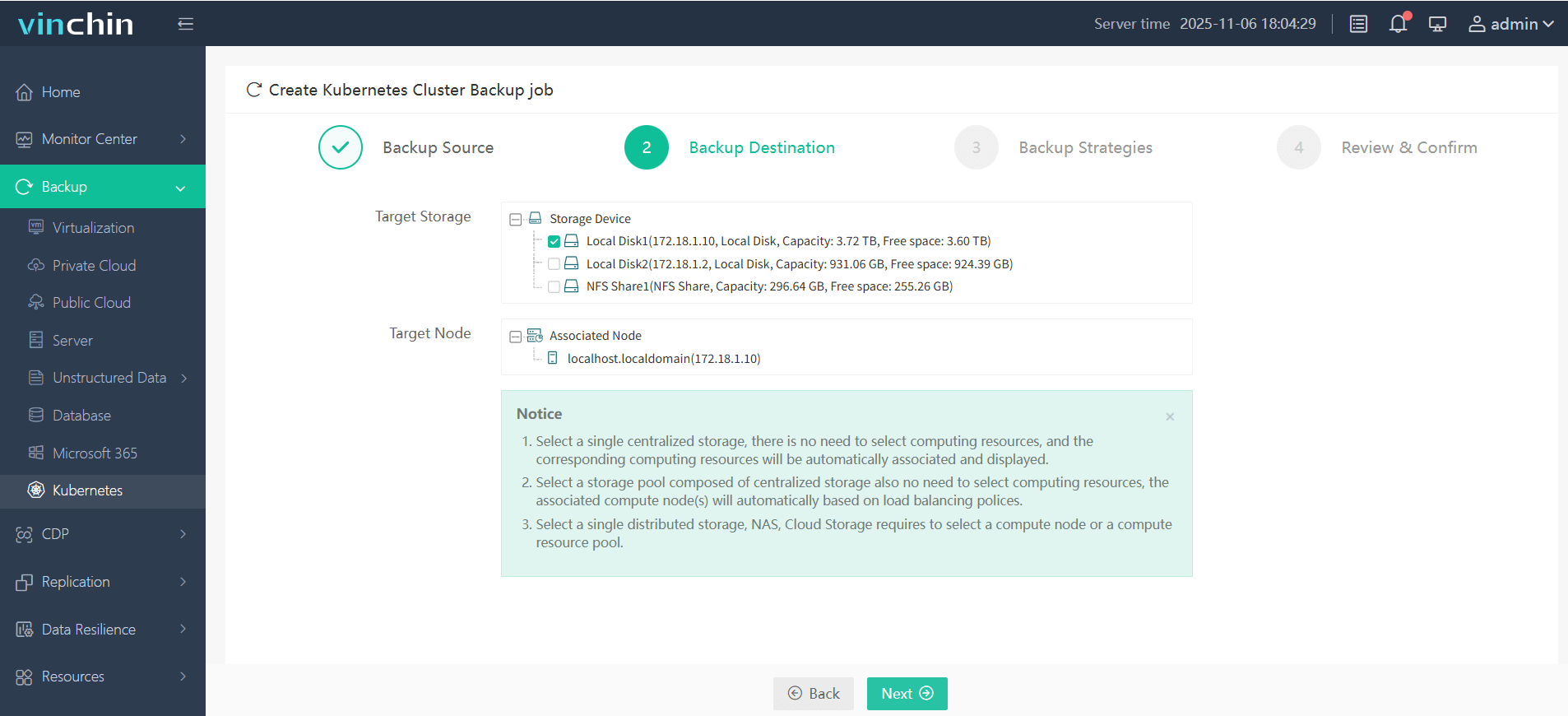
Step 3: Define backup strategy
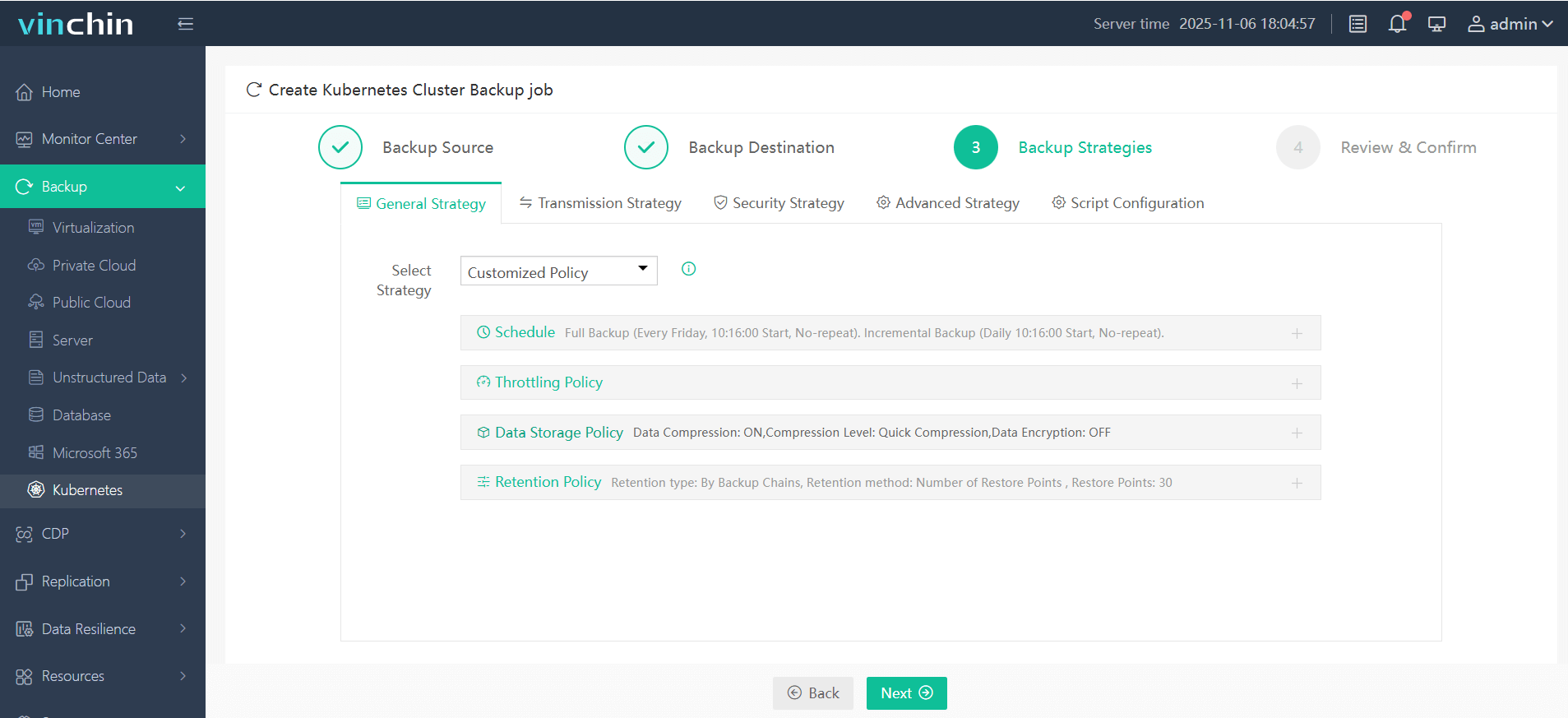
Step 4: Submit job
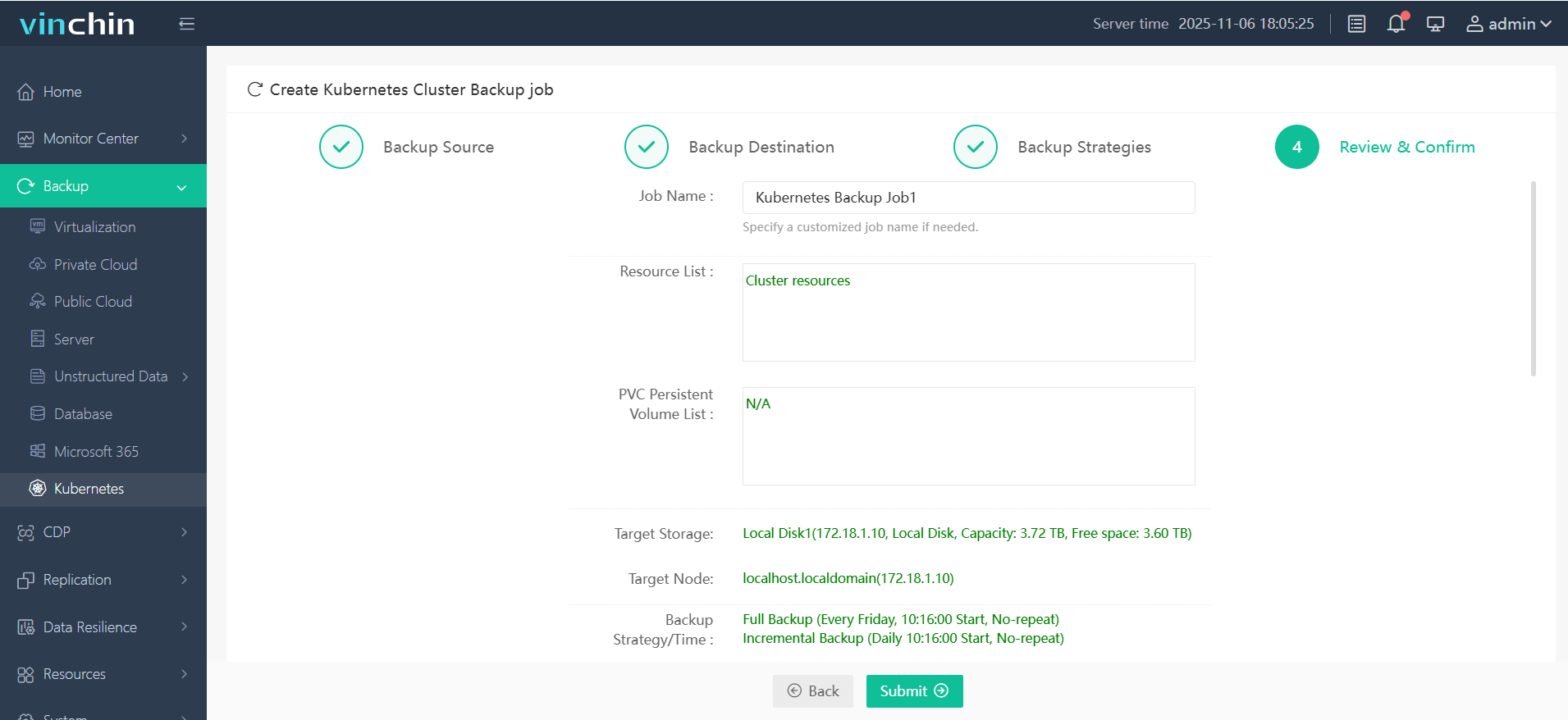
Recognized globally by enterprises large and small—with top ratings across industry platforms—Vinchin Backup & Recovery offers a fully featured free trial valid for 60 days so you can evaluate its powerful capabilities firsthand today!
Local Kubernetes FAQs
Q1: Can I simulate multi-node scheduling policies like pod anti-affinity locally?
A1: Yes—use minikube start --nodes=2 in Minikube or configure extra workers via YAML file when creating Kind clusters; both approaches let you test HA behaviors easily at home/workstation scale!
Q2: How do I expose my app running inside local K8s so colleagues can access it?
A2: Run kubectl port-forward svc/<service-name> <host-port>:<container-port> then share <host-ip>:<host-port> address—or use minikube service <service-name> which opens browser-accessible URLs automatically if supported by driver/network settings!
Q3: What should I do if my pods can't pull images after building them locally?
A3: Inject images directly into runtime using either minikube image load <image> command (for Minikube) OR kind load docker-image <image> command (for Kind); this ensures pods find required layers instantly even offline/private networks!
Conclusion
Local Kubernetes empowers admins with safe sandboxes for rapid testing and learning—without breaking budgets! Whether using Minikube, Kind, or Docker Desktop—you’re only minutes away from hands-on mastery of modern orchestration techniques. For reliable backup every step of the way, Vinchin delivers robust protection tailored specifically toward enterprise K8S needs. Try it free today!