User Case
"I have two ESXi 5.5 hosts managed by vCenter. Suddenly, all VMs became orphaned, and I saw ‘Cannot synchronize host’. Reconnect fails with vpxa error, but VMs still run on hosts."
This issue is typically caused by broken communication between vCenter and ESXi management agents, often due to network, DNS, certificate, or service failures. This article will explore the causes and practical solutions to restore host synchronization.
Why VMware Cannot Synchronize Host?
The “VMware cannot synchronize host” error usually indicates that vCenter Server has lost reliable communication with the ESXi host management layer, rather than an actual VM failure. As a result, vCenter cannot update inventory data, which leads to orphaned VMs, host disconnection, or synchronization failures.
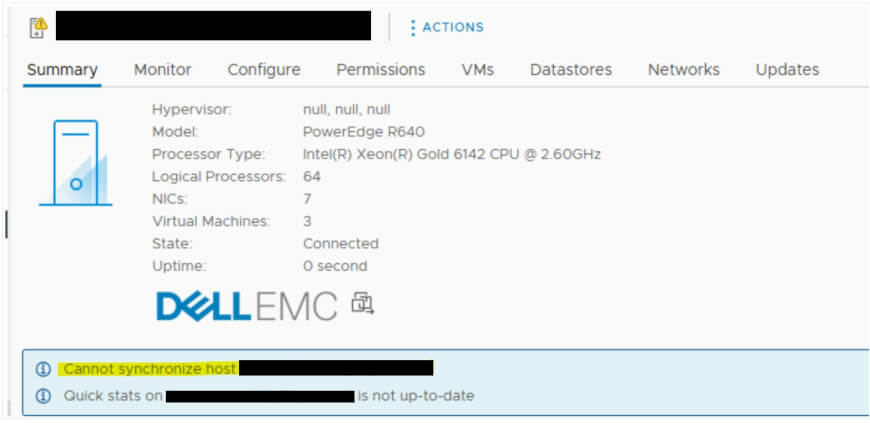
This problem is typically caused by issues in one or more of the following areas:
1. ESXi management services failure (hostd / vpxa)
The host relies on hostd and vpxa services to communicate with vCenter. If either service hangs, crashes, or fails to start properly, vCenter cannot complete synchronization.
2. Network connectivity issues
Intermittent or broken connectivity between vCenter and ESXi can prevent proper host communication. Common causes include:
Firewall blocking required ports (e.g., 443, 902)
Packet loss or unstable links
Incorrect VLAN or routing configuration
3. DNS or name resolution problems
vCenter depends heavily on correct forward and reverse DNS resolution. If the ESXi hostname cannot be resolved consistently, synchronization may fail.
4. Time synchronization mismatch
Large time drift between ESXi hosts and vCenter can break authentication and certificate validation, preventing successful host sync.
5. Certificate or authentication issues
Expired or mismatched SSL certificates can block secure communication between vCenter and ESXi hosts.
6. Version or compatibility issues
Older environments or mixed-version upgrades (e.g., legacy vSphere 5.x setups) may trigger synchronization problems due to API or service incompatibilities.
In most cases, the issue is not caused by a single factor, but a combination of management service instability and communication breakdown between vCenter and ESXi hosts. The next section will cover practical troubleshooting steps to resolve these problems.
How to Fix “VMware Cannot Synchronize Host”?
Once the root cause is understood, the issue can usually be resolved by restoring communication between vCenter Server and the ESXi host management services. Below are practical troubleshooting steps, starting from the simplest checks.
1. Verify Network Connectivity
Ensure vCenter can reach the ESXi host without interruption:
ping esxi01.lab.local
nc -zv esxi01.lab.local 443 902
nslookup esxi01.lab.local
nslookup 192.168.1.20
2. Check and Restart ESXi Management Services
A common cause is a stuck or failed host management agent (hostd/vpxa).
SSH into the ESXi host and restart services:
/etc/init.d/hostd restart
/etc/init.d/vpxa restart
Or:
services.sh restart
3. Restart vCenter Services
If multiple hosts are affected, the issue may be on the vCenter side. Restarting vCenter services (vpxd, etc.) can restore synchronization.
Execute vCenter Appliance SSH:
service-control --stop --all
service-control --start --all
4. Reconnect the ESXi Host in vCenter
Disconnect the host from vCenter
Reconnect it using the correct credentials
If needed, remove and re-add the host completely
5. Fix DNS and Time Synchronization
Incorrect DNS configuration or time drift between vCenter and ESXi hosts is a common cause of host synchronization failures.
NTP time sync configuration path: Host > Configure > System > Time Configuration > Edit
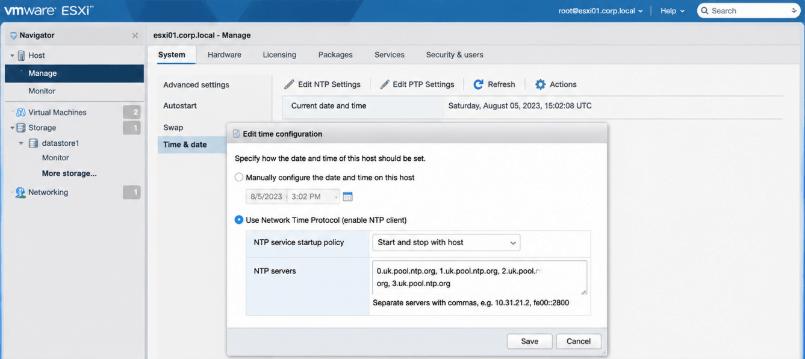
Ensure:
DNS Configuration:
Verify that:
6. Check Certificates
Expired or mismatched certificates can block host communication. Regenerate or renew ESXi certificates if necessary.
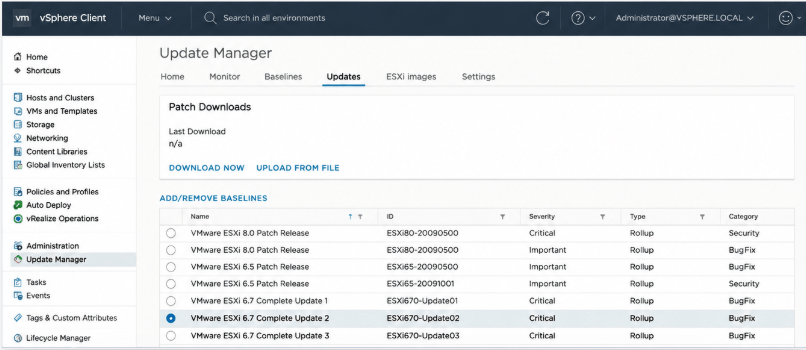
7. Upgrade or Patch VMware Components
In older environments, especially legacy versions like vSphere 5.x, upgrading ESXi or vCenter can resolve known synchronization bugs and compatibility issues.
Best Practices to Prevent “VMware Failed to Synchronize Host” Issue
Most host synchronization issues can be avoided by maintaining a stable and consistent VMware infrastructure. Below, we summarize some best practices to prevent such issues.
Make sure forward and reverse DNS records are properly configured and consistent across vCenter and ESXi hosts.
Keep ESXi hosts and vCenter synchronized with the same NTP sources to prevent authentication and certificate issues.
Regularly patch ESXi and vCenter to avoid known bugs and compatibility problems.
Monitor and ensure hostd and vpxa services are running normally on ESXi hosts.
Ensure low-latency, reliable network paths between vCenter and hosts, with required ports open.
Track certificate expiration and renew them in advance to avoid communication failures.
Protect VMware VMs with Vinchin Backup & Recovery
Some synchronization issues require restarting management services, reconnecting hosts, or even removing and re-adding ESXi hosts. Although these operations are generally safe, unexpected failures may still affect VM availability. Creating a recent backup before troubleshooting provides an additional layer of protection.
Vinchin Backup & Recovery offers reliable backup, restore, and migration services to protect your virtual machines from data loss, failures, or unexpected disruption. It supports over 15 virtualization platforms (VMware, Proxmox, Hyper-V, etc.) and enables the data consistency via built-in encryption, deduplication, and ransomware protection.

Its core features include:
Agentless backup: Simple deployment with no need for complex agent installation or configuration.
Incremental backup: Captures only changed data to ensure backups stay up to date while reducing storage usage and backup time.
Instant recovery: Achieves near-zero RTO and RPO, enabling rapid VM recovery and minimal business disruption.
Cross-host migration: Seamlessly move virtual machines across different hosts or clusters for flexible workload management.
Vinchin Backup & Recovery is a trustworthy backup vendor and offers a 60-day free trial; click the Download button to get advanced features unlocked.
VMware Cannot Synchronize Host FAQs
Q1: What does “VMware cannot contact host” mean?
It means vCenter Server is unable to communicate properly with the ESXi host, usually due to network issues, failed management services, or configuration problems, while VMs may still be running normally on the host.
Q2: Can VMs still run when the host cannot synchronize?
Yes. In most cases, VMs continue running normally on the ESXi host. The issue is only between vCenter and the host management layer.
Q3: Does restarting ESXi management services affect running VMs?
Restarting hostd or vpxa does not stop running VMs, but it may temporarily disconnect the host from vCenter until services recover.
Q4: Will removing a host from vCenter delete VMs?
No, removing a host from vCenter will not delete the VMs. The virtual machines remain stored on the ESXi datastore and continue running normally on the host. Only the vCenter management connection is removed.
Closing Thoughts
The “VMware failed to synchronize host” issue typically occurs when vCenter loses communication with the ESXi host due to network, DNS, or management service (hostd/vpxa) failures. In this post, we discussed the common causes and provided practical fixes. We also shared best practices to help prevent similar issues. For a more stable and secure production environment, it is recommended to regularly back up critical business data using Vinchin Backup & Recovery.









