What Does the Cannot Find vSphere HA Master Agent Mean
This error can appear after maintenance windows, vCenter upgrades or randomly during steady-state normal operation. And the core meaning: vCenter Server cannot reach or communicate with the ESXi host elected as the HA cluster's master FDM (Fault Domain Manager) agent.
Without an accessible master node, all vSphere HA functionality is disabled:
This issue can affect both newly deployed clusters and long-running production environments.
Common Causes of vSphere HA Master Agent not Found
The following lists the common reasons for the error:
Corrupted or Unresponsive FDM Agent: The FDM agent is responsible for HA operations on each ESXi host. If the agent becomes corrupted, outdated, or stops responding, the HA master may no longer function correctly.
Missing HA Configuration Files: vSphere HA depends on several configuration files stored on each ESXi host. If critical files such as Fdm.cfg are deleted or become corrupted, the FDM service may fail to start.
Datastore Heartbeat Problems: In addition to the management, vSphere HA uses shared datastores for the heartbeat monitoring. If heartbeat datastores become inaccessible, HA may struggle to determine host available.
vCenter or ESXi Upgrade Inconsistencies: Many administrators encounter this error shortly after upgrading vCenter Server or ESXi hosts. In some cases, the upgrade environment requires the FDM agents to be redeployed before HA function normally.
Step-by-Step Methods to Solve Cannot Find vSphere HA Master Agent
If you have already met this error, follow the troubleshooting methods below, start with the simplest solutions.
Method 1. Reconfigure vSphere HA
Reconfiguring HA forces vCenter to redeploy the FDM agents and perform a new master election.
1. Log in to the vSphere Client
2. Navigate to Hosts and Cluster, select the affected cluster and right-click > Settings
3. Click Configure > vSphere Availability
4. Click Edit
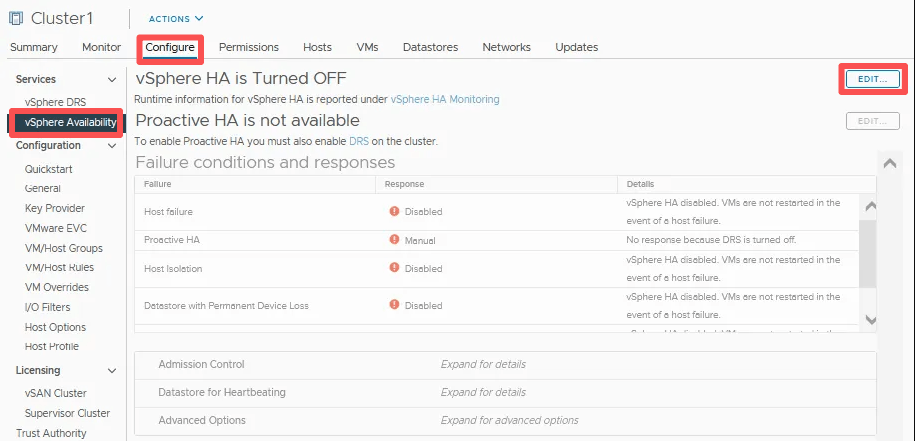
5. Disable vSphere HA and click OK
6. Wait until the HA configuration is removed from all hosts
7. Edit the settings again and re-enable vSphere HA
8. Monitor the Recent Tasks pane for successful completion
The Expected Result: A new HA master is elected and the alarm disappears.
Method 2. Verify Network Connectivity Between Hosts
HA relies on uninterrupted communication between ESXi hosts.
1. Open an SSH session to an ESXi host
2. Test connectivity to other hosts using:
vmkping <target-management-IP>
3. Verify DNS resolution:
nslookup <hostname>
4. Confirm all hosts can communicate over the management network
5. Check for:
VLAN mismatches
Firewall restrictions
Incorrect gateways
Packet loss
6. Correct any network issues found
7. Reconfigure HA if necessary
The Expected Result: Hosts can communicate normally and HA services resume.
Method 3. Restart ESXi Management Services
If HA agents become unresponsive, restarting management services can restore communication.
1. Enable SSH on the affected ESXi host
2. Connect via SSH
3. Run:
services.sh restart
4. Wait several minutes for services to restart
5. Return to vCenter and check HA status
Or you can:
1. Access the ESXi DCUI console
2. Press F2 and log in
3. Select Troubleshooting Options
4. Choose Restart Management Agents
The Expected Result: Hosts communication with vCenter and the HA master agent is restored.
Method 4. Disconnect and Reconnect the Host
This refreshes communication between the host and vCenter.
1. Open the vSphere Client
2. Right-click the affected ESXi host
3. Select Disconnect
4. Wait for the operation to complete
5. Right-click the host again
6. Select Connect
7. Allow vCenter to re-establish communication
8. Verify HA status
The Expected Result: The host successfully rejoins the cluster and HA becomes healthy.
Quick Preventive Steps to Avoid Recurrence
To avoid the Cannot Find vSphere HA Master Agent, follow these actions:
Always disable vSphere HA before any vCenter upgrade
Keep uniform DNS, MTU, VLAN & vSAN VMkernel configs across all cluster nodes
Patch vCenter and ESXi hosts in lockstep (follow VMware interoperability matrix)
Forward /var/log/fdm.log to centralized syslog to catch heartbeat errors early
Preventing VM Downtime Beyond HA
While VMware HA provides automated recovery during host failures, it is not a backup solution.
If HA configuration becomes corrupted, FDM agents fail, storage issues occur, or multiple hosts become unavailable, virtual machines remain vulnerable.
For this reason, many organizations deploy dedicated VM backup software alongside HA. Vinchin Backup & Recovery is such an efficient tool, providing agentless protection for VMware vSphere environments and can complement HA by ensuring recoverability when cluster-level services encounter issues.
Key capabilities include:
VMware VM backup and recoevery
Instant VM Recovery
Cross-platform migration
Incremental Forever Backup
Backup verification
Ransomware-resistant backup repositories
Simple steps to backup your VMware environments:
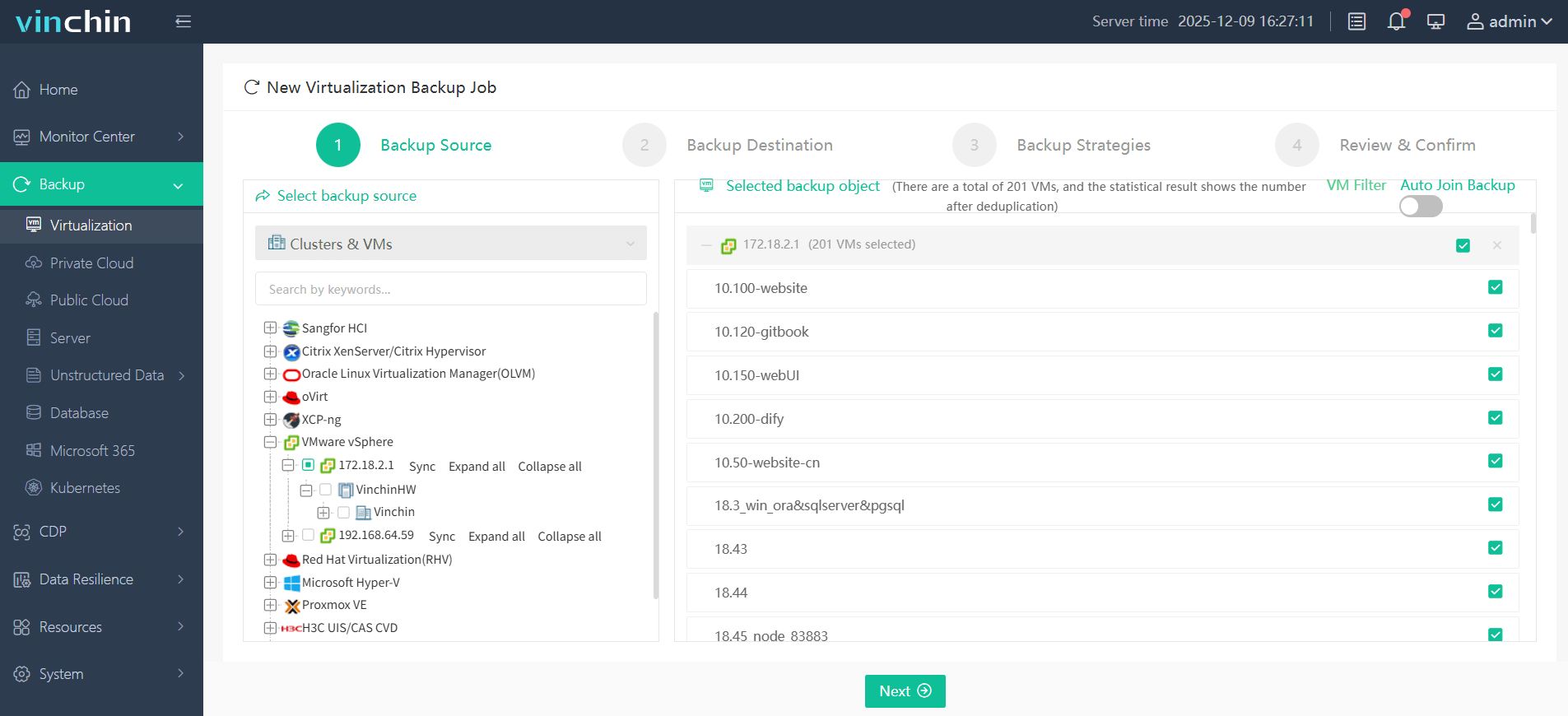
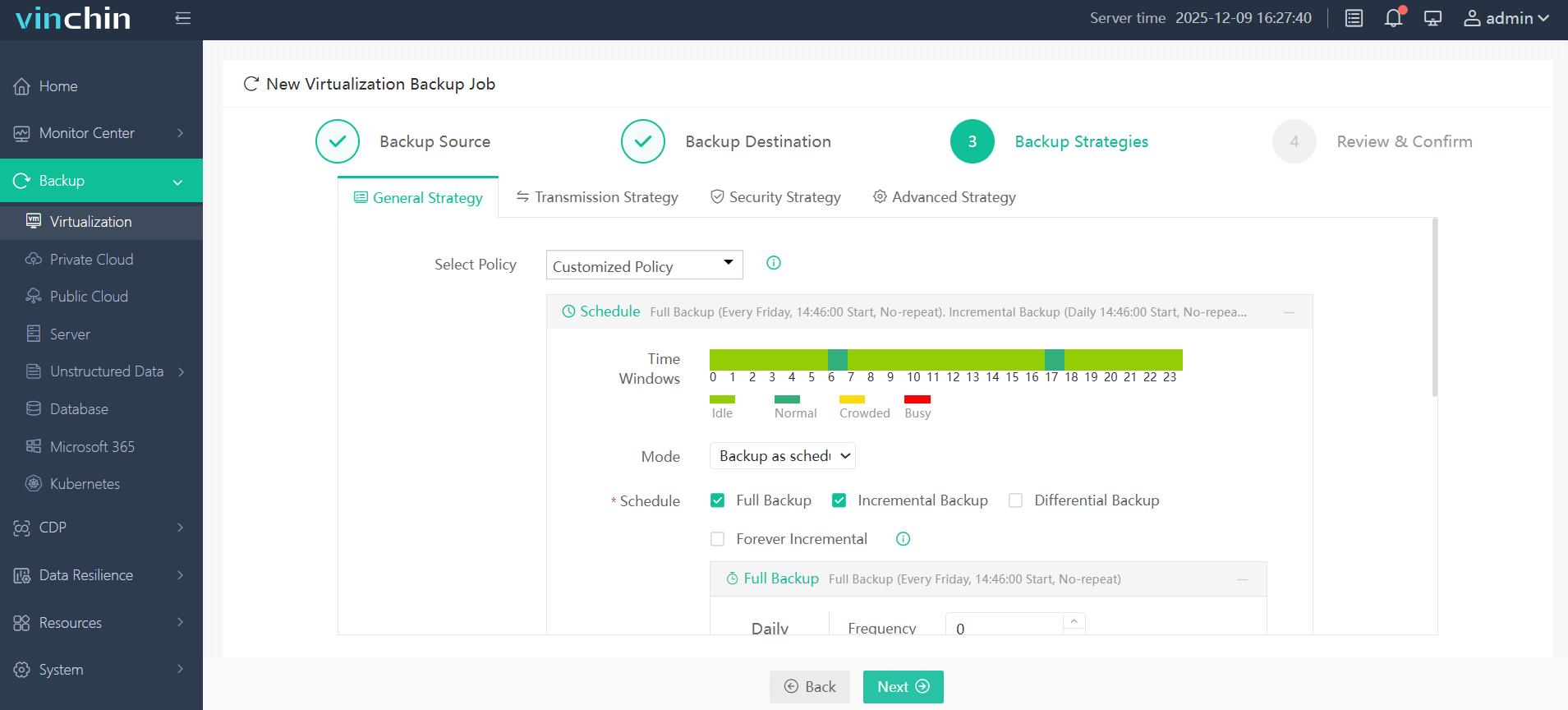
Step 1. Choose the VMware backup source under Backup > Virtualization tab
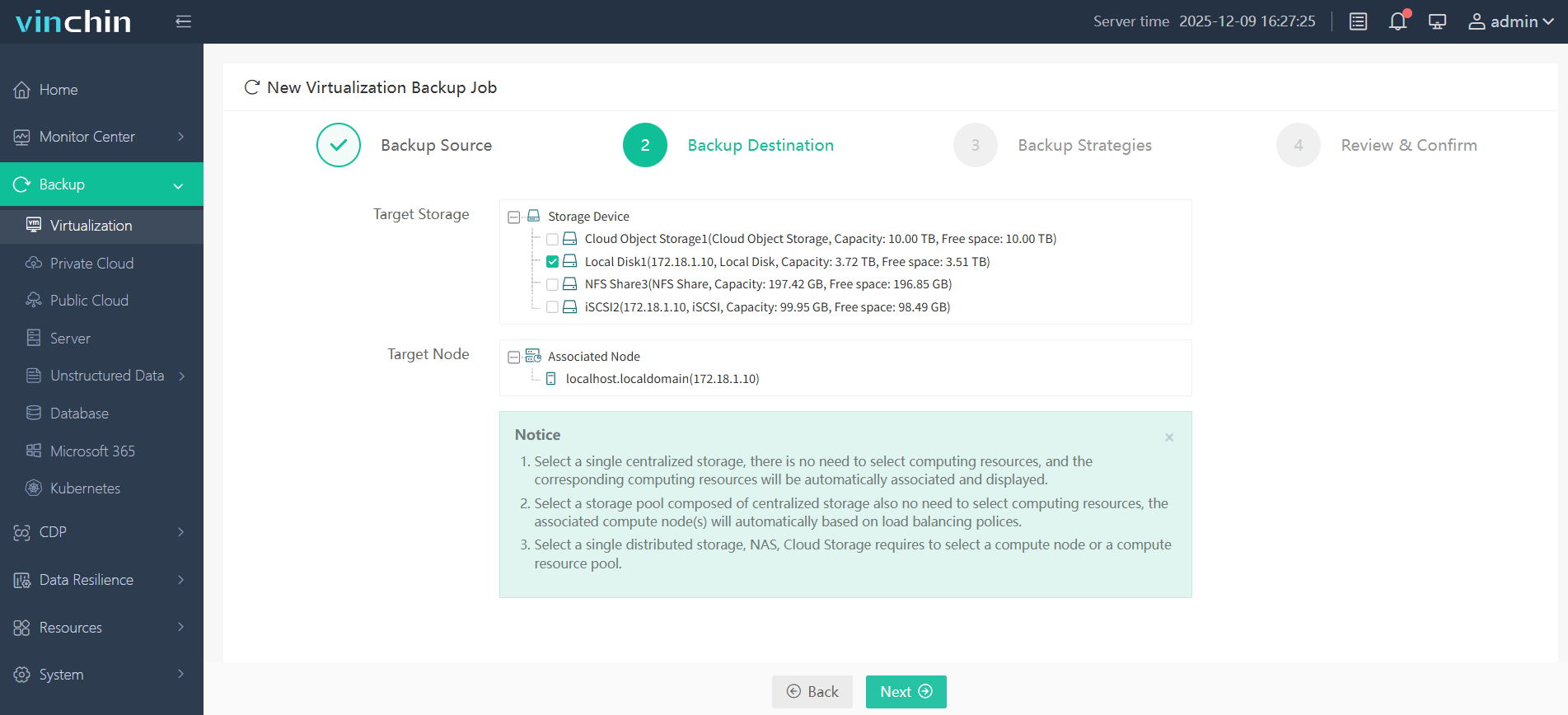
Step 2. Then choose your wanted backup destination (storage and node)
Step 3. Configure the backup strategies like backup schedule, throttling policy, and retention policy
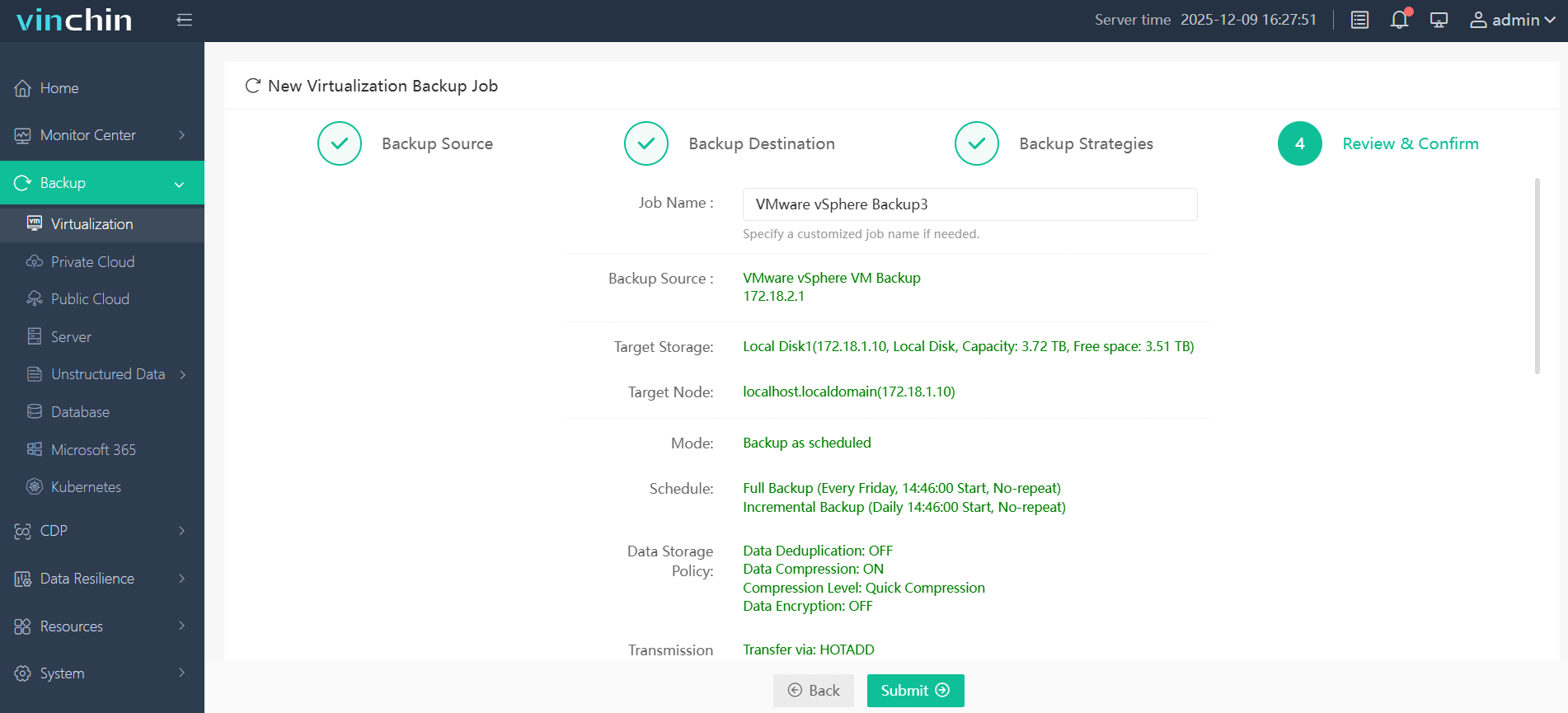
Step 4. Review and configure your backup settings, click Submit to begin backup process
If a VM becomes unavailable due to cluster failures, administrators can rapidly restore workloads without relying solely on HA mechanisms.
For enterprises running business-critical VMware environments, combining HA with independent backup protection creates a more resilient disaster recovery strategy. Download and try Vinchin 60-day full-featured trail for free!
FAQs about Cannot Find vSphere HA Master Agent Error
Q1: Is the error dangerous?
Yes, while running VMs may continue operating normally, VMware HA may no longer be able to automatically restart workloads if a host fails. This reduces fault tolerance until the issue is resolved.
Q2: Can virtual machines continue running when the HA master agent cannot be found?
Yes, existing virtual machines typically continue running normally because the error affects HA management and failover capabilities rather than VM execution itself. However, if an ESXi host fails while the issue persists, HA may not be able to automatically restart affected VMs on other hosts.
Q3: Does the error affect vMotion or Storage vMotion operations?
Not directly, vMotion and Storage vMotion use separate VMware services and can often continue functioning even when HA reports a master agent issue. However, cluster-wide communication problems that trigger the HA error may also impact migration operations in some environments.
Conclusion
The Cannot Find vSphere HA Master Agent error can compromise VMware High Availability and increase the risk of VM downtime. By identifying the root cause and applying the appropriate fixes, administrators can quickly restore HA functionality. For comprehensive protection, combining VMware HA with a reliable backup solution like Vinchin Backup & Recovery ensures both availability and recoverability for critical virtual machines.