User Case
"I’m configuring backups for my Proxmox virtual machines, but I’m not sure which backup mode I should use. There are three options: Snapshot, Stop, and Suspend, and each seems to work differently. Any advice may be appreciated."
Choosing the right backup mode in Proxmox VE is essential to protecting your virtual machines. Each backup mode uses a different approach to create backups, resulting in different levels of VM interruption, backup consistency, and hardware or storage requirements. In this article, we’ll introduce these three backup modes in detail, compare their advantages and limitations, and help you determine which option is best for your data backup strategies.
What Are Proxmox Backup Modes?
Proxmox offers three backup modes for virtual machines: Snapshot, Suspend, and Stop. Here’s an overview of each mode:
| Backup Mode | VM Running During Backup | Downtime | Speed | Backup Consistency | Typical Use Cases |
| Snapshot | Yes | No or minimal | Fast | High | Production VMs that require HA and business-critical workloads |
| Suspend | Temporarily paused | short | Medium | High | Environments without snapshot support |
| Stop | No | Entire backup duration | Slow | Highest | Maintenance windows and non-critical VMs |
The following sections explain how each backup mode works, list their advantages and limitations, and help you select the best option that matches your current business environment.
Snapshot VS. Suspend VS. Stop Backup Mode
Snapshot Mode
How it works: creates a point-in-time image of the VM using storage-level snapshots while the virtual machine continues running. Proxmox then performs the backup based on this snapshot, allowing the VM to remain online throughout the process.
Pros:
Minimal or near-zero downtime
Fast backup process with storage snapshot support
Suitable for most production workloads
Can work with QEMU Guest Agent for better consistency
Cons:
Requires snapshot-capable storage (e.g., ZFS, LVM, Ceph)
May produce crash-consistent backups without proper configuration
Slight performance overhead during snapshot creation
Suspend Mode
How it works: pauses the VM’s execution state (CPU and memory) while the backup is created. Once the backup process starts, the VM is frozen temporarily and then resumed after completion, preserving its state during the backup window.
Pros:
Provides consistent backup by freezing VM state
Works even when snapshot mode is not available
Better consistency than live snapshot in some environments
Cons:
VM is temporarily unavailable during backup
Longer pause time for memory-heavy VMs
Not suitable for latency-sensitive applications
Stop Mode
How it works: performs a full shutdown of the virtual machine before the backup begins. After the backup is completed, the VM is powered back on, ensuring a clean and consistent state at the file system level.
Pros:
Highest level of backup consistency
Eliminate risk of in-flight data corruption
Simple and predictable backup process
Cons:
Longest downtime among all modes
Service interruption during full backup window
Not suitable for production or always-on services
In general, Snapshot mode offers the best balance between speed and availability, while Stop mode prioritizes consistency over performance.
Which Proxmox Backup Mode Should I Choose?
The best Proxmox backup mode depends on your workload, storage type, and acceptable downtime. Snapshot mode is recommended if your storage supports it, as it provides fast backups with little or no downtime. Use Suspend mode when snapshot functionality is not available but consistent backups are still required. Finally, use Stop mode when data consistency is critical or during maintenance windows, as it fully shuts down the VM, ensuring the highest level of consistency but resulting in the longest downtime.
All in all, choose the mode based on your environment requirements to ensure a balance between performance, availability, and data safety.
How to Configure Proxmox Backup Modes?
Proxmox backup modes can be configured when creating or editing a backup job. You can choose the appropriate mode based on your environment requirements. Below, we list the step-by-step guide:
Method 1: Using GUI
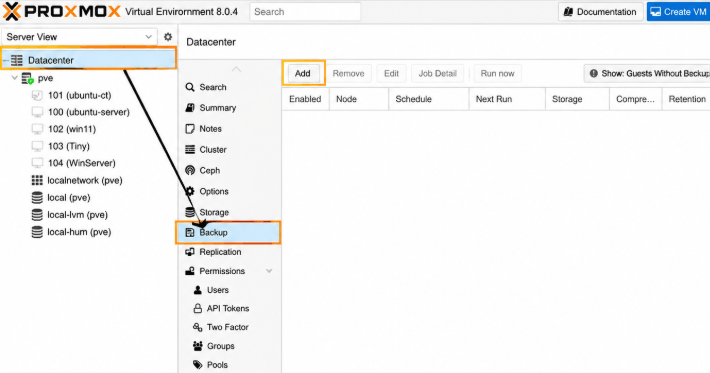
1. In the Proxmox VE web interface, navigate to Datacenter > Backup > Add/Edit Backup Job.
2. Under the backup options, you will find the Mode setting, where you can select one of the three options: Snapshot, Suspend, or Stop.
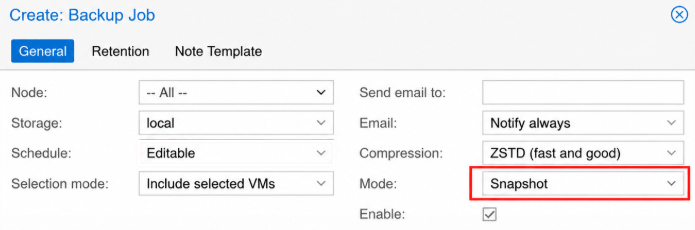
3. After selecting the desired mode, configure the storage, schedule, and retention policy, then save the job to apply the settings.
Method 2: Using CLI
You can also configure backup mode using the command line by editing or creating a backup job via vzdump.
Example command:
vzdump <vmid> --mode snapshot
Other available options include:
--mode suspend
--mode stop
This allows you to control the backup process directly when running or scheduling backups via scripts or automation tools.
Flexible Enterprise Backup Solution with Vinchin Backup & Recovery
While Proxmox VE provides three built-in backup modes, its native backup features are designed for basic VM protection and may not be sufficient for complex enterprise environments. For organizations that require more flexible backup strategies and simplified management, Vinchin Backup & Recovery is a practical alternative.
Vinchin supports full, incremental, and differential backups, along with snapshot-based technology to ensure consistent and efficient backups with minimal downtime. It also supports hot/live backups, allowing VMs to remain online throughout the backup process. In addition, its unified web console makes it easy to configure backup policies, automate backup jobs, and centrally manage multiple Proxmox environments.
Here you can see how to back up a Proxmox VM in Vinchin:
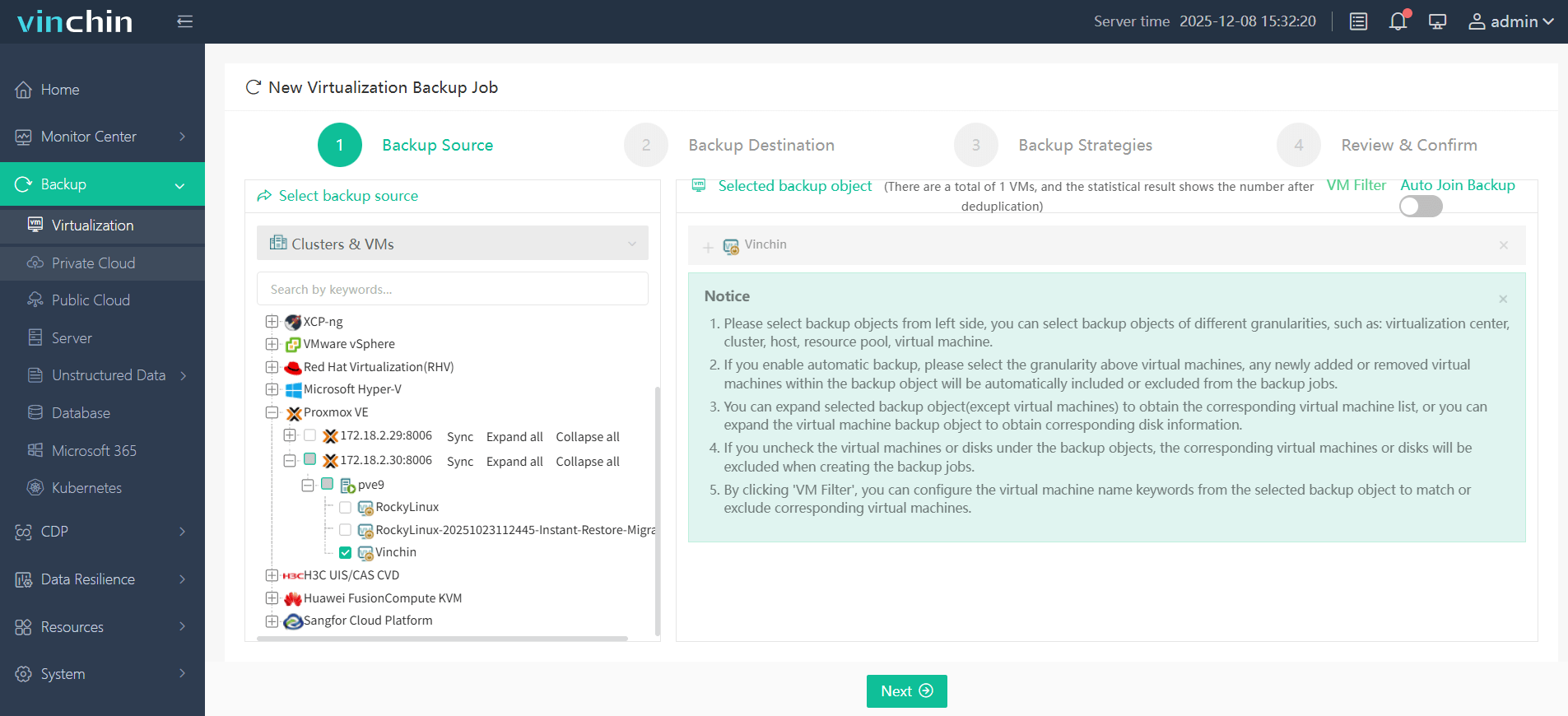
1. Navigate to Backup > Virtualization, expand the VM list, and select the Proxmox host as the backup source.
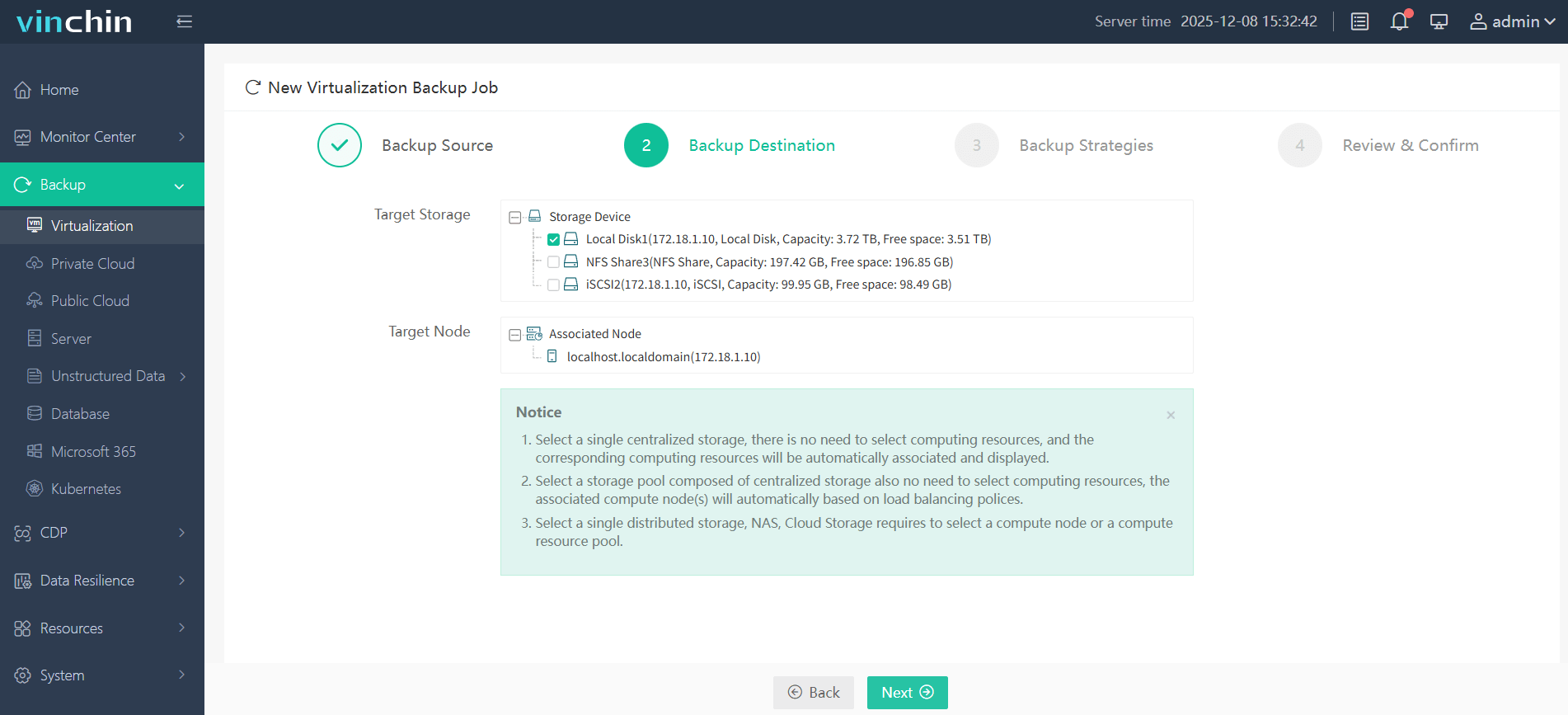
2. Specify the backup destination by choosing the target backup storage and node.
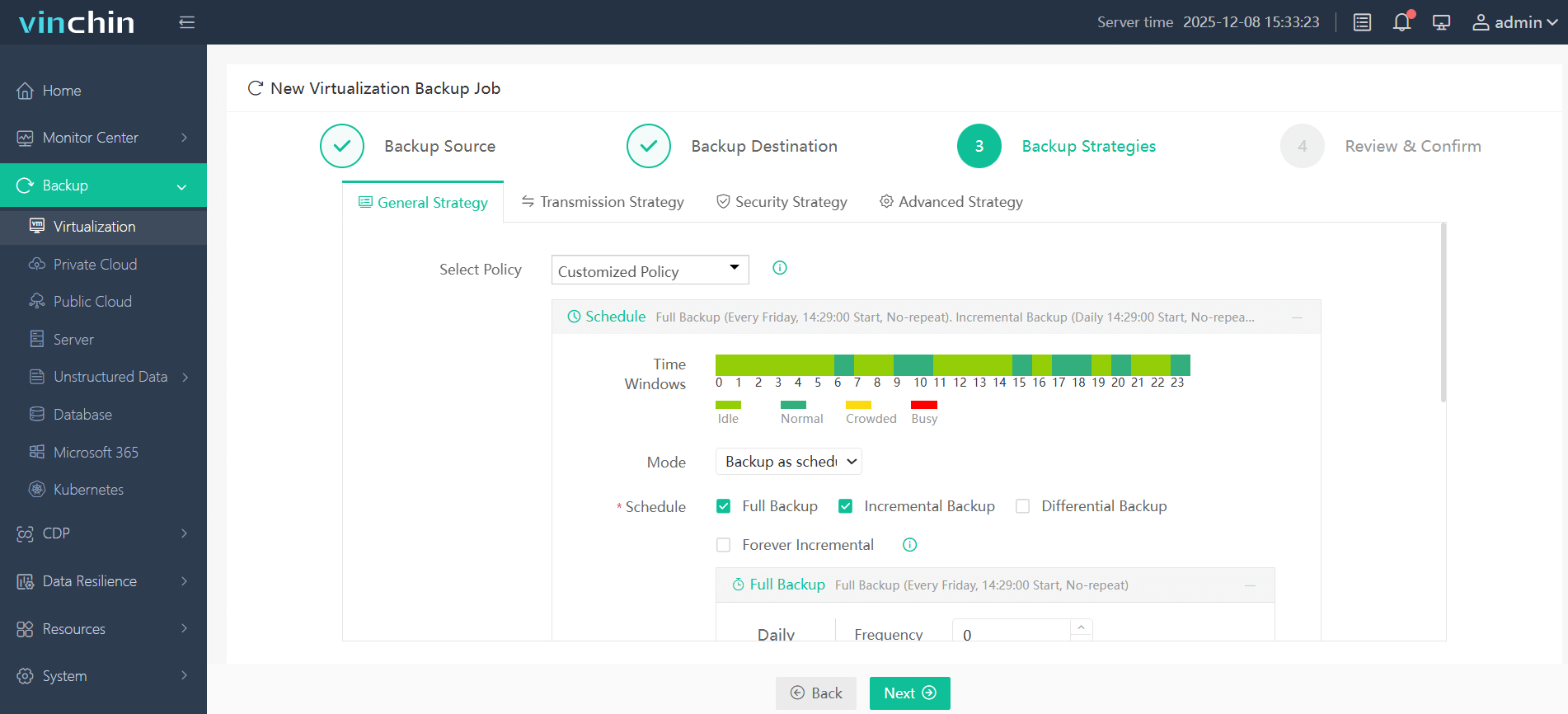
3. Customize the backup strategies, choose either to run the task now or schedule it daily, weekly, or monthly, combined with full, incremental, or differential backup modes.
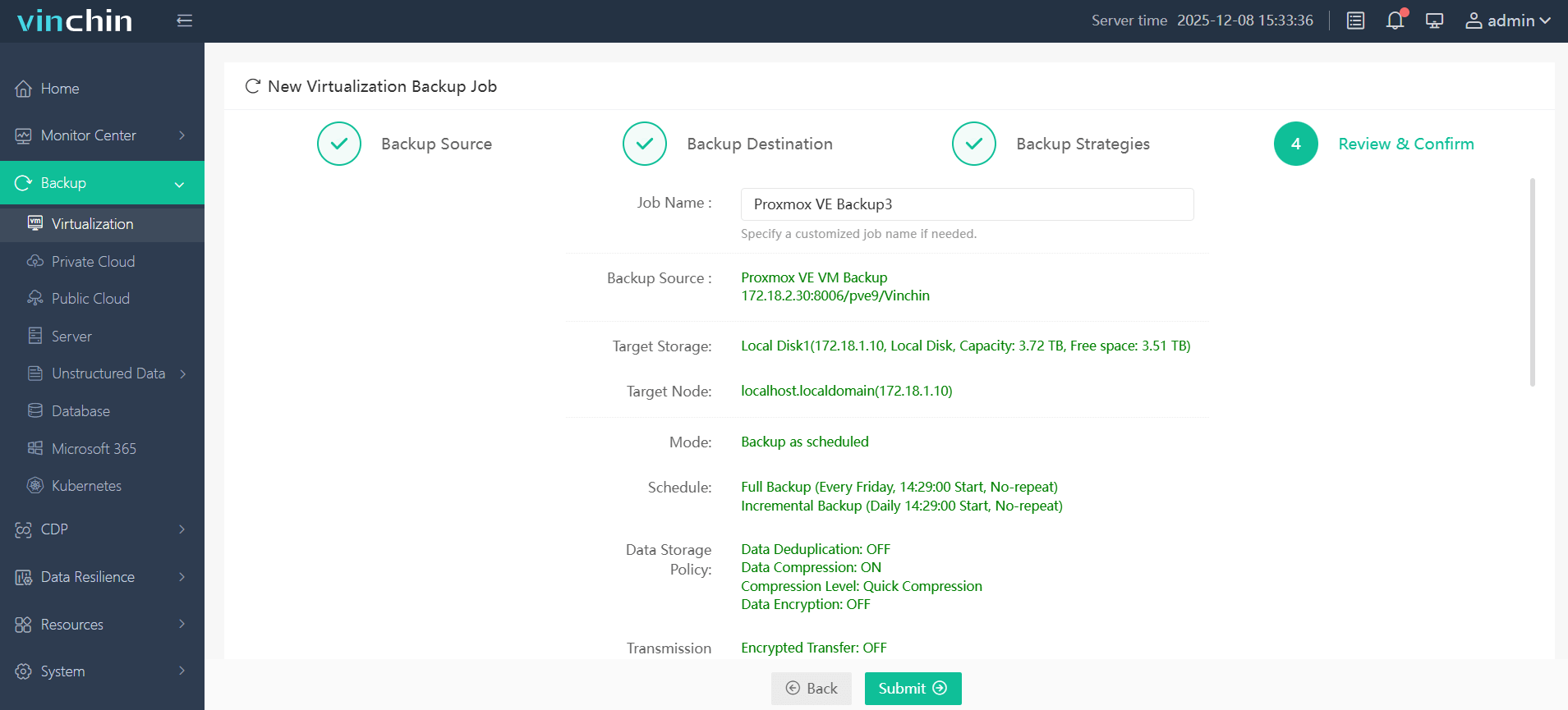
4. Review the options you have chosen, and click Submit to start the backup task.
Vinchin Backup & Recovery is a professional backup solution designed to deliver disaster recovery strategies for both small businesses and large enterprises. Click the Download button below to start a 60-day free trial with full features unlocked.
Proxmox Backup Modes FAQs
Q1: Which backup mode is best in Proxmox?
Snapshot mode is the recommended choice because it creates backups with little or no downtime. If snapshot is unavailable, Suspend is a good alternative, while Stop is best for maintenance windows or non-critical VMs.
Q2: Does Snapshot backup require compatible storage?
Yes. Snapshot mode requires storage that supports snapshots, such as ZFS, LVM-thin, or Ceph. For better application consistency, installing the QEMU Guest Agent is also recommended.
Q3: Can I change the backup mode for an existing backup job?
Yes. You can edit an existing backup job in the Proxmox web interface or update the vzdump command to use a different backup mode.
Q4: Does backup mode affect restore speed?
No, regardless of the selected backup mode, the VM recovery process in Proxmox remains the same. Backup mode only affects how the backup is created, not how it’s restored.
Final Thoughts
Choosing the right Proxmox backup mode depends on your workload, storage, and downtime requirements. While Snapshot, Suspend, and Stop each have their own advantages, Vinchin Backup & Recovery provides a more flexible, automated, and enterprise-ready solution to simplify Proxmox VM protection.