Preparation for ESXi Upgrade
Before performing the update ESXi 7 to 8, verify your environment meets the upgrade requirements.
CPU Compatibility: Older CPUs may no longer be supported in ESXi 8. Verify your processor model in the VMware Hardware Compatibility List (HCL).
Memory Requirements: Ensure sufficient memory capacity for ESXi 8 system processes, vSphere services, future workload expansion.
ESXi Host Configuration and VM Backup: It is recommended to backup the related host and VM data in case of any unexpected situations that could cause data loss.
Hardware Compatibility Check: As different versions of ESXi have varying hardware compatibility, you should check hardware compatibility before upgrading to avoid issues with running virtual machines after the upgrade.
vCenter Compatibility Check: If you are using vCenter Server, make sure its version is compatible with ESXi 8. vCenter should be upgraded before ESXi hosts, mixed-version enviornments should only exist temporarily and older vCenter versions may not manage ESXi 8 hosts correctly.
It is best to upgrade ESXi during non-peak hours because you may need to shut down related virtual machines or migrate them to other hosts using vMotion. Upgrading during low business load periods will help minimize the impact on production environments.
Upgrade from ESXi 7 to ESXi 8 with vSphere Lifecycle Manager Step by Step
vSphere Lifecycle Manager (formerly vSphere Update Manager) provides centralized and automated ESXi upgrade management.
Step 1. Download the ESXi 8 installtion Package from the VMware/Broadcom portal.
Step 2. Log in to the vCenter Server > Lifecycle Manager > Image Depot to import the ESXi 8 image package.
Step 3. Go to Baselines > click New > select Upgrade > enter a baseline name and save the configuration.
Step 4. Select the ESXi host or cluster, click Updates to attach the newly created baseline.
Step 5. Click Remediate to choose immediate or schedule upgrade and confirm the upgrade task.
Step 6. Log in to the ESXi Host Client to confirm the ESXi version is now ESXi 8.
Upgrade ESXi 7 to 8 via ESXCLI Command Line
For administrators comfortable with command-line operations, ESXCLI provides another upgrade method.
Step 1. Upload the ESXi 8 ZIP bundle to datastore.
Step 2. Enable SSH service on the ESXi host.
Step 3. Run the upgrade command:
esxcli software profile update -d /vmfs/volumes/datastore/ESXi8.zip -p ESXi-8.x-standard
Step 4. Reboot the host:
reboot
Step 5. After rebooting, confirm the upgrade completed successfully.
Further Reading: Upgrade ESXi 8 to 9
As VMware continues evolving its virtualization platform, many organizations are beginning to plan upgrades from ESXi 8 to ESXi 9 (upgrade directly from ESXi 7 to ESXi 9 is not recommended). Here are the upgrade to ESXi 9 steps:
1. Download the ESXi 9 image bundle
2. Import the image into vSphere Lifecycle Manager
3. Create and attach an upgrade baseline
4. Run compliance scans
5. Place hosts into maintenance mode
6. Start remediation and reboot the hosts
7. Validate VM operations and cluster health after upgrading
Essential Step Before Upgrading: Use Vinchin to Backup ESXi VMs
Before upgrading from ESXi 7 to ESXi 8/upgrade ESXi 8 to 9, protecting virtual machines is critical to protect data safety.
Vinchin Backup & Recovery provides agentless backup and disaster recovery for VMware environments, helping administrators reduce upgrade risks and quickly recover workloads if unexpected failures occur.
Key Features of Vinchin:
Instant VM recovery
CDP protection
Data replication
Automated backup scheduling
Cross-platform recovery
The steps to back up a virtual machine are simple and can be completed in four steps:
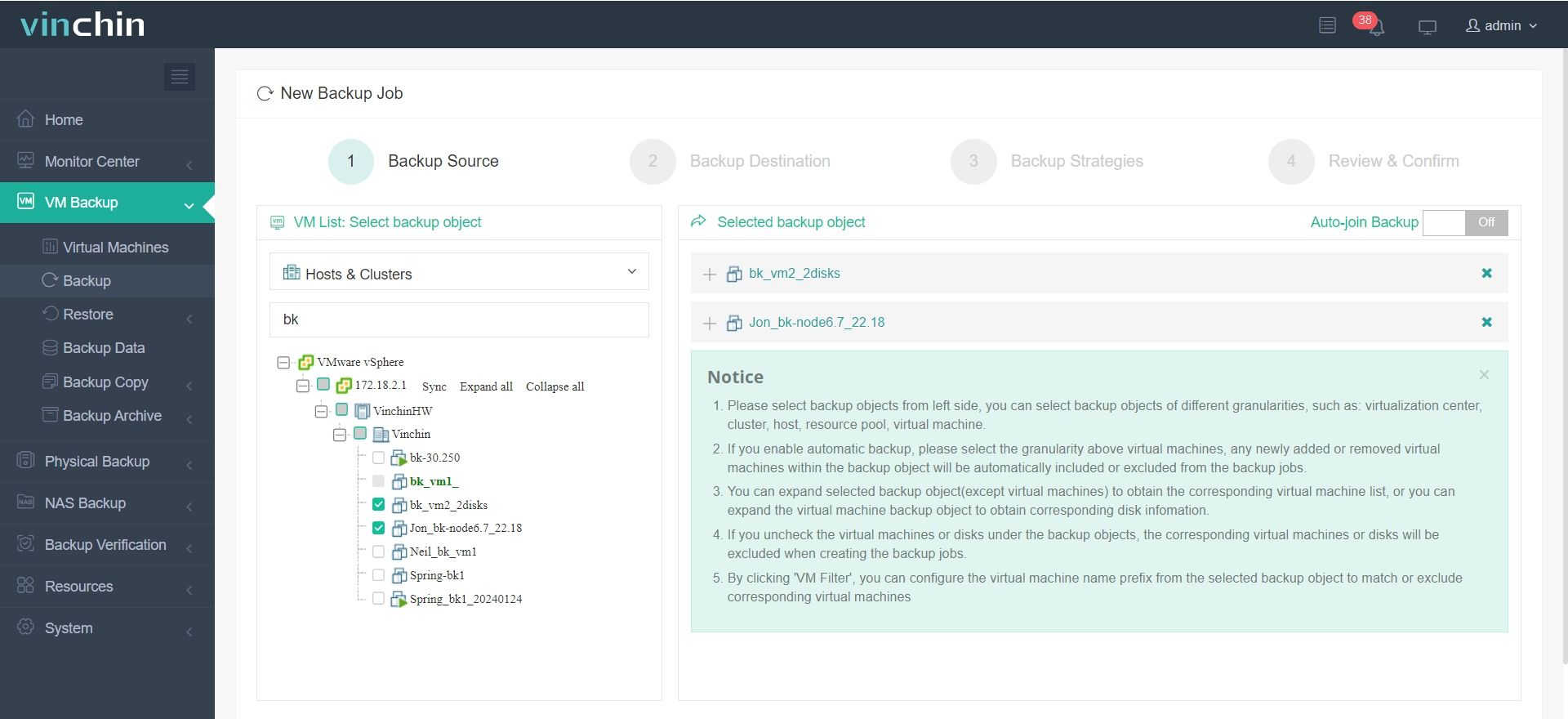
1. Under the VM Backup > Backup, select the virtual machine you need to backup
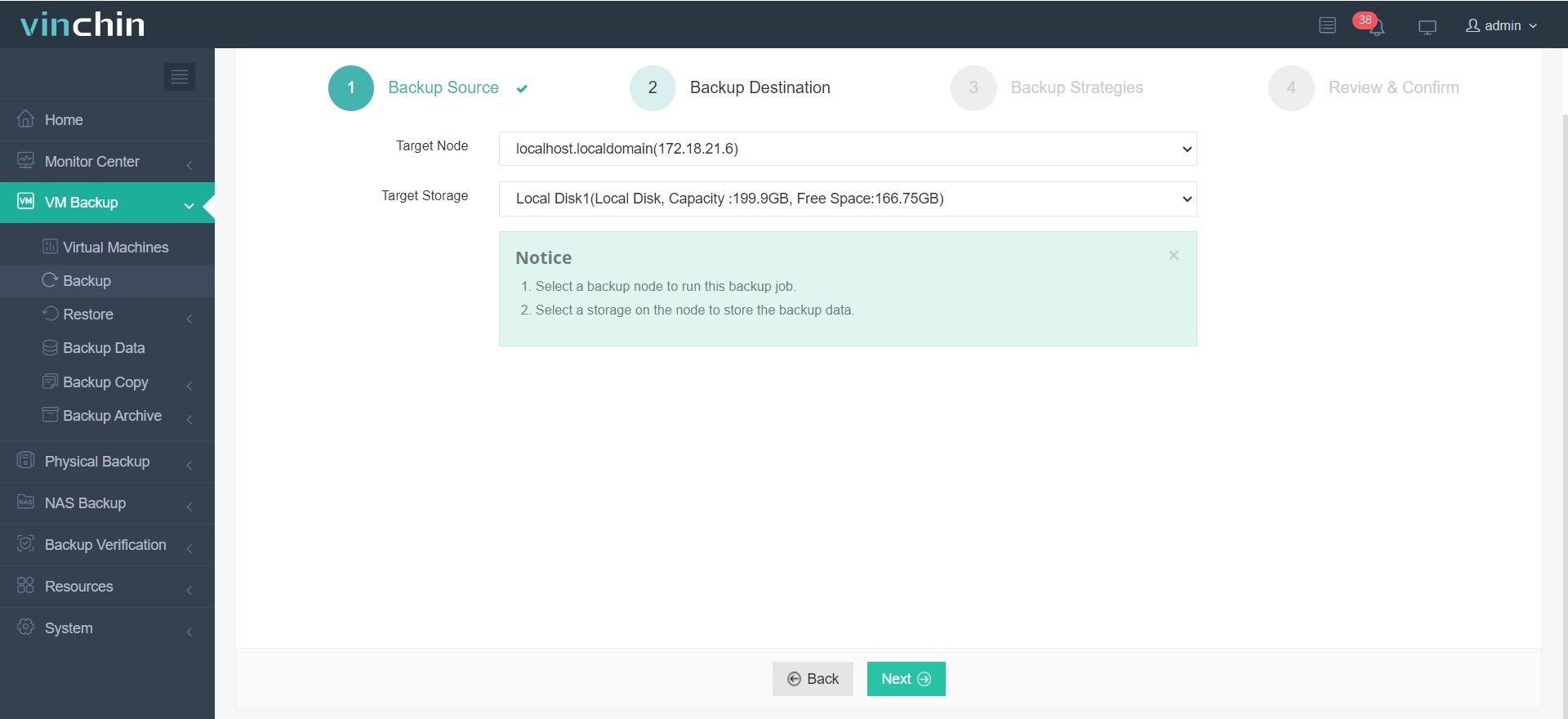
2. Choose the backup destination: Target Node and Target Storage
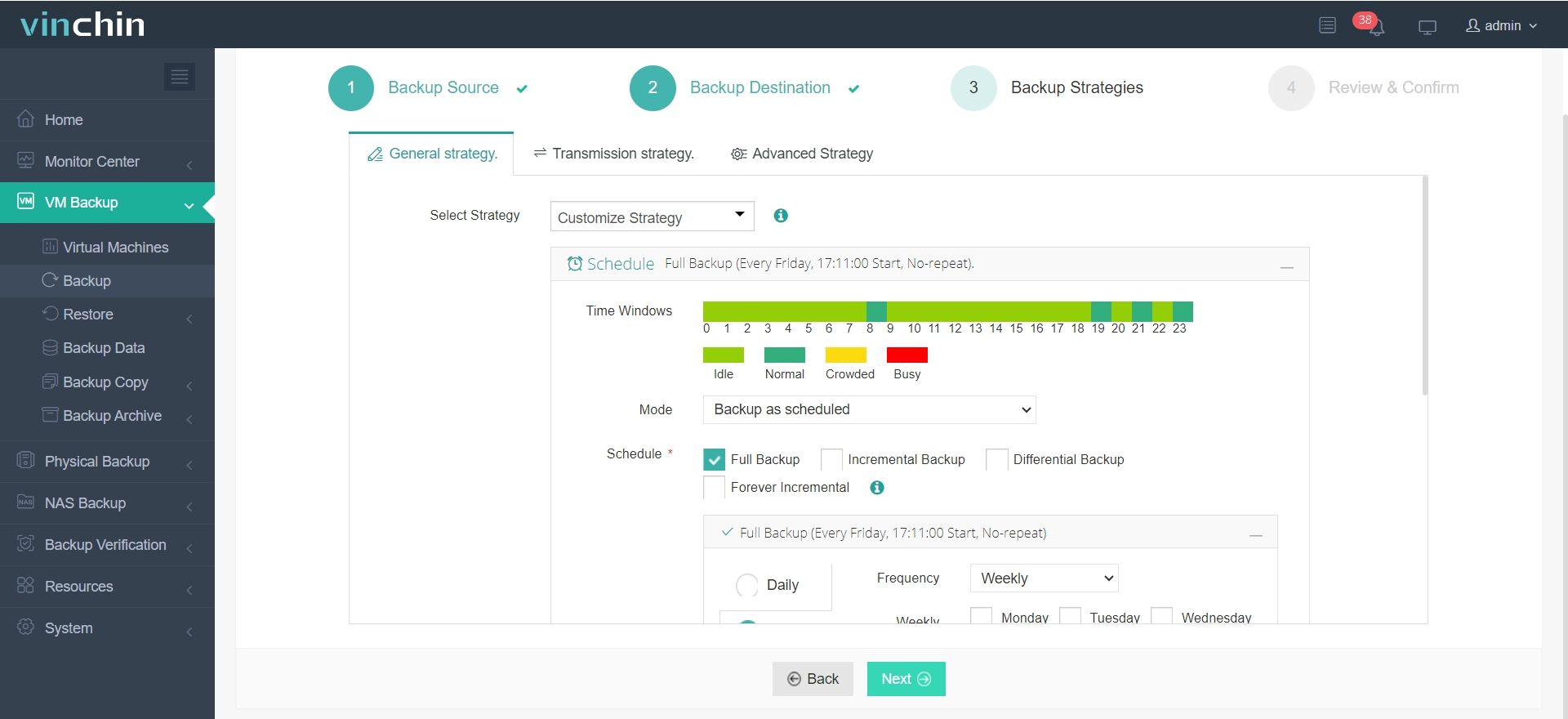
3. Choose the backup policy
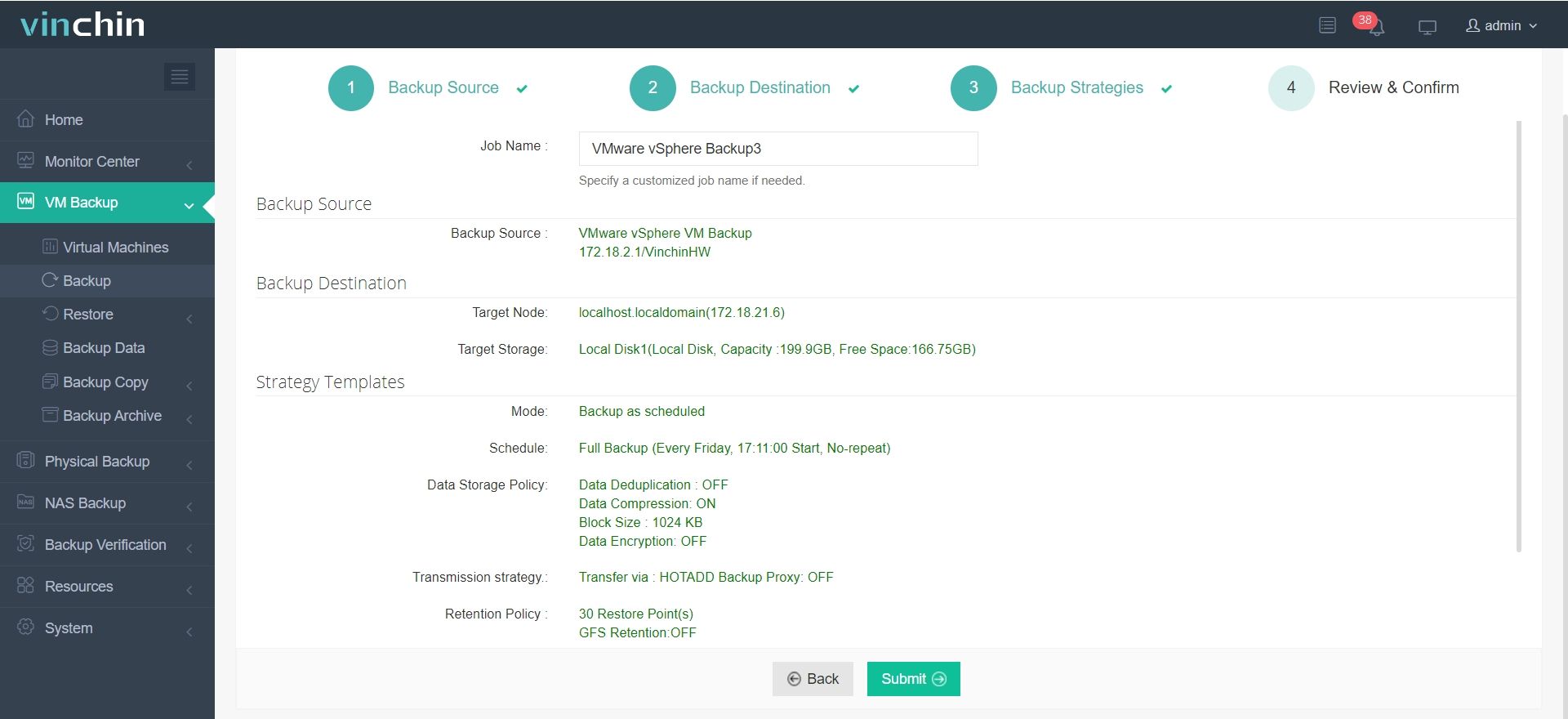
4. Submit the task
Vinchin has helped thousands of businesses protect critical data. You can click the download button below to get the installation package, complete the deployment in minutes and start testing with a 60-day full-featured free trial.
ESXi upgrade FAQs
1. Can you upgrade ESXi without losing data?
Yes, as long as you backup your ESXi host configurations and virtual machines beforehand.
2. Do you need to upgrade vCenter when upgrading ESXi?
It depends. Make sure to upgrade it to a version that is compatible with ESXi 8 to avoid any management issues after the upgrade.
3. What should I do if my ESXi host fails after the upgrade?
If an ESXi host fails after upgrading, you can downgrade ESXi to return to the previous stable state. Always have a backup strategy in place to avoid data loss.
4. How long does an ESXi upgrade take?
The upgrade process usually takes 15-60 minutes per host and additional time for maintenance mode and VM migration.
5. Can you roll back an ESXi upgrade?
Yes, ESXi supports rollback in many scenarios if the previous bootbank remains intact.
Conclusion
ESXi 7 upgrade to 8 helps organizations improve virtualization performance, security, and long-term compatibility. By using vSphere Lifecycle Manager, administrators can simplify the upgrade process and maintain consistent host configurations across clusters.
As VMware infrastructure continues evolving, preparing early for ESXi 9 will also help organizations maintain stability and avoid future compatibility challenges.