A VMware ESXi virtual machine is a set of files on a datastore: virtual disks (VMDK), a configuration file (VMX) and a few logs. You can back up those files by hand, export the whole VM, script the process, or use backup software that works through VMware’s backup APIs. The right method depends on whether the VM can be shut down, how many VMs you have, and how fast you need to restore.
Quick answer: The best way to back up VMware ESXi VMs in production is agentless, image-level backup software that uses the vSphere Storage APIs for Data Protection (VADP). It backs up running VMs without installing agents, uses Changed Block Tracking (CBT) for fast incremental backups, and can restore a whole VM or single files. For a one-off copy of a powered-off VM, exporting it to an OVF template is enough.
| Method | VM must be off? | Automation | Best for |
|---|
| 1. Copy VMDK files | Yes (or use a snapshot) | No | Quick copy of a VM’s disks |
| 2. Export to OVF template | Yes | No | One-off backup or moving a VM |
| 3. PowerCLI script | Yes (with Export-VApp) | Yes, with a scheduler | Admins who want free, scripted backups |
| 4. Agentless backup software | No | Yes | Production VMs, many VMs, fast recovery |
VMware Backup Approaches: Agentless vs. Agent-Based vs. File-Level
Before choosing a method, it helps to know the three ways VM data can be backed up:
| Approach | How it works | Pros | Cons |
|---|
| Agentless (image-level) | Backup software reads VM disks through VMware’s VADP APIs from outside the VM | No agents to install or update; backs up running VMs; scales to many VMs; restores whole VMs | Application-aware processing depends on VMware Tools quiescing |
| Agent-based | An agent inside each VM backs up files and applications, like on a physical server | Fine-grained control; deep application awareness | Uses CPU and memory in every VM; agents to manage on every guest |
| File-level (manual copy) | You copy the VM’s folder or disk files on the datastore | No extra tools needed | Needs the VM powered off; no automation, versioning or easy restore |
Most VMware environments use agentless backup for VMs, and add agents only for applications that need special handling. To learn how agentless backup works, see VMware VADP.
Method 1. Back Up an ESXi VM by Copying Its VMDK Files
When you backup a physical machine, you can copy certain files in partitions, or even clone the whole hard disk. In virtual environment, it is also possible to save the whole virtual hard disk. Virtual hard disk exists as a file whose format is VMDK on the host. You can save the .vmdk file to backup the data and applications of VM. It can be used to restore VM or added to another VM.
Before you start: power off the VM. ESXi locks the disks of a running VM, so copying them either fails or produces an inconsistent copy. Also note that this method copies only the virtual disks; to rebuild the VM later, copy its .vmx configuration file from the same folder too.
You can check the location of .vmdk file in vCenter.
1. Locate the target VM in vCenter
2. Right-click the VM and select Edit Settings
3. Expand the Hard disk and then you can find the location of .vmdk file of the VM
There is also an option to directly copy .vmdk file to another datastore.
1. Still in vCenter, select the storage of target VM
2. Click Files on the right
3. Locate and click the target VM in the list
4. Check the .vmdk file on the right
5. Click COPY TO
6. Select the storage to store it
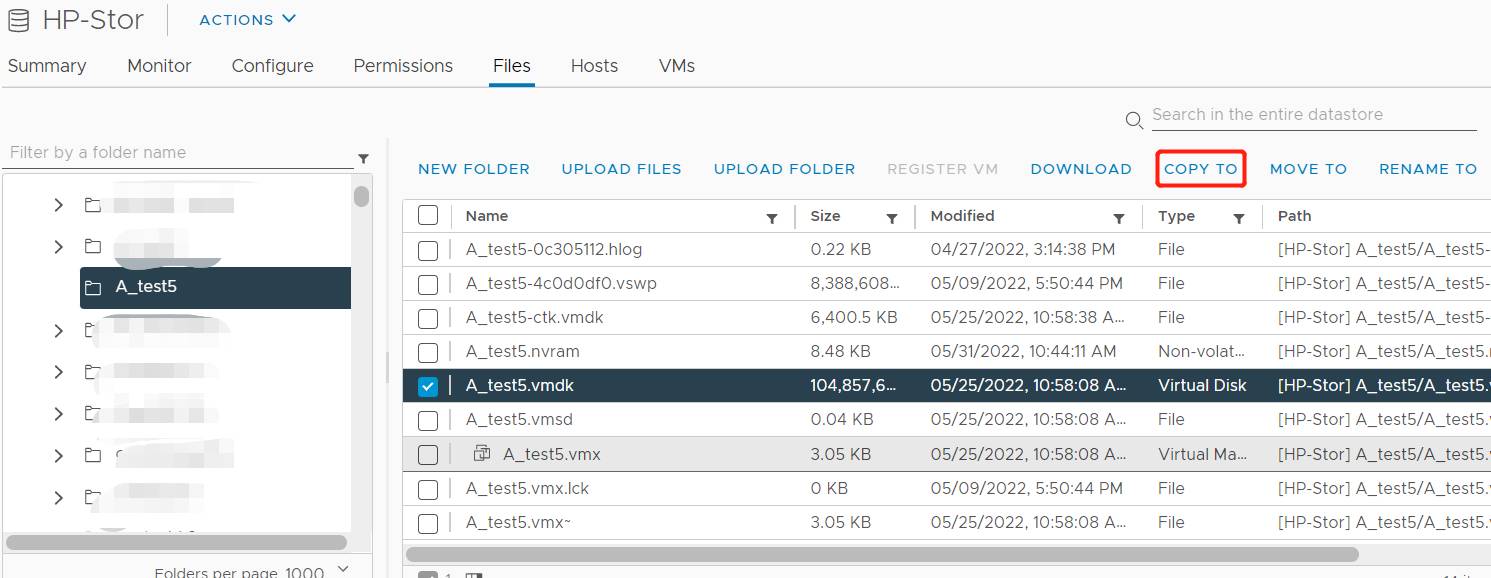
When you copy a disk through the datastore browser, both the small descriptor file (vmname.vmdk) and the data file (vmname-flat.vmdk) are copied together. To restore, create a new VM and attach the copied disk as an existing hard disk.
Method 2. Export ESXi VM to OVF template
If the entire VM (virtual disk and configuration file) is needed, you can export VM to OVF template to backup the entire VM. The OVF template can be used to create a new virtual machine. With the configuration files, VM will be better supported on new host.
The procedures are completed in vCenter.
The VM must be powered off before you can export it. If it needs to keep running, use Method 4 instead.
1. In vCenter, select the VM you would like to
2. Right-click the VM and select Template
3. Select Export OVF Template
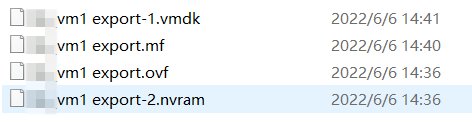
4. Give a name to the task and click OK. The files will be downloaded to this machine
Method 3. Back Up ESXi VMs with a PowerCLI Script
VMware PowerCLI, a set of PowerShell modules, lets you export VMs from the command line and schedule the job. Install it first with Install-Module VMware.PowerCLI -Scope CurrentUser.
1. Connect to vCenter or the ESXi host:
Connect-VIServer -Server vcenter.example.com
2. Shut down the guest OS gracefully and wait until the VM is powered off:
Shutdown-VMGuest -VM TestVM -Confirm:$false
while ((Get-VM TestVM).PowerState -ne 'PoweredOff') { Start-Sleep -Seconds 10 }
3. Export the VM to OVF in a dated folder:
$dest = "D:\VMBackup\TestVM-$(Get-Date -Format yyyyMMdd)"
Export-VApp -VM TestVM -Destination $dest
4. Start the VM again:
Start-VM -VM TestVM
5. Check that the folder contains the .ovf file, the .vmdk disks and the .mf manifest.
Save the commands as a .ps1 script and run it from Windows Task Scheduler to back up VMs on a schedule. Keep in mind that the VM is offline during each export, so this works best for test VMs or systems that can tolerate downtime.
Method 4. Backup ESXi VMs with Vinchin Backup & Recovery
VMware ESXi has left the API for backup tools to provide comprehensive backup solution to customer and Vinchin Backup & Recovery is a VMware-compatible backup solution that uses VMware's backup APIs one of the excellent vSphere backup tools, Vinchin Backup & Recovery, to ESXi users, supporting ESXi 8/7/6/5.
Agentless backup is necessary. In Vinchin Backup & Recovery, you don't need to install agent on every VMware virtual machine. Just add the ESXi hosts and then select any VMs to make backup.
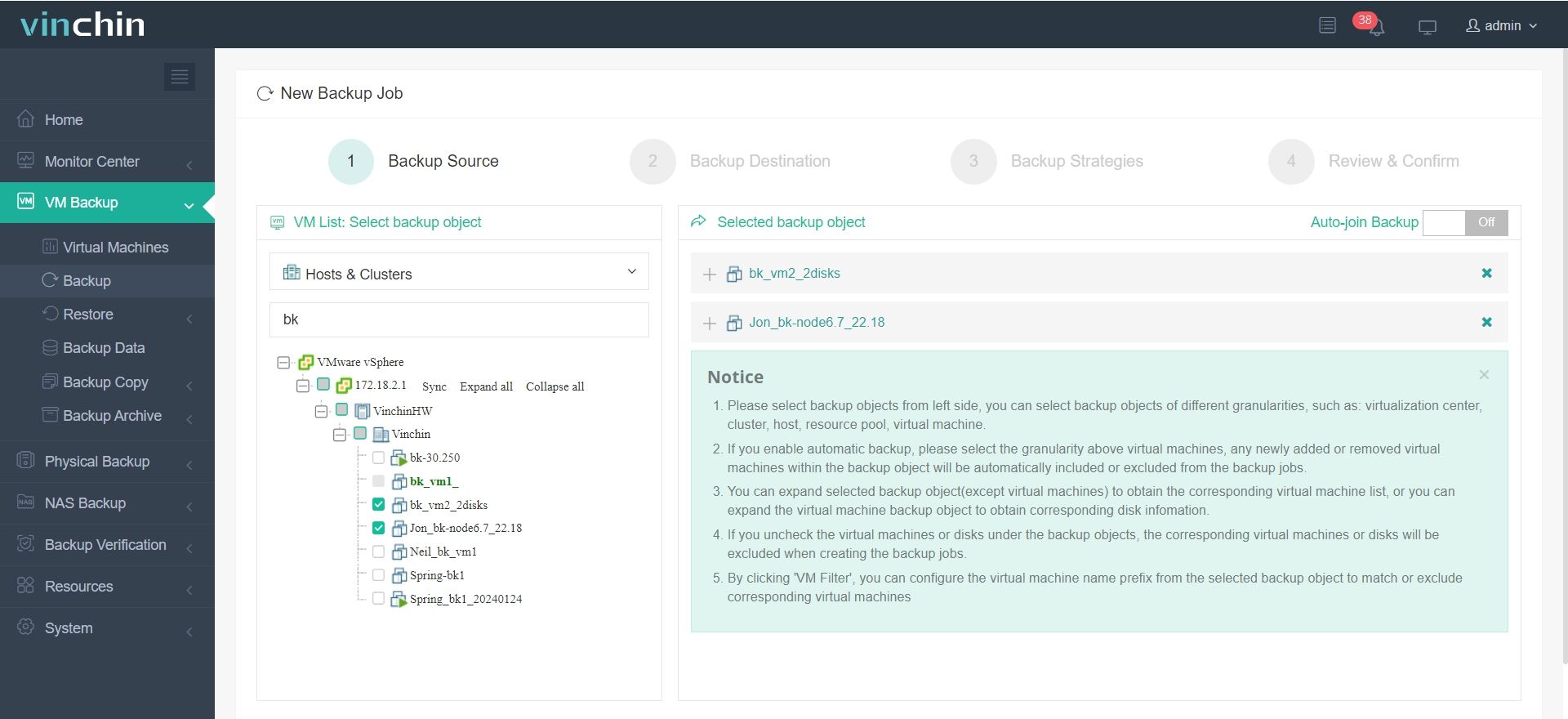
Step 1. Select Backup Source
Log in the web console of Vinchin Backup & Recovery > expand VM Backup > select Backup > select an added ESXi host > select VMs on it > If you would like to backup only certain vmdk file of the VM, you can click the plus button to select the vmdk file (optional) > click Next
P.S. Vinchin Backup also supports Hyper-V, Red Hat Virtualization, oVirt, XenServer, XCP-ng, Oracle Linux KVM, etc. so you can add the other hypervisors to the backup system and backup the VMs. In addition, you can use VM backup to easily perform V2V migration in the backup system.
Step 2. Select Backup Destination
Select a Target Node > select a Target Storage > click Next
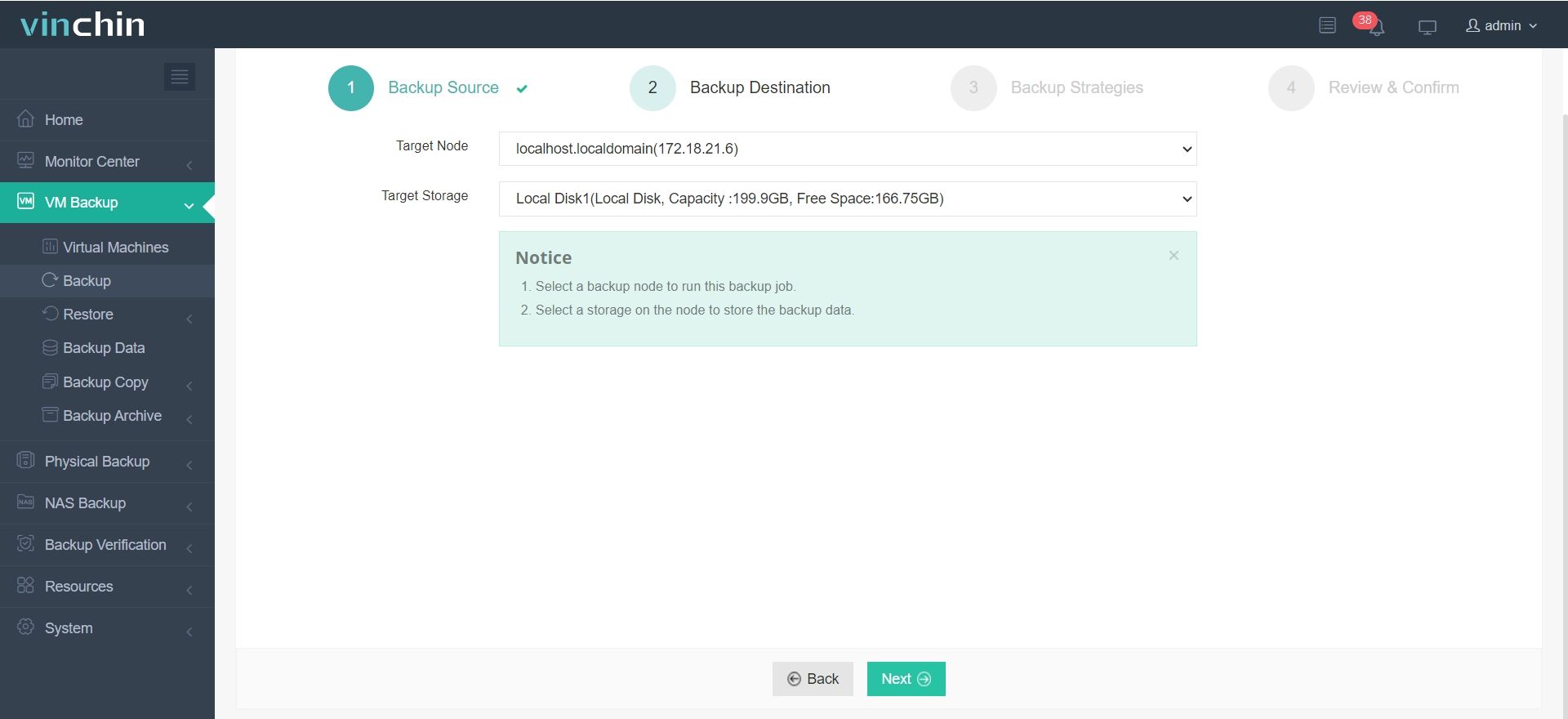
You can add all kinds of backup storage in advance to store VM backup including local partition or disk, logical volume, local directory Fiber Channel Storage Area Network (FC SAN) storage, iSCSI storage, NFS storage, and CIFS storage, etc.
Step 3. Select Backup Strategies
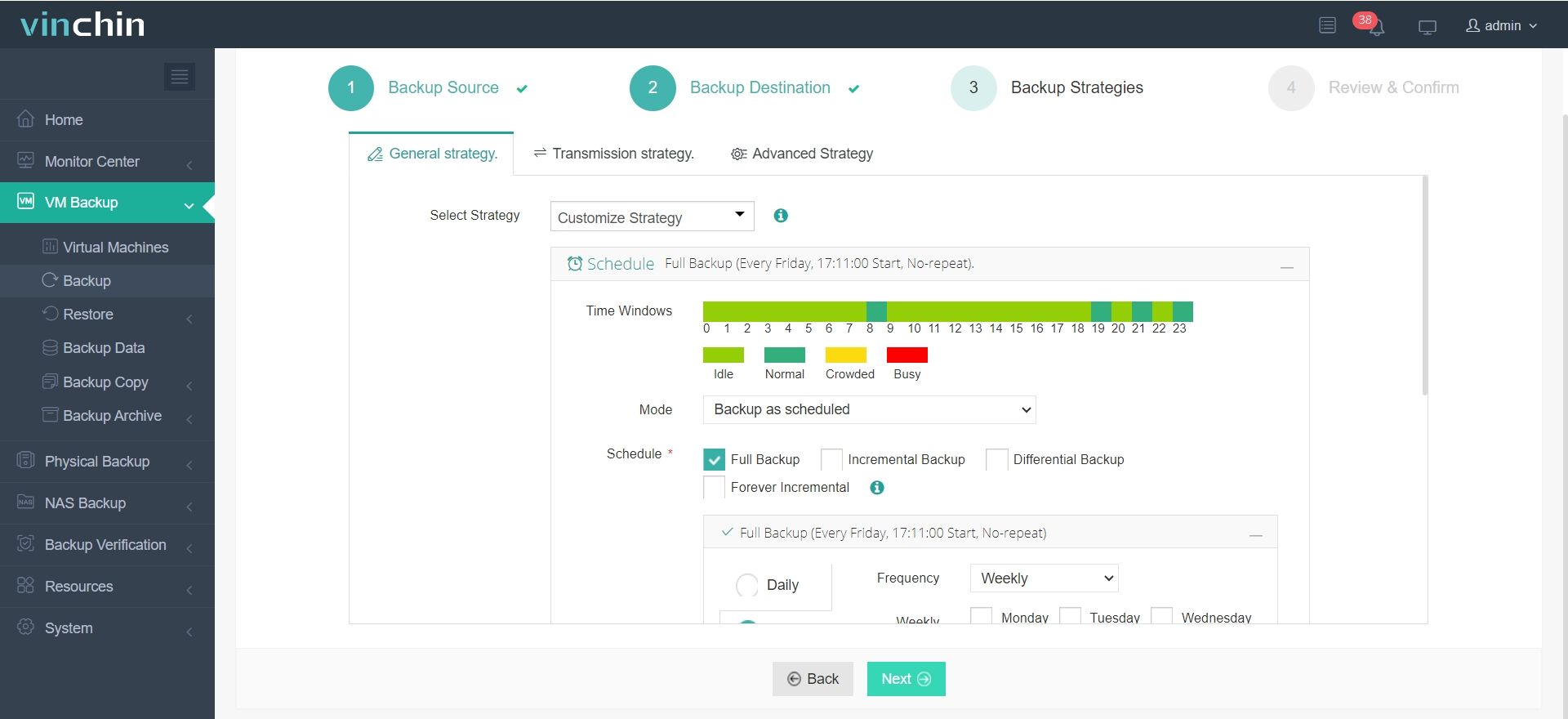
There are a lot of backup strategies to select in Vinchin Backup & Recovery. You can select scheduled full, incremental, or differential backup daily, weekly, or monthly. Data compression and deduplication will help save backup storage. GFS Retention Strategy will help keep a long backup chain with the least storage.
After selecting strategies > click Next > After selecting strategies, click Next
Step 4. Submit the Job
Review the summary of the job and click Submit. The backup runs on the schedule you set, and you can follow its progress in the web console.
Vinchin Backup & Recovery has been selected by thousands of companies and you can also start a 60-day full-featured free trial here. Also, contact us, leave your requirements, and then you will receive your tailored solution. We have established partnerships with reputable companies all over the world so if you would like to do a local business, you can select a local partner here.
Why VMware Snapshots Are Not Backups
VMware snapshot can also help recover VM from many problems but it is not wise to take snapshot as backup. Snapshot is only recommended for short-term disaster recovery. It is not suggested to keep a snapshot for more than 72 hours. Using snapshot for VM recovery relies on the integrity of original data. It can't recover VM from severe disaster.
The availability of production systems is important. The longer the downtime is, the more loss there will be, so you should always think about the recovery process when making disaster recovery plan. Vinchin Instant Recovery technology can recover a VM of any size from its backup in 15 seconds. You can use it to reduce downtime.
A snapshot lives on the same datastore as the VM, so if that storage fails or is encrypted by ransomware, the snapshot is lost with it.
VMware ESXi VM Backup Best Practices
Whichever method you choose, these practices make your backups reliable when you need them:
1. Follow the 3-2-1 rule. Keep 3 copies of your data, on 2 different types of storage, with 1 copy offsite or in the cloud.
2. Back up running VMs at the image level. Use agentless, VADP-based backup so production VMs don’t need to be shut down.
3. Enable Changed Block Tracking (CBT). Incremental backups then copy only changed blocks, which shortens backup windows.
4. Use application-consistent backups for databases and email. Enable quiescing through VMware Tools so applications like SQL Server and Exchange are in a consistent state.
5. Schedule backups around your RPO. Back up critical VMs more often, and run jobs outside peak hours.
6. Set a retention policy. Keep enough restore points for your recovery and compliance needs, for example with a GFS (grandfather-father-son) scheme, without filling up storage.
7. Protect backups from ransomware. Store at least one copy on immutable or offline storage that attackers can’t delete.
8. Test restores regularly. A backup is only useful if it can be restored, so check full-VM and file-level restores on a schedule.
9. Back up the infrastructure too. Save ESXi host configurations (see below) and back up vCenter Server, so you can rebuild the environment after a major failure.
Bonus: How to backup ESXi host configuration?
It is not only VM data that can be backed up, so can ESXi configuration. The ESXi host backup will let you quickly deploy a host with the saved configuration. You can do this with ESXi command line.
1. Connect to ESXi host via SSH
2. Run the command below to consolidate configurations:
vim-cmd hostsvc/firmware/sync_config
3. Run the command below to get the download link of ESXi host configuration:
vim-cmd hostsvc/firmware/backup_config
4. Copy and paste the link in a browser to download the file
In the download link, replace the * with the host's IP address or hostname. To restore the configuration, the host must run the same ESXi build and be in maintenance mode.
FAQs about ESXi Backup VMs
Q1: Can I backup ESXi VMs without vCenter?
Yes. Many backup solutions, including Vinchin Backup & Recovery, support standalone ESXi host backup without requiring VMware vCenter Server. However, centralized management is easier with vCenter integration.
Q2: Can I backup running ESXi virtual machines?
Yes. Most modern VMware backup solutions support hot backup, allowing VMs to be backed up while powered on.
Q3: What is the difference between backup and replication in VMware?
Backup creates recoverable copies stored for long-term retention.
Replication continuously mirrors VM data to another location for rapid failover.
Q4: Why is VMware backup important?
VMs can be lost through hardware failure, ransomware, accidental deletion or a failed update. A recent backup is the only reliable way to restore them, and many regulations also require you to keep backups of business data.
Q5: Can VMware backups be automated?
Yes. Backup software runs jobs on a schedule with automatic retention, and PowerCLI scripts can be scheduled with Windows Task Scheduler. Automation avoids missed backups and human error.
Q6: Can I back up VMs on the free version of ESXi?
Only manually. The free ESXi license restricts the vSphere APIs that backup software relies on, so agentless backup tools can’t back up VMs on it. You can still copy the VMDK files or export VMs to OVF while they are powered off.
Sum Up
You can back up VMware ESXi VMs by copying VMDK files, exporting them to OVF templates, scripting exports with PowerCLI, or using agentless backup software. Manual methods work for occasional backups of VMs that can be shut down. For production environments, agentless image-level backup with CBT, retention policies and regular restore tests is the most reliable approach.
Vinchin Backup & Recovery provides agentless ESXi backup, instant recovery and V2V migration from one web console. Try it free for 60 days.