User Case
"Hi guys, we’re backing up our Exchange Server using Windows Backup on Hyper-V, which stores data in VHDX format. What’s the best way to convert VHDX to VMDK in a VMware environment?"
This question usually comes up when moving workloads from Hyper-V to VMware, where disk format compatibility becomes a key requirement. This article will cover three common methods for converting VHDX to VMDK, along with post-migration deployment steps and best practices to ensure a smooth transition.
VHDX vs VMDK: Key Differences
VHDX is a modern virtual disk format used by Microsoft Hyper-V, designed to improve reliability, performance, and scalability over the older VHD format.
VMDK is the virtual disk format used by VMware products such as ESXI and VMware Workstation for running virtual machines.
| Aspect | VHDX (Hyper-V) | VMDK (VMware) |
| Compatibility | Native to Microsoft Hyper-V; limited support outside Microsoft ecosystem | Native to VMware; widely supported across VMware products |
| Performance | Optimized for Windows workloads, better resiliency and metadata handling | Highly optimized for VMware environments and enterprise virtualization |
| Maximum Capacity | Up to 64 TB | Up to 62 TB (limits vary by version/type) |
| Use Cases | Windows-based virtualization, Hyper-V environments, Windows Server workloads | VMware-based infrastructure, cloud deployments, enterprise VM hosting |
After reviewing the comparison table, you should now have a clear understanding of both formats. Next, let’s dive into the detailed conversion methods.
3 Methods to Convert VHDX to VMDK
There are several ways for the format conversion, ranging from simple GUI-based tools to more advanced manual methods. The right approach depends on your technical experience, VM size, and whether you need a quick conversion or a more controlled migration process.
Method 1: Using StarWind V2V Converter
StarWind V2V converter is one of the simplest and most widely used tools for virtual disk conversion.
1. Download and install StarWind V2V Converter;
2. Select the source file (VHDX);
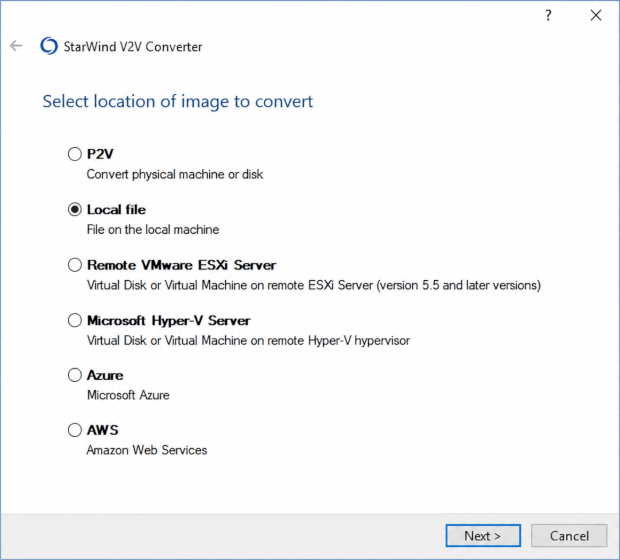
3. Choose the target format as VMDK;
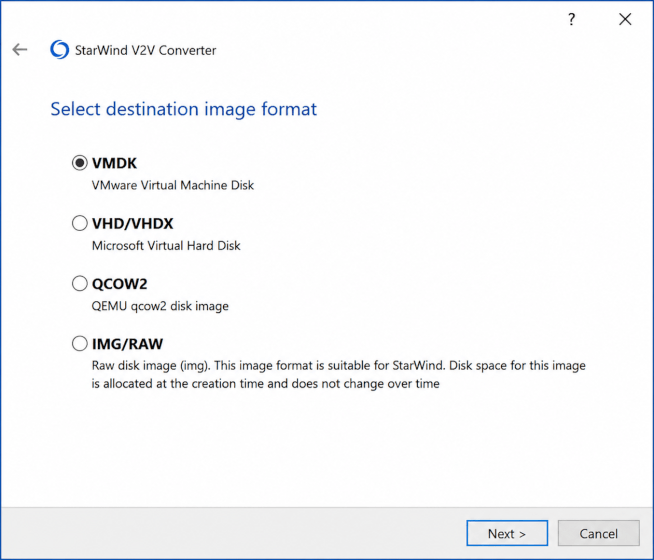
4. Select conversion type (thin or thick provisioned if required);
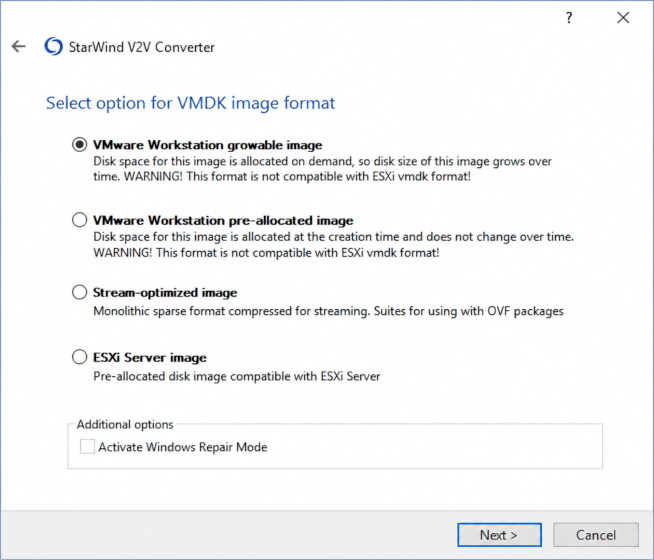
5. Start the conversion process and wait for completion.
Best for: quick, user-friendly conversion without complex setup
Method 2: Using qemu-img
This is a powerful command-line utility widely used for converting virtual disk formats between different platforms.
1. Install QEMU tools (which include qemu-img);
2. Open a terminal or command prompt;
3. Run the conversion command:
qemu-img convert -f vhdx -O vmdk source.vhdx output.vmdk
4. Wait for the conversion process to complete;
5. Attach the converted VMDK file to a VMware virtual machine.
Best for: advanced users who need fast, flexible, and scriptable disk conversion.
Method 3: Manual Conversion
This method is more advanced and is usually used when tools are not available.
1. Convert VHDX to VHD if required;
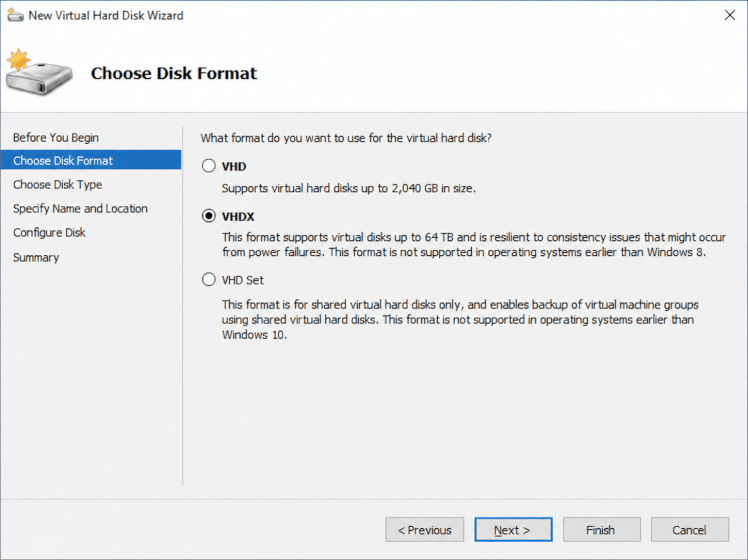
2. Export or attach the disk in Hyper-V;
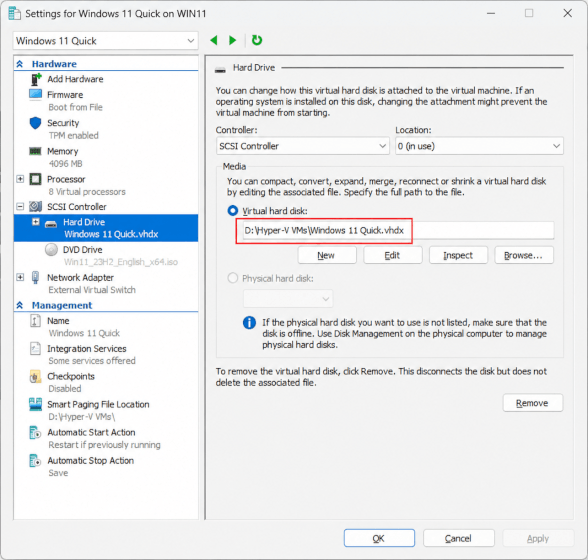
3. Rebuild or import the VM into VMware;
4. Adjust boot settings and fix drivers if needed.
Best for: complex environments or troubleshooting special cases
Flexible VHDX to VMDK Conversion with Vinchin Backup & Recovery
While the above methods are suitable for individual or small-scale VHDX to VMDK conversion, they can become complex and inefficient in enterprise environments. Vinchin Backup & Recovery provides a unified data protection and migration platform that supports both Hyper-V and VMware, enabling seamless cross-platform VM migration.
Vinchin inherently supports virtual disk conversion between VHDX and VMDK formats during the restore process, and it offers centralized management, batch VM migration, and policy-based automation, making it a good option to minimize downtime and improve data consistency for large-scale environments.
To migrate Hyper-V VM to VMware, you need to create a Hyper-V backup first, and then follow the steps below:
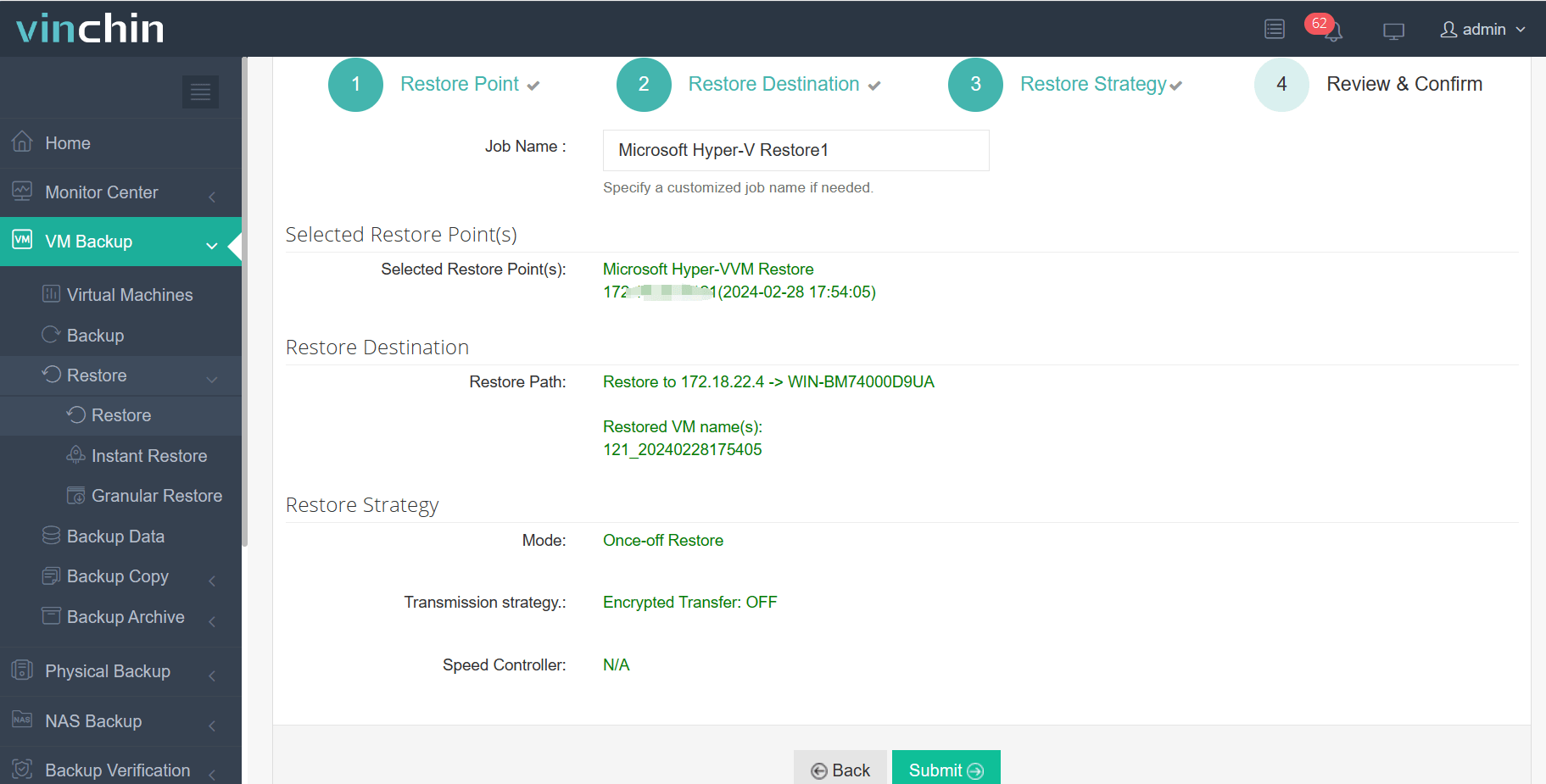
1. After finishing the Hyper-V VM backup task, switch to the Restore page in Vinchin Backup & Recovery.
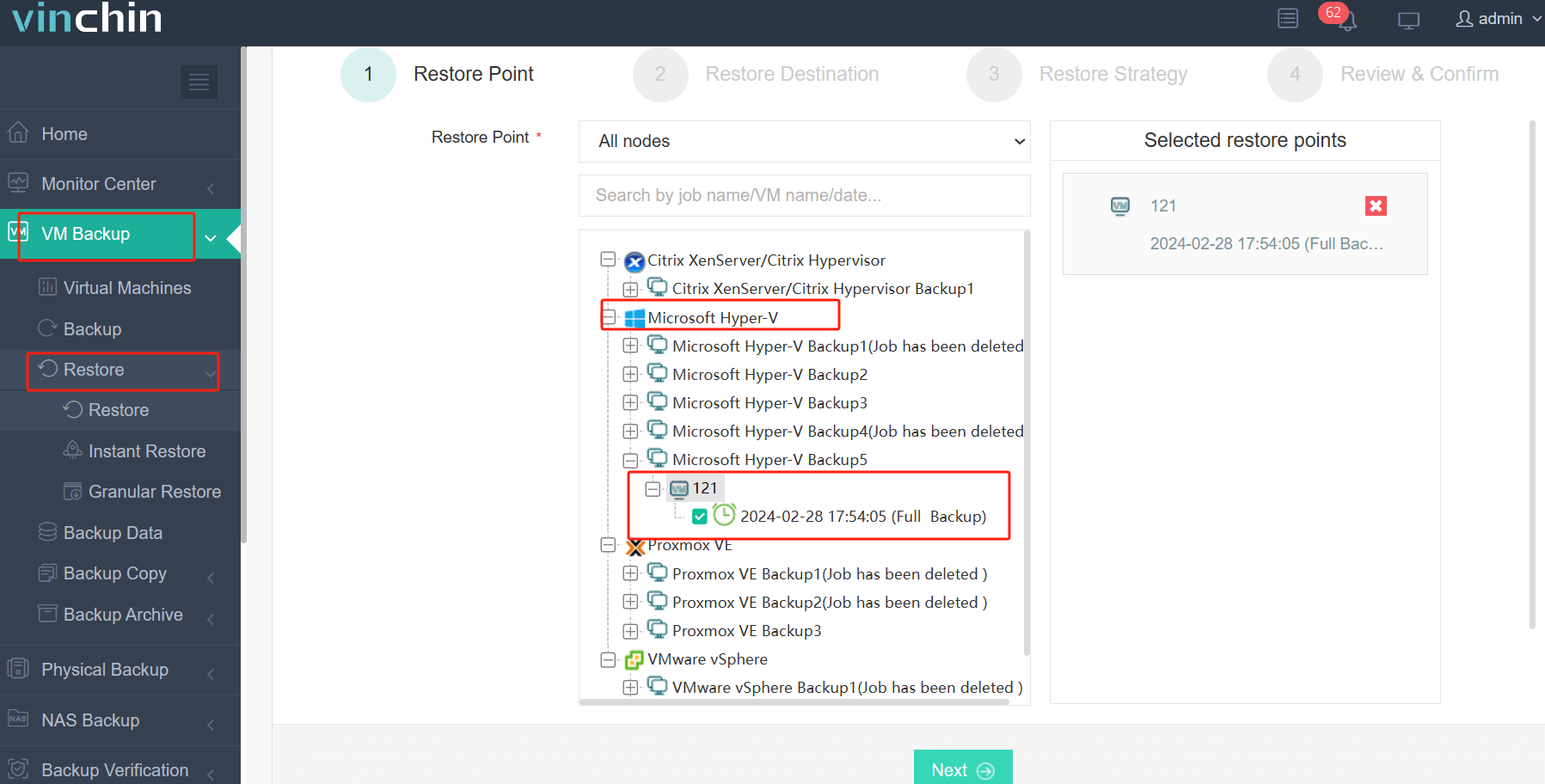
2. Locate and select the completed Hyper-V backup copy from the backup list.
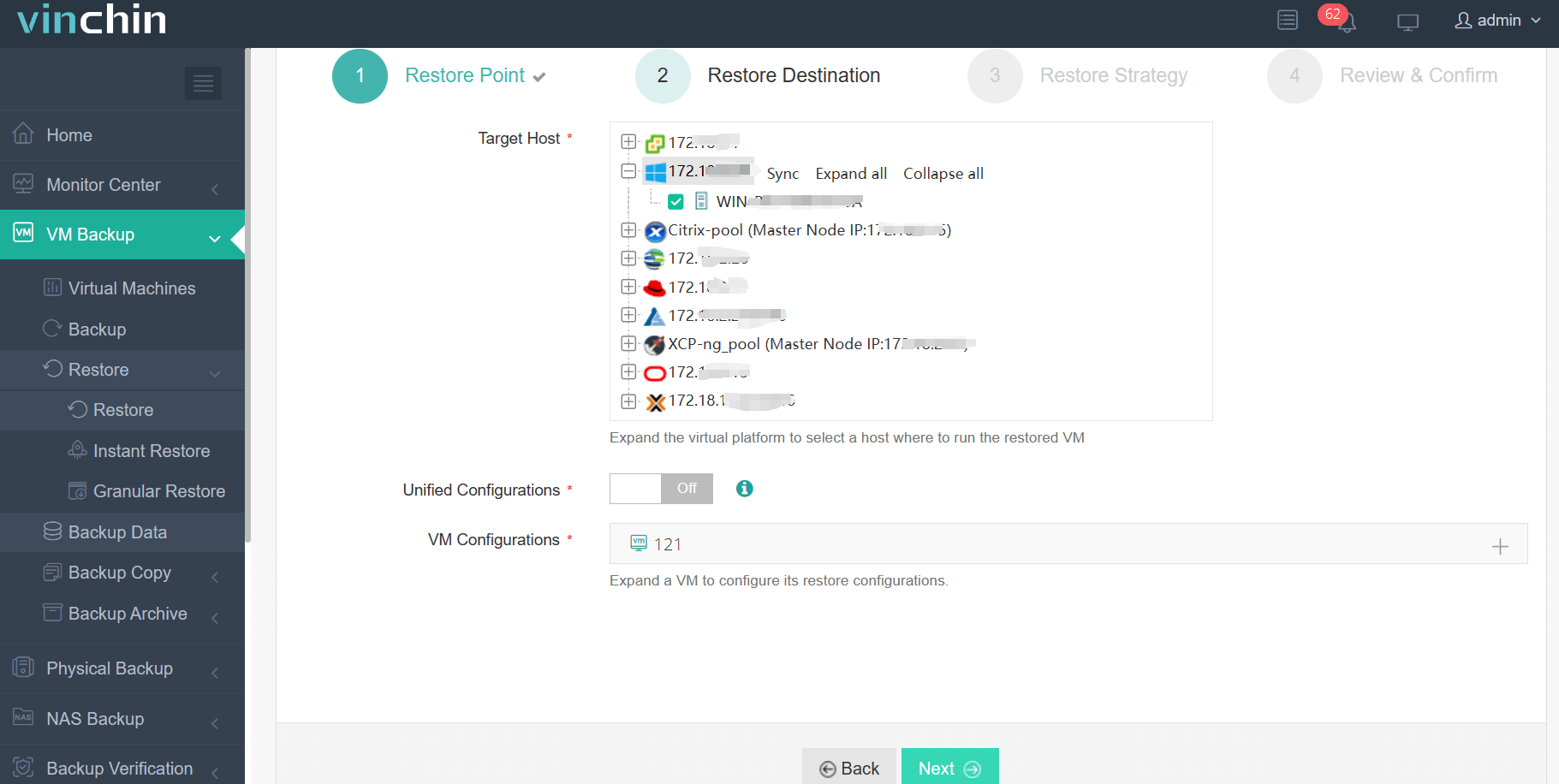
3. Pick VMware ESXi as the target virtual platform for restoration.
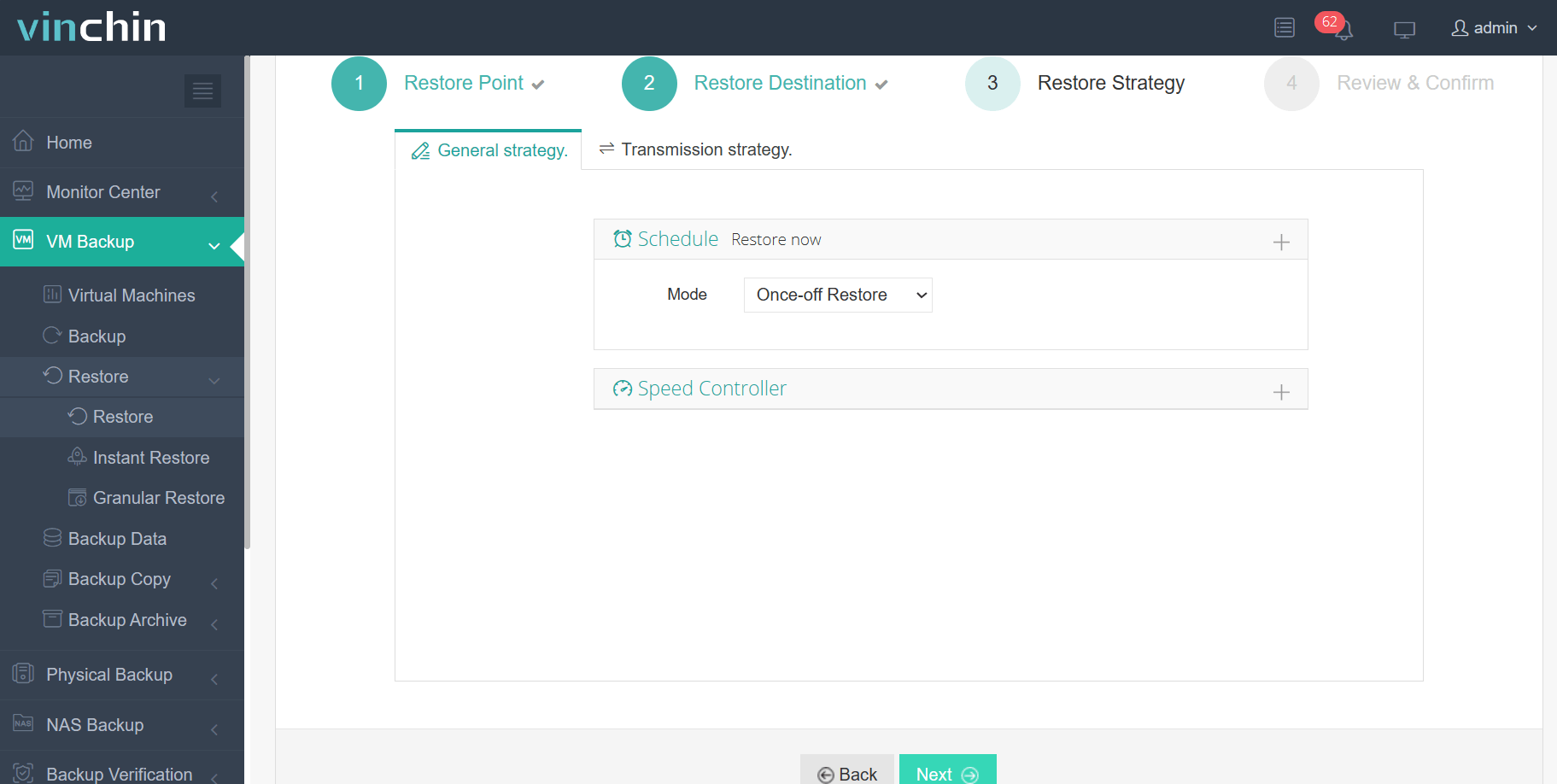
4. Submit the restore task; Vinchin will automatically convert VHDX to VMDK in the background during restoration, with no separate manual disk conversion required.
You can now download the 60-day free trial version to explore Vinchin’s full-featured backup and migration capabilities, and experience a more efficient way to manage VHDX to VMDK scenarios in enterprise environments.
Post-migration Configuration
After converting and importing the VHDX disk into VMware, several post-migration steps are required to ensure the virtual machine runs properly and maintains optimal performance.
This is essential for improving performance, enabling proper driver support, and ensuring smooth integration with the VMware environment. It helps with display, network, and disk optimization.
After migration, the virtual network interface may change. Reconfigure network settings to ensure the VM can access the network correctly.
If the VM fails to boot, perform a startup repair to fix bootloader or kernel-related issues caused by the platform change.
Verify whether the virtual disk size is correctly recognized. If not, extend the partition inside the guest OS to utilize the full capacity.
Best Practices for a Smooth VHDX to VMDK Disk Conversion
To ensure a smooth and safe VHDX to VMDK migration process, it is important to follow several best practices that reduce risk and improve efficiency.
1. Backup the original VHDX file
Always keep a full backup before starting the conversion to prevent data loss in case of failure.
2. Use SSD storage for conversion
Performing disk conversion on SSD storage significantly improves speed and reduces processing time.
3. Maintain the same disk controller type
Keep the virtual disk controller consistent (e.g., SCSI or SATA) to avoid boot issues after migration.
4. Be careful with dynamic disks
Dynamic disks may cause compatibility or conversion issues. It is recommended to convert them to basic disks before migration if possible.
VHDX to VMDK FAQs
Q1: What is the easiest way to convert VHDX to VMDK?
The easiest method is to use a GUI-based tool such as StarWind V2V Converter. It allows users to select the VHDX file and directly export it to VMDK with minimal configuration, making it ideal for quick conversions.
Q2: Can I convert VHDX to VMDK without losing data?
Yes, data can be preserved during conversion if the process is done correctly. However, it is strongly recommended to back up the original VHDX file before starting any conversion to avoid unexpected data loss.
Q3: Does VMware support VHDX files directly?
No, VMware does not natively support the VHDX format. The disk must be converted to VMDK or migrated using tools such as qemu-img, StarWind V2V Converter, or enterprise solutions like Vinchin.
Conclusion
Converting VHDX to VMDK is essential for Hyper-V to VMware migration. Depending on your needs, you can use GUI tools like StarWind, command-line utilities like qemu-img, or manual methods. For enterprise environments, Vinchin Backup & Recovery offers a more automated approach. By selecting the right approach and following the best practices, you can ensure a smooth and reliable virtual machine migration with minimal downtime.