VHD (Virtual Hard Disk) and VHDX are disk image formats used to store the contents of a virtual machine’s hard drive. They are the native virtual disk formats for Microsoft Hyper-V, enabling the storage of operating systems, applications, and data within virtual environments. In this blog, we’re going to explore and find out what are they, how they differ from each other, and how to work with them.
What Is VHD?
The Virtual Hard Disk (VHD) is a virtual machine publicly-available image format working as the physical hard disk. Developed by Connectix, the format was used in Microsoft hypervisor later because of the acquisition in 2003.
Key Features
Supports fixed and dynamically expanding disks
Enables differencing disks for snapshots and backups
Compatible with older Windows and Hyper-V versions
Limitations
Maximum size limited to 2 TB
No support for modern features like trimming and advanced metadata
Less efficient storage alignment compared to VHDX
What Is VHDX?
VHDX (Virtual Hard Disk v2) is the replacement format for VHD introduced in Windows 8/ Windows Server 2012 that could be also used by VMware Workstation and VirtualBox. This file format increases the functionality and adaptability of VHD.
Key Features
Supports up to 64 TB virtual disk size
Improved resilience with metadata protection
Better alignment for modern storage hardware
Supports trimming and dynamic optimization
Limitations
Only supported on newer Windows versions
Limited compatibility with legacy systems (NTFS or exFAT)
Not always associated with a VM
VHD vs VHDX: Differences
Below we list a table of comparision of these two formats, helping you make quick desicions tailored to specific requirements.
Aspect | VHD | VHDX |
Supported By | Windows, Citrix, and Oracle. | Windows. |
Supported OS | Windows Server 2008, 2008R2, 2012R2, and 2012 versions. | Windows Server 2012 and later versions. |
Storage Capacity | Maximum 2 TB. | Maximum 64 TB. |
Logical Sector Size | 512 bytes. | 4 KB. |
Data Protection | Less data protection. | Offer strong security guarantees against data corruption by tracking metadata. |
Resizing | Not supported. | Support. |
Data Alignment and Trimming | Meet problems with alignment and do not support Trimming. | Enhanced data alignment and support Trimming. |
Use Case | Developers test software on different OS; Used on previous Hyper-V versions; When you need the greatest adaptability or backward compatibility. | Used on Windows 2012 and above; When you need optimum efficiency and reliability. |
How to Work with VHD and VHDX?
Conversion Notice:
Upgrade your Hyper-V to VHDX-supported versions, then convert VHD to VHDX.
The conversion process is offline.
Do not convert VHD to VHDX if: you created a VM snapshot; you’re copying the VHD using Hyper-V Replica; VHD is the parent to differential hard disks.
Convert VHD to VHDX and VHDX to VHD with Hyper-V Manager
1. Launch Hyper-V Manager, right-click on the VM you want to convert, and click Settings.
2. Select the target disk, and click Next in the Edit Virtual Hard Disk Wizard.
3. On Locate Disk page, click Next.
4. On Choose Action page, choose Convert, and click Next.
5. On Choose Disk Format page, choose either VHD/VHDX for the converted disk format, click Next, and configure Disk Type and storage location for the newly converted format in Configure Disk option. After all this. Click Next.
6. Click Finish on the Summary page. Then wait for the conversion to finish.
7. Replace the original format with the converted format by opening the source file, and clicking on Browse… to find the newly created disk. Then click Open> Ok> Start and test the VM.
8. Remove old files once the new file works fine.
Convert VHD to VHDX with PowerShell
Convert-VHD –Path “vhdfilepath” –DestinationPath “Destination vhdxfilepath”
Convert VHDX to VHD with PowerShell
Convert-VHD -Path ‘vhdxfilepath’ ‘vhdfilepath’
Merge Hyper-V VHD and VHDX
While merging the changes in the differencing disk into the parent disk or other disks, notice that the disk chain is detached, the whole operation is offline, and the differencing disk is destroyed after the merge.
Merge-VHD -Path ‘diskpath.vhd/x’ -DestinationPath ‘diskpath.vhd/x’
Mount Hyper-V VHD and VHDX
Mount-VHD -Path ‘diskpath.vhd/x’
In read-only mode
Mount-VHD -Path ‘diskpath.vhd/x’ -ReadOnly
Dismount VHD and VHDX
Dismount-VHD -Path diskpath.vhd/x
Resize Hyper-V VHD and VHDX
Expand VHDX to XGB.
Resize-VHD -Path 'diskpath.vhdx' -SizeBytes XGB
Shrink VHDX (only applicable) to minimum size.
Resize-VHD -Path 'diskpath.vhdx’ -ToMinimumSize
Move VHDX to another bus/location
Set-VMHardDiskDrive -VMName name -ControllerType IDE -ControllerNumber X -ControllerLocation X -ToControllerType SCSI -ToControllerNumber Y -ToControllerLocation Y
Backup and Restore Hyper-V with All-in-One Solution
Files may be corrupted due to hardware failure, system shutdown, power outage, or malware attacks, and VHD(X) is no exception. To avoid data loss and corruption should any accidents happen, you can back up the files in advance and prepare disaster recovery plans for them.
Vinchin Backup & Recovery is a comprehensive solution that supports automatic, agentless backups for multiple platforms including Hyper-V, VMware, and others. It offers advanced features such as flexible scheduling, data deduplication, compression, and encryption for secure data transmission. The solution also enables efficient disaster recovery with full and file-level restore options, offsite backup copying for additional protection, and anti-ransomware measures to safeguard backup data.
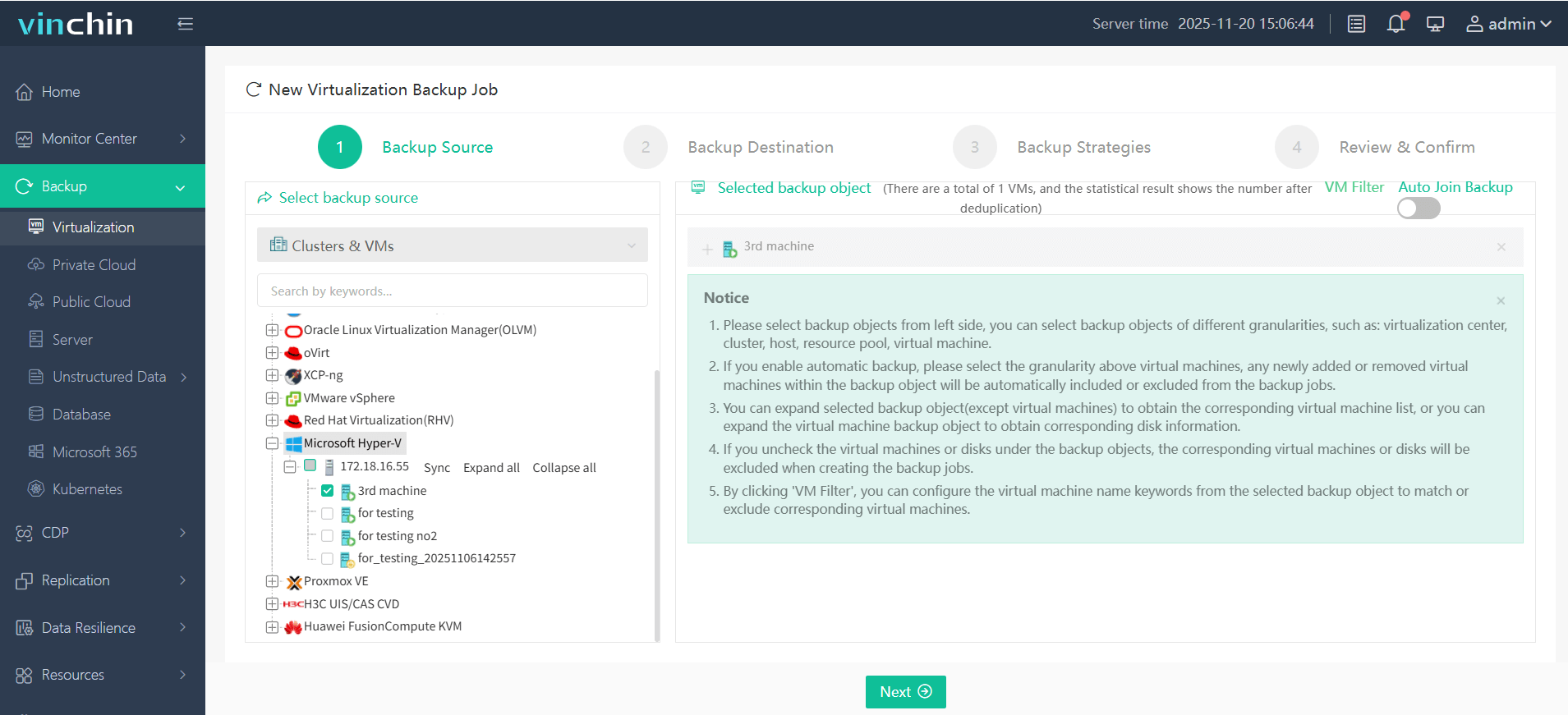
It only takes 4 steps to backup your Hyper-V VMs with Vinchin Backup & Recovery:
1. Choose the Hyoer-V host you want to back up from the expanded list.
2.Specify the backup destination by selecting the target node and storage device. 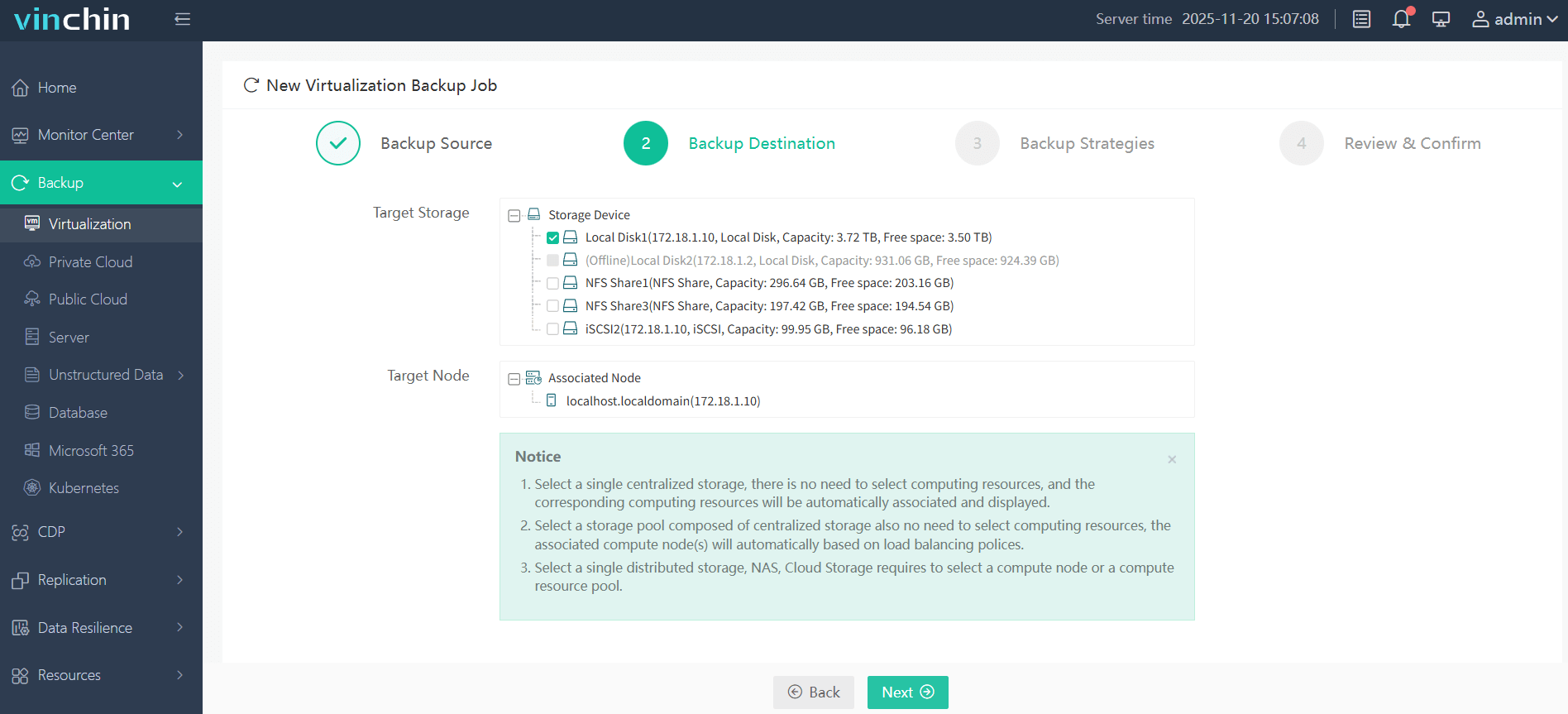
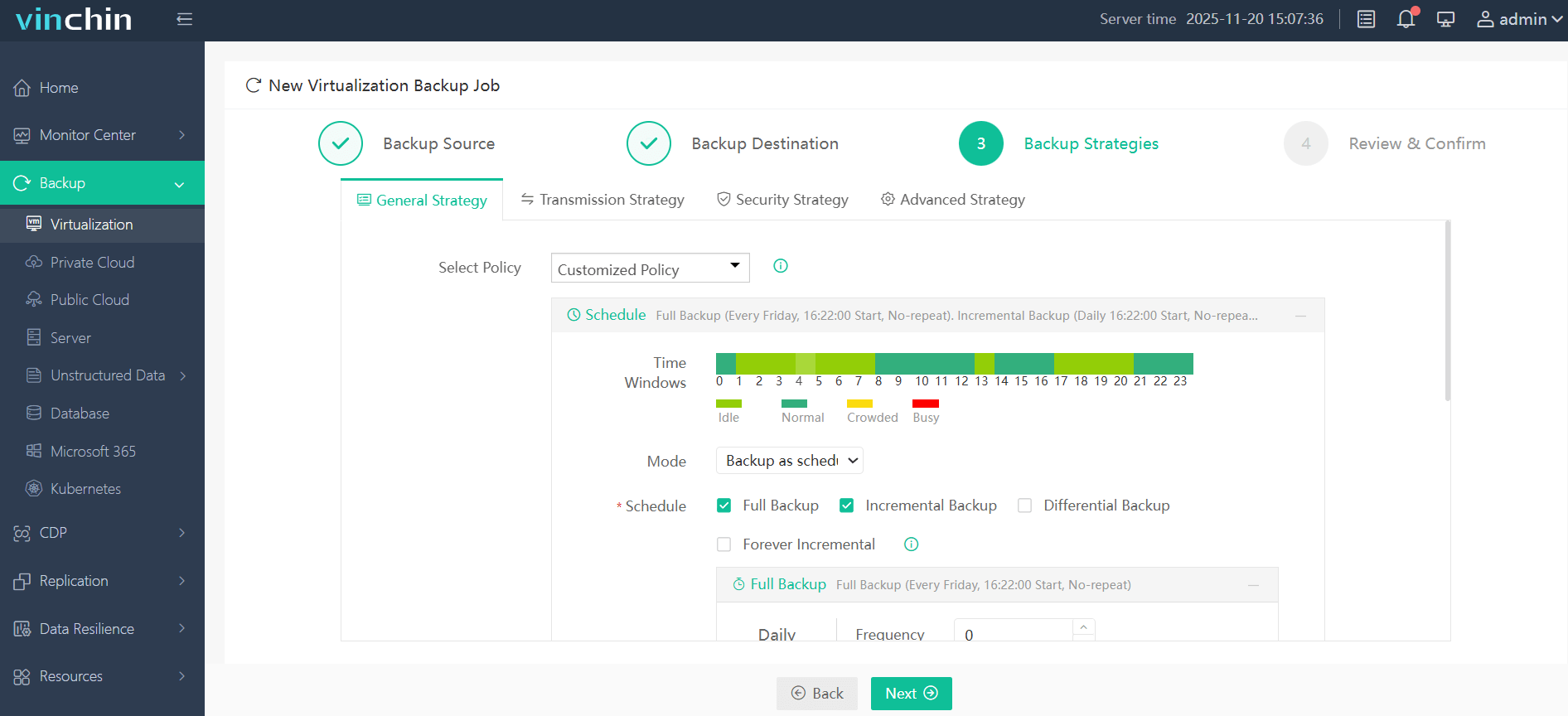
3.Configure backup strategies and either run the task instantly or schedule it daily, weekly, or monthly. Follow the instractions to fulfill other settings.
4. Review the backup choices and click Sumbit to let the task start.
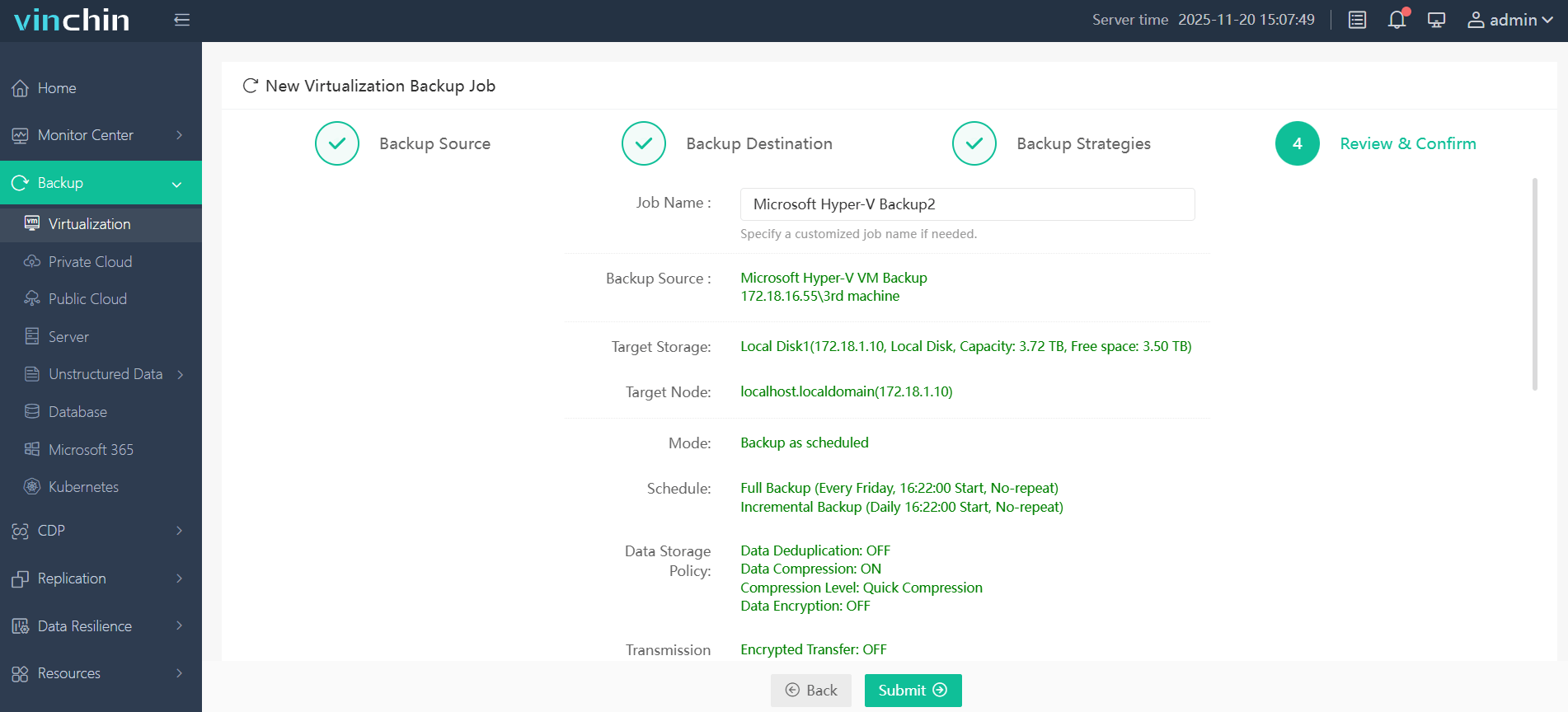
You are more than welcome to download a 60-day full-featured free trial below.
VHD vs VHDX FAQs
Q1: When should I use VHD over VHDX?
Use VHD if you need compatibility with older systems, such as Windows Server 2008 or older hypervisors. However, VHDX is generally preferred for modern environments due to its advanced features.
Q2: Can I create a fixed-size VHDX disk?
Yes, like VHD, VHDX can be created as either a fixed-size or dynamically expanding disk. Fixed-size VHDX disks are allocated the full size immediately, which can lead to better performance in certain scenarios.
Q3: Is VHD or VHDX better for performance?
VHDX generally provides better performance and reliability due to improved storage alignment and support for modern hardware features. VHD is mainly used for legacy compatibility.
Q4: Can I use VHDX with all virtualization platforms?
No. VHDX is mainly designed for Microsoft Hyper-V. Some platforms may support it indirectly, but compatibility is not as broad as VHD.
Conclusion
Both Hyper-V VHD and VHDX files are essential in virtual environments as virtual hard disks. While the VHD enjoys a long history in Microsoft, the VHDX is developed to keep up with technological progress, so it is safe to say VHDX is recommended as a more efficient file format with enhanced performances than the former.
Use Vinchin Backup & Recovery, a cost-effective option with advanced smart backup and recovery strategies to tailor your needs.