Proxmox VE is an open-source server management platform for enterprise virtualization. It enables administrators to manage virtual machines, containers, storage, and networking through a unified interface. Proxmox supports multiple storage technologies, including local storage such as directories, LVM, and ZFS, as well as network storage like NFS, iSCSI, and Fibre Channel.
One of the most valuable features of ZFS storage is built-in data compression. By reducing the amount of physical storage required to store data, ZFS compression can help improve storage efficiency, lower hardware costs, and even enhance performance in some workloads. In this blog, we'll show you how to enable this powerful feature in Proxmox VE to optomize your server storage.
What Is Proxmox ZFS Compression?
Proxmox ZFS compression is a storage optimization feature that automatically compresses data before writing it to disk. Compression is performed transparently at the block level, requiring no changes to applications or virtual machines.
ZFS, which stands for Zettabyte File System, is an advanced file system and logical volume manager designed for large-scale storage environments with a strong focus on data integrity, scalability, and reliability. In addition to compression, ZFS offers features such as:
When compression is enabled on a ZFS dataset, all newly written data is compressed using the selected algorithm. ZFS supports multiple compression algorithms, including:
The compression setting can be applied to individual datasets, allowing administrators to optimize storage according to workload requirements.
Benifits of Proxmox ZFS Compression
As data volumes continue to grow, efficient storage utilization becomes increasingly important. Proxmox ZFS compression helps organizations maximize storage capacity without immediately investing in additional hardware.
Reduced Storage Consumption
Compression reduces the physical storage space required for virtual machine disks, templates, logs, and other data. This can significantly increase effective storage capacity.
Improved I/O Efficiency
Because compressed data occupies less space, fewer bytes need to be written to or read from storage devices. In many environments, this reduces disk I/O and improves overall system responsiveness.
Lower Storage Costs
By storing more data within the same storage pool, organizations can delay storage expansion projects and reduce infrastructure costs.
Better Network Efficiency
Compressed datasets require less bandwidth during replication and backup operations, which can improve transfer performance and reduce network usage.
Transparent Operation
Compression is performed automatically by ZFS and does not require any changes to applications, virtual machines, or user workflows.
How to Enable ZFS Compression in Proxmox VE?
In Proxmox VE, compression can be enabled when creating a new ZFS storage pool, or be enabled on an already existing dataset.
To enable compression on a dataset, use:
zfs set compression=on poolname/dataset
For production environments, it is generally recommended to use LZ4:
zfs set compression=lz4 poolname/dataset
To use ZSTD compression:
zfs set compression=zstd poolname/dataset
You can verify the current compression setting with:
zfs get compression poolname/dataset
And check the actual compression ratio:
zfs get compressratio poolname/dataset
Note: Compression only affects newly written data. Existing data must be rewritten before the new compression settings take effect.
Some Considerations About Proxmox ZFS Compression
1. Compression Algorithms: ZFS supports several compression algorithms, each offering different trade-offs between performance and compression ratio.
| Algorithm | Performance | Compression Ratio | Recommended Usage |
| LZ4 | Very Fast | Moderate | General-purpose workloads |
| ZSTD | Fast | High | Storage optimization |
| GZIP | Slower | Highher | Archive workloads |
| ZLE | Minimal CPU usage | Limited | Zero-filled data |
2. Performance Impact: Compression can actually improve performance in scenarios where disk I/O is a bottleneck, as it reduces the amount of data written to disk. However, it does require some CPU overhead. The impact on performance depends on the workload, the chosen compression algorithm, and the hardware capabilities of the system.
3. Deduplication and Compression: ZFS also supports deduplication, which eliminates duplicate copies of repeating data. However, deduplication is very memory intensive and is generally not recommended for most use cases. When used in conjunction with compression, deduplication happens first, and then compression reduces the size of the remaining unique data.
Performance Optimization Tips for Proxmox ZFS Compression
Improving the performance of ZFS compression on Proxmox involves balancing the CPU overhead of compression with the I/O benefits it can provide. Here are some strategies to enhance performance:
Use Faster CPUs: Since compression and decompression are CPU operations, using a faster CPU or a CPU with more cores can improve performance.
Monitor System Resources: Keep an eye on CPU load and disk I/O. If the CPU is idling while the disks are saturated, you might benefit from enabling a higher compression algorithm. Conversely, if the CPU is the bottleneck, you might want to switch to a faster compression algorithm or disable compression.
Use SSDs for ZIL/SLOG: If synchronous writes are a significant part of your workload, using a fast SSD as a separate ZFS Intent Log (ZIL) or Separate Log device (SLOG) can improve performance.
Balance Workload Across Disks: Ensure that your ZFS pool is balanced across multiple disks to maximize I/O throughput.
Comprehensive Data Protection for Proxmox VE: Vinchin Backup & Recovery
While ZFS provides robust data protection features such as snapshots and replication, an external backup solution is essential for comprehensive data protection. VM backup ensures that in the event of a disaster, data corruption, or accidental deletion, virtual environments can be restored to a known good state.
When it comes to Proxmox VM backup, Vinchin Backup & Recovery emerges as a superior solution. Designed with a deep understanding of virtual environments, Vinchin offers a range of features that make it the best choice, including automatic VM backup, agentless backup, LAN/LAN-Free backup, offsite copy, instant recovery, effective data reduction, cloud archive and etc., strictly following 3-2-1 golden backup architecture to comprehensively secure your data security and integrity in Proxmox VE beyond replication.
Besides, data encryption and anti-ransomware protection offer you dual insurance to protect your Proxmox VE VM backups. You can also simply migrate data from a Proxmox host to another virtual platform and vice versa.
It only takes 4 steps for you to backup Proxmox VE VMs:
1. Go to VM Backup > Backup and select the Proxmox VMs you want to back up from the host inventory.
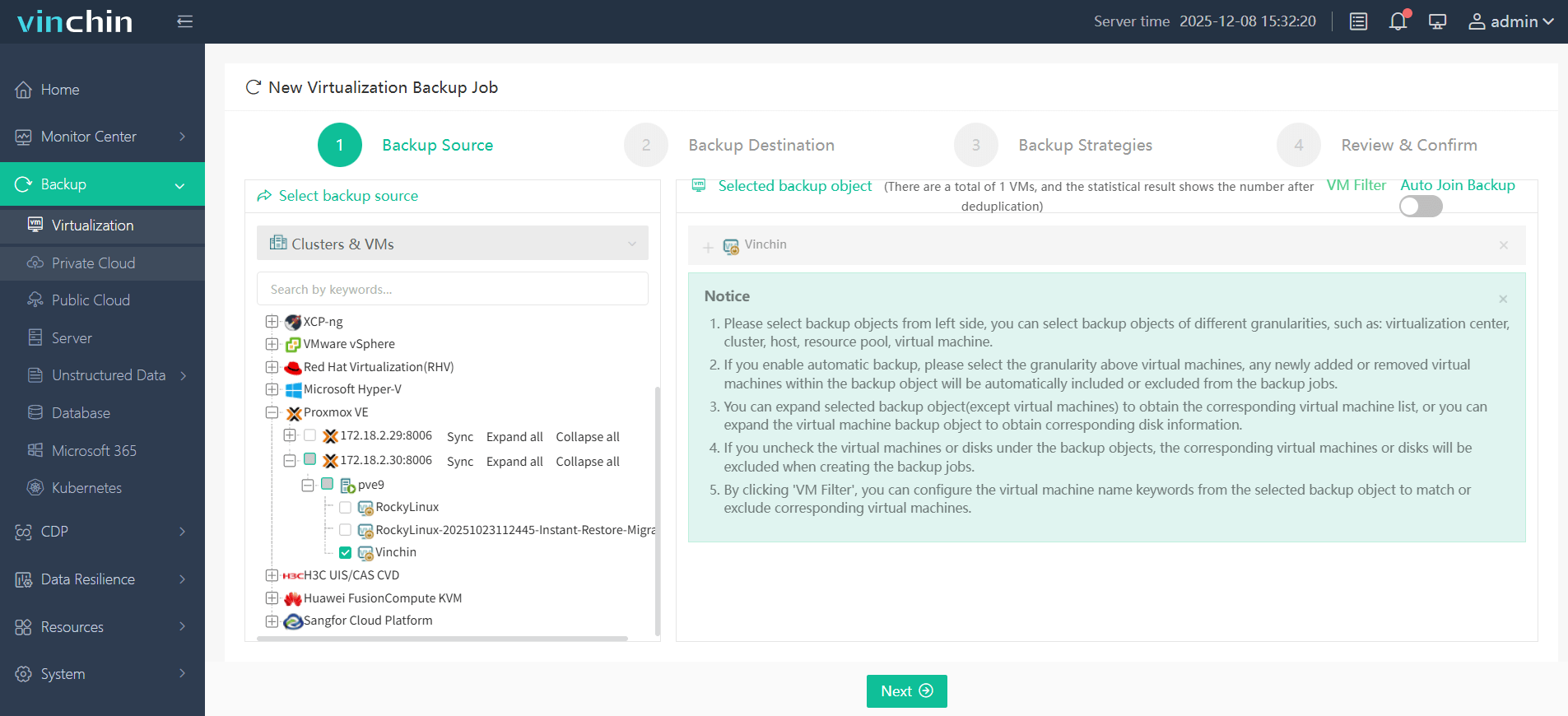
2. Choose a backup node and storage location as the destination for the VM backup data.
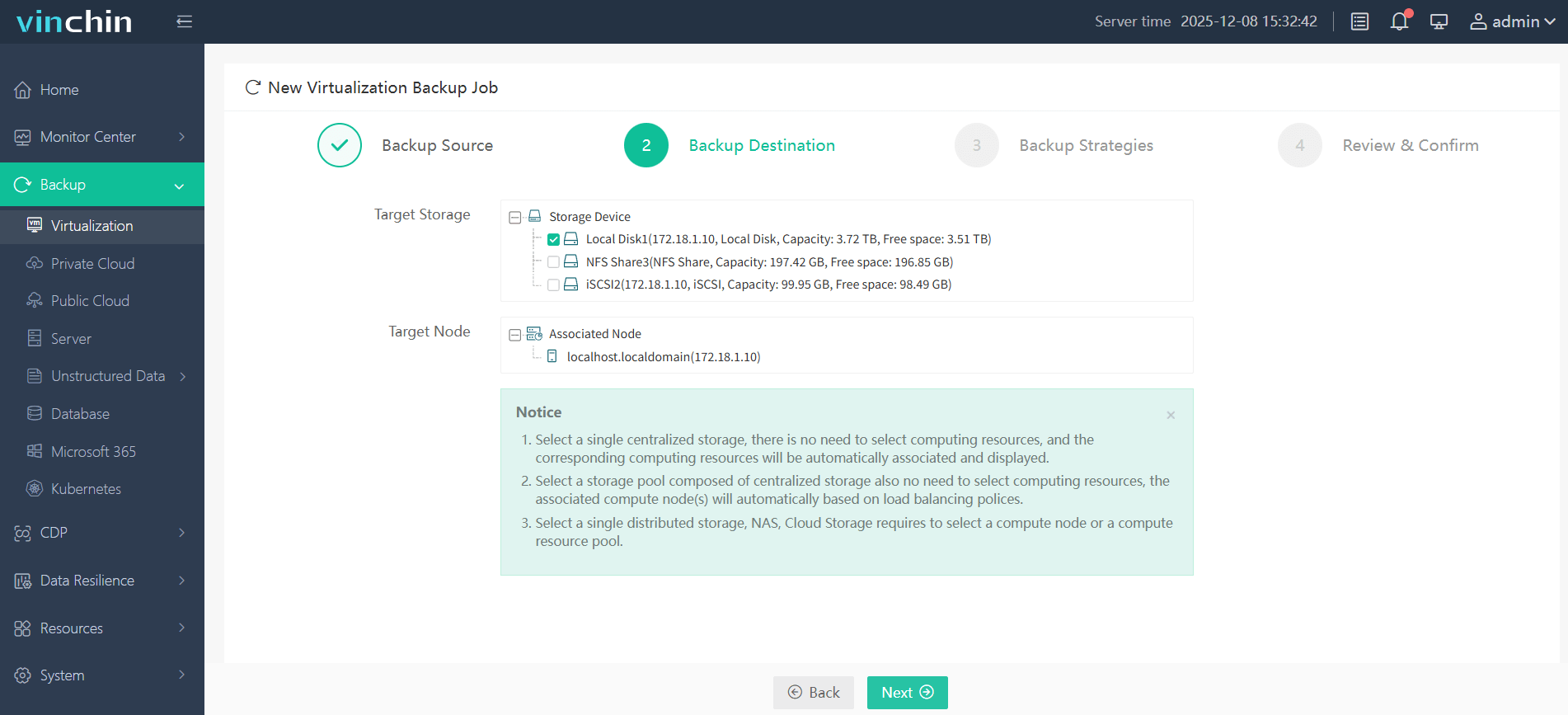
3. Customize backup schedules and policies with support for full, incremental, and differential backup methods to meet different recovery objectives.
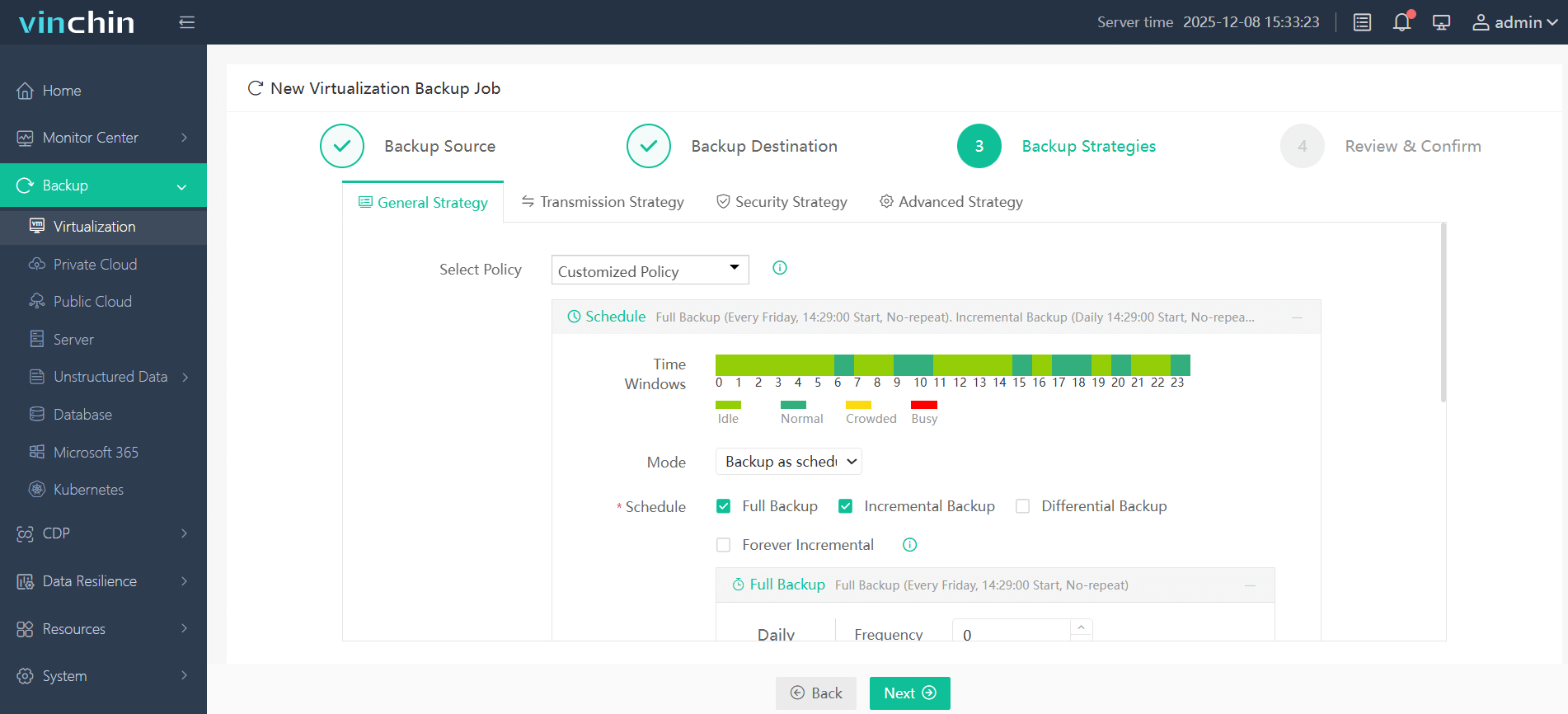
Note: Here you can also choose to deduplicate or compress your data in specified block size to reduce backup size.
4. Confirm the settings and click Submit to start protecting your Proxmox virtual machines.
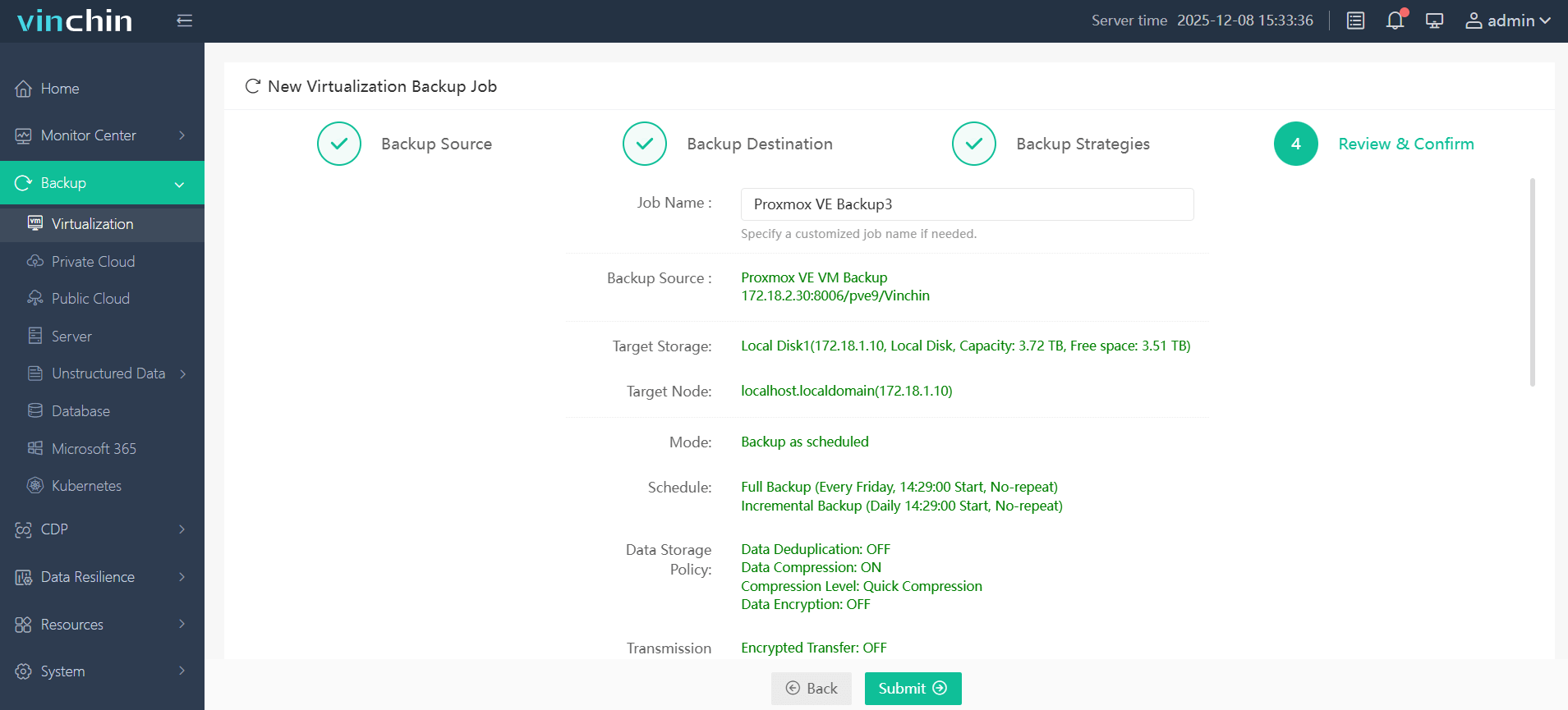
Vinchin Backup & Recovery has been selected by thousands of companies and you can also start to use this powerful system with a 60-day full-featured trial! Also, contact us and leave your needs, and then you will receive a solution according to your IT environment.
Proxmox ZFS compression FAQs
Q1: How to check if ZFS compression is valid?
You can use zfs get compression to view the compression settings and zfs get compressratio to view the compression ratio, which can help you understand whether the compression is effective and how much space it saves.
Q2: Is it possible to disable compression for a specific data set?
Yes, compression can be disabled for a specific dataset by setting the compression=off option. This allows different compression strategies to be applied to different data sets.
Q3: Which compression algorithm is best for Proxmox?
For most environments, LZ4 is the recommended choice because it offers excellent performance with minimal CPU overhead while still providing meaningful storage savings.
Q4: Does enabling compression affect existing data?
No. Compression settings only apply to newly written data. Existing data must be rewritten before the new compression algorithm takes effect.
Conclusion
Proxmox ZFS compression is a powerful tool in the arsenal of virtualization administrators, offering both performance enhancements and cost savings. However, to fully safeguard your virtual environment, a robust backup solution like Vinchin Backup & Recovery is indispensable. It not only complements the innate strengths of Proxmox VE but also provides peace of mind with its comprehensive data protection capabilities.