What Is VMware Snapshot Backup?
A VMware snapshot backup is a backup method that uses VMware snapshot technology to capture a virtual machine’s (VM) state at a specific point in time. A snapshot records changes made to the VM after it is created, allowing backup software to access a consistent VM state during the backup process.
However, VMware snapshots are not backups themselves. In most VMware backup solutions, snapshots are only used temporarily during the backup process. The backup software creates a snapshot, reads VM data, transfers the data to an independent backup repository, and then removes the snapshot after the backup is completed.
By combining VMware snapshots with technologies like Changed Block Tracking (CBT), backup solutions can identify only changed data blocks and perform faster incremental backups while reducing storage and network usage.
VMware Snapshot vs Backup: What’s the Difference?
Many users confuse VMware snapshots with backups, but actually they serve different purposes. A VMware snapshot is mainly designed for short-term rollback, while a backup creates an independent copy of VM data for long-term protection.
Here you can see a comparison table:
Feature | VMware Snapshot | VMware Backup |
Purpose | Short-term rollback | Data protection and disaster recovery |
Storage Location | Usually the same datastore | Independent backup storage |
Long-term Retention | Not supported | supported |
Hardware Failure Protection | No | Yes |
Ransomware Protection | Limited | Available with advanced backup software |
Recovery Options | Restore VM data | Restore full VM, files, or applications |
In short, a VMware snapshot is not a backup. Snapshots are useful for temporary changes or testing, but production environments should rely on professional backup solutions to ensure disaster recovery.
How to Back Up VMware VMs Using Snapshots?
There are several ways to back up VMware VMs using snapshot technology. Users can choose different methods based on their environments, backup requirements, and management experience. Below we’ll elaborate on these methods and their steps in detail.
Method 1: Use VMware Native Snapshot
VMware provides a built-in snapshot feature that allows administrators to capture a VM’s current state and restore it when needed. However, native snapshots are mainly designed for temporary rollback scenarios, such as software testing or configuration changes, rather than for long-term backups.
To create a VMware snapshot:
1. Log in to vSphere Client and select the target VM.
2. Right-click the VM and choose Snapshots > Take Snapshot.
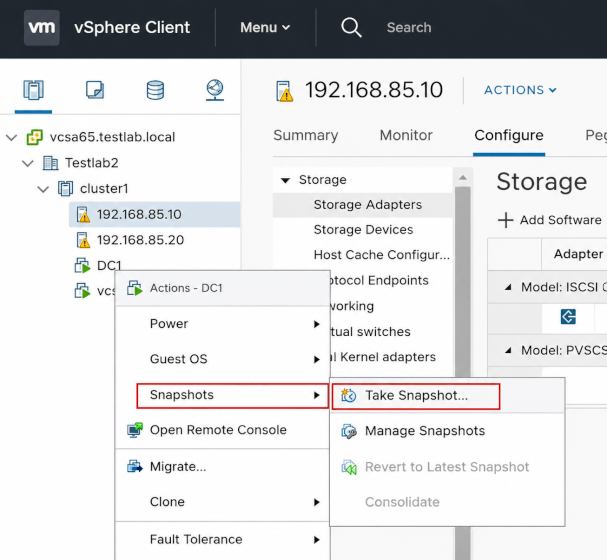
3. Enter a snapshot name and description for identification.
4. Choose whether to include the VM memory state.
5. Click Take Snapshot to create the snapshot.
When recovery is required:
1. Open the VM snapshot manager.
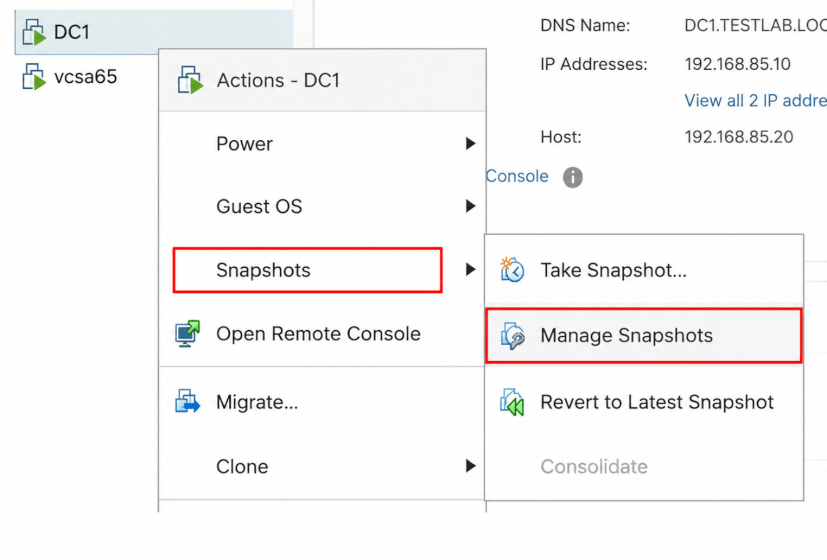
2. Select the snapshot you want to restore.
3. Click Go to to revert the VM to the previous state.
Although this method is simple, administrators should avoid keeping snapshots for extended periods because snapshot files can grow quickly and affect VM performance.
Method 2: Use Professional Backup Software: Vinchin Backup & Recovery
For production environments, using professional VMware backup software is a more reliable approach. Solutions such as Vinchin Backup & Recovery use VMware snapshot technology to create consistent VM backups while storing backup copies separately from the production environment.
Compared with native snapshots, Vinchin provides more comprehensive protection features, including:
Automated scheduling: Automatically run backup jobs based on daily, weekly, or custom schedules.
Incremental backup: Only back up changed data after the initial full backup, reducing backup time and storage consumption.
Deduplication: Eliminate duplicate data to optimize backup storage usage.
Offsite backup: Store backup copies in remote locations for disaster recovery.
Instant recovery: Quickly restore VMs and minimize downtime after failures.
To back up a VMware VM, just need to follow:
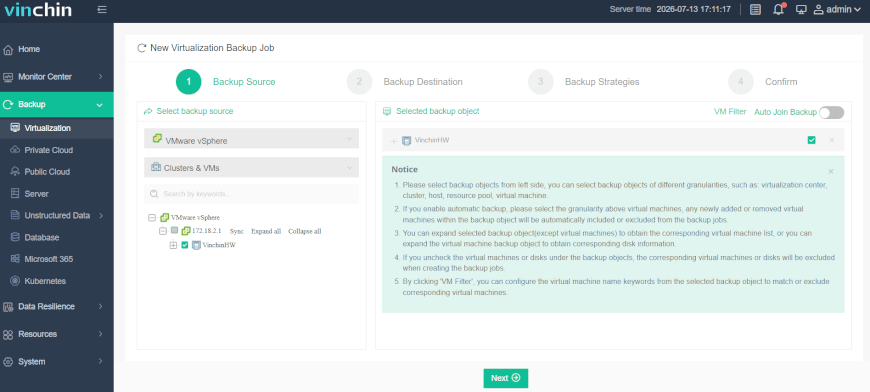
1. Download and open the Vinchin Backup & Recovery software, go to Backup > Virtualization, and select the VMware host as the backup source.
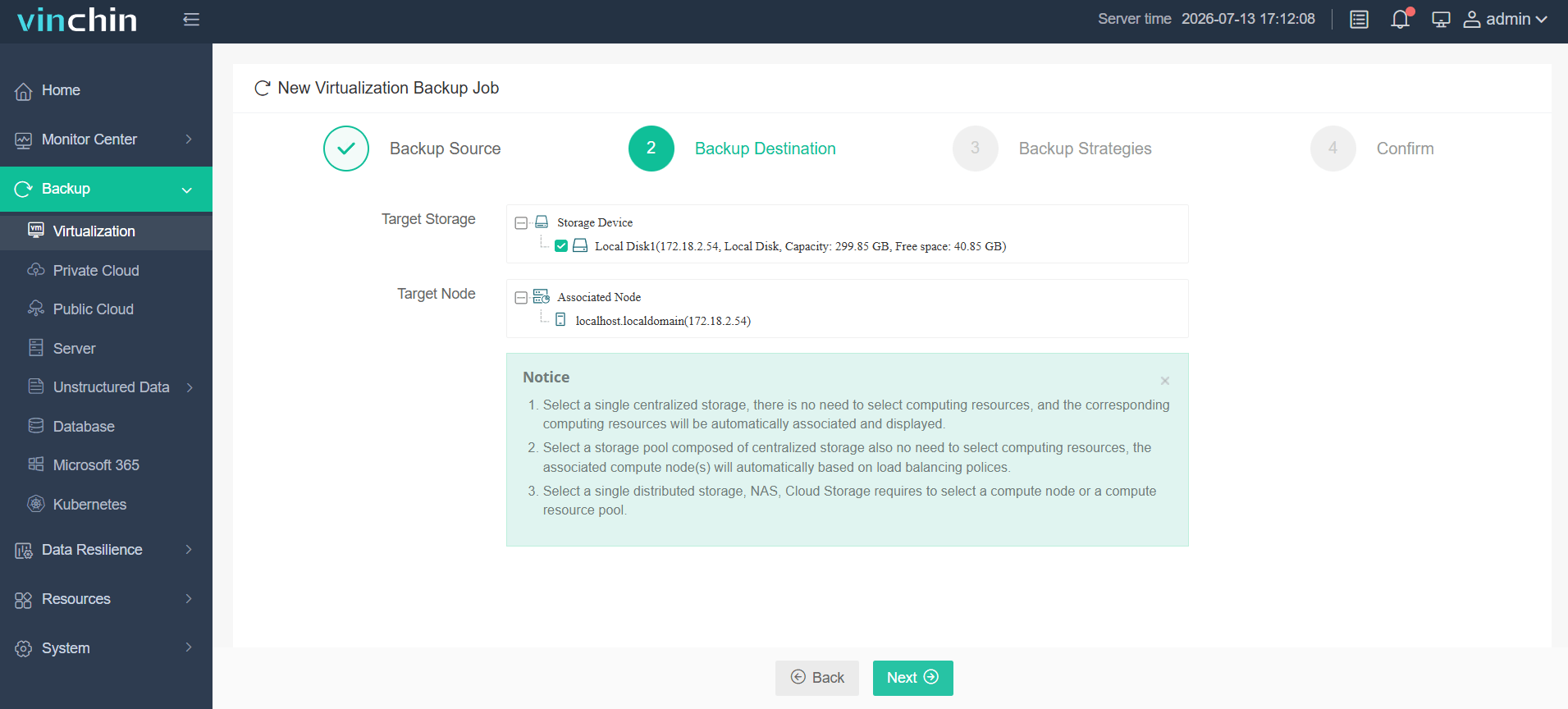
2. Choose the target storage (local disks/NFS Shares/iSCSI) and the target node to complete the backup destinations.
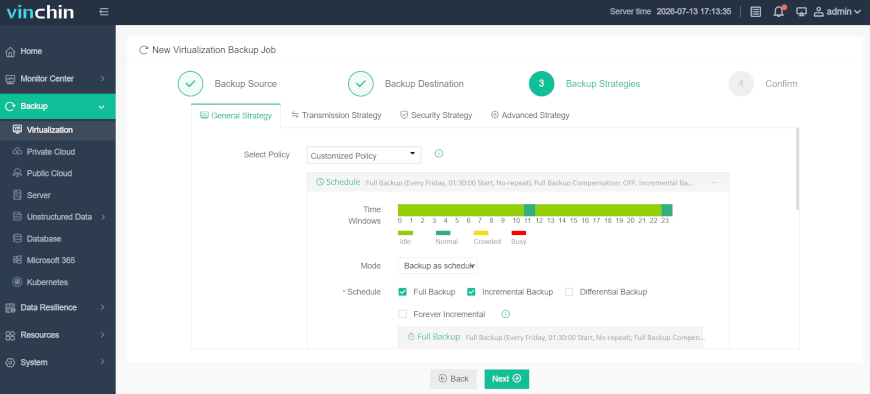
3. Customize the backup strategies. Schedule the task combined with full/incremental/differential backups and set the throttling, data storage, and retention policies.
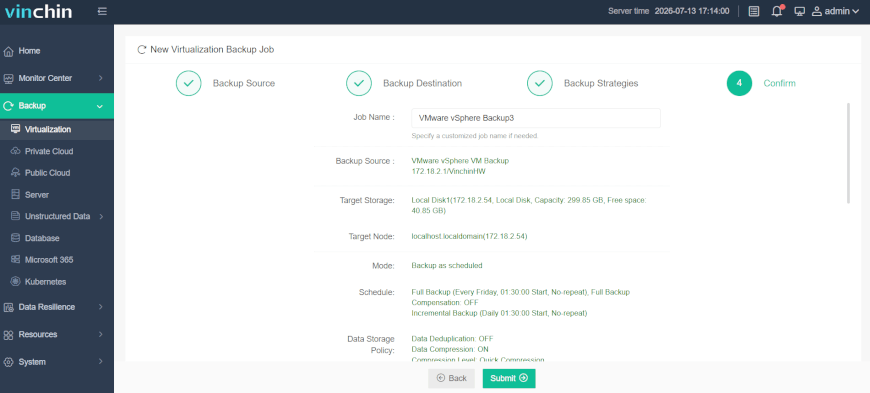
4. Review all the options you chose before, and click Submit to let the task run.
Vinchin Backup & Recovery is making progress to provide customers with the most reliable services. Before making a decision, you’re welcome to download the 60-day fully-featured free trial to experiment with the premium features.
Method 3: Use VMware Snapshot-Based Backup Scripts
For users with scripting experience, VMware snapshot-based backup scripts provide a flexible way to automate VM snapshot creation and backup workflows. This method is commonly used in small environments or custom backup scenarios where administrators want more control over snapshot management.
A typical workflow includes:
Step1. Creating a snapshot before backup
Step2. Exporting or copying VM data to a backup location
Step3. Removing the snapshot after the backup is completed.
For example, VMware PowerCLI can be used to automate snapshot creation:
# Connect to vCenter Server
Connect-VIServer -Server "vcenter.example.com"

# Get the target VM
$vm = Get-VM -Name "VM01"

# Create a snapshot before backup
$snapshot = New-Snapshot -VM $vm -Name "Backup-Snapshot"
-Description "Temporary snapshot for backup"

# Run backup task here
# Example: Export VM files or call a backup script

# Remove the snapshot after backup
Remove-Snapshot -Snapshot $snapshot -Confirm:$false

# Disconnect from vCenter
Disconnect-VIServer -Confirm:$false
However, script-based backups require manual management and lack advanced features such as CBT-based incremental backup, deduplication, and instant recovery. Thus, consider clearly before adopting this method.
VMware Snapshot Backup Best Practices
To use VMware snapshots effectively, follow these best practices:
Do not use snapshots as long-term backups. Snapshots are designed for short-term rollback and should be removed after they are no longer needed.
Monitor snapshot size regularly. Large snapshot files can consume datastore space and impact VM performance.
Avoid keeping multiple snapshots for extended periods. Long snapshot chains may increase recovery complexity and reduce performance.
Store backups separately. Always keep backup copies on independent storage to protect against hardware failures or disasters.
Use professional backup solutions for production environments. Features like CBT, incremental backup, and automated retention policies provide more reliable protection.
VMware Snapshot Backup FAQs
Q1: Can VMware snapshots be used as backups?
No. VMware snapshots only capture VM changes temporarily and should not replace regular backups.
Q2: How long can I keep a VMware snapshot?
Snapshots should generally be kept only for short periods. Long-term snapshots may cause storage and performance issues.
Q3: Do VMware backup solutions use snapshots?
Yes. Many VMware backup solutions use temporary snapshots to create consistent VM backups and remove them automatically after completion.
Final Words
VMware snapshots are useful for temporary rollback, but they are not a replacement for backups. For reliable VM protection, organizations should use professional VMware backup solutions that provide automated backup, incremental protection, and fast recovery.
Vinchin Backup & Recovery helps simplify VMware data protection with snapshot-based backup, CBT, deduplication, and instant recovery features. Try the 60-day free trial to explore enterprise-level VMware backup capabilities.