About Citrix Hypervisor (XenServer)
Citrix Hypervisor, also known as XenServer, is a virtualization platform for creating, running, and managing virtual machines. Many IT teams still refer to it as XenServer, so when they search for XenServer backup solutions, they are usually looking for reliable ways to protect Citrix Hypervisor VMs.
Citrix Hypervisor allows enterprises to run multiple virtual machines on a physical server, enabling business applications, databases, file services, and other workloads to run independently while using the same hardware resources.
Why Backup Citrix Hypervisor VMs Is Important?
Citrix Hypervisor VMs often run databases, ERP systems, file services, and other core business workloads. When a VM crashes, a virus attack damages data, or an administrator deletes files by mistake, these workloads may become unavailable or unrecoverable.
The impact is not limited to the failed VM itself. Business applications can stop running, daily operations may be interrupted, and important data can be permanently lost. Without usable backups, teams may also fail to meet RPO and RTO targets, making recovery slower and more uncertain.
Thus, a reliable backup strategy is important and it helps businesses keep recoverable VM copies, reduce data loss, shorten downtime, and support disaster recovery when unexpected failures happen.
Common Methods About How to Backup Citrix Hypervisor VMs
There are several ways to back up Citrix Hypervisor VMs: export VMs manually, use snapshots, and back up via professional software. These Citrix Hypervisor backup solutions fit different needs, from one-time VM copies to automated protection for production workloads.
Method 1: Export Citrix Hypervisor VMs Manually
Exporting VMs manually is a basic way to backup Citrix Hypervisor VMs when you only need a one-time copy. Although it is not ideal for frequent backup, it can work for small environments or temporary protection.
Here is the command to export a VM manually:
xe vm-export vm=<vm-name> filename=<backup-file>
Manual export is simple, but it is slow for frequent Citrix Hypervisor backup tasks or many VMs.
Method 2: Use Snapshots for Short-Term VM Protection
Snapshots are useful when you need a quick rollback point before making changes to a VM. For example, you can take a snapshot before installing patches, changing application settings, or updating the operating system. Here are the steps to create a snapshot on Citrix Hypervisor VMs:
Select the VM in the Resources pane > Snapshots
Click Take Snapshot, right-click the Properties pane > Take Snapshot
On the VM menu, select Take Snapshot
Enter the name of the new snapshot and an optional description> specify your Snapshot mode
Click OK to begin creating the snapshot. Progress is displayed on the status bar and on the Events view under Notifications.
Snapshots are fast and convenient, but they still depend on the original VM and storage. Keeping them for a long time will increase storage usage and affect performance, so they are better for temporary rollback rather than long-term Citrix Hypervisor VM backup.
Method 3: Use Professional Citrix Hypervisor Backup Software
Professional backup software is designed for environments where VMs need regular protection and reliable disaster recovery. Instead of depending on manual export or short-term snapshots, backup software can help create scheduled backup jobs, manage retention policies, monitor backup status, and restore VMs when needed.
Tools such as Vinchin Backup & Recovery can help automate Citrix Hypervisor VM backup, reducing manual work and making the recovery process easier to manage.
How Vinchin Backup & Recovery works:
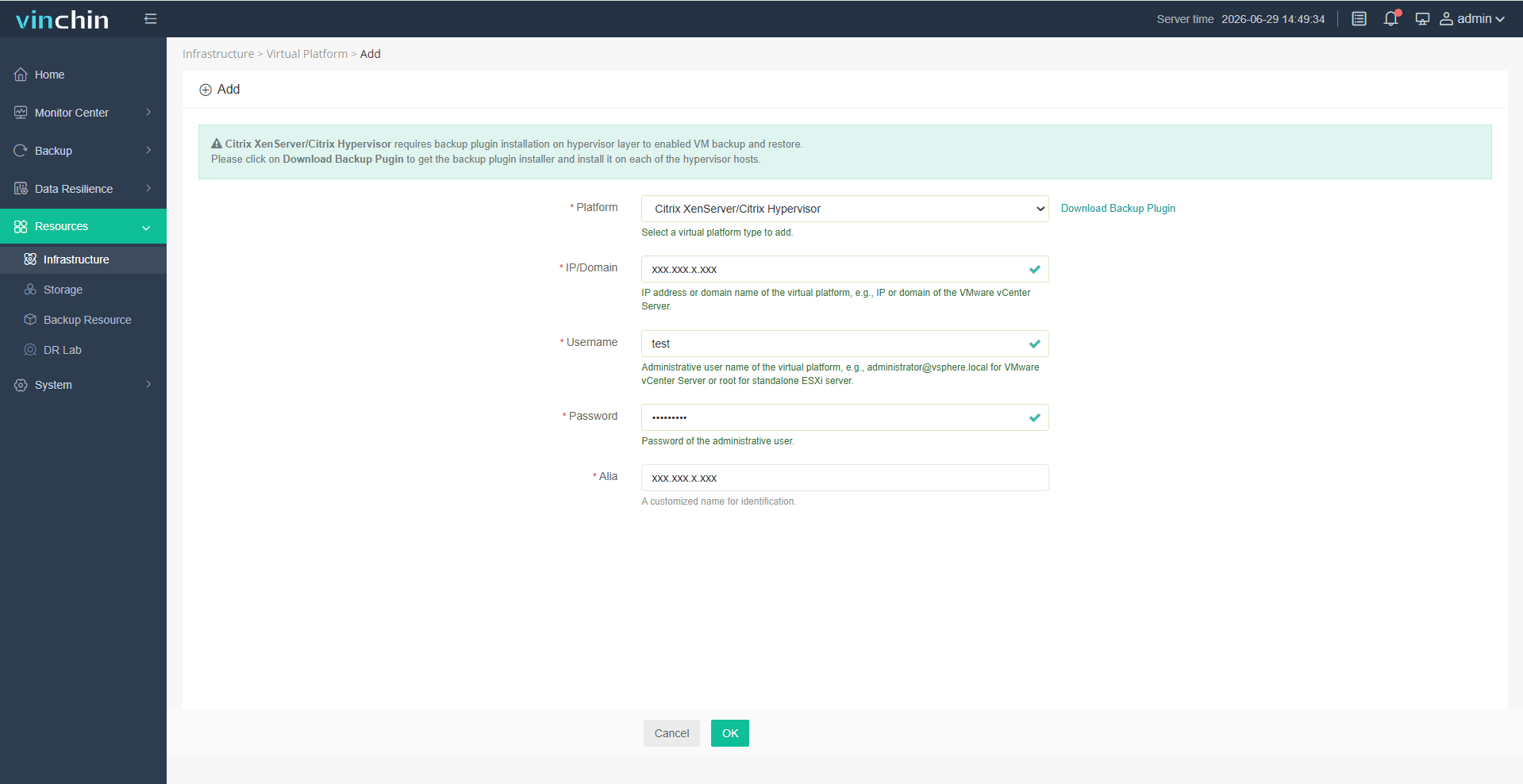
Step 1: Connect the virtual platform: Go to Resources > Infrastructure > Virtual Platform > Add, select Citrix Hypervisor, and enter the connection information.
Step 2: Create the backup task: Go to Backup > Virtualization, select the target VMs, and click Next.

Step 3: Select backup storage: Choose the target node, such as local disks or NAS.

Step 4: Configure the strategy: Set the schedule, backup type, and security options such as WORM Protection or Malware Scan.

Step 5: Confirm and submit: Review the settings and submit the backup job.
With Vinchin Backup & Recovery, you can ensure fast, reliable data protection and business continuity. Click the Download Free Trial button below to start your 60-day free trial with all features unlocked.
More Tips for Choosing the Most Suitable Method and Tool
Still not sure which method to choose? The table below compares the pros and cons of each Citrix Hypervisor backup solution. For easier operation, scheduled backup, and reliable recovery, professional software such as Vinchin Backup & Recovery is usually the better choice.
Backup Method | Best For | Pros | Cons |
Manual VM Export | Small environments, migration preparation, or one-time backup | Simple to understand and does not require a dedicated backup platform | Manual, time-consuming, not automated, and hard to scale across many VMs |
VM Snapshot | Short-term rollback before patches, updates, or configuration changes | Fast to create and useful for quick rollback | Not a full VM backup, depends on original storage, and may affect performance if kept too long |
Professional Backup Software | Production VM protection, scheduled backup, centralized management, and faster recovery | Automated backup, incremental backup, retention management, monitoring, and VM restore options | Requires backup software deployment and proper configuration |
In a word: manual export and snapshots help in limited cases, but production environments usually need professional backup software for consistent protection.
Best Practices for Secure Citrix Hypervisor VM Backup
A secure backup strategy needs clear recovery goals, proper scheduling, safe storage, and regular restore testing.
Define RPO and RTO before setting backup frequency.
Schedule backups based on workload importance and data change rate.
Avoid relying only on snapshots for long-term recovery.
Keep multiple restore points and follow the 3-2-1 backup rule.
Store at least one copy away from the production environment.
Test VM restore regularly and fix failed backup jobs quickly.
FAQs About Citrix Hypervisor VM Backup
Q1: Are Citrix Hypervisor snapshots enough for VM protection?
A1: No. Snapshots are useful for short-term rollback, but they are not designed for long-term data protection.
Q2: How often should I backup Citrix Hypervisor VMs?
A2: Backup frequency should match data change rate and acceptable data loss. Critical VMs that run databases, ERP systems, or customer-facing services may need daily or more frequent backup. Lower-priority VMs can use a lighter schedule.
Q3: Does Citrix Hypervisor support incremental backup?
A3: Citrix Hypervisor backup support incremental backup when it is handled by a backup tool, like Vinchin Backup & Recovery.
Q4: What should a Citrix Hypervisor disaster recovery plan include?
A4: A Citrix Hypervisor disaster recovery plan should include regular VM backups, offsite backup copies, defined RPO and RTO targets, and tested restore workflows to make sure critical VMs can be recovered after hardware failure, ransomware, or accidental deletion.
Conclusion
Citrix Hypervisor VM backup can be handled through manual export, snapshots, or professional backup software. Manual export is useful for one-time protection, snapshots help before updates, and backup software is better for regular VM protection and faster disaster recovery.
For production environments, a planned backup strategy is the safer path. Regular VM backup helps reduce data loss, control recovery time, and prepare for hardware failure, accidental deletion, ransomware, or failed updates. Teams that need a more controlled way to protect Citrix Hypervisor VMs can consider Vinchin Backup & Recovery for automated backup and restore workflows.