Configuring CPU cores per socket in VMware can be confusing. Many admins wonder: should I use more sockets or more cores per socket? The answer impacts performance, licensing, and even application compatibility. Let's break it down step by step so you can make the right choice for your environment.
Introduction
When you create or edit a virtual machine (VM) in VMware vSphere, you must decide how many virtual CPUs (vCPUs) to assign, and how to split them between CPU (sockets) and Cores per Socket. This setting affects how the guest OS sees its processors, how workloads are scheduled, and sometimes even your software licensing costs. Understanding best practices will help you avoid common pitfalls and get the most from your hardware.
What Are CPU Cores Per Socket in VMware
The "CPU" setting in VMware refers to virtual sockets, the number of processor packages presented to the VM. The "Cores per Socket" option determines how many cores each of those sockets has. Multiply these two numbers together to get the total vCPUs assigned to your VM.
For example:
To the guest OS, this looks like either two quad-core processors or one octa-core processor. The distinction matters for some applications and operating systems that have limits on sockets or cores.
This flexibility lets you match your VM's virtual hardware layout with both software requirements and underlying physical resources, if you know what settings work best.
Why CPU Cores Per Socket Setting Matters
Choosing how many sockets versus cores per socket is not just cosmetic, it changes how your VM interacts with both hardware and software:
Licensing: Some software is licensed by socket, others by core.
Performance: How vCPUs are grouped affects scheduling efficiency and NUMA alignment.
Compatibility: Certain OS versions limit recognized sockets or cores.
NUMA Awareness: Non-uniform memory access (NUMA) architectures benefit when VMs align with physical NUMA nodes.
Making informed choices helps ensure optimal performance while keeping licensing simple, and avoids surprises if an application only detects part of your assigned resources.
How to Configure CPU Cores Per Socket in VMware vSphere Client
You can set up cores per socket easily using the vSphere Client interface, but accuracy matters here because small mistakes ripple through performance later on!
First, power off your VM before making changes, most settings require this step for safety reasons.
1. Open vSphere Client and log in.
2. In Hosts and Clusters, select your target VM.
3. Right-click on the VM and choose Edit Settings.
4. Under the Virtual Hardware tab, expand the CPU section.
5. Set Number of CPUs (virtual sockets).
6. Set Cores per Socket, so that (Number of CPUs) × (Cores per Socket) equals total desired vCPUs, VMware displays this calculation automatically.
7. Review other options such as enabling/disabling hot add if required.
8. Click OK to save changes.
Once complete, power on your VM again, it will now see its new processor topology inside its guest operating system environment exactly as configured above!
Remember: Always double-check these values before starting production workloads since changing them later often requires downtime unless hot add was enabled from day one (and even then comes with trade-offs).
VMware CPU Cores Per Socket Best Practice Guidelines
Let's look at proven guidelines based on current evidence:
For Most Workloads
Use fewer sockets with more cores per socket unless there is a specific reason not to, for example: prefer one socket × eight cores over eight sockets × one core when building an eight-vCPU VM unless legacy constraints apply or special licensing rules dictate otherwise! This approach reduces complexity for hypervisor scheduling while matching modern licensing models used by most commercial applications today.
For Licensing Constraints
If software is licensed per socket, use more cores per socket but fewer sockets overall, this minimizes license count without sacrificing compute power! For instance: SQL Server Standard Edition supports up to four sockets; configure as few as possible with higher core counts if needed so every license dollar stretches further without breaking compliance rules along the way!
For NUMA Optimization
Match VM configuration closely with physical NUMA node size whenever possible:
If a physical NUMA node has twelve cores available locally? Configure VMs needing up to twelve vCPUs as a single socket (one socket × twelve cores). If a workload demands more than what fits into one node, for example sixteen total vCPUs, split evenly across multiple sockets (two sockets × eight cores each). This allows advanced features like virtual NUMA (“vNUMA”) presentation inside guests so they schedule memory accesses efficiently according to actual hardware layout underneath!
For Older Operating Systems
Some older Windows/Linux versions have low limits on recognized CPUs/sockets, always check documentation before assigning many sockets lest half your investment goes unused due simply because an old kernel doesn't know what do with extra resources!
General Rules
Avoid odd numbers of vCPUs when spanning multiple NUMA nodes, balance across nodes symmetrically wherever possible for best results! Don't assign more total vCPUs than available logical processors present physically inside host hardware either, overcommitment leads quickly toward contention headaches plus latency spikes if pushed too far beyond safe ratios recommended by vendors (keep overcommit reasonable).
These guidelines help ensure smooth operation regardless whether running web servers at scale, or mission-critical databases where every microsecond counts!
Avoiding Mistakes with CPU Core Configuration
Many admins fall into these traps:
1. Using many single-core sockets per VM unnecessarily increases scheduling overhead without any benefit unless required by legacy apps or licenses.
2. Ignoring NUMA boundaries causes large VMs crossing physical nodes without proper configuration, which may suffer from remote memory access penalties, always try aligning large VMs' core counts directly against local node sizes wherever feasible!
3. Enabling Hot Add unnecessarily disables advanced features like full-featured virtual NUMA exposure, don't enable unless truly needed for dynamic scaling scenarios!
4. Overcommitting CPUs excessively risks severe performance drops under load, even though ESXi handles moderate overcommit well (upwards toward three-to-one ratio), pushing past that threshold invites trouble fast during peak demand periods!
Why Choose Vinchin Backup & Recovery?
Now that you've optimized your VMware environment's CPU configuration, it's essential to safeguard those investments effectively, and that's where Vinchin stands out as an ideal backup solution tailored for complex IT infrastructures like yours.
Vinchin Backup & Recovery offers broad compatibility across over 19 virtualization platforms, including VMware, Hyper-V, Proxmox, as well as support for physical servers, databases, and both cloud-based and local file storage systems, ensuring seamless protection no matter how diverse your architecture is. When migrations are necessary, Vinchin delivers exceptionally flexible migration capabilities: you can perform full-system migrations effortlessly between any supported virtual machines, physical servers, or cloud environments.
For mission-critical workloads running on either virtual or physical machines, Vinchin provides robust real-time backup and replication features, with automated failover, to minimize RPO/RTO during disruptions. To guarantee data reliability at all times, Vinchin performs automatic integrity checks of backups and validates recoverability within isolated environments so you're confident restores will succeed when needed most.
Building resilient disaster recovery strategies is straightforward thanks to automated retention policies, cloud archiving/backups options, remote replicas/DR centers, all managed via an intuitive B/S web console featuring wizard-driven workflows designed for rapid onboarding and ease-of-use even by non-experts.
For example:
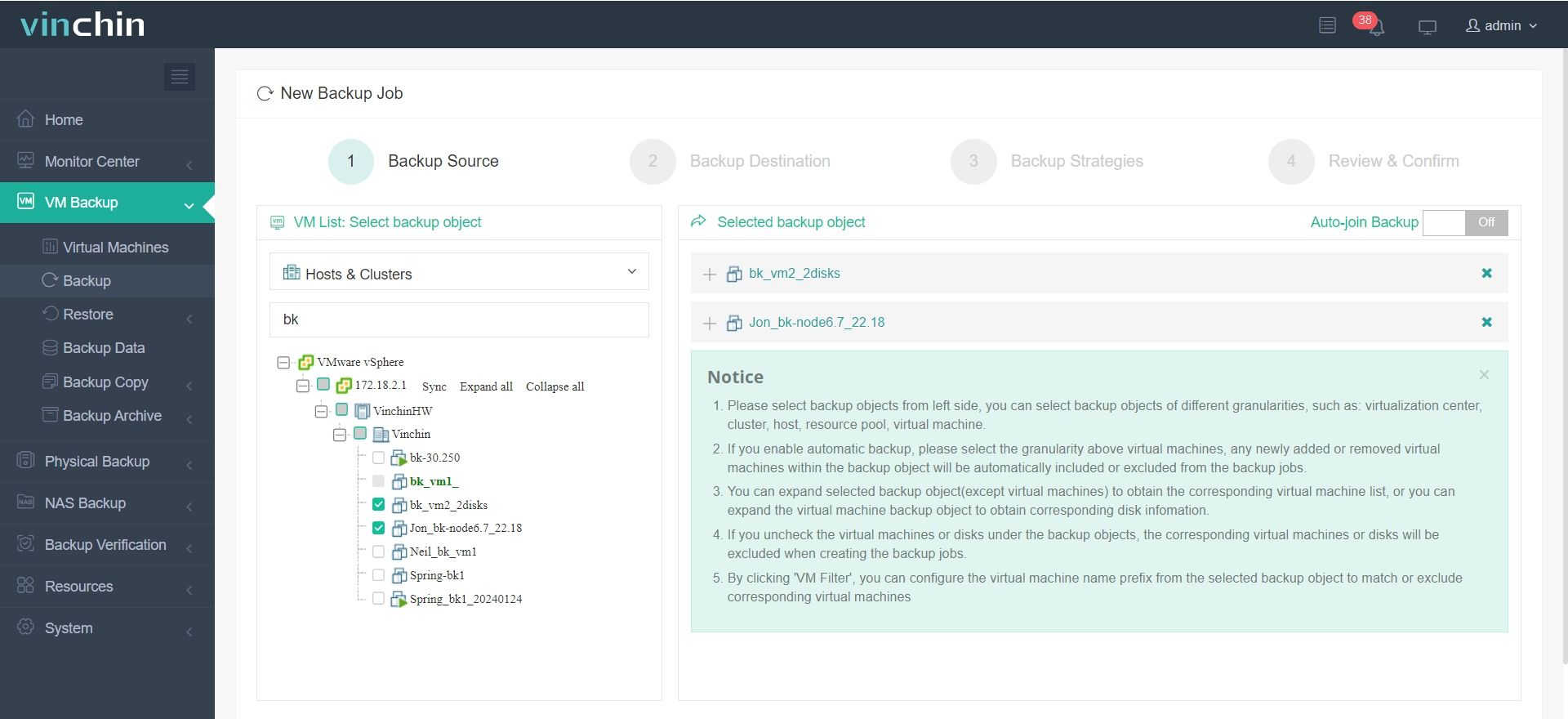
Step 1: Select the VMware VM
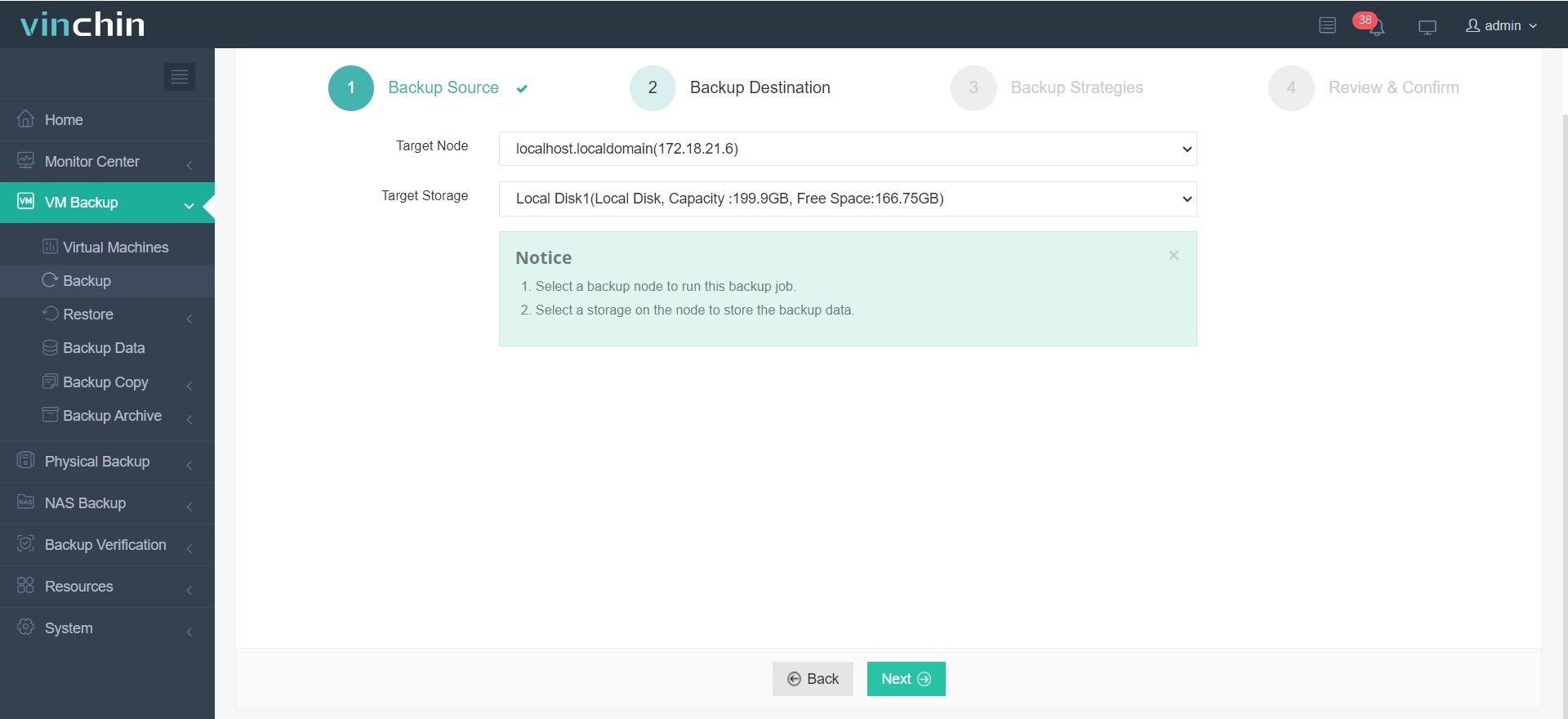
Step 2: Select backup storage
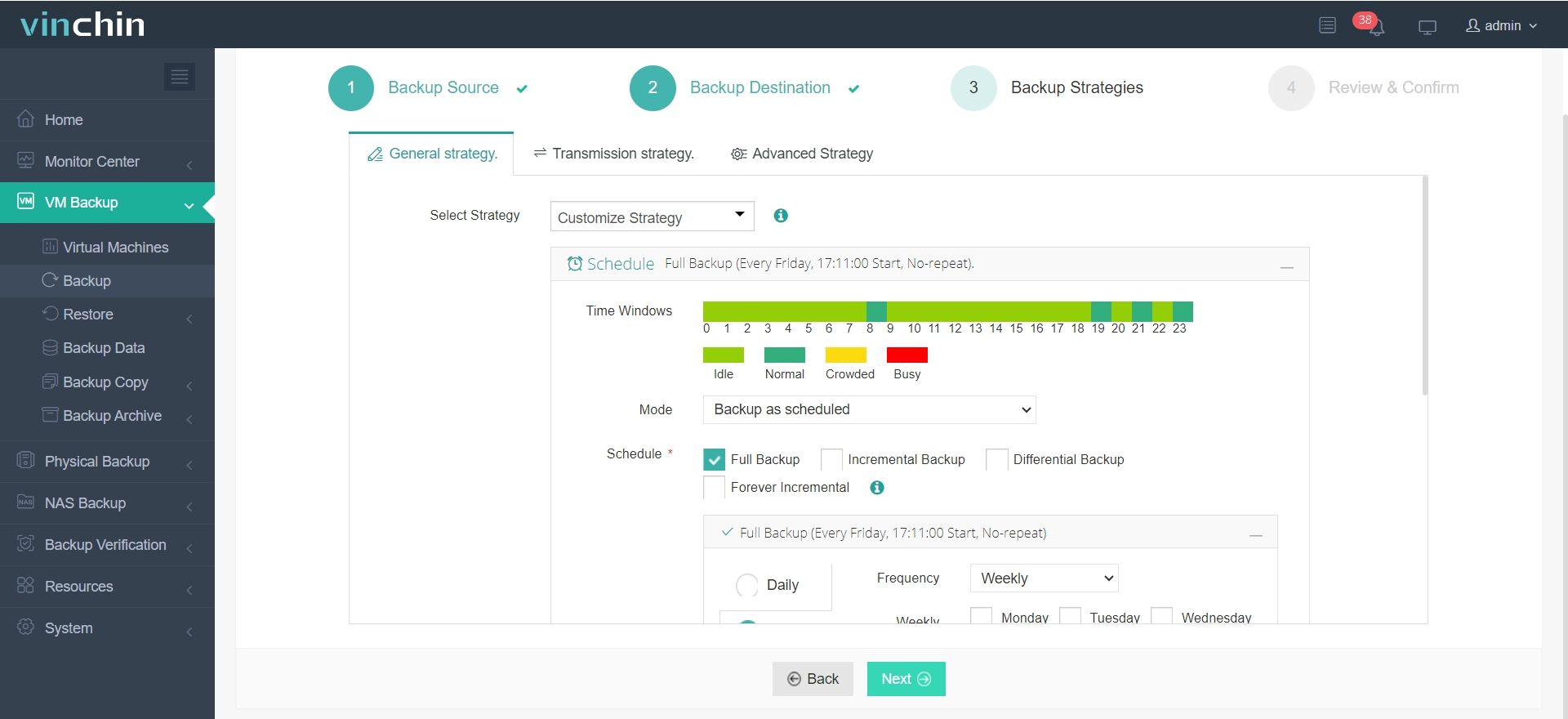
Step 3: Choose backup strategies
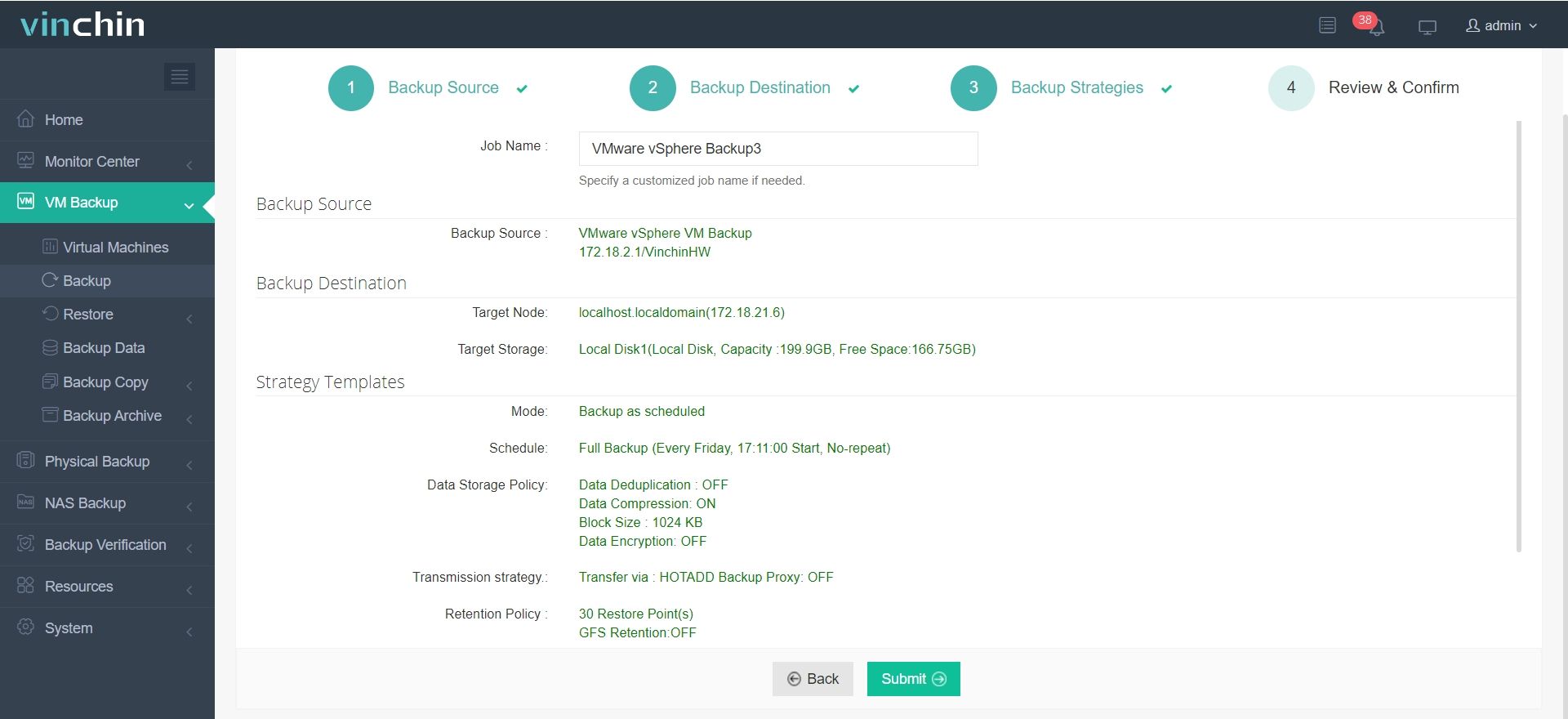
Step 4: Submit job
Vinchin Backup & Recovery comes with a risk-free 60-day trial period plus comprehensive documentation and responsive support engineers who guide you through setup, from start to finish, to keep all data protected efficiently from day one.
VMware CPU Cores Per Socket Best Practice FAQs
Q1: What happens if my application only supports two processor sockets but I configure four?
The guest OS will recognize only two processor packages; additional ones remain unused until reconfigured within supported limits.
Q2: Can I change Number of CPUs/Cores per Socket while my production database server is online?
Only if "Enable CPU Hot Add" was enabled during setup,ra otherwise shut down first before making changes through Edit Settings menu!
Q3: How do I check if my current configuration matches host hardware's NUMA layout?
Use esxtop tool's N%L column or review Virtual Hardware details under Summary tab in vSphere Client for confirmation about alignment status.
Conclusion
Setting optimal CPU cores per socket in VMware boosts both performance and compliance while simplifying management long-term, as environments scale out across clusters or clouds! Always align settings with actual workload needs, hardware topology, and licensing rules, not just defaults, and back up everything reliably using solutions like Vinchin that handle complex configurations without fuss.
Vinchin makes protecting even advanced multi-core/multi-socket deployments simple, with broad platform support, reliable validation tools, strong ransomware defenses, easy migration workflows, plus clear documentation and friendly support.







