Introduction
Are you trying to install Windows 11 or use BitLocker in a Hyper-V virtual machine but keep running into errors about missing TPM? You' re not alone. Many administrators face this challenge as security requirements evolve. Let' s walk through what TPM is, why it matters, and how to enable it in Hyper-V - step by step.
What Is TPM in Hyper-V
TPM stands for Trusted Platform Module. In Hyper-V environments, you can add a virtual TPM (vTPM) chip to Generation 2 virtual machines. This virtual device lets the guest operating system use security features like BitLocker encryption or Windows Hello just as if there were a physical TPM present on real hardware.
A key benefit is that you do not need a hardware TPM on your host server to provide vTPM support inside your VMs. Instead, Hyper-V emulates this functionality using software-based keys managed by the host's hypervisor layer.
Why Enable TPM for Virtual Machines
Enabling TPM in Hyper-V VMs unlocks several advanced security features required by modern operating systems and compliance standards. For example, Windows 11 requires TPM 2.0 during installation; without it, setup will fail with an error message about missing hardware requirements.
BitLocker disk encryption also depends on having access to a trusted platform module so that encryption keys are stored securely outside of the main OS drive. By enabling vTPM within your VM settings, you can test new OS versions safely or protect sensitive data even when running workloads virtually.
For organizations with strict regulatory needs or those deploying credential guard technologies such as Device Guard or Credential Guard (available in some editions of Windows), vTPM is essential for meeting those requirements inside virtualized environments.
Prerequisites for Enabling vTPM
Before you try to enable TPM support in any Hyper-V VM, make sure your environment meets these requirements:
First, only Generation 2 VMs support vTPM—Generation 1 VMs do not have this option available at all. Your host must run either Windows Server 2016 or later; Windows 10 Pro/Enterprise (build 1607 or newer); or any edition of Windows 11 Pro/Enterprise with the Hyper-V role installed.
The underlying hardware should have virtualization extensions enabled (Intel VT-x or AMD-V) along with Second Level Address Translation (SLAT). These are usually found under BIOS/UEFI settings as "Virtualization Technology." The Hyper-V feature itself must be installed on your host system along with Hyper-V Module for Windows PowerShell if you plan to use scripting methods.
Finally—and this is important—the VM must be powered off before making changes related to its security configuration such as adding a virtual TPM device.
Method 1: Enable TPM Using Hyper-V Manager
The graphical interface provided by Hyper-V Manager makes it straightforward to enable TPM support for individual VMs—even if you're new to virtualization management tools.
Start by confirming that your target VM is Generation 2 and currently shut down; otherwise some options may appear grayed out or unavailable due to active processes locking configuration files.
To enable TPM using Hyper-V Manager, follow these steps:
1. Open Hyper-V Manager from your host's Start menu.
2. In the left pane labeled "Servers", select your local computer name.
3. In the middle pane listing available VMs, right-click on the one you want to configure and choose Settings.
4. Within the Settings window's left navigation tree, click on Security.
5. Under Encryption Support, check the box labeled Enable Trusted Platform Module.
6. If required by your guest OS (such as Windows 11), also check Enable Secure Boot under Secure Boot options.
7. Click Apply, then click OK at the bottom right corner of the window.
Once these changes are saved and you start up your VM again, its guest operating system will detect a fully functional virtualized Trusted Platform Module version 2.0 device attached—allowing secure boot processes or BitLocker activation without further errors about missing hardware components.
If you don’t see an option called Enable Trusted Platform Module, double-check that:
This method works well when managing just a few machines interactively via GUI tools—but what if you need automation across many servers?
Method 2: Enable TPM with PowerShell
PowerShell offers powerful automation capabilities ideal for bulk operations across multiple VMs—or simply when working remotely over command-line interfaces instead of graphical consoles.
Before proceeding:
Confirm again that each target VM is Generation 2
Ensure all target VMs are powered off
Make sure you're running at least Windows Server 2016 / Windows 10 build 1607+ since earlier versions lack native support for Enable-VMTPM
Open an elevated PowerShell prompt (Run as Administrator) directly on your Hyper-V host machine where management modules are pre-installed by default:
To add vTPM support for one specific VM named "VM01", enter:
Enable-VMTPM -VMName "VM01"
This command attaches a new virtual Trusted Platform Module device directly into "VM01." To verify whether it worked correctly afterward:
Get-VMSecurity -VMName "VM01"
Look at the output line reading TPMEnabled : True which confirms successful activation; if it says False, repeat previous steps after checking prerequisites again.
For environments where many similarly-named test/dev machines exist—for example all starting with "Win11-"—you can automate enabling vTPM across them like so:
$VMs = Get-VM -Name "Win11-*"
foreach ($VM in $VMs) {
    Enable-VMTPM -VMName $VM.Name
}
This script loops through every matching VM object returned by Get-VM and applies Enable-VMTPM automatically—saving time compared with manual point-and-click work inside each settings dialog box individually!
Remember: These commands require administrative rights plus compatible versions of both PowerShell modules and underlying operating systems/hypervisors per Microsoft documentation.
How to Back Up Hyper‑V Virtual Machines with Vinchin
After securing your Hyper‑V environment with vTPM-enabled VMs, robust backup becomes essential for data protection and business continuity. Vinchin Backup & Recovery delivers professional enterprise-level backup solutions supporting more than fifteen mainstream virtualization platforms—including full compatibility with Microsoft Hyper‑V alongside VMware, Proxmox VE, oVirt/OLVM/RHV, XCP-ng/XenServer, OpenStack, ZStack and others worldwide.
With Vinchin Backup & Recovery on Hyper‑V, users benefit from features such as forever-incremental backup strategies that optimize storage usage; advanced deduplication and compression reducing backup windows; granular restore capabilities allowing recovery at file level; LAN-free backup ensuring high-speed data transfer without production network impact; and malware detection leveraging built-in Kaspersky scanning—all designed for efficient protection while minimizing risk and operational overhead across diverse IT infrastructures.
The intuitive web console makes safeguarding any supported environment straightforward:
Step 1: Select the Hyper‑V VM(s) to back up
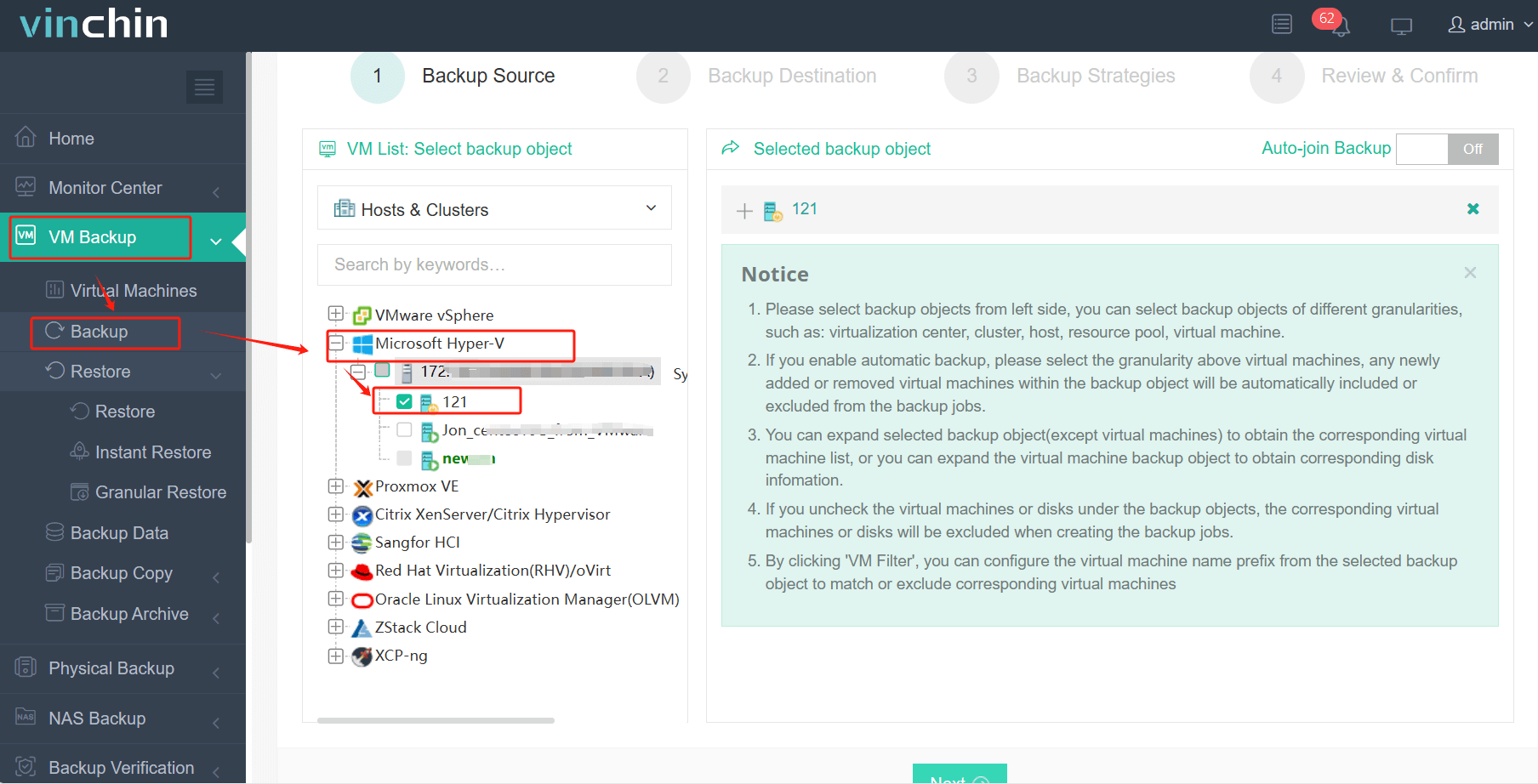
Step 2: Choose backup storage
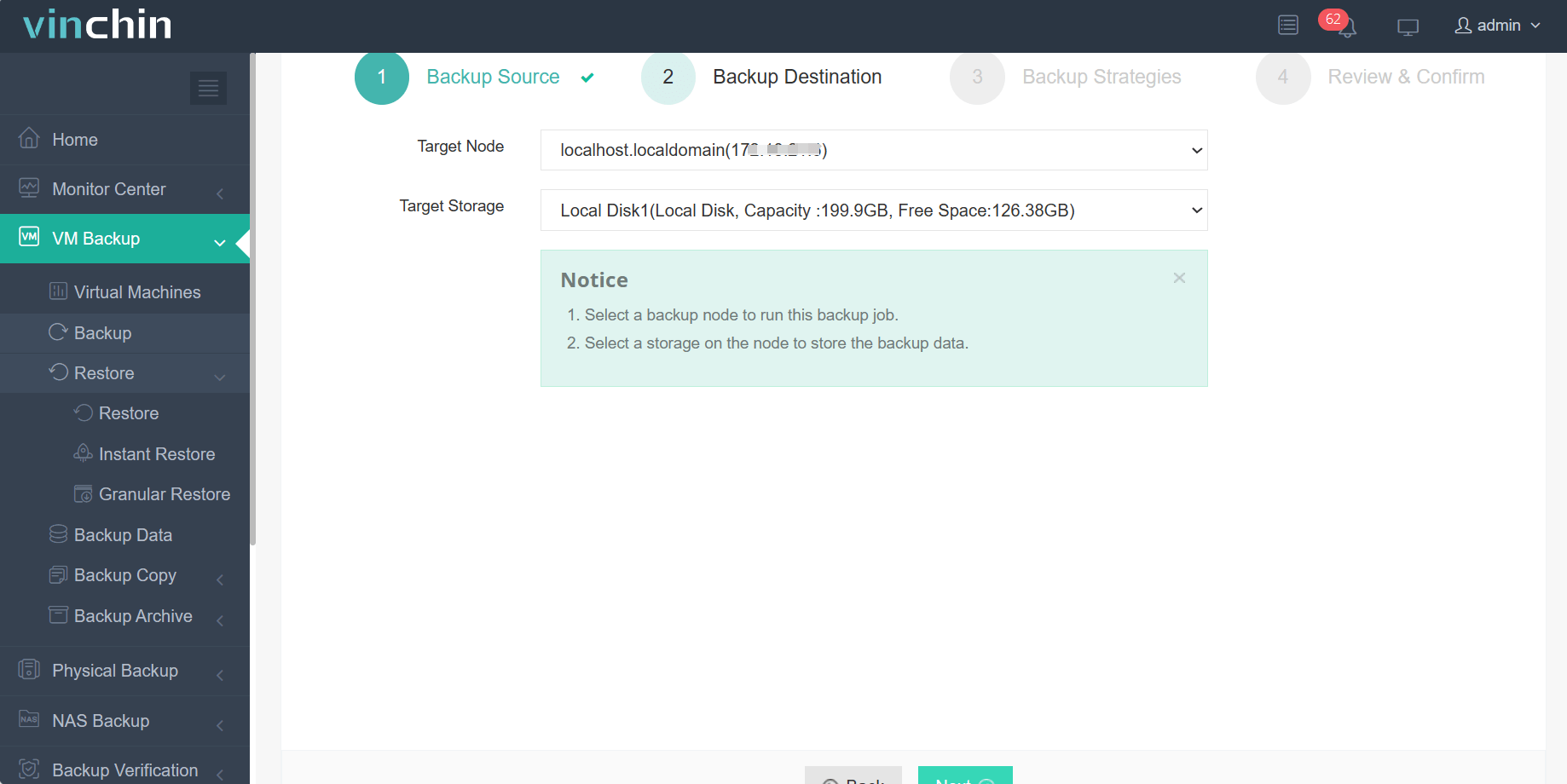
Step 3: Configure backup strategy
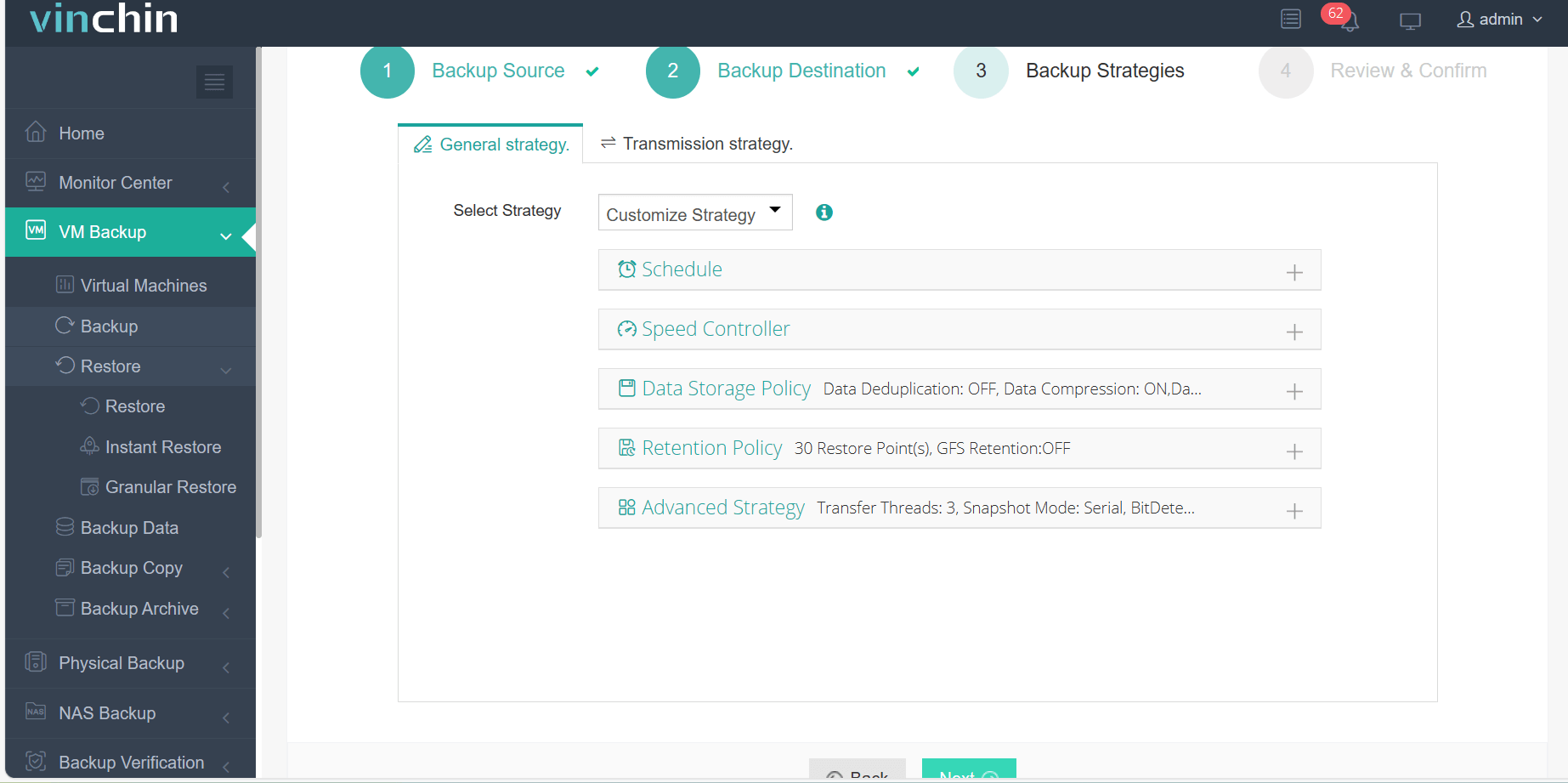
Step 4: Submit job
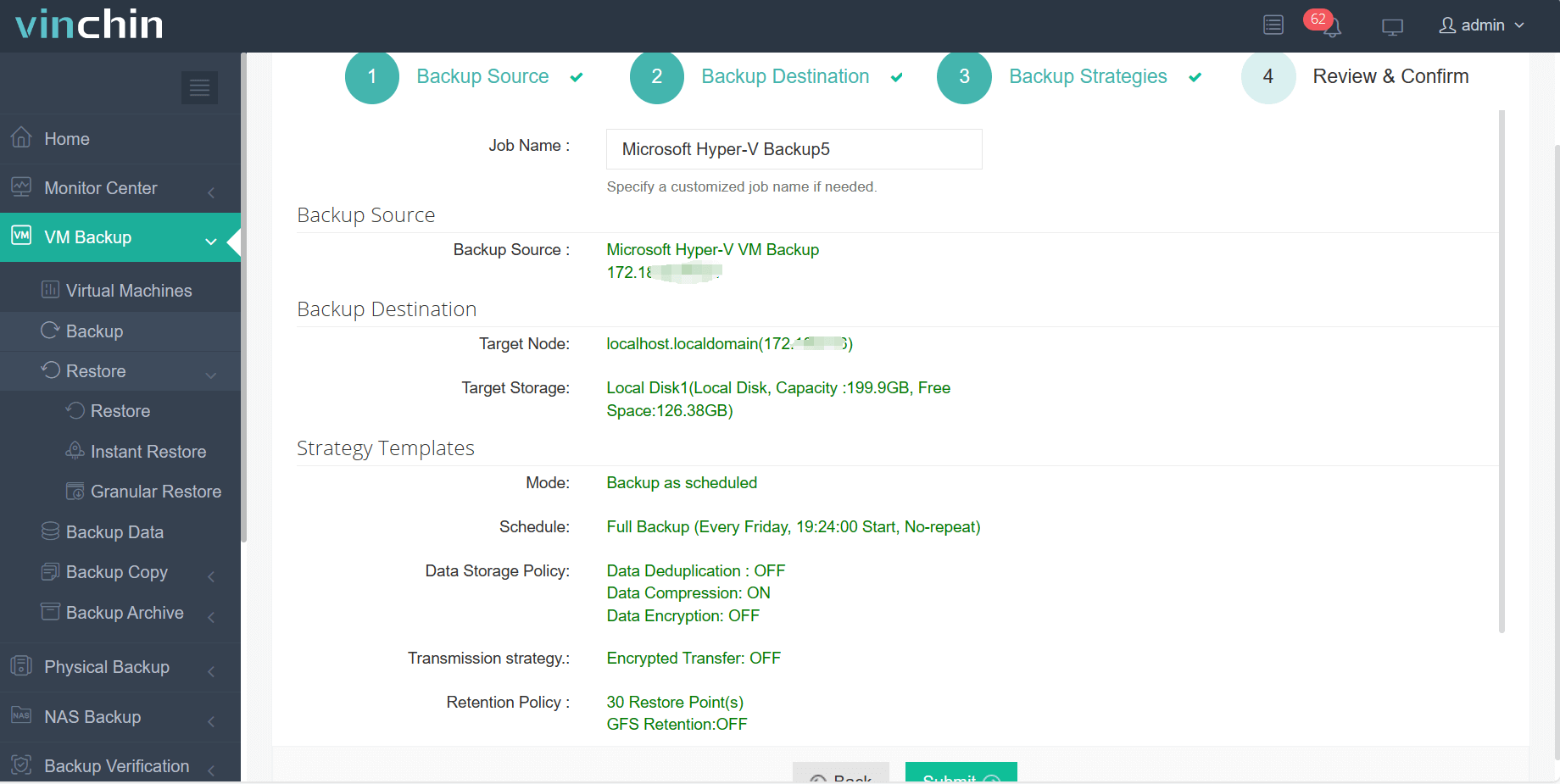
Join thousands of global enterprises who trust Vinchin Backup & Recovery—top-rated enterprise data protection software—with a free full-featured trial valid for sixty days! Download now and experience reliable backup firsthand.
Enable TPM Hyper‑V FAQs
Q1: Can I enable TPM on a running Hyper‑V VM?
No. You must shut down any target VM before enabling its Trusted Platform Module via either GUI menus or PowerShell commands.
Q2: What if I don't see an option called Enable Trusted Platform Module?
Check that your selected VM uses Generation 2 format since only Gen 2 supports vTPM devices within current releases of Microsoft’s hypervisor stack.
Q3: How do I migrate a Hyper‑V VM with vTPM enabled?
Export the VM from its source host then import onto another compatible system—the associated key material transfers automatically unless dealing specifically with shielded VMs requiring extra certificate handling per Microsoft guidelines.
Conclusion
Enabling TPM in Hyper‑V helps meet modern security demands - from installing new operating systems like Windows 11 through enforcing strong disk encryption policies organization-wide! Whether using GUI tools or automated scripts via PowerShell modules introduced since Server 2016 onward—it's never been easier staying compliant while protecting sensitive workloads virtually anywhere they run! For robust backup coverage across all major platforms - including encrypted disks protected by BitLocker—consider Vinchin's enterprise solutions today!