Why Migrate VMware to Proxmox?
The virtualization landscape is shifting. Due to the recent changes in VMware's licensing models, a growing number of enterprises are migrating to Proxmox Virtual Environment (VE) for the following reasons:
Cost Management: Eliminates expensive vSphere licensing in favor of flexible, per-node support subscriptions. Proxmox offers enterprise-grade support subscriptions, there are no per-socket license fees or hidden costs for advanced features like High Availability (HA) or Live Migration.
Open Standards: VMware is a proprietary ecosystem. Once you are deep into their stack, moving out can be technically difficult. However, Proxmox based on Debian Linux and KVM, ensuring no vendor lock-in.
Integrated Features: In the VMware world, features like "vMotion" (Live Migration) or "High Availability" often require high-tier licenses (Enterprise Plus). Proxmox provides built-in backup, firewall, and high-availability (HA) management without more expensive key.
Hardware Flexibility: VMware has a strict HCL (Hardware Compatibility List). If your server's CPU or NIC is a few years old, the newer versions of ESXi simply won't install. Proxmox supports a much wider range of hardware, from high-end enterprise servers to older legacy hardware that VMware has "deprecated."
Comparing VMware to Proxmox Migration Tools
If you are considering the migration from VMware to Proxmox, there are several ways to move your workloads, ranging from manual CLI methods to automated software.
1. Proxmox Native Import Wizard
Proxmox recently introduced a native tool to integrate ESXi storage directly. It simplifies the process by allowing you to view VMware VMs from the Proxmox GUI. However, it may still require manual driver adjustments and lacks the orchestration needed for large-scale environments.
2. Manual OVF/OVA Export
You can export VMs from VMware as OVF files and import them into Proxmox. While "free", this method is time-consuming, prone to network interruptions, and requires significant manual configuration for each VM.
3. Professional V2V migration tool
For production environments, a dedicated VMware to Proxmox migration tool like Vinchin Backup & Recovery is essential. It treats migration as a "cross-platform restore" process, ensuring data integrity and minimizing human error.
Vinchin Backup & Recovery: The Best Choice for V2V Migration
Although you can achieve migration from VMware to Proxmox via manual ways or rely on native tools, moving terabytes of mission-critical data will cost much time and you are facing the risk to loss data during the migration process.
This is where choosing the right VMware to Proxmox migration tool becomes the deciding factor between a weekend of stress and a seamless infrastructure upgrade. Professional migration tool like Vinchin Backup & Recovery offers a robust V2V (Virtual-to-Virtual) technology designed specifically for cross-platform transitions. Unlike manual tools, Vinchin automates the heavy lifting. Key Advantages for Migration:
Agentless Migration: No need to install software inside your VMware VMs. Vinchin interacts directly with the hypervisor layer.
Instant Recovery: Need to test a VM on Proxmox before committing? Vinchin can boot a VMware backup on Proxmox in seconds.
Massive Batch Migration: Instead of moving VMs one by one, you can schedule dozens of migrations simultaneously.
Automatic Driver Conversion: Vinchin handles the technical translation between VMware's hardware metadata and Proxmox's KVM requirements.
Detailed instructions for VMware to Proxmox Migration
You can use Vinchin Backup & Recovery as your migration tool simplifies the process with the following steps:
Step 1. Select the backup of VMware VM 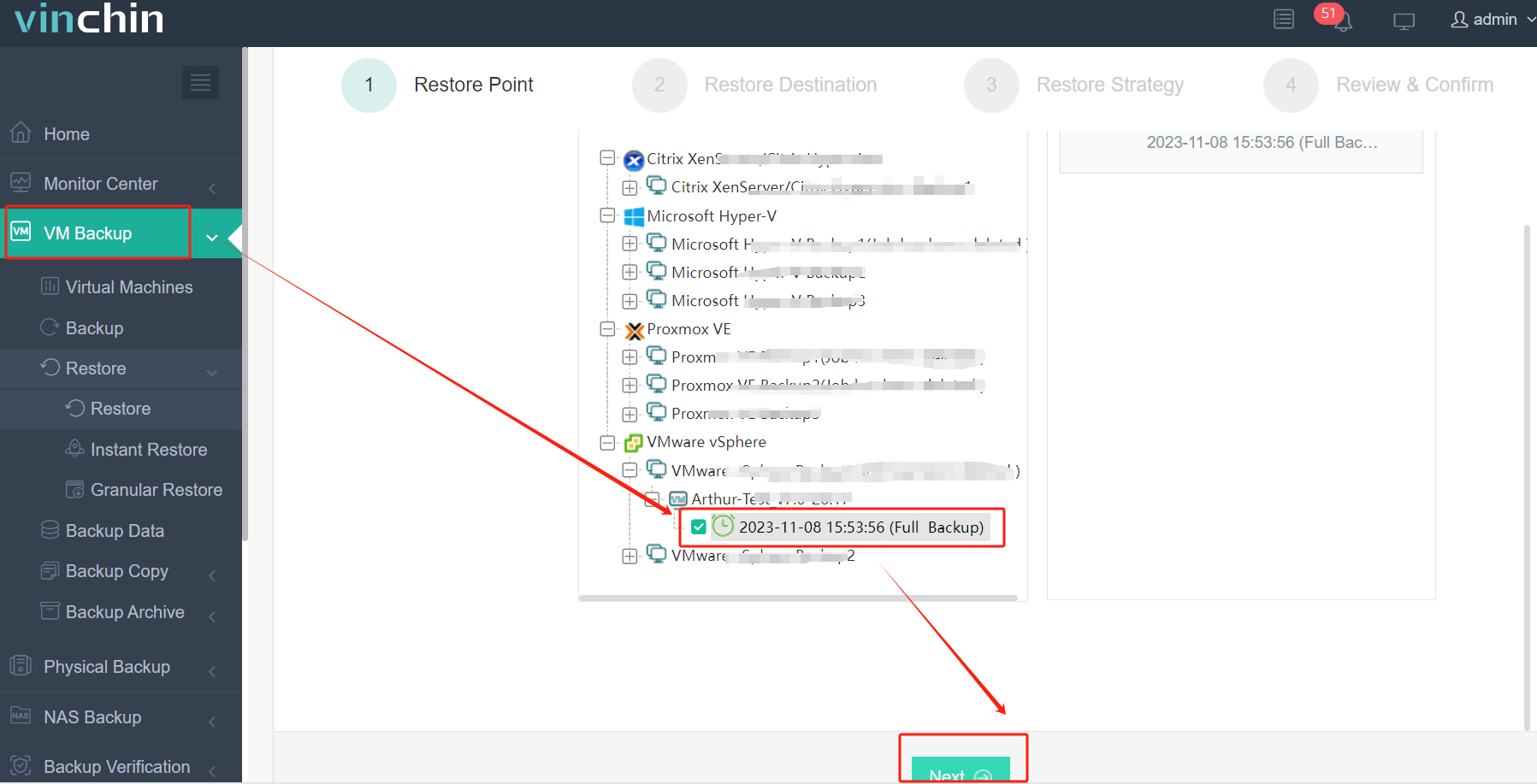
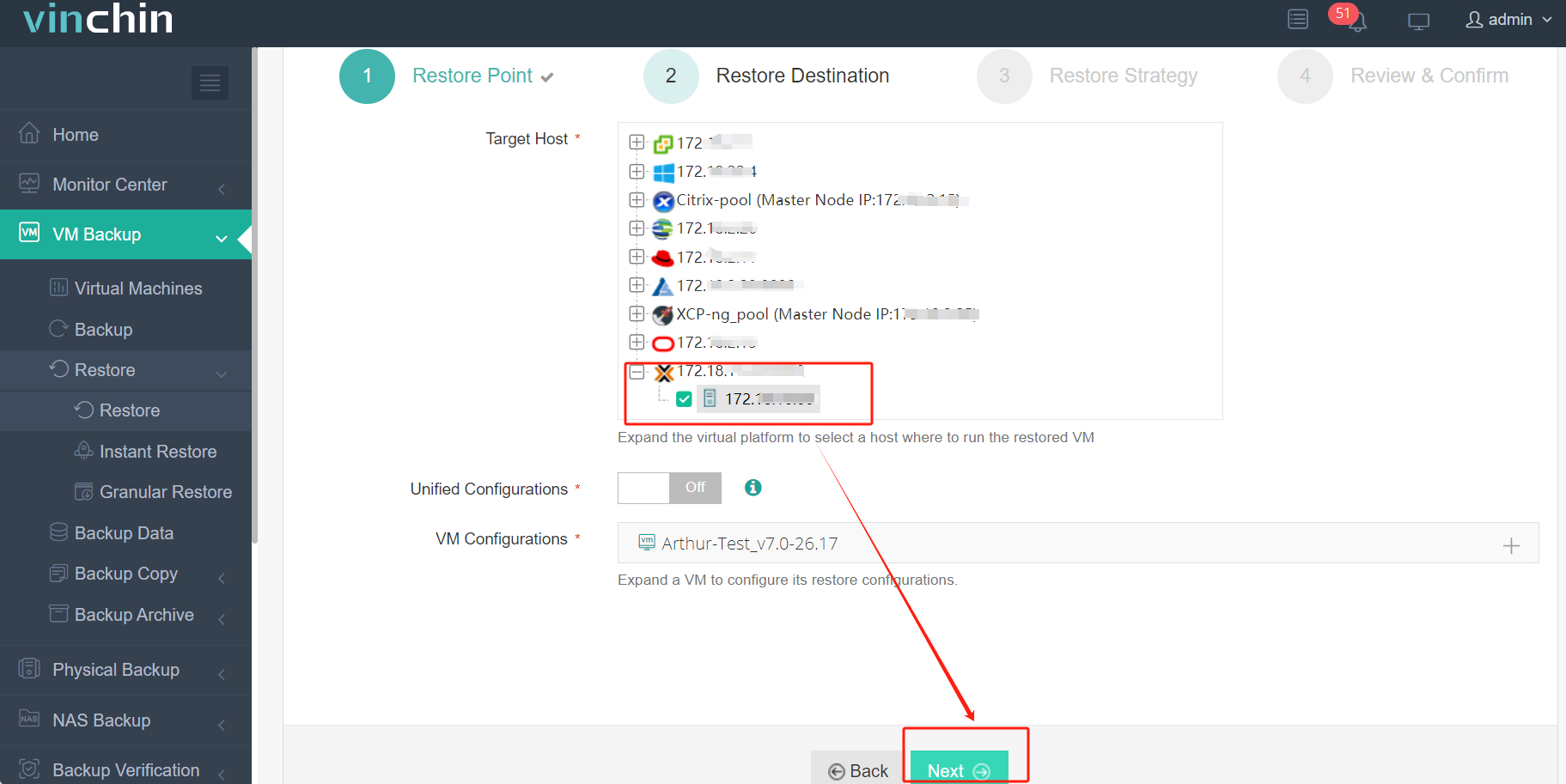
Step 2. Select the Proxmox host as the target host
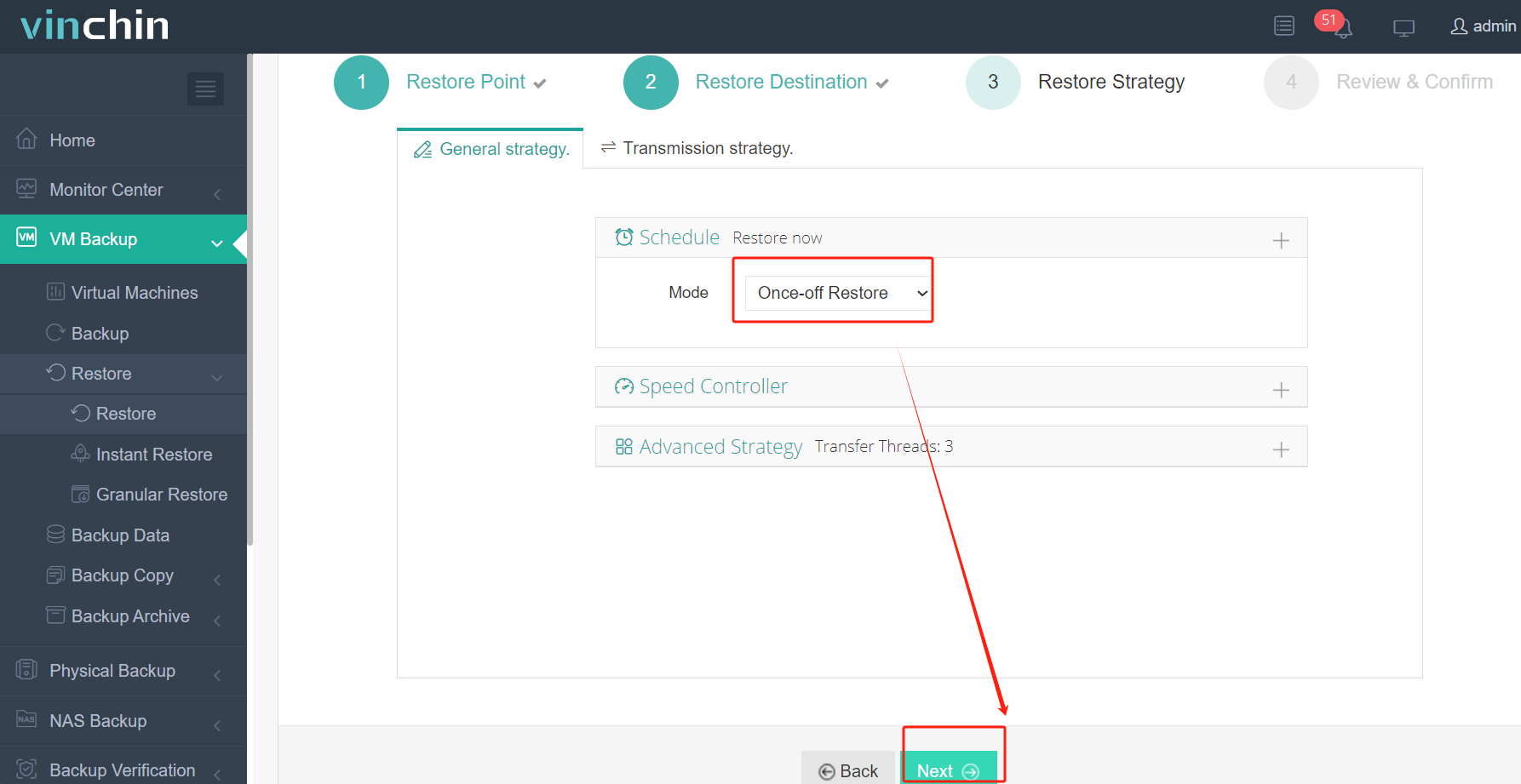
Step 3. Select Once-off Restore
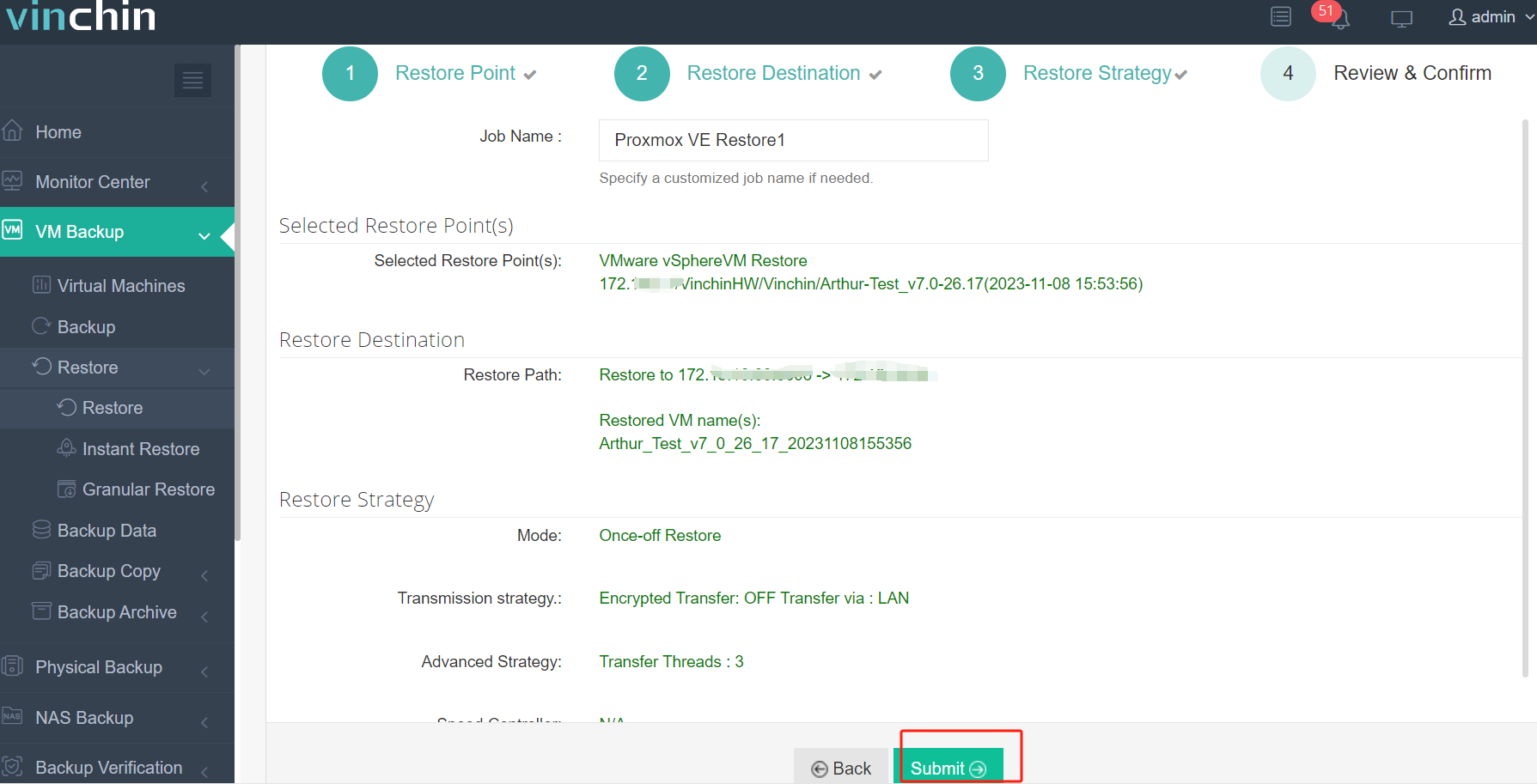
Step 4. Submit the job
Vinchin offers a free 60-day trial for users to experience the functionality in a real-world environment. For more information, please contact Vinchin directly.
Post-Migration Best Practices
Completing the data transfer is a major milestone, but the migration process isn't truly finished until your VMs are optimized for their new home. To ensure stability and high performance on Proxmox VE, follow these essential post-migration steps:
1. Install and Enable Proxmox Guest Agent
The Proxmox Guest Agent is a service that runs inside the VM, providing a communication channel between the host and the guest.
Why it matters: It allows the Proxmox host to issue commands like "graceful shutdown" and helps in freezing the guest file system during backups for better data consistency.
Action: For Linux, run apt install qemu-guest-agent. For Windows, download the VirtIO ISO and run the installer.
2. Optimize I/O with VirtIO Drivers
VMware uses proprietary drivers (VMware Tools), but Proxmox performs best with VirtIO.
Network: Switch the network interface type to "VirtIO" to unlock 10Gbps+ speeds and lower CPU overhead.
Disk: Using the VirtIO SCSI controller provides the best disk I/O performance and supports features like "Discard" (TRIM) to save storage space.
3. Clean Up Legacy VMware Artifacts
Leftover drivers and tools from VMware can occasionally cause system instability or slow boot times.
Action: Once the VM is stable on Proxmox, uninstall VMware Tools from the Control Panel (Windows) or remove the open-vm-tools package (Linux).
4. Verify Network Configuration
Since Proxmox uses Linux Bridges (vmbr0, etc.) or Open vSwitch, the MAC addresses or interface names might change during migration.
Action: Log in to the VM and verify that the IP address is correctly assigned. If you use static IPs, ensure the gateway and DNS settings match your new Proxmox network bridge.
5. Resume Continuous Data Protection
Migration is the perfect time to audit your backup strategy. Don't leave your newly migrated workloads unprotected.
Action: Add your new Proxmox cluster to Vinchin Backup & Recovery. Set up an automated backup schedule immediately to ensure that if a post-migration configuration error occurs, you can revert to a healthy state in seconds.
VMware to Proxmox migration FAQs
Q1: Do I need to reinstall my OS after migrating to Proxmox?
A: Usually, no. With a professional tool like Vinchin, the V2V conversion handles the hardware changes for you. Your OS (Windows or Linux) should boot right up on Proxmox just like it did on ESXi.
Q2: How long does a migration take?
A: It depends on the size of your virtual disks and your network speed. Manual migrations can take hours of troubleshooting, but using an automated VMware to Proxmox migration tool streamlines the process, allowing you to batch-migrate multiple VMs at once to save time.
Q3: Can Proxmox handle the same heavy workloads as VMware?
A: Definitely. Proxmox is built on KVM, which is the same tech used by massive cloud providers. It's highly stable and, in many cases, uses fewer system resources than VMware, giving your apps a bit more "room to breathe".
Final Thoughts
Migrating huge data with a professional VMware to Proxmox migration tool like Vinchin Backup & Recovery can save your time and effort. In addition to V2V migration, Vinchin also offers P2V, C2V and so on. Try the 60-day free trial of Vinchin Backup & Recovery today and experience the simplest V2V transition on the market.