Introduction
Managing clusters in Proxmox VE gives you flexibility and power over your virtual infrastructure. But sometimes you need to delete cluster in Proxmox or remove Proxmox nodes—maybe your test environment has served its purpose or your production needs have shifted. How to delete Proxmox cluster safely? What should you do before making changes? Let’s walk through each step so you can avoid headaches down the road.
What Is a Proxmox Cluster?
A Proxmox cluster is a group of servers running Proxmox VE that work together as one unit. This setup lets you manage multiple hosts from one interface, share resources between them, migrate virtual machines (VMs), enable high availability (HA), and centralize tasks like backup or monitoring. Clusters rely on Corosync for communication between nodes—a system that requires careful setup because configuration files are shared across all members through an internal file system called pmxcfs (/etc/pve). If something goes wrong here, it can affect every node at once.
Why Delete Cluster in Proxmox?
There are several reasons why administrators might want to delete a cluster in Proxmox:
You set up a test lab but now need those servers elsewhere.
Hardware upgrades mean rebuilding your environment from scratch.
Network changes make your current cluster design obsolete.
You want to move some nodes into another project or standalone mode.
Troubleshooting persistent errors requires starting fresh with clean configs.
Whatever your reason, deleting clusters—or even just removing individual nodes—is serious business. It affects shared storage access, VM placement rules, HA groups, backup schedules, firewall settings… almost everything! That’s why it pays to plan ahead before taking action.
How to Remove Nodes from a Proxmox Cluster
Removing nodes is common when decommissioning old hardware or reorganizing resources within your datacenter. Here’s what you need to know before starting Proxmox delete node from cluster:
First off—all commands below must be executed as root (or using sudo) on the relevant host!
1. Migrate or back up all VMs and containers from the node you wish to remove using either built-in tools or third-party solutions like Vinchin.
2. Shut down the target node completely so it does not communicate with other members during removal.
3. On any remaining active node in your cluster (not on the one being removed), open Shell via SSH or local terminal.
4. Run:
pvecm delnode NodeName
Replace NodeName with exactly how it appears under Nodes in your web interface (Datacenter > NodeName). There’s no confirmation prompt—double-check spelling!
5. Check status by running:
pvecm status
The removed node should disappear from this list.
6. If its name still shows up under /etc/pve/nodes/, manually remove its directory:
rm -rf /etc/pve/nodes/NodeName
7. For extra safety: Remove any SSH host keys related to this node from /etc/ssh/ssh_known_hosts on surviving members if you plan future re-use.
8. Never bring this server back online with its old config while connected to the same network—it could corrupt your entire cluster!
This process is permanent—the deleted node loses all knowledge of previous clustering unless rebuilt from scratch later.
How to Delete an Entire Cluster in Proxmox
Sometimes wiping out just one member isn’t enough—you need every trace of clustering gone so servers become standalone again (for example after major topology changes).
Again: All steps require root privileges!
Here’s how experts recommend deleting an entire cluster without reinstalling Linux:
1. Stop critical services:
    systemctl stop pve-cluster
    systemctl stop corosync
2. Start pmxcfs (“Proxmox Cluster File System”) locally:
pmxcfs -l
3. Remove Corosync configs:
    rm /etc/pve/corosync.conf
    rm -r /etc/corosync/*
4. Kill local pmxcfs process:
killall pmxcfs
5. If /etc/pve remains mounted after killing pmxcfs (rare), unmount it manually:
umount /etc/pve
6. Restart pve-cluster service:
systemctl start pve-cluster
At this point there should be no sign of clustering left—the server acts as if freshly installed but keeps existing VMs intact locally unless deleted separately.
If cleaning up leftover directories helps clarity (especially after multi-node splits):
rm -rf /etc/pve/nodes/OtherNodeName
Only do this if absolutely sure nothing important remains inside those folders!
Afterward: Your server runs independently again—ready for new clusters or solo operation as needed.
Precautions Before Deleting Cluster
Deleting clusters isn’t reversible—and mistakes can cause downtime! Here are key precautions every admin should take:
Back up all VMs plus containers first—not just their disks but also metadata/configuration snapshots where possible.
Save copies of /etc/pve/, especially corosync.conf plus each subdirectory under nodes/. These hold vital settings that aren’t easily recreated by hand later.
Use ha-manager status on any active member to check which HA groups reference soon-to-be-deleted nodes; clear these using ha-manager remove GroupName.
Review replication jobs under Datacenter > Replication—disable anything pointing at departing hosts.
Test procedures first on non-production systems whenever feasible; even seasoned pros make mistakes!
Never reconnect an old node with stale configs onto live networks—it risks split-brain scenarios that damage both data integrity AND uptime records!
Careful planning means fewer surprises—and faster recovery if things go sideways anyway.
Post-Deletion Cleanup and Verification
Once you've deleted nodes or wiped out clustering entirely, it's smart practice to verify everything worked as expected:
Start by checking logs using:
journalctl -u pve-cluster -u corosync --since "10 minutes ago"
Look for errors about missing configs or failed starts—these hint at incomplete cleanup steps above.
Next: Confirm /etc/corosync/ is empty except maybe default templates; confirm /etc/pve/corosync.conf doesn’t exist anymore unless intentionally recreated later for new clusters.
If prepping former members for reuse elsewhere:
1) Clean out SSH known_hosts entries referencing old partners;
2) Reboot each machine;
3) Either join them into new clusters using pvecm add IPADDRESS_OF_NEW_MASTER, OR create brand-new ones via pvecm create NewClusterName.
Finally: Log into web UI individually per host—ensure each now lists only itself under Datacenter > Nodes rather than showing ghost entries left behind by past memberships!
These checks keep environments tidy—and prevent confusion next time someone audits infrastructure health reports.
Back Up Your Data Before Deleting a Proxmox Cluster with Vinchin Backup & Recovery
Before proceeding with deletion operations in Proxmox environments, safeguarding data integrity is essential for business continuity and compliance requirements alike. Vinchin Backup & Recovery stands out as an enterprise-level virtual machine backup solution supporting more than 15 mainstream virtualization platforms—including comprehensive support for Proxmox alongside VMware, Hyper-V, oVirt, OLVM, RHV, XCP-ng, XenServer, OpenStack, ZStack and others.
For organizations managing critical workloads on Proxmox clusters, Vinchin Backup & Recovery delivers robust features such as forever incremental backup for efficient storage utilization; advanced data deduplication and compression; V2V migration across heterogeneous platforms; granular restore capabilities; and scheduled backups tailored for enterprise demands—all designed to streamline protection while minimizing operational overhead.
The intuitive Vinchin Backup & Recovery web console makes protecting your environment straightforward:
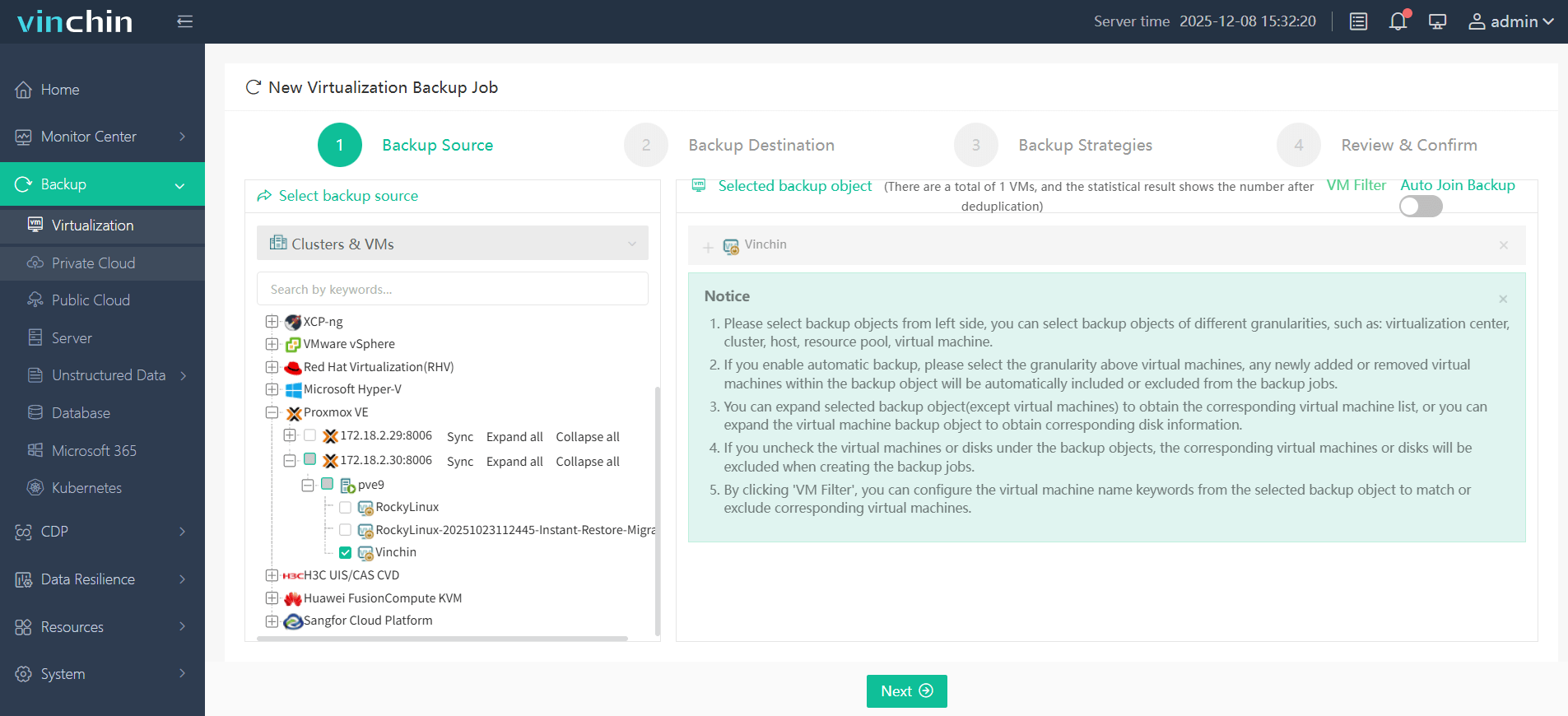
Step 1: Select the Proxmox VM(s) to back up
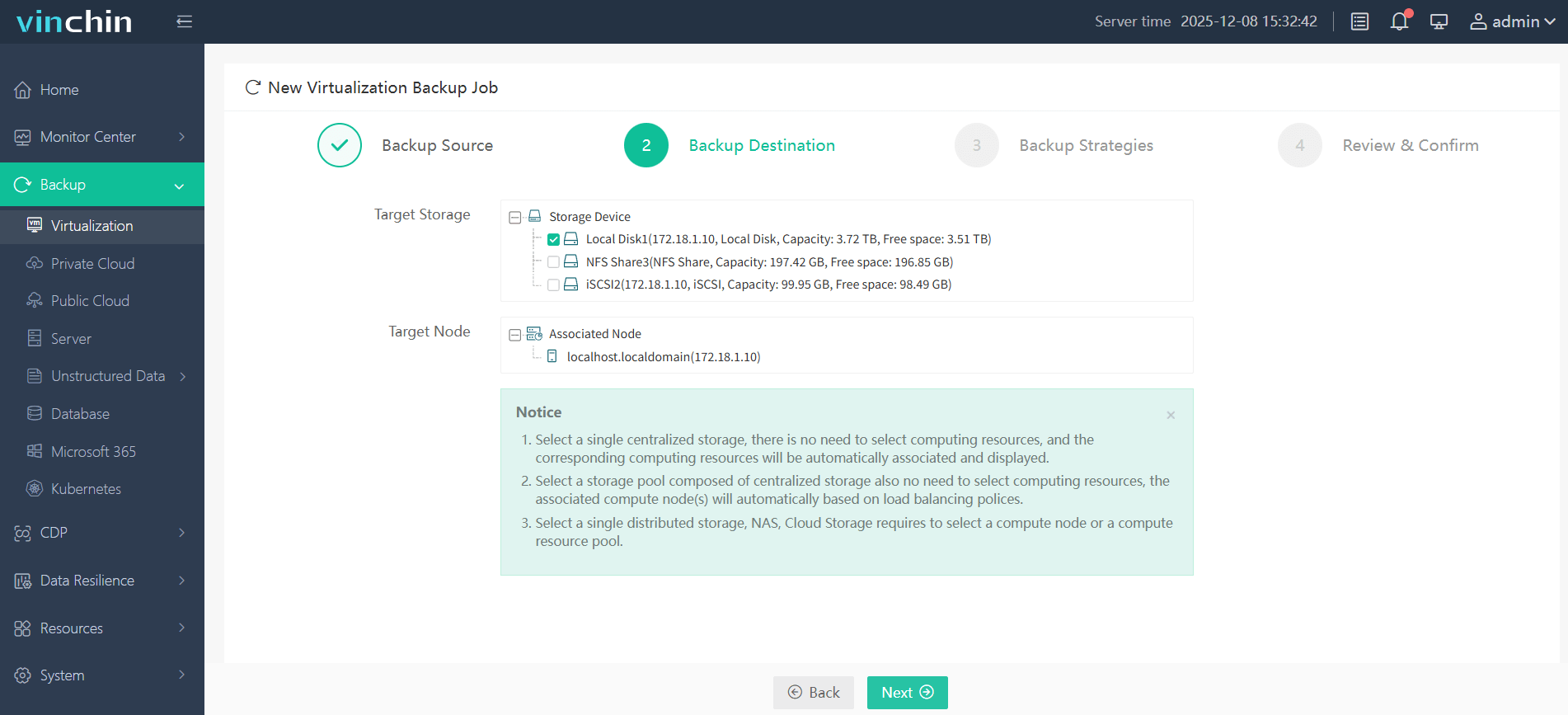
Step 2: Choose the backup storage
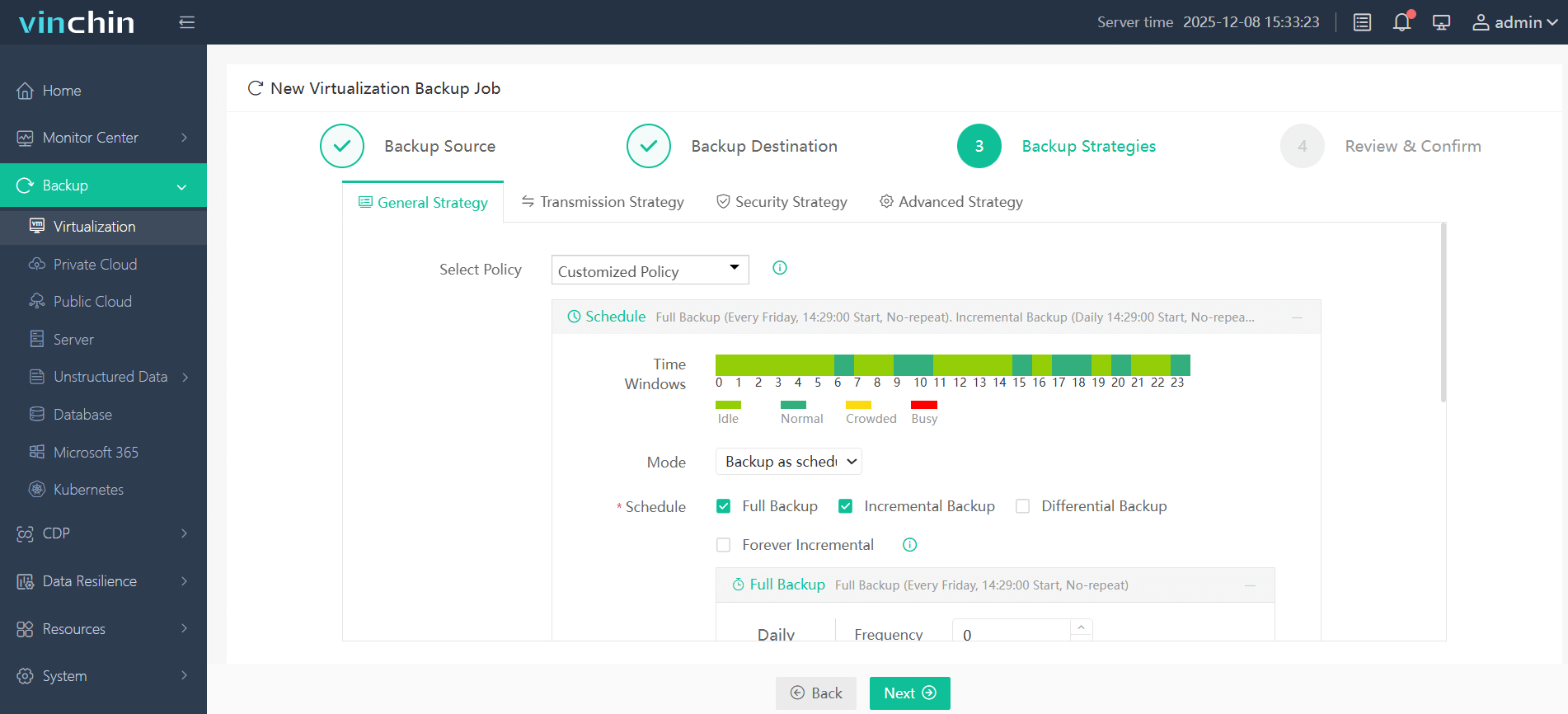
Step 3: Configure the backup strategy
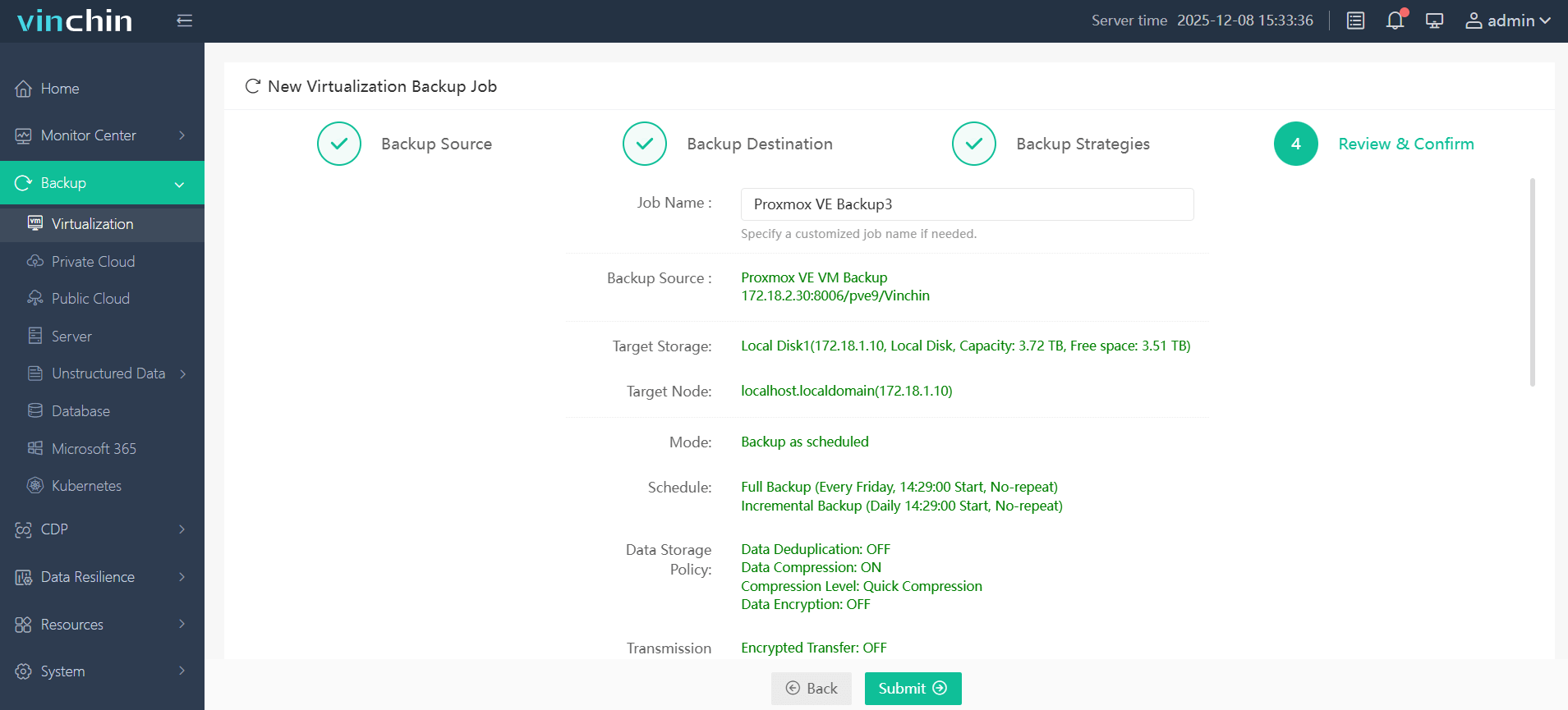
Step 4: Submit the job
Trusted globally by thousands of enterprises and rated highly by industry professionals—start protecting your workloads today with a 60-day full-featured free trial of Vinchin Backup & Recovery by clicking below.
Delete Cluster Proxmox FAQs
Q1: Can I delete my entire Proxmox cluster without reinstalling Linux?
A1: Yes—you can stop services then remove config files as shown above so each server becomes standalone again without OS reinstallation required.
Q2: What happens if I accidentally reconnect an old removed node?
A2: Bringing back an uncleaned node risks corrupting live configurations—always wipe configs before reconnecting any previously clustered machine!
Q3: Is there any way besides third-party tools like Vinchin to back up my VMs before deletion?
A3: Yes—you may use built-in vzdump utility via BACKUP menu inside web UI—but dedicated solutions offer more automation options.
Conclusion
Deleting clusters in Proxmox takes care—but following these steps ensures safe transitions whether removing single nodes or resetting whole environments entirely! Always protect workloads first using reliable backup tools like Vinchin before making big changes—and proceed confidently knowing recovery options exist whatever path chosen next!