Introduction
Managing storage in Hyper-V can be tricky. If you want to save space or handle unpredictable growth in your virtual machines (VMs), dynamic disks are a popular choice. But what exactly is a Hyper-V dynamic disk? How do you create or convert one? And how do you protect these disks from data loss? Let's break it down step-by-step.
What Is Hyper-V Dynamic Disk
A Hyper-V dynamic disk, also called a dynamically expanding virtual hard disk, is a type of virtual disk that grows as data is written to it. When you first create this disk, the file on your host system is small, just enough for headers and metadata. As your VM adds files or uses more space, the .vhd or .vhdx file expands up to its maximum size.
From inside the VM, the drive looks like any other hard drive with its full capacity available right away. But on the host machine, it only takes up as much physical storage as needed for actual data stored inside the VM at that moment. This makes dynamic disks efficient when not all allocated storage will be used immediately.
Dynamic disks are different from Windows dynamic volumes; here we're talking about virtual hard disks managed by Hyper-V itself.
Why Choose Dynamic Disks in Hyper-V
Dynamic disks offer several advantages worth considering:
Efficient Storage Use: They start small and grow only as needed so you don't waste physical space.
Quick Creation: Creating a dynamic disk is fast because there's no need to preallocate all the space.
Easy Portability: Smaller initial files make moving or copying VMs faster.
However, there are trade-offs:
Performance: Dynamic disks may have slightly slower write speeds compared to fixed-size disks due to fragmentation and expansion overhead.
Fragmentation: As they grow in chunks over time, files can become fragmented on the host storage.
Overcommitment Risk: If too many dynamic disks expand at once and fill up your host's storage unexpectedly, VMs can pause or crash.
For test environments or workloads with unpredictable growth patterns, dynamic disks are ideal. For high-performance production workloads where speed matters most, such as databases, fixed-size disks might be better suited.
How to Create a Dynamic Disk in Hyper-V Manager
Creating a dynamic disk using Hyper-V Manager is straightforward, even if you're new to virtualization management.
First open Hyper-V Manager on your Windows Server or workstation. Right-click your host name in the left pane and select New > Hard Disk from the Actions pane on the right side of the window. The wizard will guide you through these steps:
1. On the Choose Disk Format page, pick either VHD or VHDX, depending on your needs (VHDX supports larger sizes and better resiliency).
2. On Choose Disk Type, select Dynamically Expanding.
3. Enter both name and location for your new virtual hard disk file.
4. Set the maximum size for this disk (this is what will appear inside your VM).
5. Complete everything by clicking Finish at the end of the wizard.
Your new dynamically expanding disk is now ready, you can attach it directly when creating or editing any VM's settings.
How to Create a Hyper-V Dynamic Disk Using PowerShell
If you prefer automation or scripting, or need to create multiple disks quickly, PowerShell makes this process even faster.
Open an elevated PowerShell prompt (run as Administrator) on your Hyper-V server and run:
New-VHD -Path "D:\VMs\MyDynamicDisk.vhdx" -SizeBytes 100GB -Dynamic
This command creates a 100 GB maximum size dynamically expanding .vhdx file at D:\VMs\MyDynamicDisk.vhdx.
The -Dynamic switch tells PowerShell that this should be a dynamically expanding disk; alternatively, you could use -VHDType Dynamic which works identically (Microsoft Docs). Make sure that you have imported the Hyper-V module (Import-Module Hyper-V) if not already loaded by default.
You can then attach this new virtual hard disk file either through PowerShell using Add-VMHardDiskDrive or via GUI under each VM's settings menu in Hyper-V Manager.
How to Convert Between Disk Types in Hyper-V Manager
Sometimes you need to switch between fixed-size and dynamically expanding disks, for example if performance needs change after deployment or if you're optimizing storage following migration between hosts.
To convert an existing virtual hard disk using Hyper-V Manager, follow these steps:
1. Shut down any VM currently using this disk.
2. In Hyper-V Manager, click Edit Disk from the Actions pane.
3. Browse out to select your existing .vhd or .vhdx file.
4. On Choose Action, select Convert.
5. Pick either Fixed Size or Dynamically Expanding according to what you want next.
6. Specify destination path plus filename (the format must match: keep .vhd with .vhd; .vhdx with .vhdx).
7. Click through Summary then Finish at end of wizard flow.
The conversion process creates an entirely new copy of your original disk; remember converting from dynamic back into fixed requires enough free physical space equal to that drive's maximum size.
How to Convert Between Disk Types Using PowerShell in Hyper-V
PowerShell offers another way, especially useful if handling batch operations, to convert between fixed-size and dynamically expanding formats without manual intervention per-disk.
To convert an existing fixed-size VHDX into a dynamically expanding one:
Convert-VHD -Path "D:\VMs\OldFixedDisk.vhdx" -DestinationPath "D:\VMs\NewDynamicDisk.vhdx" -VHDType Dynamic
Or vice versa (to Fixed):
Convert-VHD -Path "D:\VMs\OldDynamicDisk.vhdx" -DestinationPath "D:\VMs\NewFixedDisk.vhdx" -VHDType Fixed
Make sure no running VM is using any source file during conversion! Also ensure sufficient free space exists for creating fixed-size targets, the process always creates brand-new copies rather than modifying originals (Microsoft Docs).
How to Compact a Dynamic Disk in Hyper‑V
Over time, deleting files inside your guest OS does not automatically shrink its underlying dynamic VHD/VHDX file on your host system, the freed-up blocks remain allocated until compacted manually by an administrator.
Compacting reclaims unused blocks so that only active data consumes physical storage again, a key maintenance task especially when managing many VMs sharing limited resources!
To compact using GUI:
1. Shut down any VM attached directly; detach if necessary
2. Open Hyper‑V Manager
3. Click Edit Disk under Actions pane
4. Select target VHD/VHDX file then proceed through wizard
5. Choose action: select Compact
6.Click through summary then Finish
Alternatively via PowerShell:
Optimize‑VHD ‑Path "D:\VMs\MyDynamicDisk.vhdx" ‑Mode Full
The Optimize‑VHD cmdlet works best when run against offline/detached drives (Microsoft Docs). Always ensure backups exist before performing compaction tasks!
Regularly compacting large busy volumes helps keep overall usage low, and avoids unexpected out-of-space errors across shared hosts.
Vinchin: Comprehensive Protection for Your Virtualized Environment
With all these considerations around managing dynamic disks, choosing robust backup software becomes essential for business continuity and disaster recovery planning.
Vinchin Backup & Recovery stands out with broad compatibility, supporting over 19 virtualization platforms, including VMware, Hyper‑V, Proxmox, as well as physical servers, databases, plus both local and cloud-based storage options.
If migrations are required, Vinchin delivers some of the most flexible migration capabilities available today: easily move entire systems across supported virtual, physical, or cloud hosts.
For critical workloads running on either virtual or physical machines, real-time backup and replication features provide extra recovery points along with automated failover, minimizing RPO/RTO.
To guarantee backup reliability, Vinchin performs automatic integrity checks of backup data while validating recoverability within isolated environments, so restoration works when needed most.
You can also build highly resilient disaster recovery systems thanks to automated retention policies, cloud archiving/backups, remote replicas and DR centers, all ensuring rapid recovery after incidents.
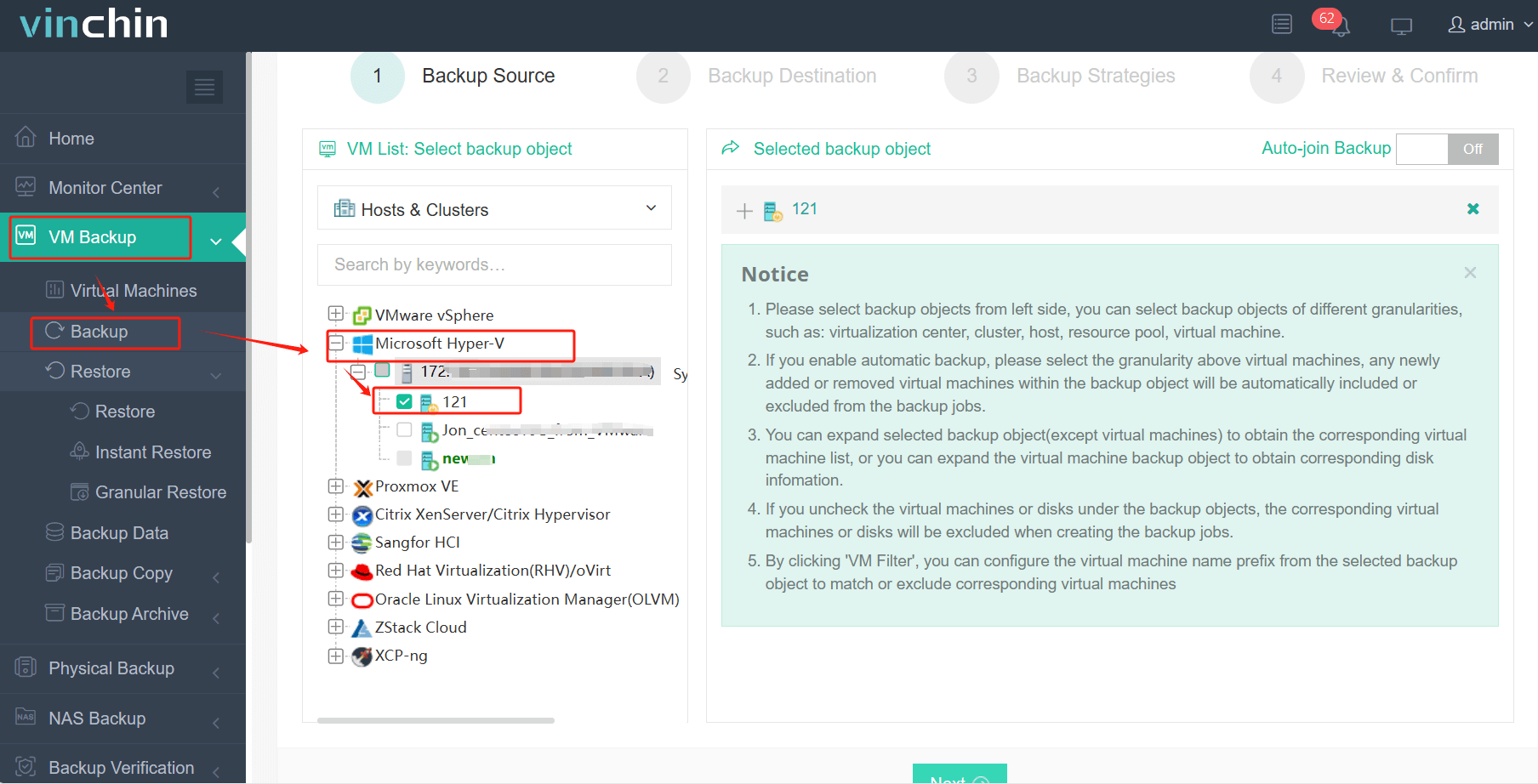
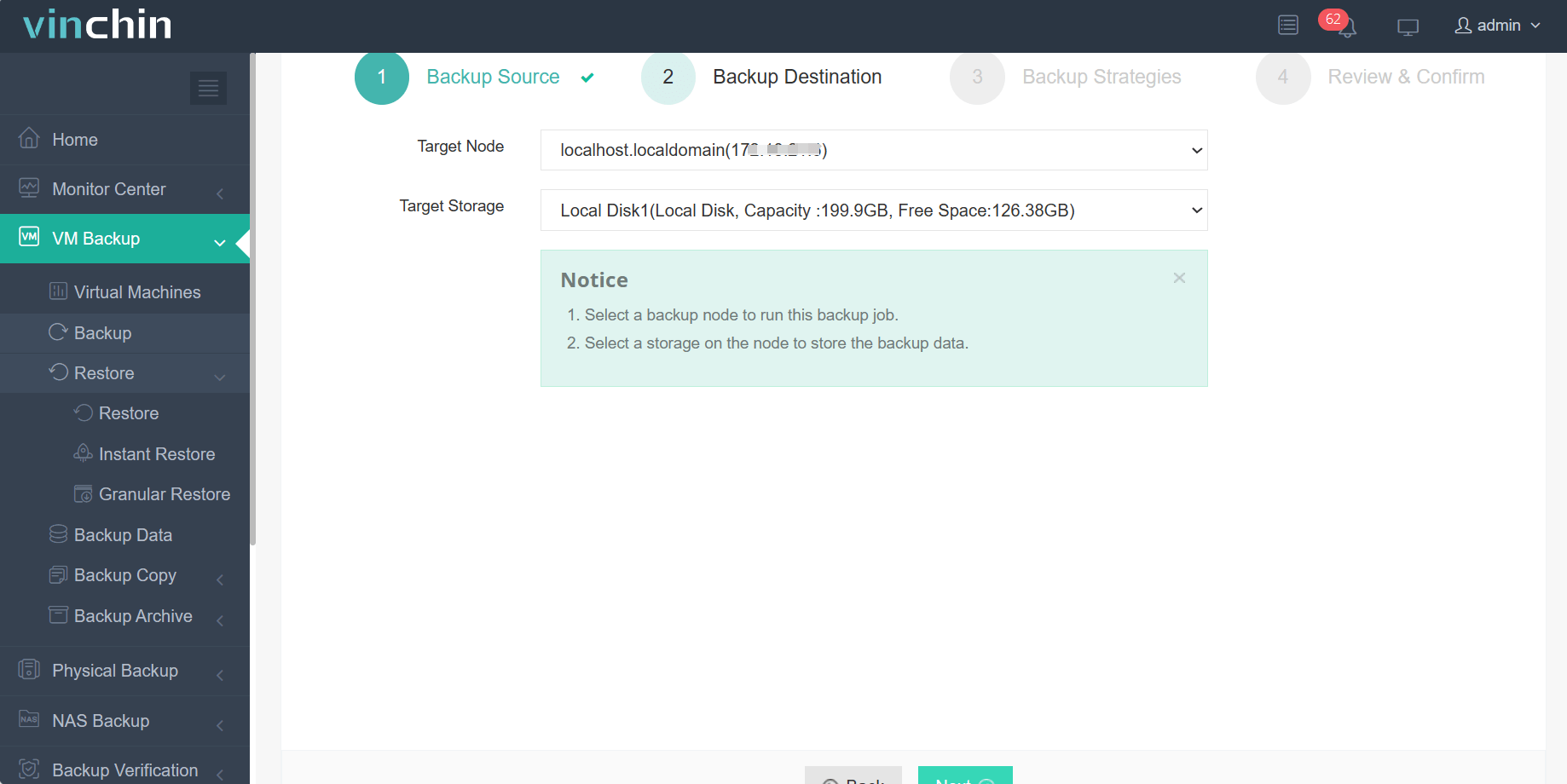
Management remains simple thanks to an intuitive B/S web console plus step-by-step wizards:
1. Just select VMware VM
2. Choose backup storage
3. Set the strategies that you want (Schedule, Speed Controller, Data Storage Policy, and so on)
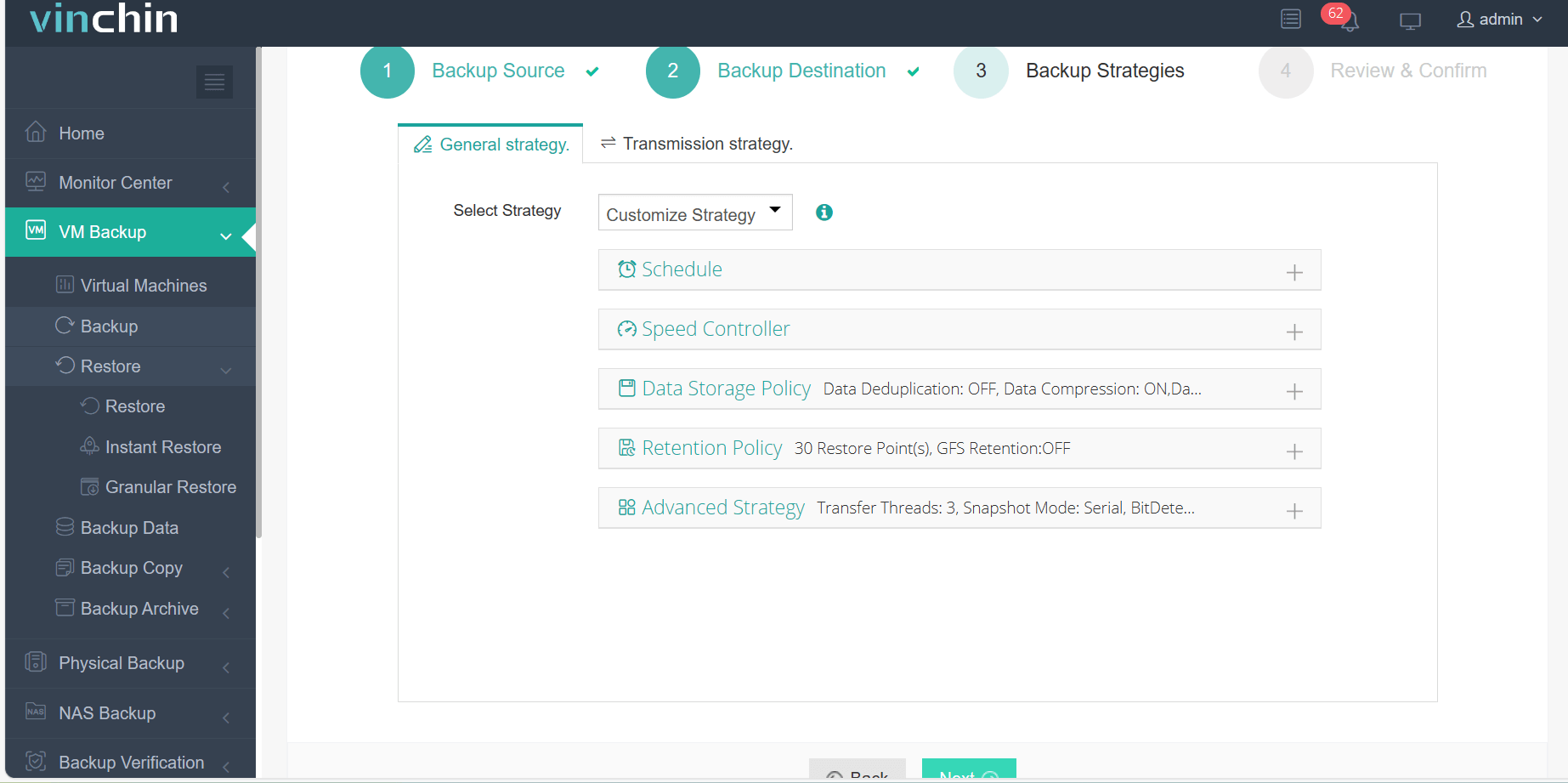
4. Preview and confirm all your backup settings, then Submut job
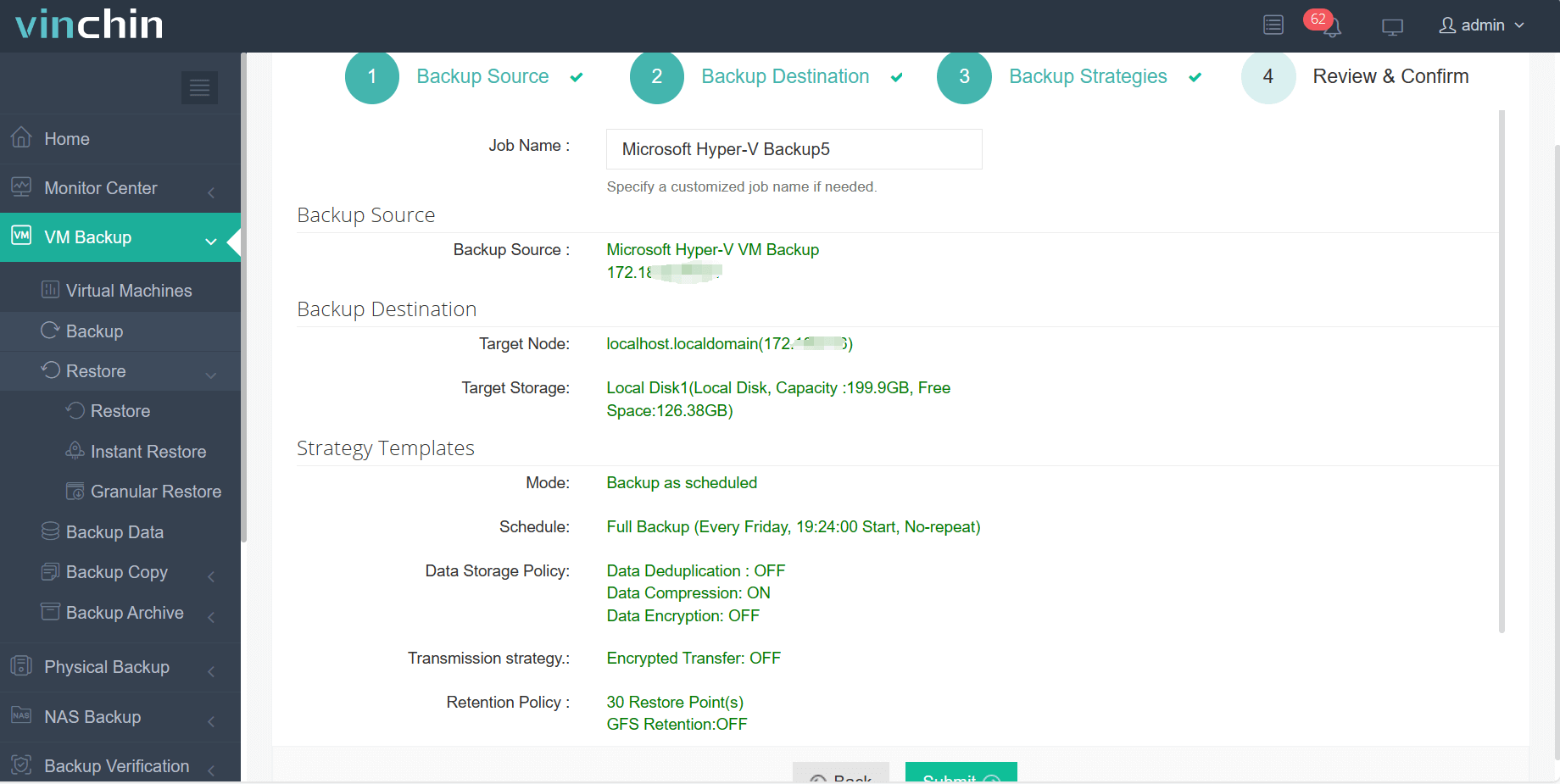
Try Vinchin Backup & Recovery free for 60 days - with comprehensive documentation and responsive support engineers ready to help deploy protection efficiently within any environment.
Hyper‑V Dynamic Disk FAQs
Q1: Can I reclaim host space after deleting files inside my VM?
A1: Yes, use Edit Disk > Compact in Hyper‑V Manager after freeing up space within the guest OS first, or run Optimize‑VHD via PowerShell while offline/detached.
Q2: Will converting between fixed-size and dynamic affect my data?
A2: No, conversion copies all content but always back up before making changes just in case!
Q3: Can checkpoints/snapshots work with dynamic disks?
A3: Yes, but merging snapshots increases fragmentation over time - monitor regularly!
Conclusion
Hyper‑V dynamic disks help save valuable storage while offering flexibility, but require careful management around performance risks as environments scale! With tools like Vinchin Backup & Recovery supporting seamless protection across mixed infrastructures, including those relying heavily on thin-provisioned/dynamic volumes - you gain peace of mind knowing business-critical data stays safe no matter what challenges come next!