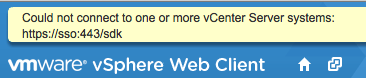
When you log into the vSphere Client and see a banner at the top of the screen say “Could not connect to one or more vCenter Server systems,” it means the vSphere Client (or another registered VMware management component) cannot reach the SDK endpoint of one or more vCenter Servers, typically at https://<vCenter-FQDN>:443/sdk.
The good news is that most connection failures can be resolved without affecting virtual machines themselves. And here are the solutions.
Root Causes at a Glance
There is no single reason this error appears. Based on documented cases from Broadcom’s support knowledge base and community reports, the most common culprits are:
Cause | Typical Trigger |
Orphaned/duplicate SSO registration | vCenter reinstall without clean unregistration |
SSL certificate mismatch | Certificate replacement without updating the Lookup Service |
VPXD session exhaustion | Third-party tool retrying with stale credentials |
Clock skew > 5 minutes | Host maintenance, snapshots, or NTP misconfiguration |
Orphaned linked-mode vCenter | Remote site loss, fire, hardware failure |
Port or DNS misconfiguration | Manual port changes or broken name resolution |
Fix Guide to vCenter Connection Error
This section outlines the solution steps based on the causes listed above, so you can identify the one that meets your specific needs.
Fix 1. Remove Duplicate SSO Service Registrations
When: The error appeared after a vCenter reinstall or upgrade, or after vCenter was rejoined to an SSO domain without first performing a clean unregistration.
Why it happens: During reinstallation, the old service endpoint stays registered in the Lookup Service. The vSphere Client finds two registrations for the same FQDN and cannot determine which is authoritative.
How to fix:
1. SSH into the vCenter Server Appliance. Enable SSH via https://<VCSA-IP>:5480 > Access > SSH Login if not already on.
2. Download and run lsdoctor in check mode (no changes yet):
python lsdoctor.py -l
Look for output containing Duplicates Found next to a vCente FQDN. If the duplicate is the PSC HA VIP, ignore it, that is expected.
3. If duplicates are confirmed, raise a support ticket via the Broadcom Support Portal before proceeding.
4. After the stale endpoint is removed, log out and back into the vSphere Client. The error should be gone.
Fix 2. Update the Lookup Service After SSL Certificate Replacement
When: The error appeared shortly after replacing the Machine SSL certificate on vCenter Server.
Why it happens: vCenter uses the new certificate, but the Lookup Service still retains the old certificate's Base64-encoded sslTrust.
How to fix:
1. Take an offline snapshot of all vCenter Servers in Enhanced Linked Mode before making any changes.
2. SSH into VCSA and export the new machine certificate:
/usr/lib/vmware-vmafd/bin/vecs-cli entry getcert \\
--store MACHINE\_SSL\_CERT \\
--alias \_\_MACHINE\_CERT \\
--output /certificates/new\_machine.crt
3. Retrieve the fingerprint of the old certificate (from the Lookup Service registration):
python /usr/lib/vmware-lookupsvc/tools/lstool.py list \\
--url https://localhost/lookupservice/sdk \\
--no-check-cert \\
--ep-type com.vmware.cis.cs.identity.sso 2>/dev/null
Copy the SSL trust Base64 string, save it as old\\\_machine.crt, then get its fingerprint:
openssl x509 -fingerprint -sha1 -noout -in /certificates/old\\\_machine.crt
4. Run Is\\\_update\\\_certs.py to sync the Lookup Service:
python /usr/lib/vmware-lookupsvc/tools/ls\\\_update\\\_certs.py \\\\
--url https://localhost/lookupservice/sdk \\\\
--fingerprint <old\\\_cert\\\_SHA1\\\_fingerprint> \\\\
--certfile /certificates/new\\\_machine.crt \\\\
--user administrator@vsphere.local \\\\
--password '<Password>' 2>/dev/null
5. Log out and back into vSphere Client to confirm the error is gone.
Fix 3. Resolve VPXD Session Exhaustion
When: The error appeared after a backup client, monitoring agent, or any external integration started using stale or wrong credentials for vCenter.
Why it happens: Every failed login attempt consumes an HTTP session slot in the VPCD service. When the pool is exhausted, legitimate logins, including your own, get a connection error.
How to fix it:
1. Review the vCenter logs for the offending account:
journalctl -u vmware-vpxd | grep "BadUsernameSessionEvent"
This shows the account name and source IP making failed attempts.
2. In the vSphere UI, go to Menu > Administration > Sessions.
Apply filters to identify accounts with unusually high session counts. Terminate excess sessions as needed.
3. Fix the root credential issue, reset the password in the third-party tools too (backup software, monitoring agent), and update it in the external service’s vCenter connection settings.
4. If the system is critically impacted and you need to restore access immediately, increase maxSessionCount as a temporary workaround:
Take a VCSA file-based backup first.
Stop vCenter services.
Edit /etc/vmware-vpx/vpxd.cfg and increase the maxSessionCount value.
Restart vCenter services.
Apply the permanent credential fix in parallel.
Fix 4. Remove an Orphaned Linked-Mode vCenter
When: A remote site running a linked vCenter Server was lost (disaster, hardware failure, or decommissioned) and is never coming back.
Why it happens: The main vCenter still holds a registration for the now-unreachable remote vCenter in its SSO domain. On every login, it tries and fails to contact it.
How to fix it:
1. Confirm the remote vCenter is truly unrecoverable. If there is any chance of restoration, stop here and restore it instead.
2. Enable SSH on the main VCSA via https://<VCSA-IP>:5480 > Access > SSH Login.
3. SSH into the main VCSA and use cmso-util to unregister the dead vCenter:
/usr/lib/vmware-vmafd/bin/cmsso-util unregister \\\\
--node-pnid <dead-vCenter-FQDN> \\\\
--username administrator@vsphere.local \\\\
--passwd '<Password>'
4. Log out and back in. The connection error banner should no longer appear.
Fix 5. Correct Clock Skew
When: The error appeared after vCenter was paused (snapshot, maintenance window), or after ESXi host maintenance with NTP misconfigured.
Why it happens: SAML tokens from the Security Token Services (STS) have a tight time tolerance, by default, a clock difference of more than 5 minutes between vCenter and the connecting client causes token validation to fail, which surfaces as a generic connection error.
How to fix:
1. On the VCSA, verify the current time and NTP status:
timedatectl status
chronyc tracking
2. If NTP is not synchronized, configure it via the VCSA Management Interface (https://<VCSA-IP>:5480 > Time > NTP Servers) or via CLI:
/usr/lib/vmware/common-jars/ntpdate ntp.server.address
3. Verify ESXi hosts also have a consistent NTP configuration.
Mismatched VMware Tools time sync settings on a host are a common culprit after maintenance.
4. Restart the vpxd service after the time is corrected:
service-control --restart vmware-vpxd
Fix 6. Resolve Port or DNS Issues
When: curl -k https://<vCenter-FQDN>:443/sdk times out or returns connection refused, or a manual port change was made previously.
How to fix it:
1. Test basic connectivity:
ping <vCenter-FQDN>          # DNS resolution check
telnet <vCenter-FQDN> 443    # Port reachability check
Ping fails → DNS or routing problem. Fix name resolution first (check `/etc/hosts` or your DNS server).
Telnet fails → Firewall or port mismatch. Check Windows Firewall, cloud security groups, or on-prem firewall rules for TCP 443.
2. If vCenter is behind a load balancer, bypass it temporarily by connecting directly to vCenter’s IP or FQDN. If the error goes away, the load balancer is failing to proxy /sdk correctly, review the LB routing rules.
3. If a port was manually changed from 443 to a non-standard port, re-register the vCenter services with the correct port using the Lookup Service CLI tools, or reinstall vCenter with the correct port from the start.
Protect Your VMware VMs with Vinchin Backup & Recovery
When managing enterprise VMware infrastructures, backup reliability depends on stable communication with vCenter Server. Vinchin Backup & Recovery is designed to integrate with VMware environments through official VMware APIs while providing features that help simplify virtual machine protection.
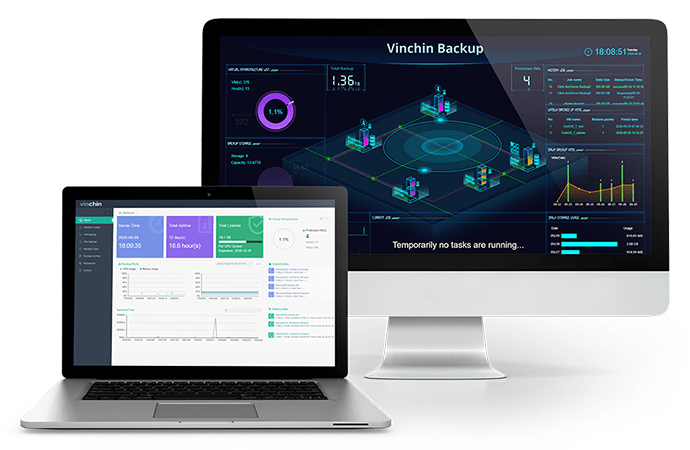
Agentless + direct ESXi backup: Vinchin connects to vCenter when it’s available, but can fall back to direct ESXi host-level backup during vCenter outages, keeping VM protection continuous even when the management plane is down.
VCSA backup: Vinchin can protect the vCenter Server Appliance (VCSA) as a virtual machine. In the event of corruption, hardware failure, or site loss, the appliance can be restored from a recent backup to speed up recovery and reduce downtime.
Instant restore: Get VMs back online in minutes while underlying issues are being resolved, without waiting for a full data restore.
Connection failure alerting: When vCenter connectivity is disrupted, Vinchin surfaces the event in its dashboard and can send alerts, so administrators know immediately rather than discovering backup failures after the fact.
A complete backup strategy protects not just your VM data, but the management infrastructure itself, because recovering from a vCenter connection failure is a lot easier when you have a clean VCSA backup to fall back on. Click the following to try Vinchin free trial for 60 days!
FAQs
Q1: Does this error mean my VMs are down?
No, ESXi hosts and their VMs continue running independently of vCenter. The error affects management visibility and vCenter-dependent automation.
Q2: My backup tool stopped working right when this error appeared. Are they related?
Almost certainly. If your backup software uses the vCenter API for agentless backup, it will fail to connect to vCenter for the same reason you see the banner.
Conclusion
Most vCenter connection errors can be resolved by addressing the underlying configuration or connectivity issue. With the right troubleshooting steps and a reliable backup solution like Vinchin Backup & Recovery, you can quickly restore management access and keep your VMware environment protected.