What is VMware Horizon VDI?
VMware Horizon VDI is a platform that delivers virtual desktops and applications from your data center or cloud environment to end users' devices.
Instead of running operating systems or apps locally, everything runs on centralized servers. Users connect through the Horizon Client or a web browser to access their Windows or Linux desktop from anywhere.
This approach:
Keeps sensitive data inside your data center
Allows remote work flexibility
Enables centralized IT management
Why Choose VMware Horizon VDI (VDI Benefits)?
Organizations choose VMware Horizon VDI for:
Security: No data stored on endpoints
Simplified IT Management: Centralized updates and control
Flexibility: Work from anywhere on any device
Scalability: Easily add desktops when needed
It also helps with compliance through auditing and secure authentication.
How Does VMware Horizon VDI Work?
Key components include:
vCenter Server: Manages infrastructure and VMs
ESXi Hypervisor: Runs virtual desktops
Horizon Connection Server: Authenticates users and assigns desktops
Horizon Agent: Enables features inside VMs
Horizon Client: Connects users to desktops
Unified Access Gateway: Secure remote access
Workflow:
1. User logs in
2. Connection Server authenticates via Active Directory
3. Desktop VM is assigned
4. Session runs entirely on the server side
Protocols & Desktop Provisioning
Supported protocols:
Instant Clones allow fast provisioning of desktops with minimal storage usage.
Real-World Use Cases
Healthcare: Secure patient data access
Education: Remote labs for students
Call Centers: Clean desktops each session
Developers: High-performance virtual environments
Government: Compliance with strict regulations
Deployment Sizing & Best Practices
Typical allocation per VM:
Best practices:
Use instant clones for efficiency
Separate infrastructure roles
Monitor latency (<150 ms recommended)
Test disaster recovery regularly
How to Backup VMware Horizon VMs with Vinchin
Vinchin Backup & Recovery provides enterprise-grade protection for VMware environments and supports 15+ virtualization platforms.
Key features:
Setup steps:
1. Select the backup of VMs
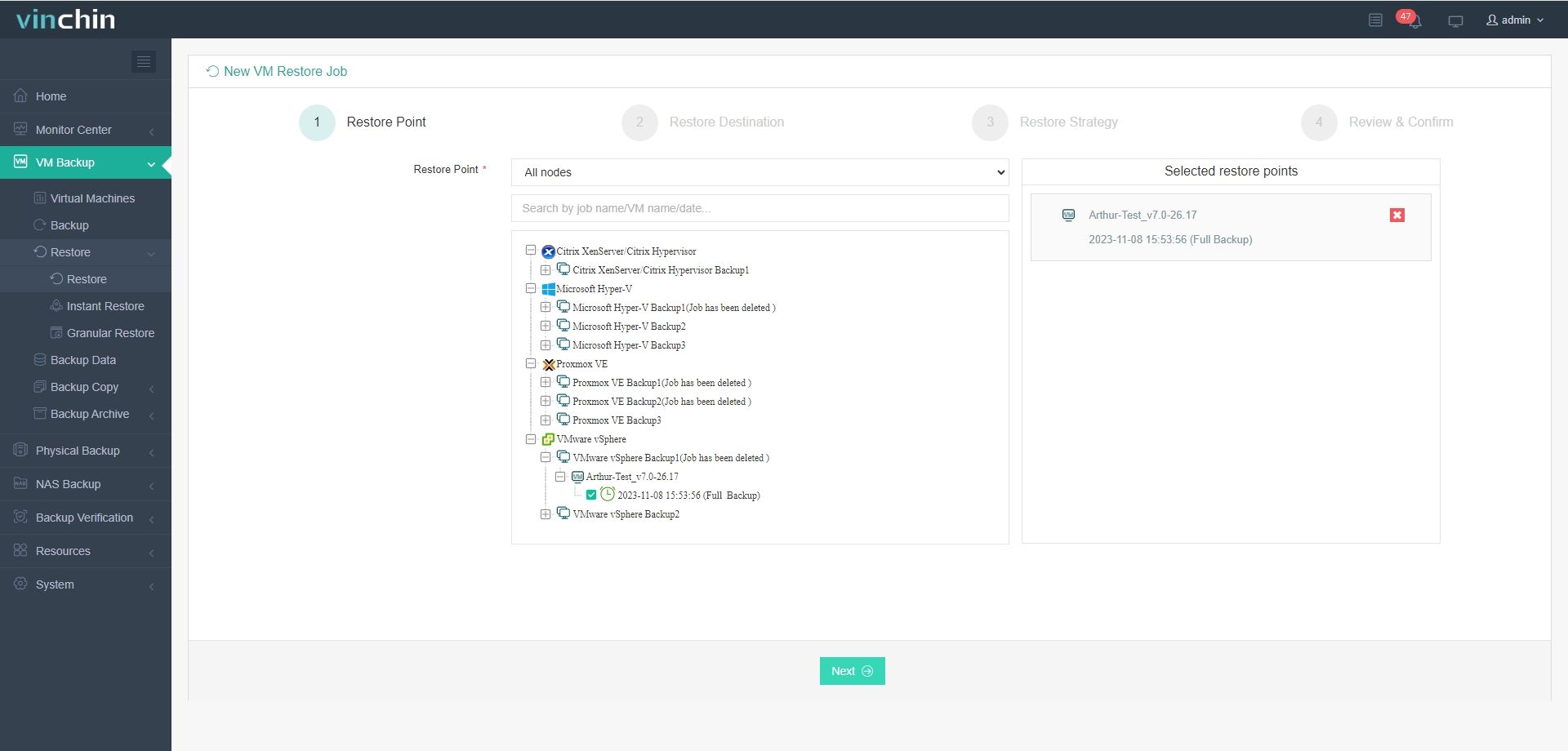
2. Choose storage
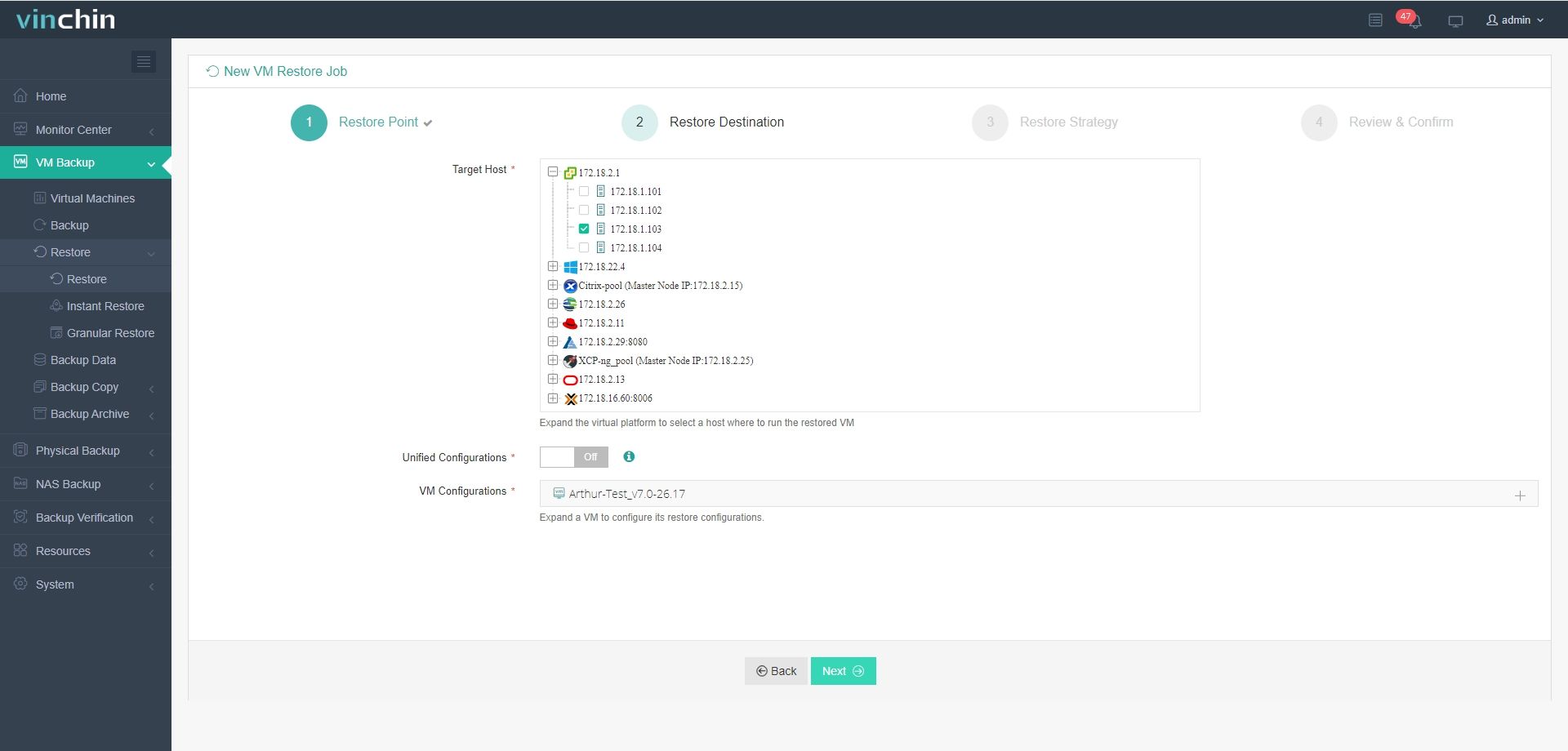
3. Configure schedule and retention
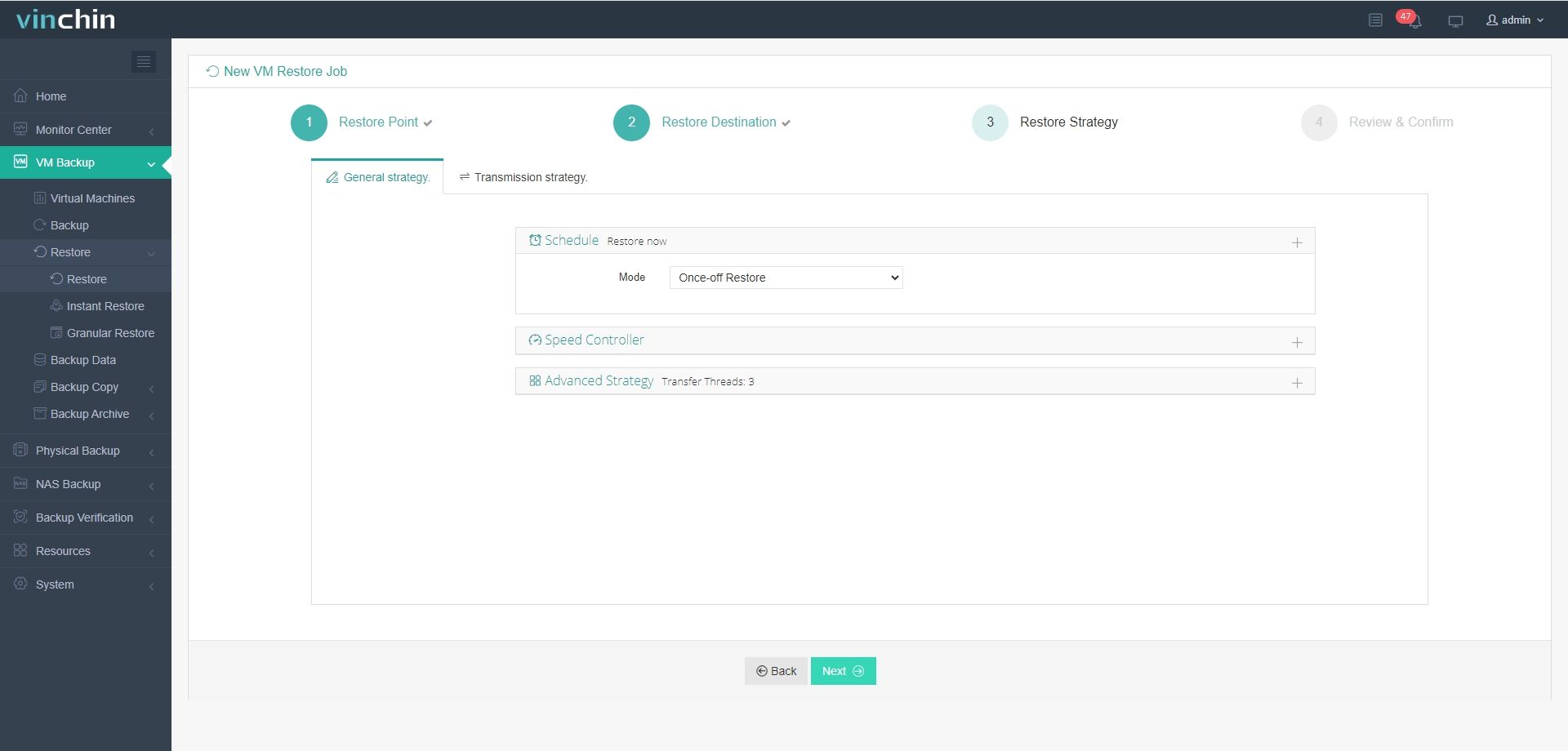
4. Run backup job
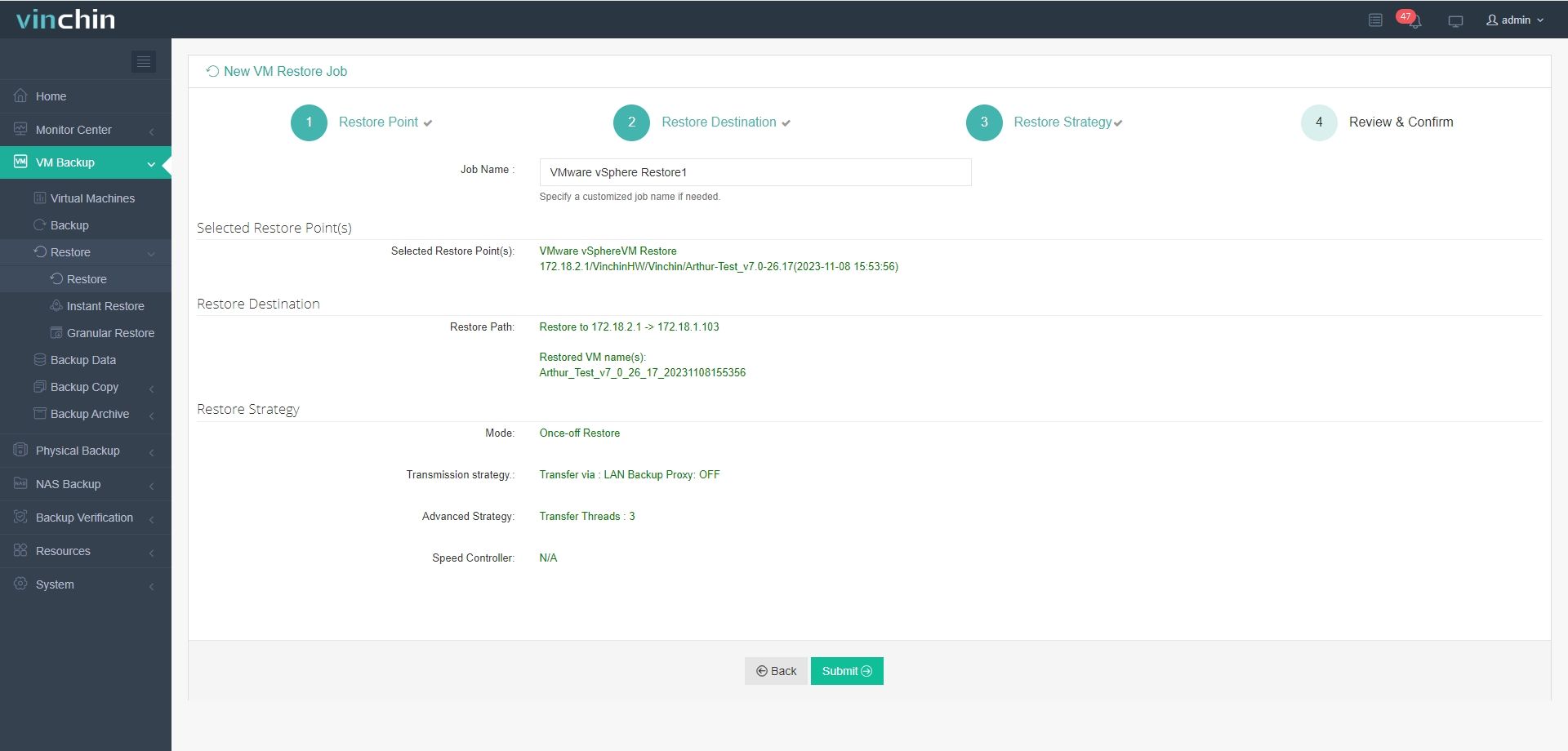
Visit Vinchin offical website to get a 60-day free trial!
FAQs
Q1: What is the difference between persistent and non-persistent desktops in VMware Horizon VDI?
Persistent desktops assign a dedicated VM to each user, preserving changes between sessions.
Non-persistent desktops are reset after logout, delivering a clean image every time.
Q2: What display protocols does VMware Horizon support and when should they be used?
Blast Extreme: Recommended for most use cases due to efficiency and adaptability
PCoIP: Best for high-end graphics workloads
RDP: Used mainly for compatibility
Q3: Can VMware Horizon support GPU acceleration for graphics-intensive workloads?
Yes, VMware Horizon supports NVIDIA vGPU and other GPU solutions to deliver high-performance desktops for CAD, 3D rendering, and video workloads.
Q4: How does VMware Horizon ensure secure remote access?
VMware Horizon uses components like Unified Access Gateway (UAG), TLS encryption, and integration with multi-factor authentication (MFA) solutions to secure external access without exposing internal networks.
Conclusion
VMware Horizon VDI delivers secure, flexible desktop environments with centralized control. Combined with Vinchin Backup & Recovery, it ensures strong data protection and business continuity.









