User Case
"After working normally for months, my vCenter Server Appliance 6.7 suddenly started showing the error 'A vCenter Single Sign-On service error occurred' when browsing LDAP users. Although LDAP users can still log in successfully, I can no longer view domain users or assign permissions to them through vCenter."
This issue is commonly encountered in environments using LDAP or Active Directory authentication and can disrupt user management even when login authentication remains functional. In this article, we'll explore the possible root causes of the error, walk through the troubleshooting process, and provide proven solutions to restore normal SSO functionality.
What Does "A vCenter Single Sign-On Service Error" Mean?
The "A vCenter Single Sign-On service error occurred" message indicates that vCenter cannot communicate properly with its Single Sign-On (SSO) service. Because SSO handles user authentication and identity management, any failure may interrupt login, user lookup, or permission assignment.
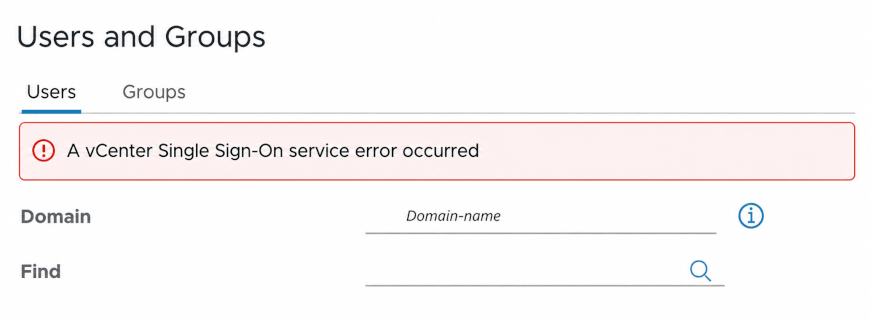
Common symptoms include:
Unable to browse Active Directory or LDAP users
Failed to assign permissions to domain accounts
Login failures to the vSphere Client
Authentication errors after a reboot or upgrade
VMware services failing to start
Common Causes of the vCenter Single Sign-On Service Error
Several factors can trigger this error. The most common ones include:
Expired STS Signing Certificate
An expired Security Token Service (STS) certificate prevents SSO from issuing authentication tokens, resulting in login or authentication failures.
vCenter Services Failed to Start
Essential services such as vmware-stsd, vmware-vpxd, or vmware-vmdir may stop running because of system crashes, failed upgrades, or configuration issues.
Directory Service Issues
Problems communicating with Active Directory or LDAP can prevent vCenter from retrieving users and groups or validating identities.
DNS or Time Synchronization Problems
Incorrect DNS records or unsynchronized system clocks may cause authentication requests to fail.
Corrupted SSO Configuration
A failed upgrade, patch, or manual configuration change can damage SSO components and prevent them from working correctly.
Resource Exhaustion
Low CPU, memory, or disk space may prevent VMware services from starting normally, leading to SSO errors.
How to Diagnose the Error
Before applying any fixes, perform the following checks to identify the root cause.
1. Check the VAMI Interface
Open:
https://<vcenter>:5480
Review the appliance health, storage usage, and service status.
2. Verify VMware Services
Run:
service-control --status --all
Confirm that critical services, including vmware-stsd, vmware-vmdir, and vmware-vpxd, are running normally.
3. Review vCenter Logs
Check the log files under: /var/log/vmware/
Pay close attention to SSO, STS, and directory-related errors that may reveal the root cause.
4. Validate the STS Certificate
Verify that the Security Token Service (STS) certificate is still valid and has not expired.
5. Verify DNS and Time Synchronization
Ensure forward and reverse DNS resolution works correctly and that vCenter and the identity source are synchronized through NTP.
6. Check System Resources
Run:
df -h
Verify that the appliance has sufficient disk space, memory, and CPU resources to keep VMware services running properly.
Once you've identified the underlying issue, you can proceed with the appropriate solution described below.
How to Fix the vCenter Single Sign-On Service Error
Once you've identified the root cause, apply the corresponding solution below.
Restart VMware Services
If the issue is caused by a temporary service failure, restarting the affected services is often the quickest fix.
service-control --stop --all
service-control --start --all
After all services have restarted, log in to the vSphere Client and verify whether the error has been resolved.
Renew an Expired STS Certificate
If the STS signing certificate has expired, renew it using VMware's certificate management tools or follow the official certificate replacement procedure. Once the new certificate is installed, restart the related services to restore normal authentication.
Repair Directory Service Connectivity
Verify that the configured Active Directory or LDAP server is reachable and that the bind account credentials remain valid. If necessary, reconfigure the identity source in vCenter and confirm that users and groups can be queried successfully.
Correct DNS and Time Settings
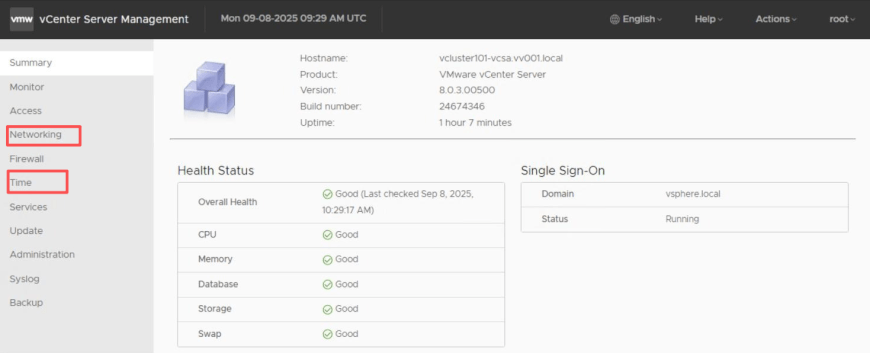
Ensure that:
Forward and reverse DNS records are configured correctly.
vCenter and domain controllers use the same NTP source.
Hostnames resolve consistently across the environment.
Many SSO authentication problems disappear once DNS and time synchronization issues are corrected.
Repair the SSO Configuration
If the problem occurs after a failed upgrade or configuration change, repairing or reconfiguring the SSO service may restore normal operation. For severe configuration corruption, reinstalling the affected SSO components may be necessary.
Restore VMware vCenter from Backup With Vinchin Backup & Recovery
If none of the above methods resolve the issue, or the SSO configuration has become severely corrupted after a failed upgrade or unexpected system failure, restoring vCenter from a known-good backup is often the fastest way to bring authentication services back online.
Vinchin Backup & Recovery simplifies this process by providing reliable image-level protection for VMware environments. It enables administrators to restore the entire vCenter Server Appliance with its configuration, certificates, and authentication settings intact, while incremental backups keep recovery points up to date with the latest system changes. If necessary, you can also perform point-in-time recovery to quickly roll back to a healthy vCenter state, minimizing downtime and reducing the operational impact of SSO-related failures.
Here’s how to Restore vCenter from Backup:
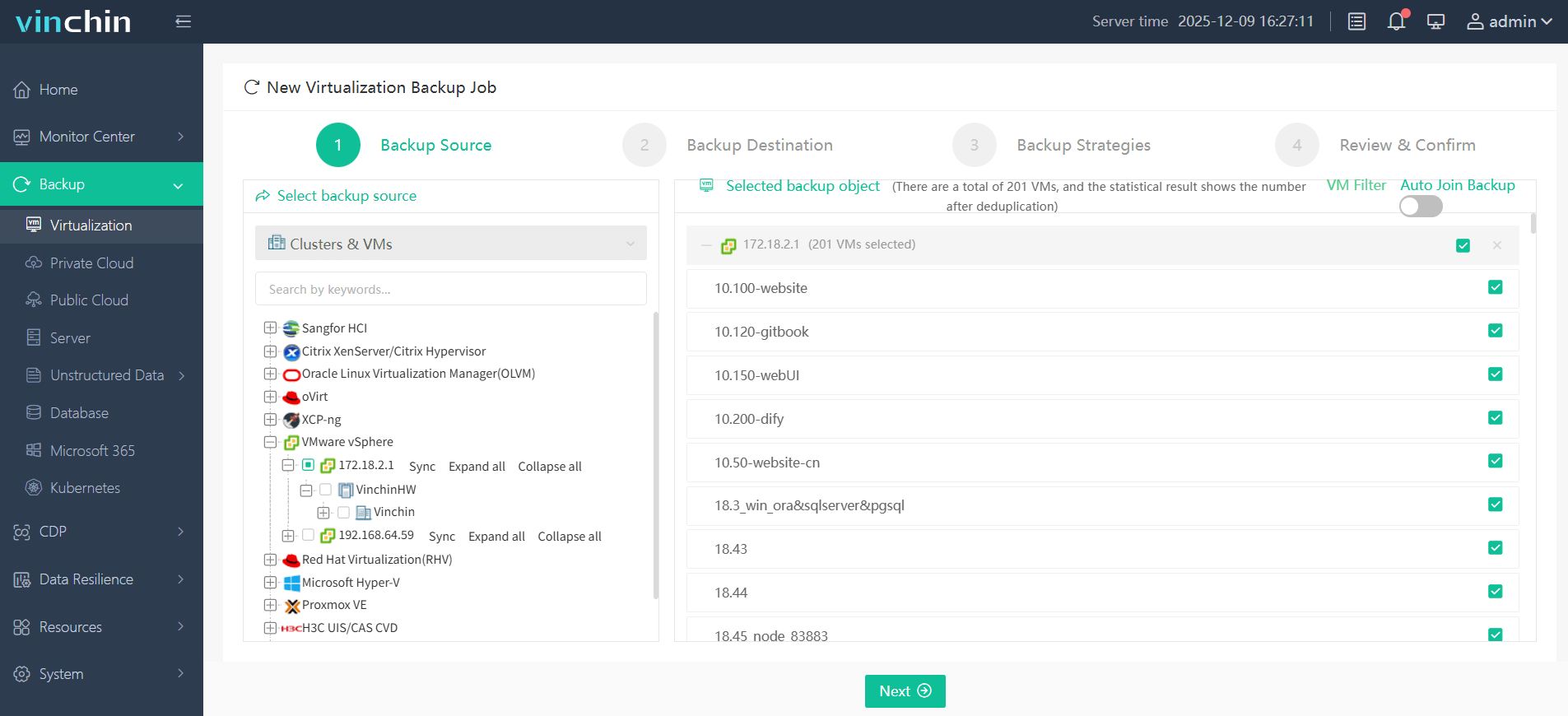
1. First, create a backup to store the entire vCenter appliance, including data, configuration, operating systems, etc.
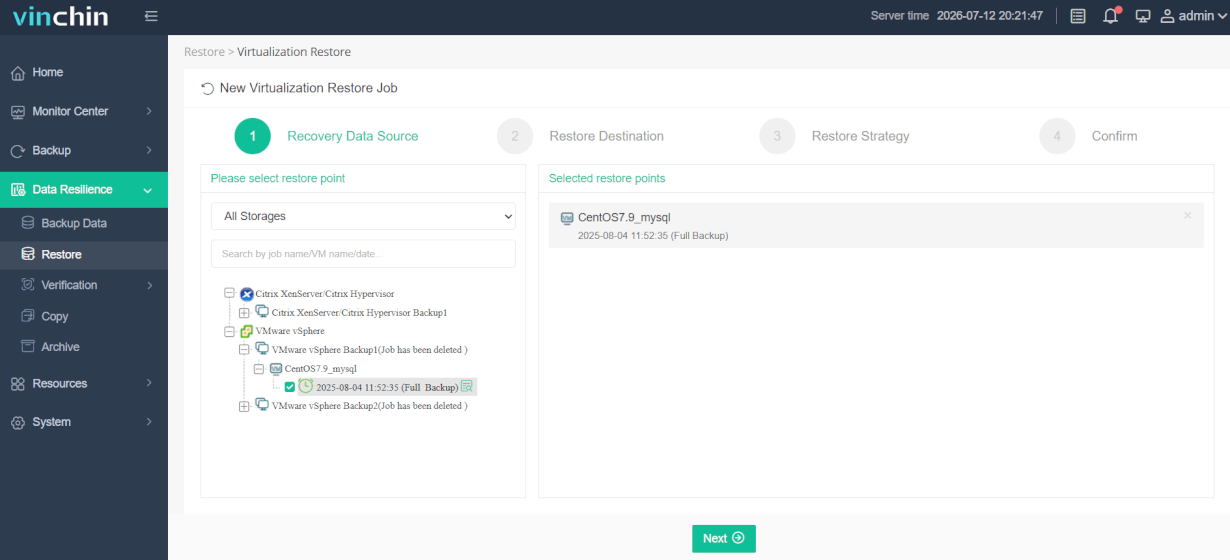
2. Then, navigate to Data Resilience > Restore and find the vCenter backup storage you created as the restore point; you can expand the list to select specific source.
3. On the Restore Destination page, select the same one VMware host as the target restore platform and complete related configurations.
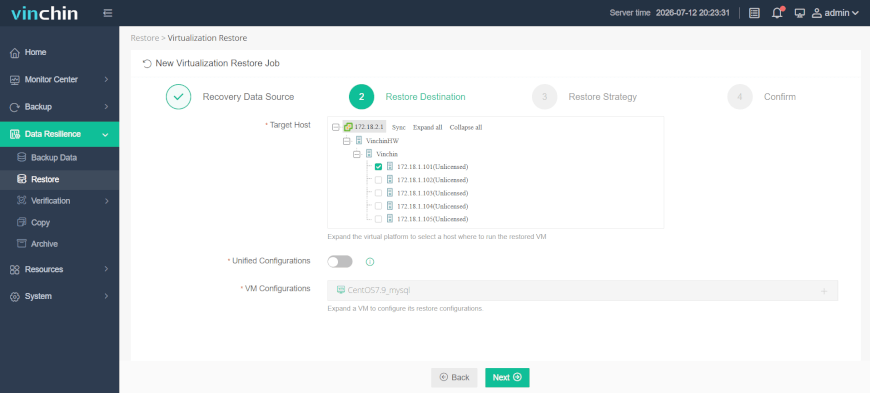
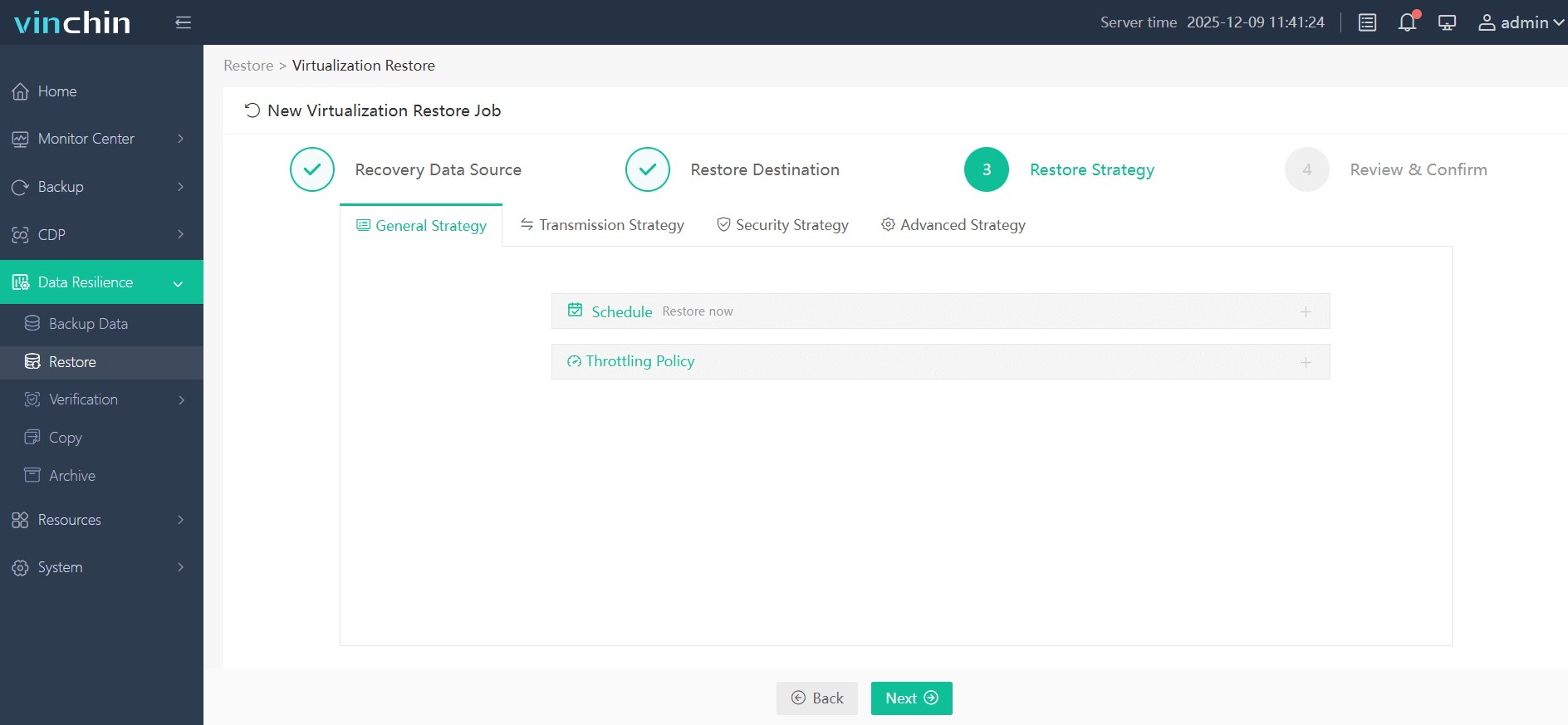
4. Customize the restore strategies, choose to restore now or schedule it combined with time windows. Remember to configure the rest settings as well.
5. Check all the options, and click Submit to let the restore task run.
Vinchin Backup & Recovery has a built-in monitoring console, where you can simultaneously manage and track all the backup and recovery jobs to prevent outages and ensure business continuity. You can download the 60-day free trial version to explore all the features before making a purchase.
Best Practices to Prevent Future SSO Errors
Although most SSO issues can be resolved, proactive maintenance is the best way to avoid unexpected outages.
Monitor STS certificate expiration and renew certificates before they expire.
Keep DNS and NTP configurations consistent across the VMware environment.
Regularly update vCenter Server with the latest supported patches.
Monitor CPU, memory, and disk usage to prevent resource-related service failures.
Back up the vCenter Server Appliance regularly and verify that recovery points are available.
Test your disaster recovery plan periodically to ensure backups can be restored successfully.
A vCenter Single Sign-on Service Error FAQs
Q1: What causes a vCenter Single Sign-On service error?
The error is commonly caused by an expired STS certificate, failed VMware services, directory service connectivity issues, DNS or NTP misconfiguration, corrupted SSO settings, or insufficient system resources.
Q2: Can I restart the SSO service without rebooting vCenter?
Yes. In many cases, restarting the affected VMware services using the service-control command is sufficient and does not require rebooting the appliance.
Q3: Why can LDAP or Active Directory users still log in but cannot be viewed?
This usually indicates that user authentication is still functioning, while the directory query or SSO service responsible for retrieving users and groups is experiencing problems.
Q4: Will restoring vCenter from backup fix the error?
If the issue is caused by configuration corruption or a failed upgrade, restoring vCenter from a healthy backup can quickly return the environment to a working state.
Conclusion
The "A vCenter Single Sign-On service error" can stem from several issues mentioned above. By following a structured troubleshooting process, administrators can identify the root cause and restore authentication services efficiently.
Since some failures may require rolling back to a healthy system state, maintaining regular backups of your vCenter Server is equally important. A reliable solution like Vinchin Backup & Recovery helps protect your VMware environment and enables fast recovery from configuration corruption, failed upgrades, or other unexpected incidents.