In a VMware virtualization environment, virtual machine migration is typically performed via the centralized management platform, vCenter Server. However, in certain practical scenarios, such as when using the free version of ESXi, in small-scale deployments, or in cost-constrained environments, users may not have access to vCenter.
So, is it still possible to migrate virtual machines without vCenter? The answer is yes, but the methods available are somewhat limited and require a different technical approach. This post will outline five methods to migrate VMs without vCenter, along with best practices. Let’s get started!
Why Is vCenter Normally Used in VM Migration?
In VMware environments, vCenter Server is a centralized management platform, allowing administrators to manage multiple ESXI hosts and virtual machines through a single interface. It plays a crucial role in simplifying and automating VM operations, especially in enterprise-grade infrastructures.
One of the main reasons why vCenter is widely adopted in VM migration is its integration with vMotion. This feature allows VM migration between hosts without shutdown, thus ensuring continuous service availability during maintenance, load balancing, and infrastructure upgrades. In addition, the Distributed Resource Scheduler (DRS) and high availability (HA) rely on vCenter to optimize resource usage and maintain stability of cross-clusters system.
Without vCenter, VM migration becomes a manual and host-by-host process, often requiring downtime and lacking centralized control. Therefore, in production environments where uptime, scalability, and automation are critical, vCenter is usually the core component used to manage and carry out VM migration efficiently.
Common Cases Where vCenter is Not Available
Although vCenter is often used in VM migration since it serves many features mentioned above, it may be unavailable in some cases. Here we list the common scenarios:
1. ESXI Free Version Environments
In many small-scale or cost-sensitive deployments, organizations use standalone hosts without vCenter Server due to licensing limitations. In this case, each host must be managed individually, and advanced cluster features are not available.
2. Small or Single-Host Deployment
Some businesses or test environments run only one or a few ESXI hosts. Since there is no need for centralized management, deploying vCenter is often unnecessary, and virtual machines are managed directly on each host.
3. Lab, Development, and Testing Environments
In development or learning environments, users often prioritize simplicity over enterprise-grade features. vCenter is omitted to reduce complexity and resource consumption, especially in temporary or sandbox setups.
4. Isolated or Offline Infrastructure
Some secure or air-gapped environments do not allow a centralized management system or external connectivity. In these cases, standalone hosts without vCenter are deployed to meet strict security requirements.
5. Disaster Recovery or Emergency Scenarios
During infrastructure failures or recovery situations, vCenter may be temporarily unavailable. Administrators may need to operate directly on ESXi hosts to restore virtual machines before centralized management is rebuilt.
Five Methods to Migrate VMs Without vCenter
Since vCenter Server is not always available under certain situations, organizations need to know ways to migrate VMs without vCenter for reliable transfer and business continuity. We list five main ways to move VMs without vCenter; check them one by one. If you resort to a more simple and reliable method and not familiar with computer operations, you can directly move to method 5.
Method 1: Manual File Copy + Register
This method only supports cold migration, where the machine is powered off, and transfer efficiency is relatively low. It’s suitable for small-scale and temporary migration scenarios.
The steps are as follows:
1. Power off the source VM.
2. (UI) Log in to source ESXi Host Client → Storage → Datastore Browser → Download VM folder (.vmx, .vmdk, snapshots). (CLI) SSH to source ESXi:
scp -r /vmfs/volumes/<datastore>/<vm-folder> root@target-esxi:/vmfs/volumes/<target-datastore>/
3. Log in to the target ESXi Host Client → Storage → Datastore Browser → Upload the VM folder.
4. Right-click .vmx → Register VM → Follow prompts to add to inventory.
5. Power on the VM on the target host; verify network/storage.
Method 2: OVF/OVA Export/Import
This method packages virtual machines as OVF templates for export and deployment, ensuring good compatibility across ESXi versions and hardware, and allows them to be reused as templates. It supports cold migration only and is suitable for migration across environments or to off-site data centers.
1. Power off the source VM.
2. Export OVF: Source ESXi Host Client → Right-click VM → Export OVF Template → Check .ovf, .vmdk, .mf → Download.
3. Transfer OVF/OVA files to a location accessible to the target ESXi.
4. Deploy OVF on target: Host Client → Create/Register VM → Deploy OVF Template → Select files → Name VM → Choose datastore → Map networks → Finish.
5. Power on VM; validate functionality.
Method 3: Shared Datastore Migration
Using NFS/iSCSI shared storage, there is no need to copy data. Migration is extremely fast and requires only a shutdown operation, making it ideal for environments where multiple ESXi hosts share the same storage.
Just follow the steps:
1. Power off the VM.
2. Source ESXi Host Client → Right-click VM → Remove from Inventory (do NOT delete files).
3. Target ESXi Host Client → Storage → Shared Datastore → Browse to VM folder → Right-click .vmx → Register VM.
4. Power the VM on the target host.
Method 4: CLI Migration via vSphere SDK/ESXCLI
Synchronizing virtual machine files using rsync via the SSH command line, this method supports resuming interrupted transfers and can be scripted for batch processing. But it requires you to be familiar with the command line and an active SSH connection, making it suitable for large disk migrations and automated batch transfers.
1. Power off VM.
2. SSH to source ESXi, copy files to target:
rsync -avz --partial /vmfs/volumes/<src-ds>/<vm-folder>/ root@target-esxi:/vmfs/volumes/<dst-ds>/<vm-folder>/
3. SSH to target ESXi, register VM:
vim-cmd solo/registervm /vmfs/volumes/<dst-ds>/<vm-folder>/<vm-name>.vmx
4. Power on VM via CLI:
vim-cmd vmsvc/power.on <vm-id>
Method 5: Backup-Based VM Migration - Vinchin Backup & Recovery (Most Recommended)
In environments without vCenter Server, traditional migration methods often require downtime, involve complex manual steps, lack cross-platform flexibility, and do not support automated batch operations. As a result, they may not meet enterprise requirements for efficient migration and high availability, highlighting the need for specialized third-party solutions.
Vinchin Backup & Recovery is specifically designed to provide virtual machine migration capabilities for virtualization environments. It employs an agentless architecture to connect directly to ESXi hosts and supports cross-platform migration between heterogeneous platforms such as VMware, Proxmox, and Hyper-V, and other 15+ virtualization platforms.
Using incremental backups, resuming data from breakpoints, and data compression technologies, it enables online migration with near-zero downtime. It also supports automated scheduling of batch tasks, significantly simplifying operations and maintenance while enhancing migration efficiency.
To migrate VMs to another host, Vinchin requires you to back up your VMs in advance, and then follow the restore steps to accomplish the migration without vCenter.
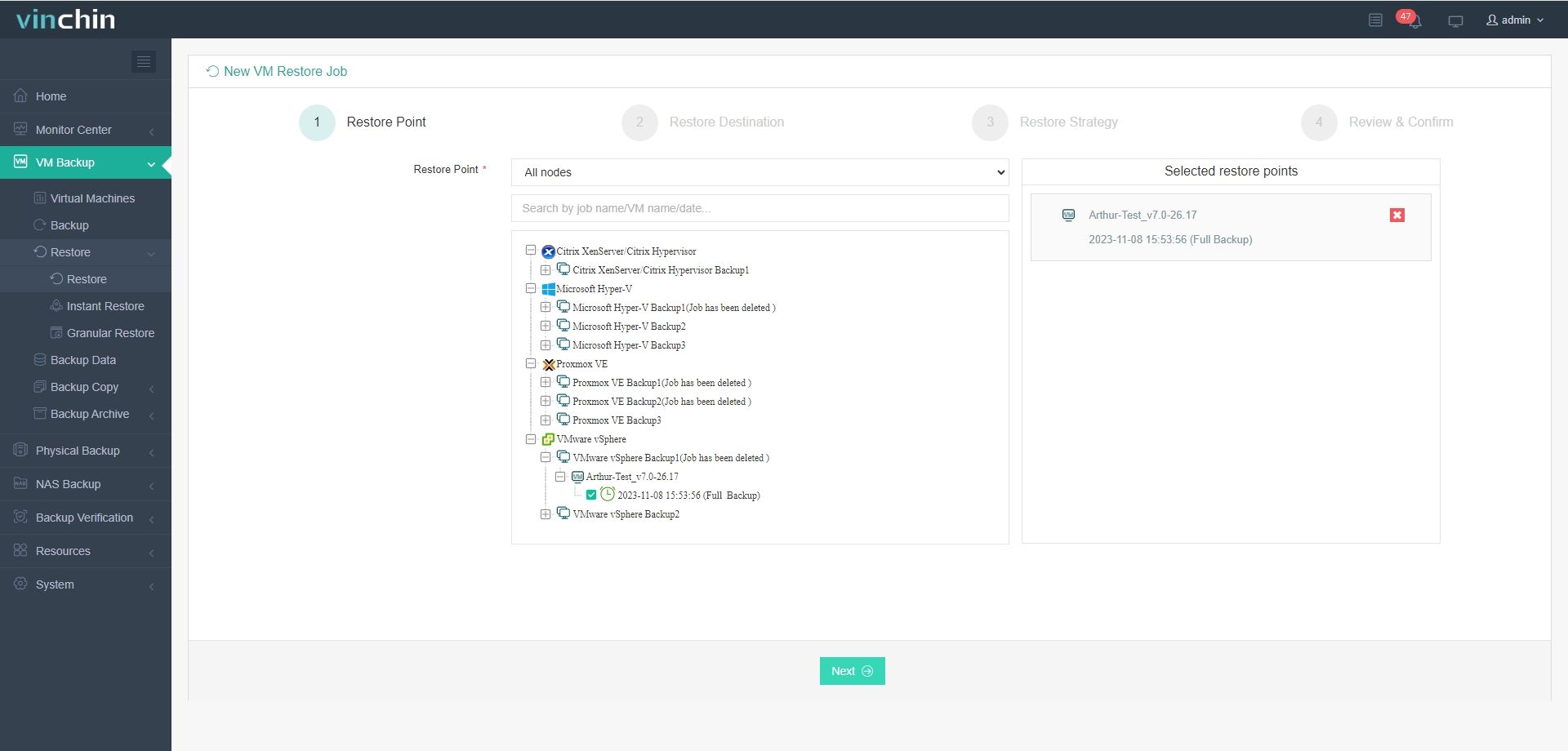
1. Select a restore point
Expand VM Backup on the left, then select restore. Choose the VM host you backed up before as the restore source.
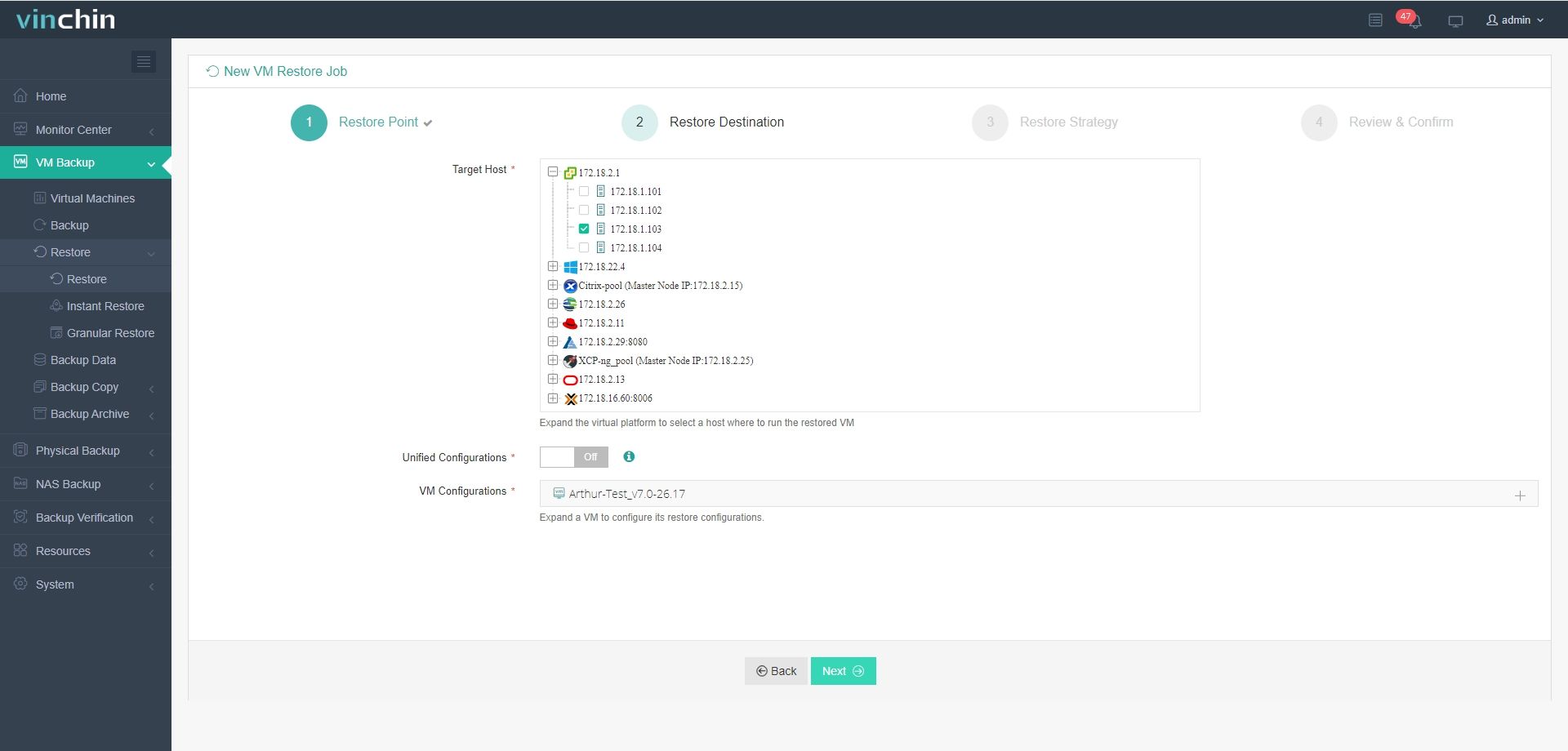
2. Select the target host
Then select the target host you want to migrate as the destination point. Expand the list to checkmark the platform.
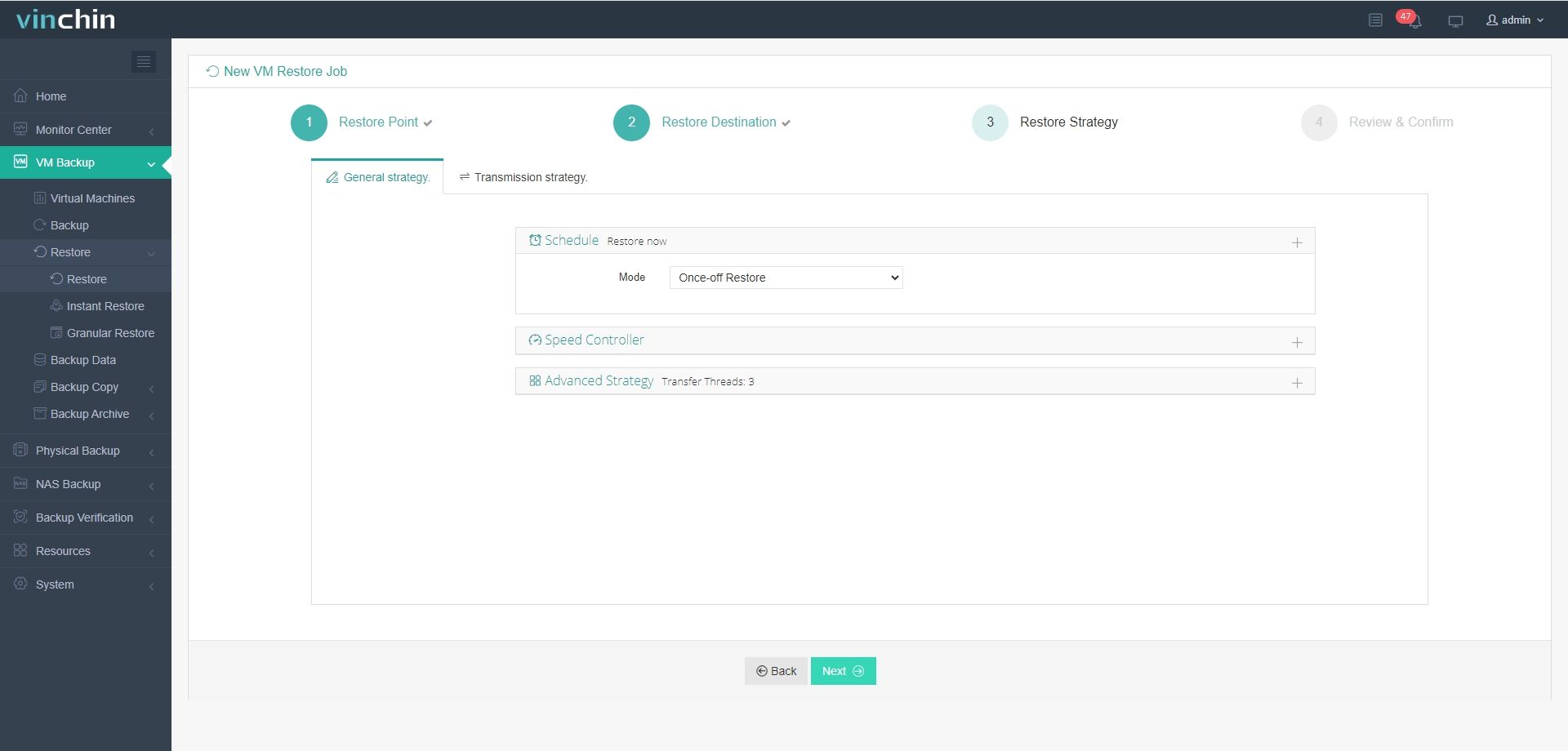
3. Customize Restore Strategies
Choose to run the task immediately or schedule it, and configure any needed transfer or throttling policies.
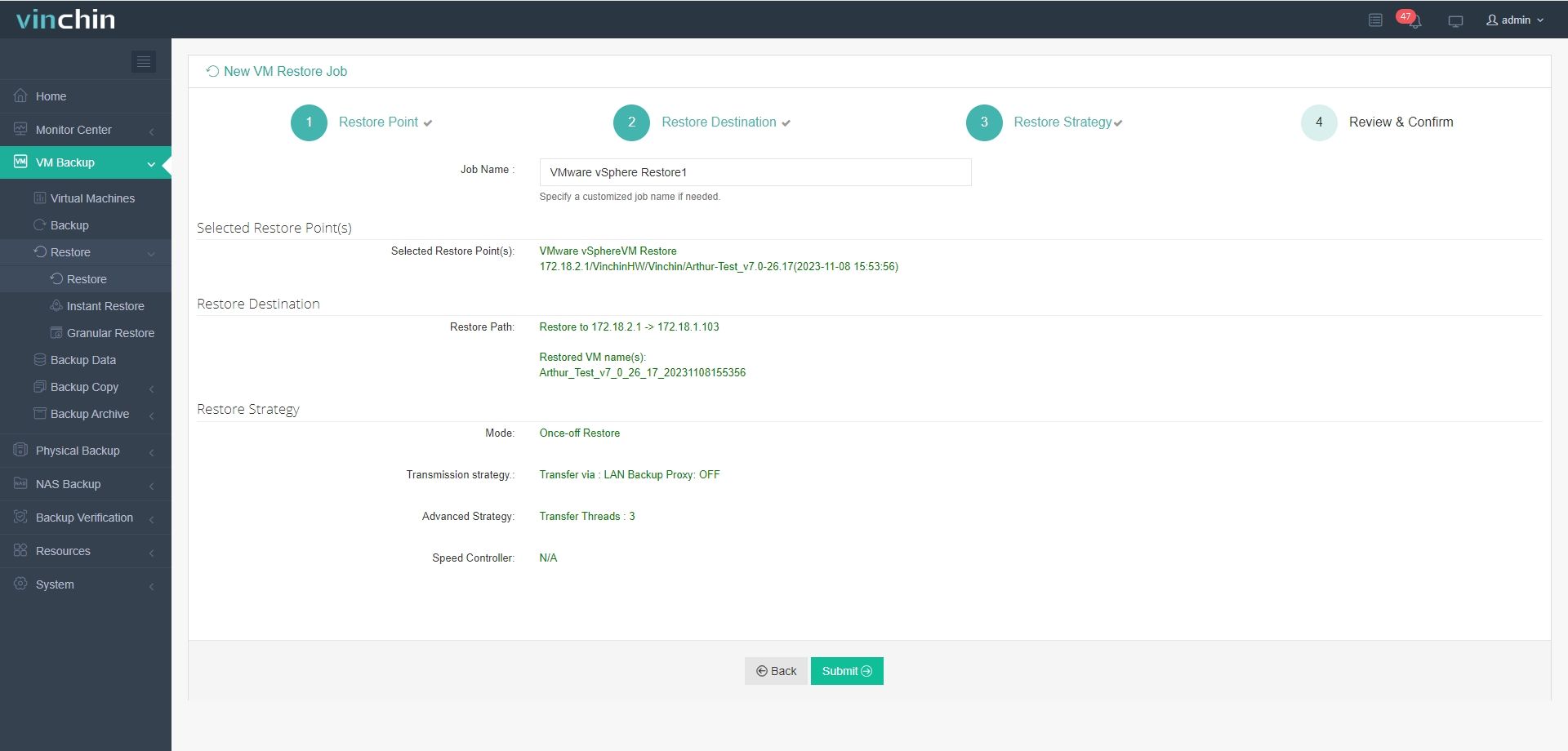
4. Submit the job
Finally, name the task, review the details you set, and then click Submit to initiate the migration.
Recognized by thousands of enterprises worldwide and gains multiple good ratings, Vinchin Backup & Recovery offers a safe and hassle-free VM migration, ensuring your data is protected and recovered to its exact state when backing it up. Vinchin provides a 60-day free trial with full features; try now!
Best Practices for VM Migration Without vCenter
Here are some recommended practices for you to streamline the hassle of migrating VMs without vCenter. Just confirm these operations ahead:
Choose the appropriate approach (cold migration, manual transfer, or backup-and-restore) based on your infrastructure and business requirements.
Check CPU compatibility, virtual hardware versions, storage access, and network configuration to avoid boot or performance issues.
Always back up the VM before migration to ensure data protection and provide a reliable rollback option if needed.
Perform the migration during low-traffic periods to minimize business impact.
After the VM starts on the new host, confirm system functionality, network settings, and application services before finalizing the process.
FAQs Related to Migrating VMs Without vCenter
Q1: What is the safest way to migrate a VM without vCenter?
The safest method is typically a full image-based backup followed by a restore to the destination host. This ensures data consistency and provides a rollback option if issues occur.
Q2: Can I perform live migration without vCenter?
Live migration is limited without vCenter. Some environments may support direct host-to-host migration depending on licensing and configuration, but it is not always available.
Q3: Do I need shared storage to migrate VMs without vCenter?
No, shared storage is not required. However, it can simplify the process. Without shared storage, you will need to manually transfer VM files or use backup-and-restore methods.
Q4: Should I back up the VM before migration?
Yes. Creating a backup before migration is strongly recommended to prevent data loss and allow recovery if the migration fails.
Q5: How can I reduce migration downtime?
You can reduce downtime by preparing storage in advance, using high-speed network connections, scheduling during low-traffic periods, and leveraging incremental backup or specialized migration tools.
Sum Up
While VMware vCenter Server enables centralized multi-host management, simplifies VM operations, and supports business continuity with minimal downtime, it may not be available in certain scenarios, such as the ESXi free edition, small-scale deployments, or specific disaster recovery environments.
Therefore, understanding how to migrate VMs without vCenter is essential to ensure stable and reliable migration. You can select one of the four methods mentioned above or adopt a simple, fast, and secure migration strategy, such as Vinchin, to protect and restore business data with near-zero RTO.