Can You Back Up Individual Files Instead of Entire VMs?
Yes, VMware environments allow you to protect individual files without backing up the entire virtual machine. This approach is often used when only specific business data, shared folders, or application files need protection, helping reduce storage consumption and simplify data management. Depending on your recovery requirements, VMware environments support several file-based backup approaches, including guest OS backup agents, network file share backups, and image-based backups with file-level recovery capabilities.
Common Methods for VMware File-Based Backups
In some situations, protecting only specific files, folders, or application data is more efficient than backing up an entire virtual machine. Below, we list three commonly used approaches for a smooth and efficient file-level backup.
Method 1: Back Up VMware Files Using Guest OS File Backup Agent
A guest OS file backup agent allows you to back up files and folders from inside a VMware virtual machine, just as you would on a physical server.
Step 1: Install a Backup Agent Inside the VM
Choose a guest OS-compatible backup tool (Windows Server Backup or a third-party agent), then download and install it in the VMware VM.
Step 2: Select Files and Folders for Backup
Open the backup tool and specify target files, folders, or application data. Exclude temporary files or unnecessary system data to reduce storage consumption.
Step 3: Configure the Backup Destination
Select storage targets, such as local disk, network share, NAS, or backup server. Verify sufficient storage space and valid access rights.
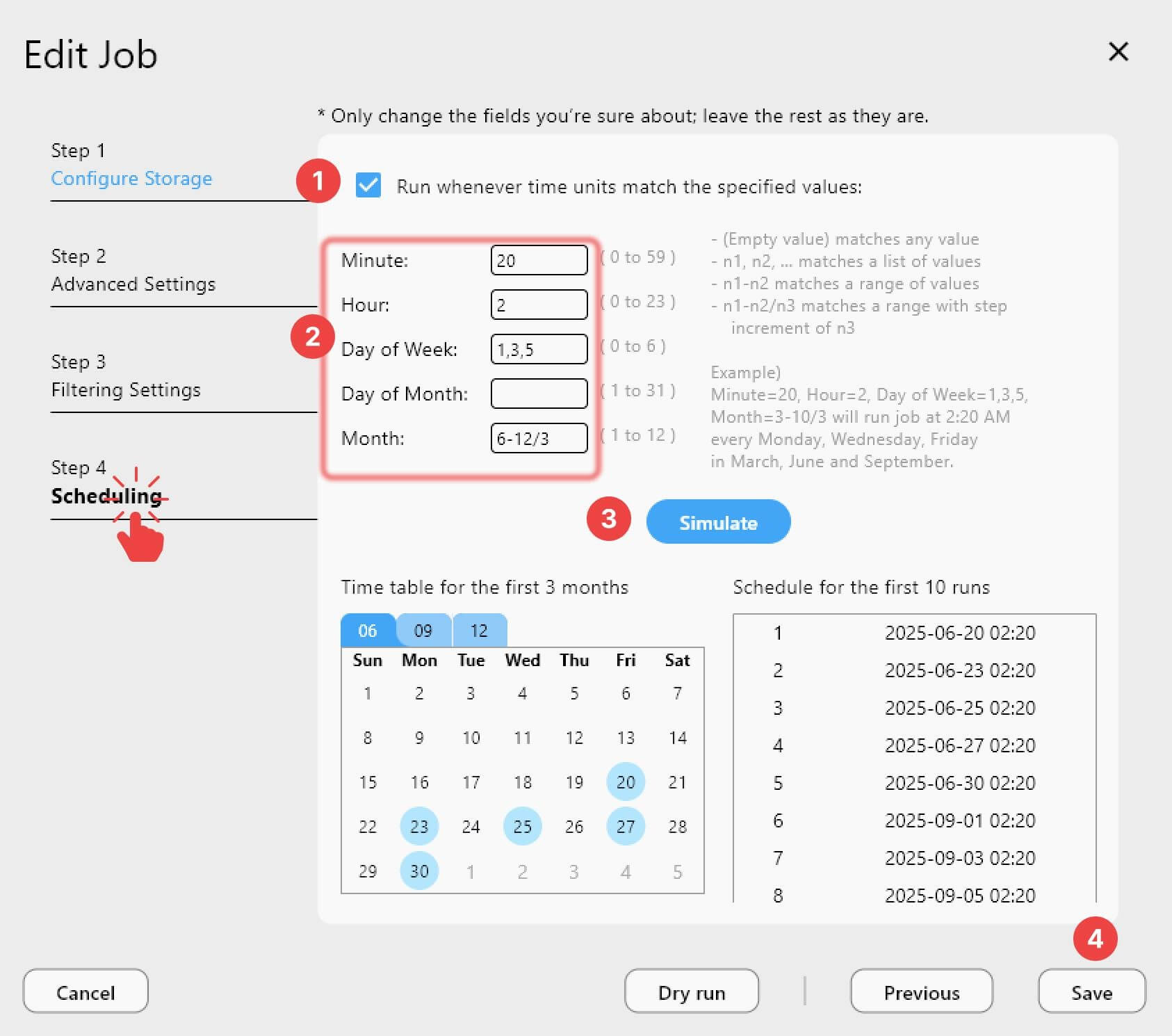
Step 4: Create a Backup Schedule
Set up auto-backup tasks that match your recovery needs. Use hourly/daily cycles for frequently modified data.
Step 5: Run and Verify the Backup
Execute the backup task and confirm successful completion. Run periodic restore tests to guarantee recoverability.
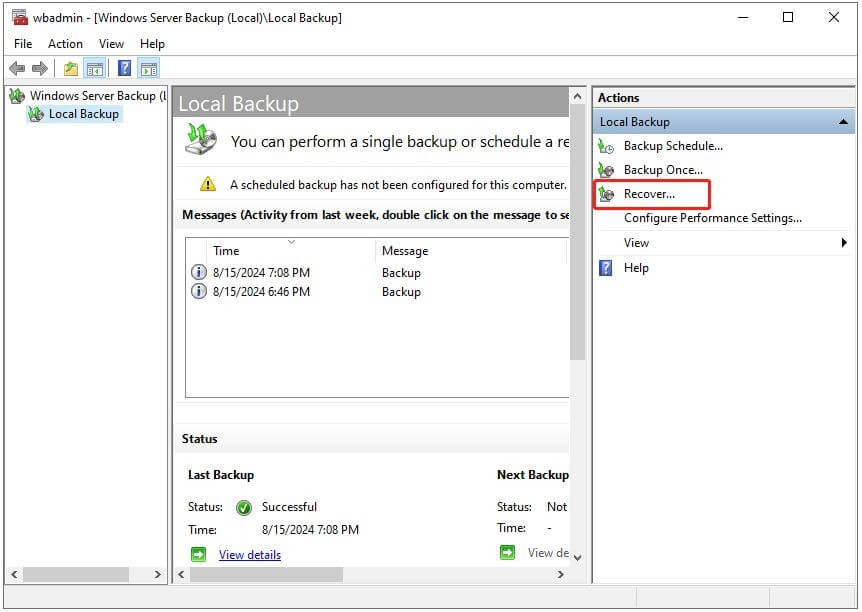
Method 2: Backup VMware Files Using Network File Share Backup
Network file share backup protects VMware files by storing copies of selected data on a shared storage location, such as an SMB or NFS share.
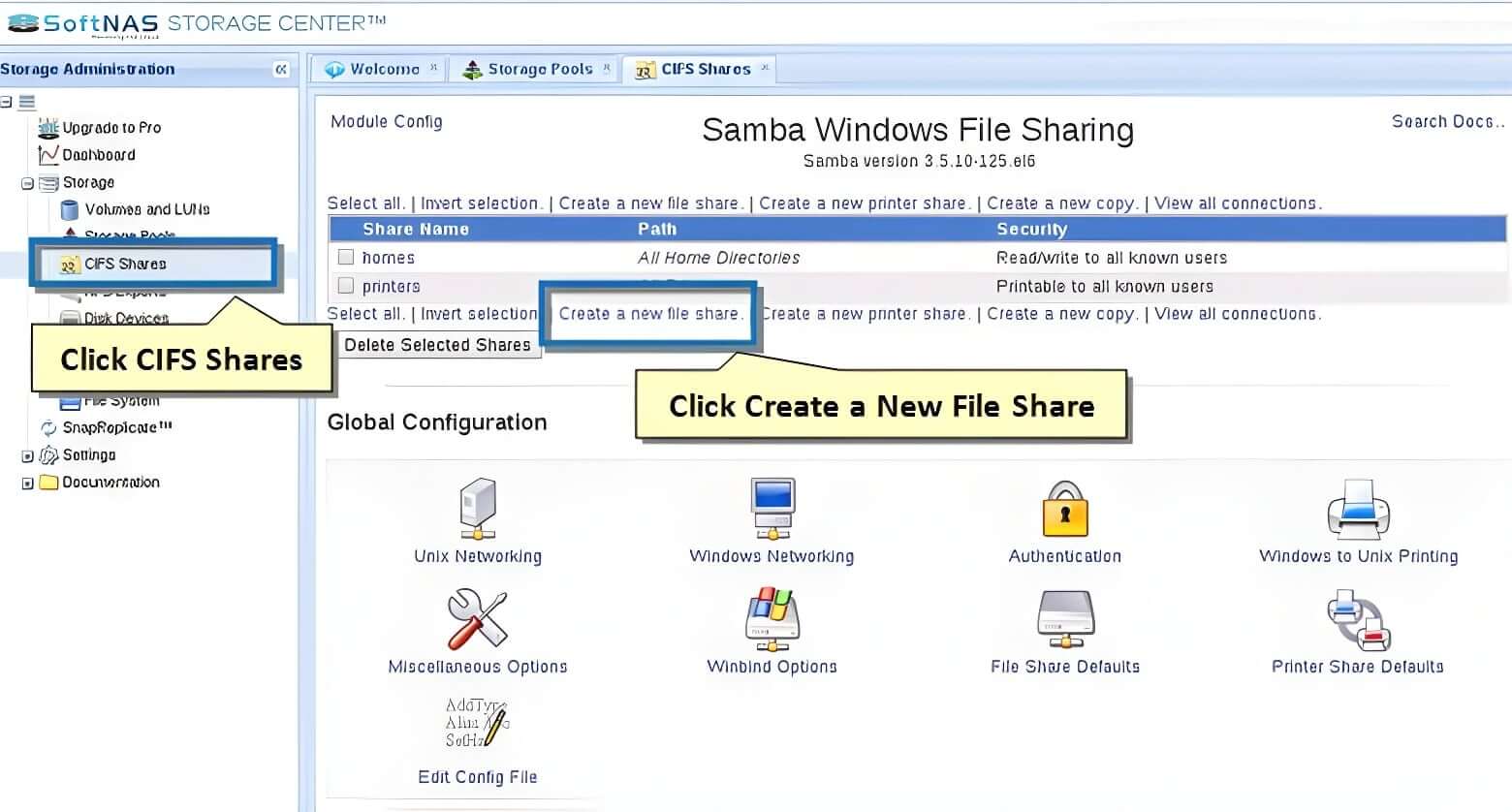
Step 1: Create or Identify a Network File Share
Prepare a shared storage location on a file server, NAS device, or backup server, and ensure it is accessible from the VMware VM.
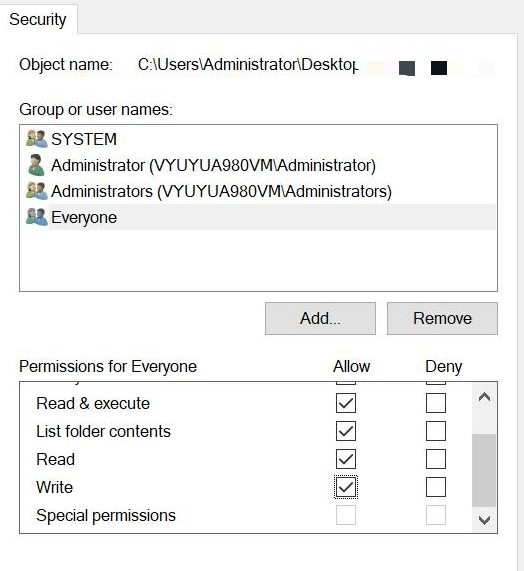
Step 2: Grant Access Permissions
Configure the necessary user credentials and permissions so the VM can read from and write to the network share.
Step 3: Select Files and Folders for Backup
Identify the files, folders, or application data that need protection and configure a backup tool or script to copy them to the shared storage.
Step 4: Schedule Backup Jobs
Set up automatic backup tasks to transfer data to the network share at regular intervals based on business requirements.
Step 5: Verify Backup and Recovery
Confirm that backup files are successfully stored on the network share and periodically test file restoration to ensure recoverability.
Method 3: VMware Image-Based Backup with File-Level Recovery
This method protects the entire virtual machine by capturing it as a full image, while still allowing individual files to be restored when needed. It eliminates the need to install agents inside each VM and provides both full disaster recovery and granular file recovery capabilities.
Step 1: Create a VMware Image Backup Job
Use a backup solution that integrates with VMware vSphere to create a full VM image backup through APIs such as vSphere snapshot or CBT (Changed Block Tracking).
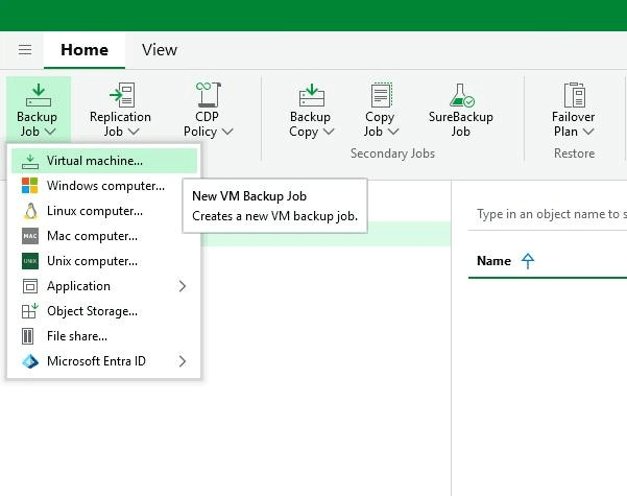
Step 2: Execute the Backup Process
Run the backup job to capture the entire virtual machine, including operating system, applications, and data, and store it in a centralized backup repository.
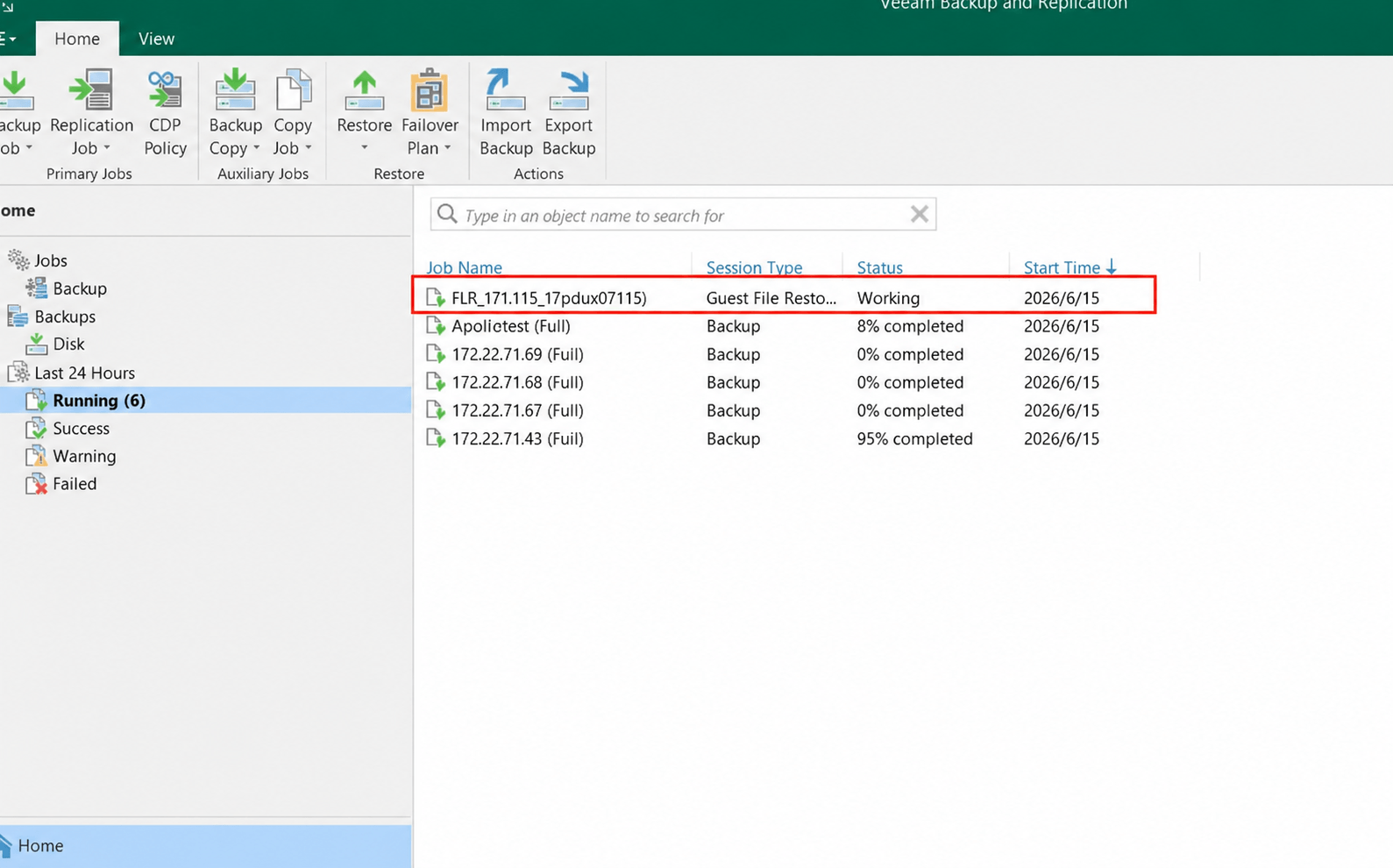
Step 3: Mount the Backup Image
Access the backup repository and mount a specific restore point without needing to restore the entire VM.
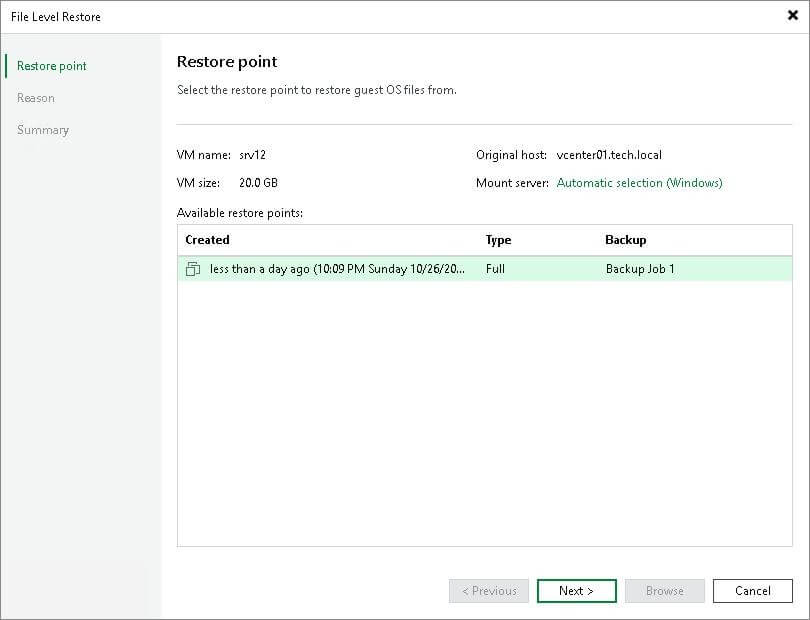
Step 4: Browse and Locate Individual Files
Navigate the mounted image to locate the required files or folders inside the virtual machine’s file system.
Step 5: Restore Selected Files
Select the required files and restore them either to the original VM or an alternate location without affecting the entire system.
File-Based Backup VS. Image-Based Backup
Aspect | File-Based Backup | Image-Based Backup |
Backup Scope | Individual files or folders | Entire VM or system disk |
Granularity | High (selective file-level backup) | Low (full system image) |
Recovery Method | Restore specific files/folders only | Full VM restore + optional file-level restore |
Best Use Case | Daily file protection, config backup | Disaster recovery, system-level protection |
System Coverage | Partial data | Complete system state (OS+apps +data) |
Storage Usage | Lower | Higher |
File-based backup focuses on protecting specific files or folders. It’s lightweight and flexible, making it suitable for routine data protection, but it’s not ideal for full system recovery scenarios.
Image-based backup captures the entire virtual machine, including the operating system, applications, and data. It’s the preferred solution for enterprise disaster recovery because it enables fast and complete system restoration after failures or cyber incidents.
Back Up and Restore Individual VMware Files with Vinchin
While VMware provides multiple ways to back up individual files, each method has its own limitations in terms of complexity, performance, or restore flexibility. To simplify this process and improve efficiency, many enterprises turn to Vinchin Backup & Recovery, which provides a more streamlined and unified approach to VMware file-level protection.
Key advantages include:
Agentless architecture: no need to install backup agents inside VMware VMs, reducing overhead and maintenance effort
Image-based backup with granular restore: leverages VM image backups while still enabling precise and fast file-level recovery when needed
Centralized management: supports VMware environments with minimal configuration and seamless integration
Reduced downtime risk: enables fast recovery of critical files to minimize business disruption
For comprehensive file data protection, it’s recommended to create a full backup of the entire VM and then restore specific files.
How to Restore Individual VMware Files Using Vinchin Granular Restore?
1. Navigate to VM Backup > Restore > Granular Restore. Select a single restore point of the VMware VM for granular restore. Here you can name the job if needed.
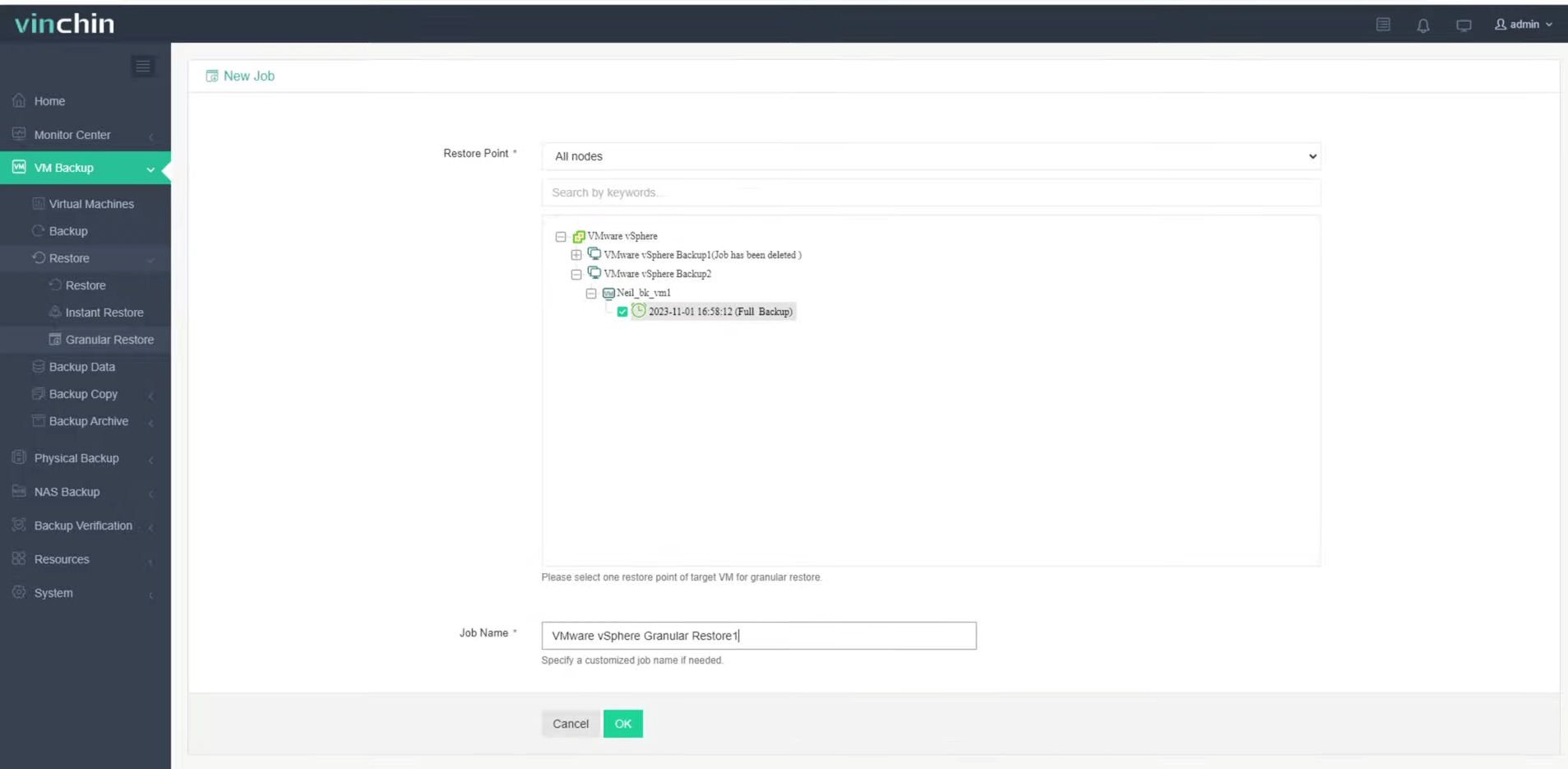
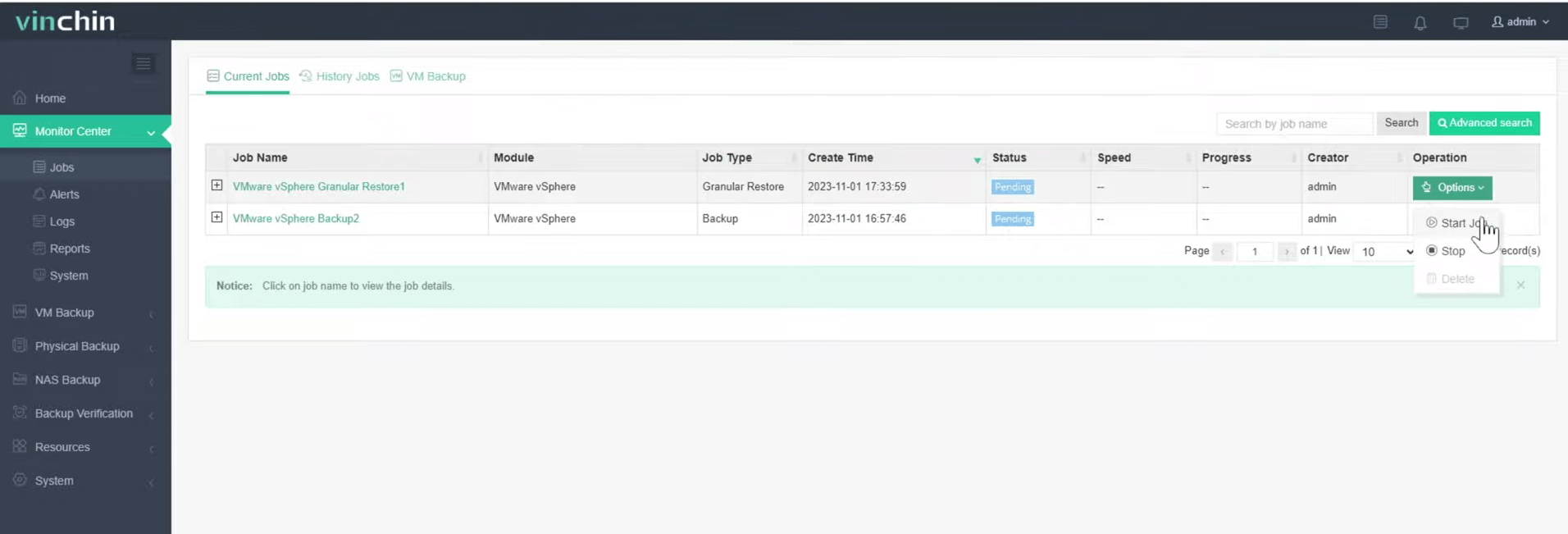
2. Go to Monitor Center, click Options on the job list to run this job. Wait for a while, you’ll see it’s finished.
3. Preview the files on the right side of the screen and click the download button to export the target files or folders to your local machine. Then you’ll get these files on your computer.
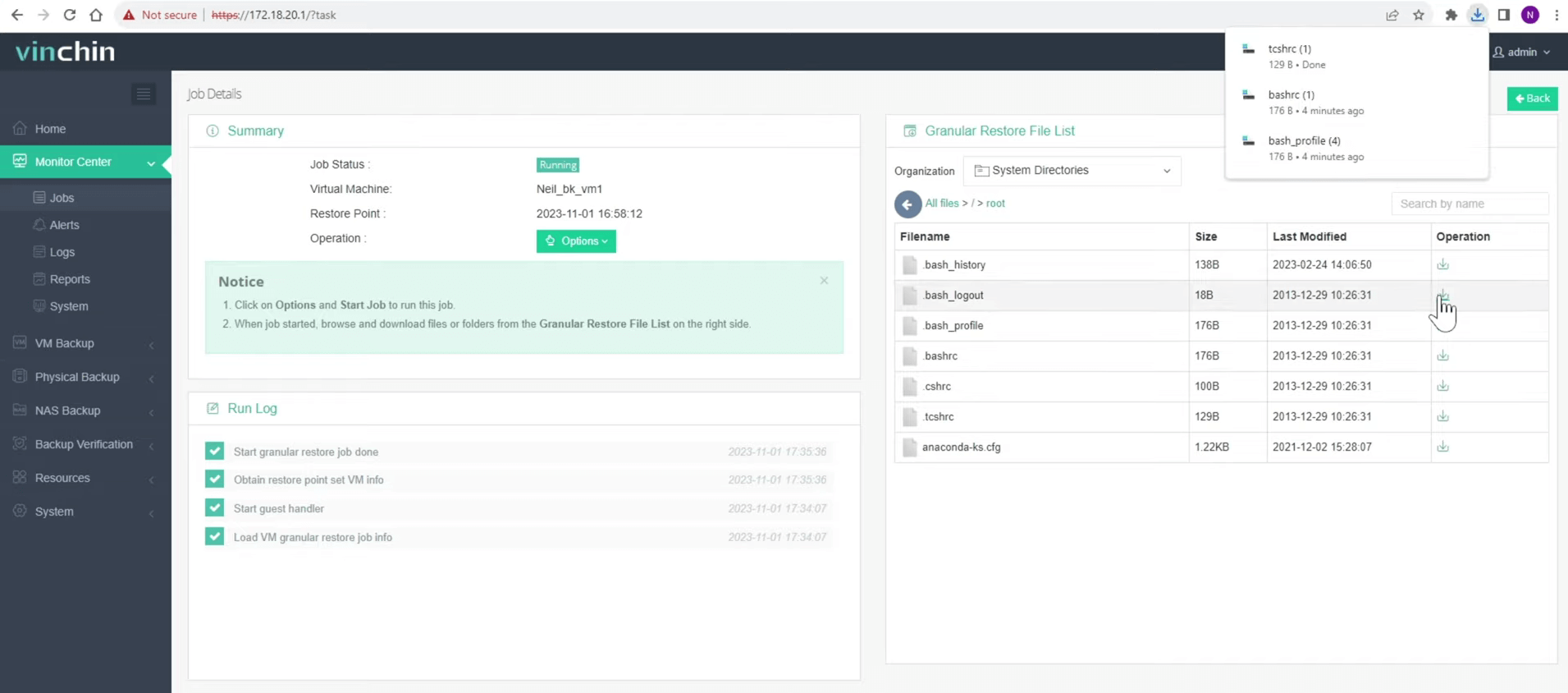
4. After downloading the files, remember to stop this job, or it will waste resources.
Vinchin Backup & Recovery is dedicated to providing robust and secure data protection for your VMware environments. It offers a free trial for 60 days; click the Download button to unlock its full features.
VMware File-Based Backup FAQs
Q1: Can VMware vSphere Perform File-Level Backups Natively?
VMware vSphere does not provide a dedicated file-level backup feature for guest files inside virtual machines. To perform file-based backups, organizations typically use guest OS backup agents, network file-share backups, or third-party backup software that supports file-level protection.
Q2: Can I Restore Individual Files from an Image-Based VMware Backup?
Yes. Many modern VMware backup solutions support file-level restore from image-based backups. Instead of restoring the entire VM, administrators can browse the backup image and recover only the required files or folders.
Q3: When Should I Use File-Based Backup Instead of Full VM Backup?
File-based backup is a good choice when:
Only critical business files need protection.
Granular recovery is more important than full VM restoration.
Storage capacity is limited.
Backup windows need to be minimized.
However, it should not be considered a complete replacement for full VM backups.
Conclusion
Backing up individual files in VMware environments is entirely possible and can be achieved through guest OS backup agents, network file share backups, or image-based backups with file-level restore. For most organizations, the best practice is to combine image-based backup with granular file recovery capabilities.
Solutions like Vinchin Backup & Recovery simplify this process by providing agentless VMware backups and fast file-level restores, ensuring both efficient data protection and reliable disaster recovery.