User Case
"Due to rising VMware costs, we're evaluating a move to Azure. Has anyone migrated VMware workloads to the cloud? How smooth was the process, and what were the biggest challenges?"
Rising VMware licensing costs have prompted many organizations to consider cloud migration, with Azure being a popular destination. However, concerns about migration complexity, downtime, and potential challenges remain. This article explains 5 common VMware to cloud migration options and how to ensure a smooth transition.
Common VMware to Cloud Migration Destinations
VMware workloads can be migrated to public cloud, private cloud, or hybrid cloud environments depending on business requirements.
VMware to Public Cloud
Major public cloud platforms include:
Amazon Web Services (AWS)
Microsoft Azure
Google Cloud Platform (GCP)
Alibaba Cloud
Oracle Cloud Infrastructure (OCI)
Typical approaches include lift-and-shift migration, VMware-based managed cloud environments, and workload modernization into cloud-native services.
VMware to Private Cloud
Organizations with strict compliance or security requirements often choose private cloud platforms such as:
OpenStack
Nutanix AHV
Hyper-V
VMware to Hybrid Cloud
Hybrid cloud combines on-premises VMware infrastructure with public cloud resources. Common technologies include:
VMware HCX
Azure Arc
AWS Outposts
This model enables workload flexibility while maintaining core systems on-premises.
How to Migrate VMware Workloads to the Cloud?
After identifying your target cloud destination, the next step is selecting an appropriate migration method. The table below compares five VMware to cloud migration approaches, helping you choose the best option for your workload requirements and migration goals.
VMware to Cloud Migration Methods | Migration Approach | Automation | Downtime | Infrastructure Requirement | Best Use Case |
Cloud-native | Agent-based replication + orchestration | High | Low | Cloud migration setup | Public cloud lift-and-shift migration |
VMware HCX | VMware to VMware mobility layer | High | Low (supports vMotion) | HCX components on both sides | VMware hybrid cloud expansion |
Site Recovery Replication | Continuous replication (DR based | Medium | Low | DR infrastructure + replication appliance | Mission-critical workloads with strict RPO/RTO |
Vinchin Backup and Restore | Backup snapshot + restore | Medium | Very Low (near-zero RTO) | Backup repository +agents | Flexible multi-cloud migration |
VM Export and Import | Manual image export/import | Low | Medium | Only storage + cloud import tools | Small-scale or PoC migration |
Method 1: Using Cloud-Native Migration Services
Most major cloud providers offer built-in migration services designed specifically for transferring on-premises VMware workloads to their cloud environments.
Example: Migrate VMware to AWS Using AWS Application Migration Services (MGN)
Step 1. Assess VMware workloads and identify the VMs that need to be migrated.
Step 2. Configure AWS MGN replication to continuously copy VM data from VMware to AWS.
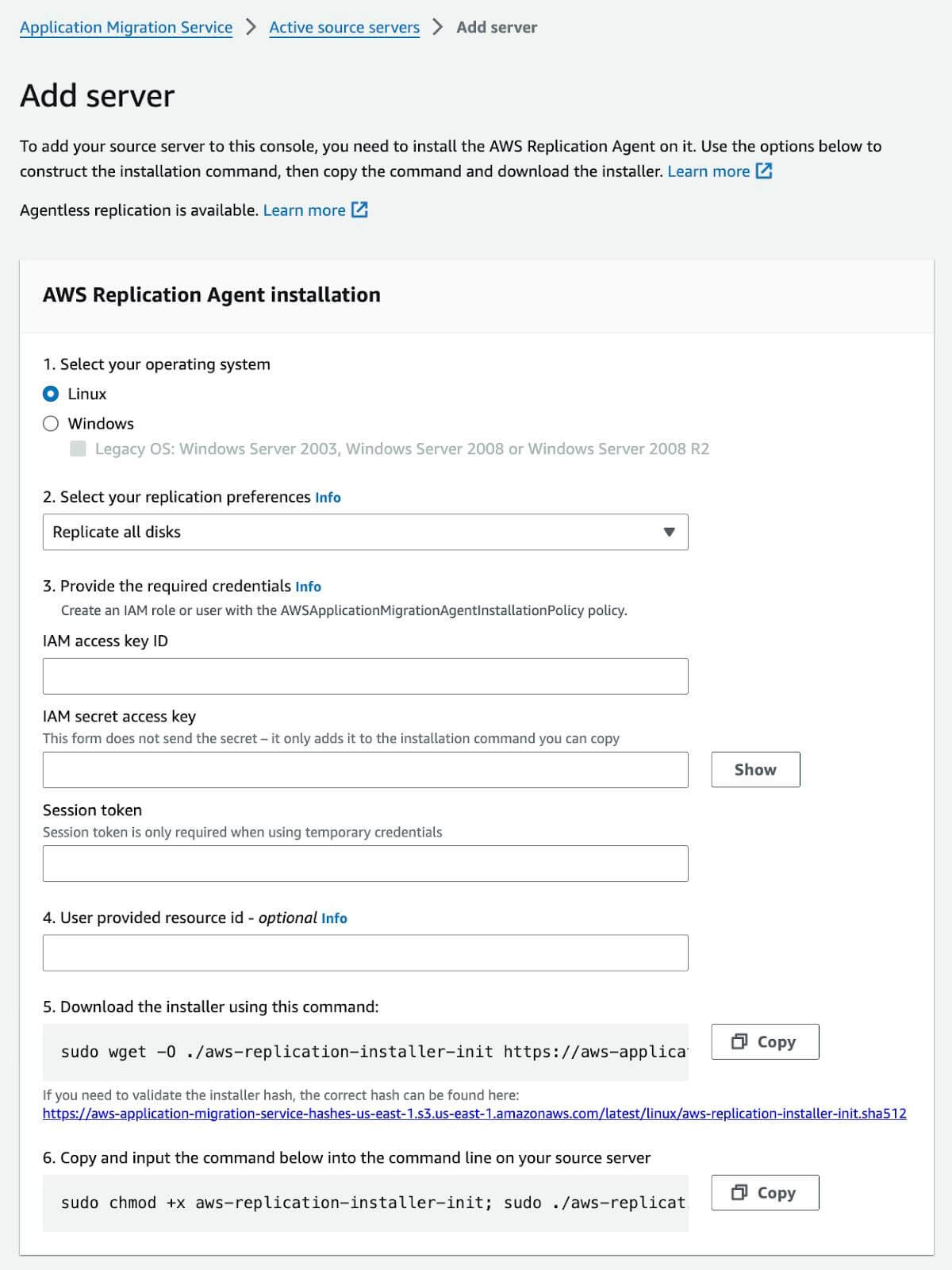
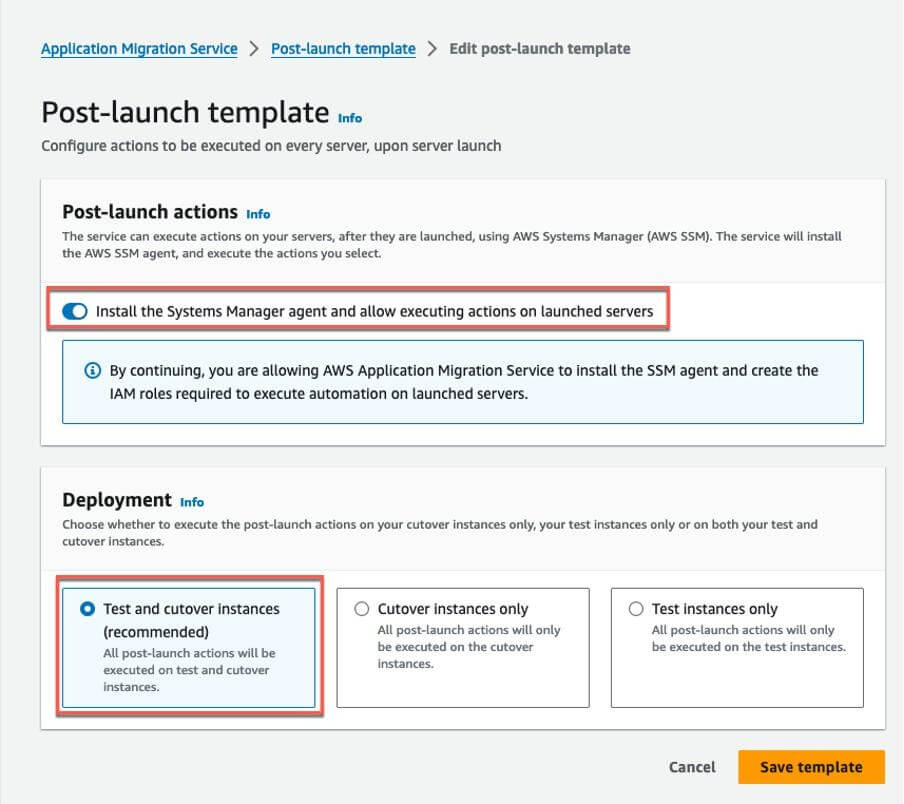
Step 3. Perform migration testing to verify application functionality in AWS.
Step 4. Cut over workloads to AWS and decommission the original VMware resources when validation is complete.
Method 2: Using VMware HCX
VMware HCX is a workload mobility platform that simplifies migration between on-premises VMware environments and cloud-based VMware infrastructures. It supports many migration methods, such as bulk migration, vMotion, and Replication Assisted vMotion.
Example: Migrate VMware workloads to VMware Cloud on AWS
Step 1. Deploy VMware Cloud on AWS SDDC and prepare networking between VMware and AWS.
Step 2. Install and configure HCX Connector in the source VMware environment and pair it with the HCX Cloud Manager in VMware Cloud on AWS.
PowerCLI Deploy HCX Connector Scripts:
# Connect local vCenterConnect-VIServer vcenter-onprem.example.com -User administrator@vsphere.local -Password YourPass123
# Deploy HCX Connector OVA
$ovaFile = "D:\ISO\VMware-HCX-Connector-4.10.0.ova"
$targetCluster = Get-Cluster OnPrem-Compute
$targetDS = Get-Datastore Local-DS01
$mgmtPortGroup = Get-VirtualPortGroup -Name MGMT-VLAN
New-VM -Name HCX-Connector -Template $ovaFile `
-Cluster $targetCluster `
-Datastore $targetDS `
-Network $mgmtPortGroup `
-DiskStorageFormat Thin
# Power on connector VM
Start-VM HCX-Connector
Step 3. Create HCX service mesh and migration policies to establish secure connectivity and workload mobility between the two sites.
Step 4. Select VMs and start migration using HCX Bulk Migration or HCX vMotion, then validate workloads after the migration completes.
Method 3: Using Site Recovery Replication
Site Recovery Replication uses disaster recovery (DR) technology to replicate VMware workloads from on-premises environments to a cloud platform. This method enables secure migrations with near-zero downtime.
Example: Migrate VMware VMs to Azure Using Azure Site Recovery (ASR)
Step 1. Prepare Azure Environment
Create an Azure subscription, resource group, and storage account.
Ensure network connectivity (VPN/ExpressRoute) between on-premises VMware environment and Azure
Step 2. Step up ASR replication
Deploy the ASR Mobility Service on VMware VMs, configure the Recovery Service Vault and define replication policies, and then start continuous replication to Azure.
Connect-AzAccount
$vault = Get-AzRecoveryServicesVault -Name ASR-Vault -ResourceGroupName asr-mig-rg
$replPolicy = Get-AzRecoveryServicesAsrPolicy -Name VMware-Repl-Policy -Vault $vault
New-AzRecoveryServicesAsrReplicationProtectedItem -VMwareVM $sourceVM -Policy $replPolicy
Step 3. Test migration
Preform a test failover to Azure and validate application functionality and connectivity without affecting production workloads.
az asr replication protected-item test-failover --name vm-web01 --resource-group asr-mig-rg
Step 4. Finalize migration
Execute the planned failover to Azure and redirect users and workloads to the Azure VMs.
Method 4: Easily Migrate via Vinchin Backup and Restore
Vinchin Backup & Recovery is a backup-based migration solution that enables organizations to move VMware workloads to cloud environments in a simple and reliable manner. Unlike cloud-native migration tools or VMware HCX, Vinchin uses backup and restore workflows to transfer virtual machines, reducing migration complexity while minimizing the risk of data loss.
Vinchin supports a wide range of cloud platforms and services, including AWS, Amazon EC2, Amazon S3, Microsoft Azure, Huawei Cloud ECS, and more, making it suitable for multi-cloud and hybrid-cloud migration scenarios.
Let’s see how to migrate VMware VMs to AWS in Vinchin:
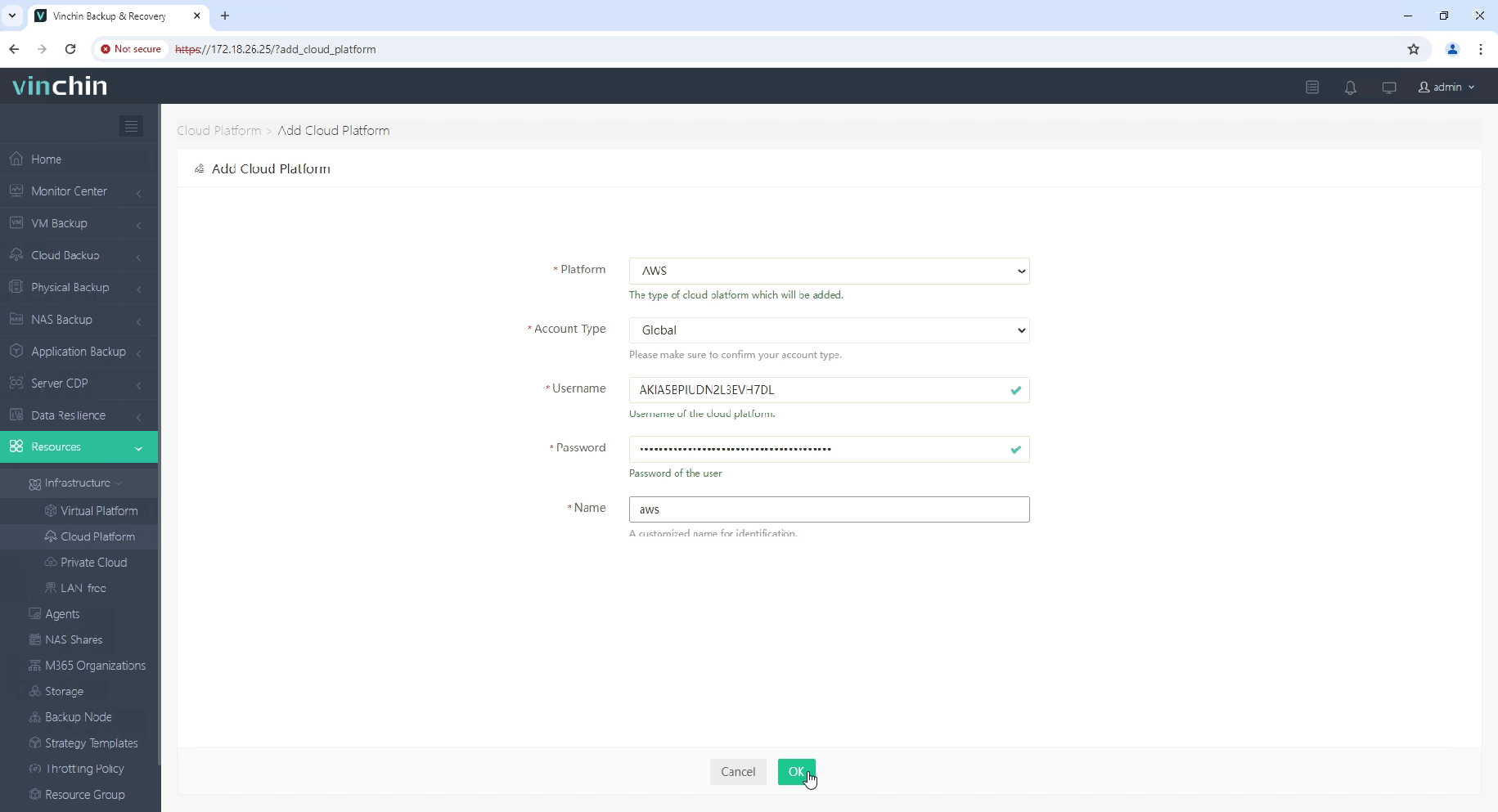
1. Go to Resources > Infrastructure > Cloud/Virtual Platform to add AWS and VMware environments to Vinchin Backup & Recovery and configure the required connection credentials.
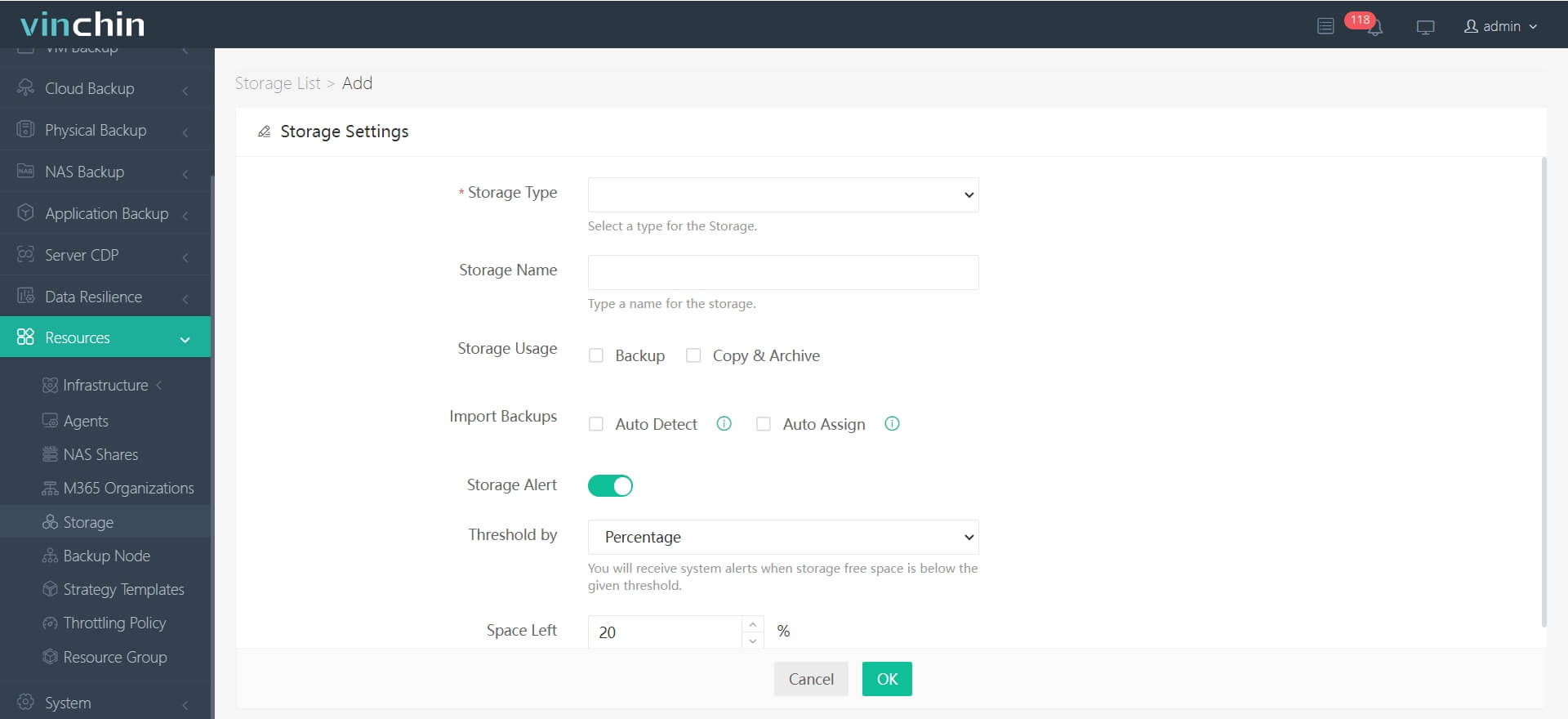
2. Return to Resources and expand the Storage option, configure storage settings (storage type, name, usage, etc) to store the VM backup.
3. Now create a VMware backup, and you can add multiple VMs to the list for bulk migration.
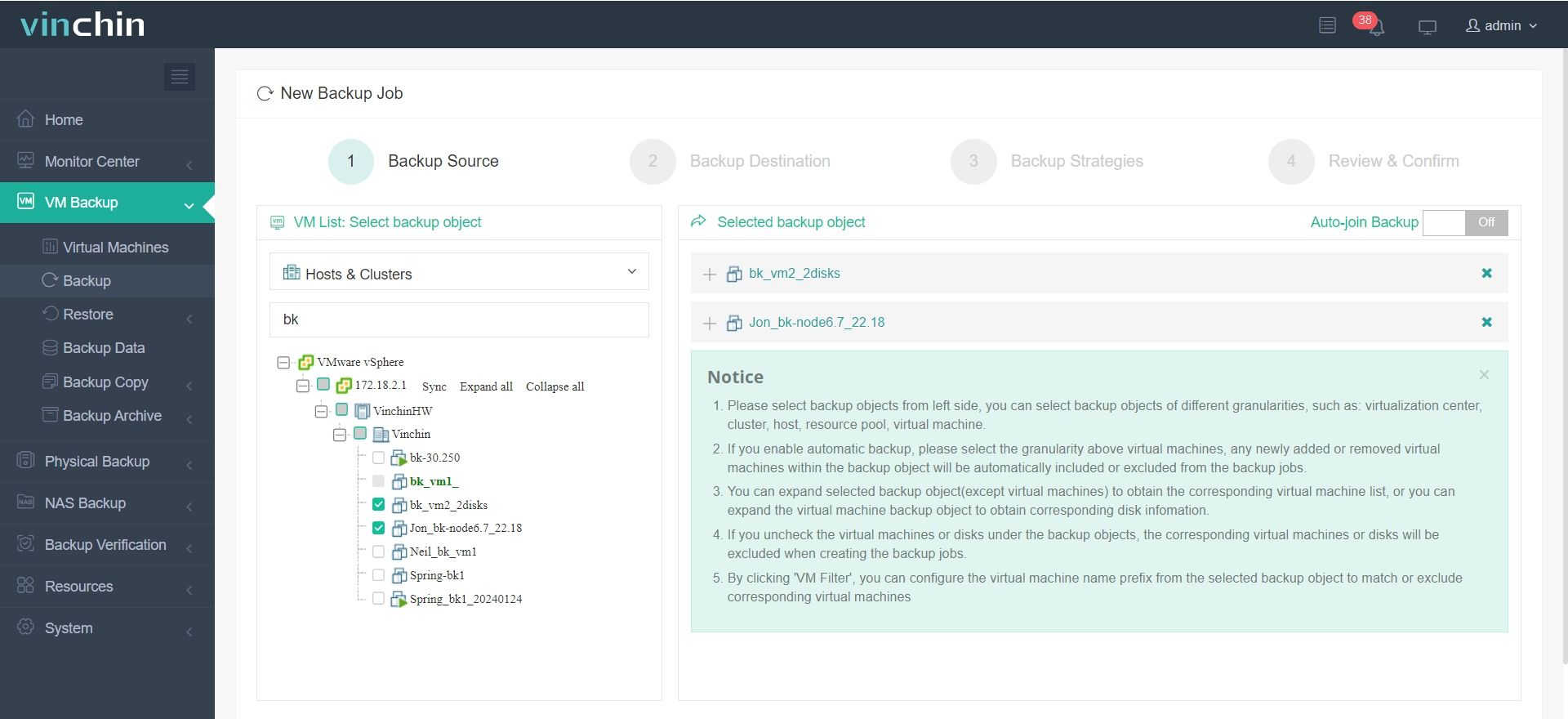
4. Then, restore the VMware backup storage you created on AWS; choose the restore type to recover it instantly or later.
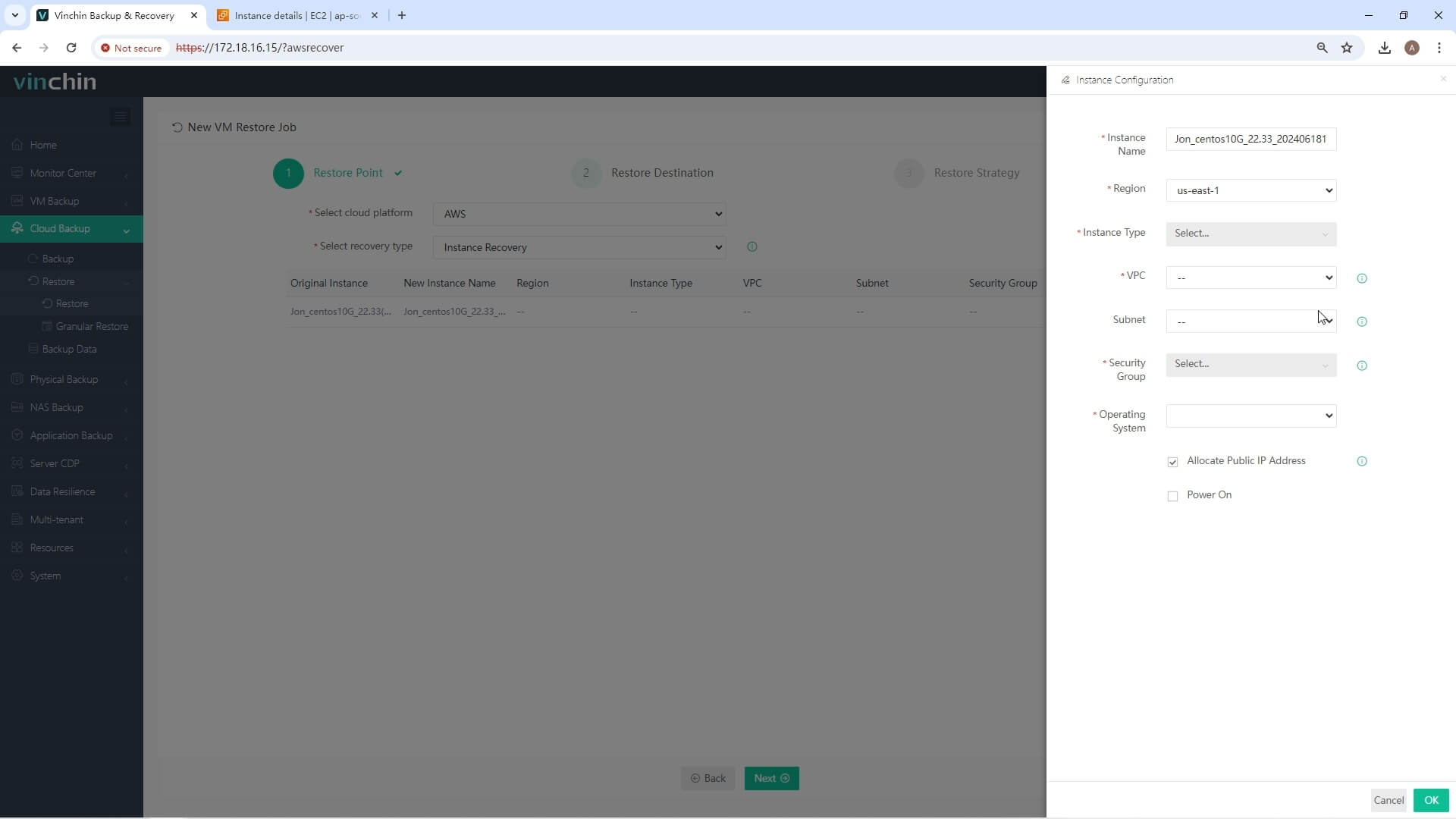
5. Finally, verify the migrated instances in AWS and switch production workloads to the new environment when validation is completed.
Vinchin Backup & Recovery has helped thousands of enterprises safeguard production data and prevent ransomware attacks. It provides a free trial for 60 days; hit the Download button below to unlock advanced features.
Method 5: Using VM Export & Import
VM Export & Import is a traditional migration method that involves exporting VMware VMs and importing them into the target cloud platform. It’s an easy approach that does not require dedicated migration tools, making it suitable for small-scale or non-critical workloads.
Example: Migrate VMware VMs to Google Cloud via Export and Import
Step 1: In the VMware vSphere or ESXI environment, export the virtual machine as an OVF/OVA package or convert the disk into a supported format such as VMDK.
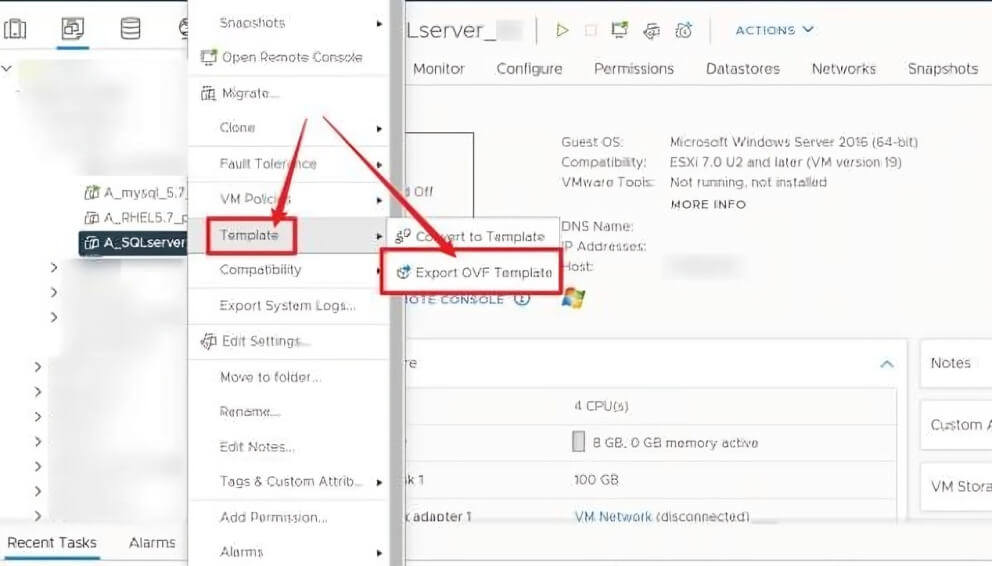
Step 2: Transfer the exported files to Google Cloud Storage, ensuring the upload is complete and accessible for import.
Step 3: Use the image import feature to convert the uploaded VM disk into a usable Compute Engine image.
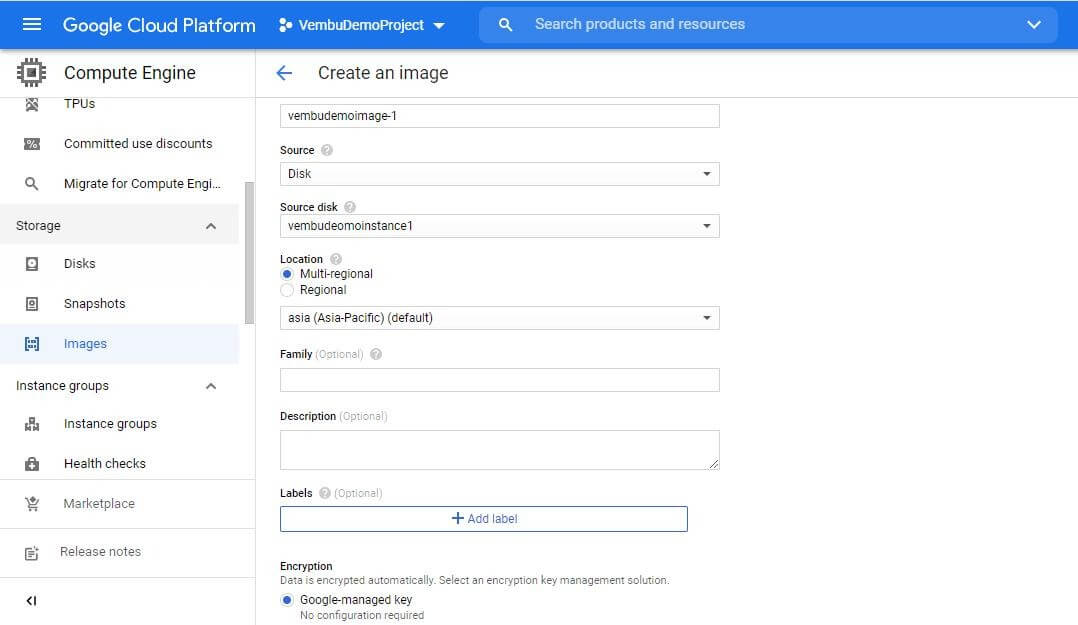
Step 4: Launch a virtual machine based on the imported image and configure CPU, memory, and network settings.
gcloud compute instances create migrated-app-vm \
  --image=migrated-vm-image \
  --machine-type=e2-standard-2 \
  --subnet=default \
  --zone=asia-southeast1-a
Step 5: Verify that the operating system boots correctly, applications run as expected, and network connectivity is properly configured.
Pro Tips to Ensure a Smooth VMware to Cloud Migration
Identify VM dependencies, performance needs, and application criticality to choose the right migration approach.
Select an appropriate method such as cloud native tools, HCX, replication, backup-based migration, or export/import.
Ensure stable bandwidth and secure connections between VMware and the target cloud (e.g., VPN or dedicated links).
Perform test migrations to validate application behaviour, connectivity, and performance before final cutover.
Define a clear migration window and keep rollback options ready to reduce business risk during transition.
Check performance and stability after migration to ensure workloads run correctly in the cloud.
VMware to Cloud Migration FAQs
Q1: Is it necessary to refactor applications before migrating VMware workloads?
Not always. Lift-and-shift approaches do not require refactoring, but refactoring may be recommended for long-term cloud optimization, cost reduction, and performance improvements.
Q2: Can VMware workloads be migrated with zero downtime?
Some methods like VMware HCX vMotion, site recovery, and Vinchin Backup & Recovery can achieve near-zero downtime, but most migrations still require a short cutover window.
Q3: Is there any disadvantage of cloud migration?
Yes. Cloud migration has some downsides to keep in mind: costs can grow unexpectedly, moving workloads may cause downtime or compatibility issues, performance depends on network stability, and there can be compliance or vendor lock-in concerns. Proper planning helps minimize these risks.
Conclusion
As organizations update and scale their IT environments, migrating VMware workloads to the cloud has become a key step. Choosing the right method, whether cloud-native tools, VMware HCX, replication-based migration, backup and restore, or manual export and import, depends on factors like downtime tolerance, operational complexity, and target cloud architecture.
For teams looking for a flexible migration approach that also provides built-in data protection, backup-based solutions such as Vinchin Backup & Recovery offer a practical alternative to replication-based methods.