Common Reasons Organizations Migrate VMware to Azure
Some main migration reasons are listed below.
1. Broadcom VMware Licensing Changes
After Broadcom's acquisition of VMware, many companies began reassessing long-term VMware costs and subscription models.
2. Datacenter Exit Strategies
Organizations looking to: reduce hardware refresh cycle, consolidate infrastructure, and exit colocation facilities
3. Faster Cloud Adoption
AVS allows businesses to move workloads quickly while postponing application modernization.
4. Hybrid Cloud Flexibility
Many enterprises are not ready for a full cloud-native transformation.
VMware to Azure Migration with Azure Migrate
Migrating VMware virtual machines to Microsoft Azure using Azure Migrate is one of the most common cloud migration strategies for enterprises.
Step 1. Deploy the Azure Migrate Appliance
The Azure Migrate appliance is deployed as a VM inside your VMware environment. Use the OVA deployment method:
1. Download the OVA file from Azure and open VMware vSphere Client
2. Select Deploy OVF Template
3. Upload the OVA file, and configure VM name, storage, and network
4. Power on the appliance VM
For more detailed steps, checking the deploy the OVA into VMware vSphere.
Step 2. Add Discovery and Assessment Tool
1. Log in the Azure Migrate server and launch the Azure Migrate
2. Click Discover, access and migrate > Azure Migrate: Discovery and assessment
3. Azure will generate project key and appliance download link
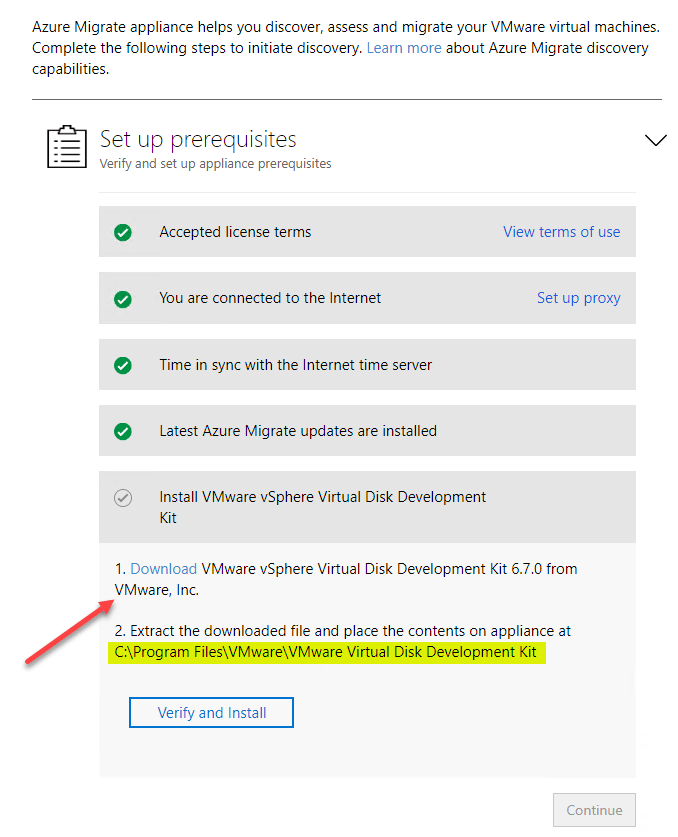
4. Download and install VMware vSphere Virtual Disk Development Kit
5. After download, click Continue
6. Log in to Microsoft Azure, and provide subscription, migrate project, and enter appliance name. Click Register
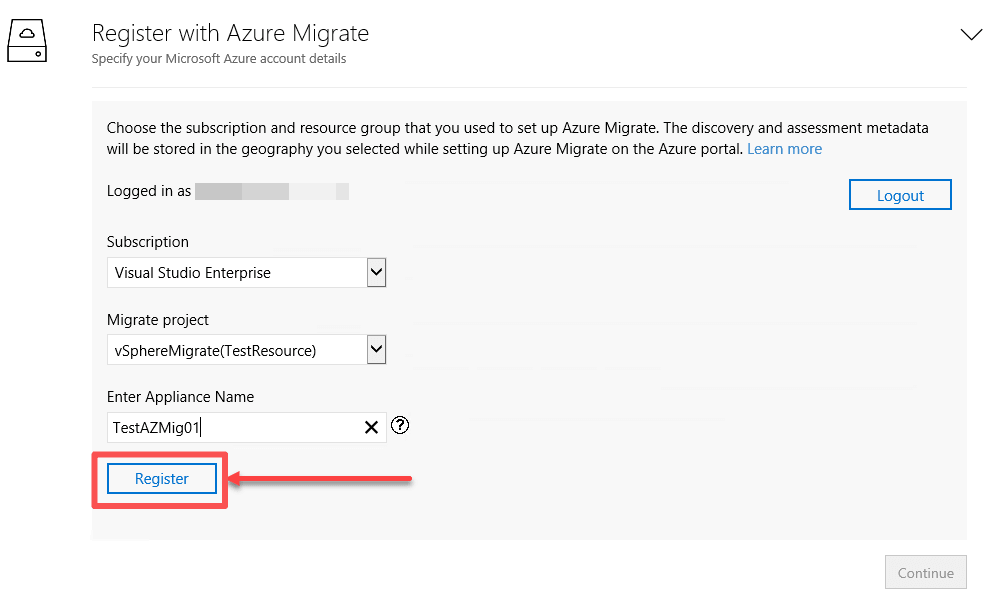
7. After successfully registered, click Continue
8. Provide vCenter Server name/IP, user name, and password to connect the Azure Migrate with the vCenter Server
9. Now, finish the set up discovery for Azure Migrate
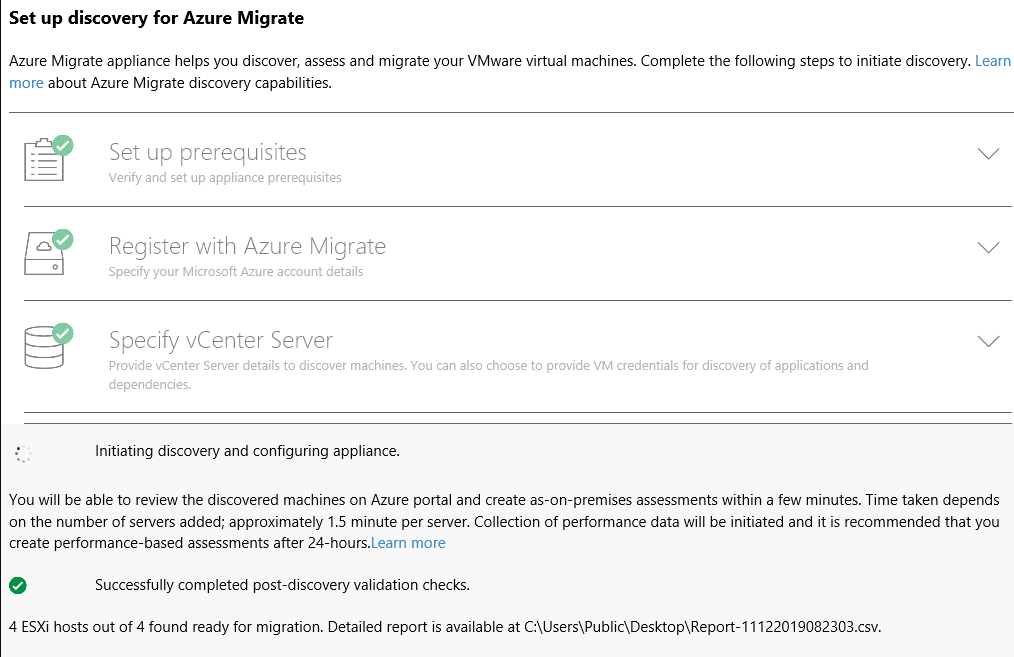
10. Navigate to Azure Migrate - Servers > Access Server to the assessment of the vSphere VMs
11. Create assessment name and assessment group, also select the discovered VMs. Then click Create assessment
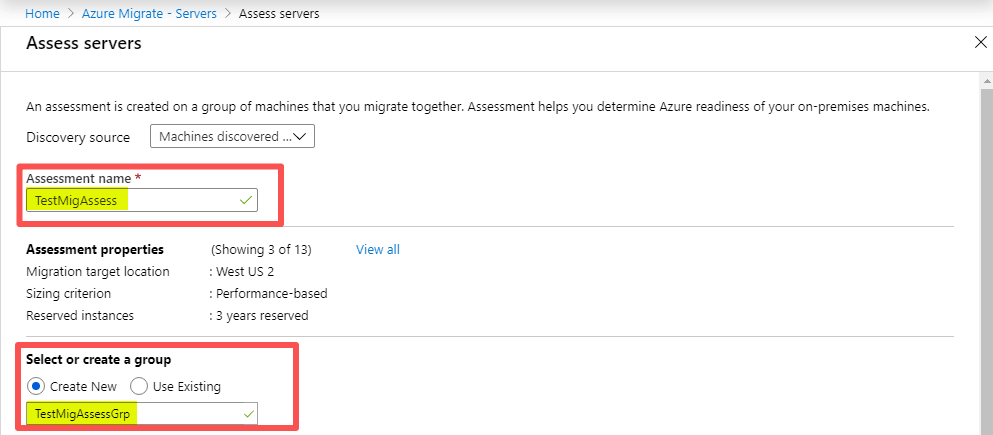
12. Now, you are ready to replicate the virtual machine data
Step 3. Replicate the VMware VM
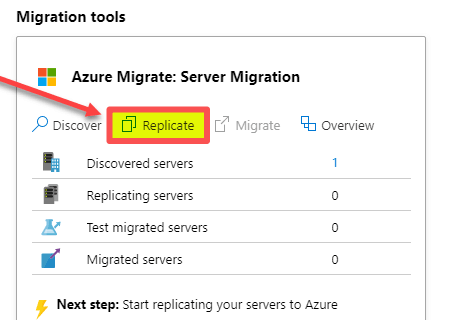
1. Under the Azure Migrate: Server Migration, click Replicate
2. In the Source setting, select the source hypervisor and the on-premises appliance
3. Choose the assessment and the VMs contained in the assessment for replication
4. Configuring target settings, compute configuration, and disk configuration
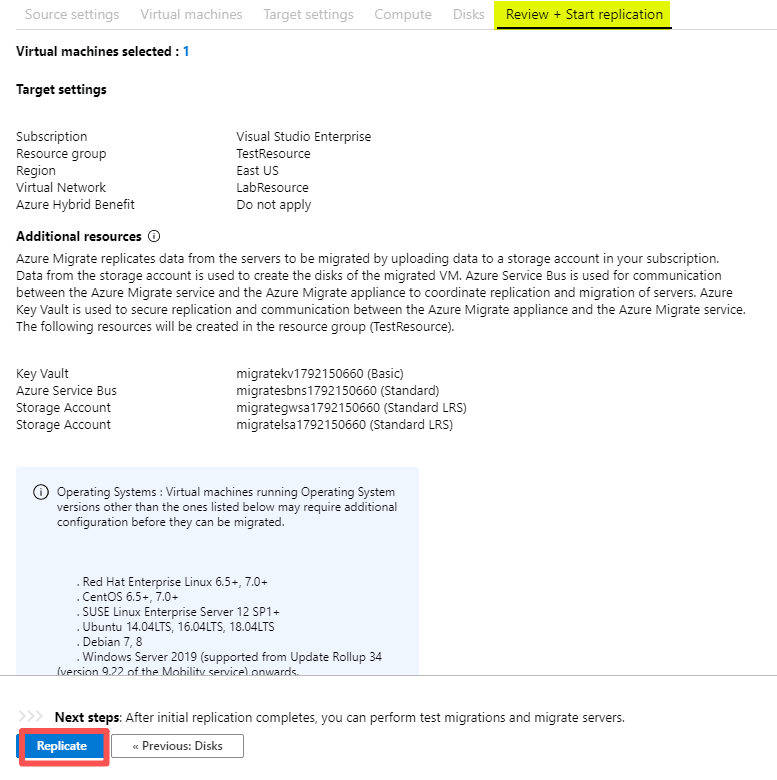
5. Then review your settings, and start replication
Step 4. Run Test Migration
1. Select the replicated VM, select Test Migration
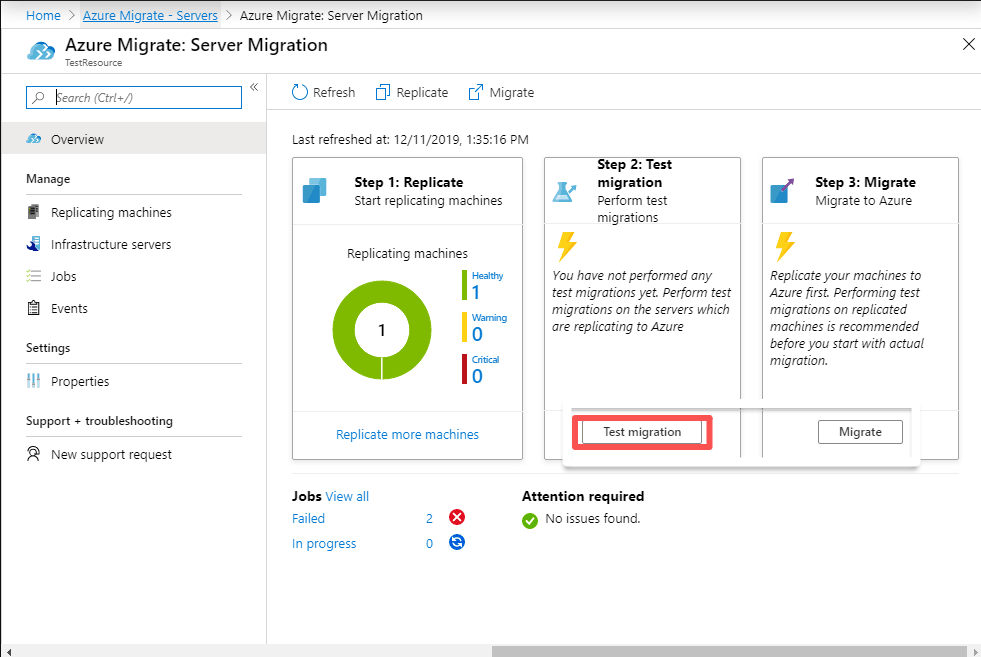
2. You will go to Azure Migrate: Server Migration > Migrating machines automatically, click Test migration
3. When the migration is successful, it will prompt to Clean up test migration, which means the test VM creates in Azure will be powered off and deleted
Step 5. Perform Final Migration
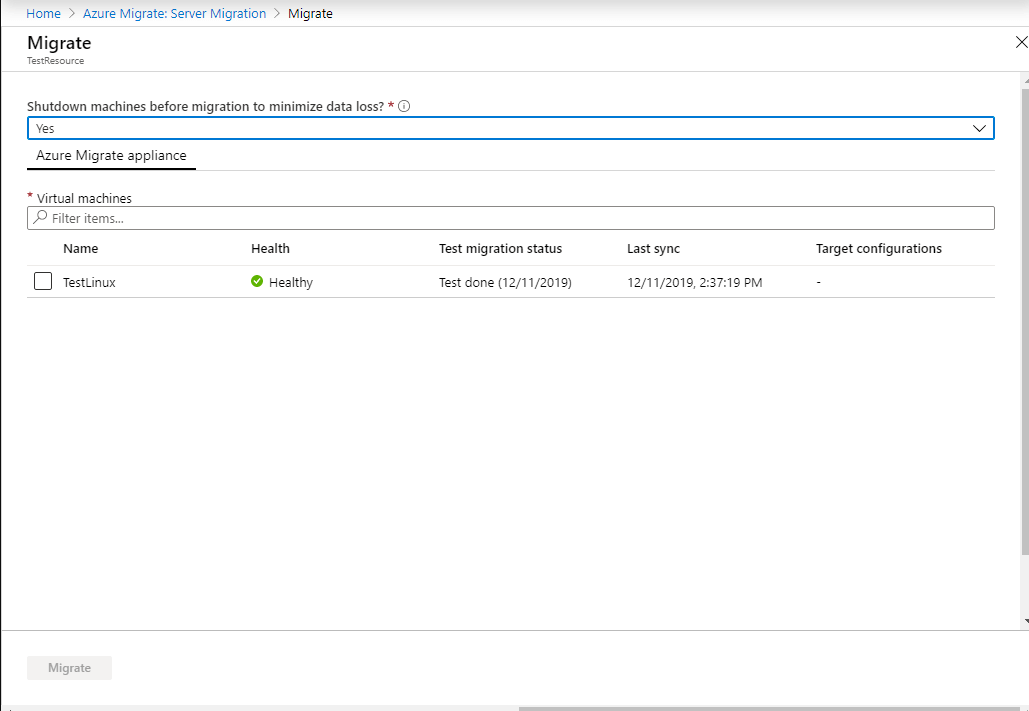
1. Now, move to Step 3: Migrate, click Migrate
2. Azure will perform final synchronization
Migrate VMware to Azure using Azure VMware Solution (AVS)
Azure VMware Solution is a fully managed VMware environment running natively on Microsoft Azure infrastructure.
Step 1. Deploy Azure VMware Solution Private Cloud
1. Log in to Azure Portal, select Create a resource
2. Search Azure VMware Solution
3. On the Azure VMware Solution, select Create
4. Select Azure region, host count, and networking range
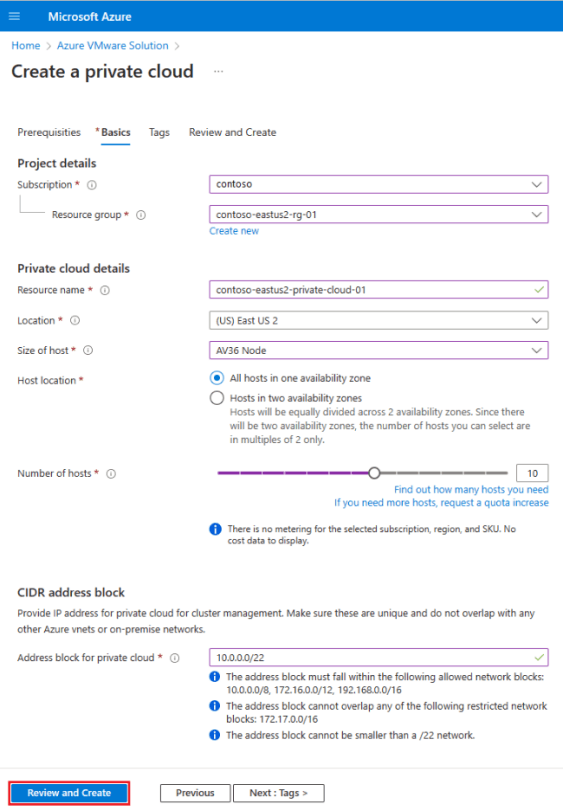
5. Wait for deployment completion
Step 2. Configure Networking Between On-Pre and AVS
After AVS deployment, establish communication between:
On-premises VMware
Azure VMware Solution
Option 1. Azure ExpressRoute (Recommended)
1. Create ExpressRoute circuit, and configure peering
2. Connect on-premises network to Azure
3. Validate routing
Option 2. Site-to-Site VPN
Smaller environments may use VPN instead of ExpressRoute.
Step 3. Enable VMware HCX
1. In Azure Portal > AVS, click Add-ons > Migration using HCX
2. Then enable HCX and upgrade to HXC Enterprise
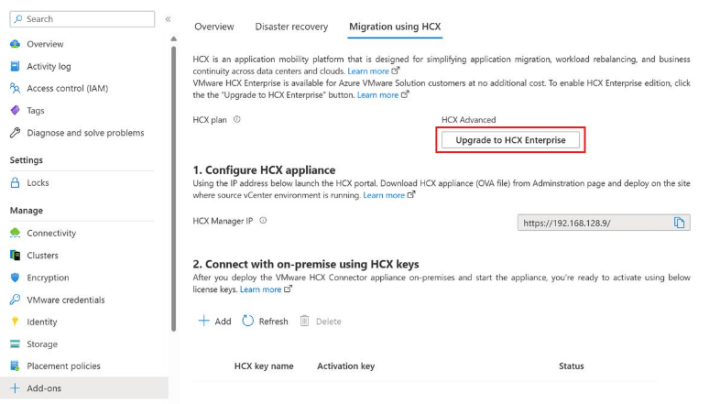
3. Download HCX Connector on-premises
Step 4. Deploy HCX Connector on-premises
1. Open HCX Manager, click HCX > Infrastructure > Site Pairing > Connect to Remote Site to pair HCX Sites
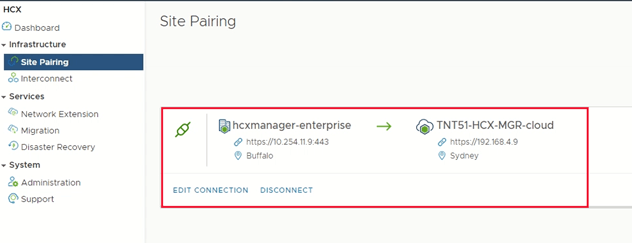
2. Enter the AVS HCX Manager URL and CloudAdmin credentials
3. In HCX, click Interconnect > Multi-Site Service Mesh > Network Profiles > Create network profile
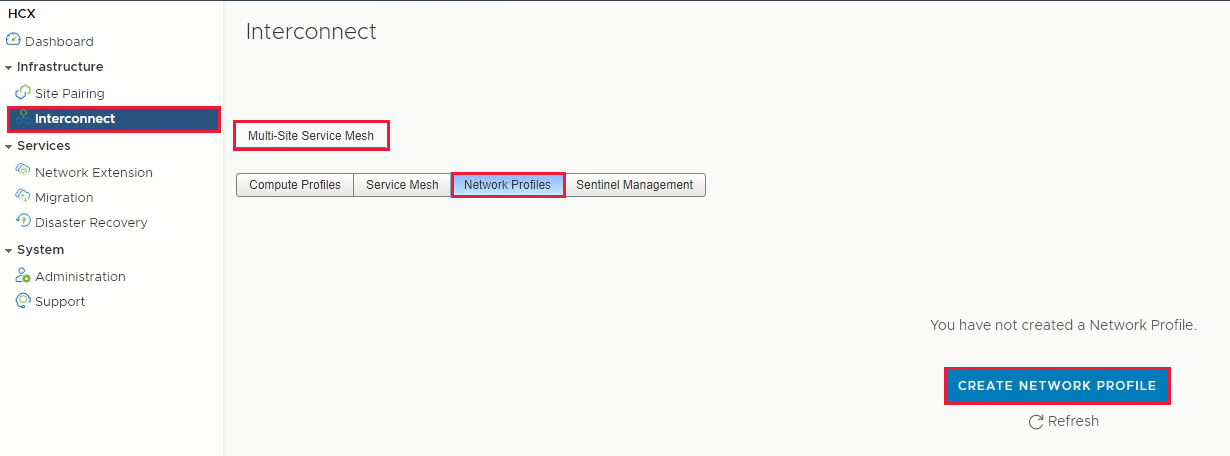
4. In HCX, click Interconnect > Compute Profiles
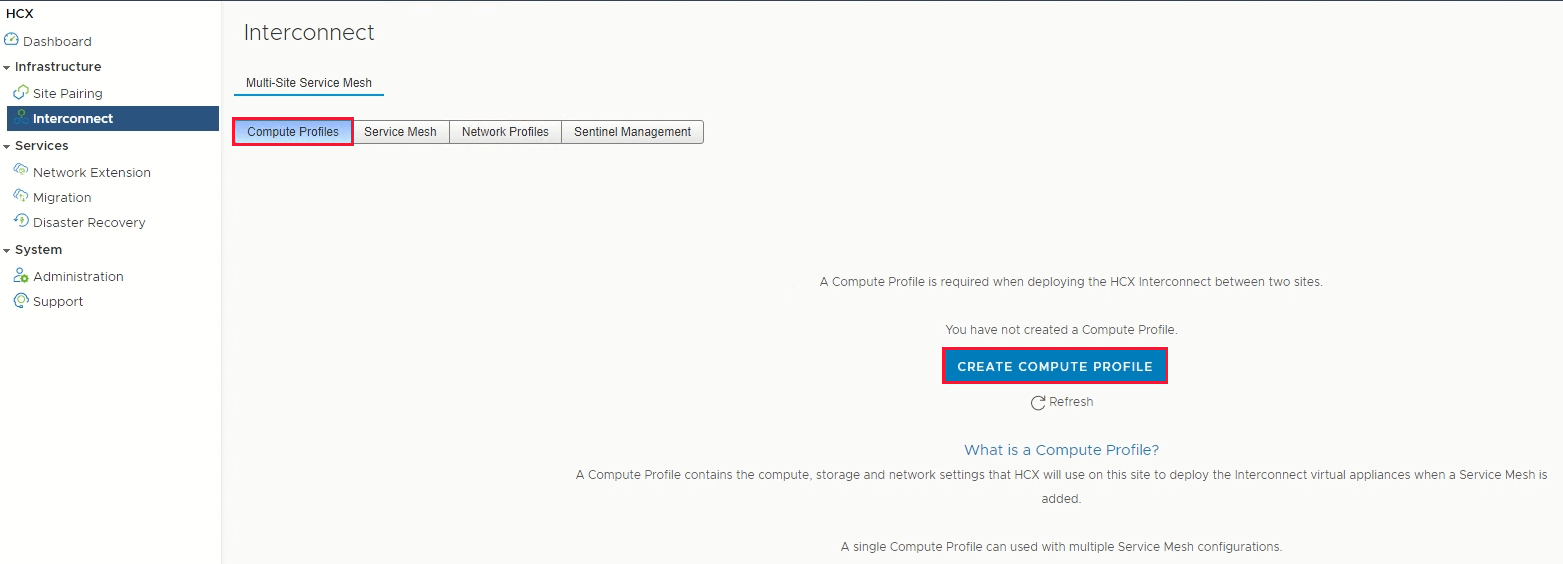
5. Under HCX > Interconnect, click Service Mesh
Note: If you hope VM IP unchanged and no need to modify application configuration, you can use HCX Network Extension.
Step 5. Start VMware Migration
1. In HCX, go to Migration > Migrate
2. You can choose the following migration methods
Method | Downtime | Best For |
Cold Migration | High | Small workloads |
Bulk Migration | Low | Most enterprises |
HCX vMotion | Near-zero | Critical VMs |
RAV | Near-zero | Large production workloads |
Note: Before cutover, you can run a test migration to test VM boot, validate network, verify DNS, and check AD conncetivity.
Vinchin Helps Protect VMware to Azure Migration Projects
During VMware-to-Azure migration projects, maintaining backup protection is essential.
Vinchin Backup & Recovery helps enterprises protect VMware environments before, during, and after migration by providing:
This allows organizations to maintain reliable recovery points throughout the migration lifecycle and quickly recover workloads if migration issues occur.
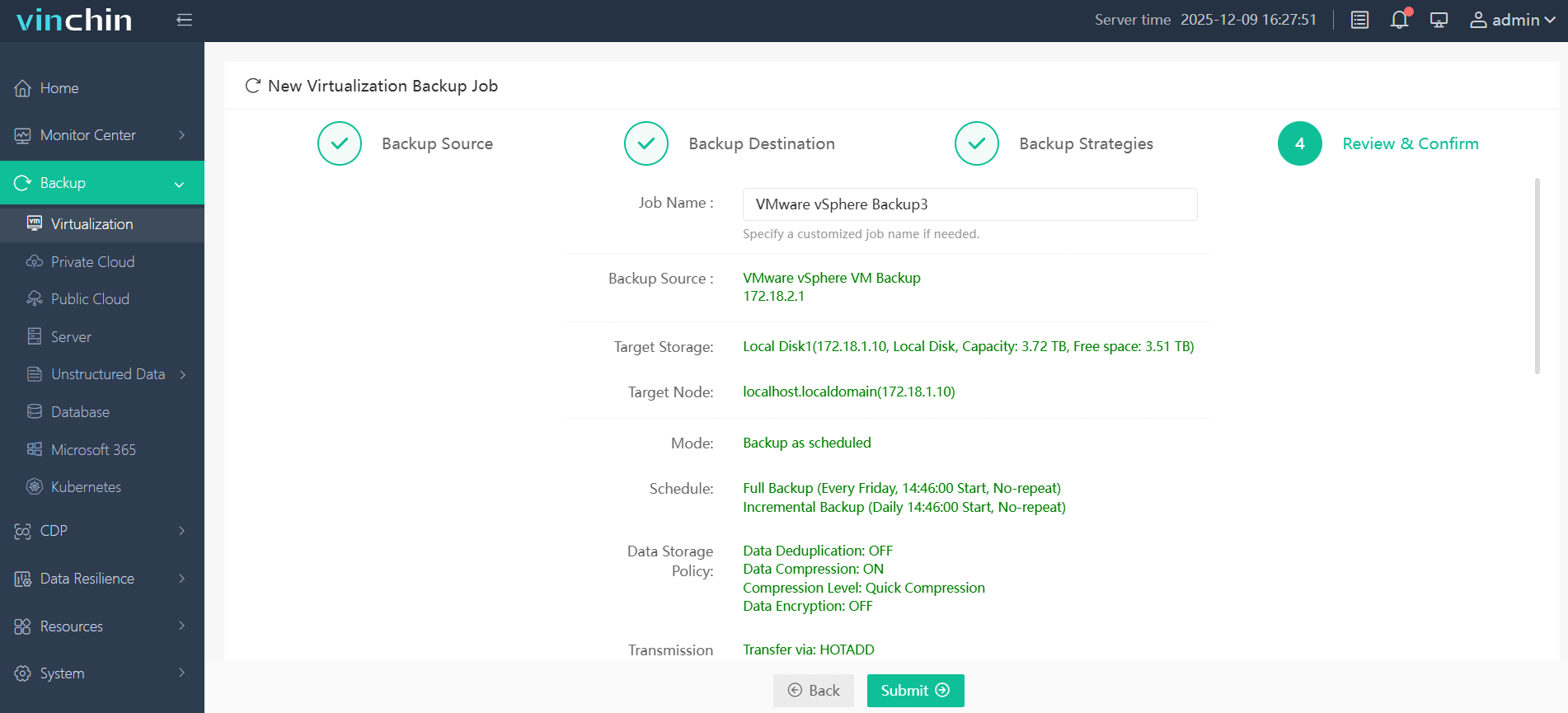
Easy and efficient steps are lists below:
1. Under Backup > Virtualization, select the VMware VMs you want to back up
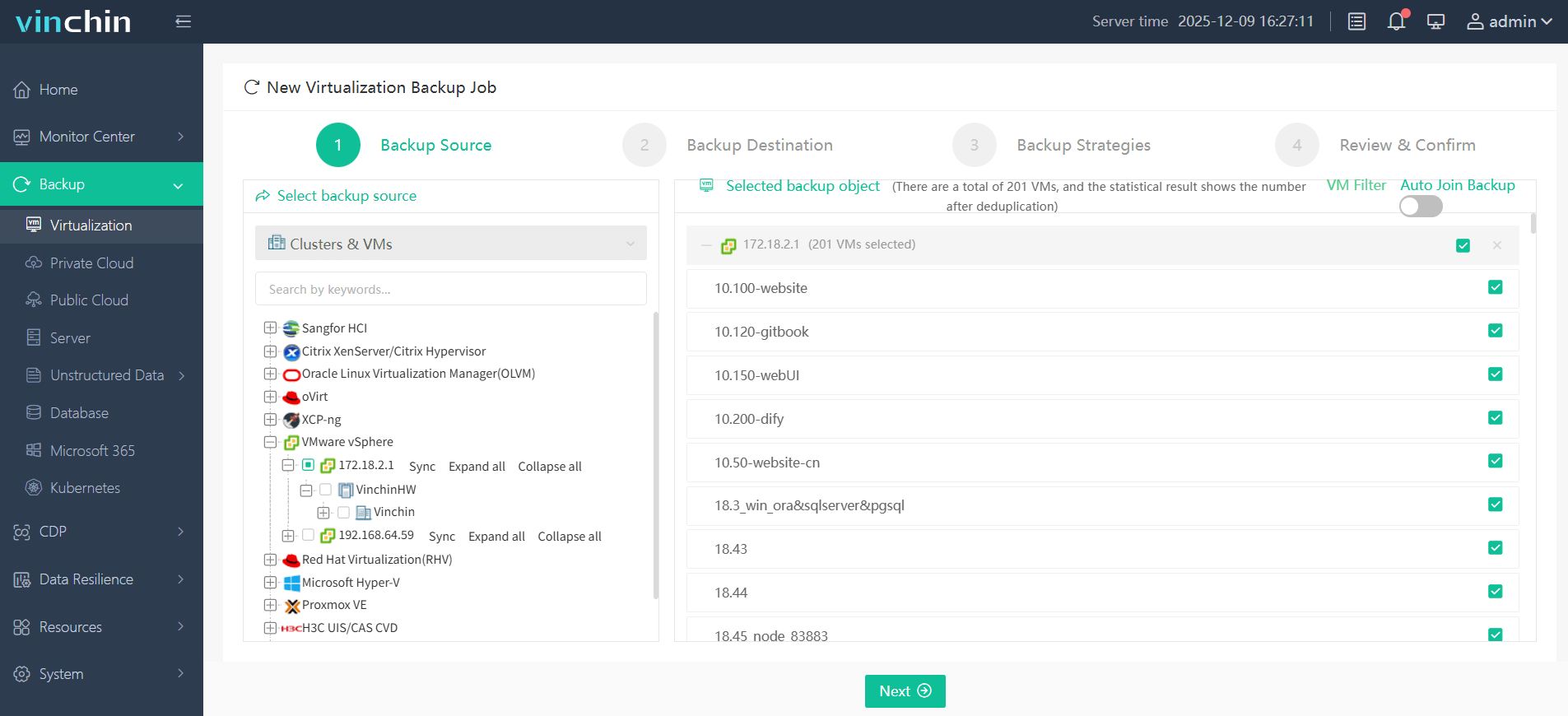
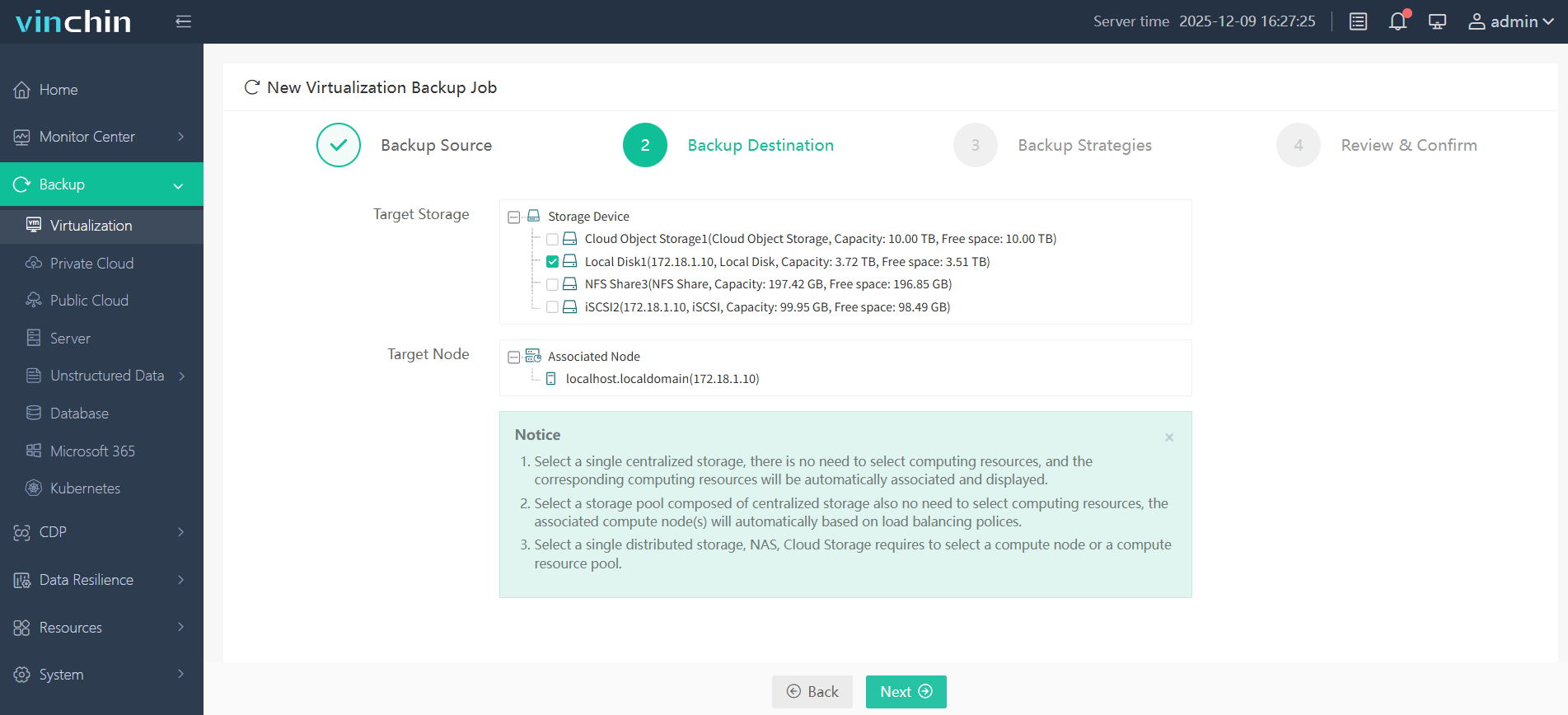
2. In Backup Destination, choose your target storage and node
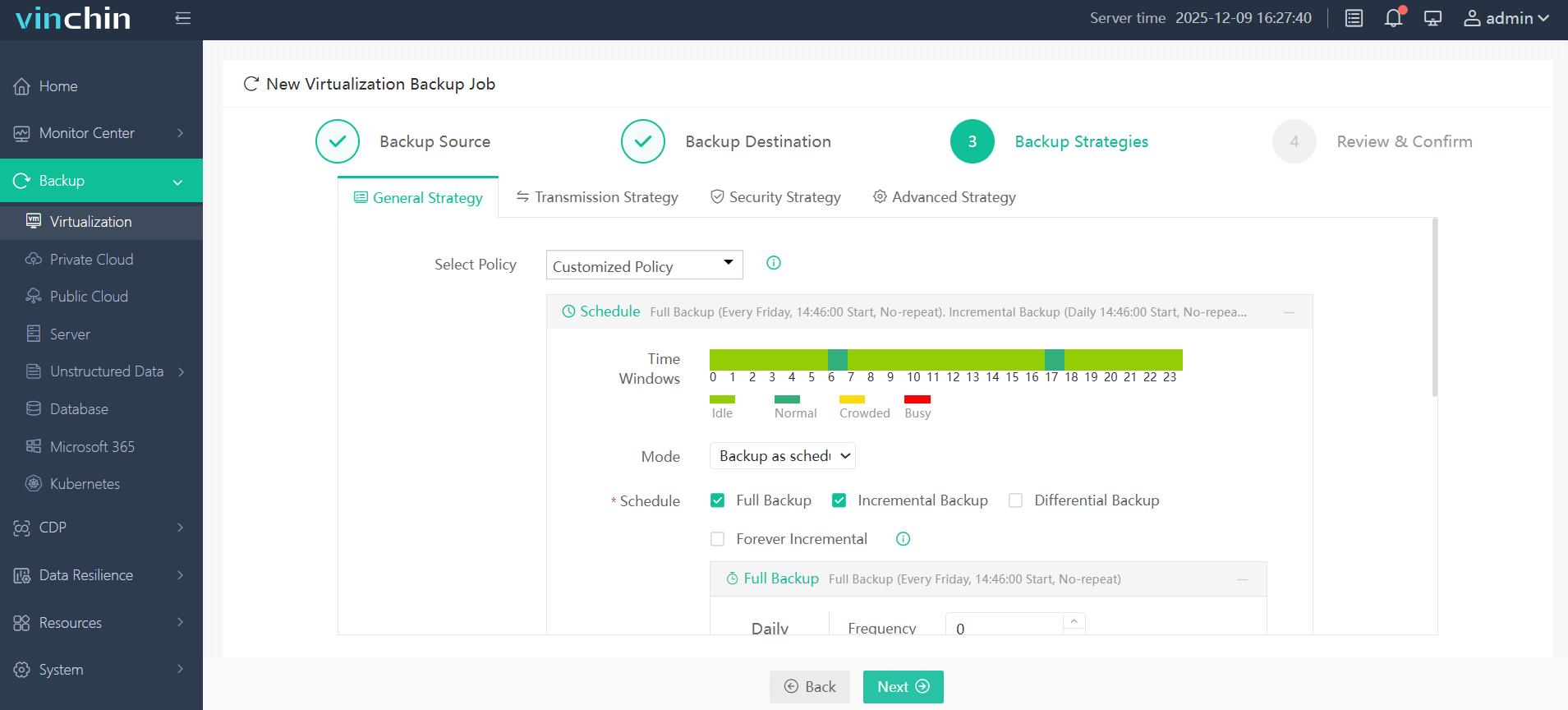
3. In Backup Strategies, configure backup mode and schedule
4. Review the backup settings, and click Submit
Download Vinchin Backup & Recovery now to get the 60-days full feature free trial! If you have any questions during the process just contact us, we'll provide solutions!
Migrate VMware to Azure FAQs
Q1: Is Azure VMware Solution a full replacement for VMware on-premises?
Not exactly. AVS runs VMware infrastructure inside Azure, so organizations still use VMware technologies while benefiting from Azure cloud infrastructure.
Q2: Is Azure VMware Solution the same as native Azure VM migration?
No, Azure VMware Solution (AVS) runs VMware natively on Azure infrastructure, while native Azure VM migration converts VMware workloads into Azure virtual machines managed directly through Azure services.
Final Thoughts
Migrating VMware to Azure enables organizations to improve scalability, reduce infrastructure limitations, and accelerate cloud adoption. Whether using Azure Migrate or Azure VMware Solution (AVS), proper planning, testing, and backup protection are essential for a smooth migration process. With solutions like Vinchin Backup & Recovery, businesses can further reduce migration risks and ensure reliable workload protection throughout the transition.