User Case
"Our organization is planning to migrate hundreds of VMware-hosted virtual desktops to Azure Virtual Desktop. Manually rebuilding session hosts, applications, and user environments would require significant effort, so we're looking for a way to automate the migration process while minimizing disruption."
As organizations accelerate cloud adoption, VMware to AVD (Azure Virtual Desktops) migration projects are becoming increasingly common, but large-scale deployments are often complex and time-consuming, especially when user profiles and applications must be reconfigured. Without automation, migration efforts can lead to extended downtime and operational overhead.
In this article, we will explain three practical methods to automate VMware to AVD migration and outline best practices for a smooth and reliable transition.
Prerequisites for Automated VMware to AVD Migration
1. Access Your VMware Environment
Before starting migration, ensure you have full administrative access to the VMware environment. This includes permissions to manage virtual machines, export configurations, and perform backup or snapshot operations if needed. Without proper access, automated migration workflows cannot be successfully executed.
2. Prepare Azure Resources
It’s required to prepare the target Azure environment in advance, including subscription, resource groups, virtual networks, storage accounts, and other basic resources. For Azure Virtual Desktop, make sure the host pool and workspace structure are properly planned to avoid configuration issues during migration.
3. Plan Azure Virtual Disk Deployment
A clear disk strategy is essential for a successful migration. You should define how VM disks will be mapped, whether managed disks will be used, and how to choose performance tiers (Standard or Premium SSD) based on business workloads.
4. Back Up Existing Virtual Machines
Before migration, it is crucial to create full backups of all VMware virtual machines. This ensures data security and provides a rollback ability in case of migration failure or unexpected issues. Ideally, backups should be verified and stored in a secure location.
Method 1: Migrate VMware to AVD Automatically Using Azure Migrate
Azure Migrate provides a centralized platform to access and migrate on-premises workloads to Azure. In a VMware-to-AVD scenario, it helps streamline the migration of virtual machines into Azure infrastructure, which can then be used to construct AVD session hosts.
1. Set up Azure Migrate Project
Create a migration project in the Azure portal, and deploy the discovery tool on VMware to scan all virtual machines.
2. Assess VMware VMs
Check whether VMs can run on Azure, and evaluate the required CPU, memory, and disk resources.
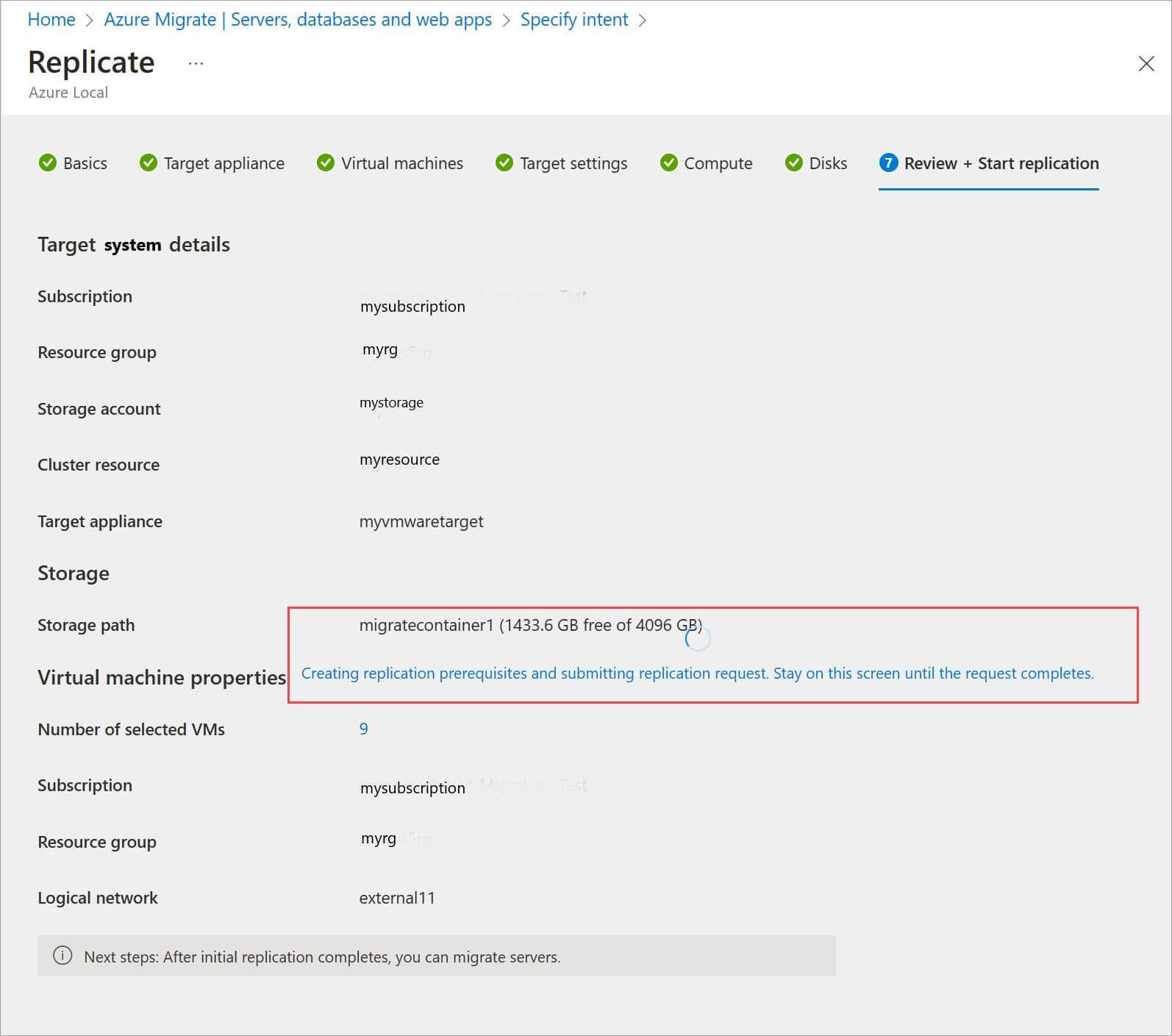
3. Replicate VMs to Azure
Enable continuous data replication for selected virtual machines to Azure.
4. Cutover and Validate Workloads
Switch business services from local VMware to Azure, and confirm all systems run normally.
Method 2: Automate VMware to AVD Migration Using PowerShell
PowerShell can automate parts of the VMware to AVD migration, such as provisioning, configuration, and batch tasks. By combining VMware PowerCLI with Azure modules, administrators can script repetitive operations and reduce manual effort in large-scale migrations.
1. Bulk VM inventory export
Extract VM details from VMware for migration planning.
2. Automated VM provisioning in Azure
Use scripts to create Azure resources such as virtual machines, networks, and storage.
# Login to Azure
Connect-AzAccount

# Create Resource Group
New-AzResourceGroup -Name "AVD-RG" -Location "East Asia"

# Create Virtual Network + Subnet
$vnet = New-AzVirtualNetwork -Name "AVD-VNet" `
  -ResourceGroupName "AVD-RG" `
  -Location "East Asia" `
  -AddressPrefix "10.0.0.0/16"

Add-AzVirtualNetworkSubnetConfig -Name "Subnet1" `
  -AddressPrefix "10.0.1.0/24" `
  -VirtualNetwork $vnet | Set-AzVirtualNetwork

# Create Storage Account
New-AzStorageAccount -Name "avdstorage12345" `
  -ResourceGroupName "AVD-RG" `
  -Location "East Asia" `
  -SkuName "Standard_LRS"3. User and profile configuration
3. User and profile configuration
Automate user mapping and profile setup for AVD environments.
4. Batch VM shutdown and preparation
Automate VM shutdown, snapshot creation, and pre-migration checks.
Method 3: Automate VMware to AVD Migration via Azure Site Recovery
Azure Site Recovery (ASR) is a disaster recovery and migration service that can be used to replicate workloads from VMware to Azure.
1. Set up Recovery Services vault
Create a Recovery Services vault in Azure and configure it for VMware replication.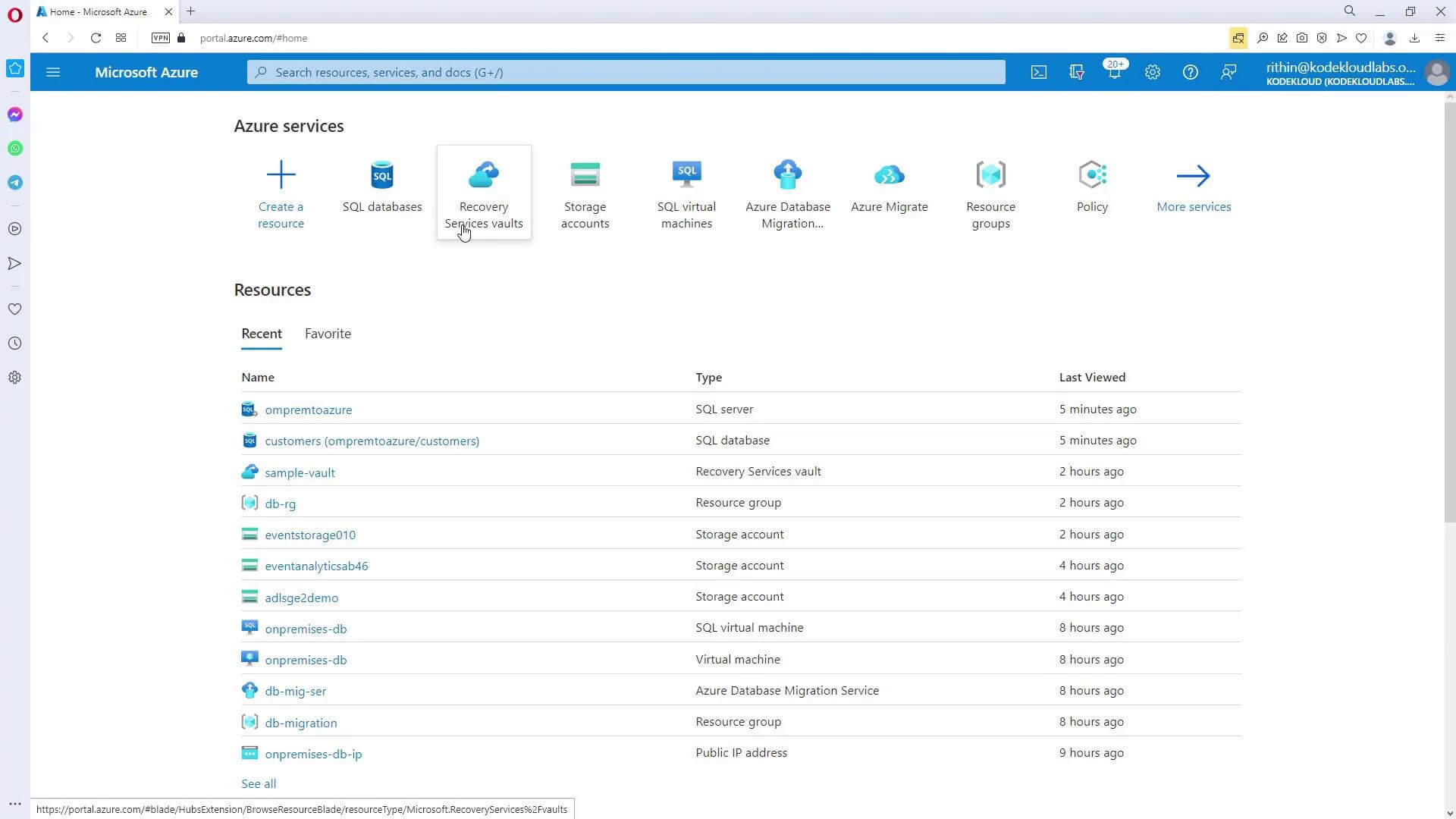
2. Deploy and configure replication appliance
Install the ASR configuration server and mobility service in the VMware environment.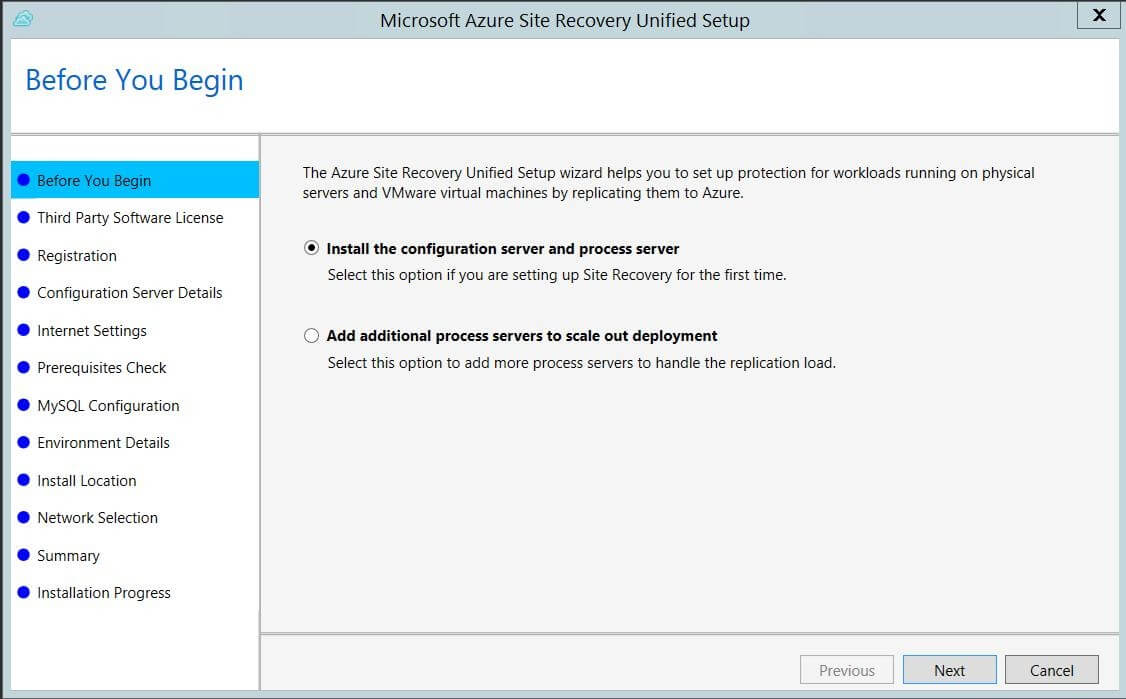
3. Enable VM replication
Select VMware virtual machines and enable continuous replication to Azure.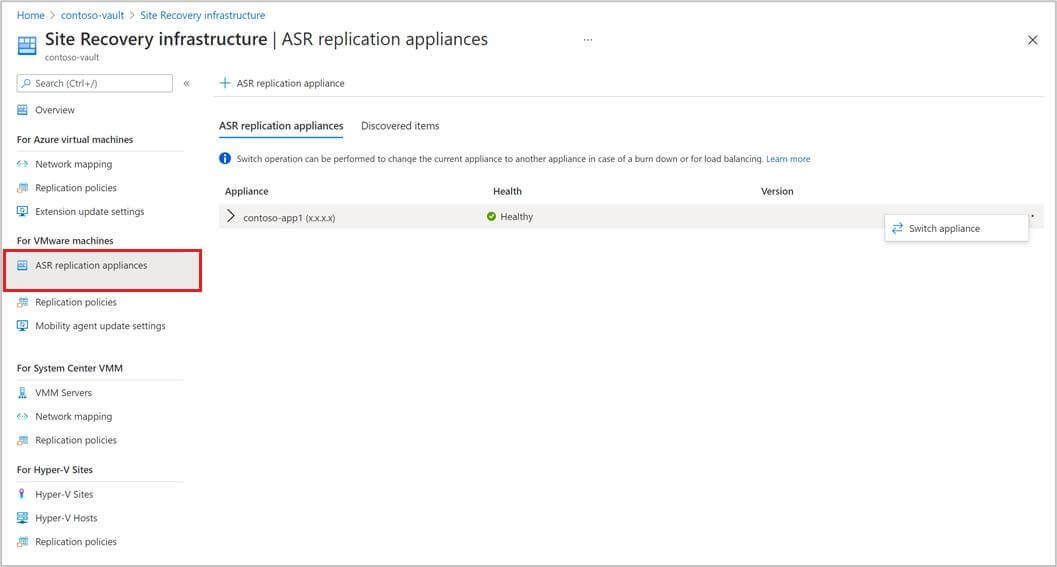
4. Perform failover to Azure
Trigger failover to bring replicated VMs online in Azure for validation or production use.
Protect VMware Workloads Before AVD Migration with Vinchin
Migrating VMware virtual desktops to AVD involves multiple stages, including workload assessment, data transfer, environment deployment, and user profile migration. While migration tools such as Azure Migrate and Azure Site Recovery are commonly used to move workloads to Azure, ensuring data protection throughout the process is equally important.
Vinchin Backup & Recovery can help organizations safeguard VMware virtual machines before, during, and after the migration. By creating reliable backups of source VMs, IT teams can reduce the risk of data loss caused by migration failures, configuration errors, or unexpected disruptions.
Key benefits include:
Wide compatibility across over 15 virtualization platforms (VMware, Proxmox, Hyper-V, etc)
Agentless backup for VMware virtual machines
Incremental backup technology to reduce backup windows and storage consumption
Fast VM recovery to minimize downtime if migration issues occur
Flexible restore options for business continuity and rollback scenarios
Centralized management for protecting large-scale VMware environments
If you have critical production data to store and migrate, look here:
Note: You need to back up the VMware virtual machine first, and then follow the recovery process.
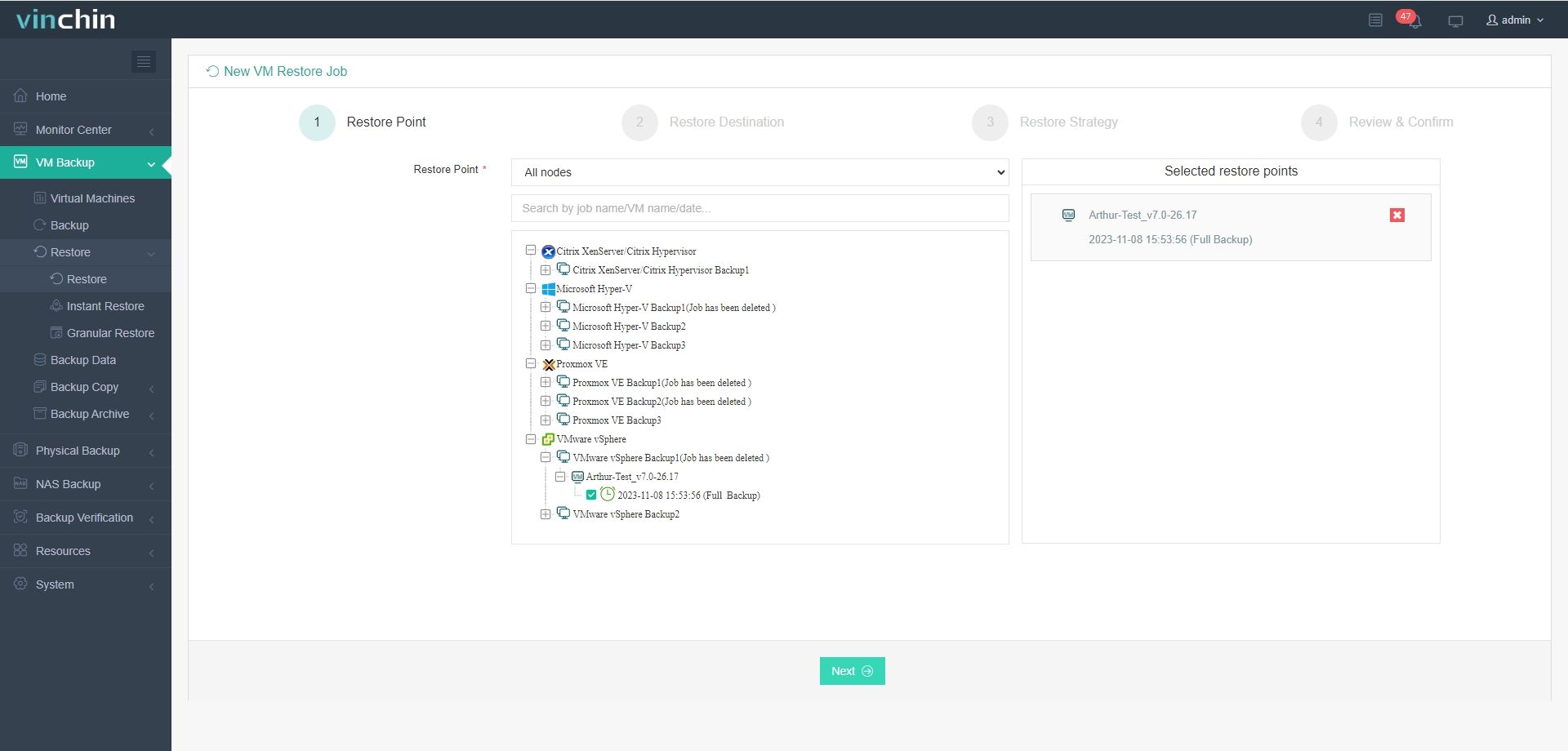
1. Install and open the Vinchin Backup & Restore software, then go to VM Backup > Restore, and select the VMware backup storage you created before as the restore point.
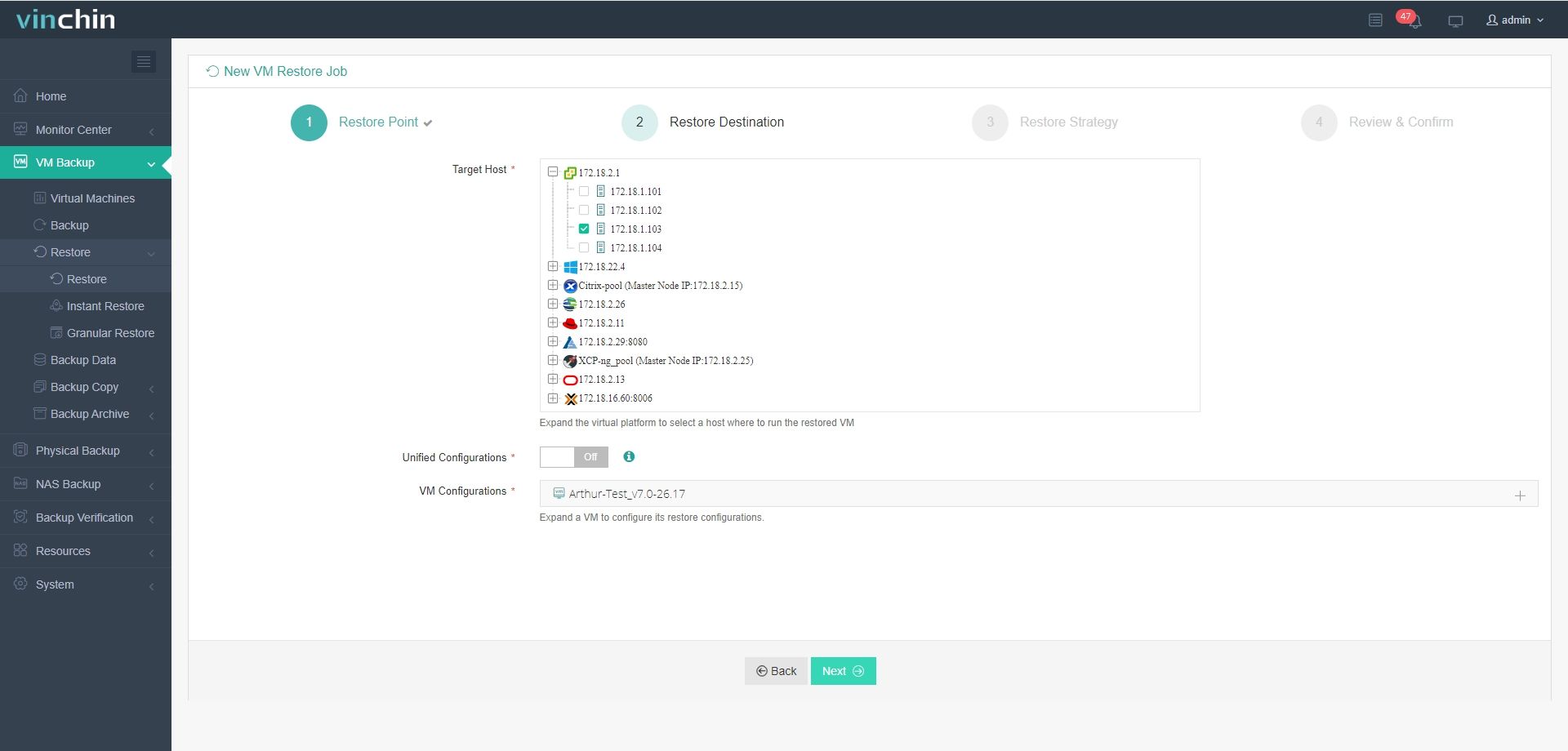
2. Choose the target host as the restore destination and finish other configuration settings.
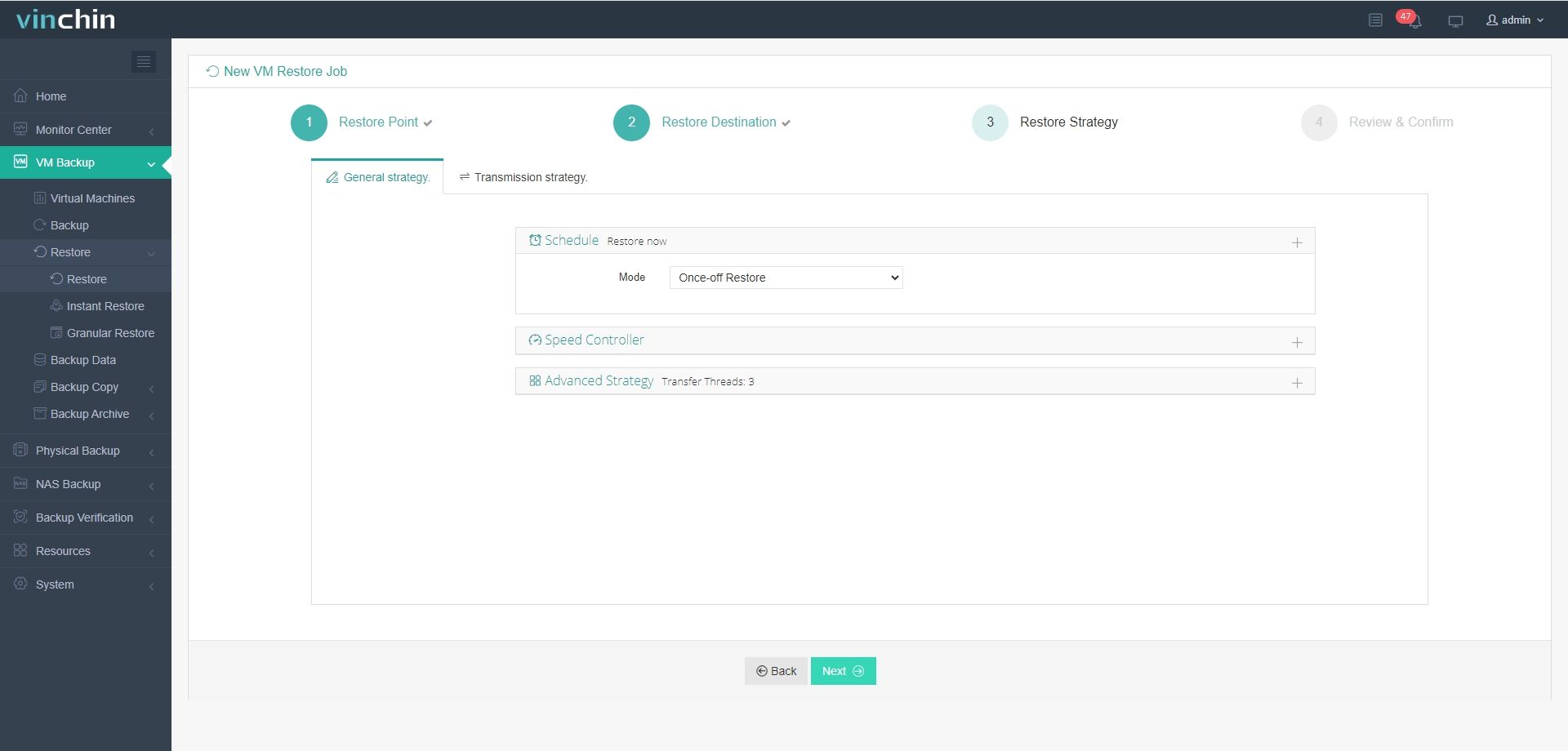
3. Customize the restore strategies by either starting the task right now or scheduling it with specific time plans.
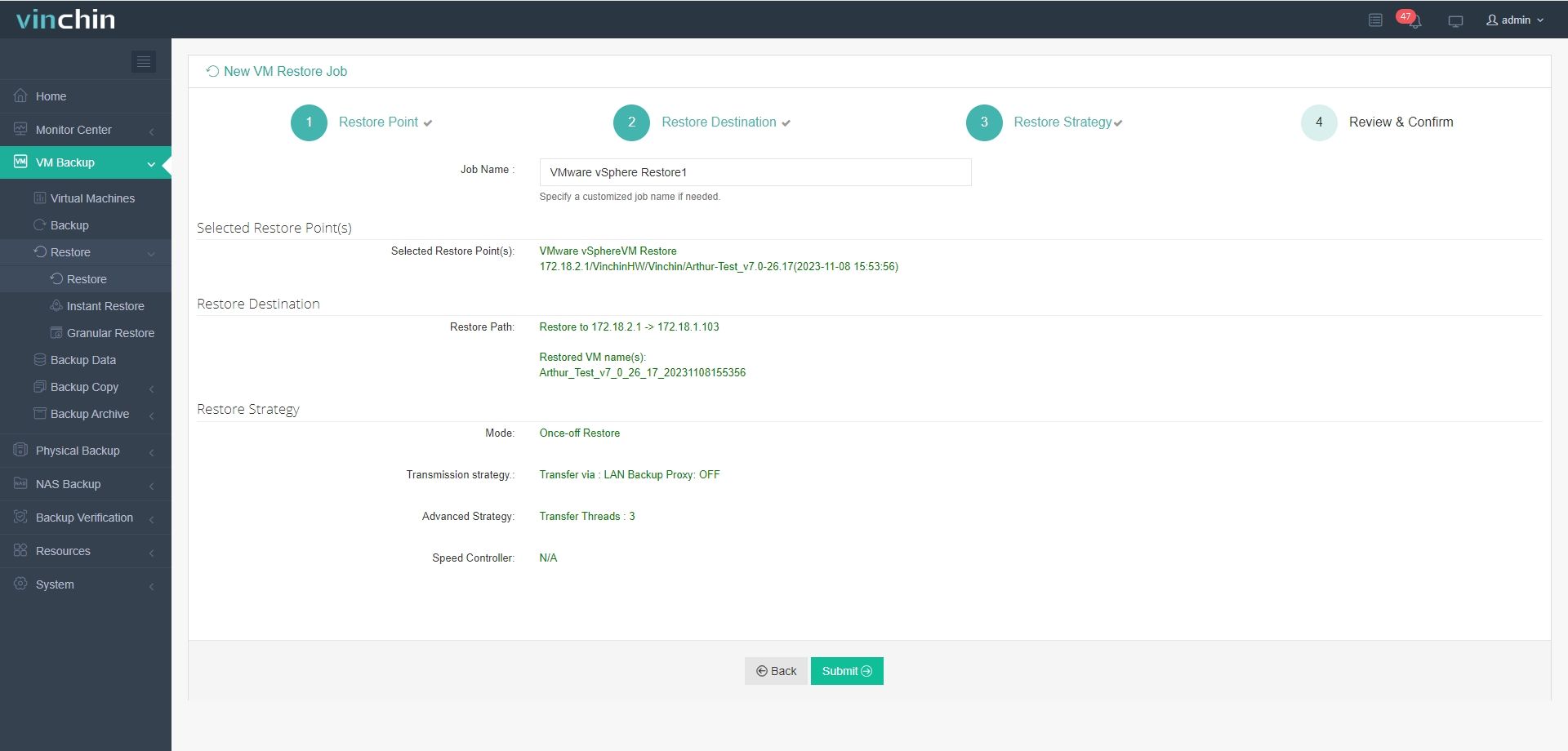
4. Finally, name the job, review all the settings, and hit Submit to run the task.
As a trusted enterprise-grade data protection solution, Vinchin has earned strong recognition from organizations worldwide. Click the Download button below to start a 60-day free trial and explore its full set of features.
Best Practices for Auto Migrating VMware to AVD
To successfully migrate VMware to AVD, it requires more than selecting the right migration tool. Following proven best practices can help minimize downtime, reduce risks, and ensure a smoother transition for end users.
Test Before Production Migration
Conduct a pilot migration with a small group of users or workloads before moving production environments. This helps identify compatibility, performance, and configuration issues early.
Migrate in Phases
Move workloads and users in stages rather than all at once. A phased approach reduces risks and makes it easier to troubleshoot issues without impacting the entire organization.
Automate Repetitive Tasks
Use PowerShell, Azure Automation, or Infrastructure-as-Code tools to automate provisioning and configuration tasks. Automation improves consistency, reduces manual effort, and speeds up the migration process.
Maintain Verified Backups
Create and verify backups of VMware virtual machines before starting the migration. Reliable backups provide a recovery option and help minimize downtime if unexpected issues occur.
Automate VMware to AVD Migration FAQs
Q1: Can VMware virtual desktops be migrated directly to Azure Virtual Desktop?
No. Azure Virtual Desktop does not provide a direct one-click conversion from VMware virtual desktops. Most organizations use tools such as Azure Migrate, Azure Site Recovery, or custom automation scripts to move VMware workloads to AVD and rebuild the desktop environment.
Q2: How long does it take to migrate VMware to AVD?
The timeline depends on factors such as the number of virtual machines, data volume, network bandwidth, and application complexity. Small deployments may be completed within days, while large enterprise migrations can take several weeks or months.
Q3: What tasks can be automated during a VMware-to-AVD migration?
Many migration activities can be automated to reduce manual effort and improve consistency. Common examples include virtual machine replication, Azure resource provisioning, network configuration, user assignment, policy deployment, and post-migration validation.
Closing Thoughts
Automation helps reduce manual effort, minimize human errors, and improve migration efficiency when organizations move VMware workloads to AVD. In this article, we explored three practical automation approaches: Azure Migrate, PowerShell, and Azure Site Recovery. For organizations seeking additional data protection and migration flexibility, Vinchin Backup & Recovery can help ensure data security and facilitate workload transfer throughout the migration process. Select the solution that best fits your environments and business requirements.