What Is a VirtualBox VM Backup?
A VirtualBox VM backup is a copy of the virtual machine’s files, virtual disks, and configurations that can be used to restore the VM when problems occur. Regular backups help prevent data loss and reduce downtime caused by unexpected failures.
Common reasons to back up a VirtualBox VM include:
Host failure: Hardware or operating system issues on the host machine can make VMs inaccessible.
VM file corruption: Virtual disk or configuration files may become damaged due to crashes or improper shutdowns.
Accidental deletion: Important VM files or the entire virtual machine may be deleted by mistake.
Failed updates or changes: Software upgrades and configuration changes can sometimes leave a VM unusable.
Fortunately, there are several ways to back up a VirtualBox VM, from manually copying VM files to using dedicated backup software.
Method 1: Back UP VirtualBox by Copying VM Files
This method creates a backup by manually copying the virtual machine's files to another storage location. It is simple, free, and suitable for individual users or small test environments.
Step 1. Shut Down the Virtual Machine
Before copying any files, completely power off the virtual machine. Avoid copying VM files while the VM is running, as this may result in inconsistent or corrupted backup data.
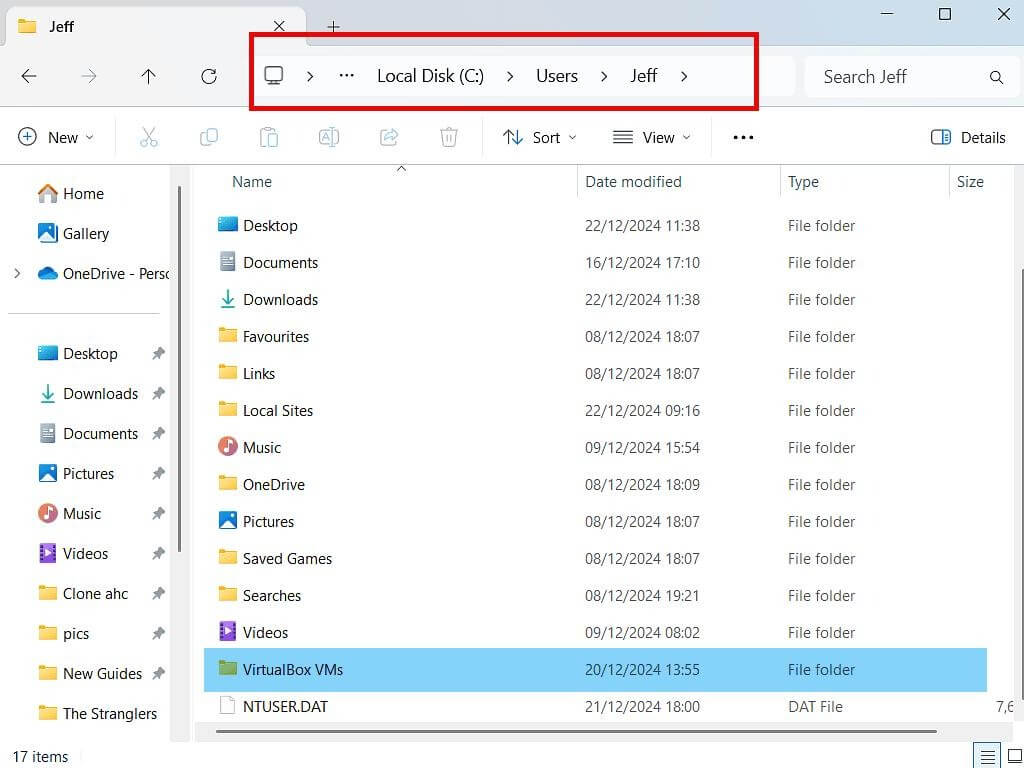
Step 2. Locate the VirtualBox VM Folder
By default, VirtualBox stores VM files in the following locations:
Windows:
C:\Users\Username\VirtualBox VMs
Linux:
~/VirtualBox VMs
MacOS:
~/VirtualBox VMs
Open the VM folder and locate the virtual machine you want to back up.
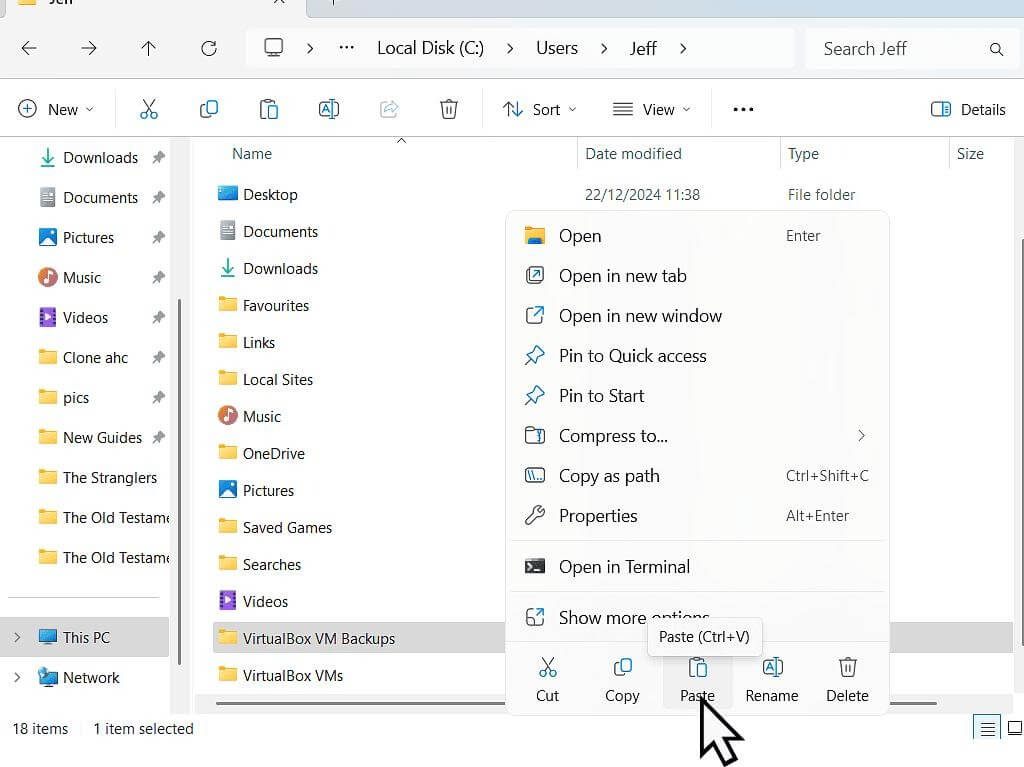
Step 3. Copy the VM Files to a Backup Location
Copy the entire VM folder, including all virtual disk files (.vdi, .vmdk), configuration files (.vbox), and snapshots if applicable. Then paste the folder to a different location, such as an external hard drive or a NAS device.
Step 4. Verify the Backup
After the copy process is complete, confirm that all files have been successfully transferred and that the backup folder size matches the original VM folder.
Method 2: Export VirtualBox as an Appliance (OVA)
This method backs up a VirtualBox virtual machine by exporting it as an OVA file, a portable format that can be easily archived, transferred, or imported into another virtualization environment.
Step 1. Power Off the Virtual Machine
Shut down the VM to ensure all data is saved and consistent before exporting.
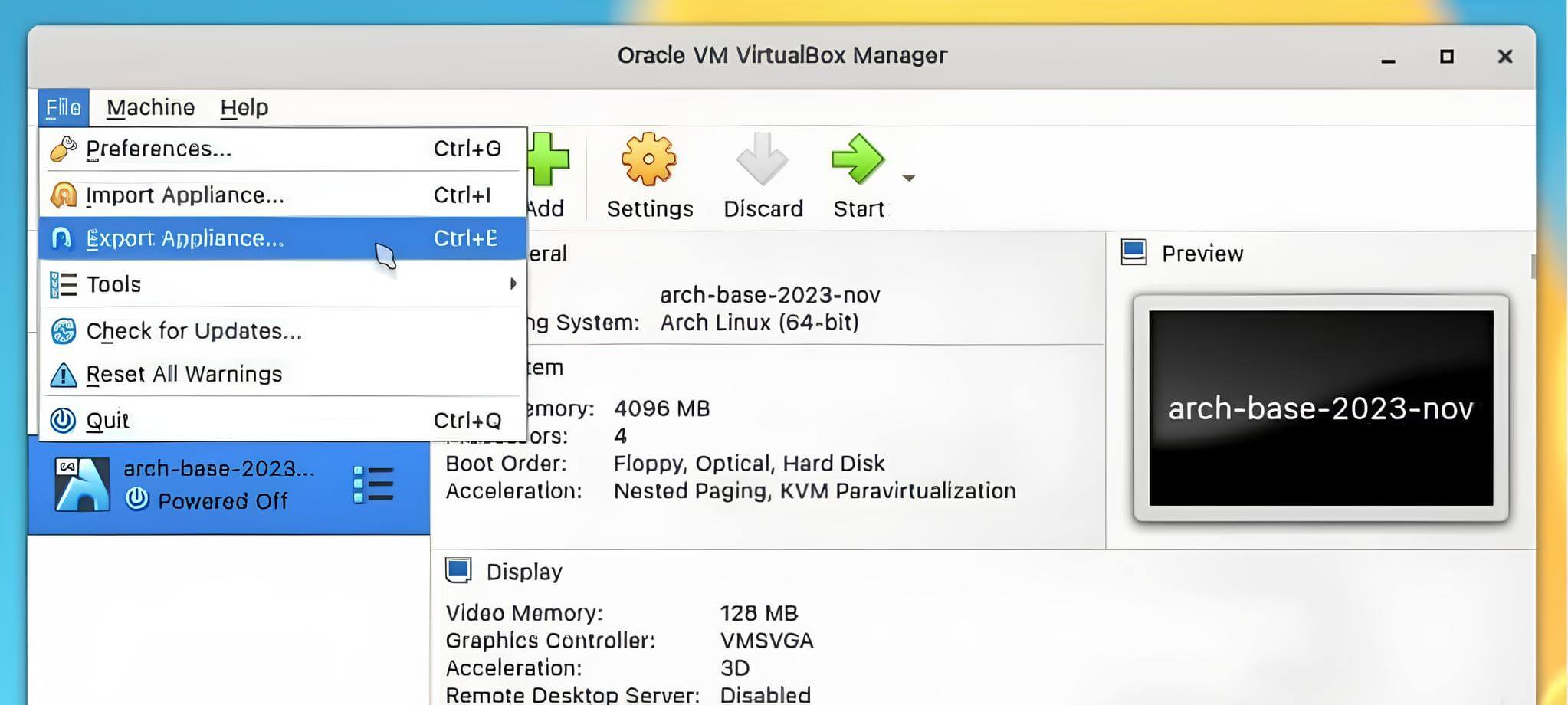
Step 2. Open the Export Appliance Wizard
In VirtualBox Manager, select the VM and click File > Export Appliance.
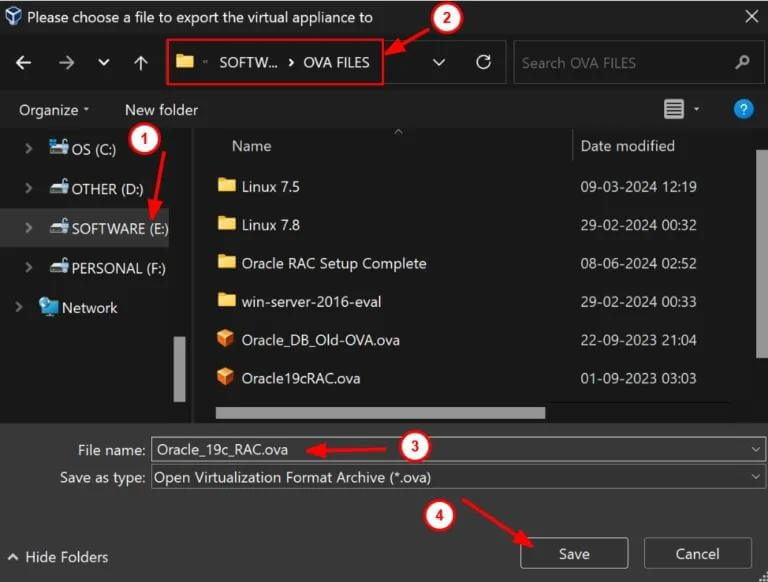
Step 3. Export the VM as an OVA File
Choose the destination location, select the OVA format, and click Finish to start the export process.
Step 4. Store and Verify the Backup
Once the export is complete, verify that the OVA file was created successfully and store it in a secure backup location.
Method 3: Clone a VirtualBox VM
This method creates a complete copy of an existing virtual machine, allowing you to preserve a working version before making major changes or upgrades.
Step 1. Power Off the Virtual Machine
Shut down the VM to ensure all data is saved before cloning.
Step 2. Open the Clone Wizard
In VirtualBox Manager, right-click the VM and select Clone.
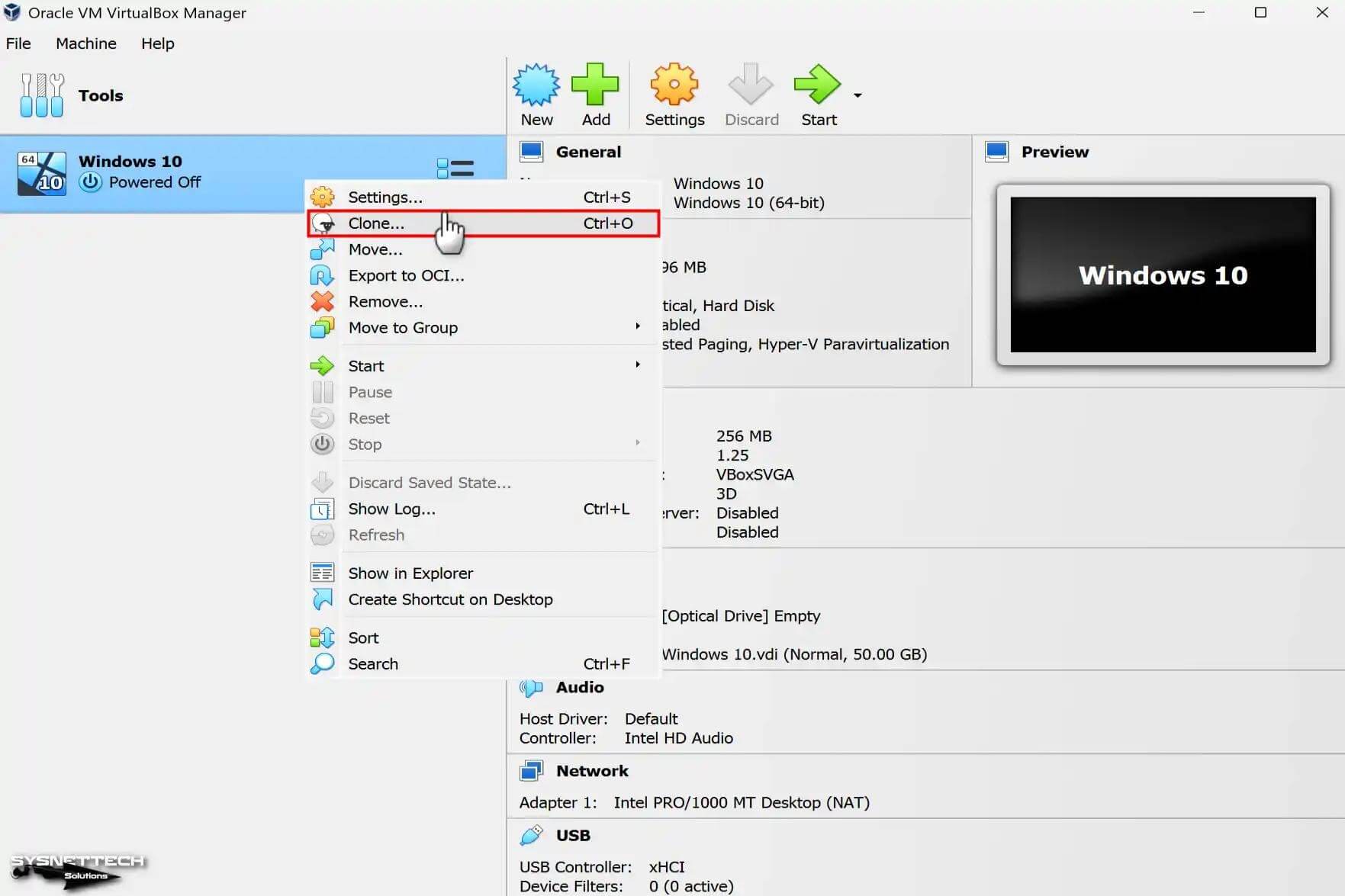
Step 3. Configure the Clone Settings
Enter a name for the cloned VM, select Full Clone, and follow the wizard to create a complete copy of the virtual machine.
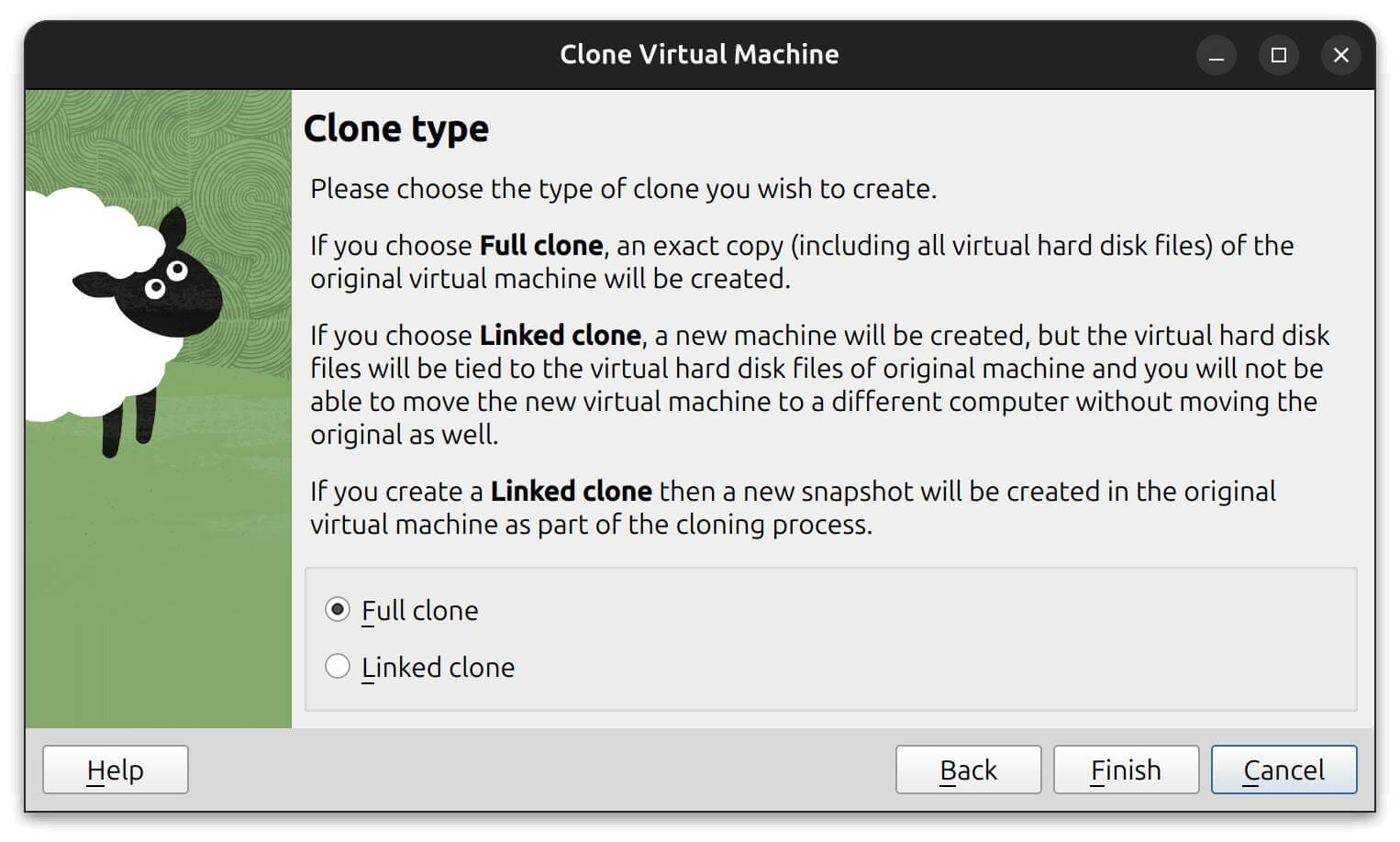
Step 4. Verify the Cloned VM
After the cloning process is complete, start the cloned VM and confirm that it functions properly.
Method 4: Back Up VirtualBox VMs Using Host-Level Backup Software
Host-level backup software protects VirtualBox virtual machines by backing up the VM files at the system level, without requiring changes inside the guest OS. This approach is more automated, scalable, and reliable compared to manual backup methods.
Vinchin Backup & Recovery provides a host-level backup solution that can protect VirtualBox VMs by capturing their virtual disks and configuration files from the host system. It supports centralized management and automated backup policies, making it suitable for both small environments and enterprise virtual infrastructures.
Note: Vinchin Backup & Recovery provides native VM backup only for enterprise virtualization platforms (VMware, Proxmox VE, Hyper-V, etc.). VirtualBox cannot be backed up via the virtualization backup module, but you can protect VirtualBox VMs with file-level backup.
You need to back up the VMware virtual machine first, and then follow the recovery process.
Preparations
Step 1: Install Vinchin Agent on Windows Host
Download the Windows Agent from the Vinchin Web Console, then right-click the installer and run it as an administrator.
Step 2: Authorize Agent for File Backup
Go to Resource Management > Agent Management > Select Windows Host > Authorization to enable File Backup permission.
Create File Backup Task for VirtualBox VMs
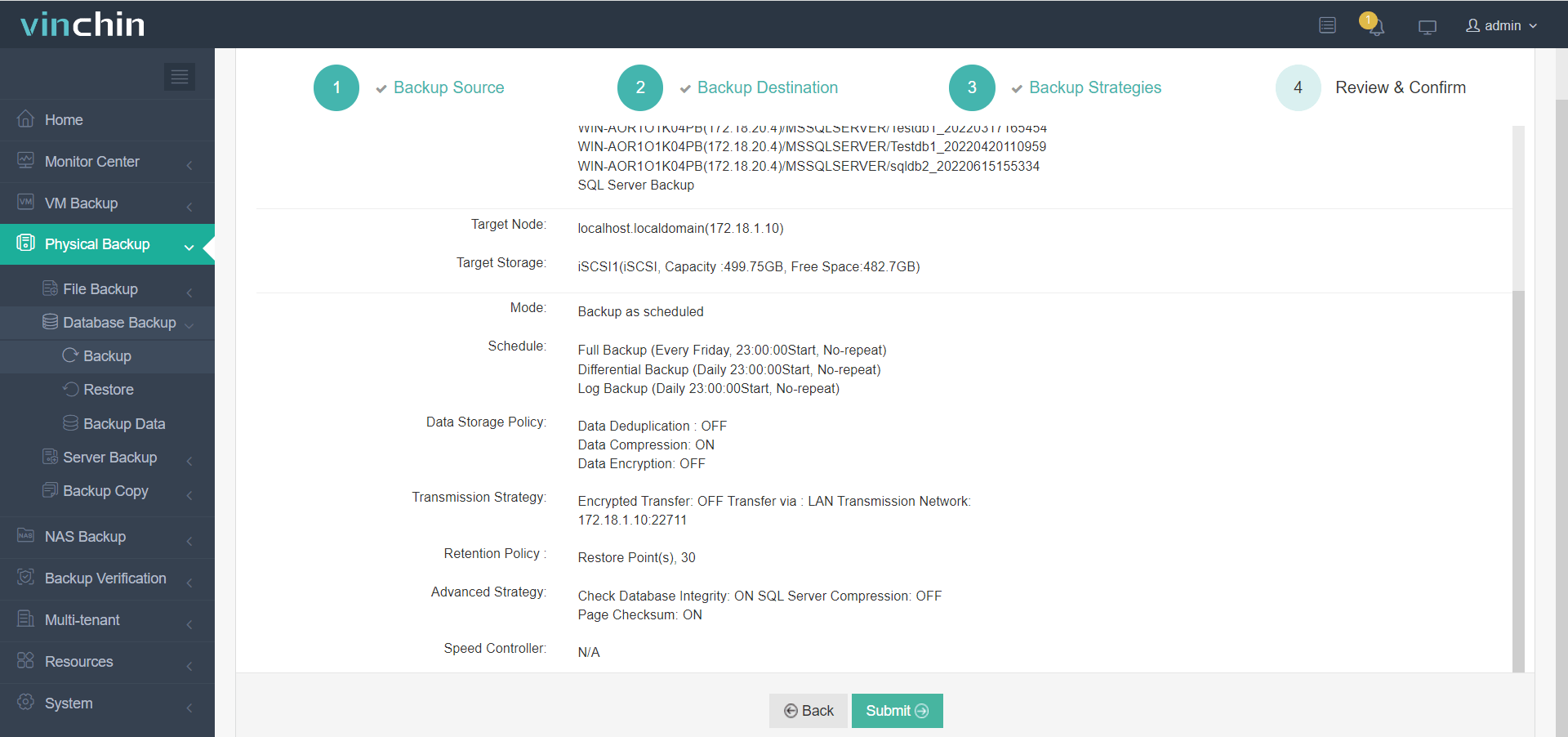
1. Navigate to Physical Backup > File Backup > Backup. Select the complete VirtualBox VMs folder as the backup source, then click Next.
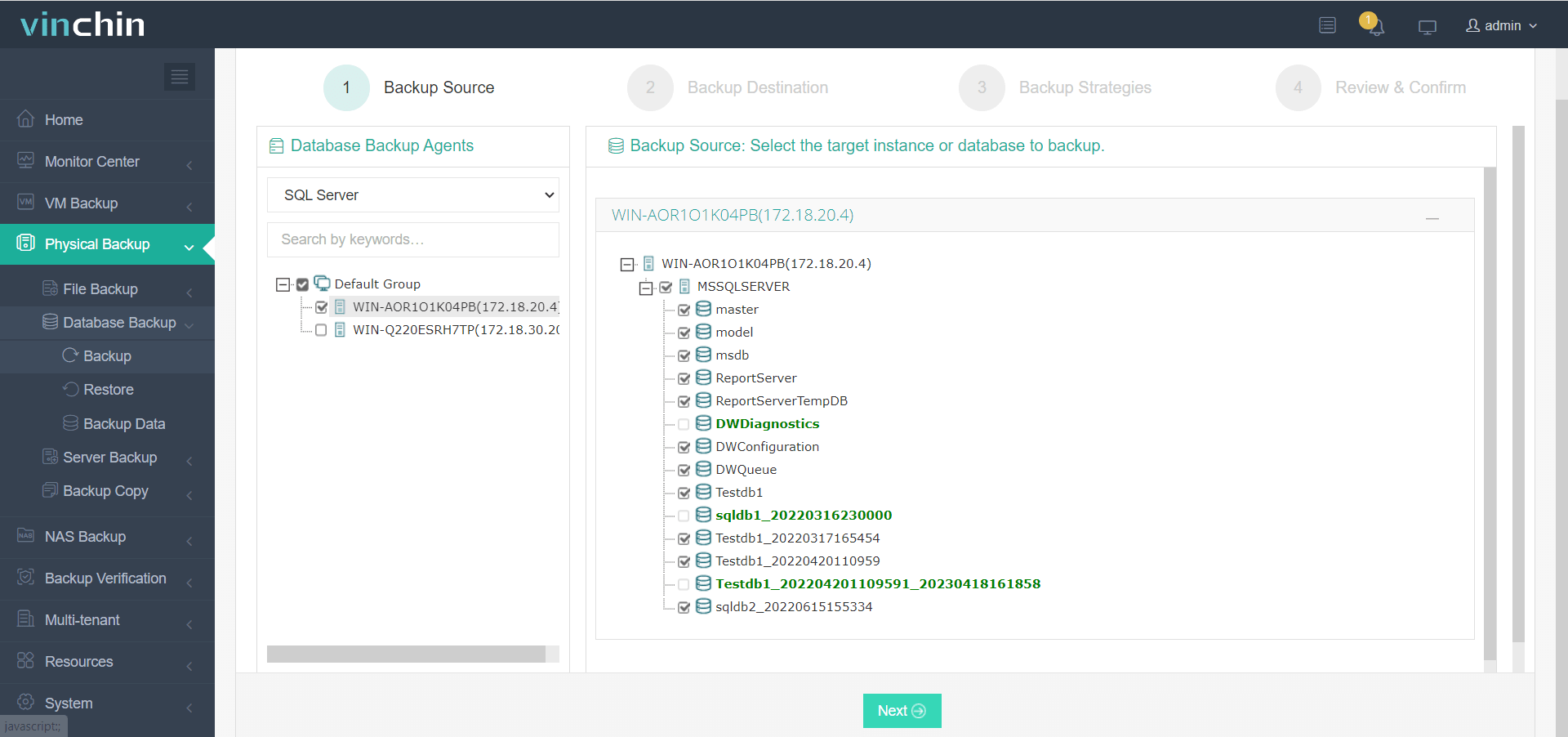
2. Select a backup storage repository (local storage, NAS, NFS, or iSCSI) as the backup destination, then click Next.
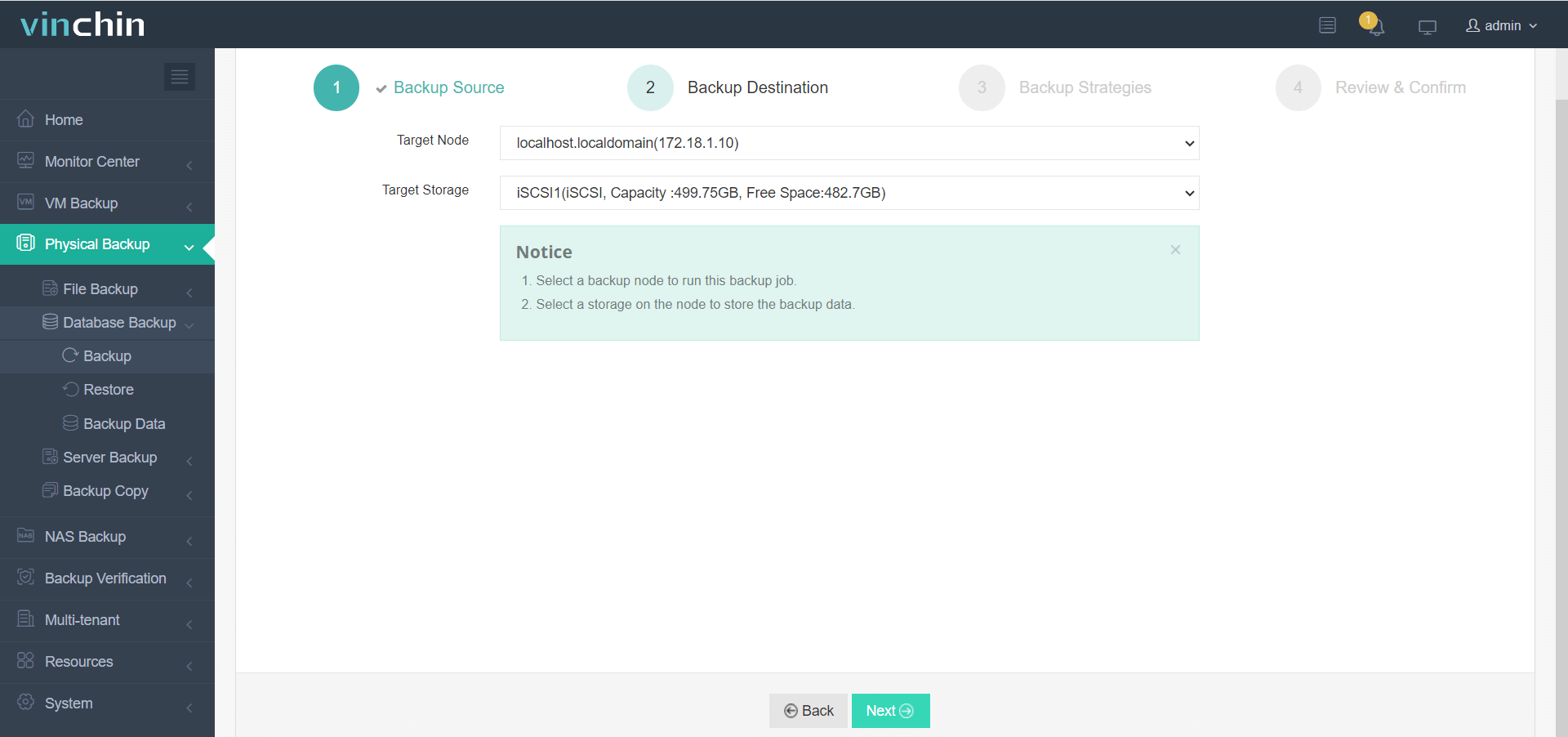
3. Configure backup policy: pick full/incremental backup type, set automatic schedule, and data retention period.

4. Verify all settings and click Submit. The task will execute automatically on schedule.
As a trusted disaster recovery and data protection provider, Vinchin Backup & Recovery has helped thousands of organizations build resilient backup and recovery strategies. Download Vinchin today and enjoy a fully functional 60-day free trial to explore all features without limitations.
Best Practices for a Reliable VirtualBox VM Backup
Following these best practices can help improve backup reliability and recovery readiness.
1. Follow the 3-2-1 Backup Rule
Keep three copies of your data, store them on two different storage types, and keep one copy offsite for disaster recovery.
2. Store Backups Separately
Avoid storing backups on the same disk as your VirtualBox VMs. Use external drives, NAS devices, or remote storage instead.
3. Schedule Regular Backups
Perform backups regularly to ensure recent VM changes and data are protected.
4. Test Recovery Periodically
Verify that backups can be restored successfully before an actual failure occurs.
5. Keep Multiple Restore Points
Maintain several backup versions so you can recover from accidental deletion, corruption, or failed updates.
Pro Tip: VirtualBox snapshots are useful for short-term rollback but should not be considered a substitute for regular VM backups.
Back Up VirtualBox VM FAQs
Q1: What files need to be backed up in VirtualBox?
A complete VirtualBox backup should include the VM configuration file (.vbox), virtual disk files (.vdi, .vmdk, or .vhd), snapshots, and any associated configuration data stored in the VM directory.
Q2: Can I back up a VirtualBox VM while it’s running?
Yes, but the method matters. Exporting a running VM is not recommended due to data consistency risks. For production workloads, use snapshot-based or host-level backup solutions that can capture consistent VM states.
Q3: How do I restore a VirtualBox VM from a backup?
To restore a VM, copy the backed-up VM files back to the host and use "Machine > Add" in VirtualBox to register the VM. If the backup was exported as an OVF package, use the Import Appliance wizard.
Q4: What is the difference between exporting and backing up a VirtualBox VM?
Exporting creates a portable OVF package for migration and deployment, while a backup preserves all VM data, configurations, snapshots, and recovery points for disaster recovery purposes.
Final Thoughts
Backing up VirtualBox VMs is essential for preventing data loss and minimizing downtime. While manual methods such as copying VM files, exporting OVA appliances, and cloning VMs work well for small environments, they can become difficult to manage as the number of virtual machines grows.
For more efficient and reliable protection, host-level backup solutions such as Vinchin Backup & Recovery offer automated backup scheduling, centralized management, and faster recovery times. Whichever method you choose, regular backups and recovery testing are key to ensuring your VirtualBox VMs remain protected.