Backing up Oracle archivelogs is essential for any database protection plan. If you lose data due to failure or human error, archivelogs let you recover right up to your last transaction. But what happens if your backups are incomplete or stored in the wrong place? Many admins struggle with missed logs or confusing file names that slow down recovery. The backup archivelog all format command in Oracle RMAN solves these problems by giving you control over which logs are backed up, where they go, and how they are named. This guide explains what archivelogs do, why their backup matters so much, and how to use RMAN—plus automation tips—to protect them efficiently. We also show how Vinchin can make this process even easier.
What Are Archivelogs?
Archivelogs are copies of redo log files that record every change made to an Oracle database. When your database runs in ARCHIVELOG mode, it saves these logs after each online redo log fills up. This means you can restore your database to any point in time by applying archived logs after restoring a backup.
For beginners: Think of archivelogs as a running diary of all changes made in your database.
For intermediate users: They enable point-in-time recovery—so you can roll back or forward as needed—and are vital for disaster recovery plans.
For advanced admins: Managing archivelog retention and storage is crucial for both performance and compliance requirements. Running in ARCHIVELOG mode does have some impact on performance because writing out archive logs uses disk I/O resources. Always ensure that your archive log destination (set using LOG_ARCHIVE_DEST_n) has enough space and fast disks; otherwise, full disks can halt transactions or cause errors during heavy workloads.
Why Backup Archivelog All Format Matters
Backing up only your datafiles is not enough for complete protection. Without archivelogs included in your backups, you cannot recover recent transactions after restoring from a backup set—even if that set is only hours old! Using backup archivelog all format ensures:
Every available archived log gets backed up without missing any critical changes.
Backups go exactly where you want them—with filenames you define—making restores faster and less prone to mistakes.
You avoid gaps between backups that could break recovery chains.
This approach also helps manage disk space by letting you delete source files after successful backup or compress output files for efficiency.
A structured filename pattern matters because RMAN uses variables like %d (database name), %T (date), %s (backup set number), and %p (piece number) to create unique names for each backup piece. These details help RMAN identify pieces quickly during restore operations—a lifesaver when time counts most.
Method 1. Backup Archivelog All Format with RMAN
RMAN (Recovery Manager) is Oracle’s built-in tool for backup tasks large and small. It gives full control over which logs get backed up, where they go on disk or tape, how many copies exist—and even lets you automate cleanup steps along the way.
Let’s see how to use backup archivelog all format step by step:
1. Connect to RMAN
First open a terminal on your database server then connect:
rman target /
2. Basic Command Structure
To back up all archived logs into a specific directory with custom naming:
RMAN> backup archivelog all format '/u01/app/oracle/backups/arc_%d_%T_%s_%p.bak';
Here,
These variables guarantee unique filenames so no backups overwrite each other—a must-have when managing many sets across days or weeks.
3. Add Compression (Optional)
To save storage space:
RMAN> backup as compressed backupset archivelog all format '/u01/app/oracle/backups/arc_%d_%T_%s_%p.bak';
4. Delete Input After Backup (Optional)
To free disk space by removing source files after successful backup:
RMAN> backup archivelog all delete input format '/u01/app/oracle/backups/arc_%d_%T_%s_%p.bak';
5. Avoid Duplicate Backups
If you want only new logs since last backup:
RMAN> backup archivelog all not backed up 1 times format '/u01/app/oracle/backups/arc_%d_%T_%s_%p.bak';
6. Full Example Script
Here’s a script combining several best practices:
run {
    allocate channel c1 device type disk; -- Parallelism improves speed; match channels to physical disks
    allocate channel c2 device type disk;
    backup as compressed backupset
        archivelog all delete input
        tag ORCL_ARCHIVE
        format '/u01/app/oracle/backups/%d_ARCHIVELOG_%T_s%s_p%p.bak';
    release channel c1;
    release channel c2;
}
Using two channels allows parallel writes—speeding up large backups—but don’t exceed the number of physical disks at your destination or else contention may slow things down instead of helping!
Method 2. Automating Archive Log Backups Using Shell Scripts and Cron Jobs
Manual backups work but don’t scale well when databases grow busy—or when teams juggle multiple systems at once! Automation ensures regular backups happen without human error or missed schedules creeping in unnoticed.
Here’s how most Unix/Linux DBAs automate archive log backups:
Step-by-step:
1. Write a Shell Script
Create /home/oracle/scripts/rman_arch_backup.sh containing:
   #!/bin/bash
   export ORACLE_SID=orcl
   export ORACLE_HOME=/u01/app/oracle/product/19c/dbhome_1
   export PATH=$ORACLE_HOME/bin:$PATH

   rman target / <<EOF
   run {
       allocate channel ch1 device type disk;
       backup as compressed backupset
           archivelog all not backed up 1 times
           delete input
           format '/u01/app/oracle/backups/arch_${ORACLE_SID}_%T_s%s_p%p.bak';
       release channel ch1;
   }
   EOF
2. Make It Executable
chmod +x /home/oracle/scripts/rman_arch_backup.sh
3. Schedule with Cron
Edit crontab (crontab -e) then add this line:
0 */2 * * * /home/oracle/scripts/rman_arch_backup.sh >> /home/oracle/scripts/rman_arch_backup.log 2>&1
This runs every two hours around the clock—a good fit for active systems needing frequent coverage.
4. Monitor Logs
Check /home/oracle/scripts/rman_arch_backup.log regularly for errors or warnings so issues don’t slip through unnoticed.
How to Protect Oracle Databases with Vinchin Backup & Recovery?
After completing your Oracle Database deployment, implementing robust backup measures becomes essential for long-term reliability and compliance needs alike. Vinchin Backup & Recovery stands out as an enterprise-level solution supporting today’s mainstream databases—including comprehensive protection specifically designed for Oracle environments alongside MySQL, SQL Server, MariaDB, PostgreSQL, PostgresPro, and MongoDB platforms.
With Vinchin Backup & Recovery, organizations benefit from features such as incremental backup tailored for Oracle workloads, advanced source-side compression that optimizes storage usage during backup operations, batch database backup capabilities ideal for managing multiple instances efficiently, flexible GFS retention policies ensuring regulatory compliance over extended periods, and ransomware protection safeguarding critical assets against evolving threats—all integrated into one powerful platform designed around enterprise demands.
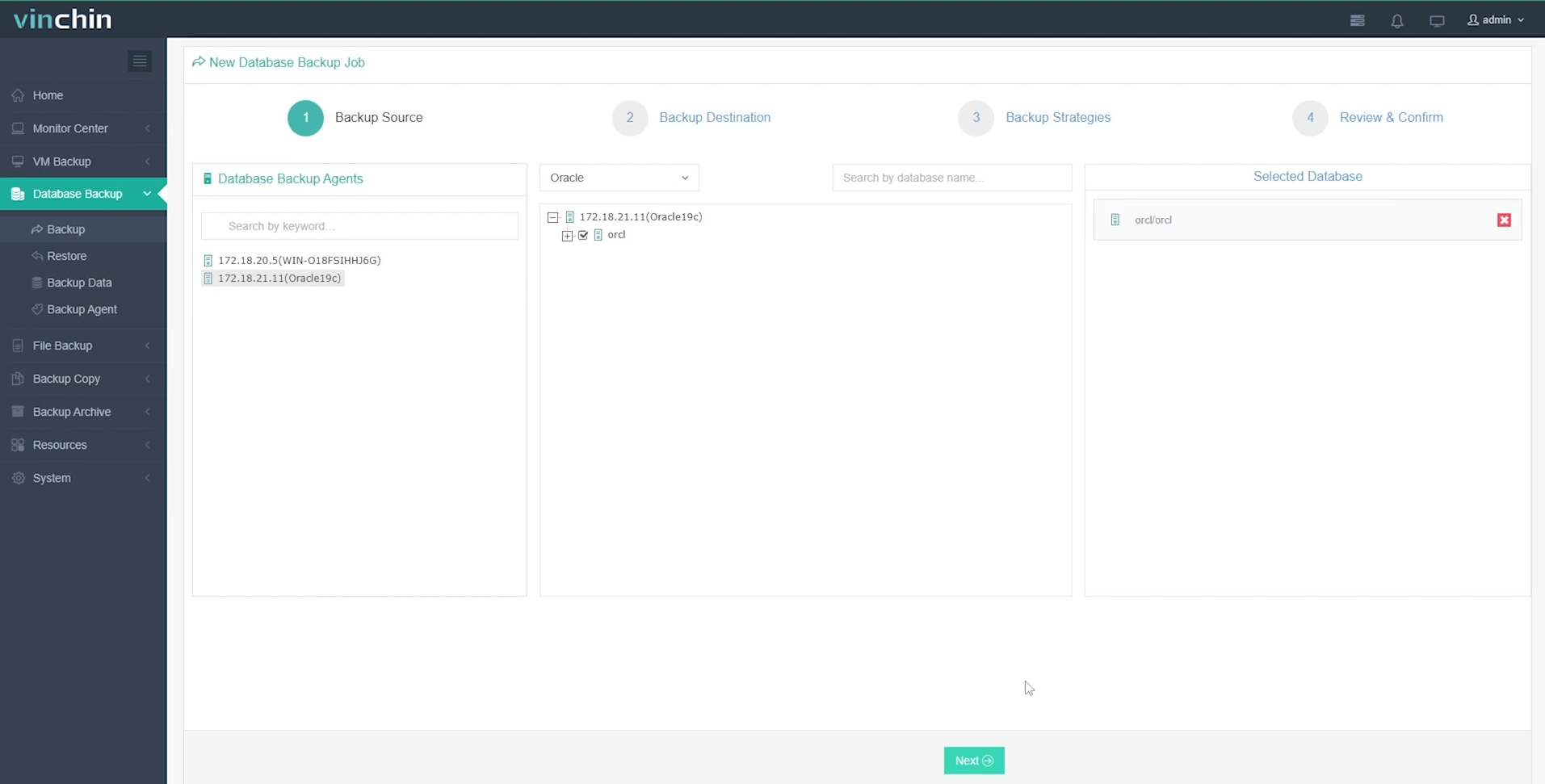
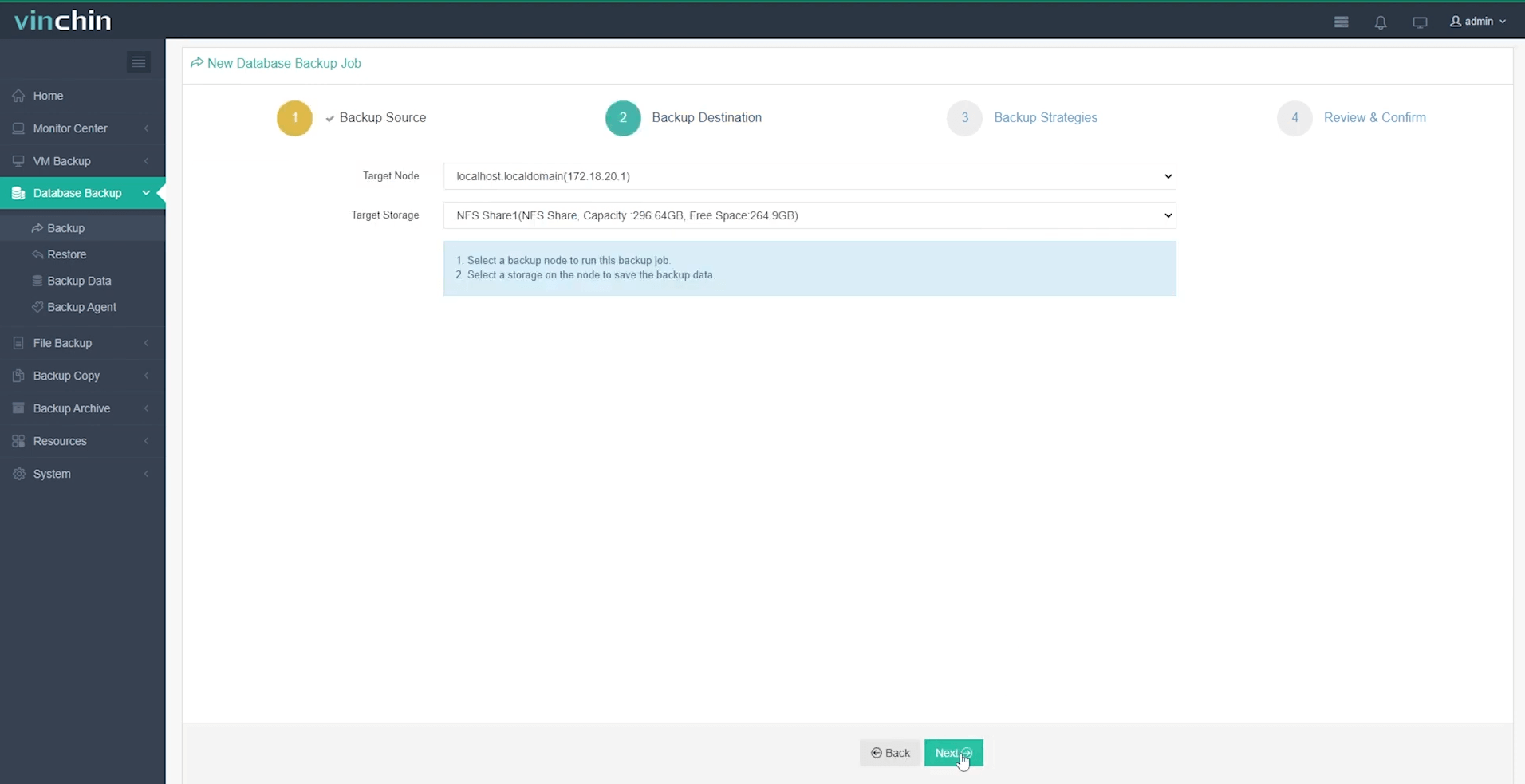
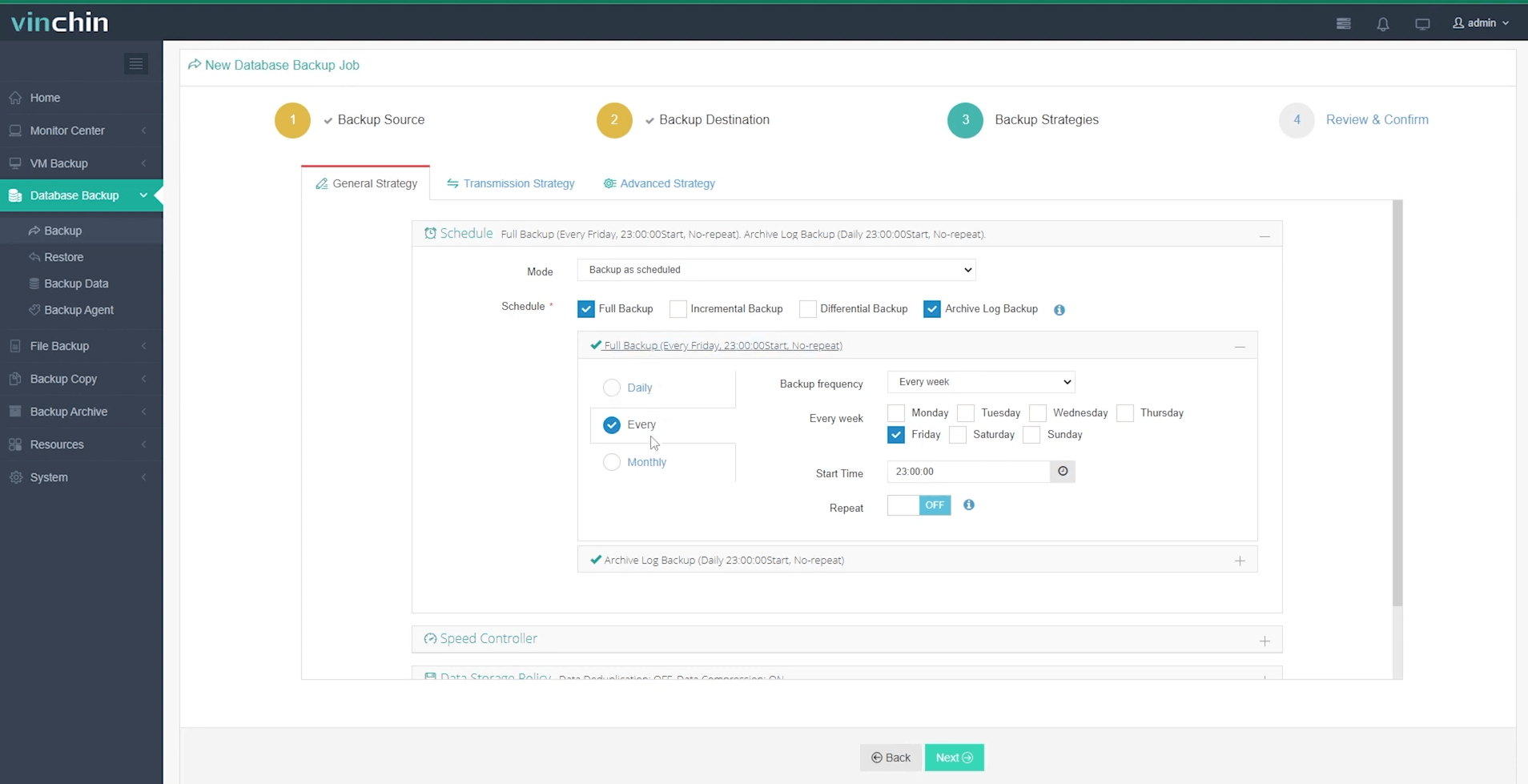
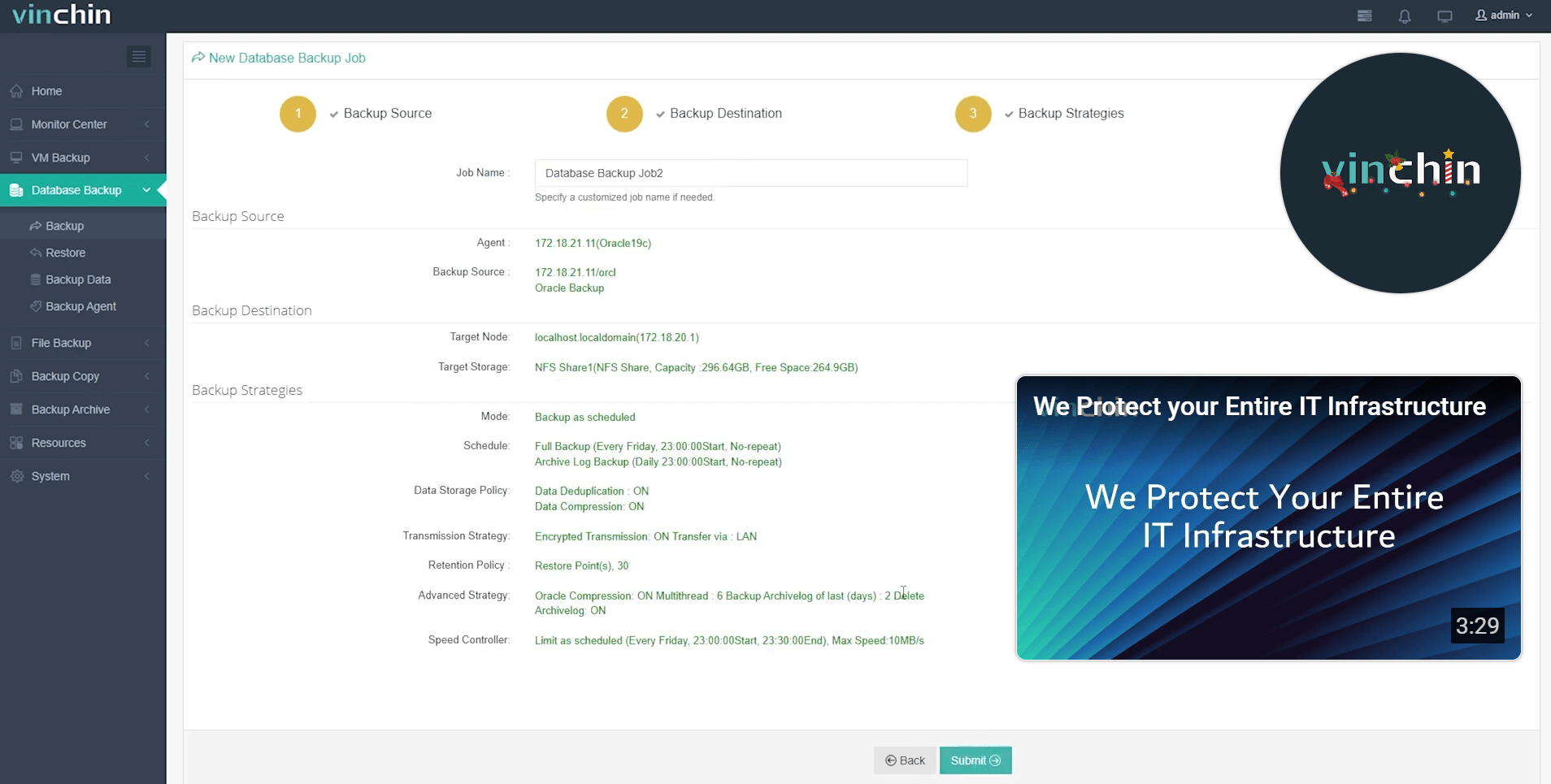
The web console provided by Vinchin Backup & Recovery is remarkably intuitive:
Step 1. Selecting the Oracle database you wish to protect;
Step 2. Designates your preferred backup storage location;
Step 3. Defines scheduling and strategy details according to business policy;
Step 4. Submits the job.
Trusted globally by thousands of enterprises—with top industry ratings—Vinchin Backup & Recovery offers a fully featured free trial valid for sixty days so you can experience its advantages firsthand before committing further investment.
Backup Archivelog All Format FAQs
Q1: Can I specify multiple directories in FORMAT when backing up archive logs?
A1: Yes; allocate separate channels within RUN block using FORMAT clause per channel—for example: allocate channel c1 device type disk format '/pathA/%U'; allocate channel c2 device type disk format '/pathB/%U';
Q2: How do I back up only new archive logs since my last successful run?
A2: Use not backed up n times option—for instance:backup archivelog all not backed up 1 times backs up only unprotected ones since last job ran successfully.
Q3: Is it safe to delete archived logs after backing them up?
A3: Yes; adding delete input removes source OS files only if included successfully within current completed set—not before!
Q4: How does delete input interact with my configured retention policy?
A4: The delete input clause deletes OS-level files immediately after they're safely copied regardless of retention policy—which controls catalog entries marked obsolete later via commands like DELETE OBSOLETE.
Conclusion
Backing up Oracle archive logs using backup archivelog all format protects data against loss while giving flexibility over where—and how—you store those critical files across different environments big or small alike! Automate wisely using shell scripts—or let Vinchin handle everything through its intuitive platform built specifically for modern IT teams needing reliable protection everywhere they operate today.
With Vinchin's broad compatibility—from virtualized clusters down to physical servers—you gain flexible migration options plus peace of mind knowing every workload's protected against threats both accidental and malicious.