Introduction
Managing a XenServer environment often means working at the command line. While graphical tools like XenCenter are helpful, mastering xenserver cli commands gives you more control, speed, and automation options than any GUI can offer. If you want to manage virtual machines (VMs), troubleshoot issues fast, or automate daily tasks with confidence, knowing these commands is essential. Ready to make your daily work easier?
What Are XenServer CLI Commands
XenServer CLI commands are text-based instructions entered in a terminal window to control your XenServer hosts and virtual machines directly. The main tool is the xe command-line utility, it interacts with the powerful XenServer API behind the scenes. You can use these commands locally on your host system through a direct console session or remotely via SSH from another machine.
Why does this matter? The CLI lets you script repetitive tasks, automate complex workflows across many servers at once, and access advanced features not always available in graphical interfaces like XenCenter's Console tab. For busy administrators managing multiple hosts or troubleshooting urgent problems, xenserver cli commands are indispensable tools that save time every day.
Essential XenServer CLI Commands
Every administrator should know a core set of xenserver cli commands for listing resources, managing VMs, handling storage tasks, configuring networks, creating snapshots, and much more! Let's walk through some of the most important ones step by step:
1. Listing VMs and Hosts
To see all VMs on your host:
xe vm-list
This shows each VM's UUID (unique identifier), name-label (friendly name), power state (running/halted), plus other details if needed.
To list all hosts in a pool:
xe host-list
You'll get each host's UUID and name-label here too.
Tip: To quickly find just what you need, like both UUIDs and names try:
xe vm-list params=uuid,name-label --minimal
2. Starting, Stopping & Rebooting VMs
To start a VM by its name:
xe vm-start name-label="VMName"
To shut down gracefully:
xe vm-shutdown name-label="VMName"
Or reboot it safely:
xe vm-reboot name-label="VMName"
If you prefer working with UUIDs instead of names (especially useful when scripting):
xe vm-start uuid=VMUUID
3. Managing VM Resources
Want to adjust memory allocation? Use:
xe vm-memory-limits-set uuid=VMUUID static-min=2GiB static-max=2GiB dynamic-min=2GiB dynamic-max=2GiB
Note: Changing static memory limits requires halting the VM first, dynamic limits may be changed while running.
For vCPUs:
xe vm-param-set uuid=VMUUID VCPUs-max=4 VCPUs-at-startup=4
Remember: Increasing VCPUs-at-startup also needs the VM powered off, VCPUs-max can sometimes be changed live depending on guest OS support.
4. Creating & Managing Snapshots
Create a snapshot of any VM instantly:
xe vm-snapshot name-label="VMName" new-name-label="SnapshotName"
List all snapshots currently stored:
xe snapshot-list
Delete an unwanted snapshot using either method below, both work because snapshots are special read-only VMs:
xe snapshot-destroy uuid=SnapshotUUID
xe vm-destroy uuid=SnapshotUUID
5. Exporting & Importing VMs
Export an entire VM as an archive file for backup or migration purposes:
xe vm-export name-label="VMName" filename=/path/to/export.xva
Import it back later (optionally specify storage repository if needed):
xe vm-import filename=/path/to/export.xva sr-uuid=SRUUID
If no SR specified during import, default SR is used automatically.
6. Managing Storage
List all storage repositories (SRs) attached to your pool or host:
xe sr-list
Create a new virtual disk image (VDI) inside an SR:
xe vdi-create sr-uuid=SRUUID name-label="Disk01" type=user virtual-size=20GiB
Attach this disk to any VM:
xe vbd-create vm-uuid=VMUUID device=1 vdi-uuid=DISKUUID bootable=false mode=RW type=Disk
7. Networking Commands
See all physical network interfaces present:
xe pif-list
Create a new logical network:
xe network-create name-label="MyNetwork"
Set up VLAN tagging on an interface:
xe vlan-create pif-uuid=PIFUUID vlan=10 network-uuid=NetworkUUID
8. Monitoring & Troubleshooting
Monitor system performance live from terminal:
xentop
Access text-based management console directly from shell:
xsconsole
Get detailed info about one specific VM:
xe vm-param-list uuid=VMUUID
These core xenserver cli commands cover almost every daily task, from basic administration to advanced troubleshooting! Want even more power? Try combining them into Bash scripts or PowerShell routines for full automation across dozens of hosts at once.
Practical Uses for XenServer CLI
Why bother with xenserver cli commands instead of sticking with GUIs? Simple, they're faster for bulk operations, they enable true automation, they unlock advanced troubleshooting options that save hours when things go wrong!
Let's look at some real-world examples:
Automating regular backups becomes easy by scheduling exports with cron jobs using xe vm-export. This ensures you always have recent copies ready if disaster strikes, but keep in mind that full exports can take time and consume lots of space! For lighter backups between major exports consider taking frequent snapshots (xe vm-snapshot) combined with exporting those snapshots (xe snapshot-export). This approach saves both time and storage compared to exporting whole VMs every night.
Bulk management gets much simpler too, you can start or stop dozens of test/dev machines at once by looping through their UUIDs retrieved via xe vm-list, then calling vm-start or vm-shutdown repeatedly inside your favorite shell script rather than clicking endlessly in GUIs!
Networking changes such as creating VLANs or bonding NICs are often easier, and far less error-prone, when scripted via CLI (vlan-create, bond-create) rather than navigating deep menu trees graphically.
Troubleshooting stuck systems becomes straightforward thanks to diagnostic tools like xentop (for live resource monitoring) plus configuration queries such as vm-param-list. If you ever encounter a frozen guest OS that refuses normal shutdown signals? Use forceful recovery tools like vm-reset-powerstate.
Advanced scripting lets you chain together multiple steps, provisioning new test environments overnight, rotating logs automatically, even integrating alerts into Slack/Teams channels based on output from custom health checks run via cron!
Finally, the CLI remains critical when remote access matters most! If your GUI tool loses connection but SSH still works…you're never locked out thanks to direct shell access anywhere anytime!
How to Back Up XenServer VMs Using Vinchin Backup & Recovery
For administrators seeking robust protection for Citrix Hypervisor/XenServer environments alongside other platforms such as VMware, Hyper-V, Proxmox, oVirt/OLVM/RHV, XCP-ng, OpenStack and more than fifteen virtualization solutions overall, Vinchin Backup & Recovery delivers professional enterprise-level backup capabilities tailored specifically for virtual infrastructures. Supporting key features including CBT tracking for efficient incremental backups on XenServer environments, LAN-free backup modes that minimize production impact during data transfer operations, instant recovery functionality enabling rapid restoration after failure events, granular restore options for precise item-level recovery needs within backed-up workloads, and comprehensive data deduplication/compression technologies that optimize storage usage, all designed to enhance operational resilience while reducing administrative overhead.
The intuitive web console makes protecting Citrix Hypervisor/XenServer workloads straightforward:
Step 1: Select the Citrix Hypervisor/XenServer VM(s) to back up
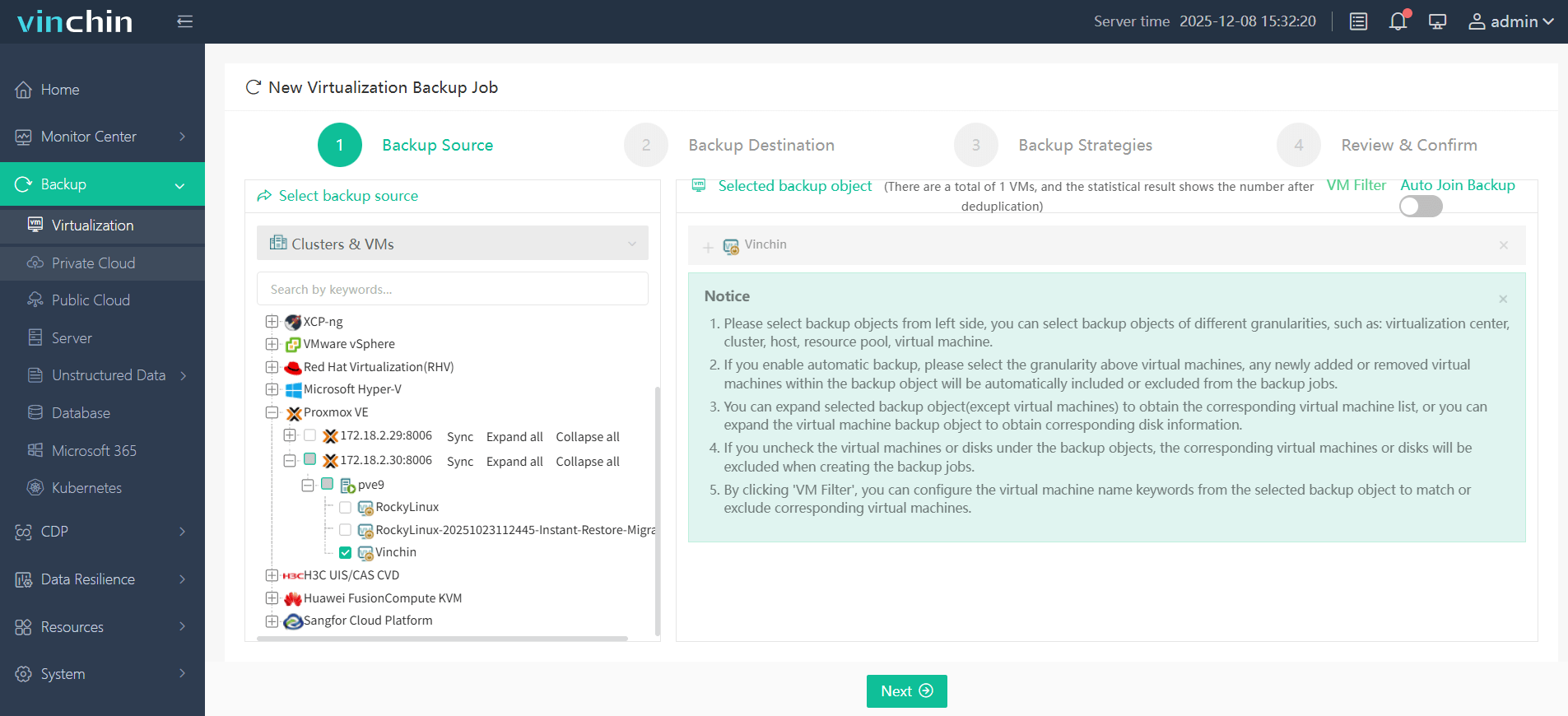
Step 2: Choose backup storage destination
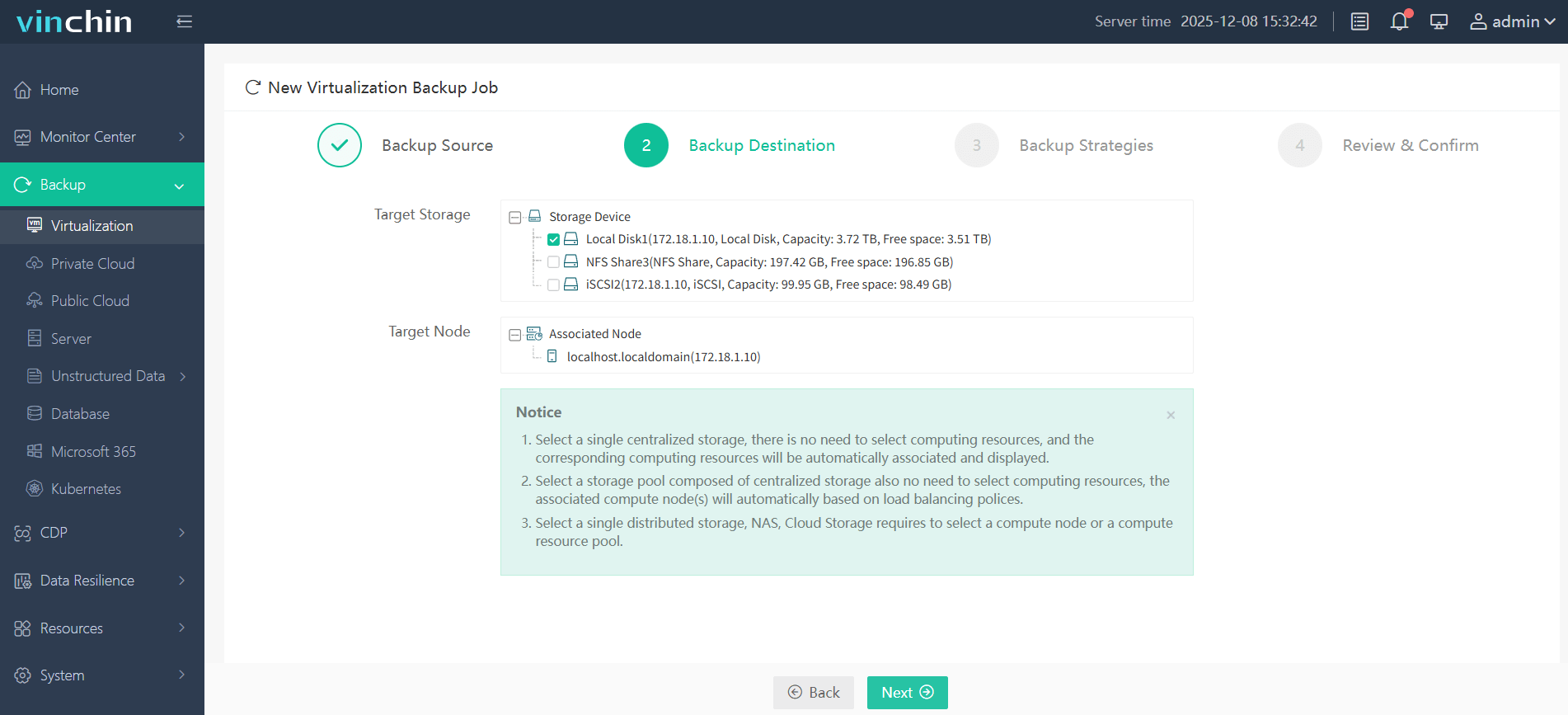
Step 3: Configure backup strategy according to business requirements
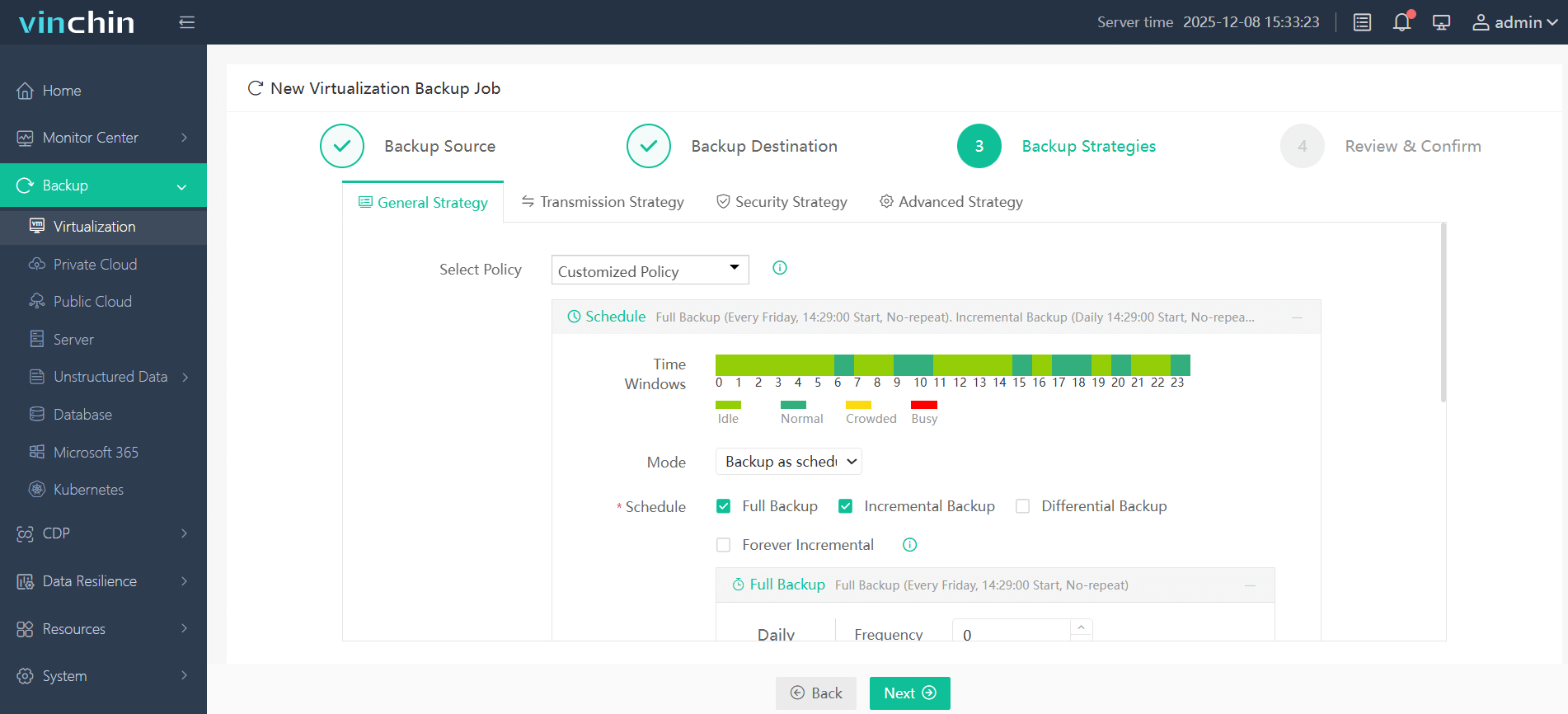
Step 4: Submit the job
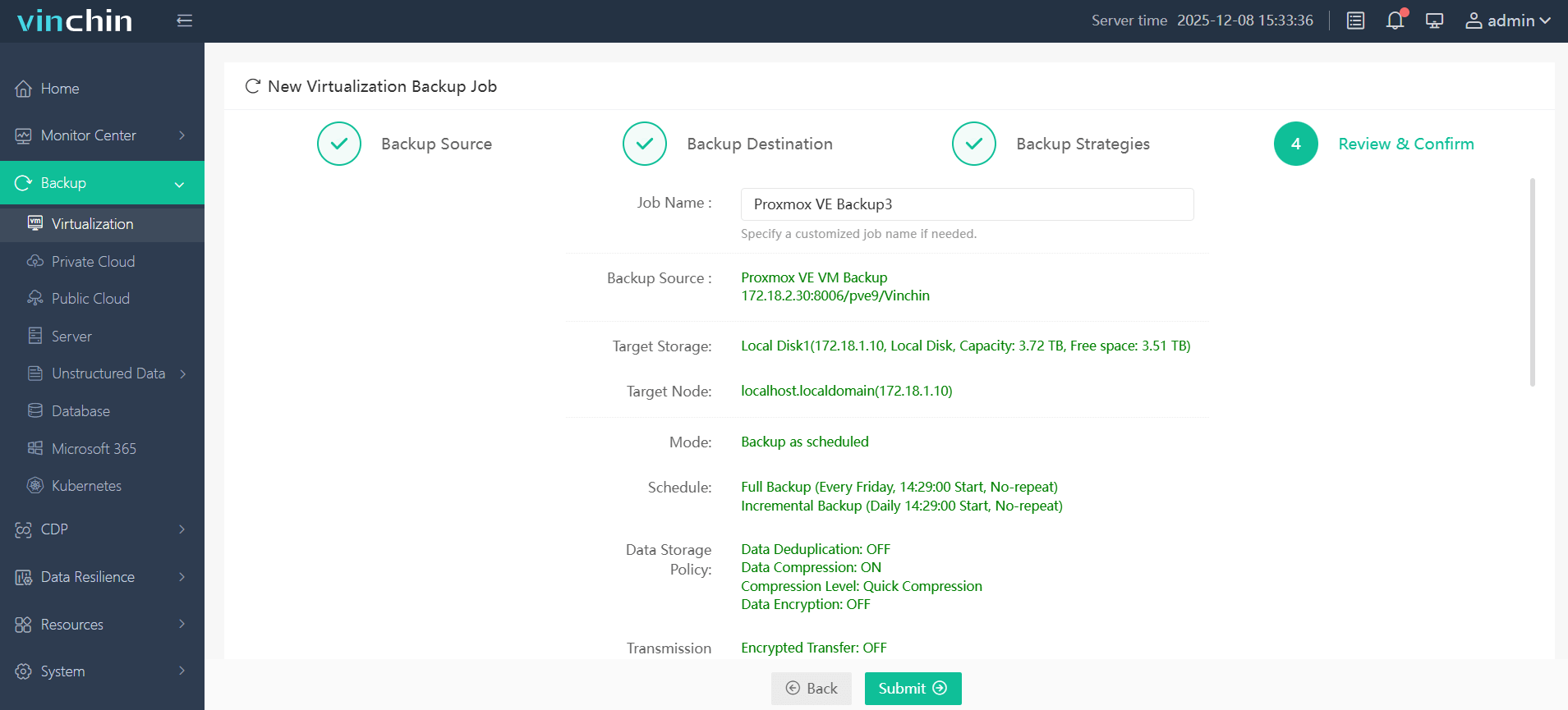
Join thousands of global enterprises who trust Vinchin Backup & Recovery's proven reliability, top-rated worldwide, with a risk-free 60-day full-featured trial available now, click below to get started today.
Xenserver CLI Commands FAQs
Q1: How do I reset a stuck VM that won't power off using xenserver cli commands?
A1: Run XE VM-RESET-POWERSTATE UUID=[YOUR_VM_UUID] FORCE=true
Q2: Can I change a VM's network from the CLI without downtime?
A2: Yes, use XE VIF-MOVE UUID=[VIF_UUID] NETWORK-UUID=[NETWORK_UUID] while the VM stays running
Q3: How do I schedule regular VM exports for backup using CLI?
A3: Create a cron job that runs XE VM-EXPORT NAME-LABEL="[YOUR_VM_NAME]" FILENAME=/backup/[YOUR_VM_NAME]-$(date +%F).xva
Conclusion
Mastering xenserver cli commands empowers administrators with unmatched speed and flexibility across every aspect of virtualization management, from routine maintenance through disaster recovery planning! For robust protection beyond native tools alone try Vinchin free today, and simplify how you safeguard critical workloads everywhere.