Kubernetes has become the standard platform for managing containers at scale across industries worldwide. Ubuntu is often chosen as the operating system foundation because it’s stable, secure, and easy to use with Kubernetes tools. Why do so many IT teams rely on this combination? In this guide, we’ll break down what makes ubuntu kubernetes such a strong pairing—and show you how to get started from scratch or improve your existing setup.
What is Ubuntu Kubernetes?
Ubuntu Kubernetes means running a Kubernetes cluster on servers or desktops powered by Ubuntu Linux. This approach leverages Ubuntu’s reliability while taking advantage of Kubernetes’ orchestration power for containers like Docker or containerd workloads. Whether you’re building a test lab at home or deploying mission-critical applications in production data centers, ubuntu kubernetes offers flexibility through several supported installation methods.
Ubuntu provides official packages for core Kubernetes components like kubeadm and kubectl. It also supports alternative distributions such as MicroK8s—a lightweight snap package maintained by Canonical—or Minikube for local development environments.
Highlights of Running Kubernetes on Ubuntu
Ubuntu stands out among Linux distributions thanks to its long-term support releases (LTS), regular security updates, broad hardware compatibility, and extensive documentation—all critical factors when running complex systems like Kubernetes clusters.
For operations administrators managing ubuntu kubernetes deployments:
You benefit from predictable release cycles that align with upstream Kubernetes.
Security patches arrive quickly via apt repositories.
Both physical servers and virtual machines are supported equally well.
Community forums offer fast help if you hit roadblocks.
Many cloud providers offer native images based on Ubuntu LTS optimized for performance with containers.
This stability lets you focus less on OS maintenance and more on scaling your applications reliably with kubernetes tools atop ubuntu infrastructure.
Prerequisites for All Methods
Before installing any form of ubuntu kubernetes cluster—whether using kubeadm, MicroK8s, or Minikube—you need some basic preparation:
First: Use only supported versions of Ubuntu (20.04 LTS or 22.04 LTS recommended). Make sure your system is up-to-date by running sudo apt update && sudo apt upgrade -y.
Second: Check hardware resources:
Third: Ensure virtualization support is enabled in BIOS if using Minikube drivers like KVM/QEMU or VirtualBox.
Fourth: Confirm network connectivity between nodes if building a multi-node cluster—firewalls should allow traffic over ports used by etcd (2379–2380), API server (6443), kubelet (10250), plus any CNI plugin ports needed later.
Finally: Always disable swap (sudo swapoff -a) before starting any installation process since kubelet requires swap turned off to function correctly.
Choosing Your Installation Method
How do you pick the right way to deploy ubuntu kubernetes? It depends on your goals:
If you want full control over every component—ideal for learning internals or building production-ready clusters—choose kubeadm.
If you need something quick yet powerful for local development or edge computing without much manual configuration effort—try MicroK8s from Canonical’s Snap Store.
If your goal is rapid prototyping or experimenting with new features safely isolated from other projects—Minikube offers an easy path with built-in drivers supporting Docker Engine or KVM/QEMU virtualization backends.
Let’s walk through each method step by step—including validation checks so you know everything works before moving forward!
Method 1: Install Ubuntu Kubernetes Cluster Using kubeadm
Kubeadm is the official tool recommended by the upstream community to bootstrap robust ubuntu kubernetes clusters—from small labs up to large-scale production deployments requiring high availability features like external etcd storage. Here’s how to set it up:
Step 1: Prepare Your Nodes
Update all nodes:
sudo apt update && sudo apt upgrade -y
Disable swap permanently:
sudo swapoff -a
sudo sed -i '/ swap / s/^/#/' /etc/fstab
Load kernel modules needed by networking plugins:
sudo modprobe overlay
sudo modprobe br_netfilter
Set sysctl parameters:
cat <<EOF | sudo tee /etc/sysctl.d/kubernetes.conf
net.bridge.bridge-nf-call-ip6tables = 1
net.bridge.bridge-nf-call-iptables = 1
net.ipv4.ip_forward = 1
EOF
sudo sysctl --system
Step 2: Install Container Runtime
Containerd is now recommended as default runtime:
sudo apt install -y containerd
sudo mkdir -p /etc/containerd
containerd config default | sudo tee /etc/containerd/config.toml
sudo systemctl restart containerd
sudo systemctl enable containerd
Verify it runs properly:
systemctl status containerd --no-pager | grep Active
Step 3: Install Core Kubernetes Components
Add Google Cloud public signing key:
curl -fsSLo /usr/share/keyrings/kubernetes-archive-keyring.gpg https://packages.cloud.google.com/apt/doc/apt-key.gpg
Add repository:
echo "deb [signed-by=/usr/share/keyrings/kubernetes-archive-keyring.gpg] https://apt.kubernetes.io/ kubernetes-xenial main" | sudo tee /etc/apt/sources.list.d/kubernetes.list
Install tools:
sudo apt update
sudo apt install -y kubelet kubeadm kubectl
sudo apt-mark hold kubelet kubeadm kubectl
Step 4: Initialize Control Plane Node
On your master node only:
sudo kubeadm init --pod-network-cidr=192.168.0.0/16 # adjust CIDR if using another CNI plugin!
After success message appears (“Your Kubernetes control-plane has initialized successfully”), configure access credentials:
mkdir -p $HOME/.kube
sudo cp -i /etc/kubernetes/admin.conf $HOME/.kube/config
sudo chown $(id -u):$(id -g) $HOME/.kube/config
Step 5: Install Pod Network Add-on
You must install a Container Network Interface (CNI) plugin before scheduling pods! Calico works well but others exist too:
kubectl apply -f https://raw.githubusercontent.com/projectcalico/calico/v3.27.0/manifests/calico.yaml
Step 6: Join Worker Nodes
On each worker node copy/paste join command outputted during init above—for example,
sudo kubeadm join <control-plane-ip>:6443 --token <token> --discovery-token-ca-cert-hash sha256:<hash>
If lost token info run kubeadm token create --print-join-command again on control plane node!
Method 2: Install Ubuntu Kubernetes Cluster Using MicroK8s
MicroK8s delivers a full-featured yet lightweight version of ubuntu kubernetes via Snap packaging technology maintained directly by Canonical—the makers of Ubuntu itself! It’s great both for developers wanting quick local clusters and edge computing scenarios where minimal overhead matters most.
Step 1: Install MicroK8s Snap Package
Run this command anywhere Snap packages are supported (including VMs):
sudo snap install microk8s --classic
Add yourself to group so no need for sudo later:
sudo usermod -aG microk8s $USER && newgrp microk8s
microk8s status --wait-ready # Wait until "microk8s is running"
Step 2: Enable Useful Add-ons
MicroK8s comes modular! Enable DNS resolution plus dashboard UI first—
microk8s enable dns dashboard ingress storage metallb # Try enabling multiple at once!
Want persistent volumes? Storage add-on sets up hostPath-based dynamic provisioning automatically.
Need load balancer IP addresses? MetalLB gives bare-metal clusters external access easily.
Step 3: Verify Cluster Health
Check everything runs smoothly—
microk8s status
microk8s kubectl get nodes
microk8s kubectl get pods --all-namespaces
All core services should show STATUS=Running within seconds.
Step 4: Deploy Example Workload
Try launching NGINX web server—
microk8s kubectl create deployment nginx-demo --image=nginx
microk8s kubectl expose deployment nginx-demo --port=80 --type=NodePort
microk8s kubectl get svc nginx-demo
minikubectl describe service nginx-demo # See assigned NodePort value!
curl http://localhost:<nodeport> # Test locally!
Multi-node clustering tip: Want HA? On additional hosts run snap install microk8s, then join them using microk8s add-node command output from primary node!
Method 3: Install Local Ubuntu Kubernetes Cluster Using Minikube
Minikube targets developers who want disposable single-node ubuntu kubernetes environments they can spin up fast—and tear down just as quickly! It supports multiple virtualization drivers including Docker Engine (default), KVM/QEMU/libvirt (“none” driver also available but less common).
Step 1: Download & Install Minikube Binary
Get latest release—
curl -LO https://github.com/kubernetes/minikube/releases/latest/download/minikube-linux-amd64
chmod +x minikube-linux-amd64
sudo mv minikube-linux-amd64 /usr/local/bin/minikube
minikube version # Confirm installed OK!
Install Kubectl if missing—
curl -LO "https://dl.k8s.io/release/$(curl -L -s https://dl.k8s.io/release/stable.txt)/bin/linux/amd64/kubectl"
chmod +x ./kubectl
sudo mv ./kubectl /usr/local/bin/
kubectl version --client=true # Confirm installed OK!
Step 2: Start Your First Cluster
Choose driver based on what’s available locally—
For Docker users,
minikube start --driver=docker
For KVM/libvirt users,
minikube start --driver=kvm2
To list all possible drivers,
minikube drivers
Estimated time required varies—from under two minutes with SSD/Docker combo up to five minutes if downloading VM images fresh.
Step 3: Validate Everything Works
List cluster nodes—
kubectl get nodes
View system pods across namespaces—
kubectl get pods --all-namespaces
Expected output shows one Ready node plus several Running core services.
Tip: If startup fails due to port conflicts try stopping old VMs (docker ps, docker stop <container>). For permission errors ensure user belongs to docker/libvirt groups!
Step 4: Deploy Sample Application With Persistent Volume
Create deployment,
kubectl create deployment hello-minikuberun --image=kicbase/echo-server:1.0
Expose via NodePort,
kubectl expose deployment hello-minikuberun --type=NodePort --port=8080
Access app in browser,
minikube service hello-minikuberun
Want persistent storage?
apiVersion: v1
kind: PersistentVolumeClaim
metadata:
 name : demo-pvc
spec :
 accessModes : [ "ReadWriteOnce" ]
 resources :
    requests :
      storage : "500Mi"
---
apiVersion : v1
kind : Pod
metadata :
 name : demo-pod-storage
spec :
 containers :
    – name : busybox-container
      image : busybox
      command : ["sleep", "3600"]
      volumeMount s :
        – mountPath : "/mnt/data"
          name : my-volume
 volumes :
    – name : my-volume
      persistentVolumeClaim :
        claimName : demo-pvc
Apply above YAML using kubectl apply –f <filename>.yaml. This demonstrates how even local miniclusters can simulate real-world PVC workflows!
How to Protect Your Cluster with Vinchin Backup & Recovery?
Once your ubuntu Kubernetes environment is operational, ensuring reliable backup and recovery becomes crucial for business continuity and compliance needs. Vinchin Backup & Recovery stands out as an enterprise-level solution purpose-built for comprehensive protection of modern Kubernetes workloads. Among its extensive capabilities are full/incremental backups, fine-grained restore options at namespace/application/PVC/resource levels, policy-driven automation alongside one-off jobs, encrypted transmission and data encryption, cross-cluster/cross-version recovery—including migration between different K8S versions—and intelligent backup automation supporting custom scripts. These features together deliver robust data safety, flexible disaster recovery strategies, seamless migrations across heterogeneous environments, and simplified day-to-day management tailored specifically for complex production-grade clusters.
The intuitive Vinchin Backup & Recovery web console streamlines backup operations into four straightforward steps tailored perfectly for ubuntu kubernetes environments:
Step 1. Select the backup source

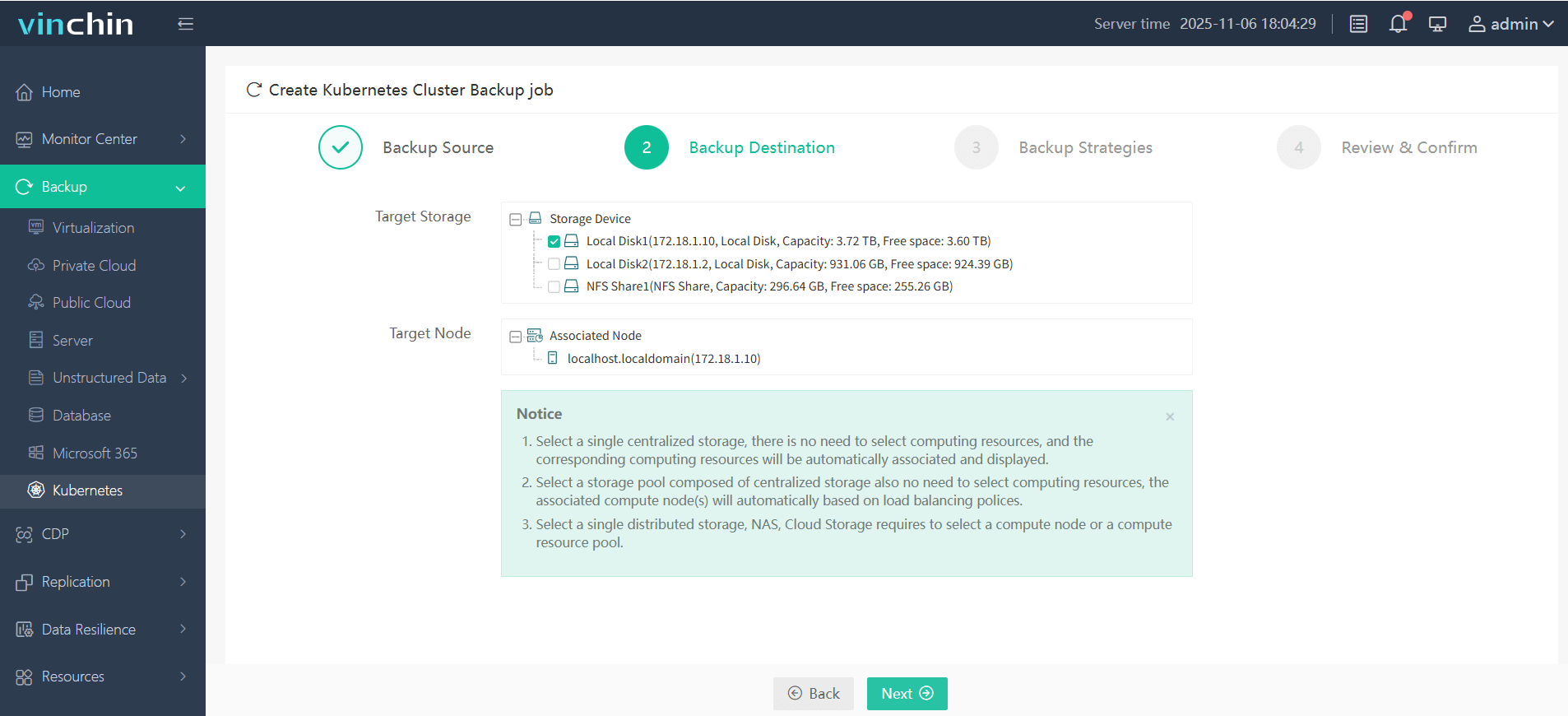
Step 2. Choose the backup storage
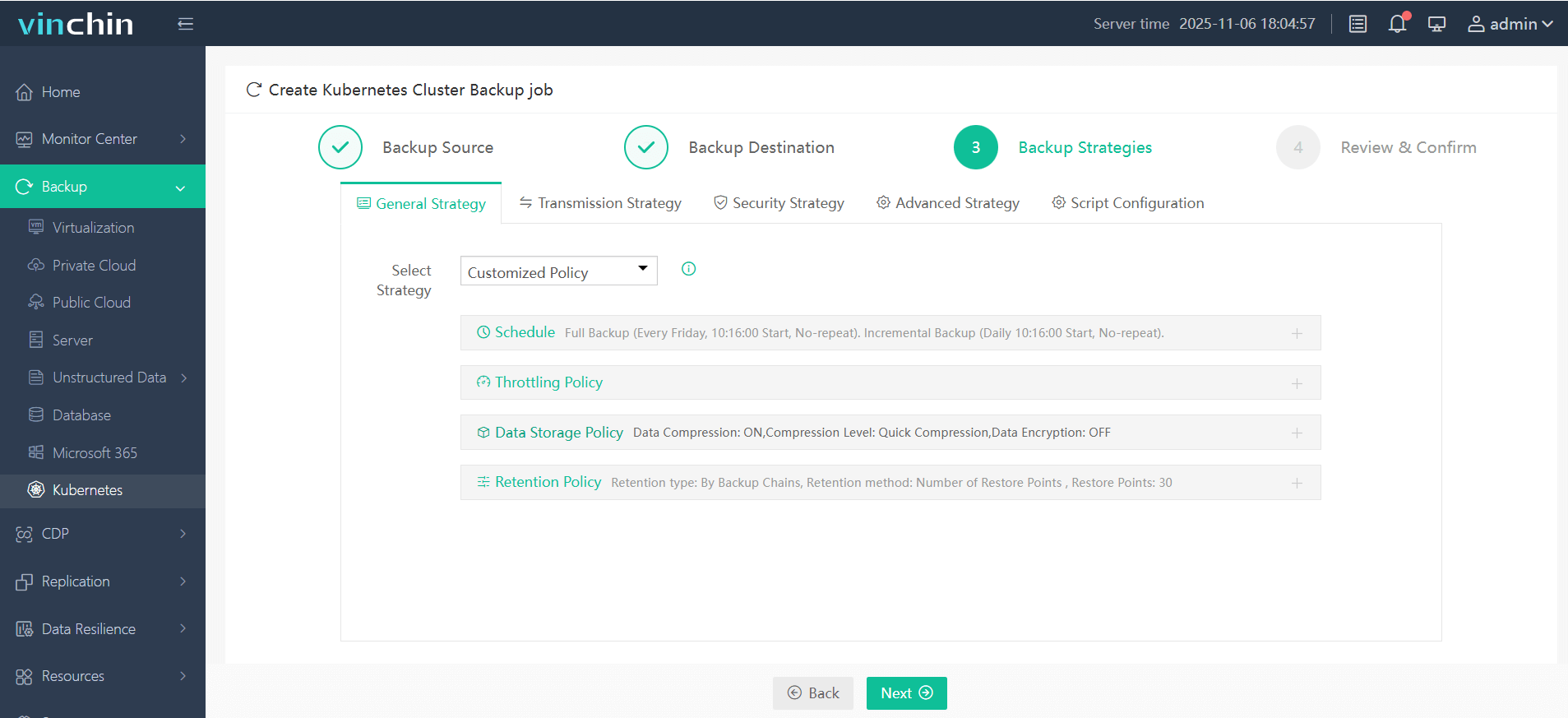
Step 3. Define the backup strategy
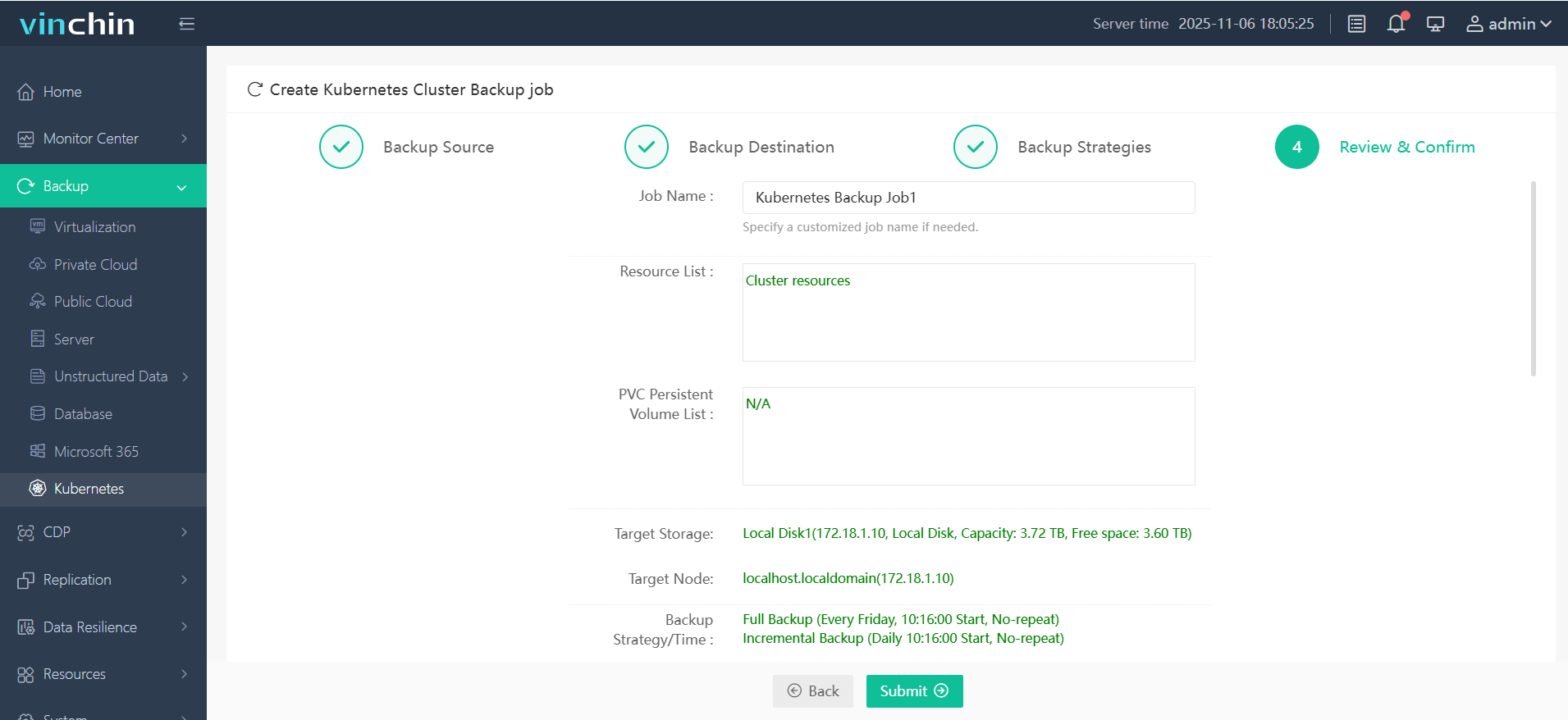
Step 4. Submit the job
Vinchin Backup & Recovery enjoys global recognition among enterprise customers and consistently earns top ratings in industry reviews—experience its power risk-free with a fully featured free trial valid for sixty days; click below to download instantly!
Ubuntu Kubernetes FAQs
Q1. Can I run an ubuntu Kubernetes cluster entirely inside nested VMs?
A1. Yes; but expect slower performance — allocate extra CPU/RAM resources compared with bare metal.
Q2. How do I upgrade my ubuntu Kubernetes cluster safely?
A2. Use official guides — always drain workloads first ; then upgrade components sequentially starting with control plane.
Q3. What should I do if two services try binding same NodePort?
A3. Change one service's port mapping; NodePorts must be unique per node — check allocations using kubectl get svc.
Conclusion
Combining ubuntu linux stability with flexible open-source orchestration makes deploying scalable infrastructure easier than ever. No matter which method fits best — whether learning locally or scaling out globally — robust protection matters too. That's why many trust Vinchin's advanced backup solutions when safeguarding their critical workloads.






