Every business relies on data stored across many devices—laptops, desktops, workstations. These are called endpoints. If you lose this data due to theft, failure, or attack, your organization could face downtime or worse. That’s why a strong backup endpoint strategy is vital for every IT administrator.
In this guide, we’ll explain what a backup endpoint is, why it matters so much today, and how you can protect endpoints using both manual methods and built-in tools. We’ll also show how enterprise solutions like Vinchin make endpoint protection easier than ever.
What Is Endpoint Backup?
Backing up an endpoint means making secure copies of files from devices like laptops or desktops. This process protects against loss from hardware failure, accidental deletion, malware attacks—even disasters like fire or flood.
A true backup endpoint solution does more than just sync files between devices; it creates recoverable versions that you can restore if something goes wrong. Backups may be stored locally on external drives or remotely in the cloud.
Key Concepts in Endpoint Backup
Before diving into methods, let’s clarify some terms:
Endpoint: Any device users interact with directly—PCs, laptops, tablets.
Backup: A copy of data kept separate from the original location.
Restore: The process of bringing back lost files from a backup copy.
Understanding these basics helps ensure everyone speaks the same language when planning protection strategies.
Why Backup Endpoints Matters?
Endpoints are often outside direct IT control but hold critical business information. They’re also frequent targets for cyberattacks—and easy to lose or damage during travel or remote work.
According to Ponemon Institute research, over 70% of breaches start at an endpoint device. Without regular backups in place? Recovery can be slow—or impossible.
Common Endpoint Risks and Mitigations
Many threats put endpoints at risk:
Ransomware can encrypt local files instantly; hardware failures strike without warning; users might delete important documents by mistake; even spilled coffee can destroy a laptop drive! Regular backups help you recover quickly from any of these events.
For each risk:
1. Ransomware: Restore clean copies instead of paying attackers.
2. Hardware failure: Swap out devices without losing user data.
3. Accidental deletion: Retrieve lost files easily from backups.
4. Physical loss/theft: Restore user environments onto replacement machines fast.
By planning ahead with robust backup endpoint processes—and testing restores—you reduce downtime and keep business running smoothly.
Method 1: Manual Endpoint Backup
Manual backup is the simplest way to protect small numbers of endpoints—but it requires discipline and regular attention from users or admins alike.
First connect an external hard drive or USB stick to your computer. Open File Explorer (Windows) or Finder (Mac), select folders such as Documents, Pictures, or Desktop, then drag them onto your external drive icon. Wait until copying finishes before safely ejecting the drive using its menu option (Eject).
This method works well for individuals but doesn’t scale easily across teams—or protect against all risks like ransomware that targets attached drives too!
Pros and Cons for IT Environments
Manual backups offer full control over what gets saved—but they depend on human memory! It’s easy to forget regular copies after a busy day at work; missed backups mean gaps in protection if disaster strikes later on.
Other drawbacks include:
1. No automation—users must remember each time
2. No centralized management—harder to enforce company policies
3. Limited security—external drives may get lost/stolen themselves
4. Risk of incomplete coverage—not all critical folders get copied every time
For larger organizations? Automated solutions provide better reliability with less effort.
Method 2: Backup Endpoints with Microsoft OneDrive (Windows)
Many Windows environments use Microsoft OneDrive—a built-in tool—to sync important folders automatically with cloud storage tied to user accounts.
To set up OneDrive backup:
1. Sign in using your Microsoft account credentials
2. Right-click the blue OneDrive icon near your system clock
3. Select Settings
4. Go to the Backup tab
5. Click Manage backup
6. Choose which folders (Desktop, Documents, Pictures) you want protected
7. Click Start backup
From now on? Files placed inside those folders sync automatically online whenever connected to Wi-Fi/Ethernet networks—a big help if a device fails unexpectedly!
Method 3: Backup Endpoints with Apple Time Machine (Mac)
Apple’s Time Machine offers Mac users automatic hourly snapshots—making it easy to roll back changes after mistakes, or restore entire systems following hardware failure!
To enable Time Machine:
1.Connect an external hard drive via USB/Thunderbolt port
2.When prompted onscreen click Use as Backup Disk
3.Open System Settings
4.Select General, then choose Time Machine
5.Click Select Backup Disk
6.Pick your external drive
7.Turn on toggle next to “Back Up Automatically”
Time Machine now saves hourly/daily/monthly versions behind-the-scenes while you work—with minimal impact on performance!
How to Back Up Endpoints with Vinchin
For organizations seeking advanced speed and flexibility beyond built-in tools, enterprise-grade solutions become essential for comprehensive file server and NAS protection within their backup endpoint strategy.
Vinchin Backup & Recovery stands out as a professional solution supporting most mainstream file storage platforms—including Windows/Linux file servers, NAS systems, S3 object storage, and more—which aligns perfectly with modern hybrid environments requiring fast and reliable file-level backups across diverse infrastructures such as NAS appliances and Linux servers alike. Leveraging proprietary technologies like simultaneous scanning plus data transfer and merged file transmission enables Vinchin Backup & Recovery to deliver exceptionally high-speed backups that consistently outperform competing products in real-world scenarios.
Among its extensive feature set are incremental backups support for efficient scheduling, wildcard filters for precise selection criteria, multi-level compression options for space savings, cross-platform restore capabilities allowing flexible recovery between file server/NAS/object storage/Hadoop targets, and robust integrity checks ensuring restored data matches its original state—all designed for maximum reliability while minimizing resource consumption during peak hours.
The intuitive web console makes managing complex tasks simple:
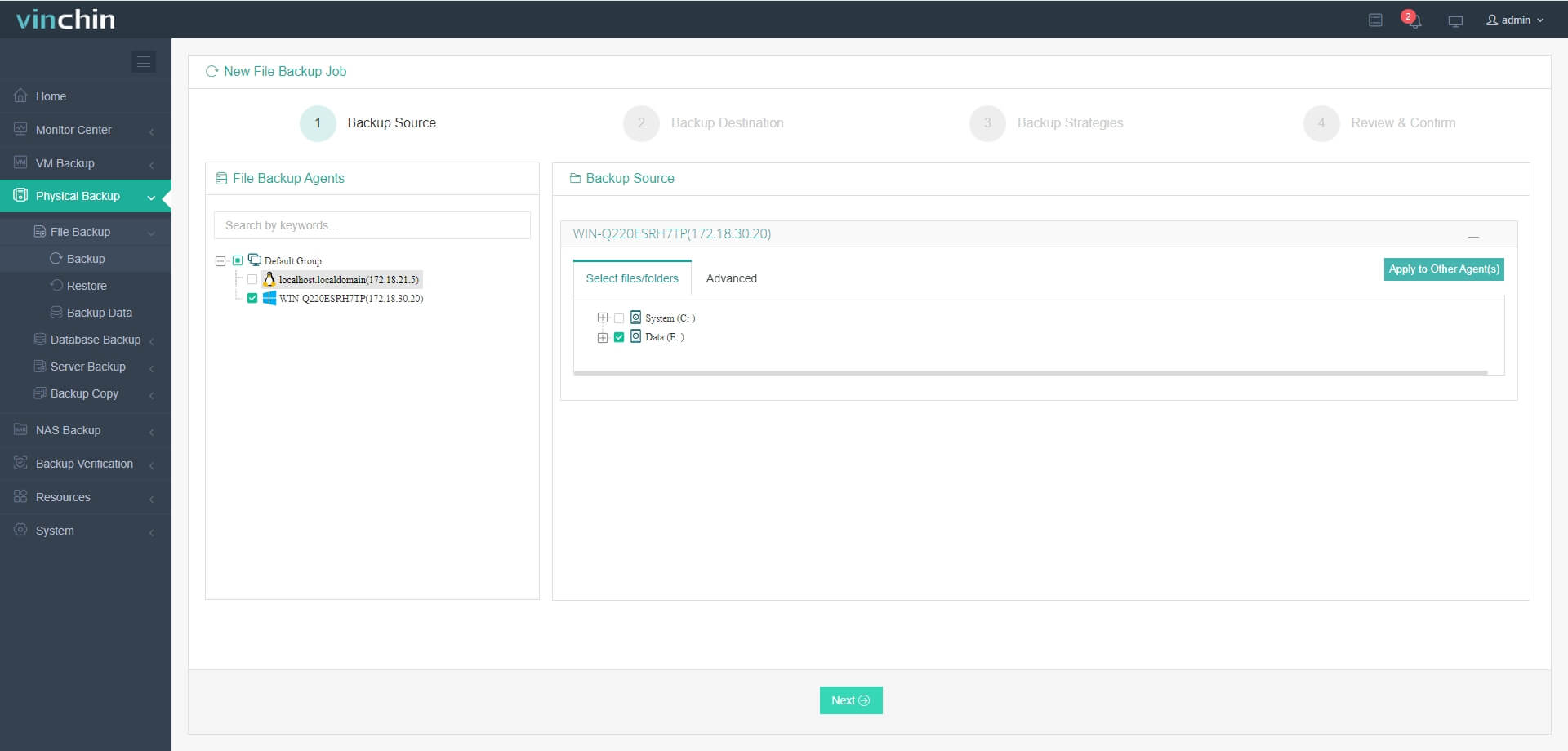
Step 1. Select the files from your chosen platform to back up
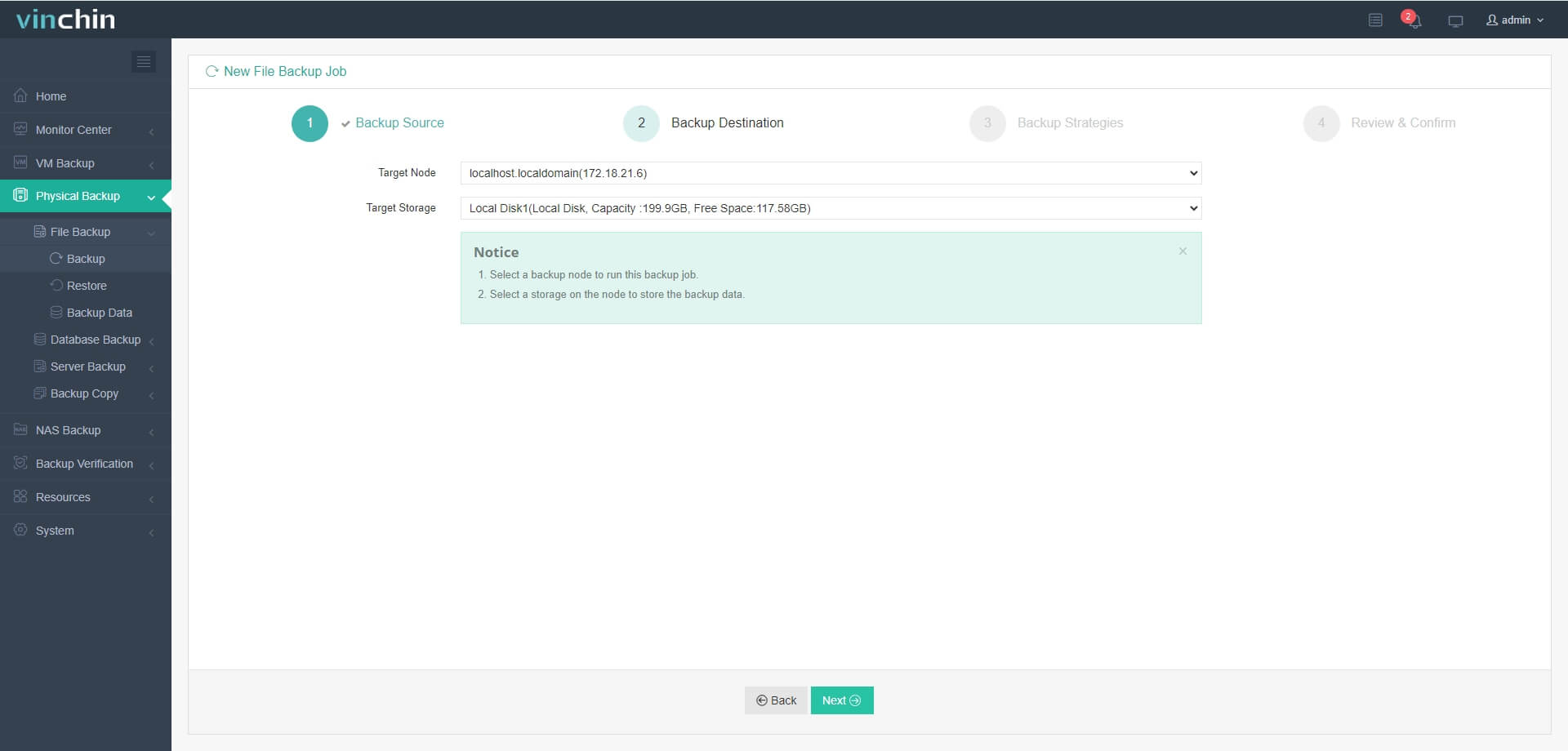
Step 2. Choose the destination storage
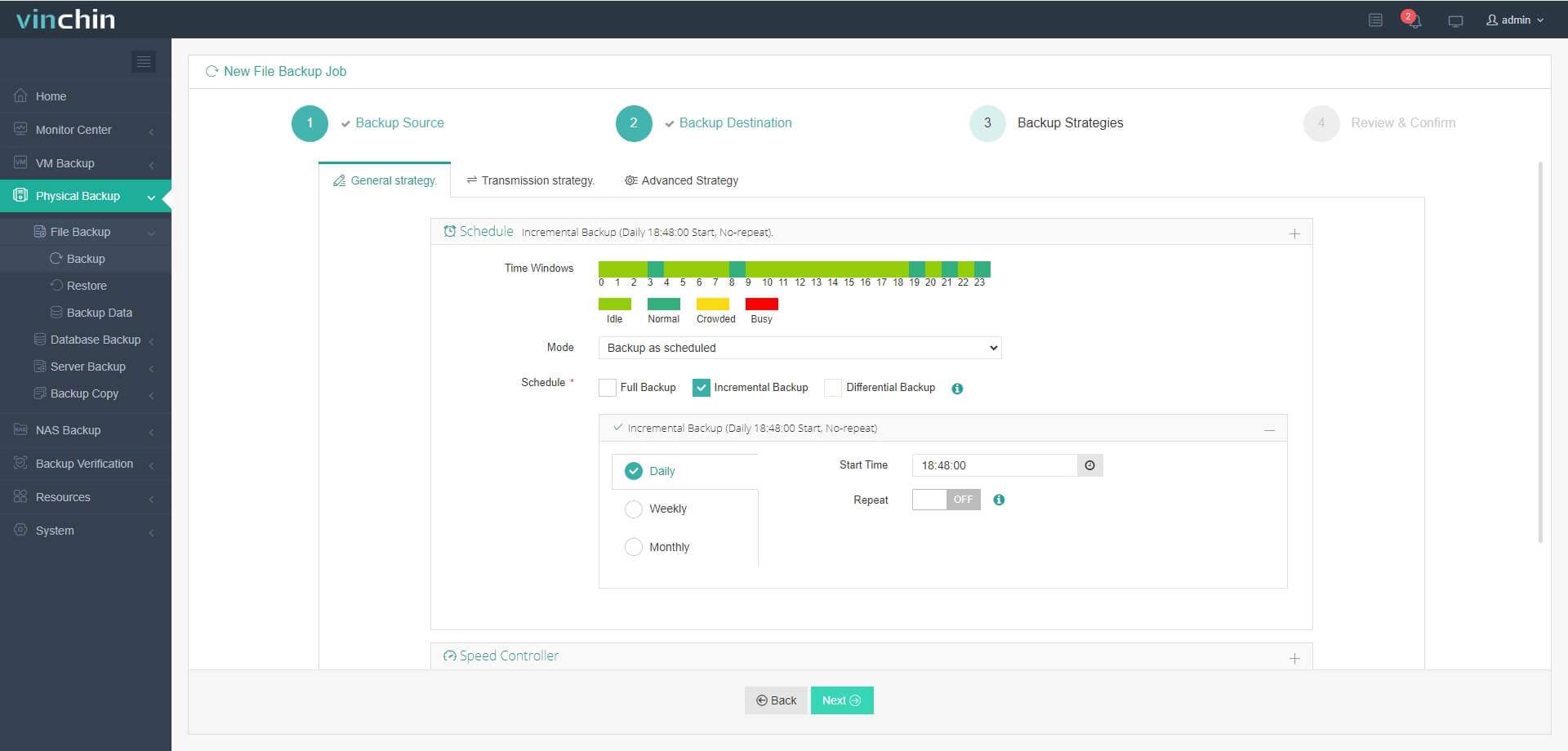
Step 3. Define your preferred backup strategy
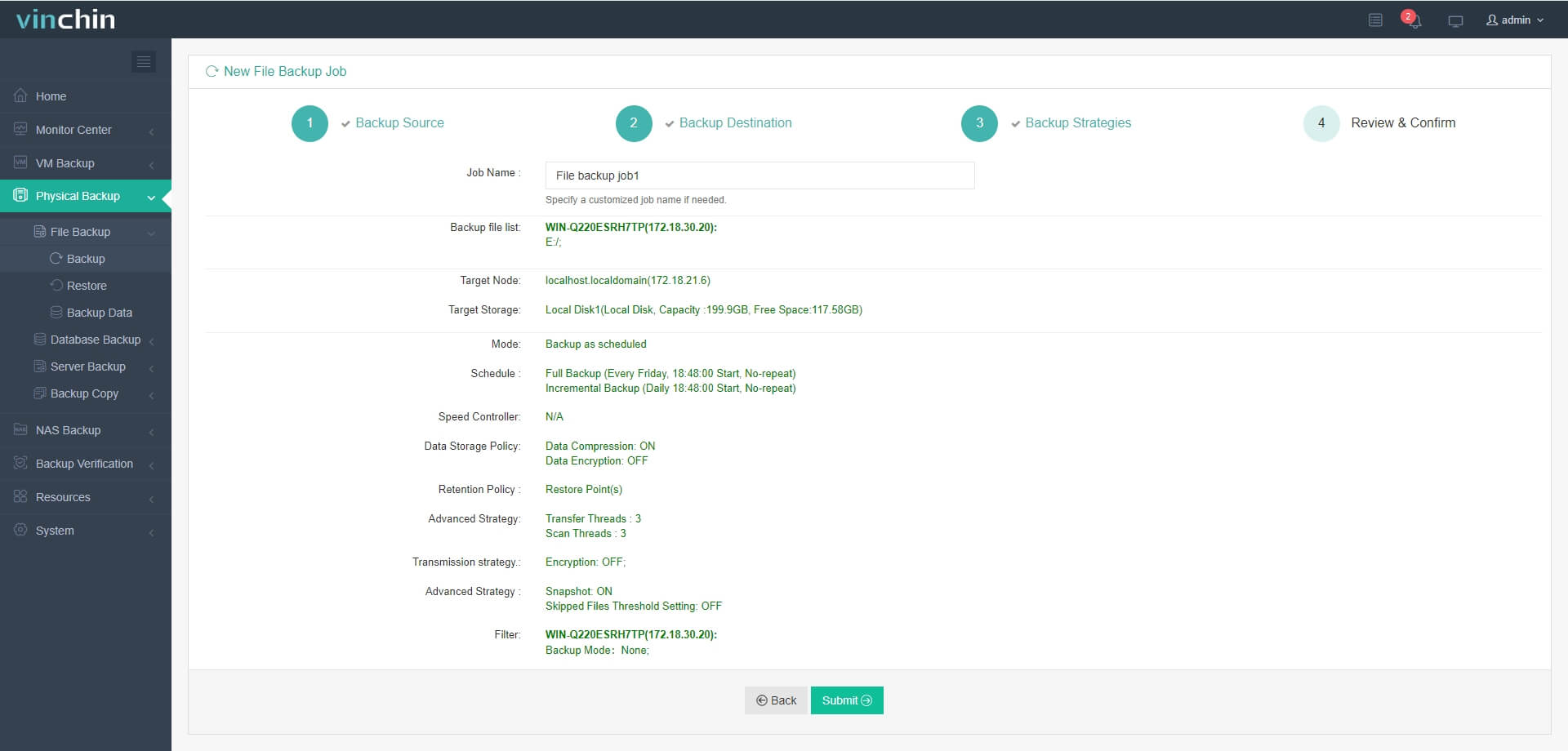
Step 4. Submit the job
Recognized globally by thousands of enterprises—with top ratings for ease-of-use and customer satisfaction—Vinchin Backup & Recovery offers a fully featured free trial valid for 60 days so you can experience industry-leading protection firsthand before committing further.
Backup Endpoint FAQs
Q1: How often should I back up my endpoints?
A1: Daily automated backups are best practice for most businesses since they minimize potential data loss between cycles.
Q2: Can I restore backed-up files onto different hardware?
A2: Yes—with most modern solutions including Vinchin—you can recover user profiles/files onto any compatible replacement device quickly after loss/theft/failure events occur.
Q3: How does encryption work in endpoint backups?
A3: Most enterprise-grade tools encrypt data both during transfer (“in transit”) using TLS/SSL protocols—and while stored (“at rest”) using standards like AES-256 bit encryption.
Conclusion
Protecting every backup endpoint is essential against modern threats—from ransomware attacks through accidental deletions/losses/disasters alike! Whether starting manually/built-in OS tools—or scaling up securely via advanced platforms—regular tested backups keep business running strong no matter what happens next. Try Vinchin today for fast reliable peace-of-mind coverage across all your endpoints!