Data is at the heart of every business today. As employees work from different locations using laptops, desktops, or tablets, protecting this data becomes a major challenge for IT teams. Enterprise endpoint backup is now a critical part of any organization’s data protection strategy.
What Is Enterprise Endpoint Backup?
Enterprise endpoint backup means automatically copying data from devices like laptops or desktops across your company to a secure location—either on-premises or in the cloud—for safekeeping. This process creates independent copies of files that can be restored if something goes wrong: accidental deletion, hardware failure, malware attack—even ransomware.
Unlike simple file syncing tools that mirror changes instantly (including mistakes), true enterprise endpoint backup keeps historical versions so you can recover lost information even after an incident has occurred.
Why Enterprise Endpoint Backup Matters?
Endpoints are often outside traditional network defenses—and they move around with users daily. This makes them vulnerable targets for cyberattacks or physical loss.
Common Risks Facing Endpoints
Everyday risks include lost laptops on public transport, spilled coffee damaging hard drives, sudden malware infections from phishing emails—or even natural disasters like fire or flood destroying office equipment overnight.
According to Forbes Advisor (2023), over 40% of employees now work remotely or in hybrid setups—a trend that increases exposure to threats outside company walls.
Compliance and Regulatory Requirements
Many industries require strict data protection by law—think GDPR in Europe or HIPAA in healthcare settings. Failing to back up endpoints properly could lead to fines or legal trouble if sensitive information is lost without recovery options available.
Reliable enterprise endpoint backup helps organizations meet these regulations by keeping auditable records of protected data across all devices.
Benefits Beyond Recovery
Backing up endpoints isn’t just about disaster recovery—it also supports productivity by reducing downtime after incidents and helps maintain customer trust when sensitive information stays safe despite accidents or attacks.
Method 1: Using Microsoft System Center Data Protection Manager
Microsoft System Center Data Protection Manager (DPM) is widely used for backing up Windows-based endpoints in large organizations because it offers centralized control with strong security features.
Implementation Steps
To set up enterprise endpoint backup using DPM:
1. Make sure your DPM server is installed on a supported version of Windows Server with required .NET components.
2. Install the DPM protection agent on each laptop or desktop you want to protect.
3. Open the DPM Administrator Console; go to Protection then click Create Protection Group.
4. Follow the wizard: select computers/devices; choose specific folders/files; set how often backups run; define retention policies based on business needs.
5. Once configured, DPM handles scheduled backups automatically—including incremental updates that save bandwidth by copying only changed files after initial full backup.
6. To restore data later: open Recovery, pick device/recovery point/date needed; follow prompts through restoration process—whether restoring single files or whole systems as required.
Best Practices for DPM Backups
When deploying DPM:
Monitor job status regularly using built-in alerts under Monitoring tab—or automate checks via PowerShell (Get-DPMJob).
Encrypt traffic between agents/servers using secure channels such as IPsec where possible.
Plan storage carefully: estimate space needs based on number/size of endpoints plus retention period length; consider offloading older backups to cloud storage if local disks fill quickly.
Method 2: Using Code-Based Scripts
Some IT teams prefer custom scripts—often written in PowerShell—to automate their own enterprise endpoint backup routines without extra software overhead.
Scripting Best Practices
Before writing scripts:
Identify exactly which folders/files need regular protection per device type/user group.
Store credentials securely if accessing network shares (never hard-code passwords).
Always test new scripts thoroughly in non-production environments before rolling out company-wide.
Example PowerShell Script With Error Handling & Logging
Here's a basic template:
$source = "C:\Users\*"
$destination = "\\server\backup\"
try {
    Copy-Item -Path $source -Destination $destination -Recurse -Force
    Add-Content "C:\BackupLogs\backup.log" "Backup completed successfully $(Get-Date)"
} catch {
    Add-Content "C:\BackupLogs\backup.log" "Backup failed $(Get-Date): $_"
}
This script copies user profiles from each machine to a central share while logging results locally for audit purposes.
How to Protect Enterprise Endpoints with Vinchin Backup & Recovery
For organizations seeking an advanced yet streamlined approach beyond traditional methods, Vinchin Backup & Recovery stands out as an enterprise-level Kubernetes backup solution designed specifically for complex IT environments. It delivers comprehensive protection through features such as full and incremental backups, fine-grained restore capabilities by cluster, namespace, application, PVC, and resource levels, policy-driven automation alongside one-off jobs, encrypted transmission and storage, and cross-cluster/cross-version recovery—including seamless migration across heterogeneous Kubernetes clusters and production storage types—all ensuring robust operational resilience and flexibility while minimizing administrative effort.
The intuitive web console makes safeguarding Kubernetes workloads remarkably straightforward:
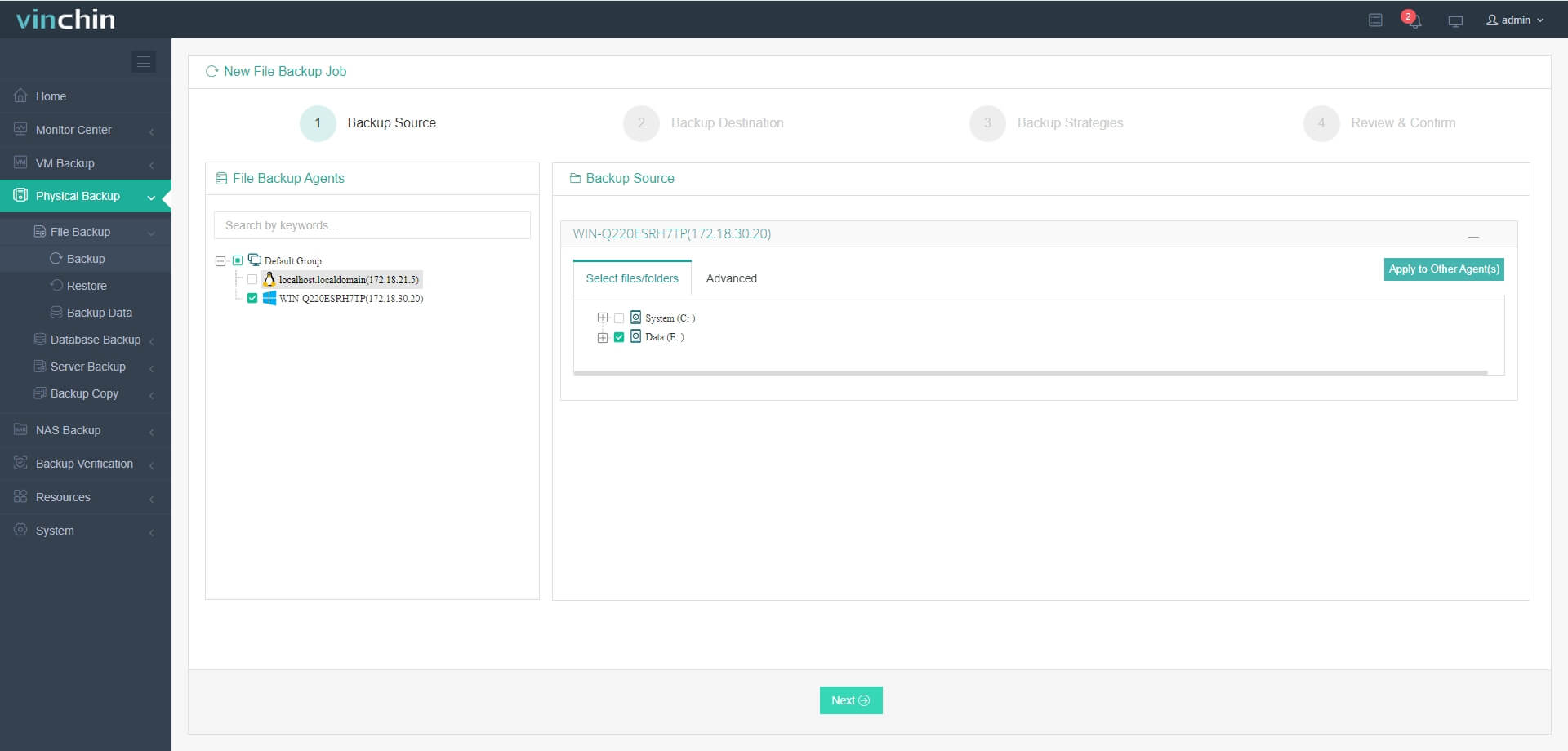
Step 1. Select the files from your chosen platform to back up
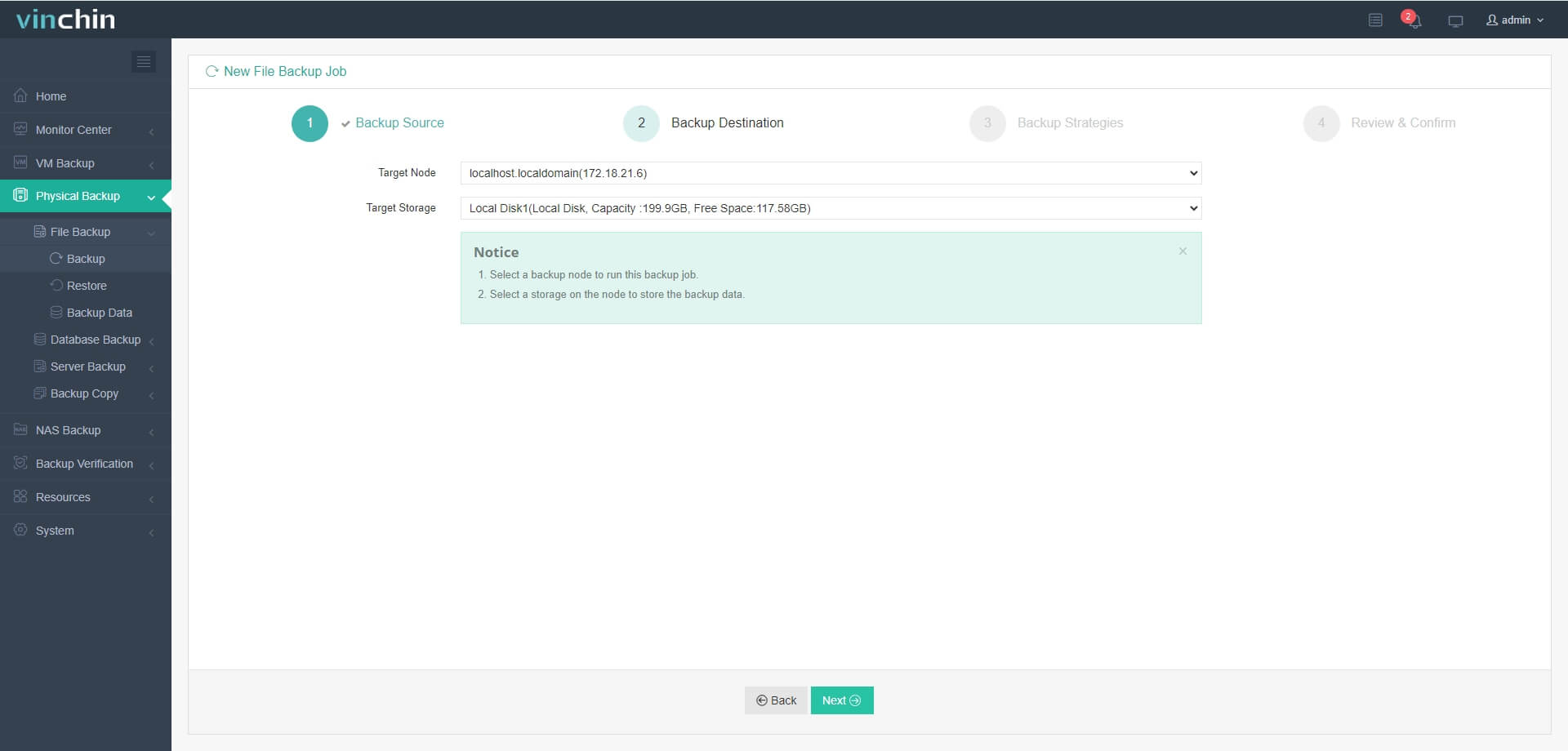
Step 2. Choose the destination storage
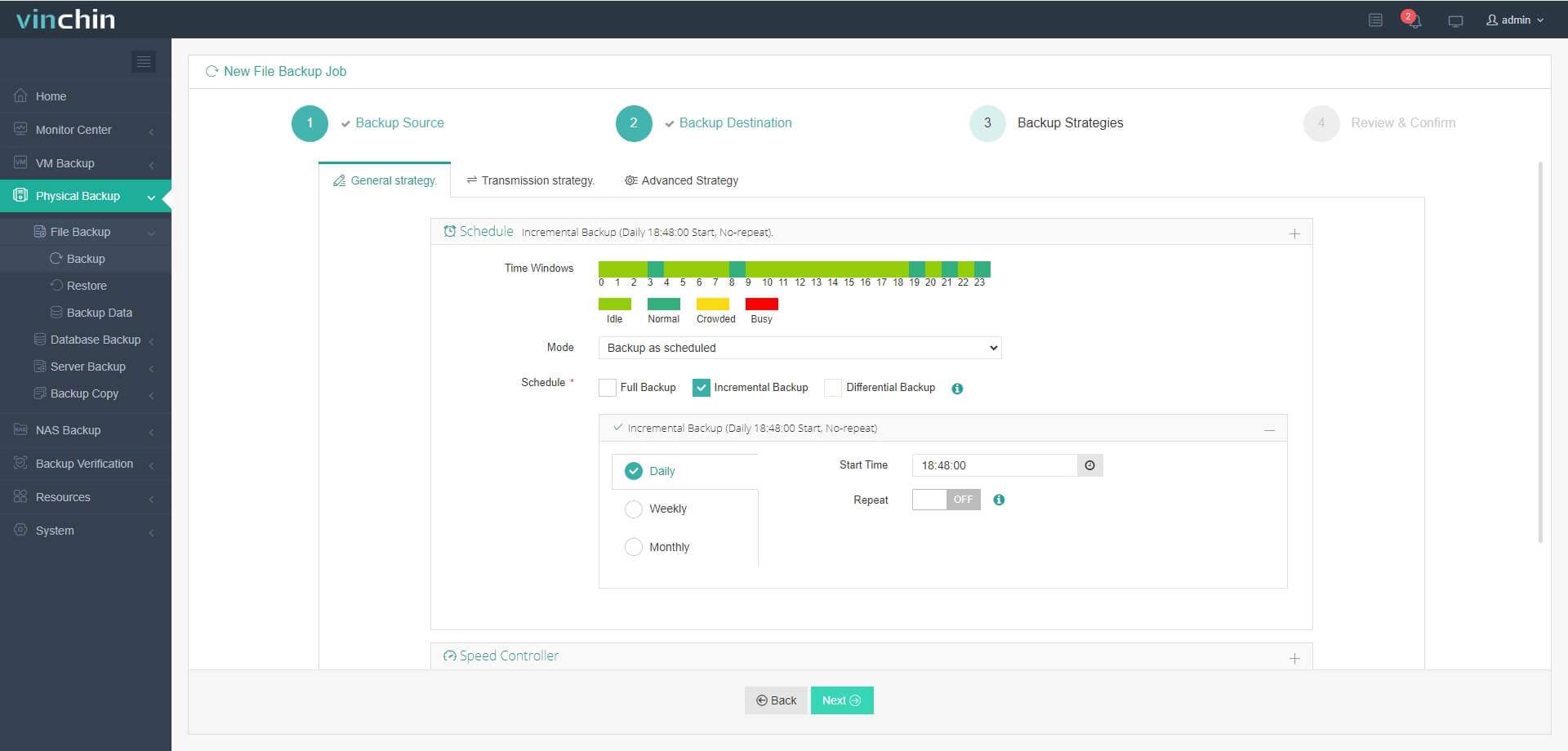
Step 3. Define your preferred backup strategy
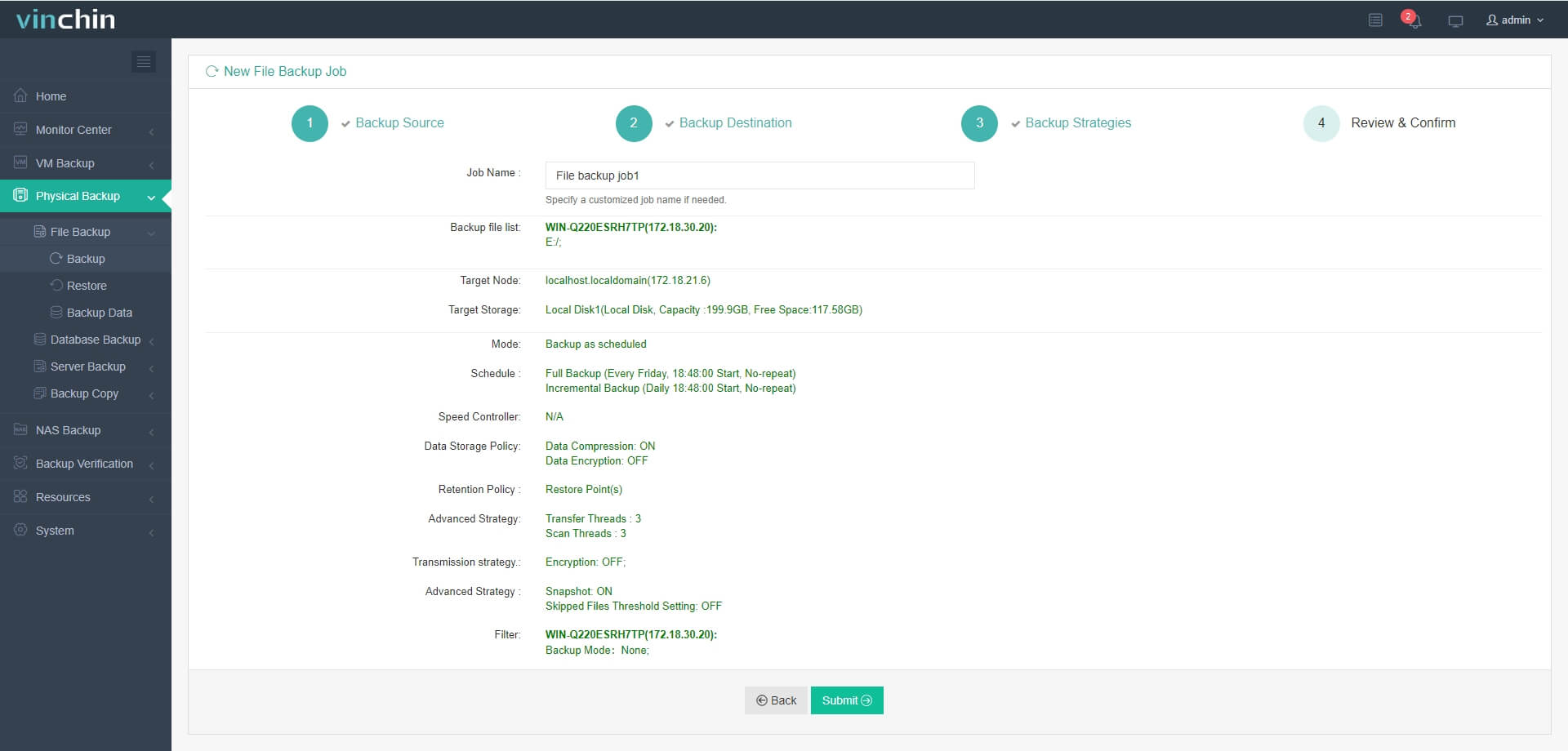
Step 4. Submit the job
Recognized globally with top ratings among thousands of satisfied customers worldwide, Vinchin Backup & Recovery offers a fully featured 60-day free trial—experience trusted enterprise-grade data protection firsthand by clicking the download button below.
Enterprise Endpoint Backup FAQs
Q1: How do I back up remote users who connect over VPN?
A1: Ensure VPN connections allow access to your central repository before scheduling automated backups through your chosen method.
Q2: What’s the best way to monitor failed backups across hundreds of devices?
A2: Use centralized dashboards provided by your solution—or configure alerting scripts that send notifications when errors appear in log files.
Q3: How can I reduce network congestion during mass endpoint backups?
A3: Stagger start times using scheduler delays; enable incremental/delta modes where available; throttle bandwidth usage within tool settings if supported.
Conclusion
Enterprise endpoint backup protects vital business data against loss—from accidents or attacks alike—and ensures fast recovery when things go wrong. Whether you use built-in tools/scripts or an advanced platform like Vinchin, regular automated backups keep operations running smoothly no matter what comes next.