Data is the backbone of every business. But how do you know who is accessing your SQL Server database, what changes are being made, and when? That’s where SQL Server database audit comes in. Auditing helps you track activity, spot threats, and meet compliance requirements.
SQL Server Database audit is not just a checkbox for compliance—it is a practical tool for daily operations. If an incident happens or data goes missing, an audit trail can help you understand exactly what occurred. In this article, we’ll break down what SQL Server database audit is, why it matters, what you can audit, how to set it up using native features step by step, best practices to follow, common challenges to avoid, and how Vinchin can help protect your SQL Server data.
What Is SQL Server Database Audit?
SQL Server database audit is a built-in feature that records events and actions in your SQL Server environment. It lets you monitor who did what, when, and how. You can track logins, permission changes, data access, schema changes, and more. The audit records are stored in files or Windows event logs—ready for review and reporting.
SQL Server auditing works at two levels: server and database. At the server level, you can track actions like logins (both successful and failed), configuration changes such as altering system settings or enabling features like xp_cmdshell. At the database level, you can monitor access to tables (for example SELECT statements), changes to data (like UPDATEs or DELETEs), schema modifications (such as CREATE TABLE or DROP INDEX), and user management activities.
This layered approach gives both a broad overview of activity across the whole instance as well as detailed tracking within specific databases.
Why Audit Your SQL Server Database?
Why bother with auditing? The answer is simple: security, compliance, accountability—and peace of mind.
Auditing helps detect unauthorized access attempts before they become breaches. It allows you to spot suspicious changes quickly—such as privilege escalation or mass deletions—and investigate incidents after they occur. Many regulations require auditing too; GDPR demands proof of who accessed personal data; HIPAA requires tracking access to health information; SOX mandates controls over financial systems; PCI DSS insists on monitoring cardholder data.
Without auditing enabled on your SQL Server databases—or if audits are incomplete—you're flying blind. If a breach happens or sensitive information leaks out, you may not know what was compromised or how it happened. With auditing in place you have a clear trail of events—who did what action at which time from which machine—which not only helps respond to incidents but also builds trust with customers and regulators.
Auditing also supports internal accountability. When multiple administrators manage production databases—or when developers have elevated rights—an accurate record ensures everyone follows policy.
What Can Be Audited in SQL Server?
SQL Server auditing is flexible enough to fit most business needs—from basic login tracking to detailed monitoring of sensitive objects.
At the server level you can audit:
Logins (both successful and failed attempts)
Permission grants or revocations
Changes to server configuration
Role membership assignments
How to Perform SQL Server Database Audit Using Native Features?
Setting up SQL Server auditing is straightforward using either SQL Server Management Studio (SSMS) graphical interface or Transact-SQL (T-SQL) scripts. Let’s walk through each stage step by step—from creating an audit object through reviewing logs.
Step 1: Create a Server Audit Object
First define where your audit records will be stored—this container is called a server audit object.
Using SSMS:
1. Open SQL Server Management Studio then connect to your instance.
2. In Object Explorer, expand Security.
3. Right-click Audits then select New Audit.
4. Enter a name for your new audit.
5. Choose Audit destination: File, Windows Application log, or Windows Security log.
6. If using File, specify the File path—make sure this folder exists and has proper permissions—and set limits for file size/rollover.
7. Set On Audit Log Failure action: Continue, Shut down server, or Fail operation depending on your risk tolerance.
8. Click OK to create the audit object.
9. Right-click your new audit then select Enable Audit—this activates logging.
Using T-SQL:
CREATE SERVER AUDIT [MyServerAudit]
TO FILE (FILEPATH = 'C:\AuditLogs\', MAXSIZE = 100 MB)
WITH (QUEUE_DELAY = 1000, ON_FAILURE = CONTINUE);
ALTER SERVER AUDIT [MyServerAudit] WITH (STATE = ON);
Tip: Adjust FILEPATH based on your environment—ensure the folder exists with write permissions.
Step 2: Create an Audit Specification
Next define exactly what actions will be captured by linking an audit specification to your server audit object.
Server Audit Specification (server-level events):
Using SSMS:
1. In Object Explorer, expand Security.
2. Right-click Server Audit Specifications then choose New Server Audit Specification.
3. Enter a name; select your previously created server audit object; pick one or more Audit Action Types such as FAILED_LOGIN_GROUP.
4. Click OK.
5. Right-click your new specification then select Enable Server Audit Specification.
Using T-SQL:
CREATE SERVER AUDIT SPECIFICATION [MyServerAuditSpec]
FOR SERVER AUDIT [MyServerAudit]
ADD (FAILED_LOGIN_GROUP),
ADD (SUCCESSFUL_LOGIN_GROUP)
WITH (STATE = ON);
Database Audit Specification (database-level events):
Using SSMS:
1. Expand the target database.
2. Expand Security.
3. Right-click Database Audit Specifications then choose New Database Audit Specification.
4. Enter a name; select your server audit object; add actions such as SELECT ON dbo.Customers BY public.
5. Click OK.
6. Right-click your new specification then select Enable Database Audit Specification.
Using T-SQL:
USE MyDatabase;
CREATE DATABASE AUDIT SPECIFICATION [MyDbAuditSpec]
FOR SERVER AUDIT [MyServerAudit]
ADD (SELECT ON dbo.Customers BY public),
ADD (UPDATE ON dbo.Customers BY public)
WITH (STATE = ON);
Tip: Use BY clause to target specific users/groups.
Step 3: Review Audit Logs
Audit records appear in whatever destination you specified earlier.
If using file output:
If using T-SQL:
SELECT * FROM sys.fn_get_audit_file('C:\AuditLogs\*', NULL,NULL);You can filter results by date range using WHERE clauses—for example:
SELECT * FROM sys.fn_get_audit_file('C:\AuditLogs\*', NULL,NULL)
WHERE event_time > '2024-06-01' AND action_id = 'SL';
If using Windows Event Viewer:
Step 4: Fine-Tune and Maintain
Once basic auditing works—refine it further:
You can filter audits using predicates so only relevant actions/users are logged—for example only capturing SELECTs by non-admin users:
ADD (SELECT ON dbo.Payroll BY public WHERE USER_NAME() <> 'DBA')
Monitor disk space regularly since large logs fill up storage quickly—set up alerts if needed.
Archive old logs off-server according to company policy; automate this process using PowerShell scripts if possible.
Review specifications every quarter—or after major application updates—to ensure they match current security needs.
Protecting Your Data with Vinchin Backup & Recovery
While robust auditing provides visibility into activity within Microsoft SQL Server databases—including unauthorized access attempts—a comprehensive protection strategy should also include reliable backup solutions against threats like ransomware attacks or accidental deletion of critical data sets found in enterprise environments today.
Vinchin Backup & Recovery stands out as an enterprise-grade solution supporting mainstream platforms including Oracle®, MySQL®, MariaDB®, PostgreSQL®, PostgresPro®, MongoDB®, and especially Microsoft® SQL Server®. Its advanced capabilities cover incremental backup strategies tailored for transactional workloads like those typical in modern businesses; batch backup scheduling across multiple instances/databases simultaneously; multi-level compression options optimizing storage usage without sacrificing speed; granular retention policies including GFS models for regulatory alignment; plus unique verification features designed specifically for Microsoft® SQL Server®. These combined features deliver efficient backups while minimizing resource consumption—all managed via one intuitive web console.
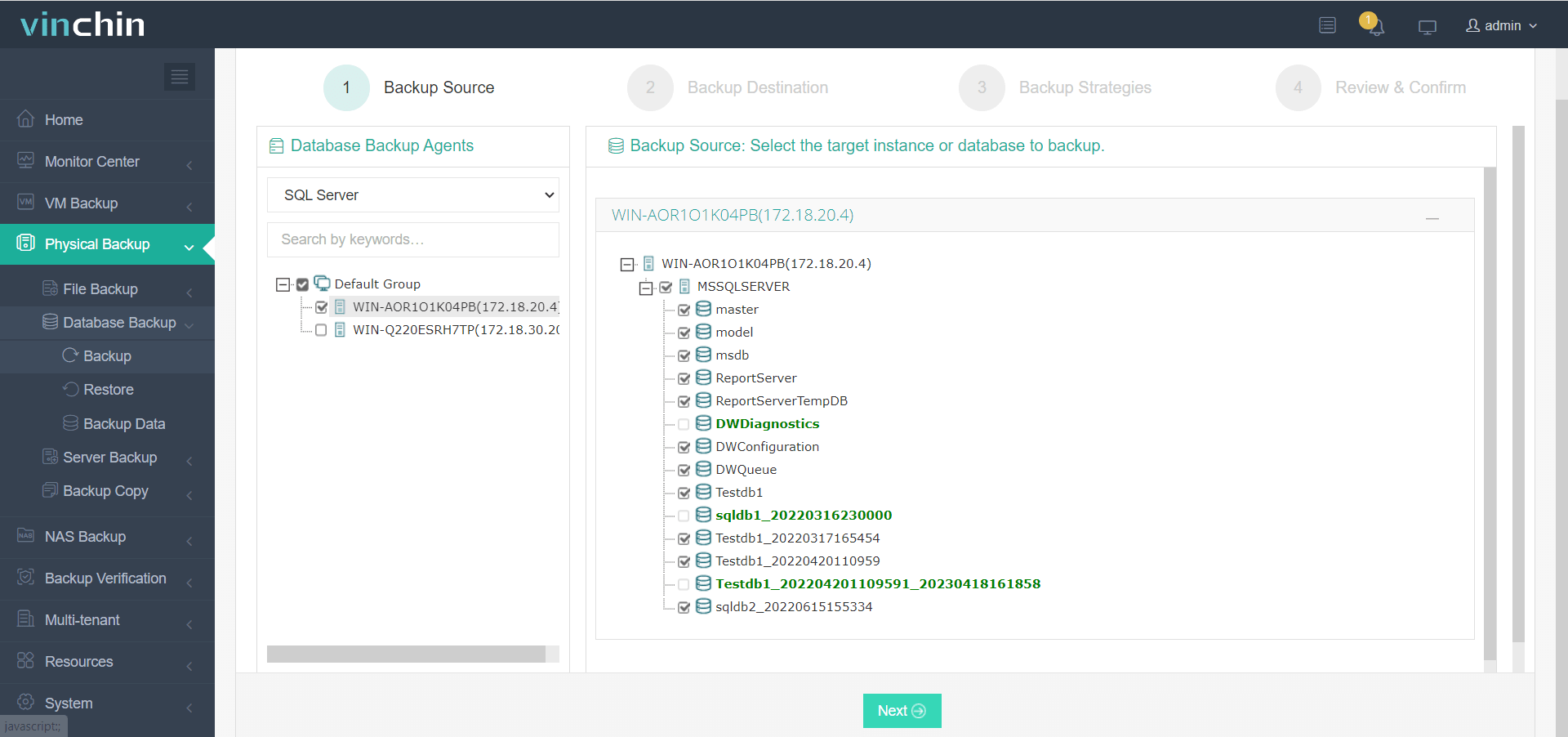
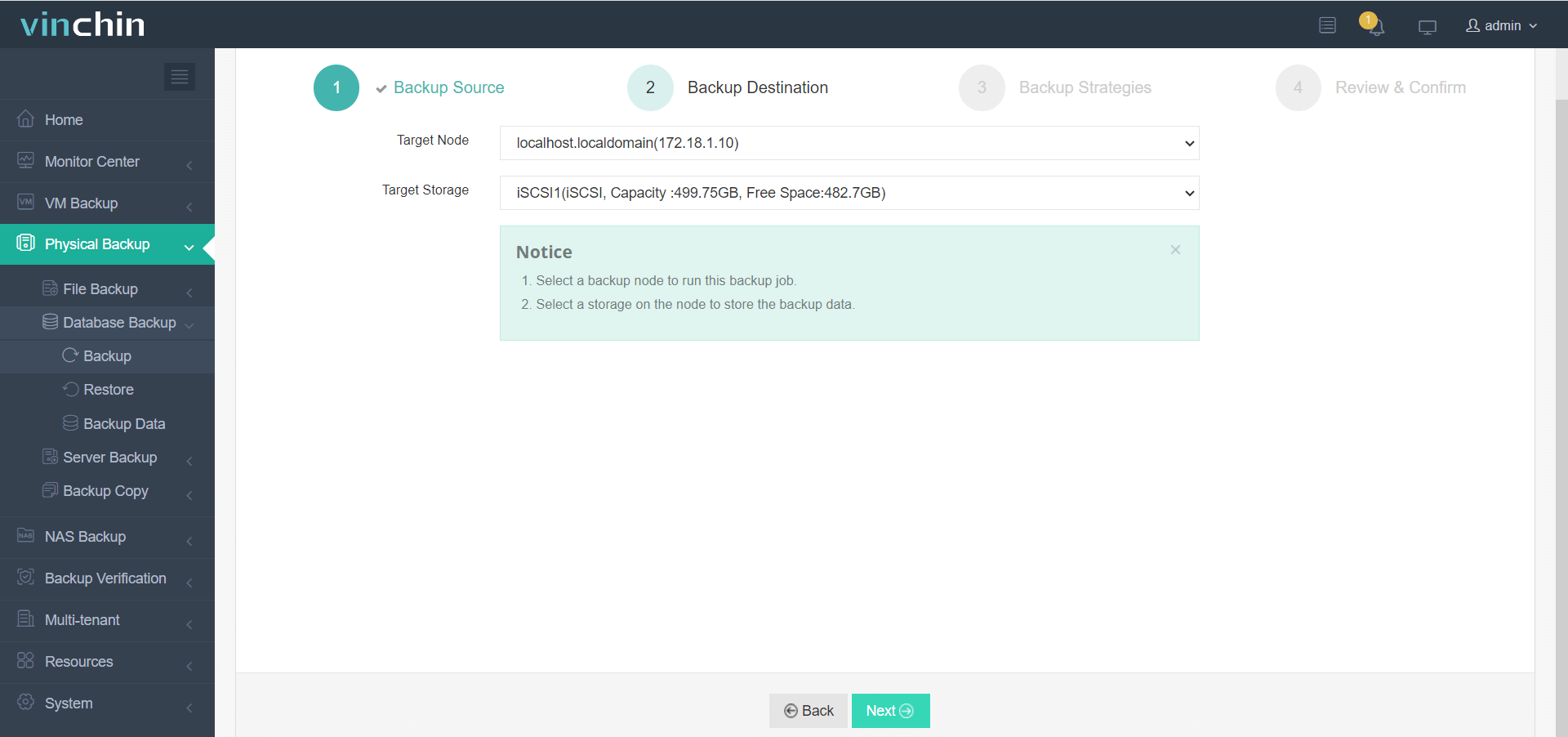
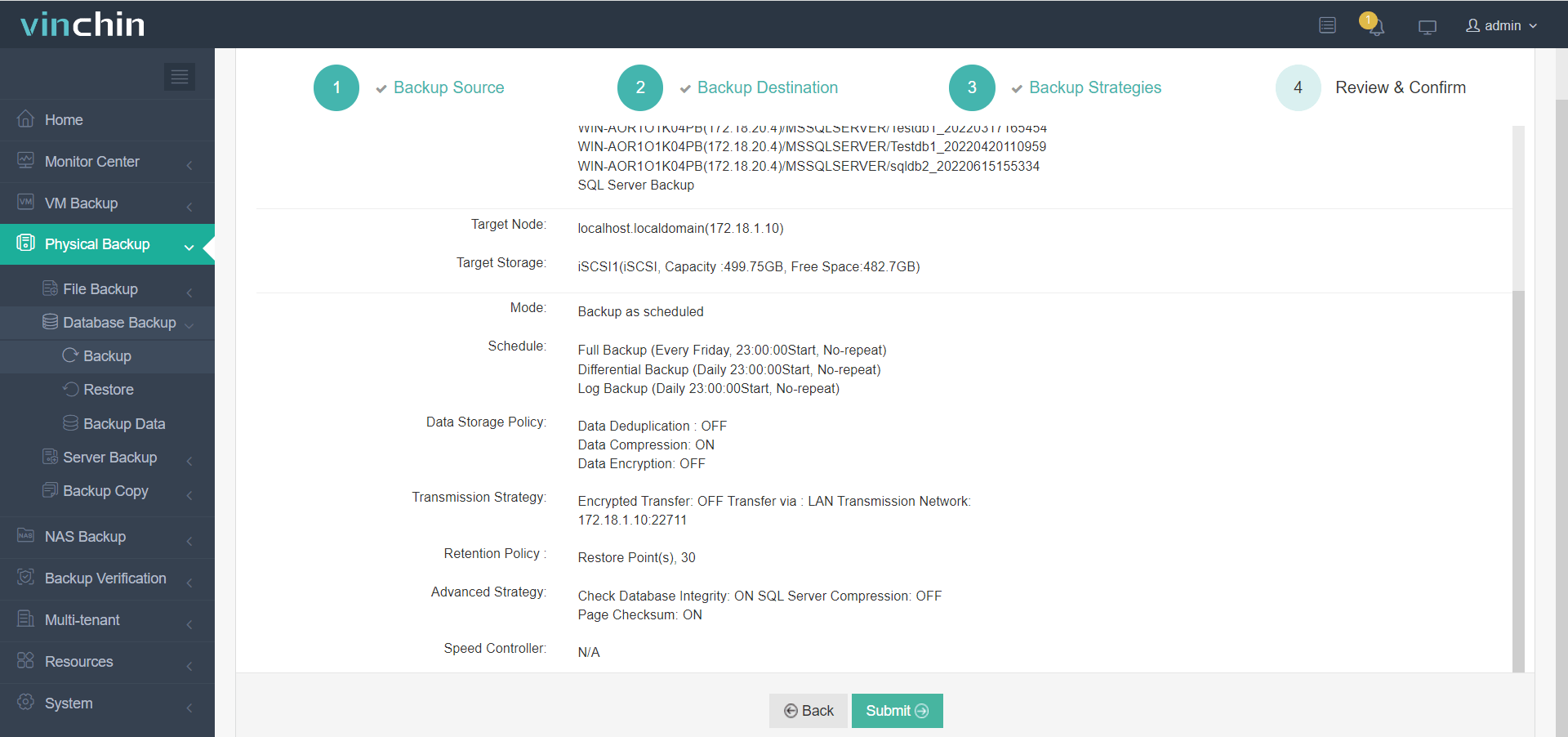
With Vinchin Backup & Recovery’s streamlined workflow backing up Microsoft® SQL Server® involves four simple steps:
1. Select source SQL Server database(s),
2. Choose target storage location(s),
3. Configure backup strategies,

4. Submit the job.
Recognized globally among enterprise IT teams—with thousands of satisfied customers worldwide—Vinchin Backup & Recovery offers top-rated reliability along with a full-featured free trial valid for 60 days so organizations everywhere can experience its benefits firsthand.
SQL Server Database Audit FAQs
Q1: How do I minimize performance impact from auditing?
A1: Focus audits on high-risk actions only; use asynchronous logging by setting QUEUE_DELAY higher; regularly review specifications for unnecessary items.
Q2: Can I integrate my audit logs with external monitoring tools?
A2: Yes; store logs in Windows Application/Security log then forward them using SIEM connectors like Windows Event Forwarding or custom scripts.
Q3: What should I do if my file-based audits stop due to disk space?
A3: Increase storage quota OR archive/delete old files OR adjust rollover settings via SSMS > Audits > Properties > File Options.
Conclusion
SQL Server database audit gives IT teams visibility into every important change while supporting security goals and regulatory compliance needs alike. By following these steps—and best practices—you’ll build strong oversight without sacrificing performance or usability. For full protection pair native auditing with Vinchin’s backup solutions so every piece of critical data stays safe no matter what happens next!