OpenStack flavors are at the heart of cloud resource management. They define exactly how much CPU, memory, and disk space each virtual machine (VM) gets in your environment. When you manage openstack flavor settings well, you can boost performance, control costs, and make sure resources go where they’re needed most. Whether you’re just starting out or running a large-scale deployment, mastering openstack flavor creation is vital for smooth operations.
What Is an OpenStack Flavor?
An openstack flavor acts as a blueprint for every VM you launch in your cloud platform. Each flavor sets fixed values for vCPUs (virtual CPUs), RAM (memory), root disk size, ephemeral disk size (temporary storage), swap space (for overflow memory), and sometimes network bandwidth factors or special hardware needs through extra specs.
Here’s a quick reference table of core openstack flavor attributes:
| Attribute | Description | Example Value |
|---|
| Name | Unique identifier for the flavor | m1.medium |
| ID | Integer or UUID; unique within your cloud | auto / 101 |
| vCPUs | Number of virtual CPUs assigned | 2 |
| RAM | Memory allocated (in MB) | 4096 |
| Root Disk | Main disk size (in GB) | 40 |
| Ephemeral Disk | Temporary storage erased on VM deletion (GB) | 20 |
| Swap | Swap space available to OS (MB) | 1024 |
| RX/TX Factor | Network bandwidth scaling factor | 1 |
When you launch an instance in OpenStack, you select one of these flavors to match your workload’s requirements. Advanced users can also set extra specs—key-value pairs that fine-tune hardware behavior or enable features like dedicated CPU allocation or NUMA topology awareness.
Why Use OpenStack Flavors?
Openstack flavors give administrators precise control over how resources are distributed across workloads. By offering several pre-defined flavors—or creating custom ones—you let users pick what fits their application best without risking overallocation or wasteful spending.
Flavors help with capacity planning by making it easy to forecast demand based on which types get used most often. You can enforce organizational policies too; for example, by limiting access to high-resource flavors only to certain projects or teams using access controls built into both Horizon Dashboard and CLI tools.
Custom openstack flavors also support specialized needs such as GPU acceleration for AI tasks or high-memory configurations for databases. With proper use of quotas tied to each project’s allowed number of instances per flavor type, you prevent accidental over-provisioning that could impact other tenants’ performance.
How to Manage OpenStack Flavors via Horizon Dashboard?
The Horizon Dashboard provides a simple web interface for managing openstack flavor options—even if you don’t know any command-line syntax yet! Before starting here, make sure your account has admin rights; otherwise some tabs may not appear.
To create a new openstack flavor:
Log in as an administrator on the Horizon Dashboard
Select your admin project from the drop-down list at top right
Click on the Admin tab
Expand the Compute menu on the left side
Choose Flavors
Click Create Flavor
In the window that appears:
1. Enter a unique value in Name
2. Set an integer/UUID in ID, or leave it set to ‘auto’
3. Fill out fields for VCPUs, RAM (MB), Root Disk (GB)
4. Optionally specify values for Ephemeral Disk (GB) and Swap Disk (MB)
5. Adjust network scaling using RX/TX Factor if needed
Next switch to the Flavor Access tab before saving:
If this should only be available to certain projects—for example only production workloads—move those projects into the right-hand column labeled “Selected Projects.” If left blank all projects can use this new openstack flavor by default.
Click Create Flavor when finished; it now appears in your list!
To test whether everything works as expected after creation:
Try launching a small temporary instance using this new openstack flavor profile—if there’s any error message about resources not being available double-check your input values against physical host limits first!
To update metadata later:
Find your desired entry under Flavors > click its drop-down arrow > choose Update Metadata > add/edit key-value pairs as needed then hit Save at bottom right.
Note: You cannot change core properties like vCPU count or RAM size once created via Horizon; instead delete old entries then recreate them with updated settings if necessary.
If you do not see either Admin tab or Flavors option anywhere check with your cloud administrator—they may need to grant additional permissions first!
How to Manage OpenStack Flavors via CLI?
For those comfortable at the terminal prompt—or automating deployments—the openstack command-line client offers full power over every aspect of openstack flavor configuration including advanced tweaks unavailable through web UI alone.
To create a basic openstack flavor run:
openstack flavor create --ram 4096 --disk 40 --vcpus 2 my-medium-flavor
This creates one named my-medium-flavor with four gigabytes RAM, forty gigabytes root disk space, two vCPUs assigned by default scheduler rules unless further customized below:
You may also append flags such as --ephemeral, --swap, --id, --public, or restrict visibility using --private --project <project_id> so only specific tenants see/use this entry during instance launches.
Setting Extra Specs via CLI
Extra specs allow deep customization beyond standard fields—for example enforcing CPU pinning policies required by some HPC applications:
openstack flavor set my-medium-flavor --property hw:cpu_policy=dedicated
Or setting strict disk write limits suitable for database servers:
openstack flavor set db-flavor --property quota:disk_write_bytes_sec=10485760
Each time you use flavor set with --property flag it adds OR overwrites existing keys rather than merging them together automatically—so always review current settings before making changes!
Commonly used extra spec keys include:
Hardware features (hw:numa_nodes, hw:mem_page_size)
Resource quotas (quota:cpu_quota, quota:disk_read_iops_sec)
PCI passthrough device aliases (pci_passthrough:alias)
Watchdog timers (hw:watchdog_action)
Modifying Existing Flavors
While descriptions/metadata can be changed anytime:
openstack flavor set my-medium-flavor --description "Updated description"
Core resource allocations like vCPU/RAM/disk cannot be edited after initial creation—instead delete then recreate as needed:
openstack flavor delete my-medium-flavor
# Then re-create with updated parameters...
Removing unwanted extra specs is straightforward too:
openstack flavor unset my-medium-flavor --property hw:cpu_policy
Remember deleting any entry does NOT affect currently running VMs—they keep their original allocations until terminated—but prevents future launches using that exact profile name/ID combination going forward.
Advanced Flavor Customization Examples
Sometimes standard options aren’t enough—you need fine-grained control tailored specifically toward demanding workloads such as scientific computing clusters or ultra-low-latency trading platforms! Here are two practical scenarios showing how advanced extra specs work in real life:
Method 1. For high-performance computing jobs needing exclusive CPU access:
Run
openstack flavor set hpc-flavor --property hw:cpu_policy=dedicated
This ensures each VM launched gets physically pinned cores rather than sharing time slices—a must-have feature when latency matters most!
Method 2. For heavy database servers requiring guaranteed fast writes:
Use
openstack flavor set db-flavor --property quota:disk_write_bytes_sec=10485760
Now every VM spun up from this template receives up-to ten megabytes-per-second sustained write throughput enforced directly at hypervisor level regardless of guest OS configuration inside VM itself!
Before applying advanced hardware-related properties always check what capabilities exist on underlying hosts first using commands like
openstack hypervisor show <hostname>
Not all compute nodes support every possible feature—setting unsupported options may cause scheduling failures during instance boot-up.
How to Backup OpenStack Virtual Machine With Vinchin Backup & Recovery?
After configuring optimal OpenStack flavors and deploying virtual machines, robust data protection becomes essential. Vinchin Backup & Recovery is a professional enterprise-level solution supporting backup and recovery across more than fifteen mainstream virtualization platforms—including full compatibility with OpenStack environments alongside VMware, Hyper-V, Proxmox VE, oVirt/OLVM/RHV, XCP-ng/XenServer, ZStack and others. It delivers comprehensive features such as forever-incremental backup mode, granular restore capabilities down to file level within backups, V2V migration between heterogeneous platforms, malware detection powered by Kaspersky engine integration, and instant recovery functionality—all designed to maximize data safety while minimizing operational overheads.
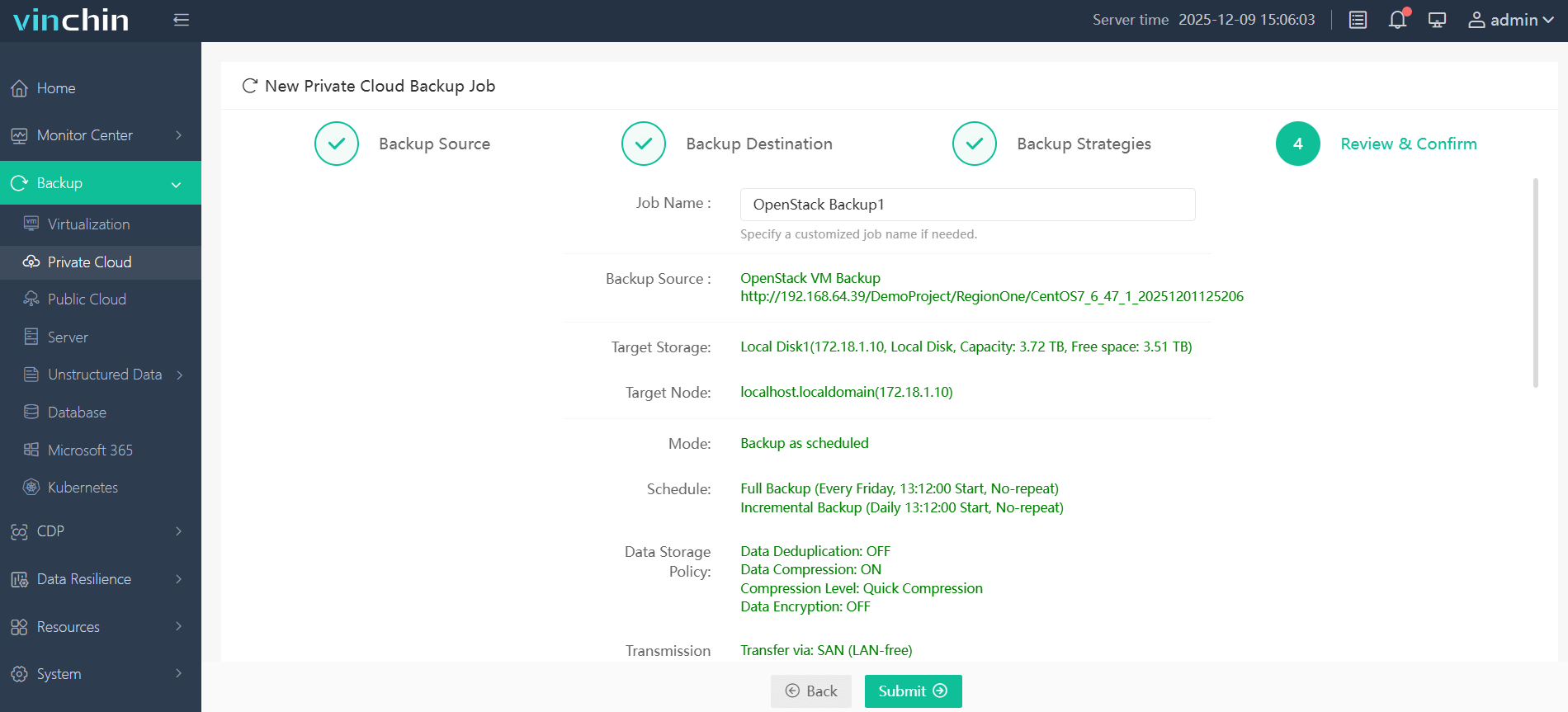
With Vinchin Backup & Recovery's intuitive web console interface backing up an OpenStack VM involves just four steps:
Step 1: Select the OpenStack VM to back up.

Step 2: Choose backup storage.
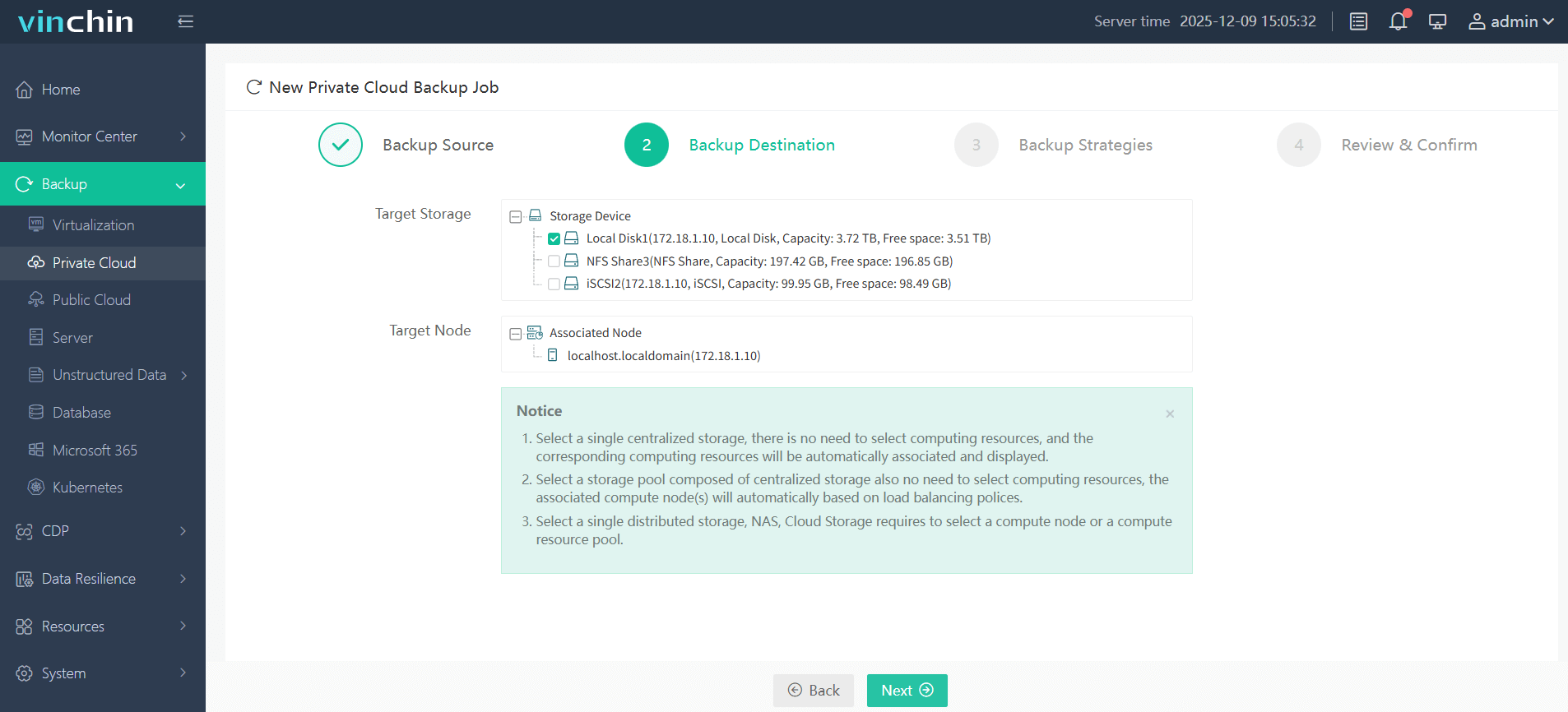
Step 3: Configure backup strategy.

Step 4: Submit the job.
Recognized globally among enterprise customers and highly rated for reliability and usability, Vinchin Backup & Recovery offers a fully featured free trial valid for 60 days—click below to download and experience industry-leading data protection firsthand.
OpenStack Flavor FAQs
Q1: Can I change vCPU or RAM values after creating an openstack flavor?
No—you must delete old entries then create new ones reflecting updated specifications since core resources cannot be modified directly once saved initially.
Q2: How do I restrict usage so only certain teams/projects see specific openstack flavors?
Set access controls during creation under Horizon’s “Flavor Access” tab OR specify target tenant/project IDs using CLI flags like --private --project <project_id>.
Q3: What happens if I delete an active openstack flavor still referenced by running VMs?
Existing instances remain unaffected but launching NEW ones based off deleted profiles becomes impossible until recreated again.
Q4: Can ephemeral disks defined within an openstack flavor serve as permanent storage?
No—ephemeral disks are wiped clean upon instance termination; attach Cinder volumes instead whenever persistent data retention is required!
Conclusion
Mastering openstack flavors lets administrators allocate resources efficiently while supporting diverse workloads across their clouds—from simple web apps up through mission-critical analytics clusters alike! For reliable protection of those valuable VMs try Vinchin’s robust backup solutions today—it keeps everything safe behind-the-scenes so YOU stay focused on innovation ahead!