Introduction
Managing Hyper-V ram allocation is one of the most important jobs for any virtualization administrator. If you allocate too little RAM to your virtual machines (VMs), they slow down or even crash. If you allocate too much, your host server may run out of resources or become unstable. Poor RAM allocation is a top cause of VM performance tickets in many organizations. Let's break down how to handle Hyper-V ram allocation step by step so you can keep your environment running smoothly.
What Is Hyper-V RAM Allocation?
Hyper-V ram allocation means assigning physical memory from your host server to each virtual machine you create or manage in Hyper-V. You have two main choices: set a fixed amount (static) or let Hyper-V adjust it automatically (dynamic). The goal is always balance, give each VM enough memory without starving other VMs or your host system.
Why Proper RAM Allocation Matters
Allocating the right amount of RAM keeps both your VMs and host stable and responsive. Too little memory leads to sluggish applications or failed startups, too much can starve other workloads or even crash your server. Unlike some platforms that allow true overcommitment of physical memory, Hyper-V uses strict controls with static allocations but allows more flexibility with dynamic memory settings based on actual usage patterns.
Best Practices for Right-Sizing Hyper-V RAM
Getting Hyper-V ram allocation right starts with understanding both workload needs and host limitations. For predictable workloads like domain controllers or simple web servers, static allocations work well, assign only what's needed plus a small buffer for spikes. For variable workloads such as application servers or test environments, dynamic memory lets you run more VMs per host by sharing unused capacity.
Always reserve enough RAM for your host operating system, at least 2 GB is recommended if no extra services are running; add more if needed. Review historical data from Performance Monitor before setting minimums and maximums for each VM so you don't guess blindly.
When planning allocations:
Add up all Startup RAM values across VMs.
Subtract this total plus host reserve from total physical RAM.
Avoid setting Maximum RAM higher than what's physically available minus what's reserved.
This approach helps prevent resource contention at boot time while allowing flexibility during runtime.
How to Assign Static Memory in Hyper-V
Static memory means giving a VM a fixed amount of RAM, it always gets this exact value whether it needs it or not. This method works best when you know exactly how much memory an application requires day-to-day.
Before making changes, make sure the VM is turned off because static settings cannot be changed while it runs.
1. Open Hyper-V Manager.
2. In the left pane, select your host server.
3. In the middle pane, right-click on the target VM and choose Settings.
4. Under Hardware, click Memory.
5. In the Startup RAM field (measured in MB), enter how much memory you want assigned.
6. If Enable Dynamic Memory is checked from previous use, uncheck it before saving changes.
7. Click OK to apply settings.
Once started again, this VM will always use exactly this amount of physical memory, no more and no less even if its workload changes throughout the day. If there isn't enough free physical RAM available when starting multiple VMs at once, some may fail to start until resources are freed up.
How to Configure Dynamic Memory in Hyper-V
Dynamic memory lets Hyper-V adjust how much RAM each VM uses based on real-time demand a great fit when workloads change often or when maximizing density matters most.
To configure dynamic memory:
First shut down any VM before changing these settings unless only increasing Maximum or decreasing Minimum values (see FAQ below).
1. Open Hyper-V Manager.
2. Select your host server; right-click on desired VM; choose Settings.
3. Under Hardware, click Memory.
4. Check box labeled Enable Dynamic Memory.
5. Set these fields:
Startup RAM: Amount given at boot (in MB); must cover OS startup needs
Minimum RAM: Smallest allowed after startup; frees unused capacity
Maximum RAM: Largest allowed during heavy load; never exceeded
Memory buffer: Extra percentage kept ready for sudden spikes (default 20%)
Memory weight: Priority value from 0–10000 (default 5000); higher means higher priority during contention
6. Click OK to save changes
After restarting the VM, watch as its assigned memory rises and falls within set limits depending on current activity levels, you can track this live using either built-in tools like Task Manager inside guest OSes or external tools like Performance Monitor.
Remember: While Dynamic Memory allows efficient sharing based on actual usage, and may appear similar to overcommitting, it does not support true overcommitment like some other platforms do with ballooning techniques.
Avoiding Common RAM Allocation Issues
Even experienced admins sometimes hit snags with Hyper-V ram allocation due to misconfiguration or unexpected workload spikes.
Always leave enough headroom for Windows Server itself, the base recommendation is 2 GB but increase this if running additional roles/services beyond just hosting VMs. Regularly monitor both individual VM consumption and overall system health using built-in tools such as Performance Monitor counters under Hyper-V Dynamic Memory Balancer and VM Memory.
Don't assign more total maximum possible across all VMs than what's physically installed minus reserved space, the platform won't start new guests if there isn't enough free at launch time even though dynamic balancing helps later on.
For critical apps needing consistent performance, like databases, prefer static assignments over dynamic ones since they guarantee availability regardless of other activity levels nearby.
If troubleshooting unexplained slowness:
Check event logs inside guest OSes
Review assigned vs used values in both guest Task Manager and Host-side Performance Monitor
Adjust allocations gradually rather than making large jumps all at once
These steps help minimize downtime while tuning performance safely across busy environments.
Monitoring Hyper-V RAM Usage with Performance Counters
Effective monitoring ensures that Hyper-V ram allocation matches real-world demand, not just theoretical plans made during setup day.
Start by opening Windows' built-in tool:
1) Launch Performance Monitor
2) Add counters such as Hyper-V Dynamic Memory Balancer\Available Memory, VM Memory\Physical Memory, VM Worker Process\Private Bytes
3) Track trends over hours/days instead of relying solely on point-in-time snapshots
You'll spot patterns like periodic spikes tied to backups/scans, or gradual leaks caused by misbehaving apps, that might otherwise go unnoticed until users complain about slowdowns!
For quick checks via PowerShell:
Get-VM | Get-VMMemory | Format-Table Name,Demand,MappedSize
This command lists current demand versus mapped size per running guest so you can identify which ones are close to their limits, or wasting allocated space unnecessarily.
Regular reviews help catch issues early before they impact production systems, and provide hard data backing up requests for hardware upgrades when needed!
Backing Up Your Hyper‑V Virtual Machines with Vinchin Backup & Recovery
To further safeguard your environment after optimizing Hyper-V ram allocation, consider robust backup protection designed specifically for enterprise needs, such as Vinchin Backup & Recovery. As a professional solution supporting over 15 mainstream virtualization platforms, including full compatibility with Microsoft Hyper‑V alongside VMware, Proxmox, oVirt, OLVM, RHV, XCP-ng, XenServer, OpenStack, ZStack and others, it delivers broad coverage across diverse infrastructures at scale.
For Microsoft Hyper‑V environments specifically, Vinchin Backup & Recovery provides essential features including forever incremental backup for storage efficiency and rapid backups, advanced deduplication/compression reducing backup footprint, granular restore enabling file-level recovery within a single backup job, secure data encryption protecting sensitive information end-to-end; and cloud/tape archive options ensuring long-term retention compliance, all streamlining operations while minimizing risk through automation and intelligent policy management.
The intuitive web console makes protecting virtual machines straightforward:
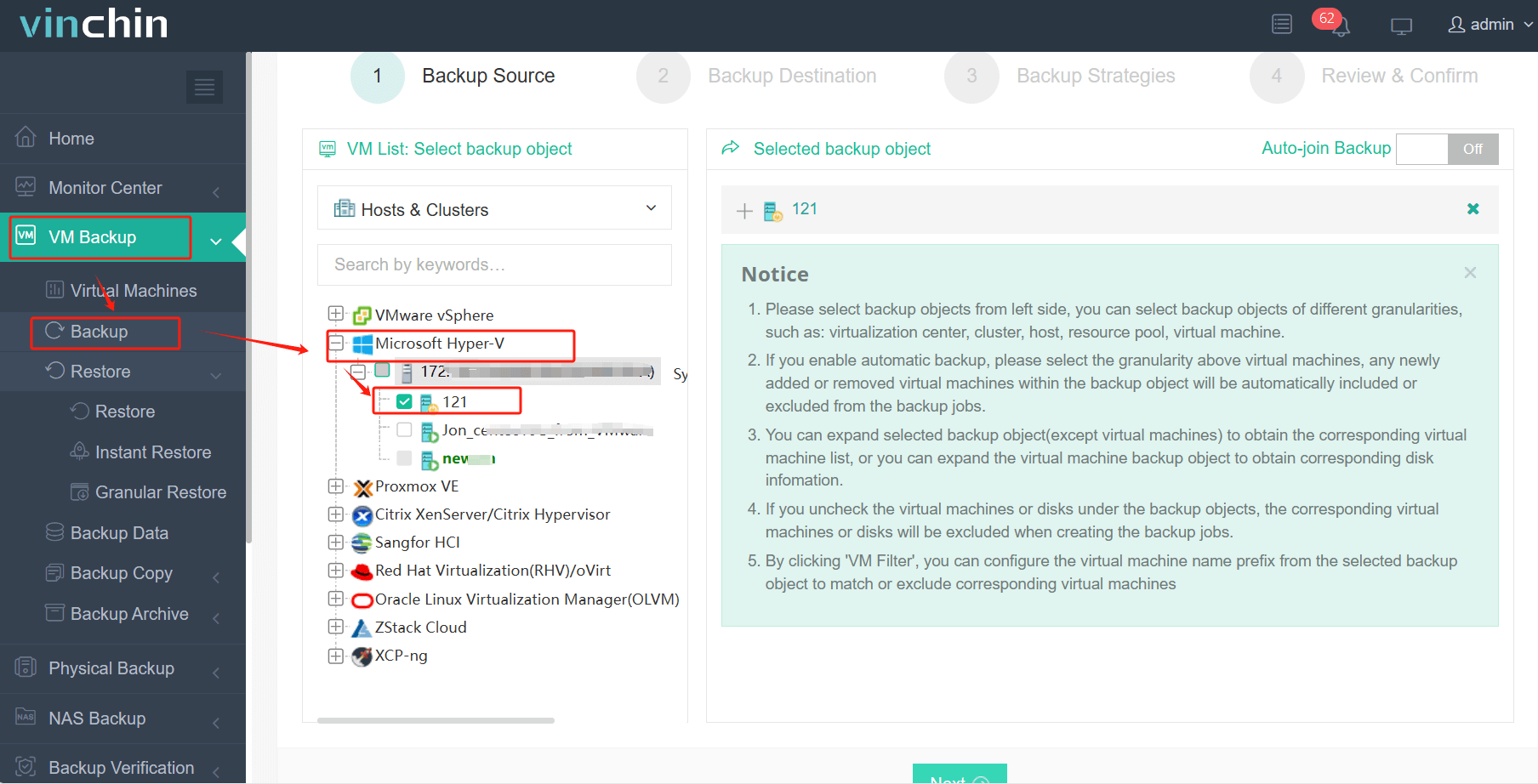
Step 1: Select the Hyper‑V VM(s) you wish to back up
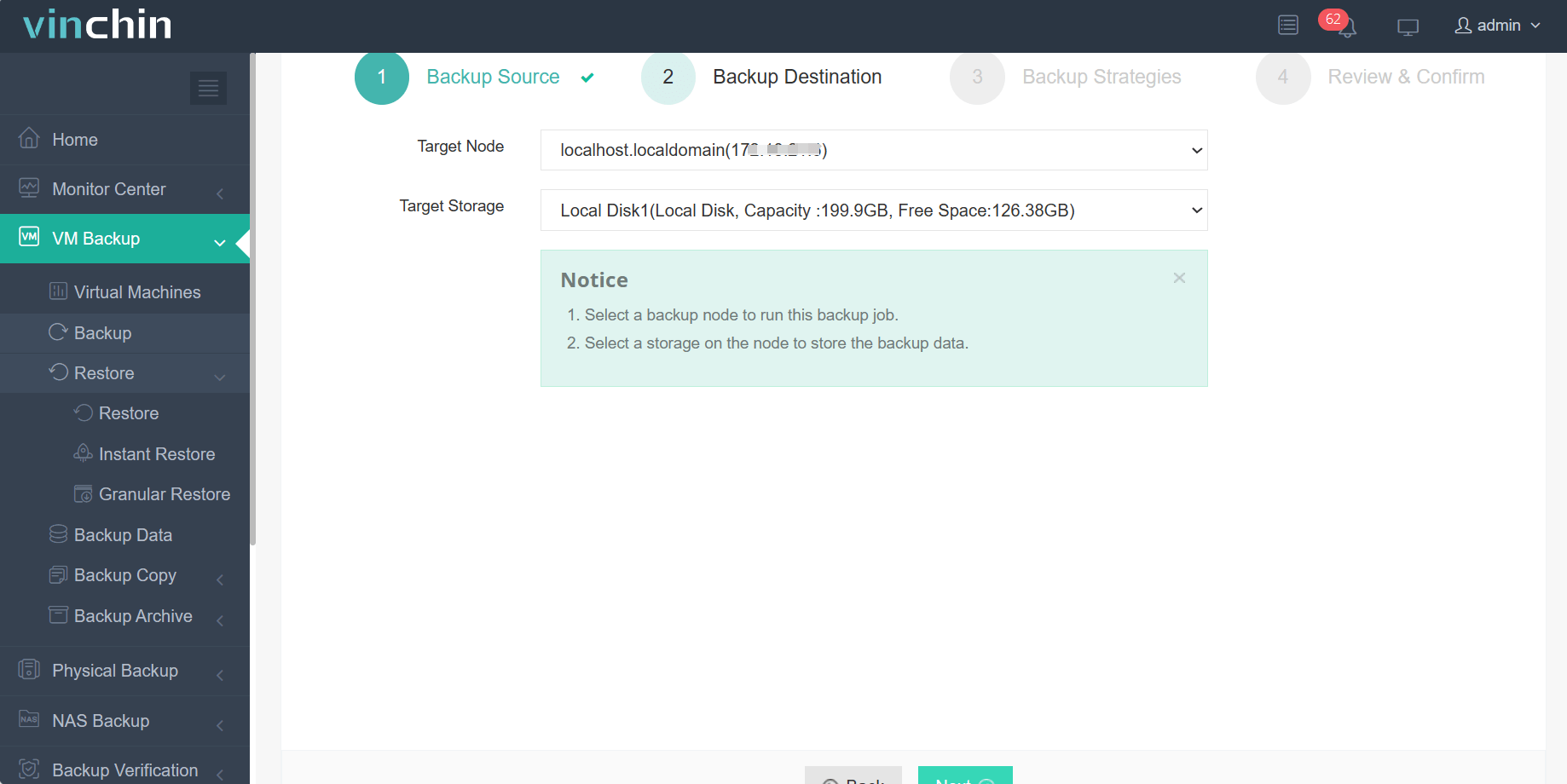
Step 2: Choose backup storage location
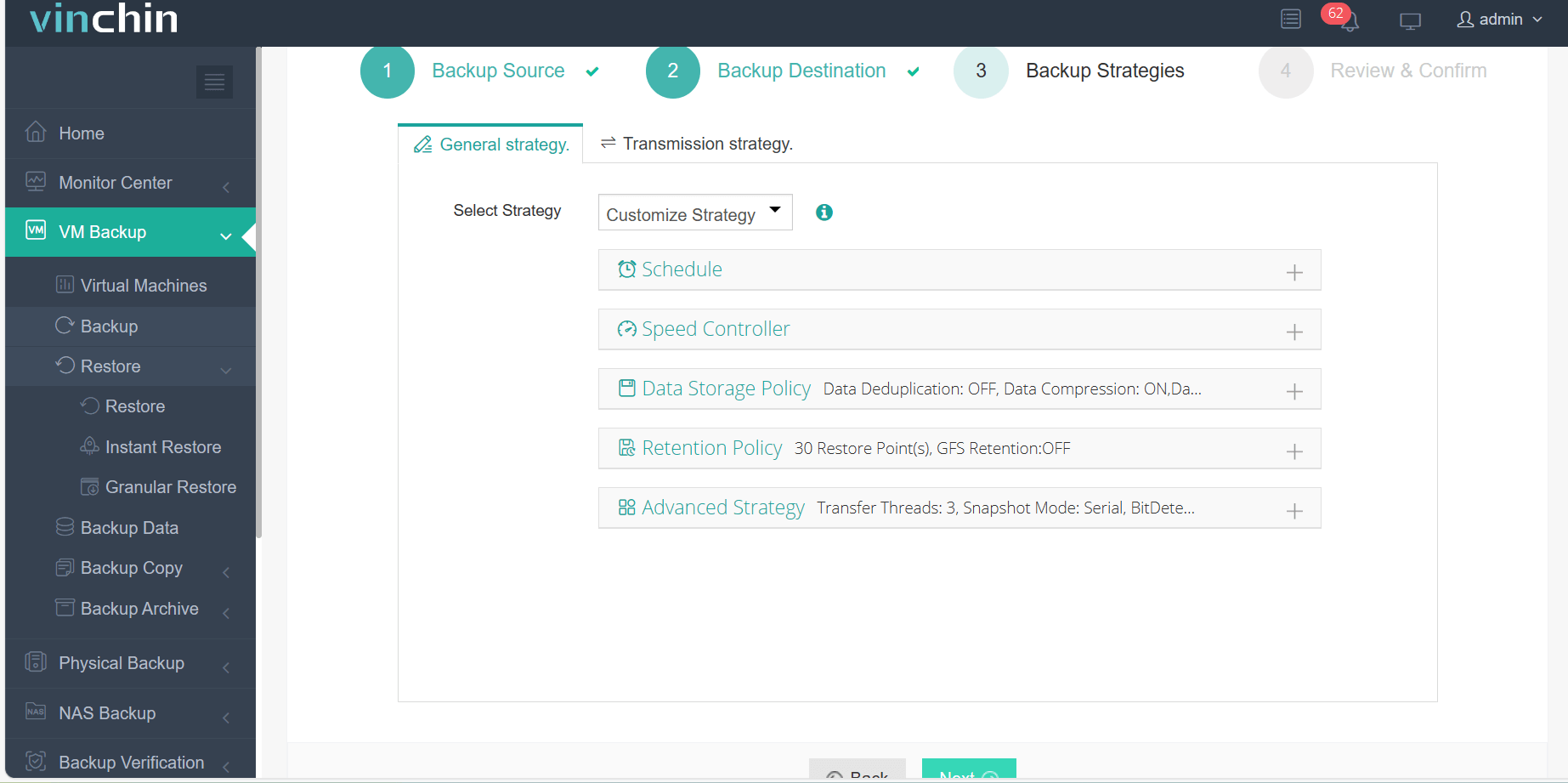
Step 3: Configure backup strategy according to business requirements
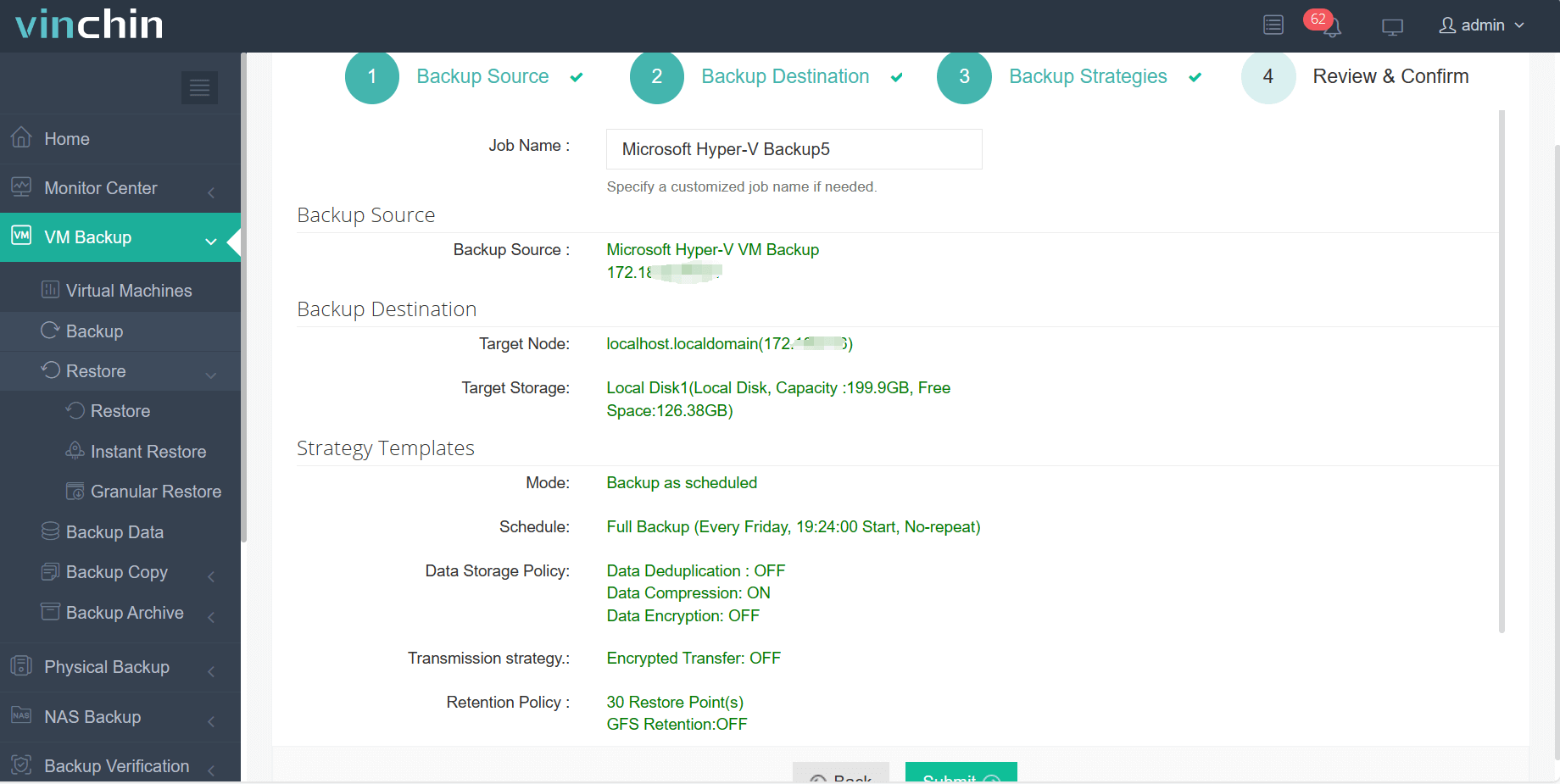
Step 4: Submit the job
Thousands worldwide trust Vinchin Backup & Recovery for reliable enterprise data protection, with top ratings globally! Try every feature free for 60 days by clicking below to download now.
Hyper-V RAM Allocation FAQs
Q1: Can I check detailed historical usage trends instead of just current assigned values?
A1: Yes, use Windows' Performance Monitor tool with relevant counters like VM Memory\Physical Memory over time intervals for trend analysis.
Q2: What happens if I lower Maximum RAM below current usage while my VM runs?
A2: You must power off then restart affected guest before lowering Maximum value below present assignment level, it cannot shrink live beyond active use threshold!
Q3: Is there an easy way find which guests are closest hitting their max/min limits?
A3: Run PowerShell command Get-VM | Get-VMMemory | Format-Table Name,Demand,MappedSize on host see live stats per machine instantly.
Conclusion
Hyper-V ram allocation plays an essential role in keeping virtualized environments stable efficient Use static assignments where predictability matters most switch dynamic mode maximize density flexibility Always monitor trends adjust proactively For robust backup migration needs try Vinchin's proven solution today









