Have you ever started a Hyper-V virtual machine and seen the message Start PXE over IPv4? You are not alone. Many IT administrators run into this screen, often when deploying or troubleshooting VMs. This article explains what this message means, why it appears, and how to resolve or configure network boot in Hyper-V step by step.
What Is Start PXE Over IPv4 in Hyper-V
PXE stands for Preboot Execution Environment. It is a standard that lets computers boot from a network server instead of local storage. When you see Start PXE over IPv4, your VM is trying to boot from the network using the IPv4 protocol.
In Hyper-V, this happens if the virtual machine’s firmware cannot find a bootable operating system on its hard disk or DVD drive. As a fallback, it tries to boot from the network using PXE. This can be intentional (if you want to deploy an OS via network) or accidental (if your VM is misconfigured). Understanding this process helps you pinpoint where things might go wrong during deployment.
Why Does My Hyper-V VM Show This Message
This message usually appears for three main reasons:
The VM has no installed operating system on its virtual hard disk.
The boot order in the VM settings prioritizes network boot before hard disk or DVD.
The attached disk is not set up as a valid boot device (for example, after converting a physical PC to VHDX).
If you see this message unexpectedly, it likely means your VM cannot find anything else to boot from and falls back to PXE. Sometimes, even experienced admins overlook simple configuration issues that lead directly to this prompt.
How to Fix Boot Order Issues in Hyper-V
Often, fixing PXE boot issues is as simple as adjusting your VM’s settings so it boots from the correct device first. Here’s how you do it:
First, make sure your virtual hard disk contains a working operating system. If not, attach an installation ISO or use another method to install one.
Next, check and adjust the boot order:
For Generation 1 VMs (BIOS-based)
To change the startup sequence for BIOS-based VMs:
1. Shut down your VM
2. In Hyper-V Manager, right-click your VM and select Settings
3. Click BIOS in the left pane
4. In the Startup order list, move Hard Drive above Network Adapter using the arrow buttons
5. Click OK
The Legacy Network Adapter emulates hardware with built-in PXE support; only this adapter type allows Gen 1 VMs to perform network boots.
For Generation 2 VMs (UEFI-based)
For UEFI-based VMs:
1. Shut down your VM
2. In Hyper-V Manager, right-click your VM and select Settings
3. Click Firmware in the left pane
4. In the Boot order, drag or use arrows to move your desired device (Hard Drive, DVD Drive) above Network Adapter
5. Click OK
Generation 2 VMs use synthetic adapters with native UEFI support for PXE; no legacy hardware emulation is needed here.
Now start your VM again; it should try to boot from disk first instead of showing “Start PXE over IPv4.”
If you’re still seeing this message after setting the correct order:
Double-check that your VHDX file actually contains a valid OS installation.
If you recently converted a physical machine image (P2V), repair its boot files: mount a Windows installation ISO, open Command Prompt inside recovery mode, then run bootrec /fixmbr followed by bootrec /rebuildbcd.
These steps help ensure that both firmware settings and actual disk contents are ready for successful startup.
How to Configure Network Boot for Hyper-V
Sometimes you want PXE on purpose, for example, when deploying Windows images with WDS/MDT/SCCM or Linux via network install servers.
To enable proper PXE/network boot in Hyper-V:
Step 1: Create or Verify Virtual Switch
Your VM needs access to the same network as your deployment server:
Open Hyper-V Manager
Right-click on your host > select Virtual Switch Manager
Create an “External” switch if needed
Assign this switch to your target VMs’ adapters
A properly configured external switch ensures communication between virtual machines and physical infrastructure like DHCP/PXE servers.
Step 2: Choose Correct Network Adapter Type
For Generation 1 VMs:
Add a “Legacy Network Adapter” because only legacy adapters provide built-in PXE ROM support.
Go into Settings > click “Add Hardware” > choose “Legacy Network Adapter”
Connect it to your external switch
Move “Legacy Network Adapter” up in BIOS startup order if needed
Note: Legacy adapters emulate older hardware standards but are required for Gen 1 PXE boots; they may offer lower performance than synthetic adapters but are essential here.
For Generation 2 VMs:
Use standard “Network Adapter”, PXE works natively with UEFI.
Make sure Secure Boot is configured correctly for OS type
For Linux installs: under Security > set template as "Microsoft UEFI Certificate Authority" if required by distro
Disable Secure Boot if necessary for non-Windows images
UEFI firmware streamlines modern deployments but sometimes requires extra attention around Secure Boot templates, especially with certain Linux distributions.
Step 3: Set Boot Order for Network First (Optional)
If you want automatic PXE:
Move “Network Adapter” (Gen2) or "Legacy Network Adapter" (Gen1) above other devices in Firmware/BIOS settings as described earlier.
This ensures that upon power-up, the system checks for available deployment services before falling back on local disks.
Step 4: Ensure DHCP/PXE Server Availability
Make sure there’s an active DHCP/PXE server on that subnet, otherwise, even with correct config, you'll get timeouts like "PXE-E18: Server response timeout."
Check VLAN assignments and firewall rules so broadcast traffic reaches both client and server without interruption. This is a common cause of silent failures during automated deployments.
Step 5: Start Your Virtual Machine
Power on; if everything is set up correctly and there’s an available deployment server responding via DHCP/PXE/TFTP protocols, you'll see further prompts such as "Press F12 for network service boot," followed by loading of deployment images.
Watching these prompts confirms end-to-end connectivity between all components involved in remote provisioning workflows.
Troubleshooting Common PXE Boot Errors in Hyper-V
Even with careful setup, errors can appear during network boots, often cryptic at first glance! Knowing what these mean saves valuable troubleshooting time:
When encountering messages like PXE-E18: Server response timeout, check whether both client and server reside within reachable subnets/VLANs; verify firewalls allow UDP ports used by DHCP/TFTP protocols too.
If you see PXE-E51: No DHCP or proxyDHCP offers were received, confirm that at least one DHCP scope covers requests from new clients, and double-check any Option 60/66/67 values match expected filenames/IPs provided by TFTP servers hosting OS images.
A prompt such as PXE-M0F: Exiting Broadcom PXE ROM typically signals either missing TFTP resources or failed attempts at chainloading specified NBP files, you need to review logs on both sides for clues about dropped packets or misnamed files requested during handoff stages.
Best Practices for Network Boot Deployment in Hyper-V
Smooth deployments depend not just on configuration but also good habits developed through experience:
Always isolate heavy imaging traffic onto dedicated networks when possible; this prevents congestion impacting unrelated workloads elsewhere across shared switches or routers.
For Gen2 Linux installations requiring Secure Boot compatibility out-of-the-box (like Ubuntu), set Security Template under Firmware options explicitly to "Microsoft UEFI Certificate Authority." Otherwise disable Secure Boot temporarily until initial provisioning completes successfully, then re-enable once signed shims/kernels are present post-installation!
Configure DHCP Option 66 ("Boot Server Host Name") pointing directly at TFTP hosts running image repositories; Option 67 ("Bootfile Name") must match exact filename expected by clients requesting initial loader binaries (.wim/.efi/.pxe etc.).
Avoid mixing multiple adapter types within single Gen1 guests unless absolutely necessary. Conflicting priorities can confuse firmware logic about which interface should handle incoming broadcasts versus normal LAN operations.
How Does Vinchin Simplify Hyper-V VM Backup?
With reliable deployment now established in your environment, it's essential to protect those workloads efficiently and that's where Vinchin comes into play. Vinchin Backup & Recovery delivers broad compatibility, supporting over 19 virtualization platforms including VMware, Hyper-V, Proxmox, as well as physical servers, databases, plus both cloud and local file storage to meet diverse IT architecture requirements across industries.
For critical data protection needs on virtual or physical machines alike, real-time backup and replication features create additional recovery points while enabling automated failover, effectively minimizing RPO/RTO metrics. To guarantee backup reliability, automatic integrity checks validate backup data regularly, while recoverability tests run isolated restores of entire systems so you're confident backups will work when disaster strikes.
Management remains straightforward thanks to Vinchin's intuitive B/S web console featuring wizard-driven workflows,
so users can quickly create backup/recovery jobs without steep learning curves.
Let’s take Hyper-V VM backup as an example:
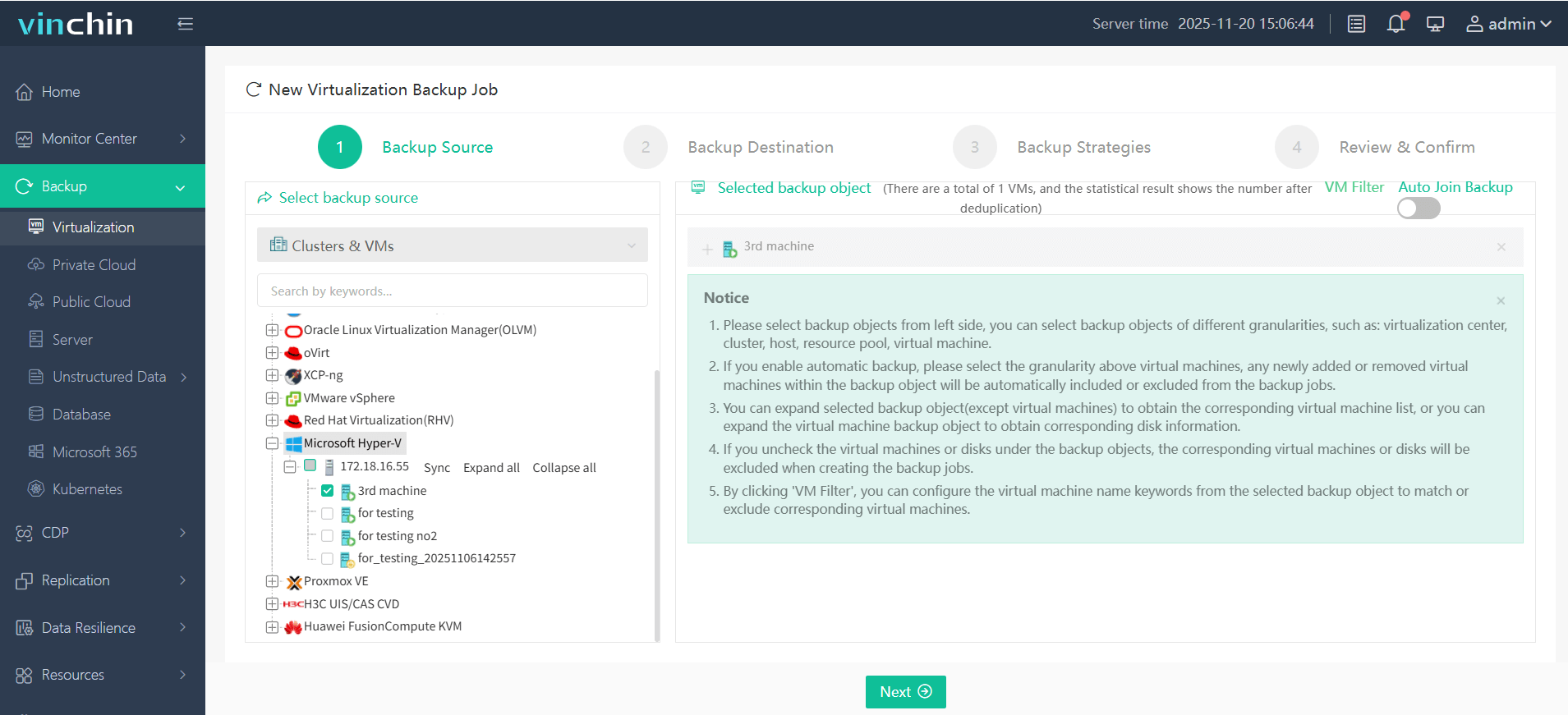
Step 1: Select the Hyper‑V virtual machine(s) you wish to back up
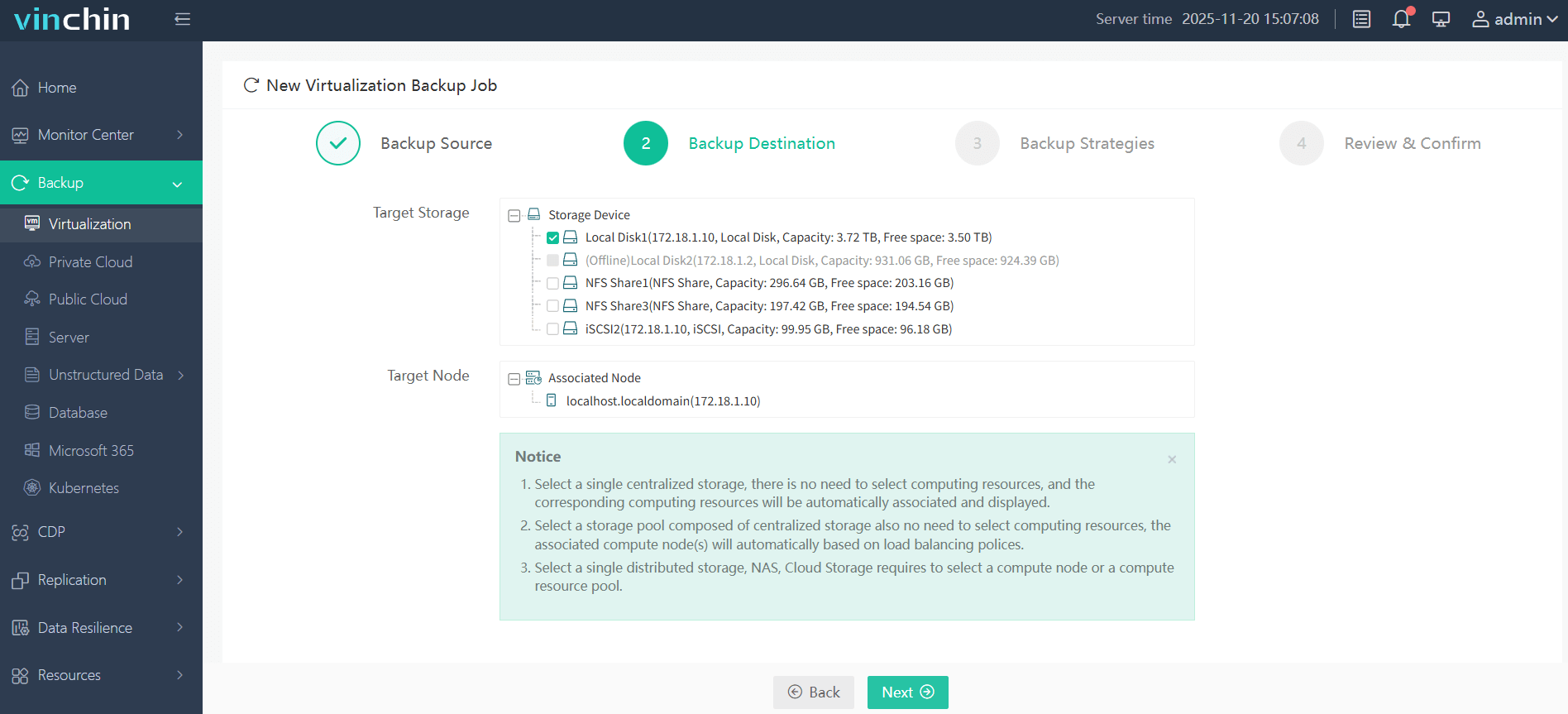
Step 2: Choose appropriate backup storage
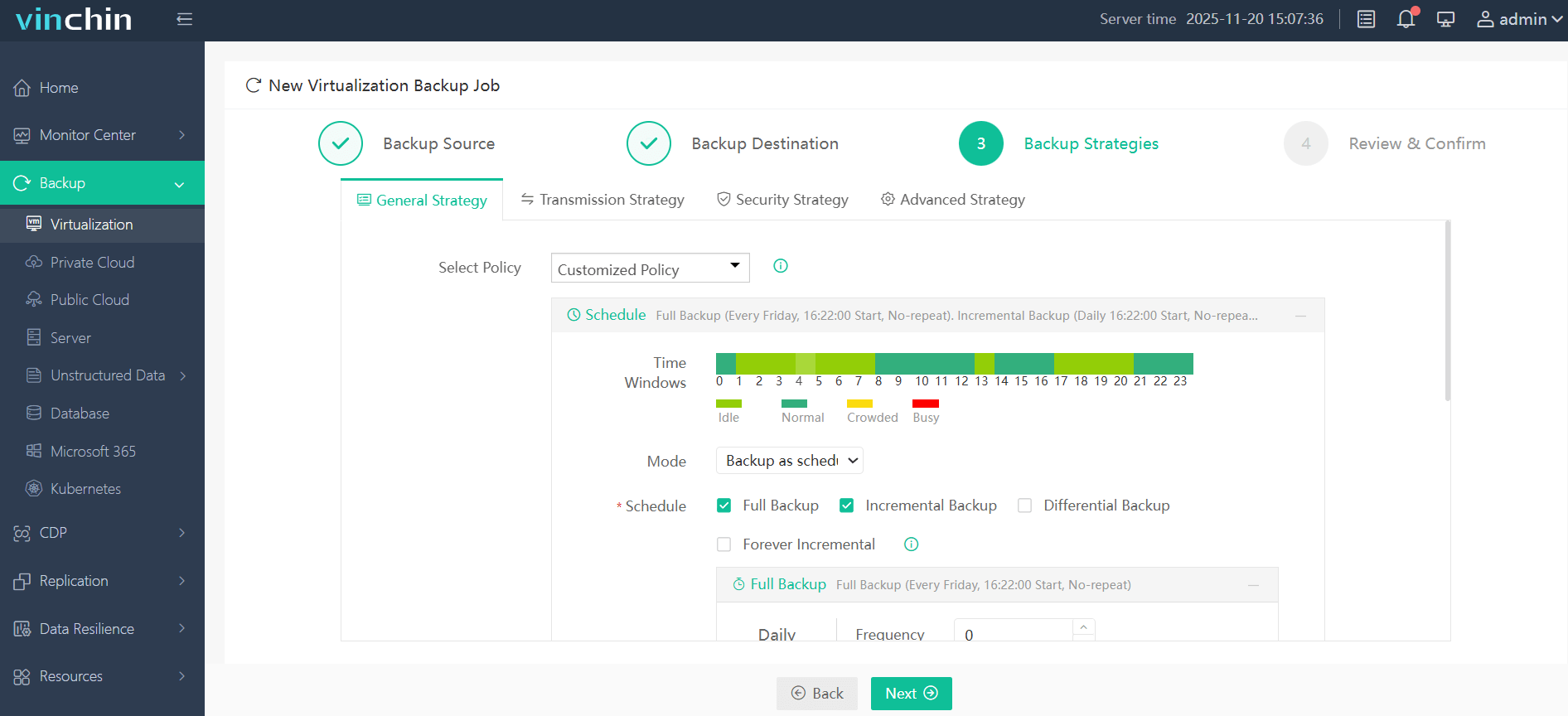
Step 3: Configure backup strategy according to business needs
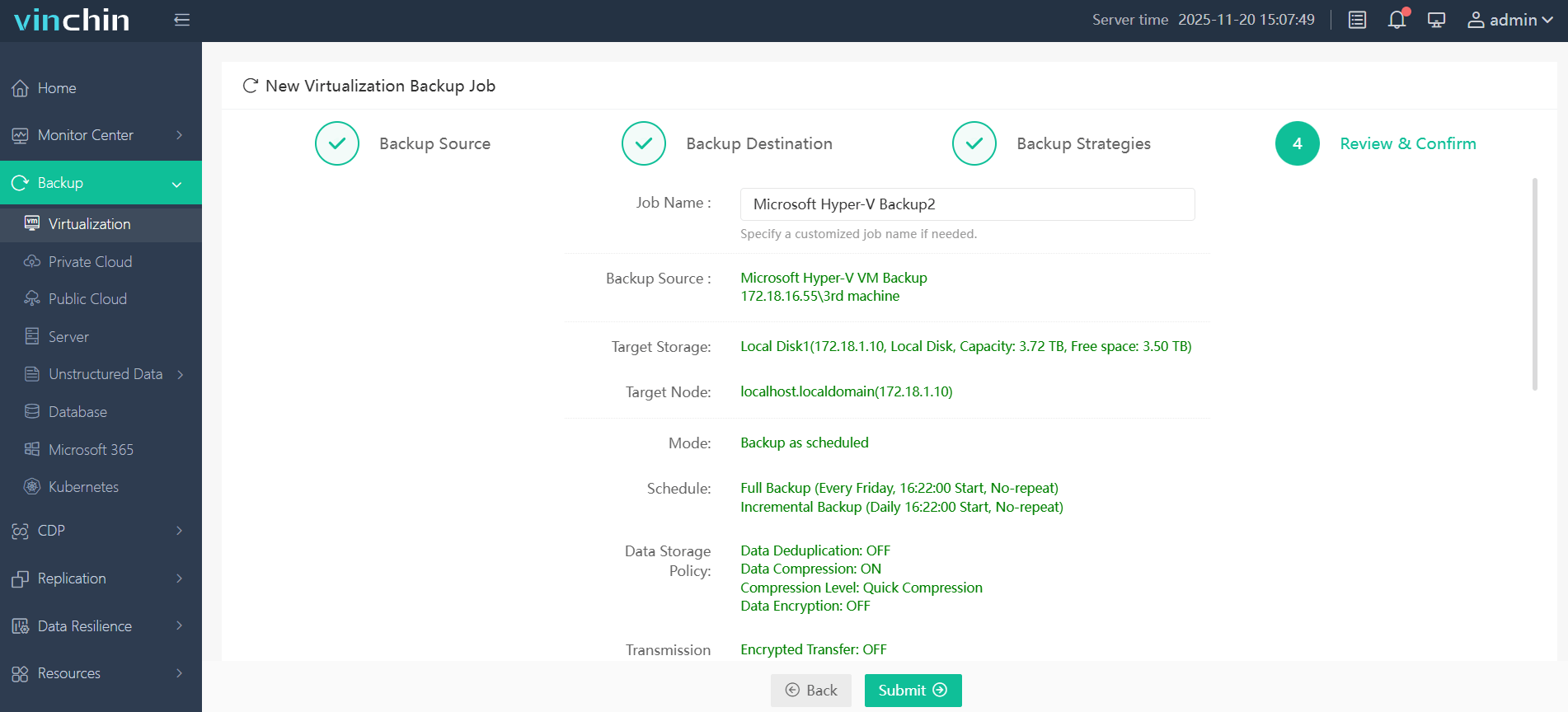
Step 4: Submit the job
You can try Vinchin Backup & Recovery free for 60 days, backed by comprehensive documentation plus responsive support engineers who’ll help ensure smooth deployment tailored precisely for protecting all aspects of your environment.
Hyper-V Start PXE Over IPv4 FAQs
Q1: Why does my converted physical-to-virtual machine keep showing Start PXE over IPv4?
Most likely because its disk isn’t marked active/bootable; repair with Windows recovery tools inside another system if needed.
Q2: Can I disable network/PXE boot entirely?
Move all "Network Adapter" entries below disks/DVDs in Firmware/BIOS settings; remove them completely using Remove-VMNetworkAdapter PowerShell cmdlet if required.
Q3: My Gen2 Linux install won’t start unless I turn off Secure Boot, is that normal?
Yes; many Linux distros require Secure Boot disabled or special certificate templates selected under Security settings.
Conclusion
Seeing "Start PXE over IPv4" usually means either missing OS media or incorrect firmware/boot configuration, but it's easy enough to fix once you know where to look! For seamless workload protection across all platforms, including tricky P2V migrations, consider Vinchin's unified solution for fast backup/recovery at scale while keeping operations safe against modern threats.









