Virtualization has become essential in modern IT operations. It lets you run multiple operating systems on one computer. This helps IT administrators test software, isolate workloads, or maintain multi‑OS environments without extra hardware. Two of the most popular desktop virtualization platforms are VirtualBox and VMware. But which one fits your needs? Let’s break down their differences so you can make an informed choice.
What is VirtualBox?
VirtualBox is a free, open-source virtualization platform developed by Oracle. As a type 2 hypervisor, it runs as an application on top of your current operating system rather than directly on hardware. VirtualBox supports many host operating systems—Windows, Linux, macOS, Solaris, and FreeBSD—and can run various guest OSes like Windows, Linux distributions, Solaris, and even some legacy systems.
Flexibility is one of VirtualBox’s main strengths. It offers features such as snapshots (to save VM states), shared folders (for easy file exchange between host and guest), and seamless mode (which integrates guest apps into your desktop). With the Extension Pack installed, you gain support for USB 2.0/3.0 devices, disk encryption options, and remote desktop access.
For beginners or those who need a cross-platform solution at no cost—even in commercial settings—VirtualBox stands out as a reliable choice.
What is VMware?
VMware provides several virtualization products tailored to different platforms. For desktops and laptops, the most common are VMware Workstation (for Windows and Linux) and VMware Fusion (for macOS). These are also type 2 hypervisors—meaning they operate within your existing OS environment.
VMware’s desktop products come in both free (Player) and paid (Pro) versions. The free Workstation Player is available only for personal non-commercial use; business users must purchase a license. Paid editions like Workstation Pro or Fusion Pro unlock advanced features such as linked clones, full snapshot management, custom virtual networking setups, encryption options, REST API integration—and more.
VMware has earned its reputation among professionals thanks to strong performance under load and deep integration with enterprise tools like vSphere or ESXi clusters. If stability during heavy multitasking matters most—or if you plan to connect with other VMware infrastructure—these products may be ideal.
VirtualBox or VMware: What are the Differences?
Though both tools simplify desktop VM creation, they differ greatly in key aspects:
Licensing & Cost: VirtualBox is fully free and open-source under GPLv2, even for commercial use. VMware Workstation Player is free only for personal use; business use and advanced features require a paid Pro license.
OS Compatibility: VirtualBox runs on Windows, Linux, macOS, Solaris and FreeBSD. VMware Workstation supports Windows and Linux, with Fusion built solely for macOS. Both cover a wide range of guest operating systems.
Performance: Thanks to Intel VT-x and AMD-V, both perform equally well for daily testing and lightweight tasks. VMware offers superior I/O throughput for heavy workloads like multi-VM database operations.
Core Features: Both include snapshots, shared folders and USB passthrough. VMware restricts linked clones, custom networks and advanced snapshot tools to its Pro edition. VirtualBox provides nearly all core functions for free, with high-speed USB support requiring only an extension pack.
UI Experience: VirtualBox delivers a streamlined, beginner-friendly interface. VMware has a more refined design with advanced settings, which can feel complex for new users.
Disk Format: VirtualBox natively supports VDI, VMDK, VHD and more for better cross-hypervisor portability. VMware relies mainly on the VMDK format.
Should I Choose VirtualBox or VMware?
Your choice should align with your technical needs. If you need an open-source solution that runs on almost any host OS without licensing concerns, VirtualBox is a solid option for home learning or lightweight test labs.
If performance is critical, such as running multiple resource-intensive VMs, or you plan to integrate with enterprise infrastructure, paid versions of VMware Workstation Pro or Fusion Pro offer better speed, features, and support.
For education, both are suitable. Beginners often start with VirtualBox for its simplicity, while advanced users prefer VMware’s more feature-rich paid editions.
If you require official support for macOS guests, only Fusion provides it on Mac hardware. Community methods exist for VirtualBox, but they lack vendor support and may be less stable over time.
How to Migrate Virtual Machines Between VirtualBox and VMware?
Method 1: Migrating from VirtualBox to VMware via OVF/OVA Export
Migrating virtual machines between these two platforms isn’t hard thanks to industry-standard OVF/OVA packaging formats built into both tools’ export/import wizards.
To move from VirtualBox:
1. Open VirtualBox, select your VM;
2. Click File > Export Appliance;
3. Pick the VM(s) then click Next;
4. Choose either OVF 2.0 or OVA format plus destination path;
5. Click Export.
Then import into VMware:
1. Launch VMware Workstation/Fusion;
2. Go to File>Import or Export>Import;
3. Browse/select exported OVF/OVA file;
4. Follow prompts until import completes.
After import, always install the latest VMware Tools in the guest OS to greatly improve drivers, performance and system integration.
Tip: Sometimes importing a VirtualBox appliance into VMware may cause boot failures from incompatible storage controllers (e.g. default SATA in VirtualBox vs SCSI in VMware). To fix it, edit the VM settings in VMware, change the disk controller to LSI Logic SAS or Paravirtual SCSI, then reboot.
Method 2: Migrating from VMware to VirtualBox via OVF/OVA Export
Moving VMs back from a paid/proprietary stack onto open-source infrastructure follows similar steps using OVF exports:
First export using:
1. Open your VM in VMware Workstation/Fusion;
2. Select target VM then go to File>Export to OVF;
3. Set destination folder/export format accordingly.
Then import into:
1. Open up VirtualBox, click File>Import Appliance;
2. Browse/select exported .ovf/.ova package;
3. Follow wizard prompts until done.
Once imported, don’t forget installing "Guest Additions" inside each guest OS, as they enable clipboard sharing/folder syncs/better graphics acceleration etc!
Tip: To avoid import driver conflicts, remove vendor-specific proprietary hardware (e.g. unrecognized sound/video adapters) before export. If issues remain, disable audio post-import.
Pro Tips for Optimizing Desktops with VirtualBox or VMware
Optimizing performance on both platforms requires more than basic startup. Below are practical optimization methods for administrators:
Prioritize paravirtualized interfaces over default emulated hardware to greatly reduce resource overhead. For new VMware VMs, use the VMXNET3 network adapter and PVSCSI storage controller for better throughput than legacy hardware such as E1000 and LsiLogic SAS. On VirtualBox, enable VirtIO disk and network drivers on compatible guest systems for immediate speed gains.
CPU scheduling also impacts performance. For latency-critical workloads, bind VMs to dedicated physical cores via processor affinity in advanced CPU settings. Both platforms support basic vCPU allocation, while their paid editions deliver fine-grained resource reservations for hosts running large numbers of VMs.
Enable memory ballooning to dynamically reclaim idle RAM, avoiding slow swap usage and maintaining stable performance under high load.
Use snapshots cautiously, as unmanaged snapshots gradually reduce disk performance. Regularly consolidate snapshots in VMware or clear saved states in VirtualBox to sustain long-term storage efficiency.
How to Migrate Virtual Machines Between VirtualBox and VMware with Vinchin?
When seeking an efficient way to migrate virtual machines between different environments, as well as popular choices like Oracle VM, the right tool makes all the difference for minimizing downtime during transitions across infrastructures.
Vinchin Backup & Recovery stands out as a professional enterprise-grade backup solution that also enables agentless migration between supported virtual machine platforms, including but not limited to vSphere ESXi/vCenter Server, Hyper-V Server & Clustered Hyper-V Hosts, Proxmox VE Cluster & Standalone Nodes, oVirt/RHV-based OLVM Clusters & Standalone Hosts/XCP-ng/XenServer Pools/OpenStack KVM Clouds/oracle vm server clusters, as well as other compatible types not listed here.
Vinchin simplifies the entire migration workflow: back up source VMs, then restore them directly to target hosts. Its built-in driver adaptation technology automatically resolves hypervisor compatibility differences, enables one-click post-restart startup, and guarantees seamless migration.
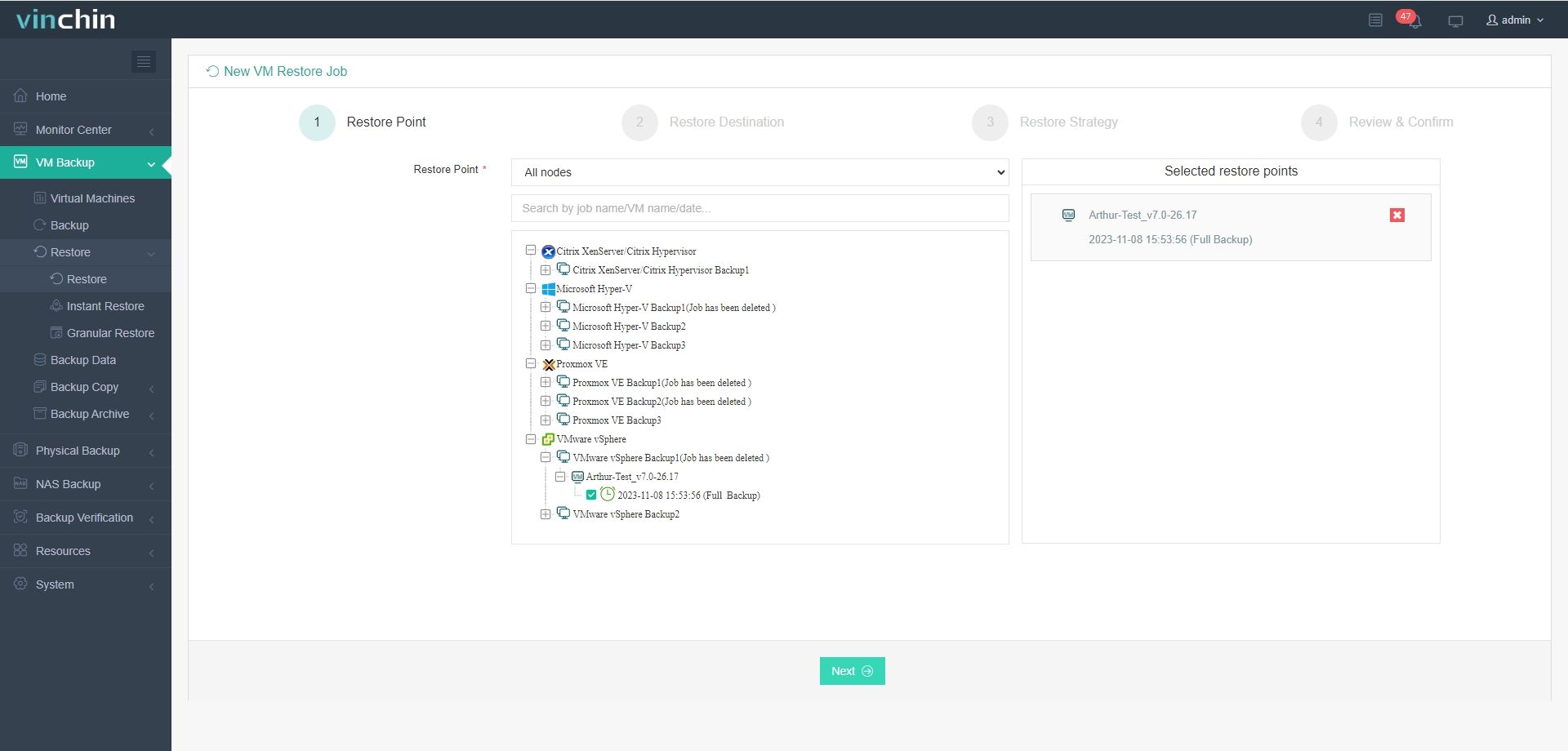
You simply log into Vinchin Backup & Recovery's intuitive web console:
1. Select the backed-up source virtual machine type (e.g., oVirt VM)
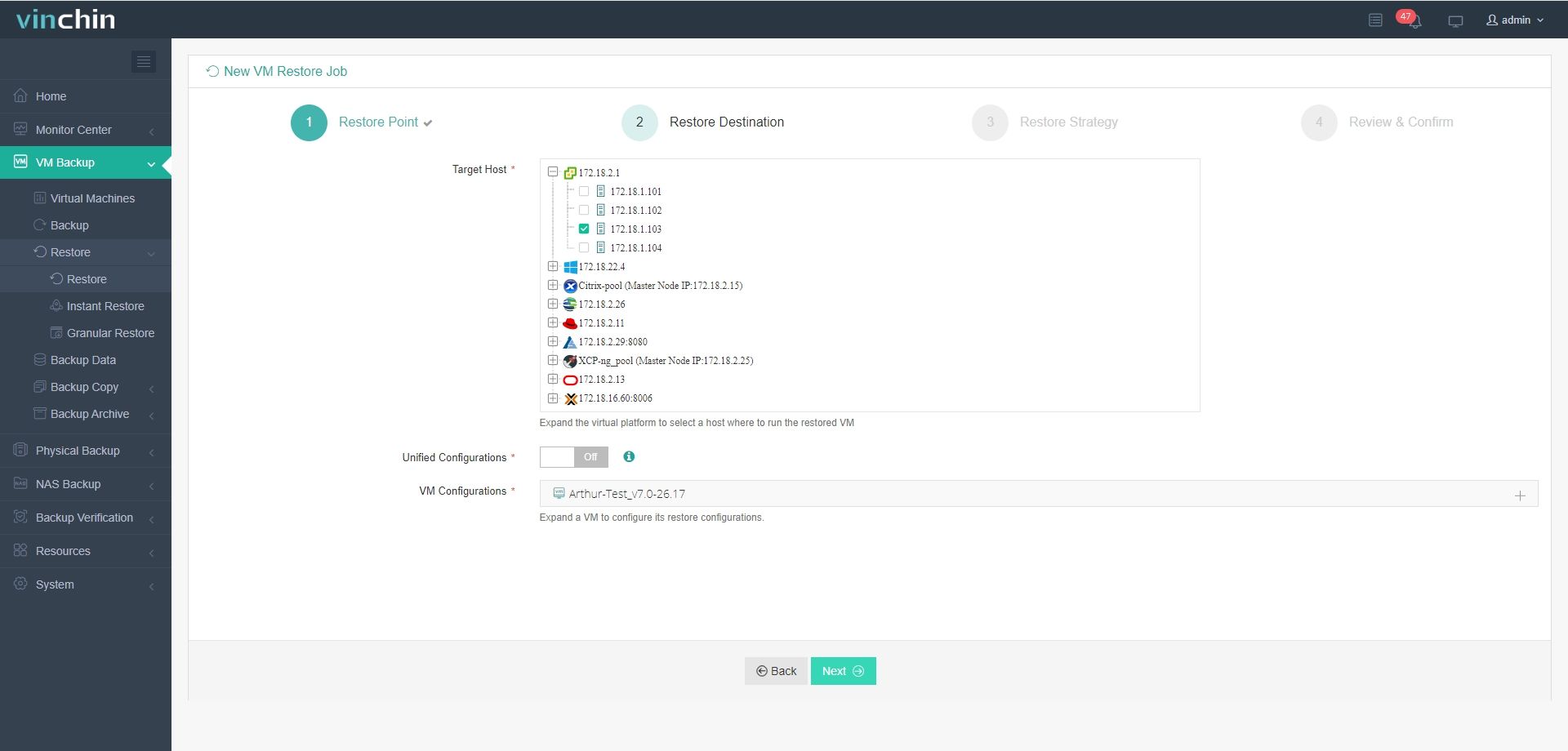
2. Select the desired target hypervisor platform (e.g., ESXi Host)
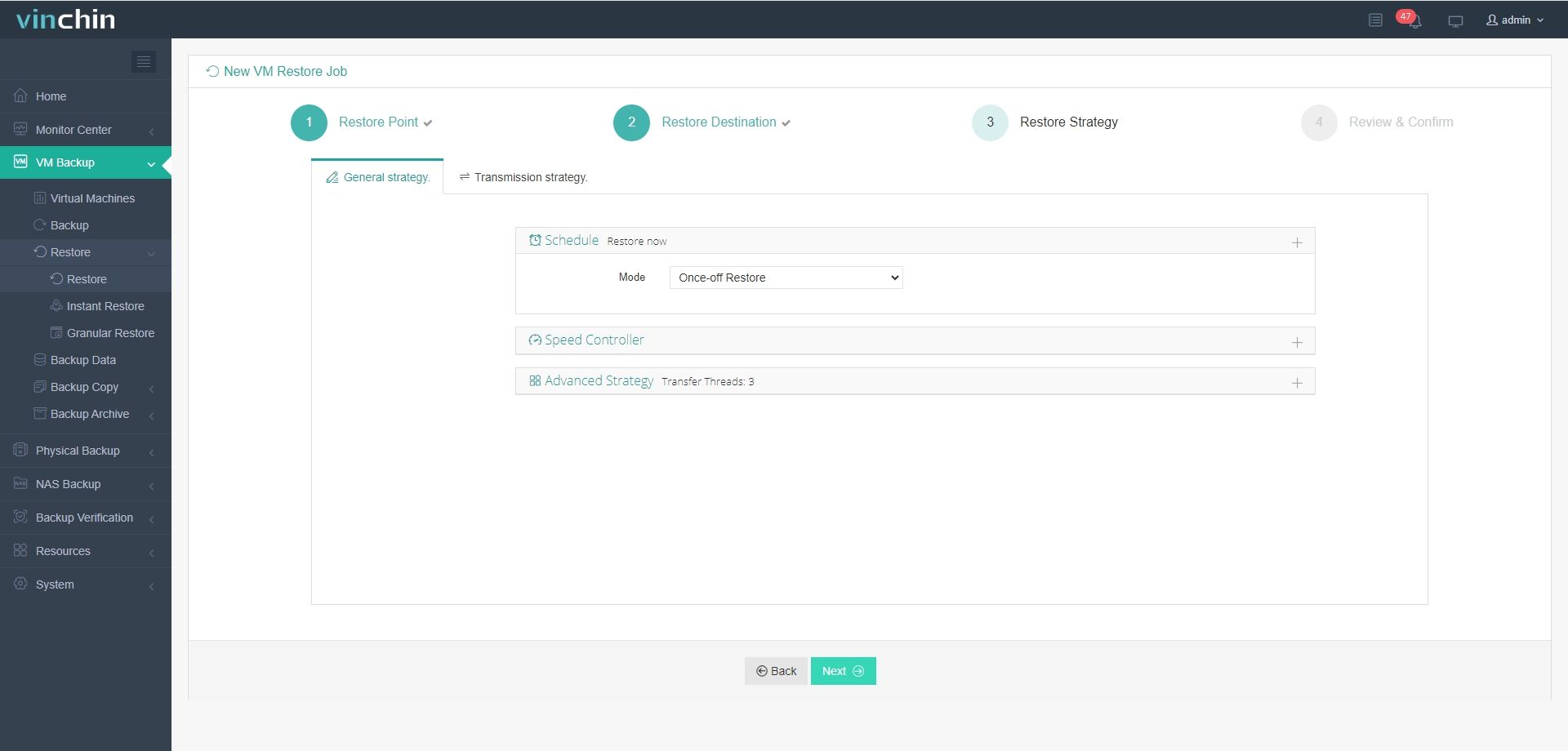
3. Configure migration strategies according to business needs
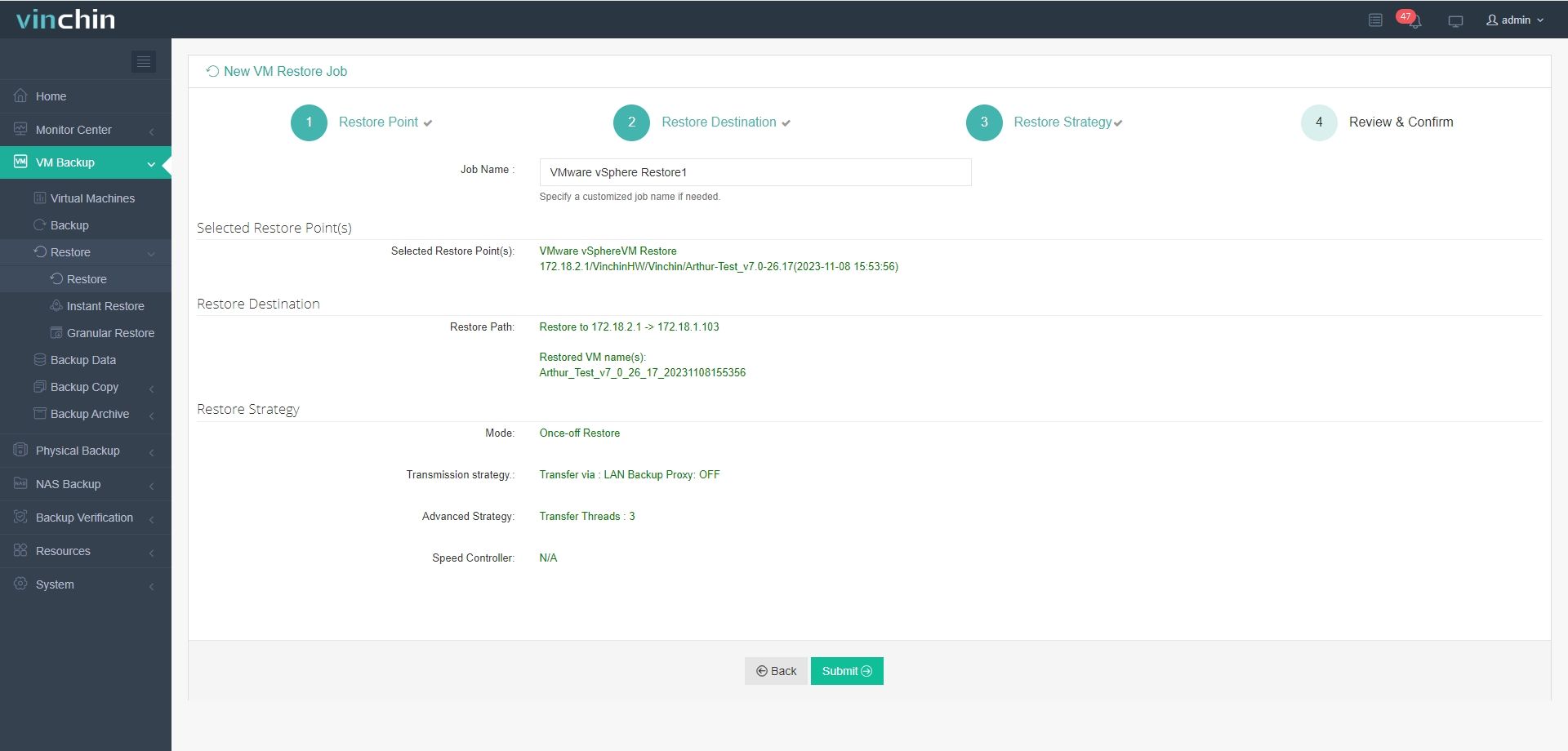
4. Submit the job for automated execution
Join thousands of global users relying on Vinchin Backup & Recovery’s high‑rated, enterprise-grade solutions. Start your seamless cross-platform migration with our fully-featured 60-day free trial—download and deploy in minutes.
VirtualBox or VMware FAQs
Q1: Can I run both programs on my PC?
Yes; but do not launch them at the same time since they will conflict over hardware virtualization extensions; install both but start only one at once.
Q2: Will my files convert automatically when migrating?
Using built-in OVF/OVA export/import handles conversion behind the scenes so manual intervention isn’t needed unless errors occur during import/export steps.
Q3: How do I boost graphics performance in my VM?
Allocate enough video memory then enable “Accelerate 3D Graphics” option in either platform’s settings menu before launching each graphics-heavy guest system.
Conclusion
Whether to choose VMware or VirtualBox? Your final choice hinges on budget, required features and performance needs. Both solutions deliver stable, reliable operation. For hassle-free cross-hybrid infrastructure VM migration, Vinchin offers enterprise-grade agentless backup and migration tools trusted by thousands of global users.