Kubernetes has changed how we run applications at scale. But what if you need to manage Windows workloads? Many organizations still rely on legacy or modern apps built for Windows. With kubernetes windows support, you can unify operations across both platforms. Let’s walk through deploying, managing, and protecting Windows workloads in Kubernetes—step by step.
What is Kubernetes Windows Support?
Kubernetes windows support lets you run both Linux and Windows containers inside one cluster. However, there are important rules to follow. The control plane—the core services like kube-apiserver, controller-manager, and scheduler—must always run on Linux nodes. You cannot host these components on a Windows server.
You can add Windows Server 2019 or newer machines as worker nodes. These join your cluster to run only Windows containers using container runtimes like containerd. This hybrid approach allows teams to manage both Linux-based microservices and traditional .NET or other Windows apps together.
There are some limitations when running kubernetes windows workloads:
You cannot mix Linux and Windows containers within a single pod; each pod runs containers of only one OS type.
Some features available on Linux nodes—like privileged containers or certain network plugins—are missing or limited on Windows nodes.
Why Use Kubernetes for Windows Workloads?
Why invest time learning kubernetes windows integration? Because it brings consistency—and future-proofing—to IT operations everywhere! Instead of maintaining separate orchestration stacks per platform you gain unified CI/CD pipelines (think GitOps!), shared RBAC policies controlling access rights across all namespaces/apps/nodes—and simplified monitoring/reporting dashboards covering every workload regardless of origin language/framework/runtime base image used underneath!
Modernizing legacy .NET Framework applications becomes easier too—you can lift-and-shift existing codebases without rewriting them entirely just so they’ll fit inside linux-only clusters! Plus developers benefit from familiar APIs/tools whether targeting old-school IIS web services OR cutting-edge ASP.NET Core microservices side-by-side…
But there are trade-offs worth noting upfront:
Resource usage tends higher than comparable linux equivalents due mostly larger base images/slower startup times/higher memory footprints typical among native win32 processes;
Certain advanced features like privileged mode containers/network policy enforcement may lag behind due ongoing upstream development efforts;
Not every open-source ecosystem project supports dual-platform operation yet—always pilot new architectures carefully before betting big company-wide migrations upon them!
Want proof? Try benchmarking identical sample apps under both environments using Prometheus/Grafana dashboards—you’ll spot differences quickly which inform capacity planning decisions later down road.
How to Deploy Windows Containers on Kubernetes?
Running kubernetes windows containers starts with setting up a compatible cluster environment. Most users begin locally before moving workloads into production clouds.
Local Development Setup
For local testing or development workstations, Docker Desktop is often the simplest way to get started with kubernetes windows clusters. Alternatives include minikube or kind (“Kubernetes IN Docker”). Let’s start with Docker Desktop since it offers an integrated experience.
Setting Up Docker Desktop
Before installing anything:
1. Make sure you have Windows 10/11 Pro, at least four CPU cores, eight gigabytes of RAM, virtualization enabled in BIOS/UEFI settings, and Hyper-V support turned on in your system firmware.
2. Open Control Panel, click Programs, then select Turn Windows features on or off.
3. Check both Hyper-V and Windows Subsystem for Linux boxes; click OK then reboot if prompted.
Next:
4. Download Docker Desktop from its official site.
5. Run the installer; during setup choose WSL2 as backend if asked—it improves performance over Hyper-V alone.
6. After installation completes launch Docker Desktop from your Start menu.
To enable Kubernetes:
7. Click the whale icon in your system tray
8. Select Settings
9. Go to the sidebar menu labeled Kubernetes
10. Check the box next to Enable Kubernetes
11. Click Apply & Restart
12. Wait until both indicators show green status (Engine running, Kubernetes running) before proceeding
Verify everything works by opening either PowerShell or Command Prompt:
kubectl get nodes
If successful you’ll see a node named docker-desktop marked as Ready.
How to Manage Hybrid Linux and Windows Nodes in Kubernetes?
Managing a hybrid cluster means orchestrating both types of worker nodes under one control plane while keeping workloads properly scheduled according to their OS requirements.
Adding & Configuring Worker Nodes
Start by building out your control plane using standard Linux servers—these handle all API requests regardless of workload type.
Then join each additional machine running supported versions of Microsoft’s operating system (Windows Server 2019+) as a worker node using kubeadm join commands tailored per official guidance. Each node needs containerd installed/configured correctly beforehand; double-check firewall rules allow traffic between all cluster members too!
Scheduling Pods Using Node Selectors & Taints/Tolerations
When deploying pods meant specifically for kubernetes windows hosts use this snippet inside your YAML manifest:
spec:
  nodeSelector:
    "kubernetes.io/os": "windows"
This ensures only compatible nodes are chosen by default scheduler logic—but what about preventing accidental cross-scheduling?
Taint each windows node so that only pods explicitly tolerating them will land there:
kubectl taint nodes <windows-node-name> os=windows:NoSchedule
And add matching toleration block inside any pod spec needing access:
spec:
  tolerations:
    - key: "os"
      value: "windows"
      effect: "NoSchedule"
This two-step approach keeps linux-native apps away from incompatible infrastructure while letting administrators fine-tune placement policies across mixed environments—a crucial skill at scale!
Networking & Storage Considerations
Hybrid clusters introduce unique networking/storage challenges because not every plugin supports both OS families equally well:
1. For networking use CNI plugins known to work reliably across platforms such as Flannel (host-gateway mode) or Calico—with proper version matching!
2. For persistent storage leverage CSI drivers supporting NTFS volumes like SMB CSI driver; test thoroughly before production rollout since edge cases abound!
3. Monitor network latency between linux/windows subnets closely—especially if using overlay networks spanning multiple data centers/cloud regions!
Always validate compatibility lists published by plugin authors against current releases of kubelet/containerd/kube-proxy/etc., since regressions sometimes occur after upgrades!
Vinchin Backup & Recovery for Kubernetes Protection
As hybrid clusters become essential for modern IT operations, robust data protection is critical for business continuity and compliance needs across diverse environments—including those running kubernetes windows workloads alongside Linux resources. Vinchin Backup & Recovery stands out as a professional enterprise-level solution purpose-built for comprehensive Kubernetes backup scenarios.
Vinchin Backup & Recovery delivers full and incremental backups, fine-grained restore options at multiple levels (cluster, namespace, application, PVC), automated policy-based scheduling with retention controls, high-speed multithreaded PVC backup acceleration, and secure encrypted transmission—all designed to simplify management while maximizing resilience against data loss events in complex hybrid infrastructures.
The intuitive web console streamlines backup workflows into four straightforward steps tailored specifically for Kubernetes environments:
Step 1: Select the backup source

Step 2: Choose the backup storage
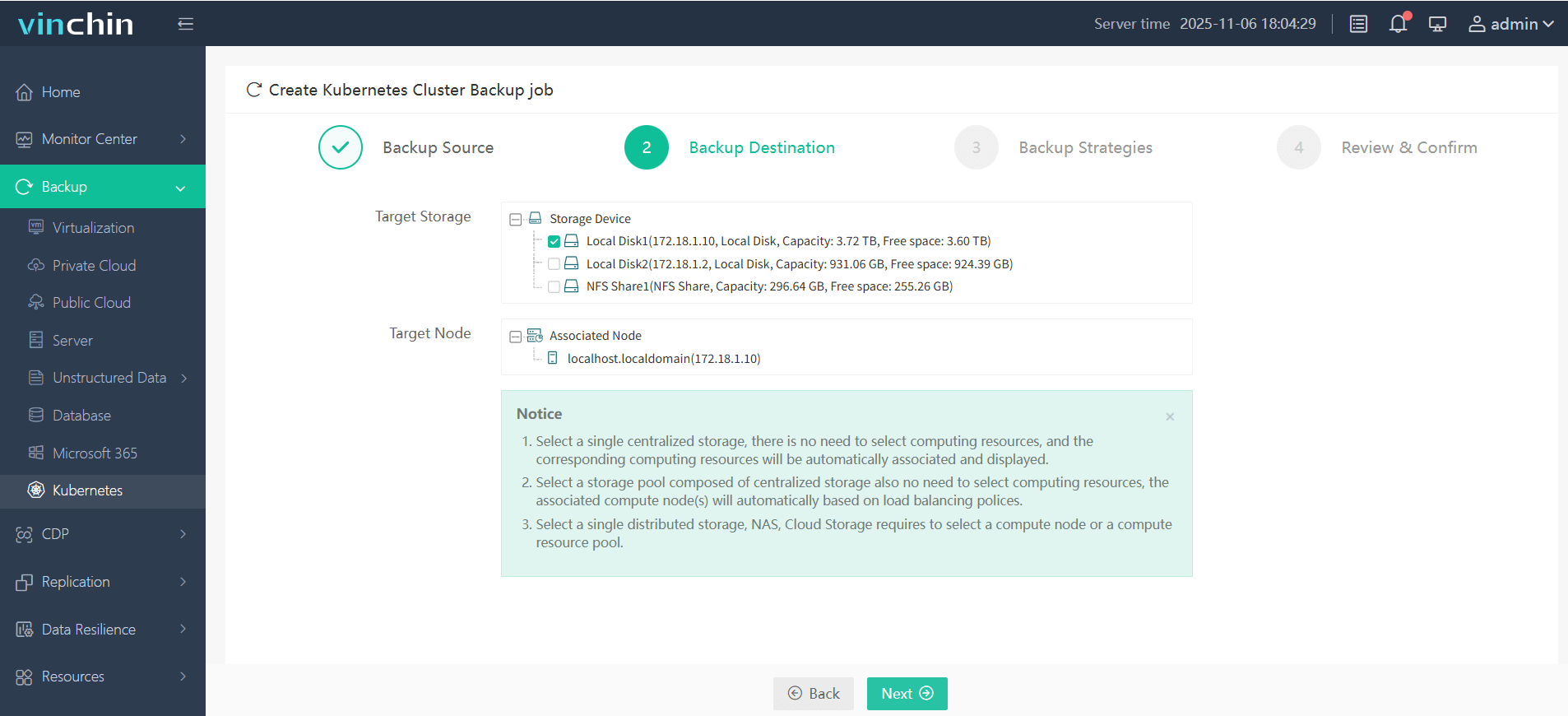
Step 3: Define the backup strategy
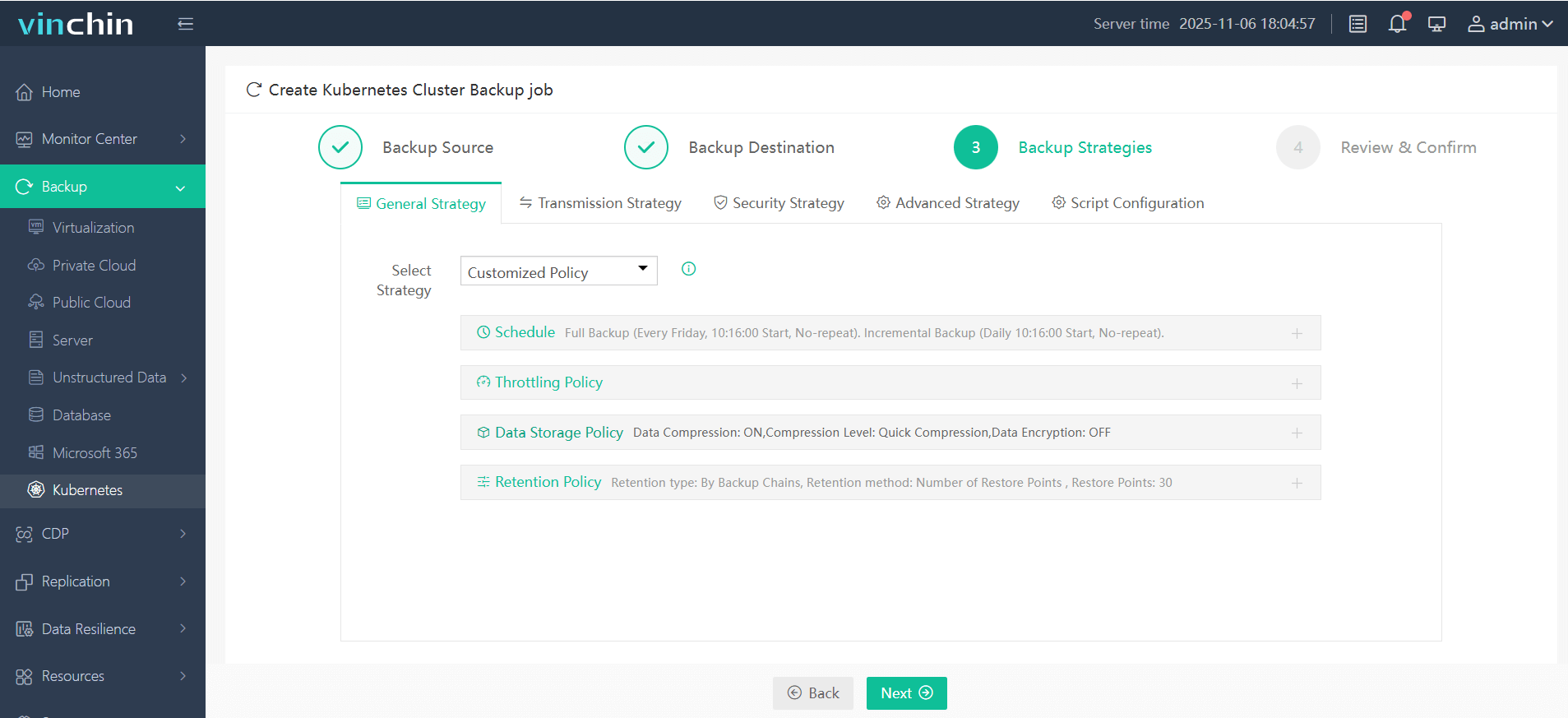
Step 4: Submit the job
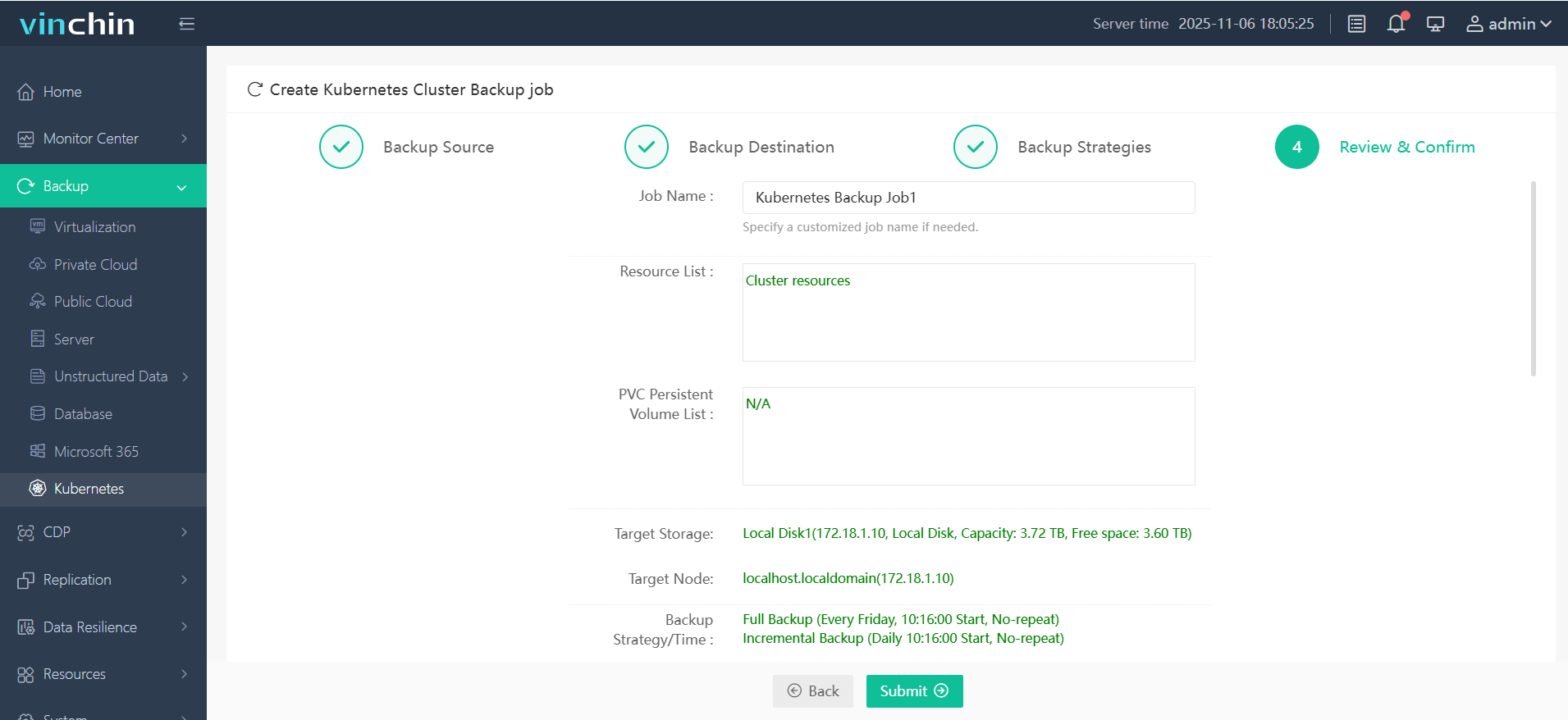
Recognized globally with top ratings and trusted by thousands of customers worldwide, Vinchin Backup & Recovery offers a fully-featured free trial valid for 60 days—experience enterprise-grade protection risk-free today by clicking below to download now!
Kubernetes Windows FAQs
Q1: Can I upgrade my existing pure-Linux cluster directly into hybrid mode without downtime?
Yes—with careful planning you can add new windows workers alongside existing linux ones live then migrate selected workloads gradually using nodeSelectors/podDisruptionBudgets etc.; always test changes first though!
Conclusion
Kubernetes windows support lets teams modernize legacy applications while unifying operations across platforms efficiently at scale today—not tomorrow nor someday soon maybe perhaps possibly hopefully wishfully dreamily hypothetically ever again!