VMware vSphere is a widely used virtualization platform that enables organizations to build stable and efficient virtual environments. One of its key capabilities is VM migration, which allows virtual machines to be moved between ESXi hosts to improve resource utilization, support maintenance, and ensure business continuity.
In dynamic IT environments, VM migration helps balance workloads, reduce host overload, and minimize downtime during system upgrades or configuration changes.
This article explains the main methods to migrate a VM between ESXi hosts, including vMotion, cold migration, manual export, PowerCLI, and backup-based migration.
How to Move a VM from One ESXi Host to Another with vMotion?
vMotion is a kind of live migration in vSphere, meaning that the VM would be migrated to another host while the guest operating system is running. This feature could be utilized when some requirements and limitations are satisfied, like vMotion license, network configuration, shared storage, and some other factors. If vMotion fails for certain error, the VM would be placed to the original host then.
After the virtual environment is properly licensed and configured, you could perform vMotion to change the host of the VM.
1. Log into vCenter, and locate the VM you would like to migrate
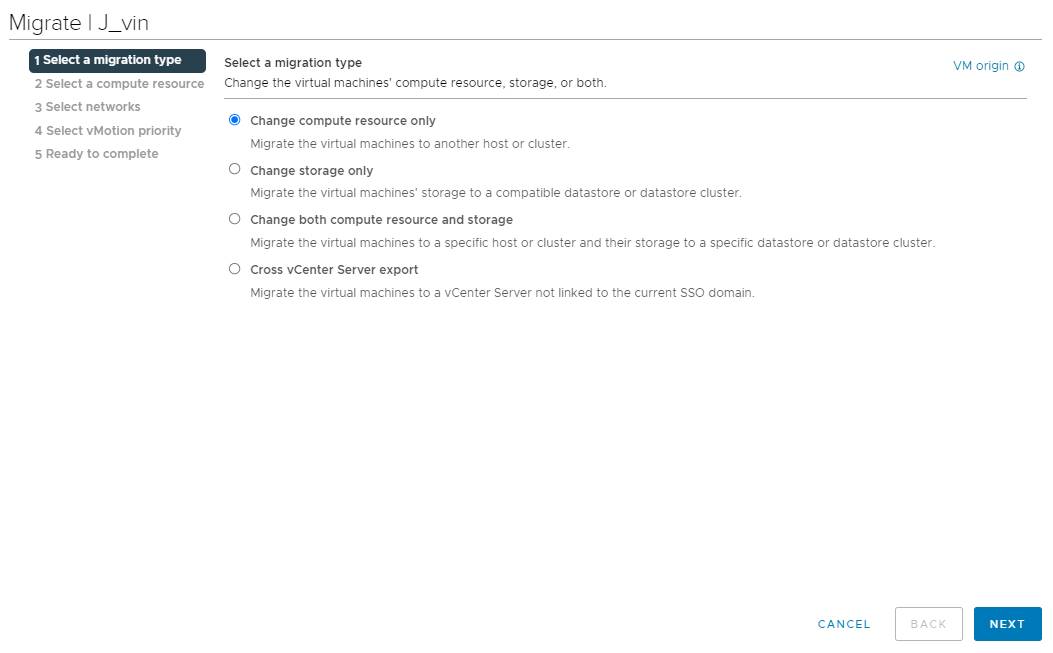
2. Right-click the VM, and select Migrate
3. Select Change compute resource only, and click Next
4. Select a new compute resource for the VM, and click Next
5. Select networks for the VM, and click Next
6. Select vMotion priority. It is recommended to check Schedule vMotion with high priority, and click Next
7. Review the task details and submit it
If vMotion failed for some reason, follow the guide fix unable to migrate VM to another host to troubleshoot the issue.
How to Move a VM Without vMotion (Cold Migration)
vMotion is not the only way to migrate VM in vSphere. If license and configurations could not meet the requirements and limitations of vMotion, cold migration is still available in vSphere to migrate VM without vMotion.
Cold migration means the VM is shut down or suspended during migration process. The rest of the steps are similar to vMotion, just right-clicking the VM, selecting Migrate, and then finishing the process with the migration wizard.
How to Migrate a VM Using Export and Import?
If vCenter has been deployed in virtual environment, you still have ESXi client to help you move VM. Like you copy and paste file on PC, you can also export the VM from ESXi host and then import the VM template on another host for VM migration.
How to Migrate VM to Another Host With Vmware Powercli?
To migrate VM more technically, some commands with PowerCLI would be helpful. Prior to typing the commands for migration, make sure PowerCLI is installed in virtual environment or download it from VMware's page.
The command you need to migrate VM from one host to another host is:
Get-VM -Name VM | Move-VM -Destination 10.23.112.235
VM is the name of the target VM and 10.23.112.235 is the IP address of the destination server.
How to Migrate VM to Another Host With Vinchin Backup & Recovery?
If you're seeking for more advanced and flexible migration capabilities, consider third-party solutions. Vinchin Backup & Recovery is an all-in-one professional VM backup and disaster recovery solution for effortless ESXi VM backup and migration. It supports seamless cross-vCenter and cross-cluster VM migration by restoring backups to any target host. Featuring agentless design, it needs no in-VM agents, lowering deployment overhead while ensuring fast migration speed and minimal business downtime.
Compatible with XenServer, XCP-ng, Red Hat Virtualization, oVirt, Oracle Linux KVM and more platforms, it enables convenient V2V cross-platform migration directly from ESXi VM backups. Simply add source and target hosts to Vinchin Backup Server and create a VM backup to start the migration process.
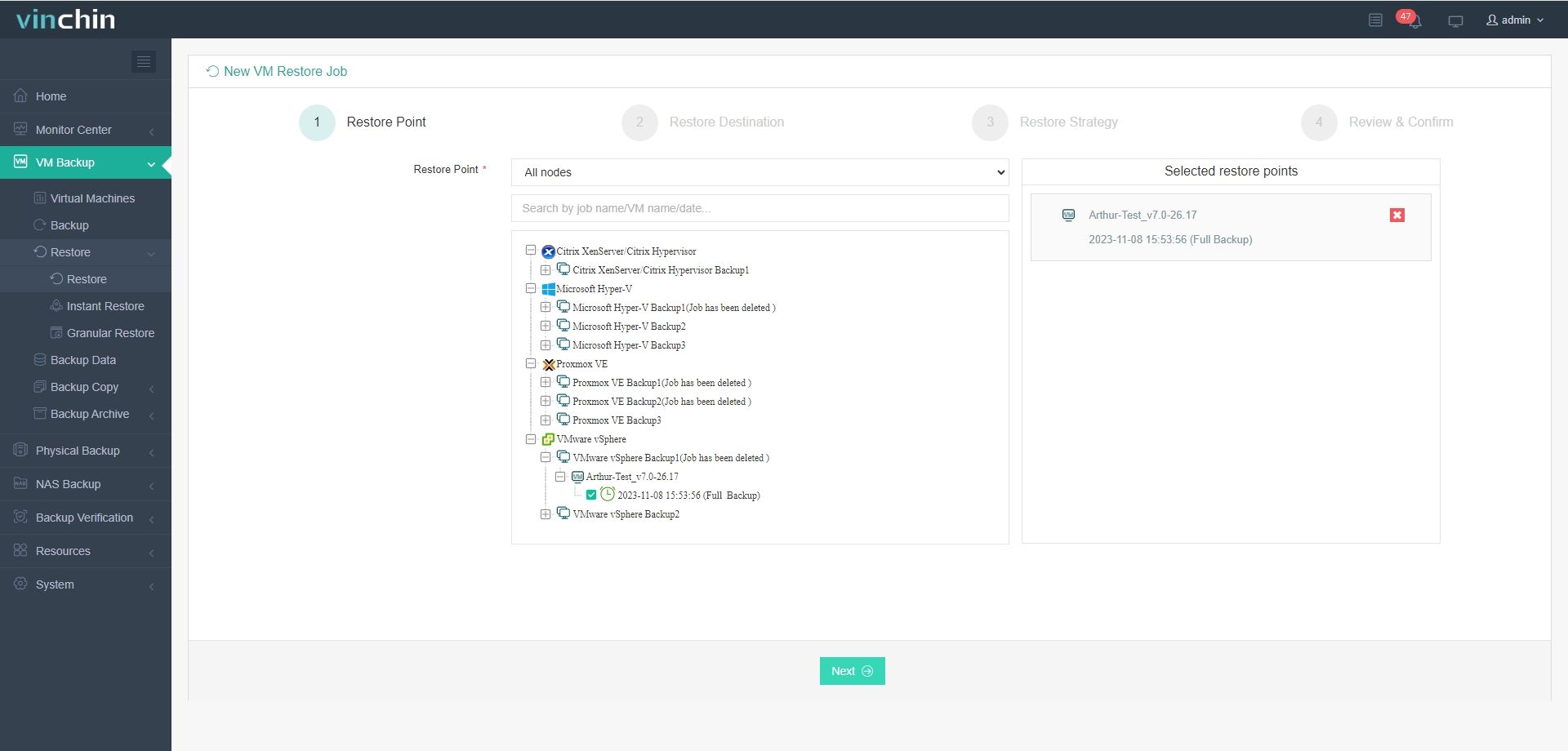
Step 1. Select the VM you want to migrate
Log into Vinchin Backup Server via a web browser > expand VM Backup on the left > select Restore > select certain restore point of the VM you want to migrate from the list > click Next
Step 2. Select the destination host
Simply select the destination host from the list > click Next
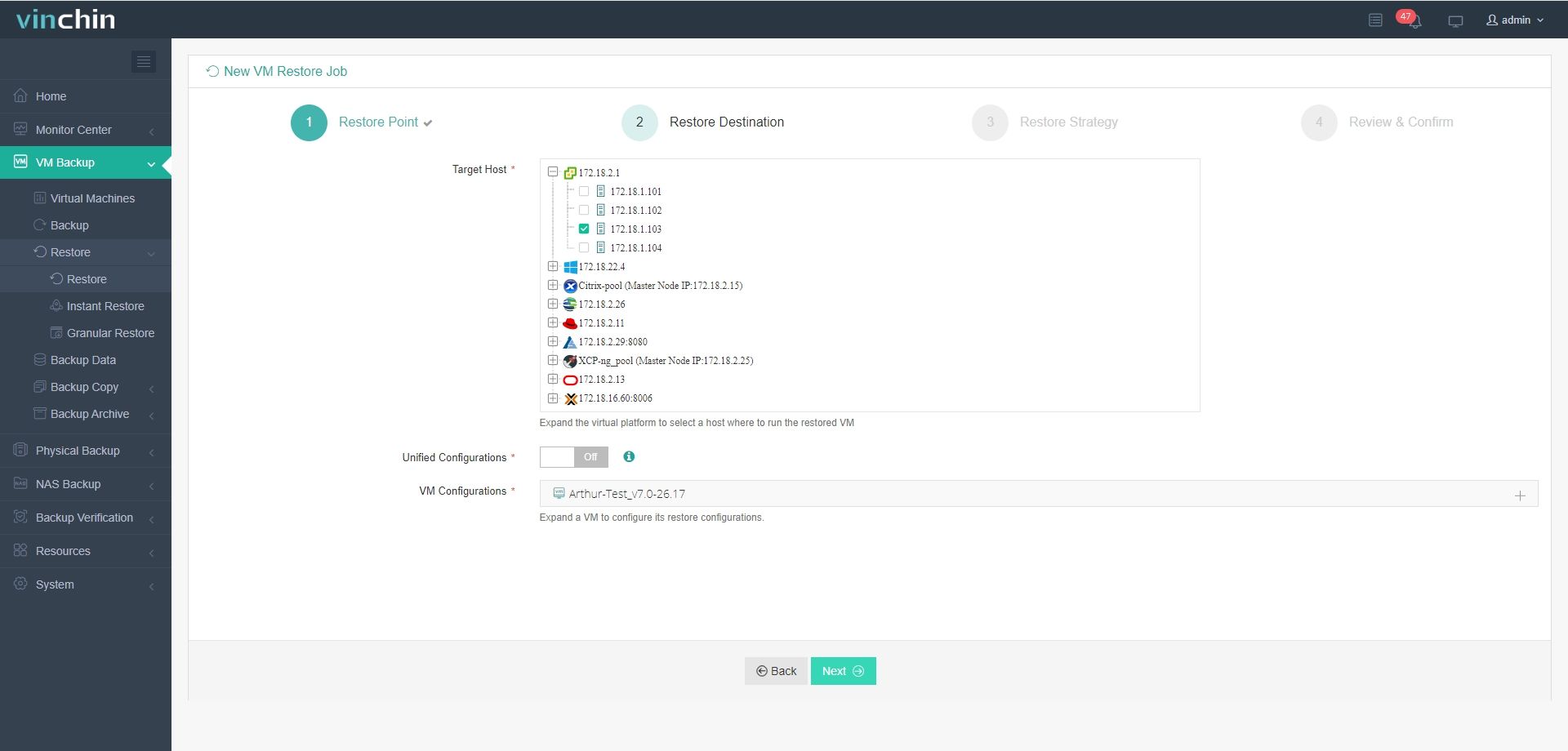
P.S. V2V migration is supported by Vinchin Backup & Recovery. If you added other virtual platforms and would like to perform V2V migration, just select the right host here.
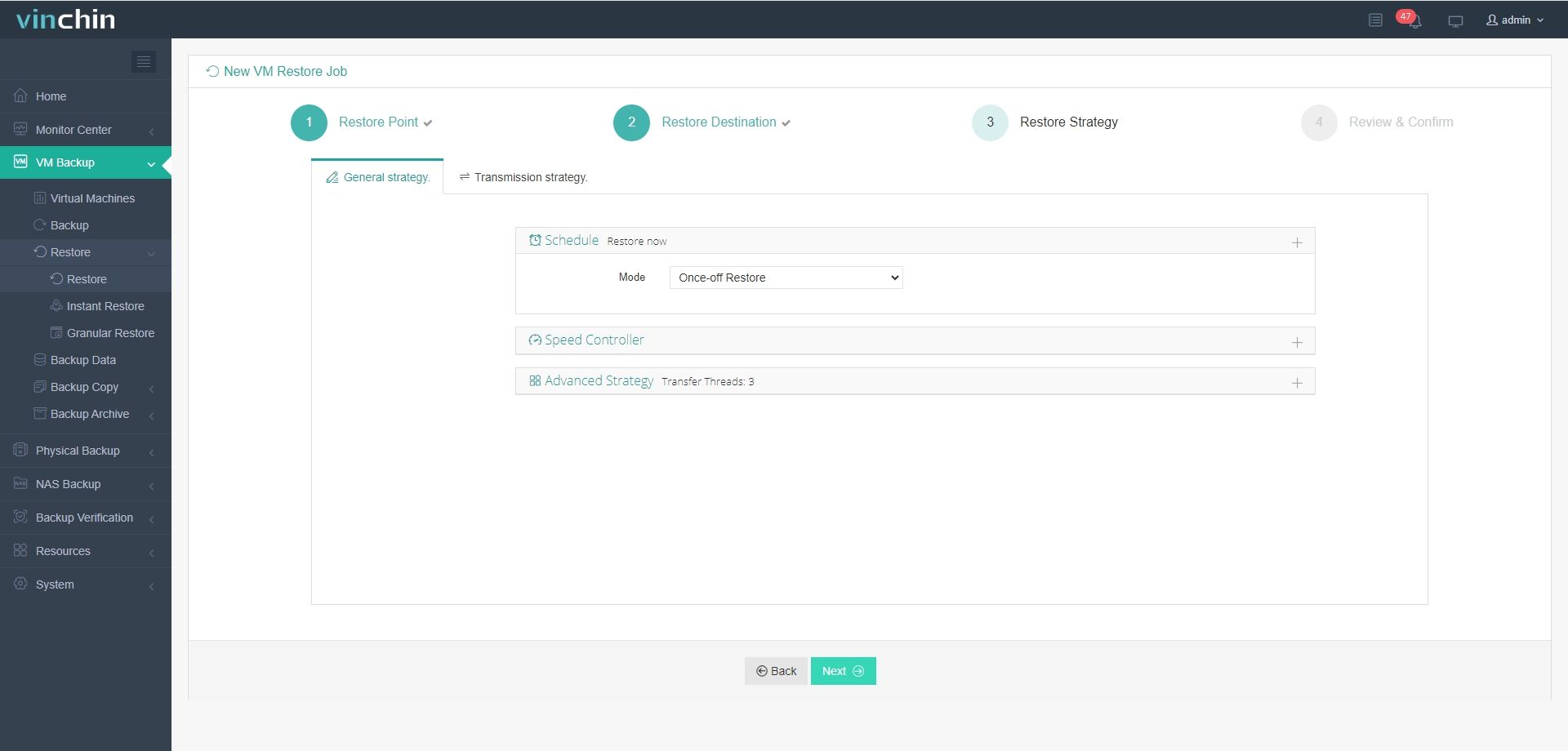
Step 3. Select the restore strategy
Select the restore strategies including Schedule, Speed, Multithread, Transmission Strategy, etc. > click Next
Step 4. Submit the job
Give a name to the job > review the details of the job > click Submit to submit the job
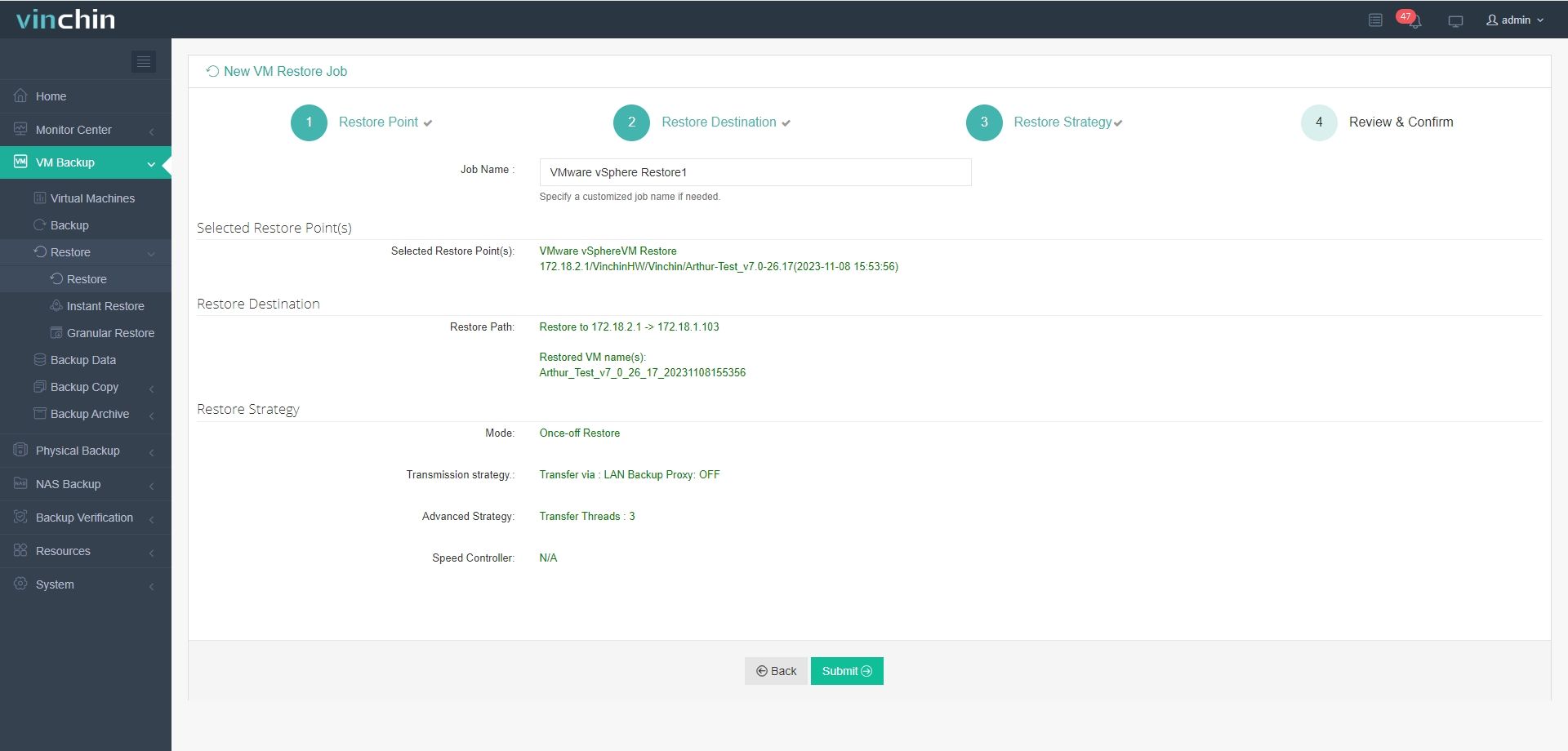
Vinchin Backup & Recovery is easy to use in VM data migration and has been selected by thousands of users for VM backup and migration. You could easily experience this convenient system with a 60-day full-featured trial. Just click the button to download the installation package.
ESXi VM migration FAQs
1. Can you migrate VM in vCenter without shared storage?
Yes, vMotion allows you to migrate VM without shared storage.
2. What is host have different hardware?
It is recommended to move VM to another host where hardware is similar to the original host or the compatibility issue might prevent the VM from starting.
3. What are the cold migration limitations?
Cold migration has less requirements but the biggest limitation is that you need to power off the VM which will cause downtime.
Conclusion
VM migration in VMware vSphere can be achieved through multiple methods, including vMotion, cold migration, manual export/import, PowerCLI, and backup-based migration. Each method has different requirements and use cases depending on downtime tolerance, infrastructure complexity, and migration scope. For more flexible migration scenarios, backup-based solutions such as Vinchin Backup & Recovery provide additional options beyond native vSphere capabilities.