User Case
"I once ran into a strange VMware VM migrate greyed out issue: we had four ESXi hosts with the same hardware model, BIOS, iDRAC firmware, and VMware version, but several VM guests still could not be migrated. When I right-clicked the VM in vCenter, the VM migrate option was greyed out. The hosts looked normal, the VMs were running, and I had already checked a few obvious settings, but the issue still remained. Can you give me some suggestions?"
This is a common problem that VMware VM administrators may encounter when trying to migrate virtual machines. The migrate option can become unavailable for various reasons. We will list 6 most common causes of VM migrate greyed out issue and show you how to solve them.
6 Common Causes of VMware VM Migrate Greyed Out and Fixes
When you encounter the VMware VM migrate greyed out issue, the problem may be related to the 6 most common causes below.
You can first check the table below to quickly identify the possible cause in your environment. After finding the most likely cause, follow the corresponding solution and then read the detailed explanation below if needed.
| Cause | Quick solution |
|---|
| Limited permissions
| Use vCenter and verify VM migration, datastore, network, and resource permissions. |
| Storage vMotion not licensed or configured
| Check the license, vMotion VMkernel networking, or use cold migration if needed. |
| Destination host, datastore, or network unavailable
| Confirm host status, resources, datastore access, and matching port groups. |
| CPU, EVC, network, or storage incompatibility
| Run compatibility checks and fix EVC, network labels, or storage paths. |
| Local ISO, USB, RDM, passthrough device, or snapshots
| Disconnect host-dependent devices and consolidate snapshots before retrying. |
| VM or host locked by maintenance mode, disconnection, or tasks
| Wait for active tasks, reconnect hosts, and exit maintenance mode. |
1. Lack Migration Permissions
Problem:
The issue may appear when you log in directly to a single ESXi host instead of managing the VM through vCenter Server. In some cases, the VM is managed by vCenter, but your current account does not have enough permissions to migrate the VM, access the target datastore, or change network and resource settings.
Solution:
Log in to vCenter Server and confirm that the VM is managed under the correct vCenter inventory. Then check whether your account has the required permissions for VM migration, host resources, datastore access, and network configuration. If possible, test with an administrator account. If the migrate option appears under another account, the issue is likely caused by insufficient permissions.
2. Storage vMotion Is Not Licensed or Configured
Problem:
If you want to move VM files to another host while the VM is powered on, Storage vMotion is required. When it is missing, not licensed, or misconfigured, the migrate VM greyed out problem may occur.
Solution:
Check your vSphere license and confirm whether it supports Storage vMotion. Then verify that each ESXi host has a VMkernel adapter enabled for vMotion and the vMotion network can communicate between hosts. If Storage vMotion is not available, power off the VM and use cold migration instead.
3. The Destination Host, Datastore, or Network Is Unavailable
Problem:
A VM cannot be migrated if the destination host, datastore, or network is unavailable. For example, the target host may be disconnected, lack enough CPU or memory, have no access to the required datastore, or miss the same port group used by the VM. This can make the migration wizard fail or keep the Migrate option unavailable.
Solution:
Check the target ESXi host status, available resources, datastore accessibility, and network configuration. Make sure the destination host can access the required storage and has the same virtual network or port group name. If the VM depends on a specific datastore or network, confirm that the destination host can use it before retrying migration.
4. CPU, EVC, Network, or Storage Compatibility Check Fails
Problem:
Even when both hosts look healthy, VMware may block migration if the source and destination hosts are not compatible. Common causes include different CPU generations, incorrect EVC settings, inconsistent network labels, or storage paths that are not available on the target host. This is a common hidden reason behind VMware VM migrate greyed out or failed migration checks.
Solution:
Run the migration compatibility check and review the detailed warning or error message. If the issue is CPU-related, check or adjust the EVC mode for the cluster. If it is network-related, standardize the port group names and mappings. If it is storage-related, make sure the target host can access the datastore or choose a migration method that also moves VM storage.
5. Local ISO, USB, RDM, Passthrough Device, or Snapshots Exist
Problem:
A VM may still be tied to the source host if it has a mounted local ISO, connected USB device, physical RDM disk, PCI passthrough device, or a complex snapshot chain. These settings can stop VMware from safely moving the VM to another host.
Solution:
Before migration, disconnect unnecessary ISO files, USB devices, and passthrough hardware. Check whether the VM uses RDM disks or special device mappings. Also review snapshots and consolidate them if needed. After removing host-dependent devices and cleaning up snapshots, try the migration again.
6. The VM or Host Is Locked by Maintenance Mode, Disconnection, or Running Tasks
Problem:
The migration option may be greyed out because an ESXi host is in maintenance mode, a host disconnected from vCenter, the host cannot synchronize with vCenter, or a VM already involved in backup, snapshot, cloning, or storage migration tasks.
Solution:
Check Recent Tasks and Events in vCenter to see whether another operation is running. Make sure the source and destination hosts are connected and not stuck in maintenance mode. Wait for active tasks to finish, reconnect the host if needed, and confirm the VM returns to a normal state before retrying migration.
More Tips for Migration
Even when the Migrate option becomes available, migration may still be affected by host compatibility, datastore access, network mapping, or unexpected VM errors. The following tips can help reduce migration risks and save time.
Tip 1. Back Up the VM Before Migration
Migration changes the VM running environment, so a backup gives you a recovery point if the VM fails to boot, data becomes unavailable, or the target host configuration does not work as expected.
Tip 2. Use a VM Migration Tool to Save Time and Effort
Manual troubleshooting can take time, especially when the migrate VM greyed out issue occured. If you need to migrate multiple VMs or want a simpler workflow, using a VMware VM migration tool can be more efficient.
Backup and Migration with Vinchin Backup & Recovery
Backup and migration can be handled in one workflow with one professional tool, such as Vinchin Backup & Recovery. It helps you protect the source VM before migration and then complete VMware VM migration easily and quickly.
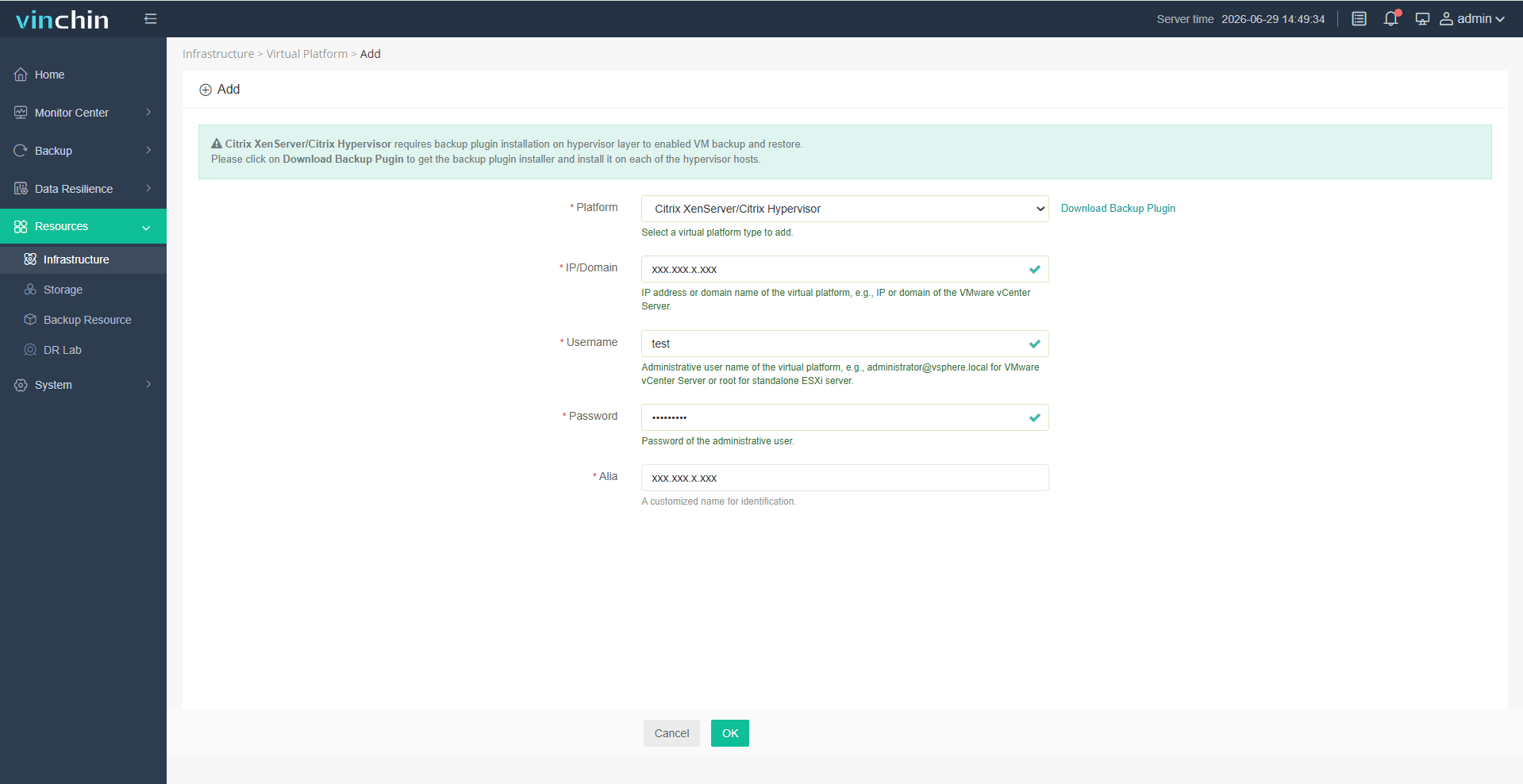
Step1: Click Resources > Infrastructure > Virtual Platform to add the target VM.
Step2: Navigate to Backup>Virtualization to create a backup task and configure backup settings.

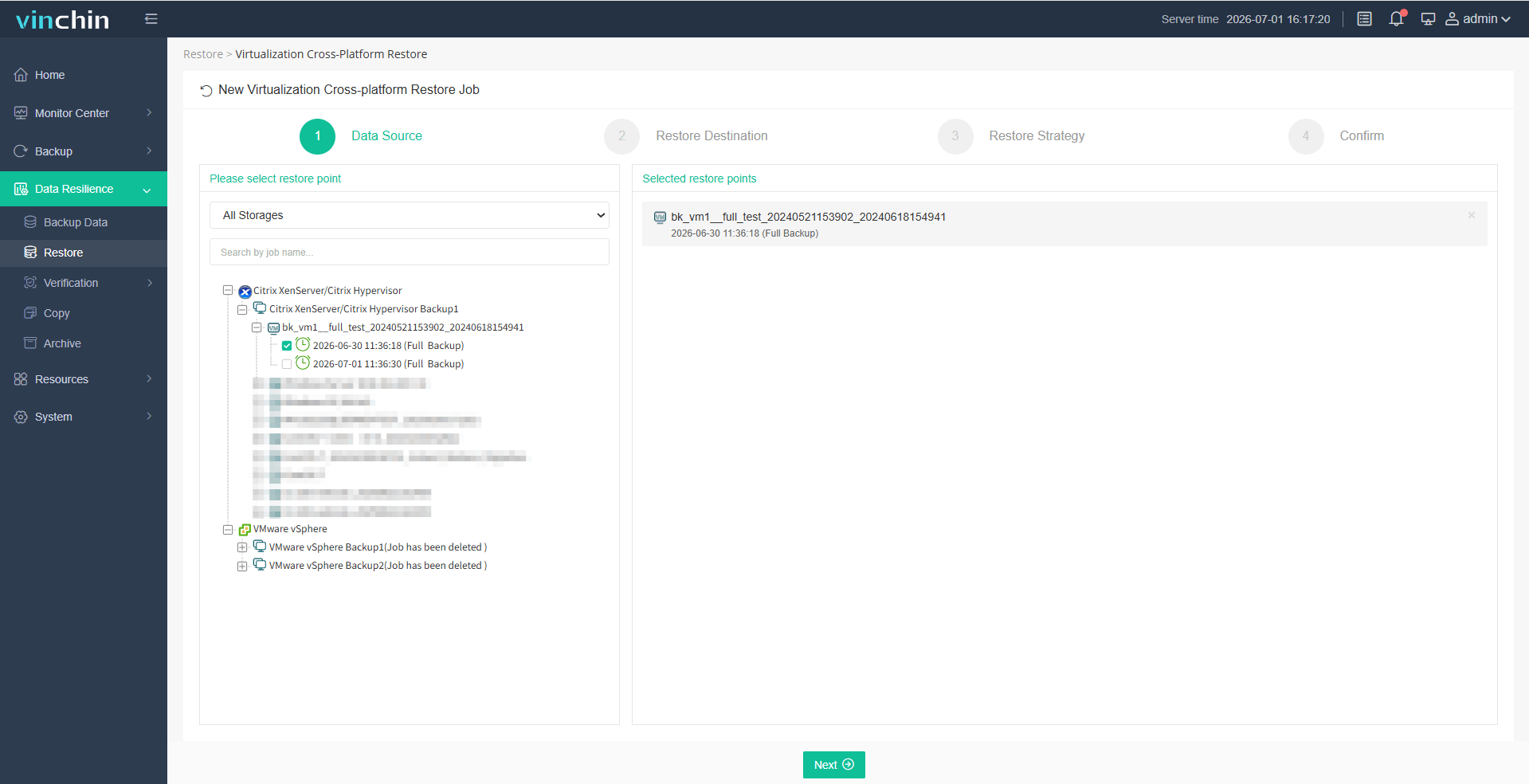
Step3: Once the backup task completes, click Data Resilience > Restore > Cross-Platform Restore to start VMware VM migration.
Want a safer and easier way to backup or migrate VMware VMs? Download and start a 60-day free trial of Vinchin Backup & Recovery to reduce migration risks, and simplify the whole process.
FAQs About VMware VM Migrate Greyed Out
Q1: How to enable vMotion on a host?
A1: To enable vMotion on a host, configure a VMkernel adapter for vMotion in vCenter. Select the ESXi host, go to Configure > Networking > VMkernel adapters, and enable the vMotion service on the proper VMkernel network.
Q2: Can I migrate a powered-on VM without vMotion?
A2: No. A powered-on VM usually needs vMotion for live migration. If vMotion is not licensed or configured, you may need to power off the VM and perform cold migration, or use another migration method based on backup and restore.
Q3: Can a VMware VM migration tool help when the Migrate option is greyed out?
A3: Yes. If migration option is greyed out, a VMware VM migration tool can help move VMs through another workflow, such as backup and restore. For example, Vinchin Backup & Recovery can back up the source VM and restore it to the target host, datastore, and network, helping simplify VMware VM migration.
Sum up
The VMware VM migrate greyed out issue is usually caused by the six reasons above. In most cases, administrators can fix the problem by checking these factors one by one and then trying the migration again.
For complex environments, large numbers of VMs, or cases where native VMware migration is still limited, Vinchin Backup & Recovery offers a more efficient way to complete VMware VM migration. By backing up the source VM and restoring it to the target host, datastore, and network, it helps reduce manual troubleshooting work and provides a safer migration workflow.