PXE boot lets you start a computer or virtual machine from the network instead of local storage. In Hyper‑V environments, this feature speeds up operating system deployment and supports automation at scale. However, setting up PXE boot in Hyper‑V can be confusing if you are new to virtualization or unsure about VM generations. This guide explains what PXE boot is, why it matters for Hyper‑V admins, how to configure it on both Generation 1 and Generation 2 VMs, and how to avoid common pitfalls along the way.
What Is Hyper‑V PXE Boot
Hyper‑V PXE boot means starting a virtual machine using the Preboot Execution Environment (PXE) over your network. Instead of loading an operating system from a hard drive or ISO file, the VM requests its startup files from a network server, usually Windows Deployment Services (WDS), System Center Configuration Manager (SCCM), or similar tools.
The process works like this: when powered on, the VM’s firmware sends out a request across the network looking for a PXE server. The server responds with essential files so installation or recovery can begin without physical media attached to the VM.
Why Use PXE Boot with Hyper‑V
PXE booting in Hyper‑V brings several advantages:
Automated OS Deployment: You can install operating systems on many VMs at once without manual intervention.
Rapid Recovery: If you need to repair or reinstall an OS image quickly after failure or corruption, PXE makes it fast.
Lab Environments: Testing different images becomes easier since you don’t have to attach ISOs every time.
Consistency: All machines get identical configurations via standardized images during deployment.
There are some caveats: security risks exist if unauthorized devices access your deployment services; possible network bottlenecks may occur; compatibility issues can arise depending on VM generation and guest OS support.
Network Infrastructure Prerequisites for Hyper‑V PXE Boot
Before configuring individual VMs for PXE boot in Hyper‑V, make sure your underlying network infrastructure is ready. Many PXE boot setup failures trace back not to VM settings but to missing prerequisites at the networking layer.
First, confirm that your environment includes an active DHCP server capable of responding to client requests on the same subnet as your target VMs or set up DHCP relay agents (IP helpers) if they are separated by routers or VLANs. Your DHCP scope should not conflict with static addresses assigned elsewhere in your environment.
If using Windows Deployment Services (WDS) as your PXE server:
Ensure WDS is authorized within Active Directory if required.
Configure DHCP Option 66 (Boot Server Host Name) with either the hostname or IP address of your WDS/PXE server.
Set DHCP Option 67 (Bootfile Name) with the correct path—for example: boot\x64\wdsnbp.com for BIOS-based clients or boot\x64\wdsmgfw.efi for UEFI-based clients.
If your DHCP server is separate from WDS/PXE:
Add an IP helper address on routers between subnets so broadcast traffic reaches both servers.
Make sure firewalls allow UDP ports 67/68 (DHCP), port 69 (TFTP), and any custom ports used by third-party solutions.
For best results:
Connect all relevant virtual switches in Hyper‑V Manager as External type so they bridge traffic between VMs and physical networks.
Test connectivity by creating a simple test VM configured for network boot; verify it receives an IP address before proceeding further.
By preparing these elements ahead of time, you reduce troubleshooting later when configuring individual VMs.
How to Enable PXE Boot on Generation 1 Hyper‑V Virtual Machines
Generation 1 VMs use BIOS-based firmware and require special steps because their default “Network Adapter” does not support preboot environments at startup. Only Legacy Network Adapters work here.
First ensure that both DHCP and WDS/PXE servers are running properly on reachable segments of your network.
Here’s how you set up Generation 1 VM PXE boot:
1. Open Hyper-V Manager and select your target virtual machine.
2. Shut down the VM if it is running.
3. Right-click the VM name and choose Settings.
4. In the left pane under Settings, click Add Hardware.
5. Select Legacy Network Adapter, then click Add.
6. Under Legacy Network Adapter, connect it to an External virtual switch that has access to your deployment/PXE server. Internal or private switches will not work unless specifically bridged externally.
7. Still in Settings under Generation 1 configuration options, go to BIOS.
8. Move Legacy Network Adapter to the top of the boot order list using arrow buttons so that it attempts network boot before other devices such as hard disk drives or DVD drives.
9. Click OK to save changes.
Now when you power on this Generation 1 VM, it will attempt a network (PXE) boot first via its legacy adapter.
Note: Only Legacy Network Adapters support preboot environments in Gen 1 VMs; synthetic adapters do not work here due to lack of BIOS-level emulation required by most PXE implementations.
How to Enable PXE Boot on Generation 2 Hyper‑V Virtual Machines
Generation 2 VMs use UEFI firmware instead of BIOS and offer improved hardware emulation, including native support for secure network boots using their default “Network Adapter.” No legacy adapter is needed here; configuration is more straightforward but still requires attention to detail regarding Secure Boot settings depending on guest OS type.
Follow these steps:
1. Open Hyper-V Manager and select your Generation 2 VM.
2. Shut down the VM if running.
3. Right-click its name then choose Settings from context menu.
4. In Settings’ left pane select Firmware under Hardware groupings available only in Gen 2 configurations.
5. Make sure that Network Adapter appears at or near the top of “Boot Order”; move it above Hard Drive/DVD Drive using arrow buttons so that network boots take priority during initial deployments or recoveries as needed.
6a.If deploying Linux guests or non-Windows OSes lacking Secure Boot support with Microsoft keys:
Go into Security
Uncheck “Enable Secure Boot,” OR
Change template from "Microsoft Windows" to "Microsoft UEFI Certificate Authority" as appropriate.
6b.If deploying modern Linux distributions supporting Secure Boot (like Ubuntu Server LTS releases):
7.Click OK after making all necessary adjustments before powering back up again!
When started now this Gen 2 instance will try initiating remote loads through standard adapter; no extra hardware required!
Tip: For Windows deployments via WDS/SCCM always ensure images provided are fully UEFI-compatible; otherwise boots may fail even though networking appears functional!
Solving Challenges in Hyper‑V PXE Boot
Even after careful setup sometimes things don’t work right away! Here are frequent issues and practical solutions:
No DHCP Offer Received:
Double-check VLAN assignments across host NICs/switches; verify IP helpers exist between router interfaces so broadcast packets reach both DHCP/PXE servers even across segmented networks.
“Start PXE over IPv4” Hangs:
Ensure correct adapter type matches chosen generation; check firewall rules between hosts/networks/PXE servers; confirm WDS/SCCM service status isn’t paused/stopped unexpectedly due maintenance windows etc.; review TFTP logs if available for dropped connections/timeouts mid-transfer sequence which could indicate MTU mismatch issues too!
Secure Boot Problems:
For Linux guests especially disable Secure Boot under Security settings, or switch certificate authority template as described above before retrying installs via netloaders. Some distributions require updated shim/grub packages signed by Microsoft CA even when templates appear correct!
If all else fails:
Try deleting/recreating affected virtual switches entirely then reattach adapters cleanly;
Test imaging runs against another host OS version;
Or temporarily assign static MAC addresses inside each problematic guest profile which helps track rogue ARP/DHCP responses during debugging sessions until root cause found/fixed reliably long-term!
Vinchin: Flexible Backup & Migration Across Diverse IT Environments
With reliable deployments established through proper configuration, it's crucial to protect those workloads efficiently, this is where Vinchin Backup & Recovery comes into play as an all-in-one backup solution tailored for complex IT infrastructures like yours.
Compatible with over 19 virtualization platforms, including VMware, Hyper-V, Proxmox, as well as physical servers, databases, plus both cloud and local storage options, Vinchin meets nearly any architectural requirement you might encounter in modern data centers. If migration needs arise, it delivers exceptionally flexible full-system migration capabilities across any supported platform, virtualized, physical, or cloud with minimal effort required from administrators.
With its intuitive browser-based web console featuring wizard-driven workflows, even new users can quickly create backup/recovery jobs without steep learning curves.
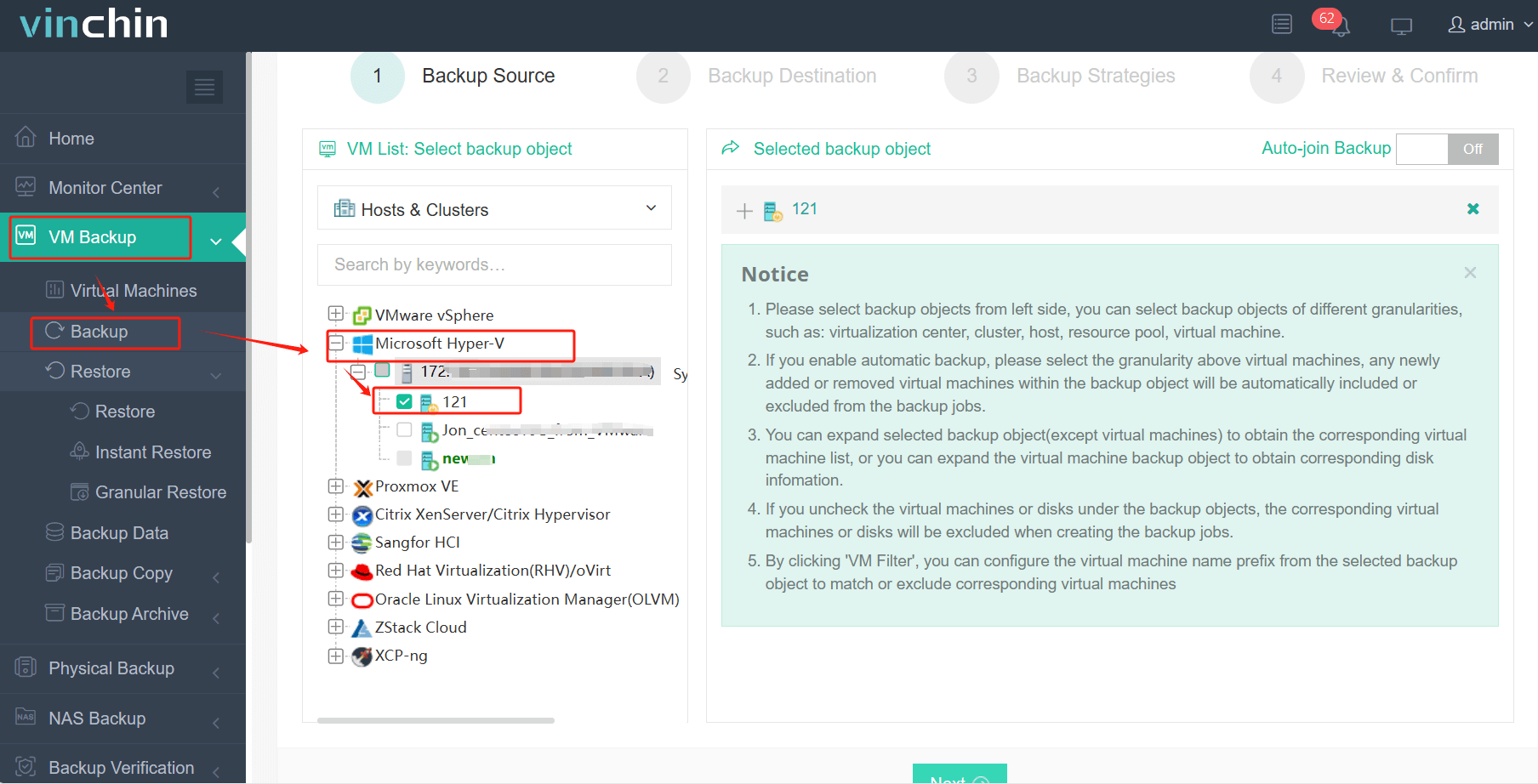
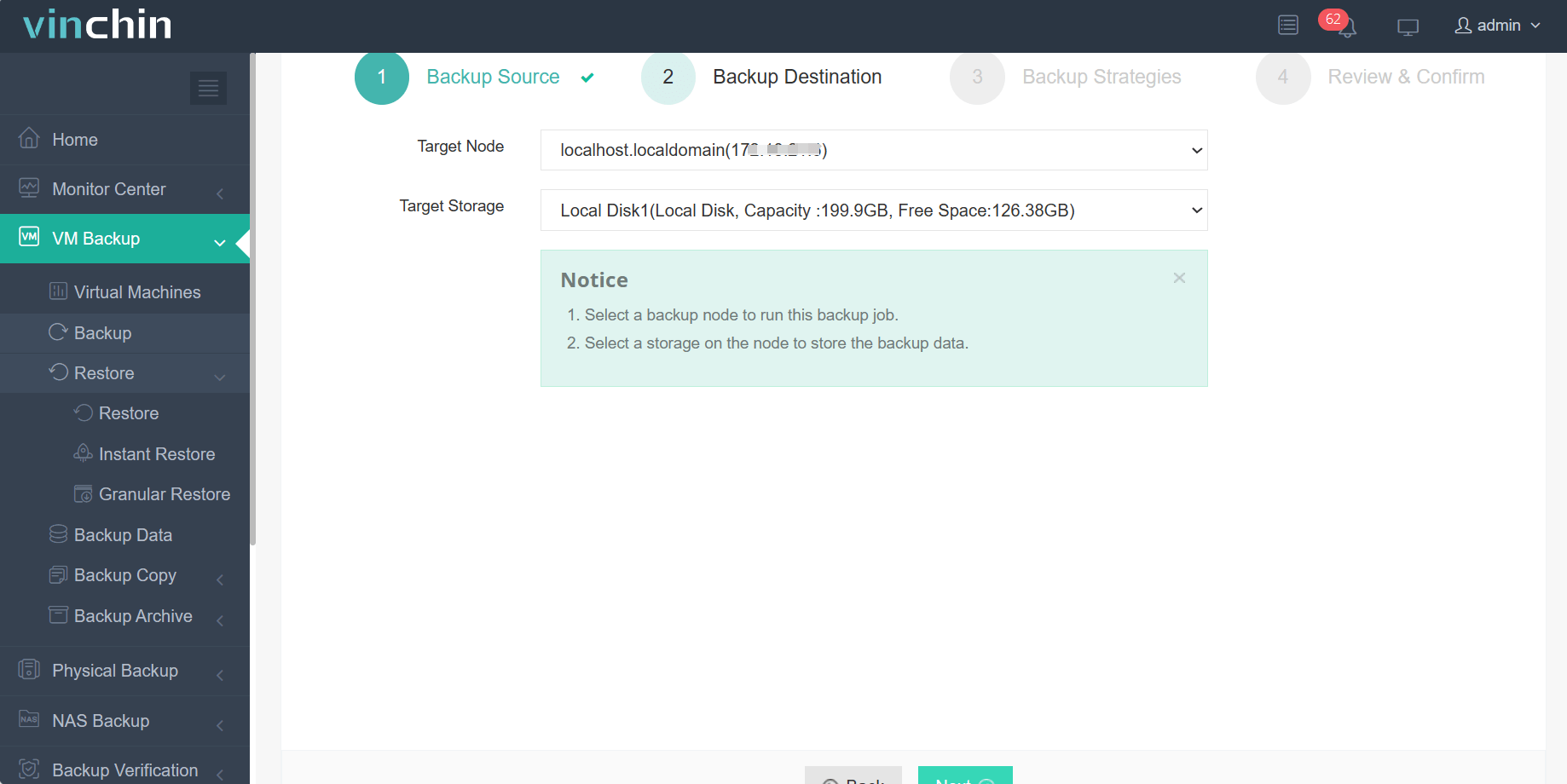
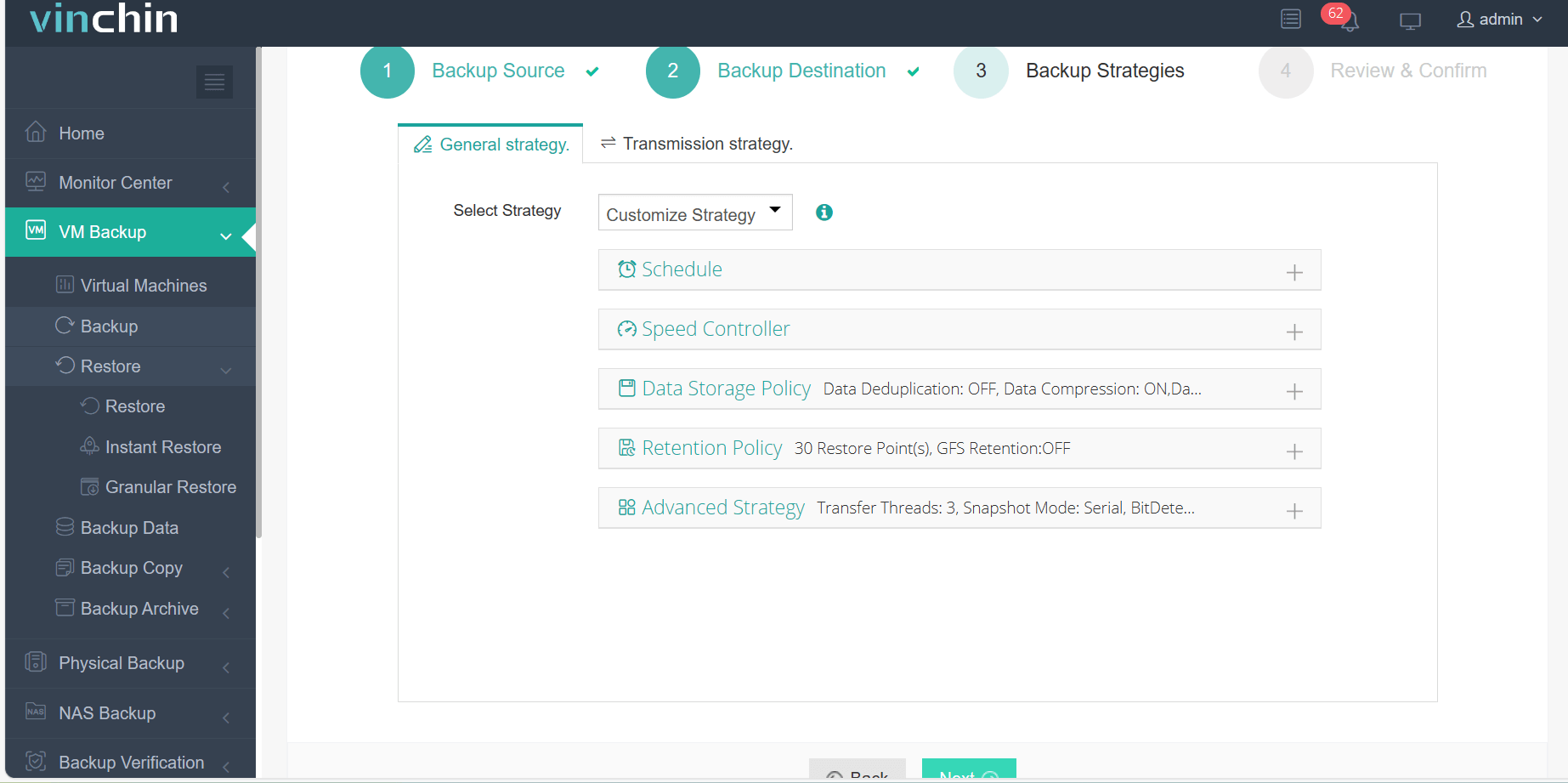
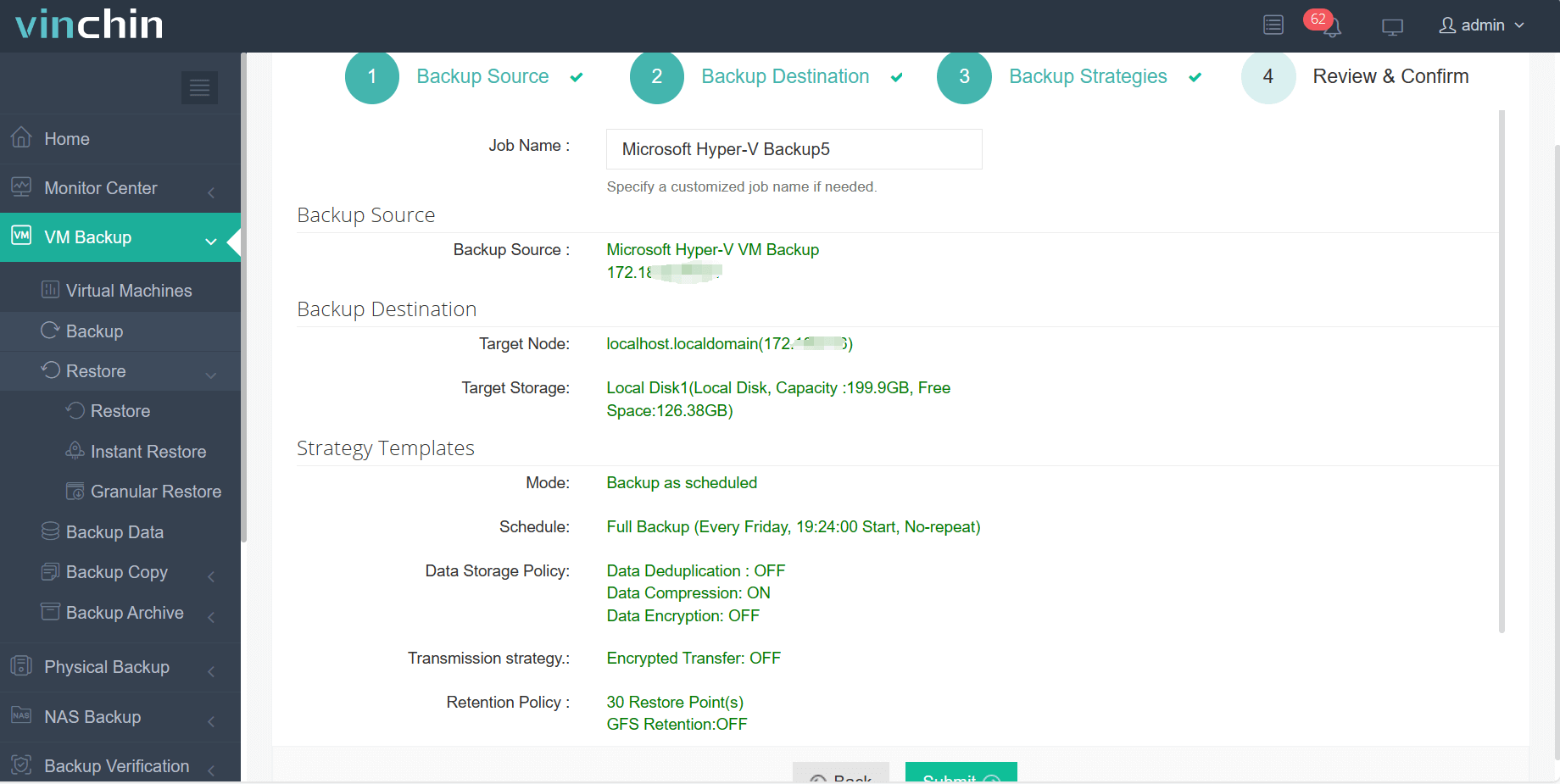
Here shows an example of how to back up a Hyper-V VM in Vinchin:
Step 1: Select the Hyper-V VM to back up
Step 2: Choose the backup storage
Step 3: Configure the backup strategy
Step 4: Submit the job
A free 60-day trial plus comprehensive documentation and responsive technical support, helping ensure smooth deployment no matter how complex your environment gets.
Hyper V PXE Boot FAQs
Q1: Why doesn’t my Gen 1 VM receive any DHCP offers during PXE?
Check VLAN settings on switches/router IP helpers so broadcast packets reach DHCP/PXE servers even across different subnets, not just directly connected networks.
Q2: Can I use synthetic adapters for Gen 1 PXE?
No; you must add a Legacy Network Adapter because only it supports preboot environments in Gen 1 VMs.
Q3: My Gen 2 Linux guest won’t start via PXE, is Secure Boot blocking me?
Yes; disable Secure Boot under Security settings or switch certificate template as needed before retrying network install.
Conclusion
Setting up Hyper-V PXE boot depends mainly on choosing correct adapters per generation and making sure networking routes traffic properly between hosts and deployment servers! With careful configuration plus reliable backups using tools like Vinchin Backup & Recovery managing large-scale deployments becomes much simpler and safer for any IT team looking after modern infrastructures today.









