VMware incremental backups depend on Changed Block Tracking (CBT). When it’s missing or broken, backup jobs fail with messages such as “changed block tracking cannot be enabled” or “changed block tracking must be enabled on the VM for this backup type”, or quietly fall back to slow full backups.
Quick answer: CBT usually can’t be enabled because the VM has snapshots, uses hardware version earlier than 7, or has independent disks or physical-mode RDMs. To fix it, delete all snapshots, then enable CBT: power off the VM and add ctkEnabled = TRUE and scsiX:Y.ctkEnabled = TRUE for each disk under Edit Settings > VM Options > Advanced > Edit Configuration, or let your backup software enable it. If CBT is enabled but backups still fail, reset it by disabling CBT, deleting the -ctk.vmdk files and enabling it again.
What Is VMware Changed Block Tracking (CBT)?
Changed Block Tracking is a VMware vSphere feature, introduced in ESX/ESXi 4.0, that records which blocks of a virtual disk have changed. The ESXi host keeps a small tracking file next to each disk (vmname-ctk.vmdk), and backup software queries it through the vSphere Storage APIs – Data Protection (VADP).
With CBT, only the first backup copies the whole disk. Later backups ask for the blocks changed since the previous backup’s snapshot and copy only those, which makes incremental and forever-incremental backups much faster and smaller.
CBT is disabled by default, because tracking adds a small amount of overhead. Most backup applications enable it automatically on the VMs they protect.
Common CBT Error Messages
| Message | What it means |
|---|
| Changed block tracking cannot be enabled: one or more snapshots present | CBT can’t be turned on while the VM has snapshots |
| Changed block tracking must be enabled on the VM for this backup type | The backup job uses incremental, differential or forever-incremental backup, but CBT is off |
| Disk “Hard disk #” has incorrect changed block tracking configuration | CBT is enabled for the VM but not working for one disk |
| One or more VM disks have incorrect changed block tracking configuration | The same problem on several disks, often caused by stale or corrupted -ctk.vmdk files |
CBT Requirements
✨ESX/ESXi 4.0 or later
✨Virtual machine hardware version 7 or later
✨Disks on VMFS (local, iSCSI or FC SAN), NFS or vSAN datastores
✨RDM in virtual compatibility mode is supported; RDM in physical compatibility mode is not
✨Disks must not be independent (persistent or non-persistent), because CBT works with snapshots
✨No snapshots on the VM when CBT is turned on
✨Both thin and thick disks are supported
Why Changed Block Tracking Cannot Be Enabled?
1. The VM has snapshots. VMware can’t enable CBT while snapshots exist, because tracking must start from the base disk. Delete or consolidate all snapshots first. If the Snapshot Manager shows none but the error persists, check the datastore for leftover delta files and run Snapshots > Consolidate.
2. Old virtual hardware. VMs with hardware version 4 or earlier don’t support CBT. Upgrade the VM’s compatibility (after taking a backup).
3. Unsupported disks. Independent disks and physical-mode RDMs are skipped by snapshots and can’t use CBT. Change independent disks back to dependent mode, or exclude these disks from the backup job.
4. The change hasn’t taken effect yet. After you set ctkEnabled, CBT starts working only after a stun/unstun cycle: powering on, creating and deleting a snapshot, suspending and resuming, or a vMotion. Until then, backups can still report that CBT isn’t enabled.
5. Stale or corrupted CTK files. Host crashes, storage problems, restoring the VM from a copy, or some disk resize operations can leave CBT data out of sync. Resetting CBT (see below) fixes this.
6. Missing permissions. The account your backup software uses needs vCenter privileges to reconfigure VMs (including Virtual machine > Configuration > Toggle disk change tracking) and to manage snapshots.
How to Check Whether CBT Is Enabled?
In the vSphere Client: right-click the VM, select Edit Settings > VM Options > Advanced > Edit Configuration, and look for:
ctkEnabled = TRUE
scsi0:0.ctkEnabled = TRUE
There should be one scsiX:Y.ctkEnabled entry for each disk.
In the datastore: browse the VM’s folder. Each disk with active CBT has a matching tracking file, for example:
vmname.vmdk
vmname-flat.vmdk
vmname-ctk.vmdk
With PowerCLI: list VMs and their CBT status:
Get-VM | Select-Object Name, @{N="CBT";E={$_.ExtensionData.Config.ChangeTrackingEnabled}}How to Enable CBT in the vSphere Client?
Many backup applications, including Vinchin Backup & Recovery, enable CBT automatically. To enable it manually:
1. Delete all snapshots of the VM.
2. Power off the VM.
3. Right-click the VM and select Edit Settings.
4. Open the VM Options tab, expand Advanced, and click Edit Configuration.
5. Click Add Configuration Params and add ctkEnabled with the value TRUE.
6. For each virtual disk, add scsiX:Y.ctkEnabled with the value TRUE, where X:Y is the disk’s controller and unit number shown in the disk settings, for example scsi0:0.ctkEnabled. If an entry already exists, change its value instead of adding a duplicate.
7. Click OK and power on the VM.
8. Check the datastore for a -ctk.vmdk file next to each disk.
How to Enable CBT with PowerCLI
PowerCLI is faster for many VMs. Setting ChangeTrackingEnabled through the vSphere API enables CBT for the VM and its disks:
Connect-VIServer vcenter.example.com

$vm = Get-VM -Name "VM01"
$spec = New-Object VMware.Vim.VirtualMachineConfigSpec
$spec.ChangeTrackingEnabled = $true
$vm.ExtensionData.ReconfigVM($spec)
If the VM is running, apply the change with a stun/unstun cycle by creating and removing a snapshot:
$snap = New-Snapshot -VM $vm -Name "cbt-apply"
Remove-Snapshot -Snapshot $snap -Confirm:$false
To enable CBT on several VMs, run the same steps in a loop over the output of Get-VM. The VMs must have no snapshots when you start.
How to Reset CBT
If CBT is enabled but backups report incorrect CBT configuration, or incremental backups seem wrong, reset it. After a reset, the next backup is a full backup.
1. Delete all snapshots of the VM.
2. Disable CBT: set ctkEnabled and each scsiX:Y.ctkEnabled to FALSE (or set ChangeTrackingEnabled = $false in PowerCLI).
3. Perform a stun/unstun cycle: power the VM off and on, or create and delete a snapshot.
4. Delete the -ctk.vmdk files from the VM’s folder on the datastore. Do this only after CBT is disabled.
5. Enable CBT again, and perform another stun/unstun cycle.
6. Run a new full backup.
How to Disable CBT
1. Power off the VM, or plan a stun/unstun cycle afterwards.
2. Open Edit Settings > VM Options > Advanced > Edit Configuration.
3. Set ctkEnabled and each scsiX:Y.ctkEnabled to FALSE.
4. Power on the VM. The -ctk.vmdk files can then be deleted.
Disabling CBT forces backup software to read whole disks, so only do it for troubleshooting or if you no longer back up the VM with image-based backups.
Disabling CBT forces backup software to read whole disks, so only do it for troubleshooting or if you no longer back up the VM with image-based backups.
Back Up VMware VMs with CBT Using Vinchin Backup & Recovery
Vinchin Backup & Recovery is an enterprise backup solution for 19+ virtualization platforms, including VMware vSphere, Hyper-V, Proxmox VE, XenServer, XCP-ng, RHV, oVirt and OpenStack. It uses CBT for fast incremental backups on VMware vSphere, Citrix Hypervisor (XenServer 7.3 and later), XCP-ng, RHV and oVirt (4.4.7 and later), OLVM (4.4.8 and later), and Huawei FusionCompute (KVM). For platforms without CBT, its own SpeedKit technology provides similar acceleration.
Other features include forever-incremental backup with deduplication and compression, HotAdd and LAN-free transfer, instant recovery, file-level restore, backup verification and V2V migration.
To back up a VMware VM with CBT:
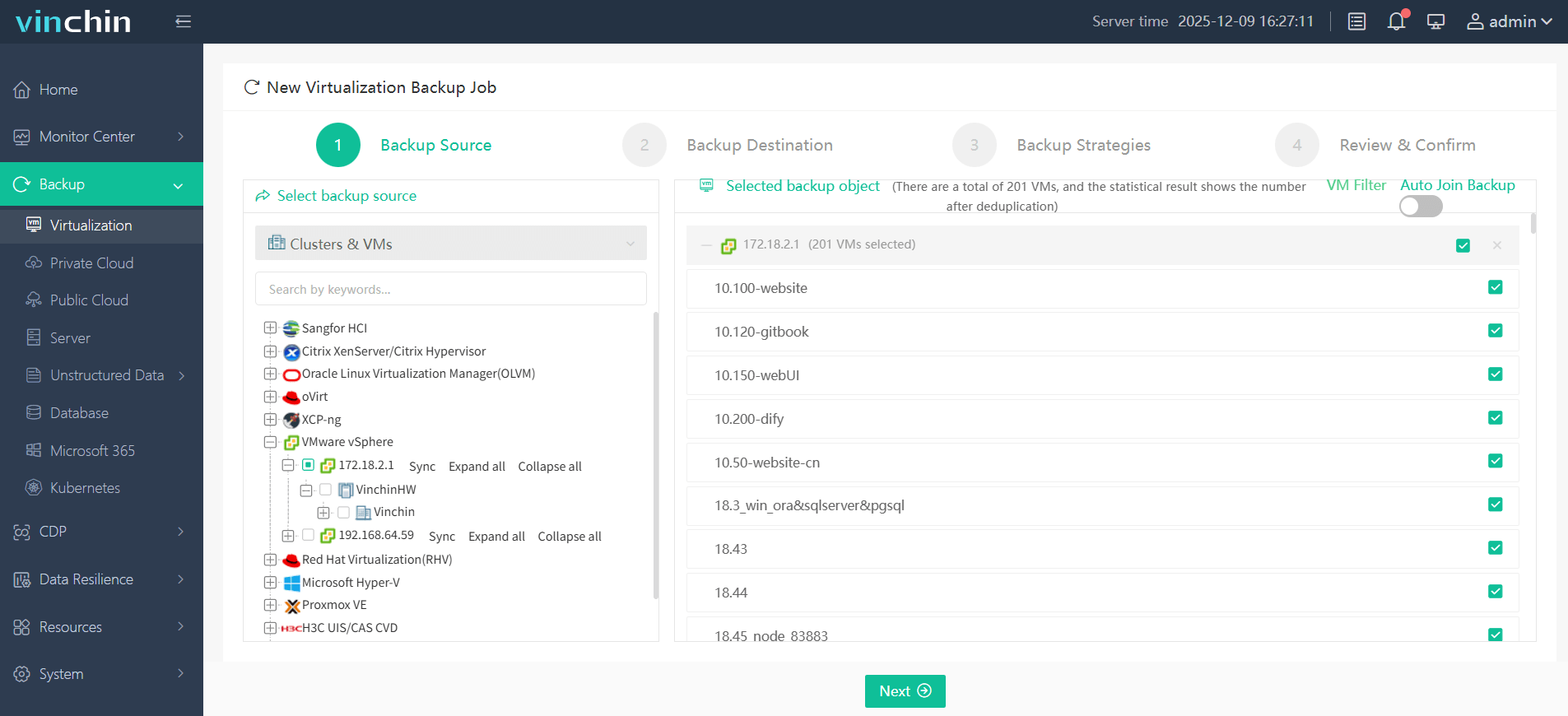
1. Select the backup object
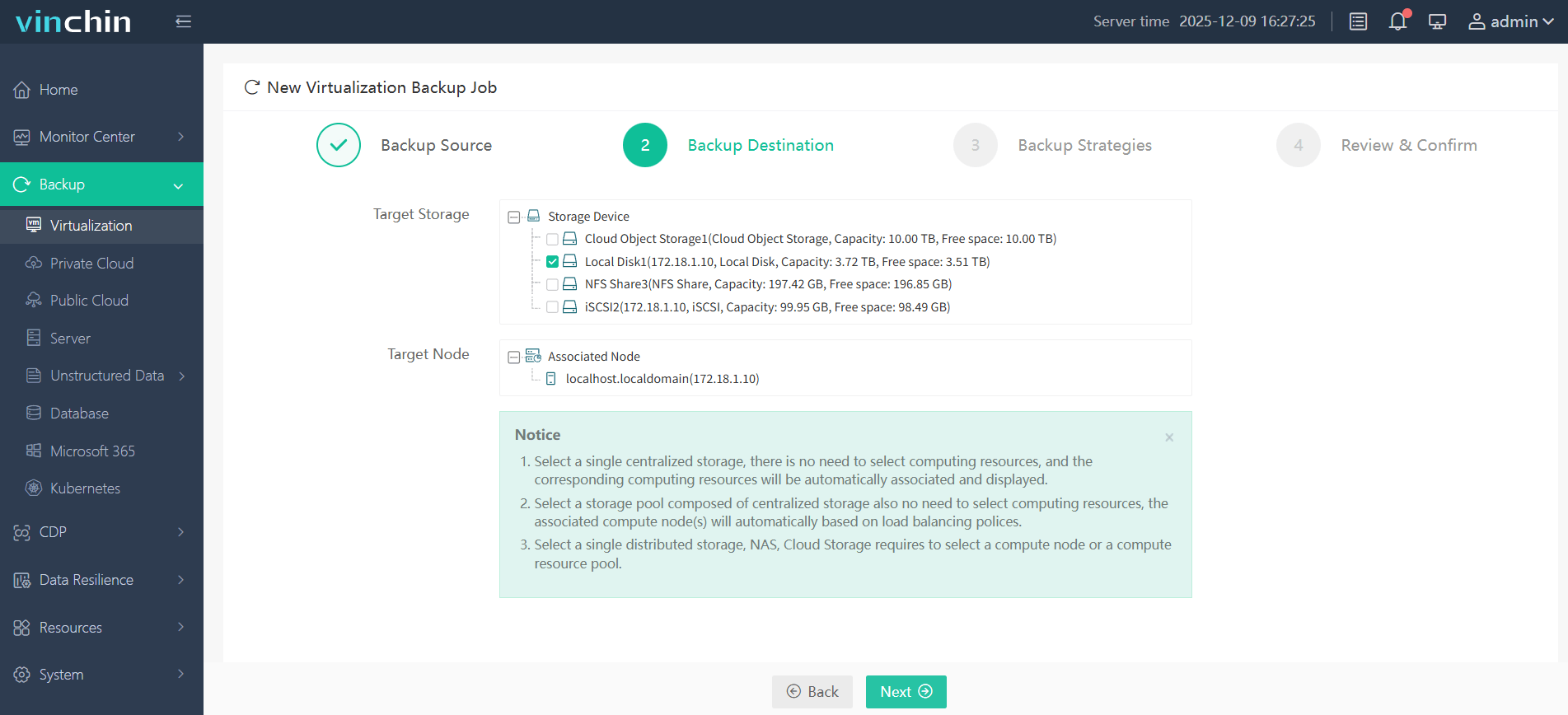
2. Specify the backup destination
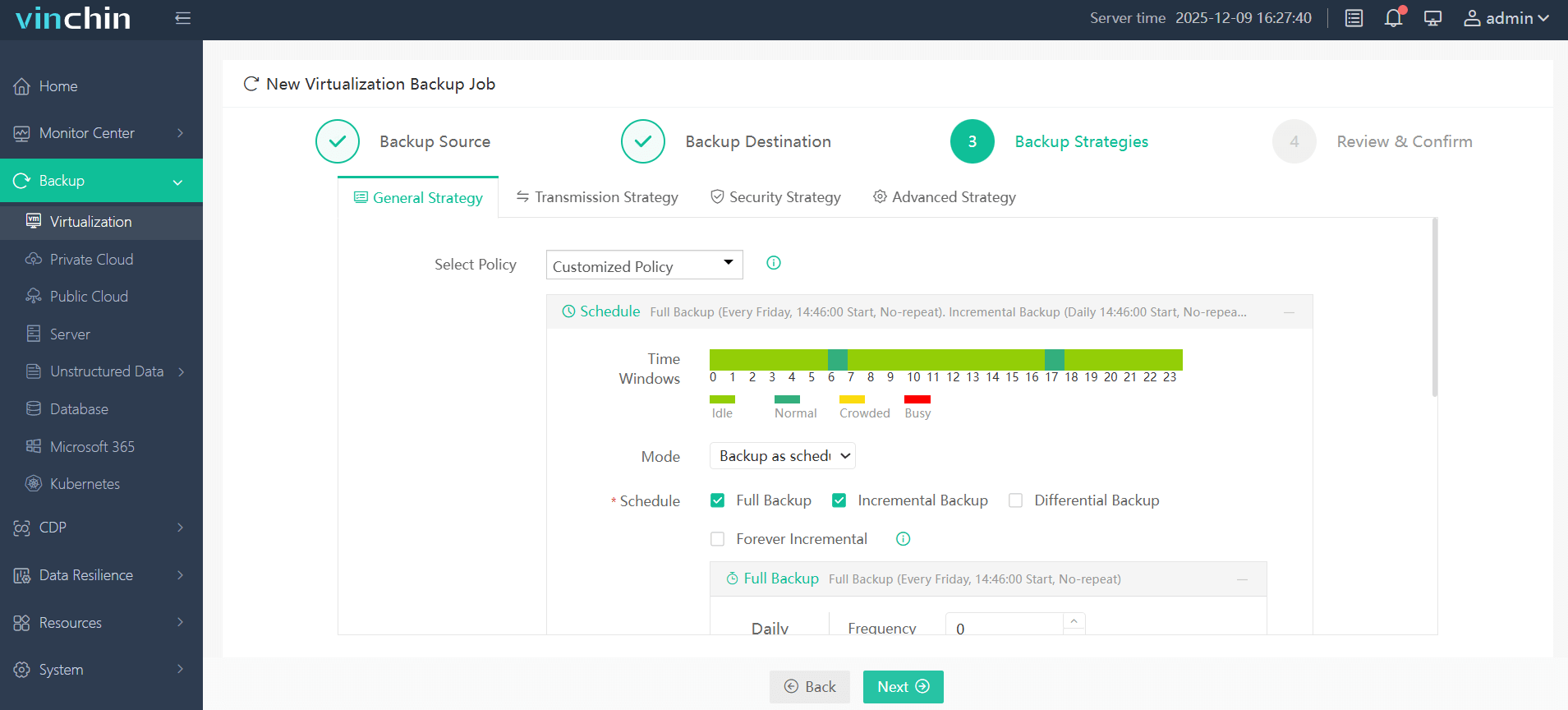
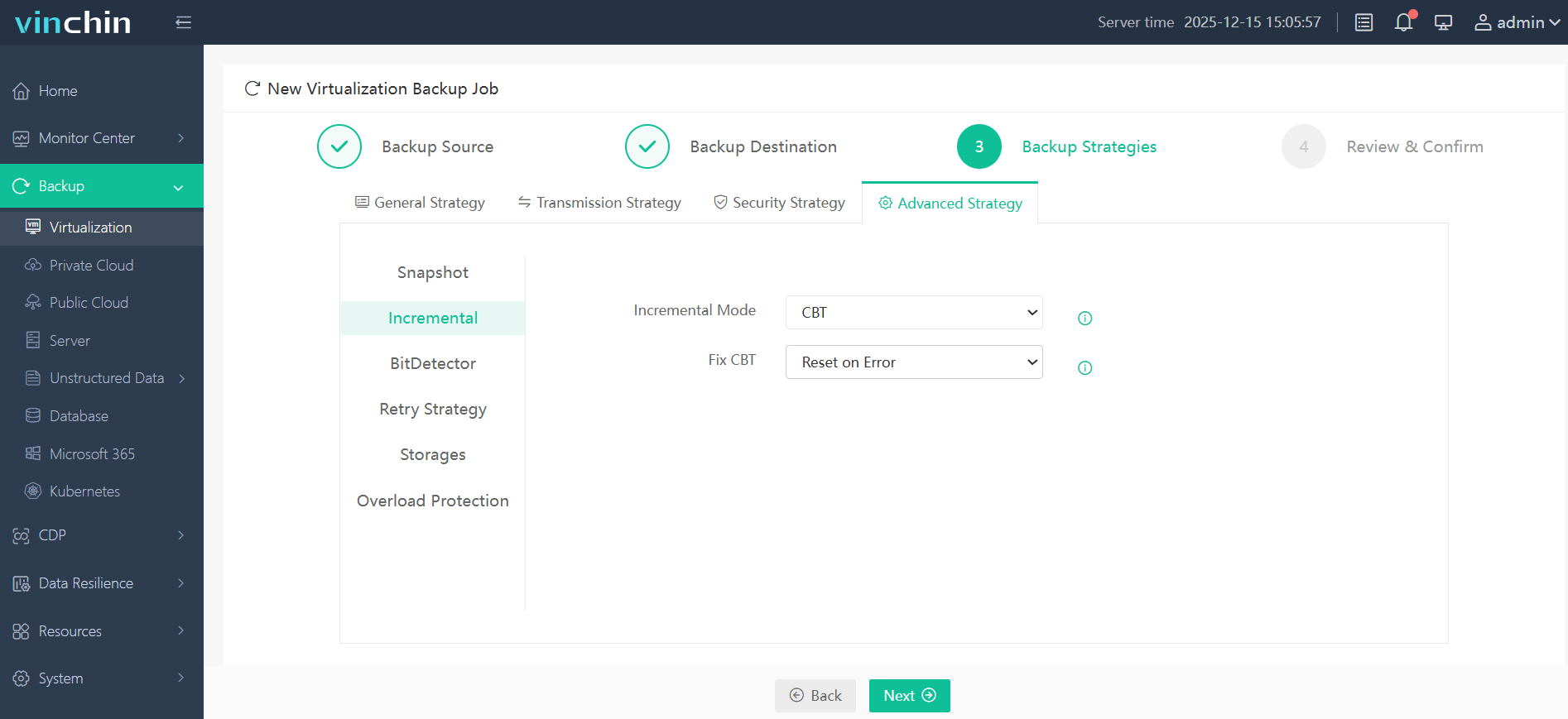
3. Set the backup policy. Here in the "Advanced Strategy", check the "CBT" option.
4. Submit the task
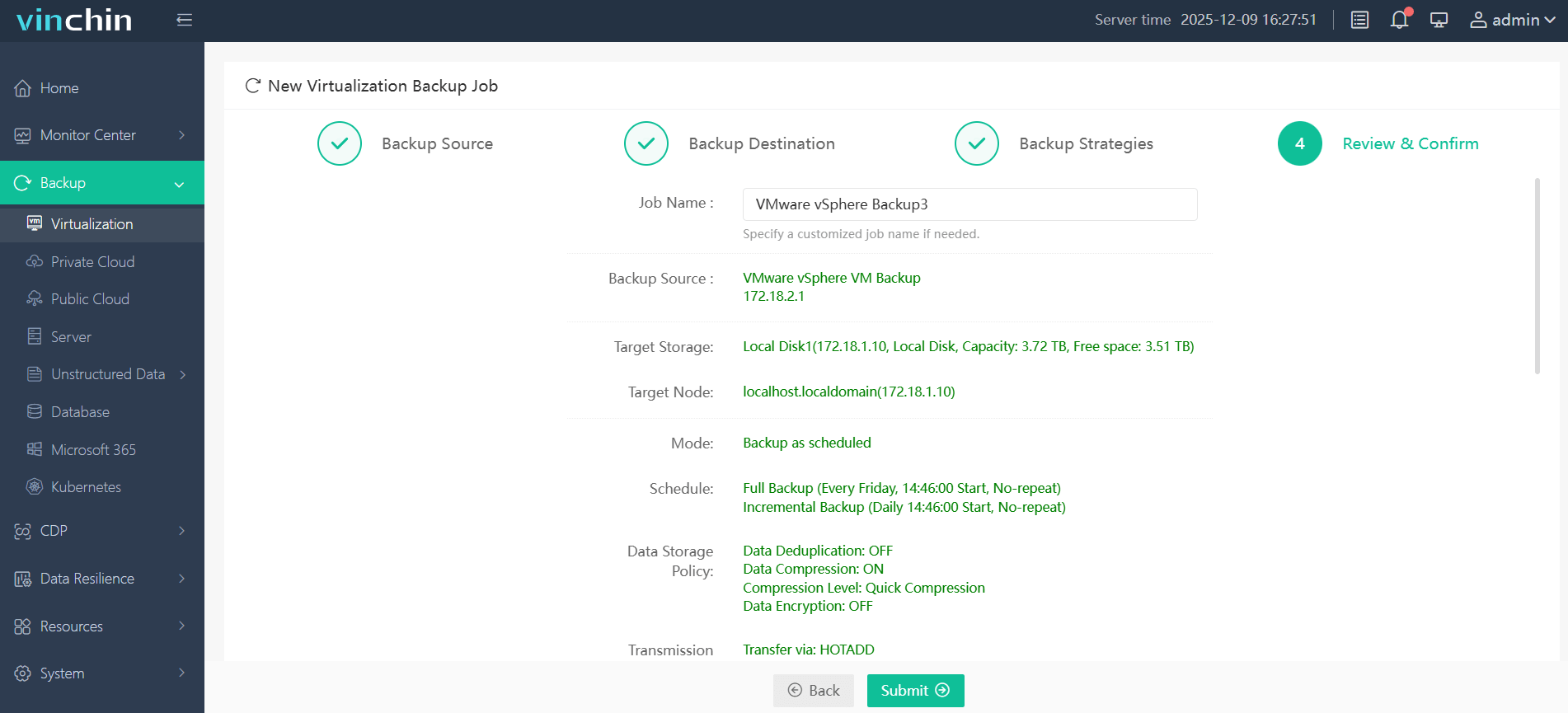
In addition to CBT, Vinchin also provides a number of advanced features to further enhance data protection capabilities, such as instant recovery, file-level recovery, backup verification, multi-platform V2V migration, etc. For enterprise users who want to improve backup efficiency and reduce storage costs, Vinchin is a professional choice worth considering. You can try it for free for 60 days to experience the full functionality.
Changed Block Tracking Cannot be Enabled FAQs
Q1: Does enabling CBT affect VM performance?
Only slightly. The host records changed blocks in the tracking file, which adds a small amount of I/O. For most workloads the impact isn’t noticeable, and it’s far smaller than the cost of full backups.
Q2: Can I enable CBT on a running VM?
Yes, through the vSphere API (PowerCLI or backup software), but it takes effect only after a stun/unstun cycle, such as creating and deleting a snapshot. The VM must not have snapshots when you enable it.
Q3: Where is CBT data stored, and can I delete it?
In -ctk.vmdk files next to each disk’s .vmdk file. Delete them only after disabling CBT and completing a stun/unstun cycle, as part of a CBT reset. Deleting them while CBT is active can cause backup errors.
Q4: Do I need a full backup after resetting CBT?
Yes. A reset discards the change history, so the next backup must read the whole disk. Later backups are incremental again.
Q5: Does CBT work with snapshots once it’s enabled?
Yes. Snapshots only block turning CBT on. After it’s enabled, you can create snapshots as usual; backup software relies on them to read changed blocks.
Q6: Why does my backup still fail after I enabled CBT?
Check that every disk has a scsiX:Y.ctkEnabled = TRUE entry and a -ctk.vmdk file, that a stun/unstun cycle has happened, and that the disks aren’t independent or physical-mode RDMs. If everything looks right, reset CBT.
Conclusion
“Changed block tracking cannot be enabled” almost always comes down to snapshots, old hardware versions, unsupported disks, or a change that hasn’t taken effect yet. Remove snapshots, enable CBT in the vSphere Client or with PowerCLI, apply it with a stun/unstun cycle, and reset CBT when tracking data gets out of sync.
With CBT working, Vinchin Backup & Recovery runs fast incremental VMware backups automatically. Try it free for 60 days.