There are many kinds of popular virtualization like XenServer and VMware. Usually, VM data can't be directly transferred to another virtualization platform, only if with a V2V converter.
If you have the XVA file, VMDK file, or OVA file, how can you use it to migrate VM from XenServer to VMware vSphere and vice versa?
What are XVA, VMDK and OVA?
Every physical machine has its hard disk to store data and so does virtual machine. You can find virtual hard disk which is stored as file in datastore and different virtualization platform will save the virtual disk as different format.
VMDK is the virtual disk of VMware VM and contains a large amount of VM data. It can be separately exported or copied to another datastore to make simple backup. On the same virtualization platform, virtual disk can be added to a newly-created or existing VM to quickly use the applications or data in that virtual disk.
In multi-hypervisor environment, virtual disk is not so easy to be attached to VM on another virtualization platform because of heterogeneity.
Virtual disk is not the only data of the whole VM and there are VM configuration file and other data in the folder the VM so to export the whole VM, you often need to export the template.
XVA and OVA are the formats of VM template. XVA file can be exported by XenCenter, Xen Orchestra, and command line in Xen-based environment like XenServer and XCP-ng. OVA file is supported in both Xen-based environment VMware vSphere environment so it means you export and import OVA file with XenOrchestra and vCenter to migrate data between XenServer/XCP-ng and VMware ESXi.
After exporting VM from XenCenter as XVA file, you still need another virtual V2V converter to make it adaptable to VMware environment.
VMware has released a powerful tool, VMware vCenter Converter Standalone, to let users skip exporting virtual hard disk and converting XVA to VMDK, and directly move VM from XenServer to VMware.
Pre-Migration Considerations
Before diving into conversion steps or running commands, take time for some essential pre-migration checks:
1. Review your source VM’s operating system version and installed drivers, especially if it uses paravirtualized drivers specific to XenServer hardware emulation. These drivers may not work on VMware hardware profiles.
2. Check that there are no snapshots attached to your source VM before exporting it as an XVA file because snapshots can complicate exports or cause corruption during extraction.
3. Confirm that your target datastore in VMware has enough free space for both temporary files created during conversion and final imported disks, which may be larger than expected due to provisioning differences between platforms.
4. Always back up your original VM before starting any migration process so you have a safe rollback point if anything goes wrong along the way.
Method 1: Manual xva to vmdk Conversion
Manual conversion gives you full control over each stage but requires careful attention throughout. This method suits those comfortable with hands-on virtualization tasks who want transparency at every step.
Start by exporting your VM from XenServer using XenCenter:
1. In XenCenter, right-click the desired VM
2. Select Export
3. Choose XVA File (*.xva) as the export format
4. Save the resulting file locally or on network storage accessible by your workstation.
Once downloaded, extract contents from this .xva archive using tar. On Linux or macOS systems:
tar -xvf vm_export.xva
Inside you’ll find configuration XMLs plus one or more disk images, typically named like Ref:<UUID>.vhd.
Next comes converting these extracted .vhd files into .vmdk. You can use command-line utilities such as qemu-img (see Method 2 below), but let’s outline key manual steps here:
After creating your .vmdk, upload it into your target environment:
● Use Datastore Browser within vSphere Client if working with vCenter-managed hosts.
● For standalone ESXi hosts without vCenter access or large files, you might prefer SCP (scp destination.vmdk root@esxi-host:/vmfs/volumes/datastore_name/target_folder/) followed by registering/importing via vSphere Client UI.
● When creating a new virtual machine in VMware:
Select Use an existing virtual disk when prompted about storage.
Point directly at your uploaded .vmdk.
Adjust CPU/memory/network settings based on workload needs.
Choose an initial hardware compatibility version that matches older ESXi releases if unsure. This increases chances of successful first boot before upgrading later if desired.
● Power on the imported machine but do not expect instant success. See next section for critical post-conversion steps required before reliable operation is possible.
Critical Post-Conversion Steps for Bootability
Many migrations fail not during export/conversion but after import when trying that first boot in VMware. Why? Because guest OSes often contain device drivers tailored specifically for their old hypervisor environment rather than generic hardware supported everywhere.
For Windows guests:
● Before shutting down in XenServer prior to export or immediately after importing but before regular boot, remove any XenTools/Xen PV drivers using Control Panel > Programs & Features.
● Run Microsoft Sysprep utility with Generalize option enabled (sysprep /generalize /oobe /shutdown). This strips out device-specific information so Windows can redetect new “hardware” upon next startup under VMware emulation.
● After importing into VMware but before normal login session completes:
For Linux guests:
● Mount extracted .vhd image onto another Linux system using loopback devices (losetup, mount) so changes can be made offline without risk of kernel panic during live boots.
● Remove any packages related specifically to xen-blkfront, xen-netfront, or similar modules tied exclusively to Xen paravirtualization support (yum remove xen* or equivalent).
● Update /etc/fstab entries if device names change between platforms—for example /dev/xvda1 may become /dev/sda1.
● Chroot into mounted filesystem then reinstall GRUB bootloader targeting correct root partition (grub-install --root-directory=/mnt/vm /dev/sda) so system boots cleanly under new virtual BIOS presented by ESXi host.
● Unmount everything safely then proceed with import/upload steps described above.
After completing these driver cleanup actions—and installing appropriate integration tools/drivers provided by VMware—the guest OS should detect its new environment correctly upon first power-up inside vSphere/ESXi.
If problems persist (such as blue screens on Windows or kernel panics on Linux), try booting temporarily from rescue media like GParted Live CD (Linux) or Windows Recovery ISO until missing/incompatible drivers are replaced manually within guest OS itself.
Method 2: Convert xva to vmdk Using qemu-img
If you prefer command-line tools or need automation across many conversions, qemu-img offers powerful capabilities supporting dozens of formats including both VHD (used internally by most XVAs) and VMDK (required by VMware).
First extract .vhd images from your exported .xva archive just as described above using tar.
Before converting anything further though—it pays off big time checking exactly what kind of disk image was extracted. Run:
qemu-img info source.vhd
This confirms input type (“file format: vpc” means classic fixed-size/dynamically expanding VHD).
Now convert using:
qemu-img convert -f vpc -O vmdk source.vhd destination.vmdk
Or let qemu-img auto-detect input type:
qemu-img convert -O vmdk source.vhd destination.vmdk
Add progress feedback with -p flag if working with large images:
qemu-img convert -p -O vmdk source.vhd destination.vmdk
By default this creates stream-optimized monolithic flat-style VMDKs compatible with most modern versions of ESXi/vSphere—but always double-check requirements based on where/how you plan deploying them.
Once completed successfully follow same upload/import workflow outlined earlier—and don’t forget those critical post-conversion driver fixes detailed above before attempting normal boots.
Advanced users needing split/thin-provisioned layouts should consult official VMware documentation regarding supported variants plus additional options available within qemu-img toolset.
Method 3: Migrate full VM from XenServer to VMware with VMware vCenter Converter Standalone
Preparation before migrating from XenServer to VMware:
To ensure smooth data transfer, some ports are needed to keep open during the process including TCP ports 443, 902, 445, 139 and UDP ports 137, 138.
You ought to delete Citrix things on XenServer VM as many as possible to make it compatible with the VMware environment. You can uninstall the Citrix tools and drivers in Control Panel, delete devices in Device Manager, and clean Registry.
Steps to migrate from XenServer to VMware:
1. Install VMware vCenter Converter Standalone on the source VM (the XenServer VM)
2. In VMware vCenter Converter Standalone, click Convert machine
3. In Source System section, select Power on and This local machine > click Next
4. In Destination System, select VMware Infrastructure virutal machine > type the credential of the destination server including IP address, user name, and password > click Next
5. In Destination Virtual Machine, select the host for XenServer VM > click Next
6. In Destination Location, select the datastore for the VM > click Next
7. In Options, confirm or change the basic configuration > click Next
8. Review the Summary and click Finish
Now you can test the VM in VMware environment.
Except for directly moving VM via VMware Converter, you can also export XenServer VM to OVA/OVF template via XenCenter and try import it to VMware.
Method 4. Easily migrate full VM from XenServer to VMware and vice versa with Vinchin
VM migration is common in virtual environment for load balancing and changing virtualization solution. Cross-platform migration can help move applications into the most suitable environment.
With VMware vCenter Converter Standalone, you can convert virtual disk from XVA to VMDK to let XenServer VM be used in VMware environment, but the process also can be complicated when you have too many VM to migrate.
Vinchin Backup & Recovery is the professonal backup and disaster recovery solution and will let you add both XenServer and ESXi hosts to backup and migrate VM more easily.
Vinchin Agentless Backup technology lets you to quickly select any VM on XenServer host to make backup, and then you can easily migrate VM between XenServer and VMware ESXi with that backup.
1. Select the backup of XenServer VM
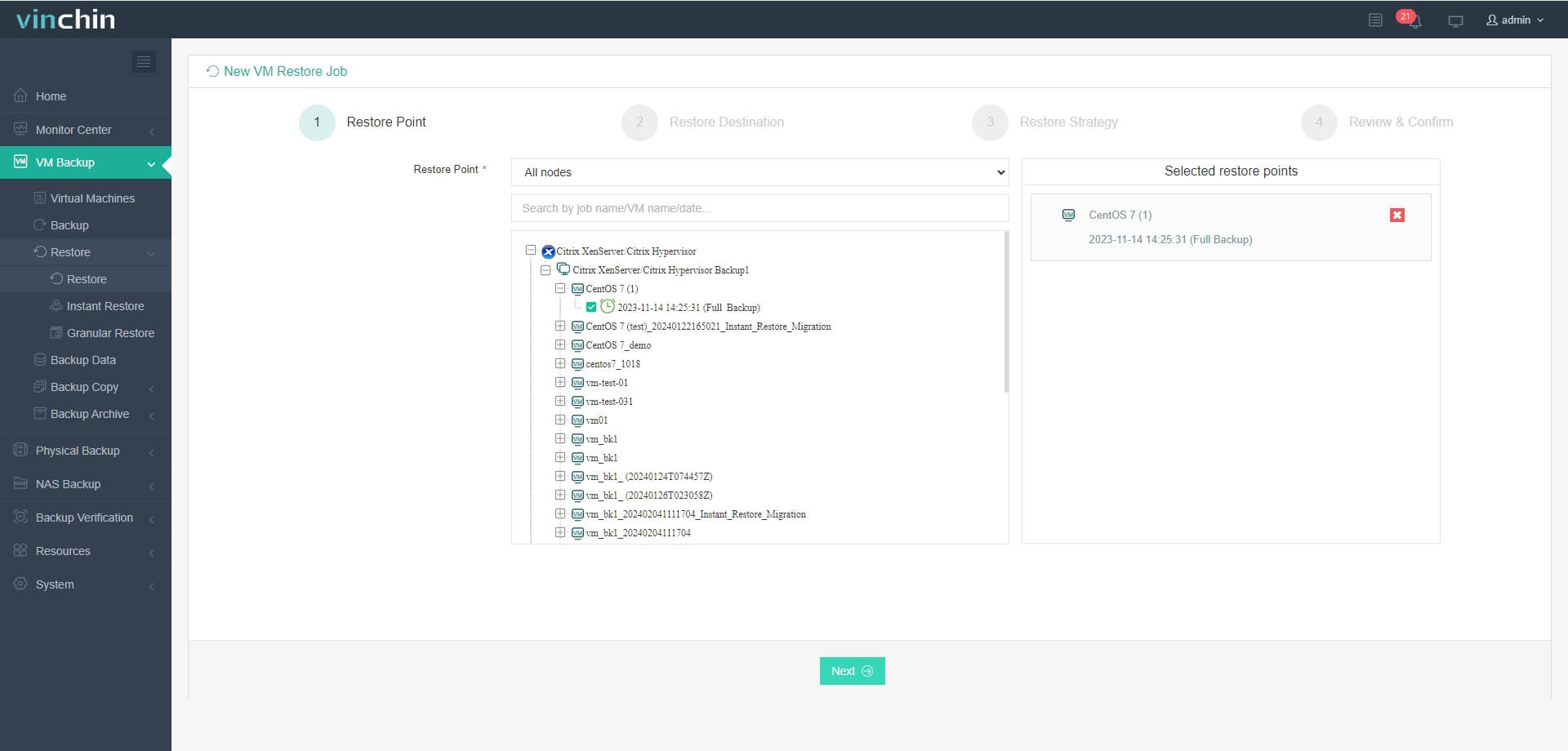
2. Select the backup storage
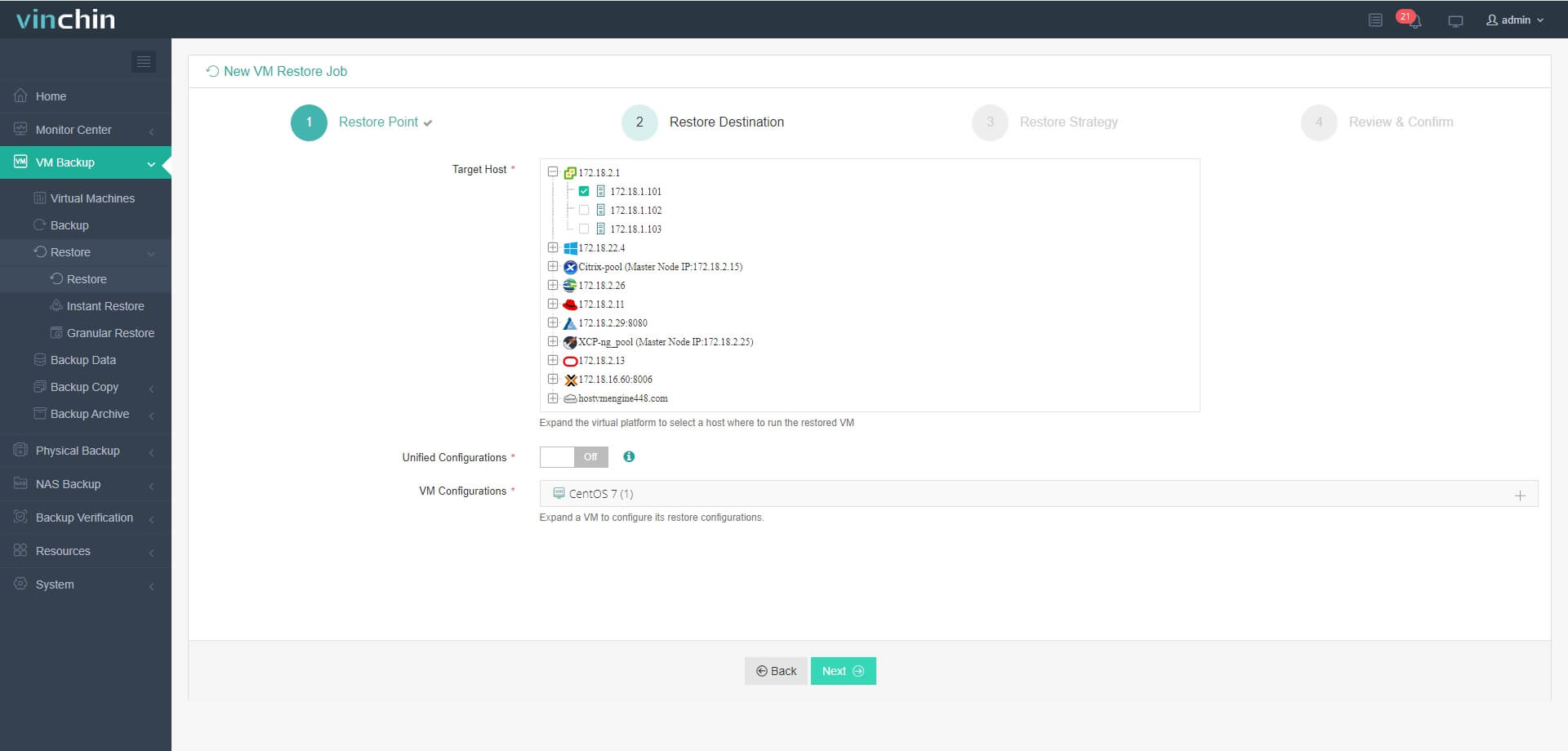
3. Select the strategies or click Next
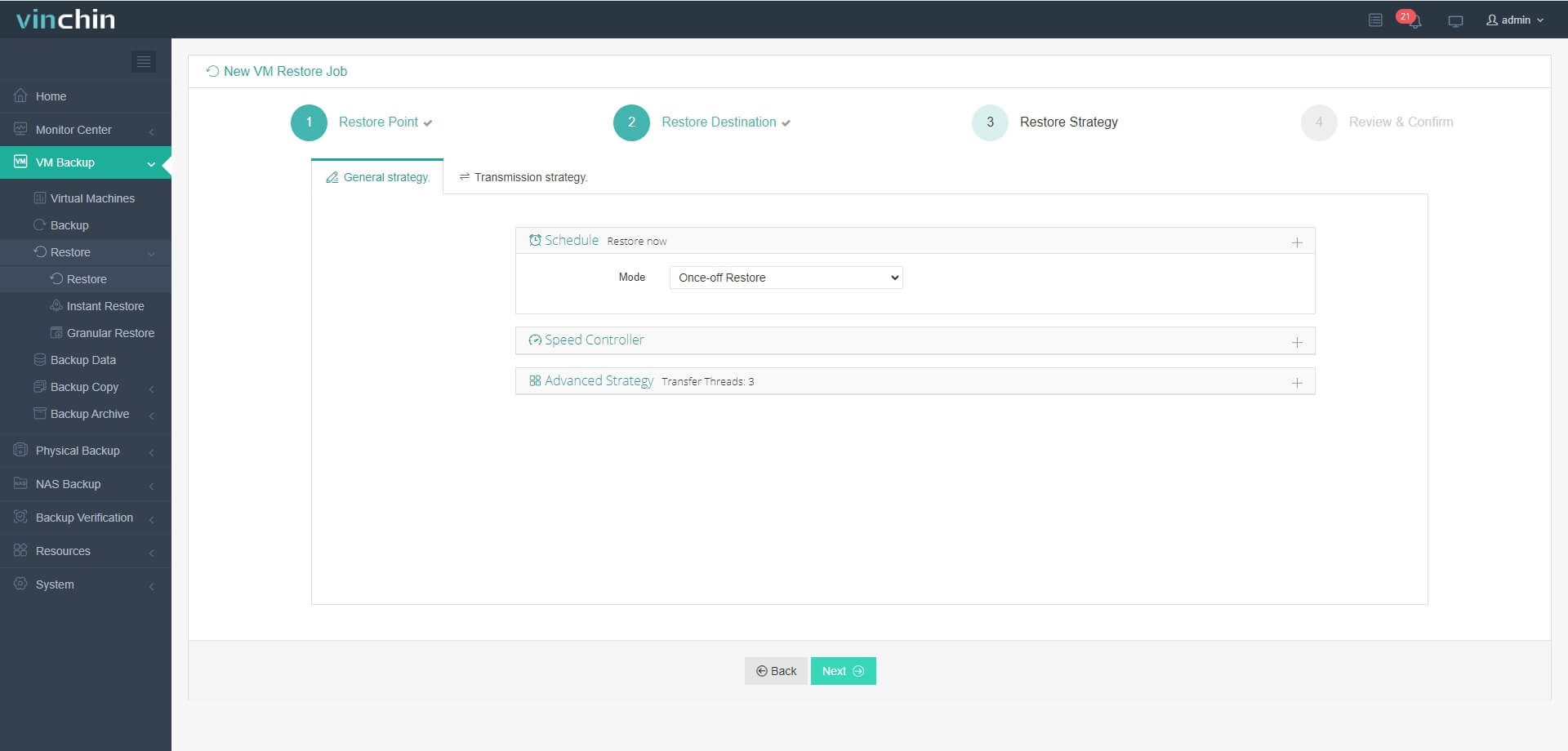
4. Summit the job
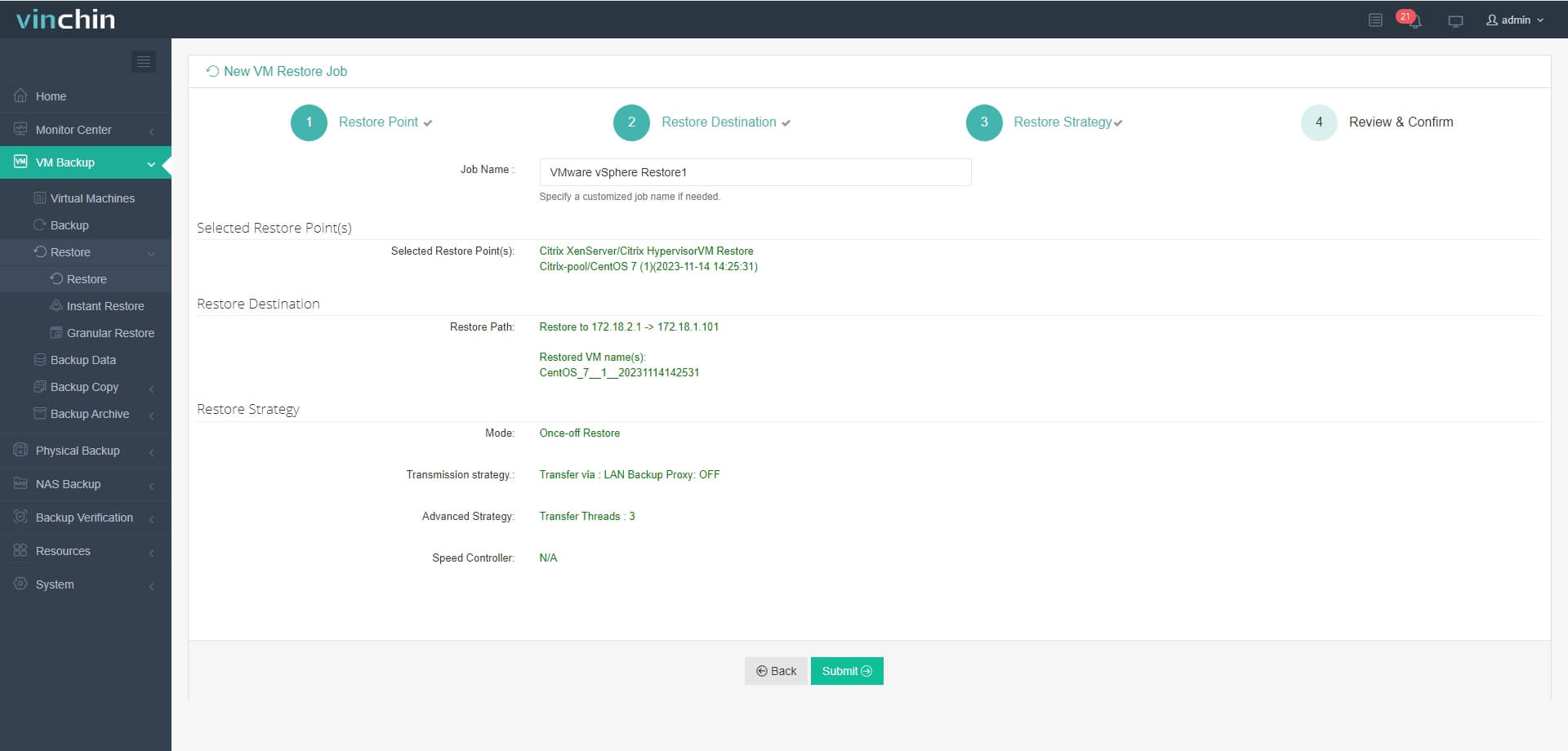
In the event of issues on the XenServer host, Vinchin Instant Recovery technology can help quickly recover XenServer VM to ESXi host in 15 seconds with its backup and also do this when the issue is on the ESXi host, greatly decreasing downtime and protecting the continuity of business.
Vinchin Backup & Recovery has been selected by thousands of companies and you can alsp easily get this brilliant solution with a 60-day full-featured free trial. Just download it to migrate VM between XenServer and VMware in the way that you never experienced before.
Xva to vmdk conversion FAQs
1. Can you directly convert xva template to vmdk virtual disk?
No. You can just import the xva template back to XenServer, export the VM to OVA template and then import the OVA to VMware to have the vmdk virtual disk.
2. Can you directly migrate XenServer to VMware?
Yes. Using VM migration solution like Vinchin Backup & Recovery can let you seamlessly move VM from XenServer to VMware.
Conclusion
VM migration is always needed in virtual environment. XVA, OVA and VMDK are the files which contains important VM data but sometimes they can't be directly used on another platform and entire VM migration is the way to convert XVA file to VMDK.
To migrate the whole VM from XenServer to VMware, you need VMware vCenter Converter Standalone installed on the source VM and type the credential of destination host to perform VM migration.
Vinchin Backup & Recovery can provide an easier way to migrate VM between XenServer and VMware. Don't miss the free trial.