Business continuity depends on your ability to recover quickly when things go wrong. For many organizations—like banks or e-commerce sites—even minutes of downtime can mean lost revenue or trust. One proven way to keep your data safe is to duplicate your target database for standby from an active database using Oracle's built-in tools. This guide explains what that means, why it matters, what you need to prepare first, then walks you through two standard methods: RMAN and Data Guard.
What is Duplicating Target Database for Standby?
Duplicating a target database for standby means creating a live copy of your main (active) Oracle database on another server or site. This standby stays synchronized with the primary system in near real-time. If disaster strikes—hardware failure or corruption—you can switch operations over to this standby with minimal downtime or data loss.
The process uses Oracle’s native features so that changes made on the primary are shipped automatically to the standby system. This setup is essential in high-availability environments where every transaction counts.
Why Create a Standby from Active Database?
A standby database acts as your safety net against unexpected events like hardware crashes or natural disasters. By duplicating directly from the active database instead of restoring old backups, you capture all recent changes without missing anything important.
This approach reduces recovery time because there’s no need to restore large backup files first—the data flows directly between servers over the network during duplication. It also supports business continuity plans required by modern enterprises who cannot afford long outages or lost transactions.
Prerequisites and Best Practices
Before you start duplicating your target database for standby from an active database, take time to plan carefully:
First, check that both primary and standby servers run compatible Oracle versions with matching patch levels; mismatches can cause errors later on. Next, ensure adequate network bandwidth between sites since all data must transfer over this link—slower networks mean longer duplication times.
Storage layout matters too: if you use ASM on one side but file systems on another—or if directory paths differ—you must set conversion parameters correctly during setup (explained below). Always verify disk space at both ends; running out mid-process leads to incomplete standbys.
Enable monitoring tools before starting so you can track progress and spot issues early; even basic alert log checks help catch problems fast after duplication finishes.
Finally: always test in non-production first! Practice makes perfect—and prevents surprises when it counts most.
Method 1: Duplicating Target Database Using RMAN
RMAN (Recovery Manager) is Oracle’s built-in tool for backup and recovery tasks—including creating standbys straight from an active source without needing separate backup files first.
Here’s how you duplicate a target database for standby using RMAN:
Start by ensuring your primary runs in ARCHIVELOG mode with FORCE LOGGING enabled so every change gets captured reliably:
Check archive mode:
SQL> archive log list
If not enabled:
SQL> SHUTDOWN IMMEDIATE
SQL> STARTUP MOUNT
SQL> ALTER DATABASE ARCHIVELOG;
SQL> ALTER DATABASE OPEN;
Turn on force logging:
SQL> ALTER DATABASE FORCE LOGGING;
Set key Data Guard parameters:
SQL> ALTER SYSTEM SET LOG_ARCHIVE_CONFIG='DG_CONFIG=(primary,standby)';
SQL> ALTER SYSTEM SET LOG_ARCHIVE_DEST_1='LOCATION=/path/to/arch VALID_FOR=(ALL_LOGFILES,ALL_ROLES) DB_UNIQUE_NAME=primary';
SQL> ALTER SYSTEM SET LOG_ARCHIVE_DEST_2='SERVICE=standby LGWR ASYNC VALID_FOR=(ONLINE_LOGFILES,PRIMARY_ROLE) DB_UNIQUE_NAME=standby';
SQL> ALTER SYSTEM SET FAL_SERVER=standby;
SQL> ALTER SYSTEM SET FAL_CLIENT=primary;
SQL> ALTER SYSTEM SET STANDBY_FILE_MANAGEMENT=AUTO;
These settings control how logs ship between servers—adjust paths as needed based on your environment layout.
On the standby server: install the same Oracle version; configure network files (listener.ora, tnsnames.ora) so both sides communicate smoothly; copy over the password file; create directories matching those used by primary datafiles/logs/admin folders if they differ at all (otherwise DB_FILE_NAME_CONVERT/LOG_FILE_NAME_CONVERT become critical).
Create a minimal initialization file (initstandby.ora) containing at least DB_NAME plus unique name settings:
db_name='yourdbname'
db_unique_name='standby'
...
Start up the instance in NOMOUNT mode:
SQL> STARTUP NOMOUNT PFILE='/path/to/initstandby.ora';
Now connect via RMAN from either server:
$ rman TARGET sys/password@primary AUXILIARY sys/password@standby
Run this command block (edit paths/names as needed):
RMAN> RUN {
  ALLOCATE CHANNEL prmy1 TYPE DISK;
  ALLOCATE CHANNEL prmy2 TYPE DISK;
  ALLOCATE AUXILIARY CHANNEL stby TYPE DISK;
  DUPLICATE TARGET DATABASE FOR STANDBY FROM ACTIVE DATABASE
    SPFILE
    PARAMETER_VALUE_CONVERT 'primary','standby'
    SET DB_UNIQUE_NAME='standby'
    SET DB_FILE_NAME_CONVERT='/primary/datafile','/standby/datafile'
    SET LOG_FILE_NAME_CONVERT='/primary/onlinelog','/standby/onlinelog'
    SET CONTROL_FILES='/path/to/standby/control01.ctl'
    SET FAL_CLIENT='standby'
    SET FAL_SERVER='primary'
    SET LOG_ARCHIVE_CONFIG='DG_CONFIG=(primary,standby)'
    SET LOG_ARCHIVE_DEST_1='LOCATION=/path/to/standby/arch'
    SET LOG_ARCHIVE_DEST_2='SERVICE=primary ASYNC VALID_FOR=(ONLINE_LOGFILES,PRIMARY_ROLE) DB_UNIQUE_NAME=primary'
    SET STANDBY_FILE_MANAGEMENT='AUTO'
    NOFILENAMECHECK;
}
What do these options do? They tell RMAN how to map file locations between servers (_CONVERT), set up unique names so roles don’t clash (DB_UNIQUE_NAME), define where logs go (LOG_ARCHIVE_), enable automatic management of new files (STANDBY_FILE_MANAGEMENT=AUTO), and skip filename checks if layouts differ (NOFILENAMECHECK). Adjust values based on your actual directory structure!
Once finished copying files/configuration automatically,
start managed recovery at the standby prompt:
SQL> ALTER DATABASE RECOVER MANAGED STANDBY DATABASE DISCONNECT FROM SESSION;
Method 2: Duplicating Target Database with Data Guard
Oracle Data Guard automates many tasks that RMAN normally requires you to perform manually, and it adds monitoring, switchover, and failover capabilities—ideal for larger environments that demand strong high-availability features.
1. Verify Environment Consistency
Before beginning, ensure both primary and standby servers match in:
Operating system type
Oracle database version
Patch level
2. Configure Networking
Set up listener.ora and tnsnames.ora on both servers so each database can recognize and connect to the service names used for redo log transport.
3. Prepare Required Files and Directories
Copy the password file from the primary to the standby, as in earlier steps.
Create any necessary directories or filesystems on the standby in advance, especially if storage layouts differ between the two sites.
4. Configure Data Guard Parameters
On the primary, configure the Data Guard parameters using the same commands shown earlier in Method 1.
On the standby, ensure the following parameters are set correctly for local conditions:
5. Create Sufficient Redo and Standby Redo Logs
A key requirement: the standby must contain at least one more redo log group than the primary.
All redo and standby redo groups must match in size.
Example:
If the primary database uses three online redo log groups of 200 MB each,
then the standby should have four groups of the same 200 MB size.
SQL> ALTER DATABASE ADD STANDBY LOGFILE '/path/to/redo01.log' SIZE 200M;-- Add remaining groups as required
6. Start the Standby Instance in NOMOUNT Mode
Start the standby instance using a minimal PFILE:
STARTUP NOMOUNT;
7. Run the RMAN Duplicate with Data Guard Options
Connect through RMAN as before:
$ rman TARGET sys/password@primary AUXILIARY sys/password@standby
Then run the integrated Data Guard duplicate command:
RMAN> DUPLICATE TARGET DATABASE FOR STANDBY
      FROM ACTIVE DATABASE
      DORECOVER
      NOFILENAMECHECK;
8. Enable Managed Recovery
Once the duplication process completes:
SQL> ALTER DATABASE RECOVER MANAGED STANDBY DATABASE DISCONNECT FROM SESSION;
9. Monitor Synchronization
Regularly check synchronization and apply status:
SELECT PROCESS, STATUS FROM V$MANAGED_STANDBY;SELECT SEQUENCE#, APPLIEDFROM V$ARCHIVED_LOGORDER BY SEQUENCE# DESCFETCH FIRST 10 ROWS ONLY;SHOW PARAMETER db_unique_name; -- Confirm correct roles
How to Back Up and Migrate Databases for Standby with Vinchin
For organizations seeking a streamlined approach beyond manual scripting, Vinchin Backup & Recovery provides an enterprise-grade solution designed specifically for backing up and migrating today’s leading databases—including Oracle, MySQL, SQL Server, MariaDB, PostgreSQL, PostgresPro, and TiDB—with comprehensive support for Oracle environments featured prominently here.
Among its extensive capabilities are batch database backup operations, incremental backups options tailored for select platforms like Oracle itself, multiple level data compression strategies, robust retention policies including GFS retention policy support, and advanced source-side compression where applicable—all working together to maximize efficiency while minimizing risk across diverse infrastructures.
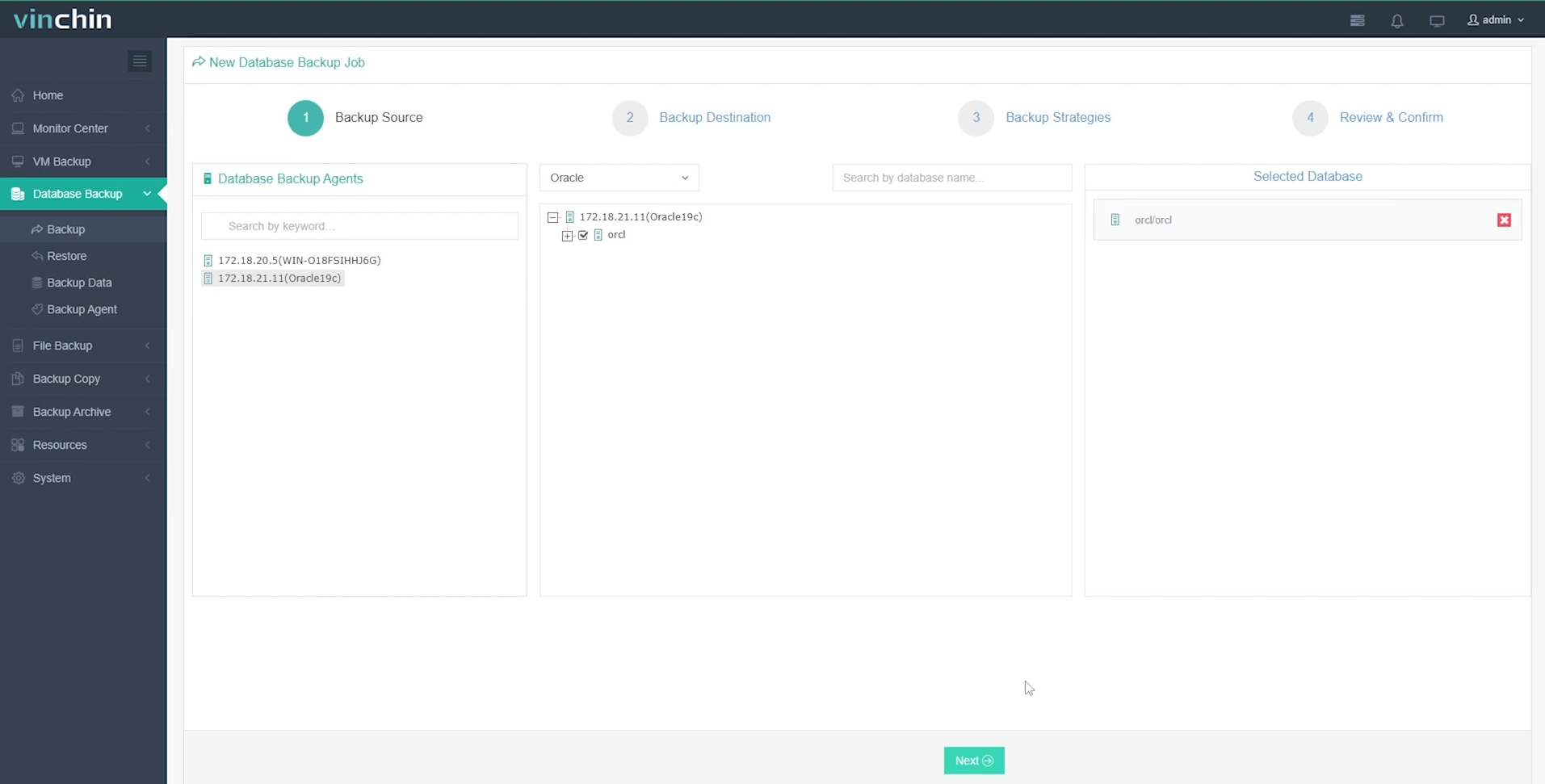
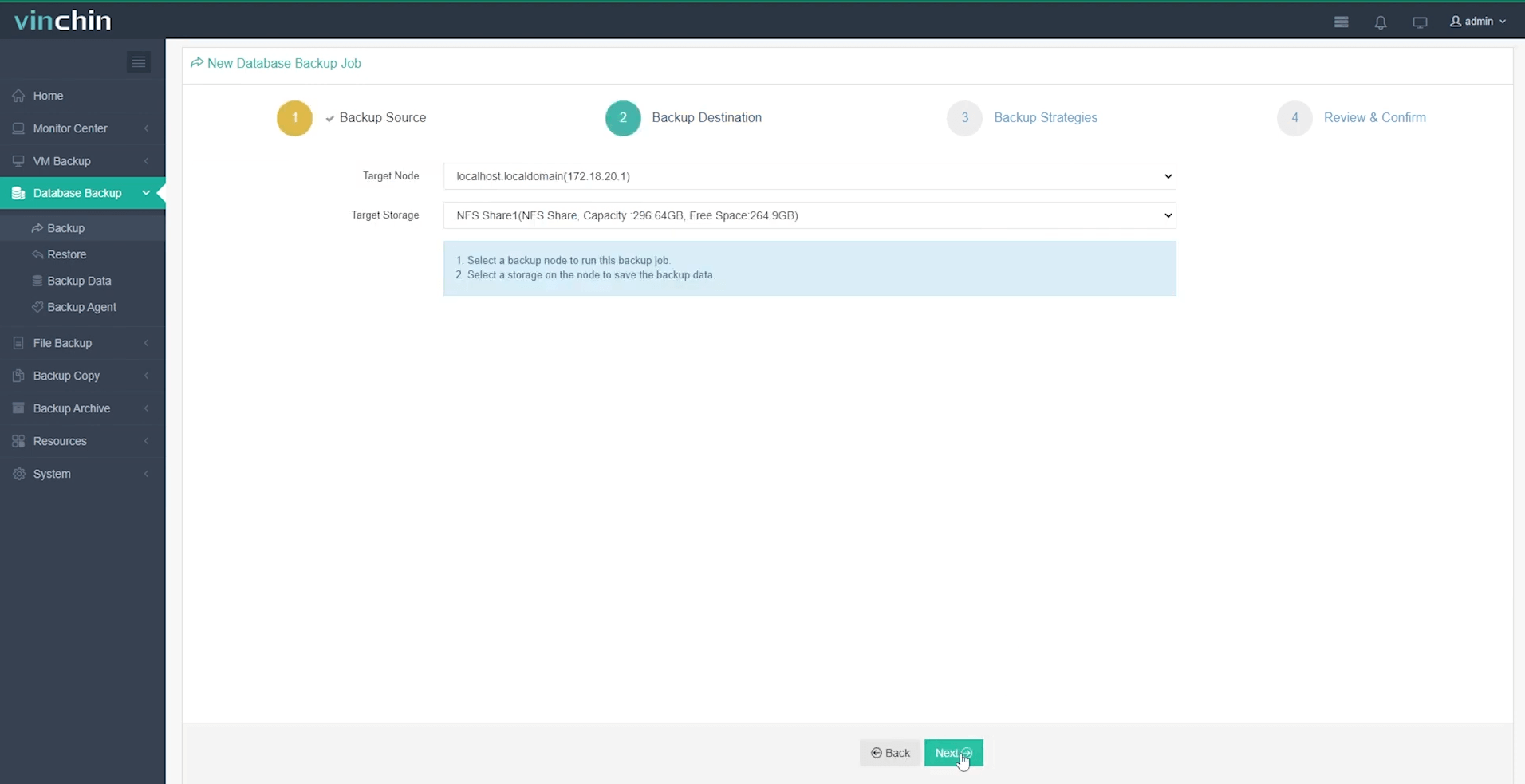
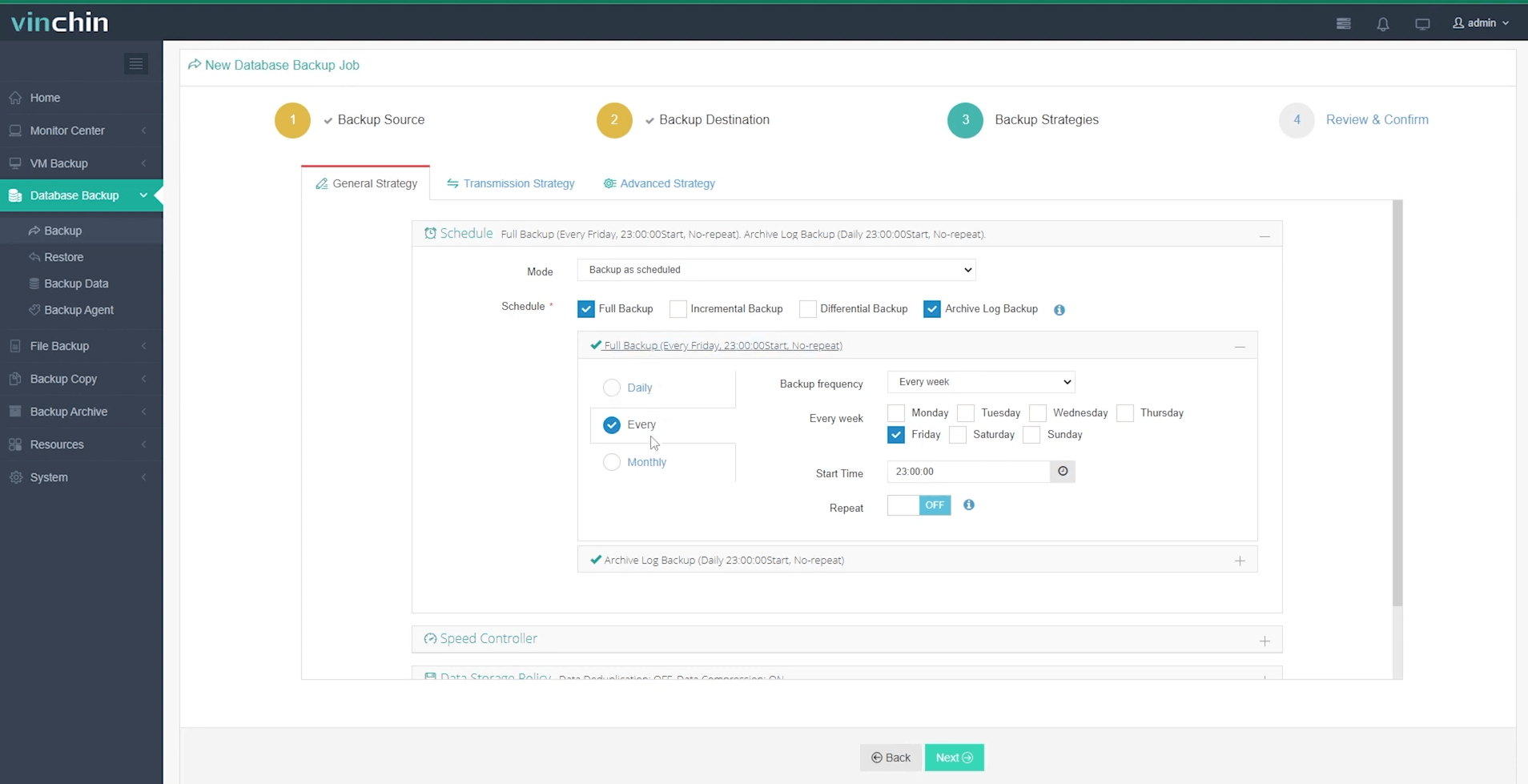
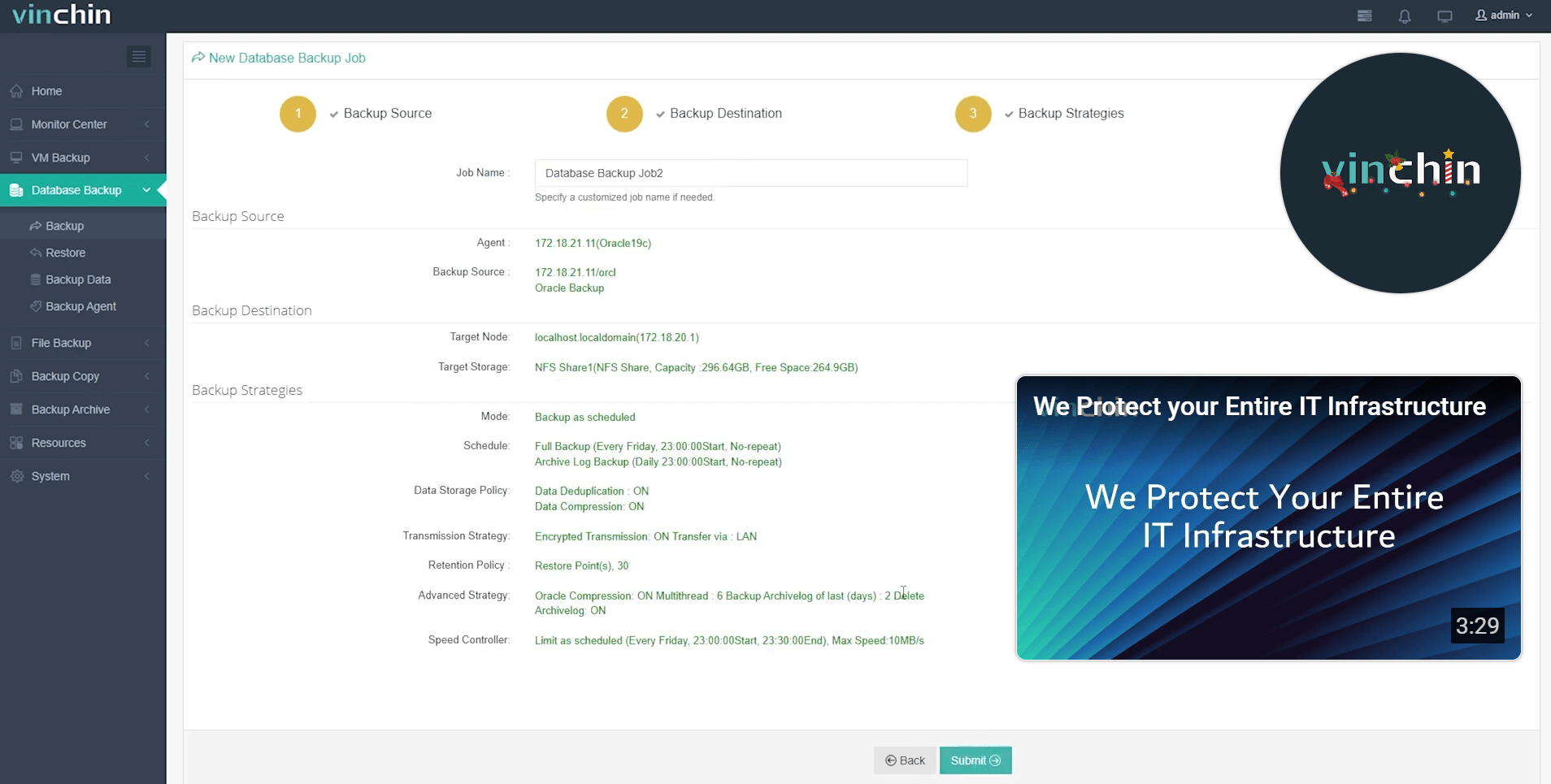
Vinchin Backup & Recovery stands out thanks to its intuitive web console that makes protecting an Oracle environment remarkably simple:
Step 1: Select the Oracle database to back up
Step 2: Choose your preferred backup storage
Step 3: Define a tailored backup strategy
Step 4: Submit the job
Recognized globally by thousands of enterprise users and consistently top-rated among data protection solutions worldwide—Vinchin Backup & Recovery offers a full-featured free trial valid for 60 days! Click below to get started today.
Duplicate Target Database for Standby FAQs
Q1: How long does it take to duplicate my target database for standby from an active source?
A1: Time depends mainly on total data size plus available network speed—for example: dividing total GBs by MBps gives rough duration estimate per hour transferred end-to-end.
Q2: Can I use these methods with clustered RAC databases?
A2: Yes—but extra cluster-specific steps are needed such as configuring shared storage access across nodes before starting duplication commands.
Q3: What should I do if my duplicated standby fails health checks right after creation?
A3: Review alert logs/check error messages then revalidate configuration parameters such as file paths/service names/network connectivity until issues resolve fully.
Conclusion
Duplicating a target database for standby from an active source keeps businesses resilient against outages while minimizing downtime risk. Whether you choose manual RMAN workflows or automated Data Guard setups—the process remains reliable once mastered. Vinchin makes protecting/migrating databases even easier—download our free trial today!







