User Case
"I had several VMs running in Proxmox VE and scheduled regular backups for protection. At first, everything worked well. But a few weeks later, the Proxmox Backup Server storage was full, and new backup jobs began to fail. I found many old backups from different VMs, but I was unsure which were safe to delete. Deleting backups in PBS also did not free space immediately. Any safe suggestions for cleanup?"
This kind of situation is common when backup files keep growing without proper cleanup rules. Too many backup images can consume storage space and make management difficult. Learning how to safely delete old Proxmox backups and optimize storage usage is critical.
How to Delete Old Proxmox Backups Safely?
This section covers two common scenarios for deleting old Proxmox backups: deleting backups directly in Proxmox VE or deleting backups stored in Proxmox Backup Server (PBS).
It also explains why storage space may not be released immediately after deleting backups in PBS.
Method 1: Delete Backups Directly in Proxmox VE
If your backup is stored on Proxmox VE storage, such as local storage, NFS, or CIFS, you can delete it directly from the Proxmox VE web interface via the steps below:
Step1: Log in to the Proxmox VE web interface and select the target storage.
Step2: Open the Backup content list and locate the old backup file.
Step3: Verify the VM ID and backup timestamp.
Step4: Select the backup file, click Delete or Remove, and confirm the operation.
Tip: For safety, always keep at least one valid restore point before deleting older backups. This gives you a fallback if the VM fails, data is lost, or you need to roll back after an update.
Method 2: Delete Backups in Proxmox Backup Server
PBS stores VM and CT backups as snapshots inside datastores, so the correct way to delete backups is through the PBS web interface.
Step1: Open the target datastore.
Step2: Go to the backup content list.
Step3: Select a single snapshot or an entire backup group.
Step4: Remove the backups you no longer need.
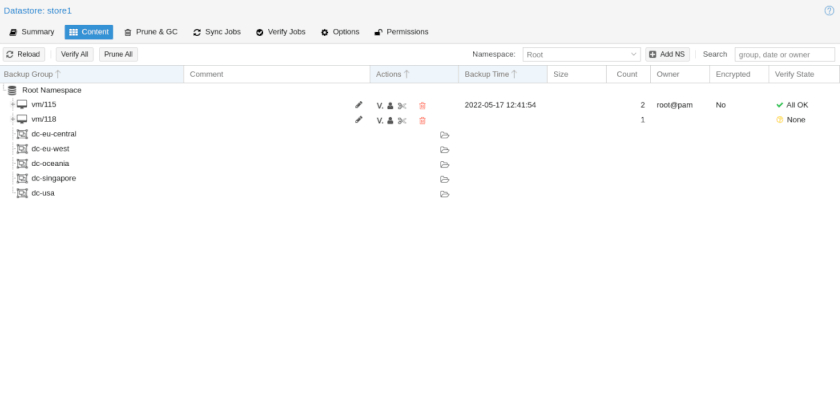
Tip: Proxmox Backup Server delete backups will not release space immediately, as it uses deduplication. To reclaim storage space, you need to:
Step1: Click the Prune & GC button at the top.
Step2: Find the Start Garbage Collection button and click it.
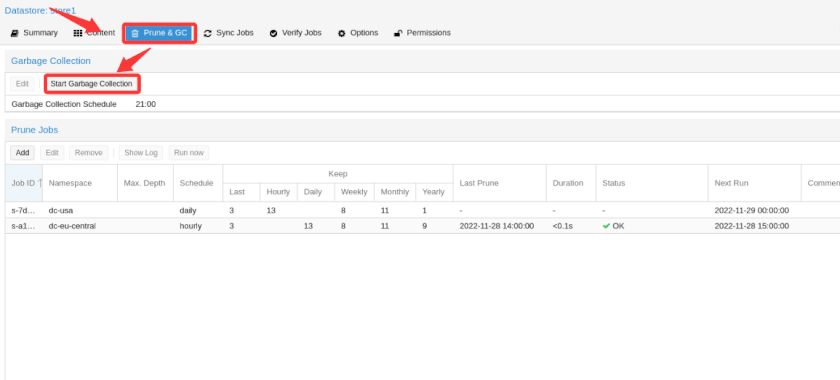
Tip: For a long-term fix, it is recommended to set a Proxmox backup retention policy instead of cleaning old backups manually each time. In PBS, create or edit a prune job for the datastore, then define rules such as how many recent, hourly, daily, weekly, or monthly backups to keep.
It also ensures that Proxmox auto deletes old backups and helps prevent the Proxmox Backup Server storage full issue from happening again.
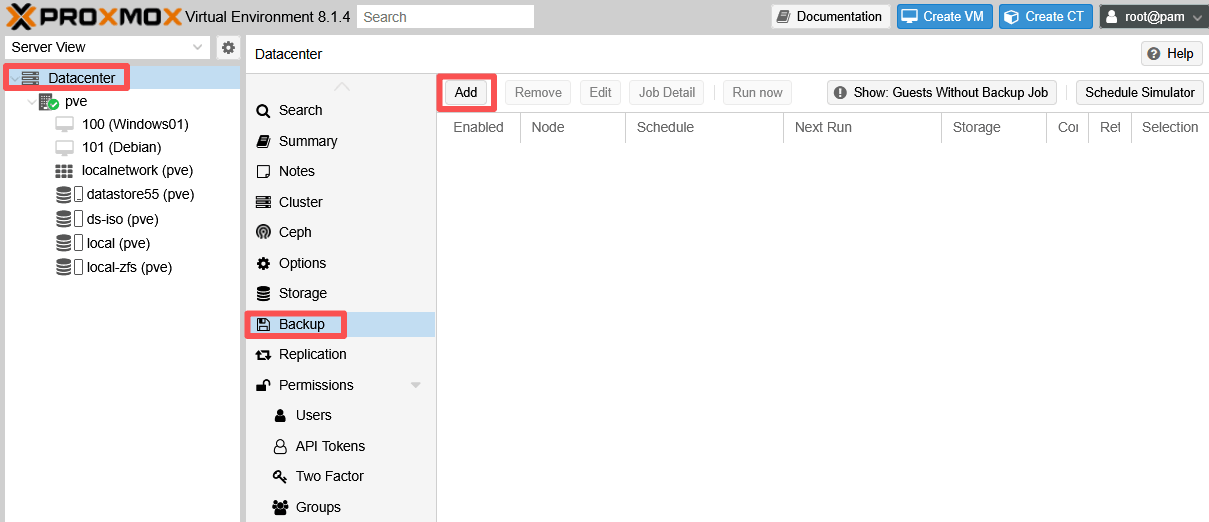
Step1: Open Proxmox VE, click Datacenter > Backup > Add
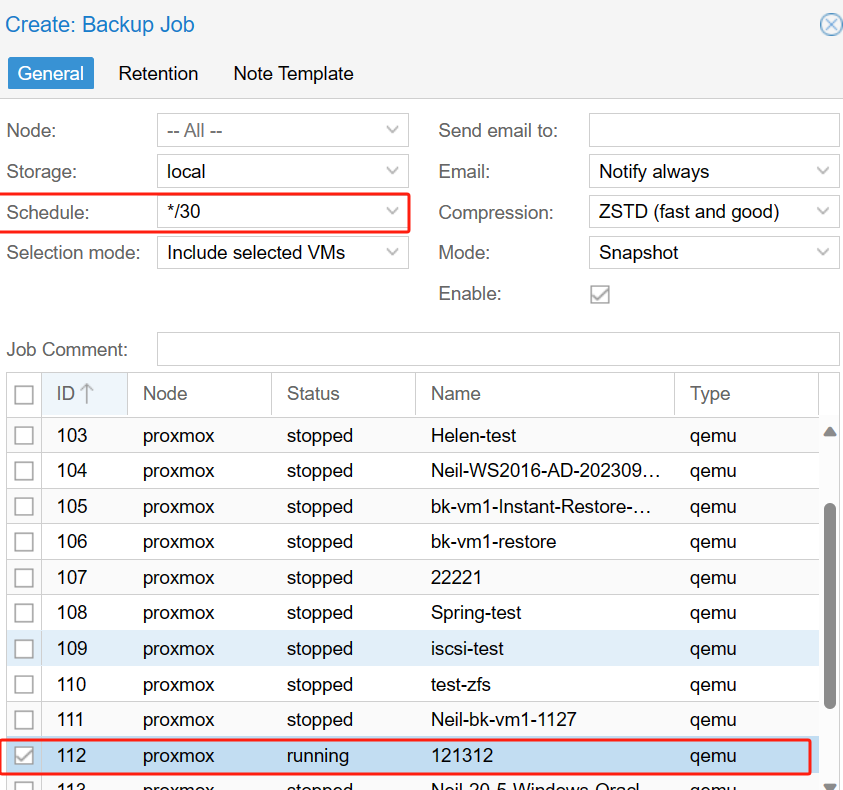
Step2: Select General option, choose the target VM and then choose Schedule.
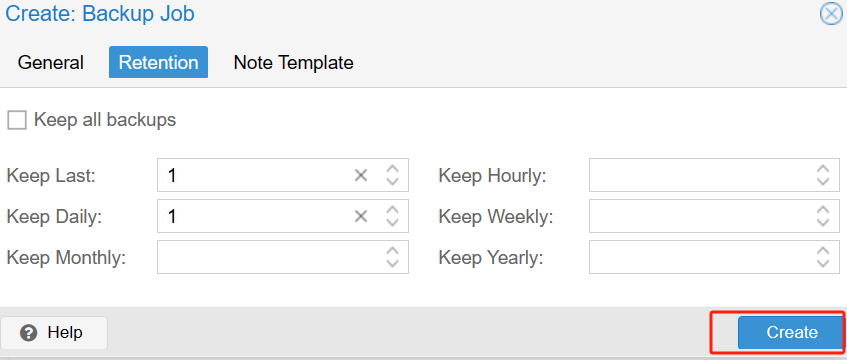
Step3: In Retention, configure backup retention and click Create button.
Manage Multi-platform VM Backups with Vinchin
If your environment only includes Proxmox workloads, Proxmox Backup Server (PBS) is sufficient for managing backups with its built-in prune jobs and retention settings. However, if you have different virtualization platforms, managing backups separately can become time-consuming.
Vinchin Backup & Recovery supports multiple virtualization platforms, including VMware, Hyper-V, Proxmox, and so on. It allows to centrally back up VMs across different virtualization platforms, manage backups from a single interface, and apply unified retention policies.
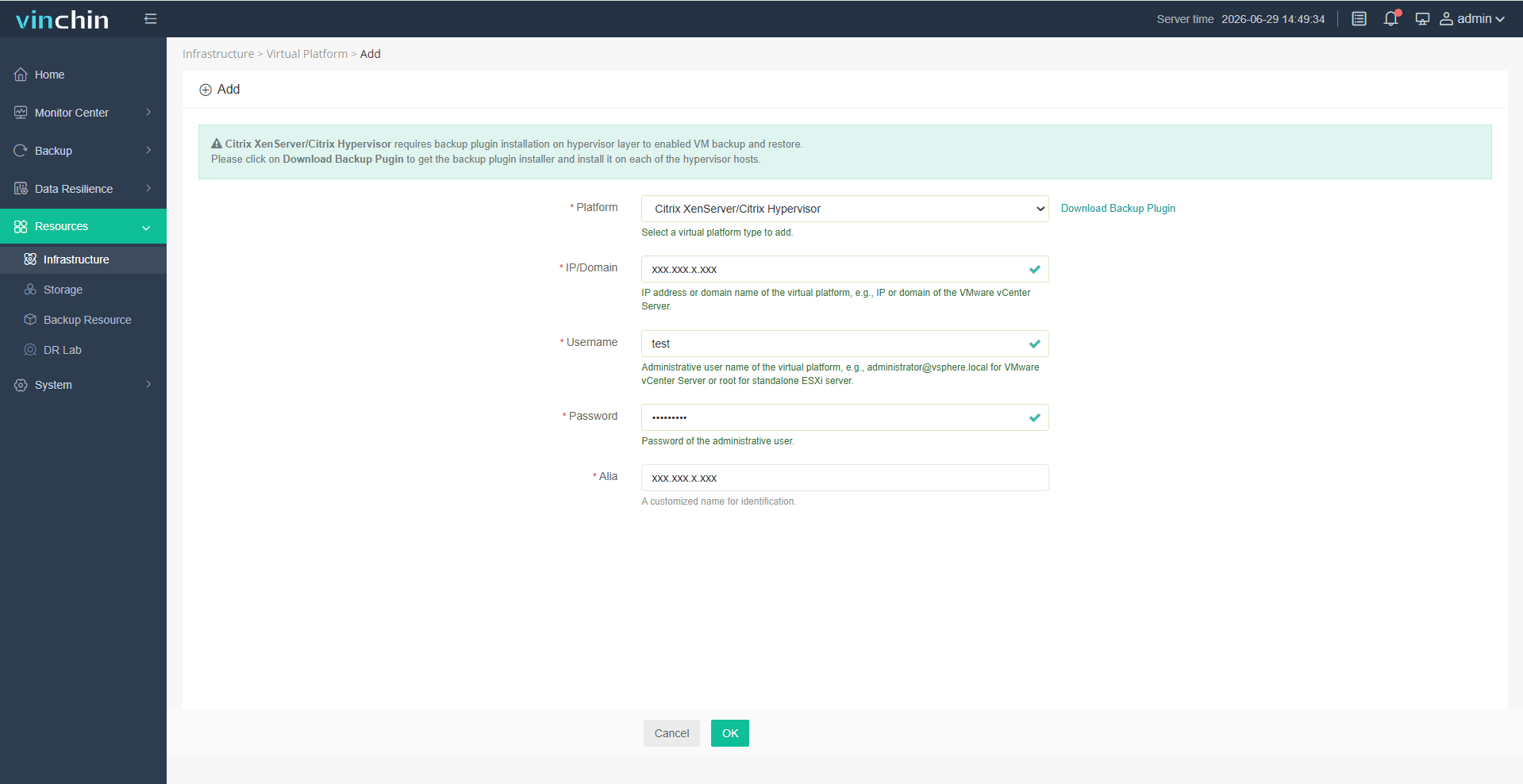
Step1: Click Resources > Infrastructure > Virtual Platform to add your VMs to Vinchin Backup & Recovery
Step2: Create backup tasks and configure the backup schedule and retention policy.

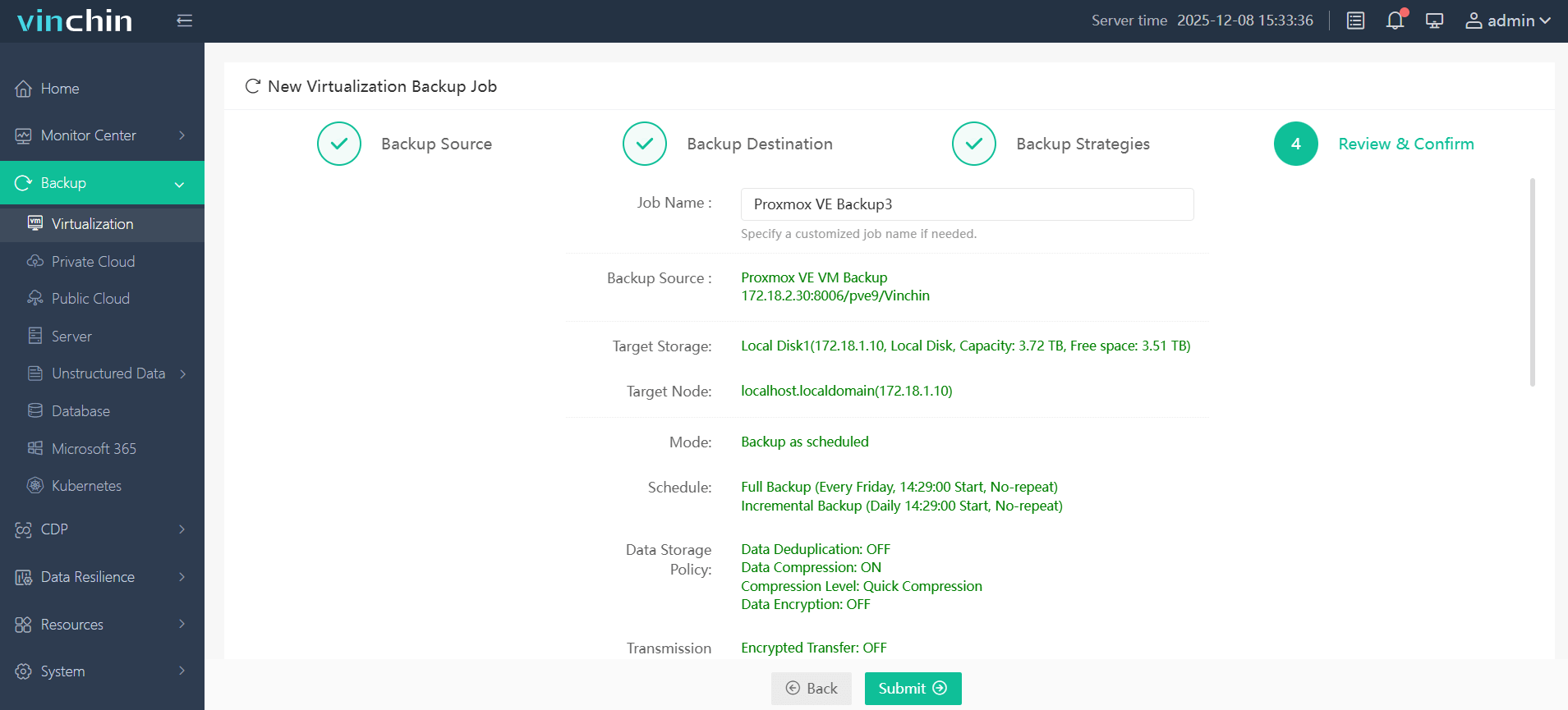
Step3: Review and confirm backup configuration.
Spending too much time managing backups across different virtualization platforms? Download the 60-day free trial of Vinchin Backup & Recovery to simplify your VM backup management now.
FAQs About Deleting Proxmox Backups
Q1: Can I delete backups while a backup job is running?
A1: No. Wait until the current backup job finishes before deleting old backups. Removing files during an active backup process can cause confusion, failed jobs, or incomplete backup sets.
Q2: Can I recover a Proxmox backup after deleting it?
A2: Usually, no. Once a backup is deleted and the related storage space is reclaimed, Proxmox does not provide a built-in undo option. If the backup is important, move it to another storage location before deleting it from the original datastore.
Q3: Can I move Proxmox backups instead of deleting them?
A3: Yes. If you want to keep older restore points without using primary backup storage, you can move or copy them to another storage location. This is useful for long-term archive backups or compliance needs.
Q4: What should I do if backup deletion fails?
A4: Check whether the backup is protected, locked, currently in use, or stored in a location with permission or connectivity problems. After fixing the issue, refresh the storage view and try the deletion again.
Sum Up
Deleting old Proxmox backups is a necessary part of backup storage management. For long-term management, a proper Proxmox backup retention policy is usually safer than deleting backups manually each time. It helps keep enough restore points while preventing backup storage from filling up.
If you manage backups across multiple virtualization platforms, a centralized backup solution can also help simplify backup scheduling, retention, and cleanup.