Introduction
Every IT administrator knows that backups are essential. If you run Proxmox Virtual Environment (Proxmox VE), you need a reliable way to protect your virtual machines. Proxmox Backup Server (PBS) is the official backup solution designed for this purpose. In this guide, I’ll walk you through a complete Proxmox backup server setup step by step—using both the web interface and the command line—so your data stays safe no matter what happens.
What Is Proxmox Backup Server?
Proxmox Backup Server is an open-source backup solution built specifically for virtual environments like Proxmox VE. It offers enterprise-class features such as deduplication, strong encryption, incremental backups, compression, and a user-friendly web interface. PBS can run on bare-metal hardware or as a virtual machine itself. Its design focuses on handling large volumes of data efficiently while keeping management simple.
Why Set Up a Proxmox Backup Server?
Without regular backups, one hardware failure or ransomware attack could wipe out your entire infrastructure overnight. Setting up PBS gives you fast restores when disaster strikes—and saves storage space by only storing unique data blocks through deduplication technology. Incremental backups mean only changes get saved after the first full backup; this reduces network load and speeds up job completion times.
Encryption keeps sensitive business data safe from unauthorized access—even if someone steals your disks! Because PBS integrates tightly with Proxmox VE clusters, managing schedules or retention policies becomes seamless within familiar interfaces. Isn’t peace of mind worth investing some time upfront?
How to Set Up Proxmox Backup Server via Web Interface
Setting up PBS with its web interface is straightforward—even if you’re new to virtualization platforms like Proxmox VE.
First download the latest ISO image from the official site. Use Rufus or Etcher to create a bootable USB drive from this ISO file.
Boot your target server from USB media then select Install Proxmox Backup Server (Graphical) at startup prompt.
The installer guides you through several screens:
1. End User License Agreement: Read carefully then click I agree.
2. Target Hard Disk: Choose which disk gets wiped clean for installation; click Next.
3. Location & Time Zone: Select country/time zone/keyboard layout.
4. Password & Email: Enter strong password for root user plus valid email address (for alerts).
5. Network Configuration: Pick network card/interface; set static IP address if possible.
6. Summary: Review all settings before clicking Install.
After installation finishes and system reboots, note down management URL shown onscreen—usually https://your-server-ip:8007. Open this address in your browser; log in as root using password set earlier.
You may see a warning about missing subscription updates after login—don’t worry! Go to Administration, then choose Repositories tab inside web UI sidebar menu:
Select repository labeled “pbs-enterprise” then click Disable
Click Add, pick “No-Subscription,” confirm by clicking Add again
This enables free updates without needing paid support contract.
Now update system packages:
Preparing Storage Disks
Proper storage preparation ensures smooth operation of your backup server setup:
Go to Storage / Disks, select an unused disk not holding OS files.
Click on "Initialize Disk with GPT" so it’s ready for partitioning.
Next click "Create Filesystem" (choose ext4 or xfs); let PBS format disk automatically.
Once formatting completes successfully,
mount point appears under /mnt/datastore (or similar path).
Switch now to "Datastore" tab;
click "Create Datastore"
Enter name (“backup” or another label) plus correct mount path (/mnt/datastore).
Confirm creation—the new datastore now appears in list!
Creating Users & Assigning Permissions
For better security,
create dedicated backup users instead of relying solely on root credentials:
Go into "Configuration > Access Control > User Management Tab"
Click "Add User"
Enter username (“backup”), set password,
ensure realm remains at default (“pbs”) so final username reads backup@pbs
Click Add again
Assign permissions:
Select newly created datastore,
open its "Permissions Tab,"
click "Add > User Permission, "
select user (backup@pbs),
assign role (DatastoreAdmin) depending on needs,
then save changes
Connecting PBS Storage in Your Cluster
In main Proxmox VE cluster interface:
Navigate to "Datacenter > Storage, "
click "Add, "
choose option labeled "Proxmox Backup Server."
Fill fields as follows:
ID: Any descriptive name
Server: IP address of PBS host
Username: backup@pbs (or root@pam)
Password: Password chosen above
Datastore: Name assigned during creation
Fingerprint: Copy value from PBS Dashboard (Show Fingerprint) field
Optionally enable encryption under Encryption tab;
download/save key securely offline!
Scheduling Backups & Retention Policies
To automate protection routines:
Go back into main cluster dashboard,
navigate via sidebar menu:
“Datacenter > Backup”
Click Add;
select newly added PBS storage;
set schedule (“daily at 02:00” etc.);
pick VMs needing protection;
adjust retention policy under Retention tab if desired
Want tidy storage? In PBS UI,
select datastore,
go into "Prune & GC Jobs,"
add prune job specifying how many recent/daily/weekly/monthly backups should remain.
For extra safety schedule verification jobs too ("Verify Jobs" tab).
How to Set Up Proxmox Backup Server via Command Line
Some admins prefer automation—or must work headless without GUI access.
Here’s how you perform proxmox backup server setup entirely via CLI:
Start with fresh Debian Bookworm install on target hardware/server VM.
Update repository sources per official guide:
wget https://download.proxmox.com/debian/proxmox-release-bookworm.gpg -O /etc/apt/trusted.gpg.d/proxmox-release-bookworm.gpg
echo "deb https://download.proxmox.com/debian/pbs bookworm pbs-no-subscription" > /etc/apt/sources.list.d/pbs.list
apt update && apt install proxmox-backup-server
Prepare local storage directory:
mkdir /mnt/datastore
chown backup /mnt/datastore # Ensure correct permissions if running non-root jobs later
Create datastore entry:
proxmox-backup-manager datastore create main /mnt/datastore
Set up dedicated user account:
proxmox-backup-manager user create backup@pbs --password 'yourpassword'
Grant necessary permissions:
proxmox-backup-manager acl update /datastore/main DatastoreAdmin --auth-id 'backup@pbs'
Find certificate fingerprint needed by cluster nodes:
proxmox-backup-manager cert info | grep Fingerprint
On each node in your cluster add remote storage reference:
pvesm add pbs pbs-backup --server 192.168.x.x --username 'backup@pbs' --password 'yourpassword' --datastore main --fingerprint 'XX:XX...'
Automate pruning old snapshots using updated syntax (--datastore, not --store):
proxmox-backup-manager prune-job create daily-prune --datastore main --schedule "daily 21:30" --keep-last 3 --keep-daily 7 --keep-weekly 4 --keep-monthly 2
Schedule verification checks regularly too:
proxmox-backup-manager verify-job create verify-main --datastore main --schedule "daily 01:00" --ignore-verified true --outdated-after 30
This approach works well when scripting deployments across multiple hosts or integrating with config management tools.
Troubleshooting Common Setup Pitfalls
Even experienced admins can hit snags during their first proxmox backup server setup attempt—here’s how to avoid common issues:
If browsers warn about self-signed certificates when accessing the web UI,
either import trusted CA-signed certs into PBS or manually trust fingerprints inside browser settings—and always copy exact fingerprint into cluster node config dialogs!
If datastores disappear after reboot,
check that mount points persist correctly by adding them explicitly in /etc/fstab.
Otherwise scheduled jobs may fail silently due to missing paths!
Remember firewall rules:
Open TCP port 8007 between all nodes/PBS host(s) so both GUI/admin traffic AND client connections succeed;
also consider opening port 8088 if planning file-level restores remotely.
Enterprise-Level Protection for Your Proxmox VMs With Vinchin Backup & Recovery
For organizations seeking advanced capabilities beyond native tools, Vinchin Backup & Recovery delivers professional-grade virtual machine protection across more than fifteen mainstream virtualization platforms—including prioritized support for Proxmox VE alongside VMware, Hyper-V, oVirt, OLVM, RHV, XCP-ng, XenServer, OpenStack, ZStack and others. On supported environments such as Proxmox VE, Vinchin Backup & Recovery provides robust features including forever-incremental backup strategies, high-efficiency deduplication and compression algorithms, granular restore options for precise recovery tasks, secure V2V migration between platforms, and comprehensive storage protection against ransomware threats—all designed to enhance reliability and operational efficiency while minimizing resource consumption.
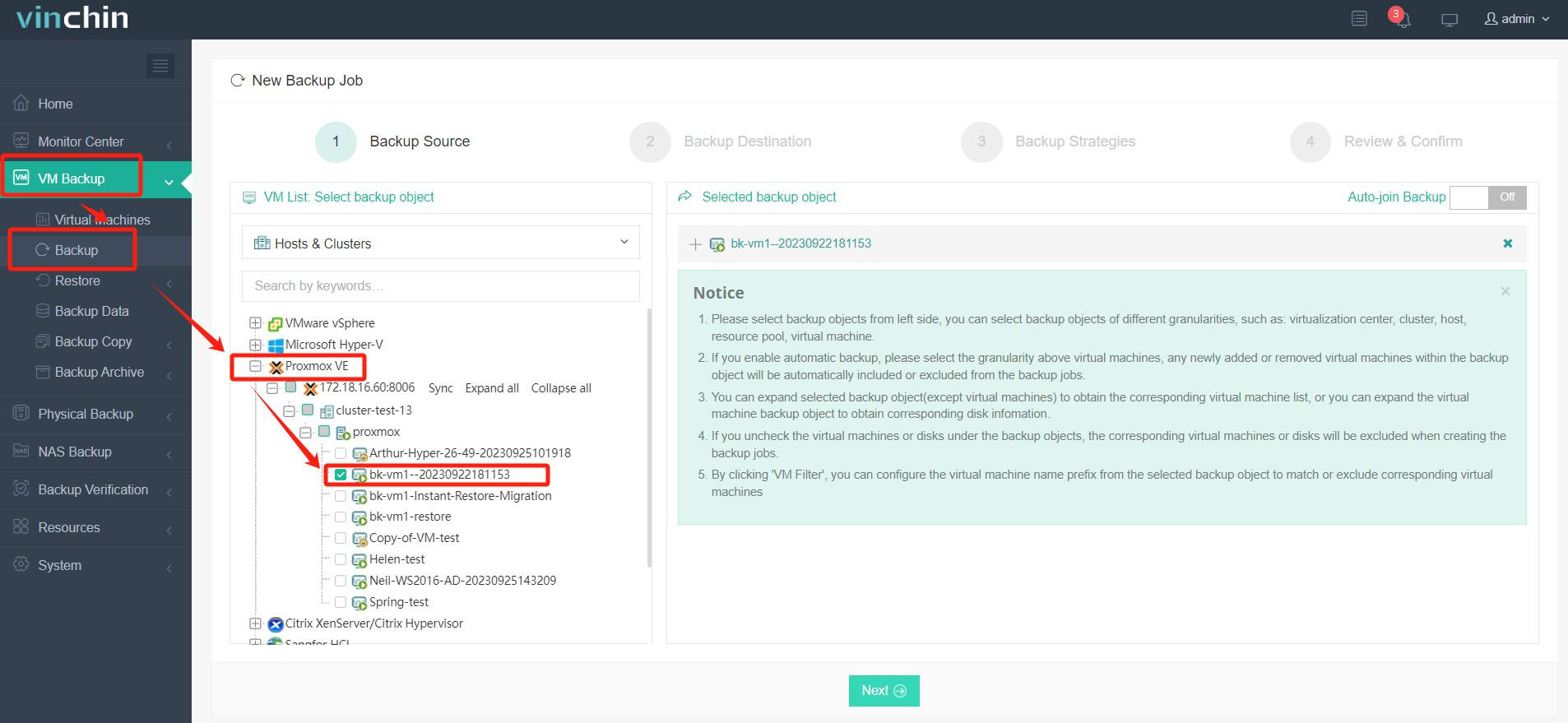
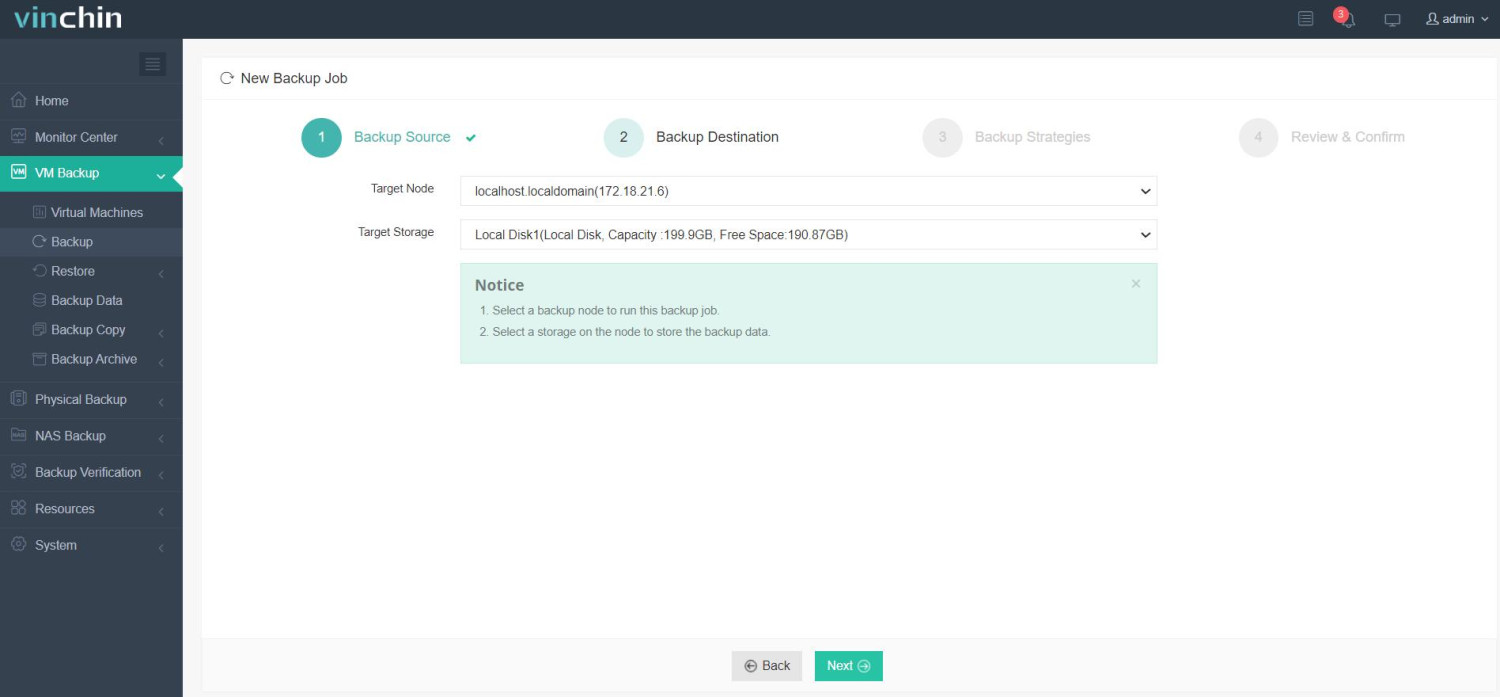
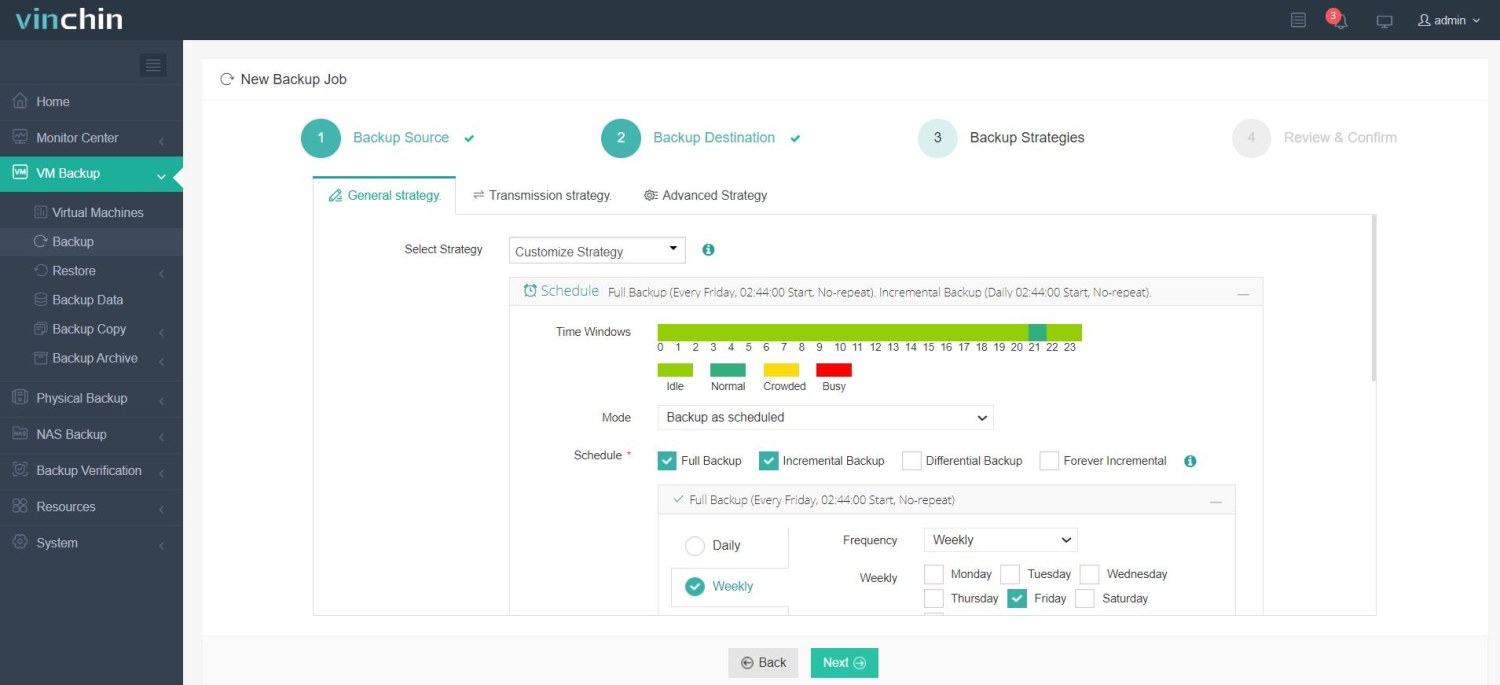
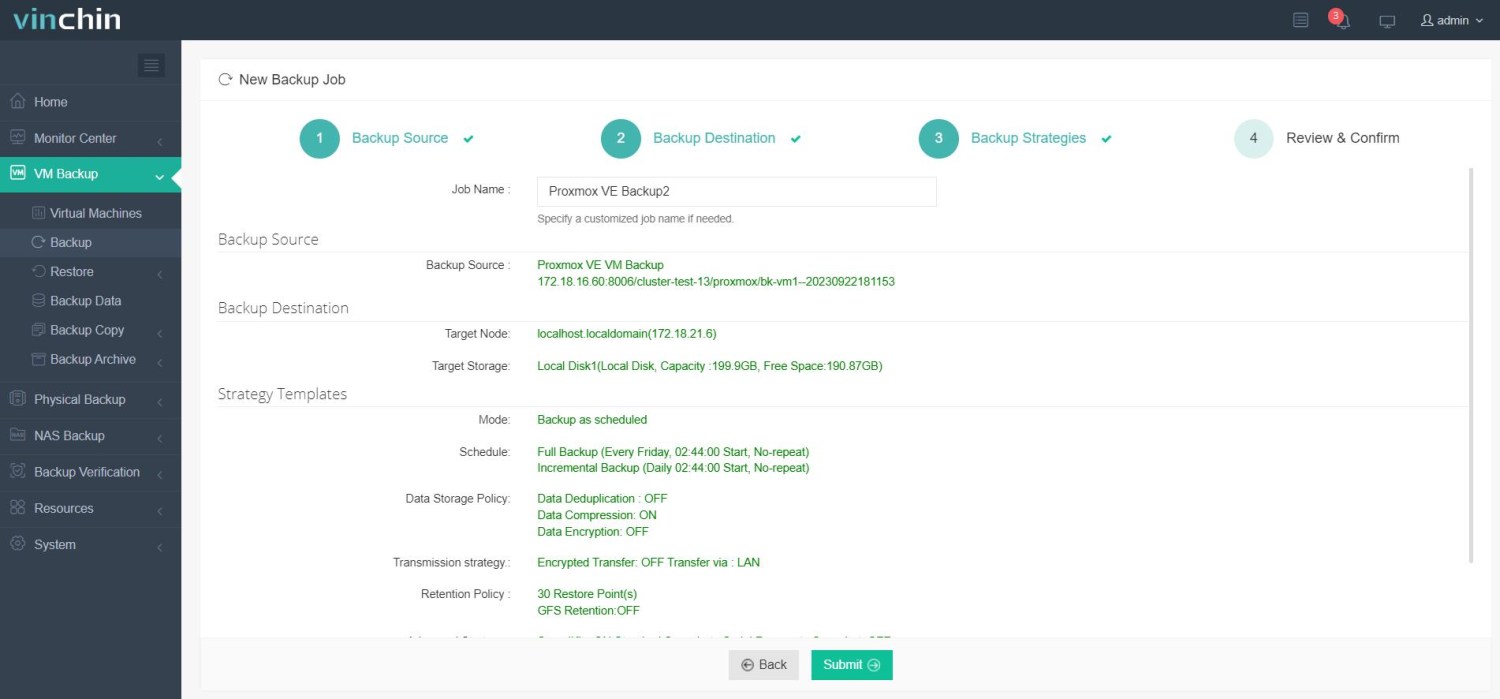
The intuitive Vinchin Backup & Recovery web console streamlines every stage of VM protection into four clear steps:
Step 1. Select the Proxmox VM you want to back up
Step 2. Choose your preferred backup storage
Step 3. Configure an appropriate backup strategy
Step 4. Submit the job
Recognized globally among enterprise customers for reliability and innovation—with top ratings worldwide—Vinchin Backup & Recovery offers a fully featured 60-day free trial so you can experience its power firsthand; simply click below to get started today.
Proxmox Backup Server Setup FAQs
Q1: How do I restorea single file from a VM backup in PBS?
A1: In the PBS web UI, select the backup snapshot, open the Restore menu drop down, choose File-level restore, browse to the file you want, and click Download.
Q2: Can I use the same disk for both PBS OS and backup storage?
A2: Possible but not recommended; use a separate disk for backup to avoid loss of data if OS fails.
Q3: How do I change the owner of a backup point if I get "backup owner check failed" error?
A3: In the PBS web UI, select the data store, go to Content tab, pick the backup group, click the user icon, and set owner to your desired user.
Conclusion
Setting up a proper proxmox backup server setup protects critical VMs against disaster. For even more advanced features across platforms consider Vinchin - trusted globally. Start securingyourvirtualenvironmenttoday!